AI Slide & Document Creation

Just enter text or upload a file.
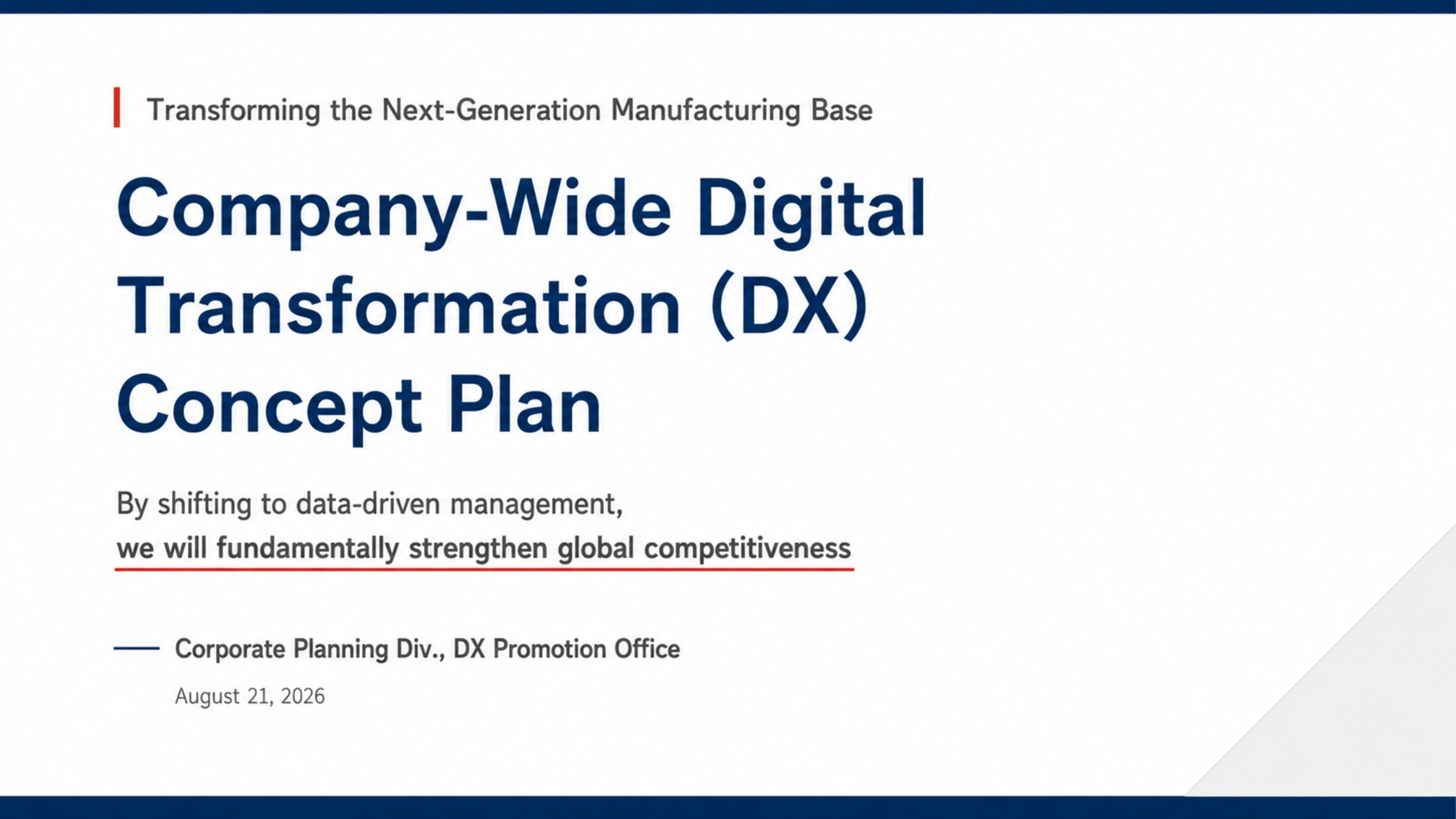
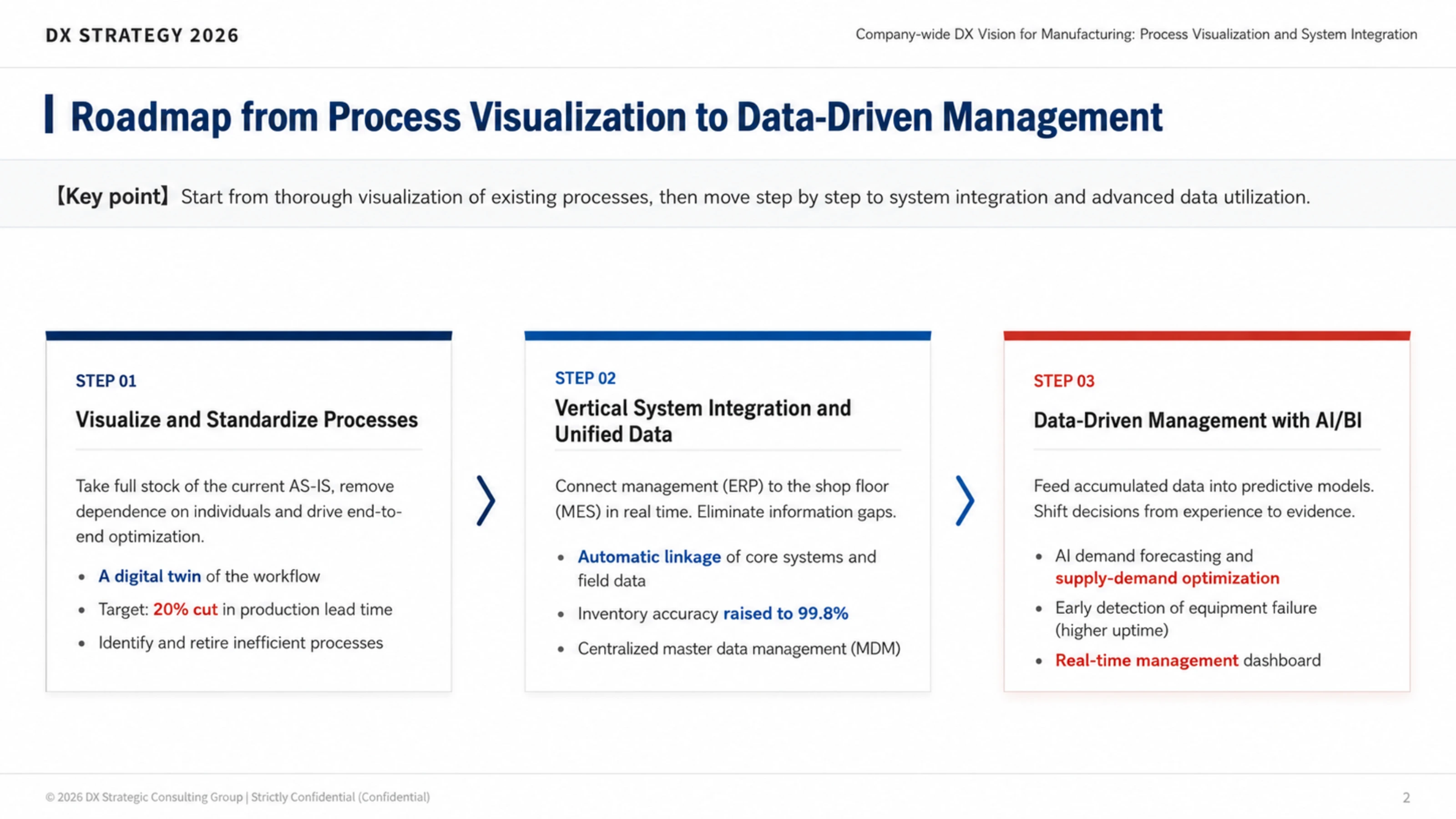
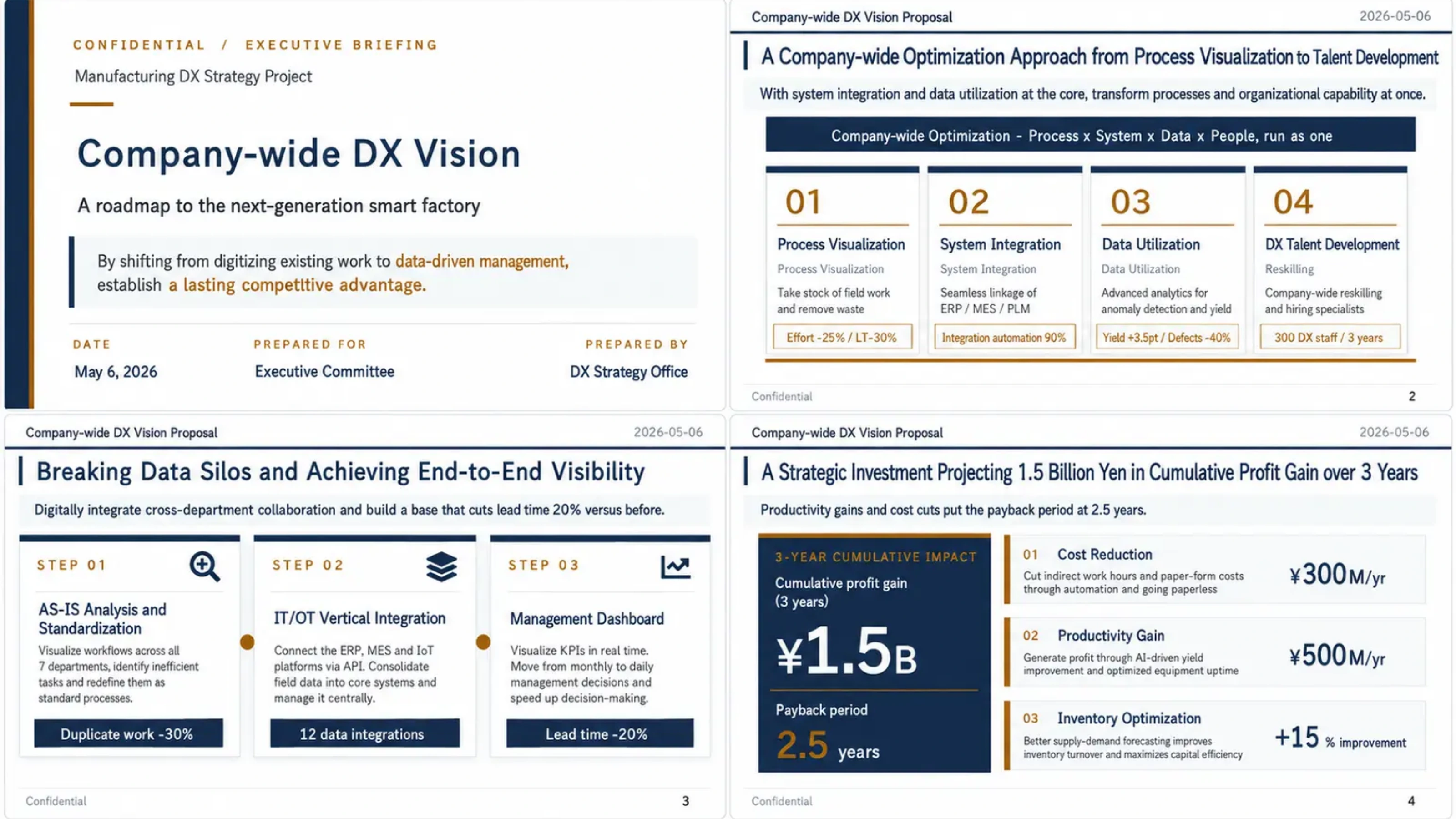
AI automatically creates a deck complete with structure, copy, and design.

Slides you create can also be converted into videos with narration.

The work of creating slides, all handled by AI

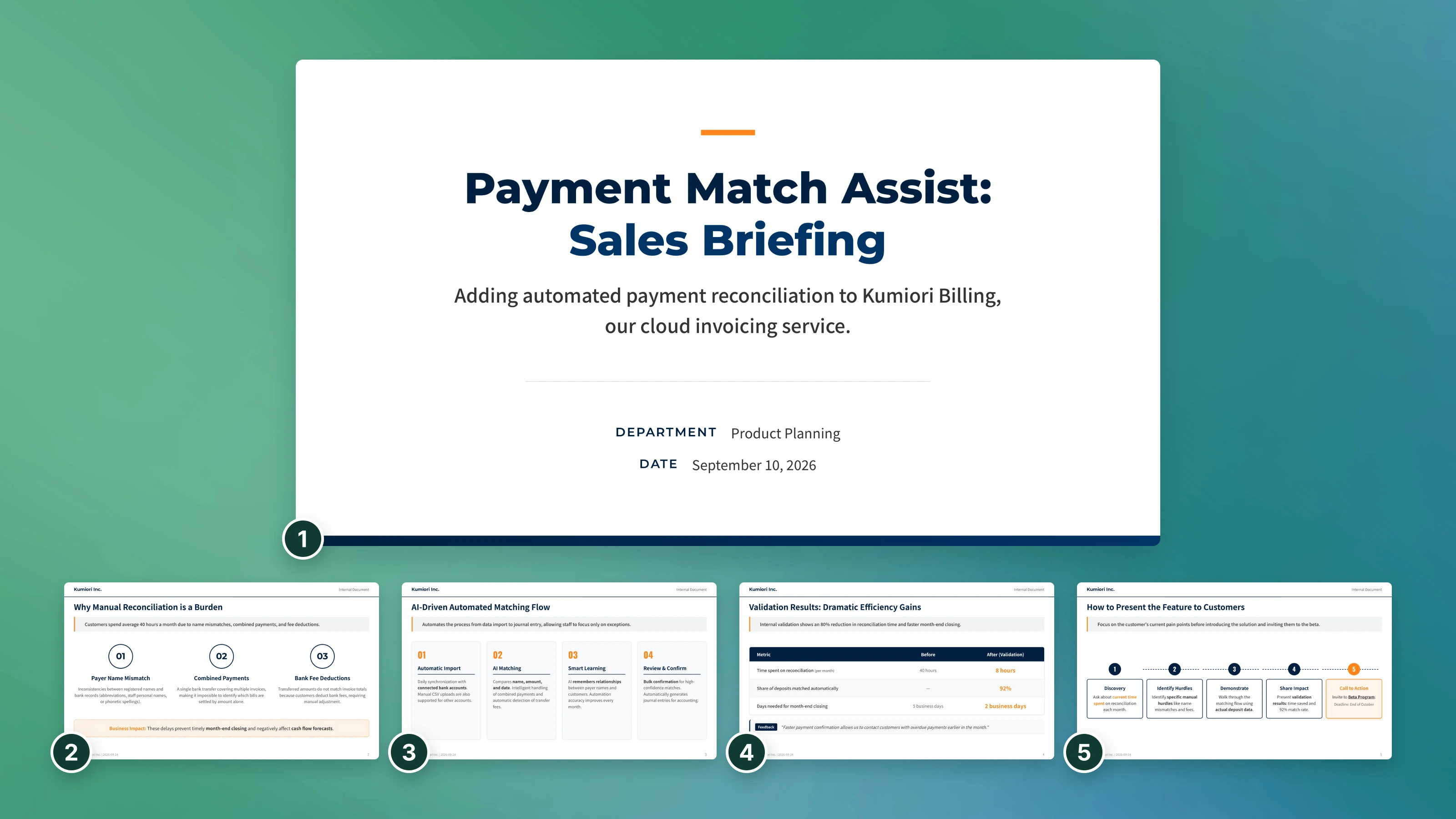
Our AI slide generator automates every step of creating slides from a single instruction.
1

Structure, Writing, and Design, All Generated at Once

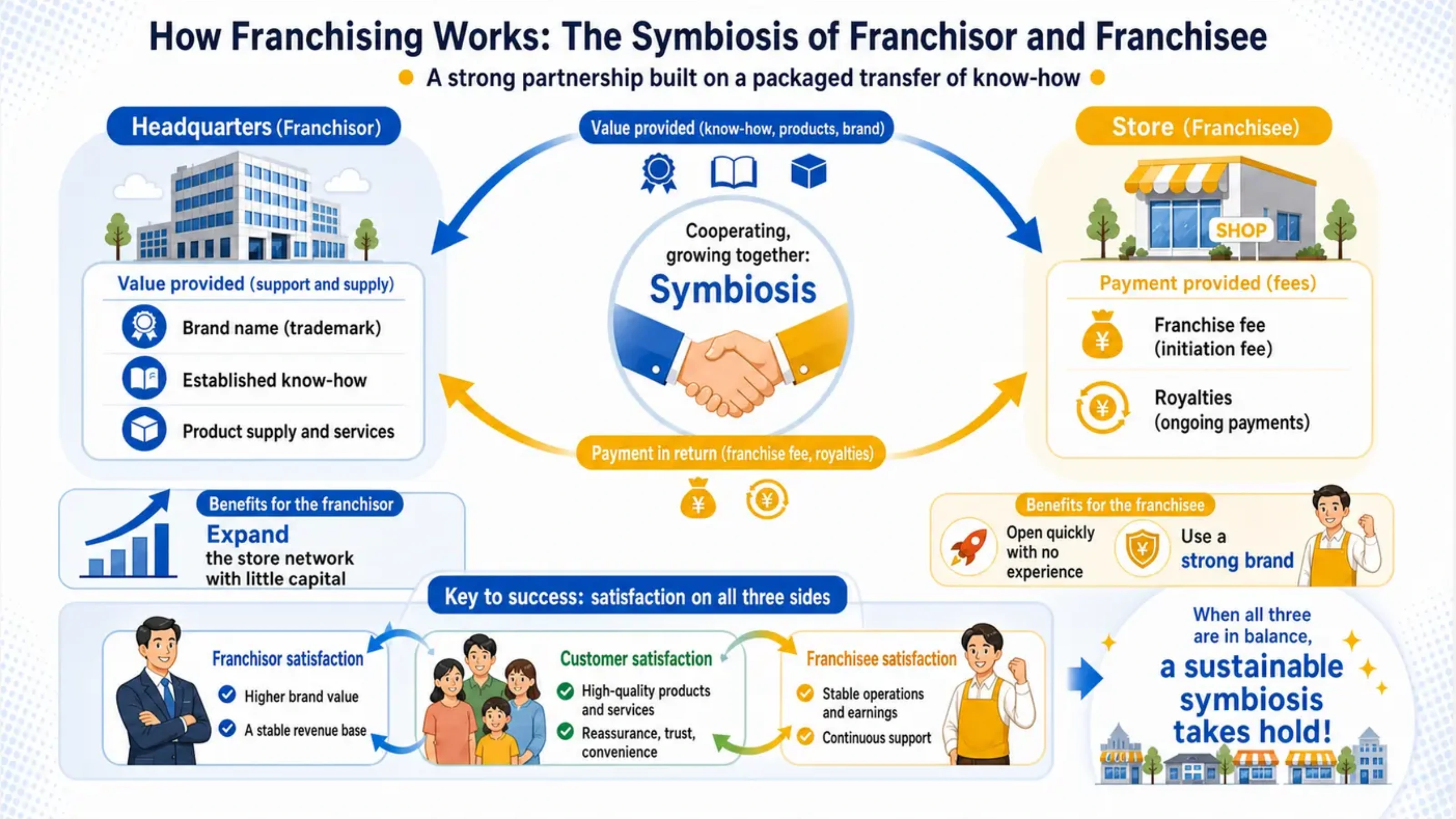
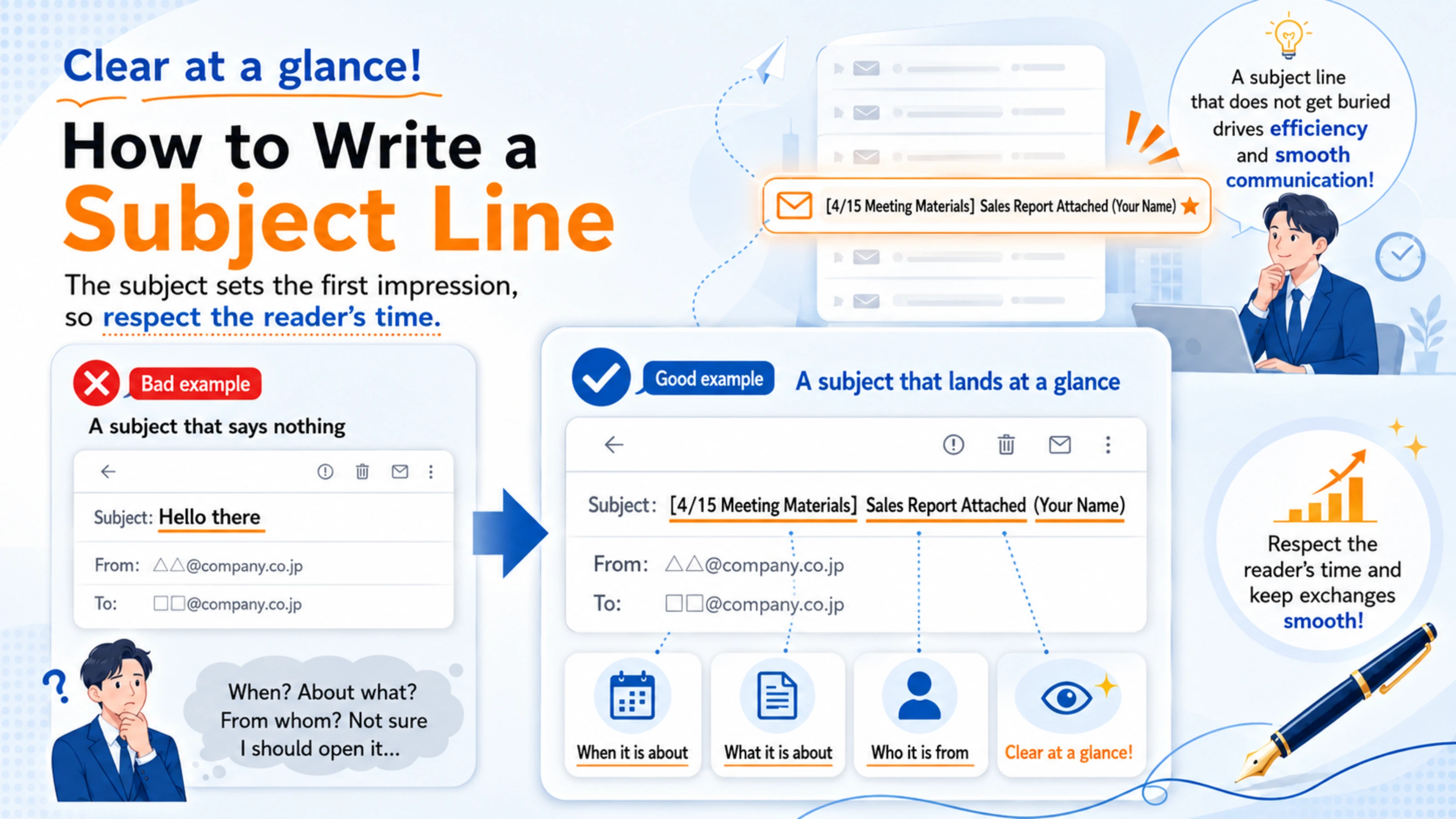
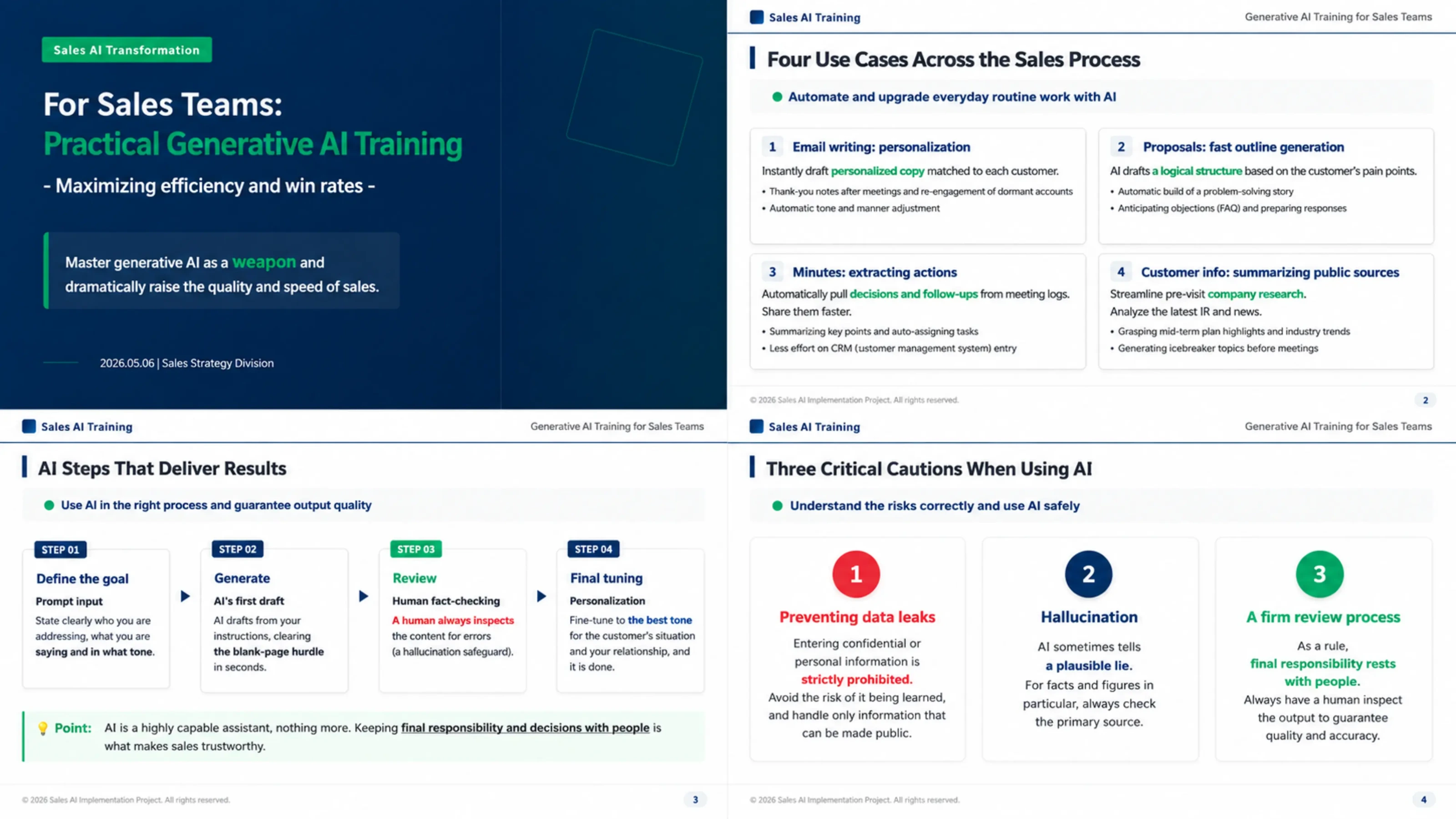
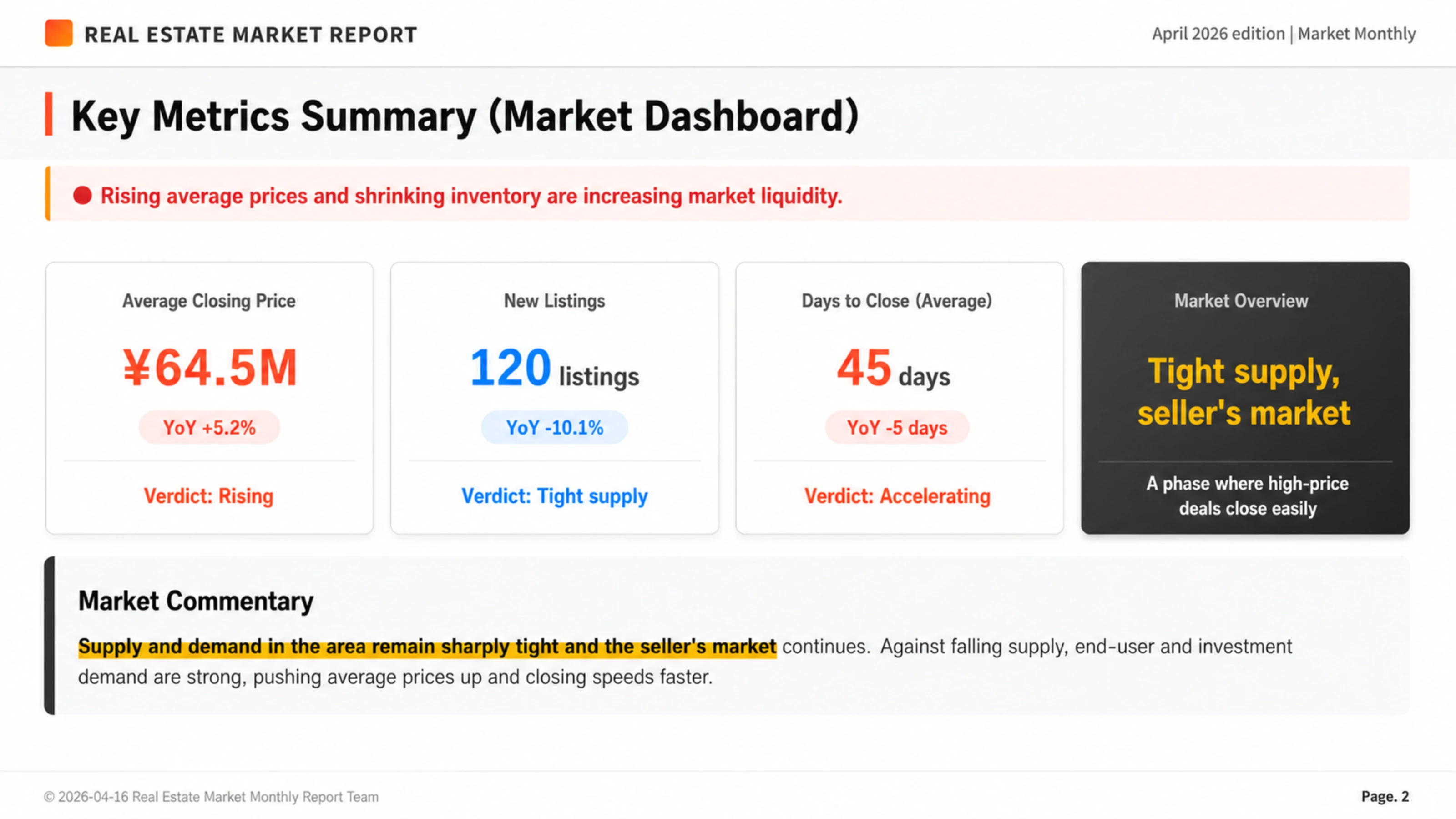
Based on what you enter, NoLang automatically generates everything from the page structure to the text, colors, and layout of each page. You can choose a slide ratio of 16:9, 4:5, or 9:16 to match your purpose.

Try Creating Slides
2

Inherit Styles from a Template

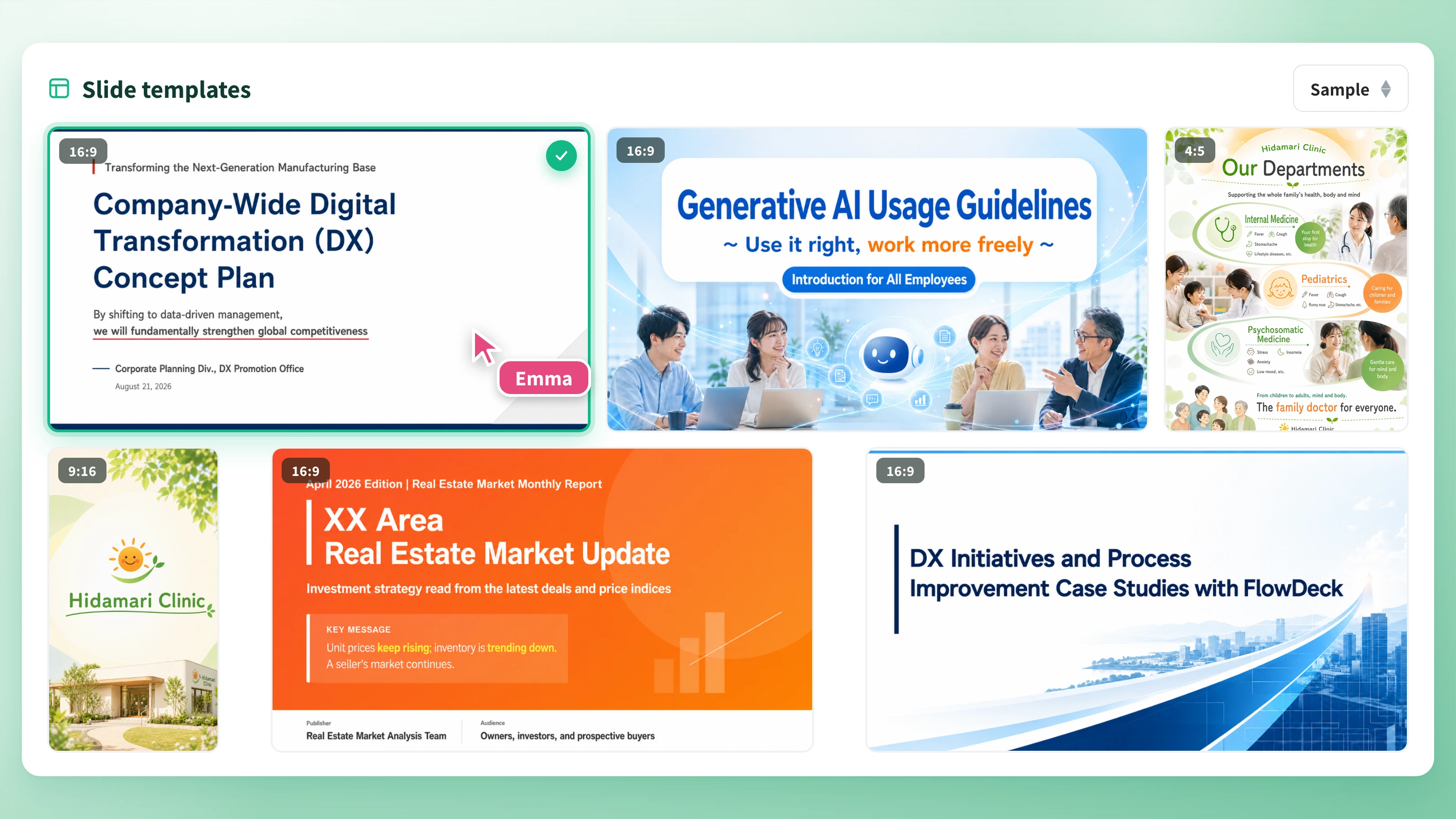
Slide template gallery (switching between samples and my slides)

Pick a sample from "Slide templates" and NoLang generates slides that inherit that design. You can use not only the samples but also slides you have made yourself as templates, which is ideal when you want a consistent look across a department or a project.

Try Creating Slides
3

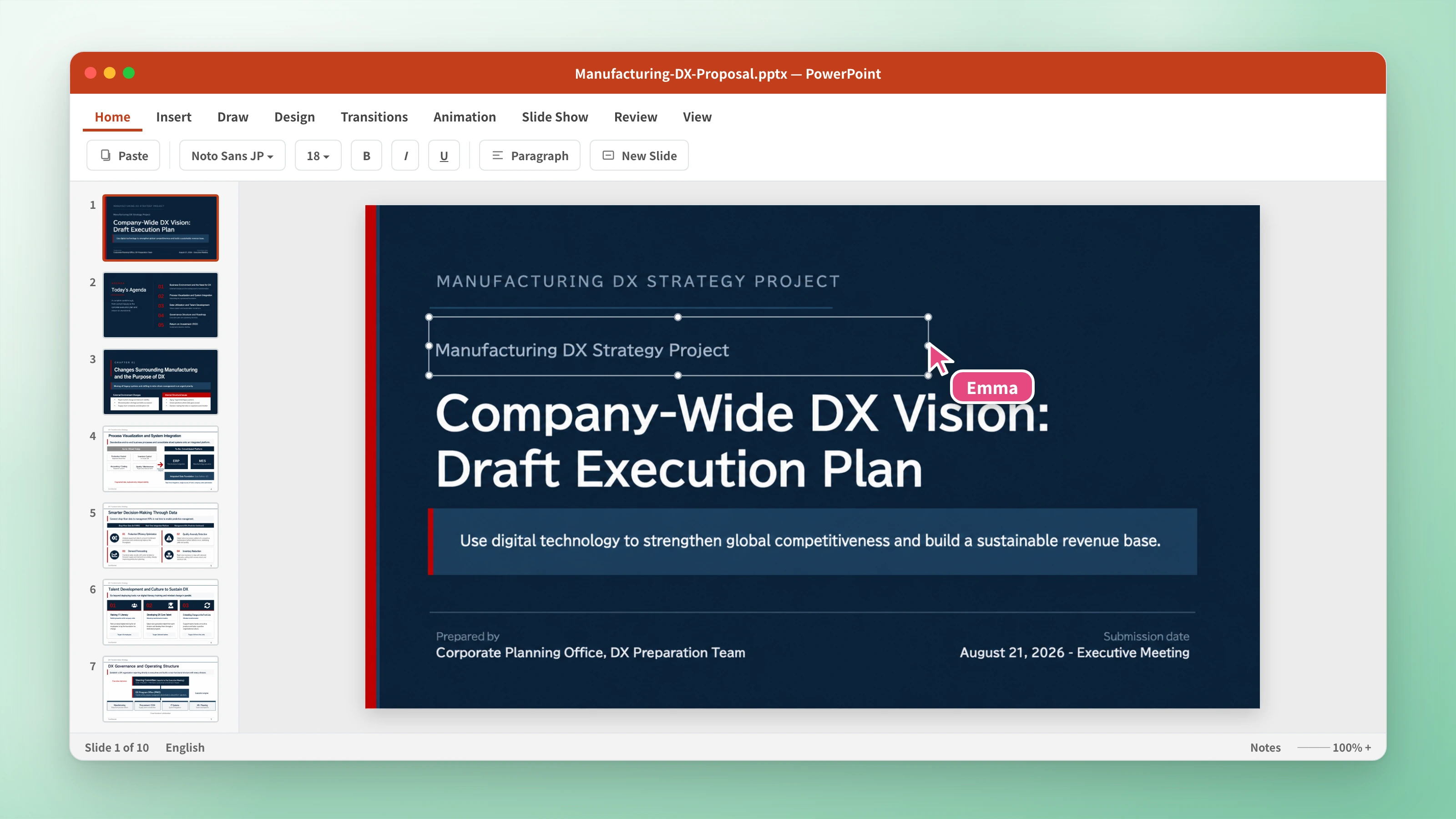
Export as PPTX and Finish Up in PowerPoint

Exported PPTX file open in PowerPoint

You can export the slides you create in PowerPoint format (PPTX). Open them in the PowerPoint you already know and keep making detailed edits, such as adjusting wording or applying your in-house format.

Try Creating Slides
4

Fast Mode Finishes Generating in About 30 Seconds

Create your slides in Fast mode and they are ready in about 30 seconds. Even a rush job is no problem with NoLang slide generation.

Try Creating Slides
5

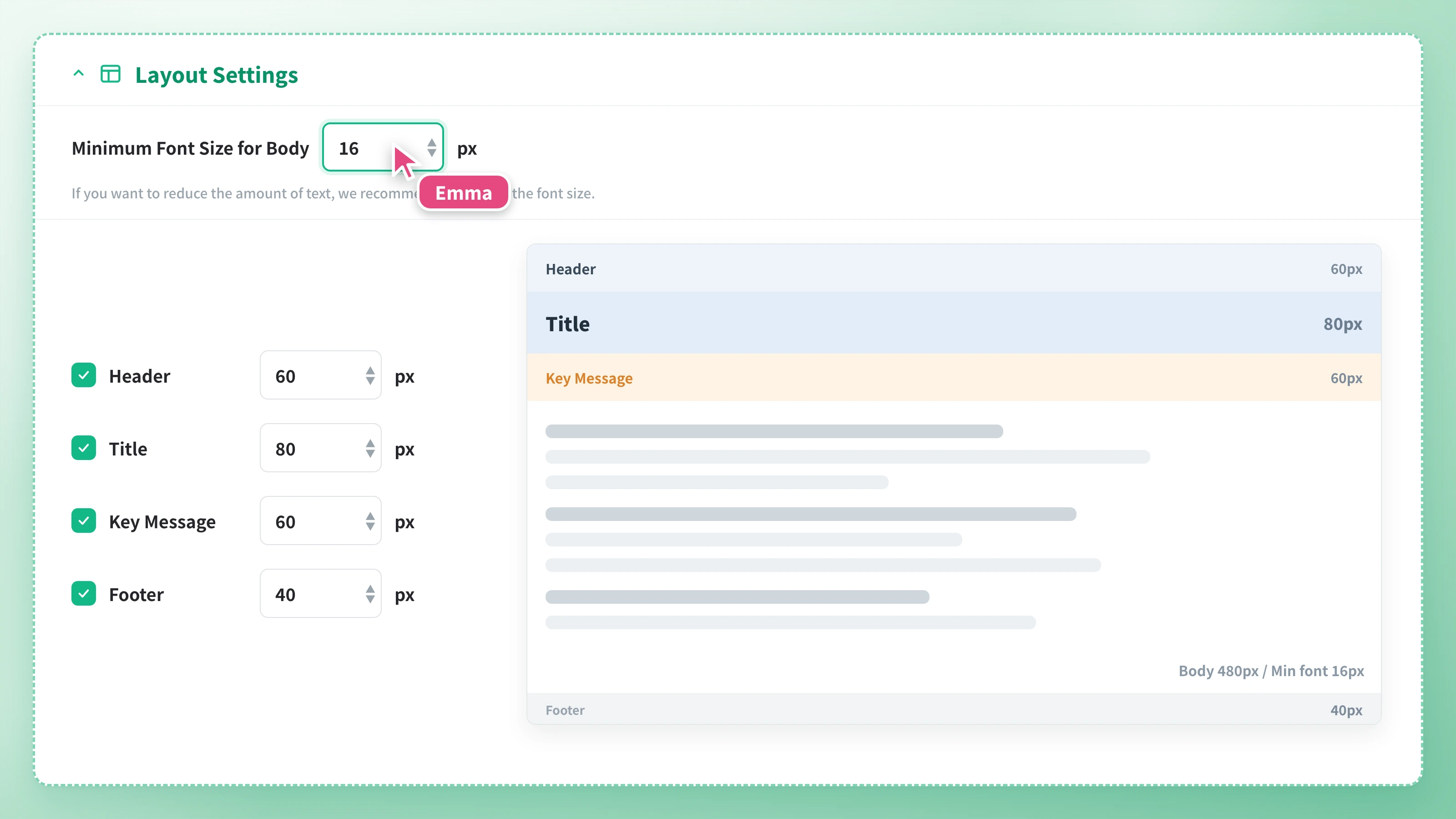
Specify Your Slide Layout Before Generating

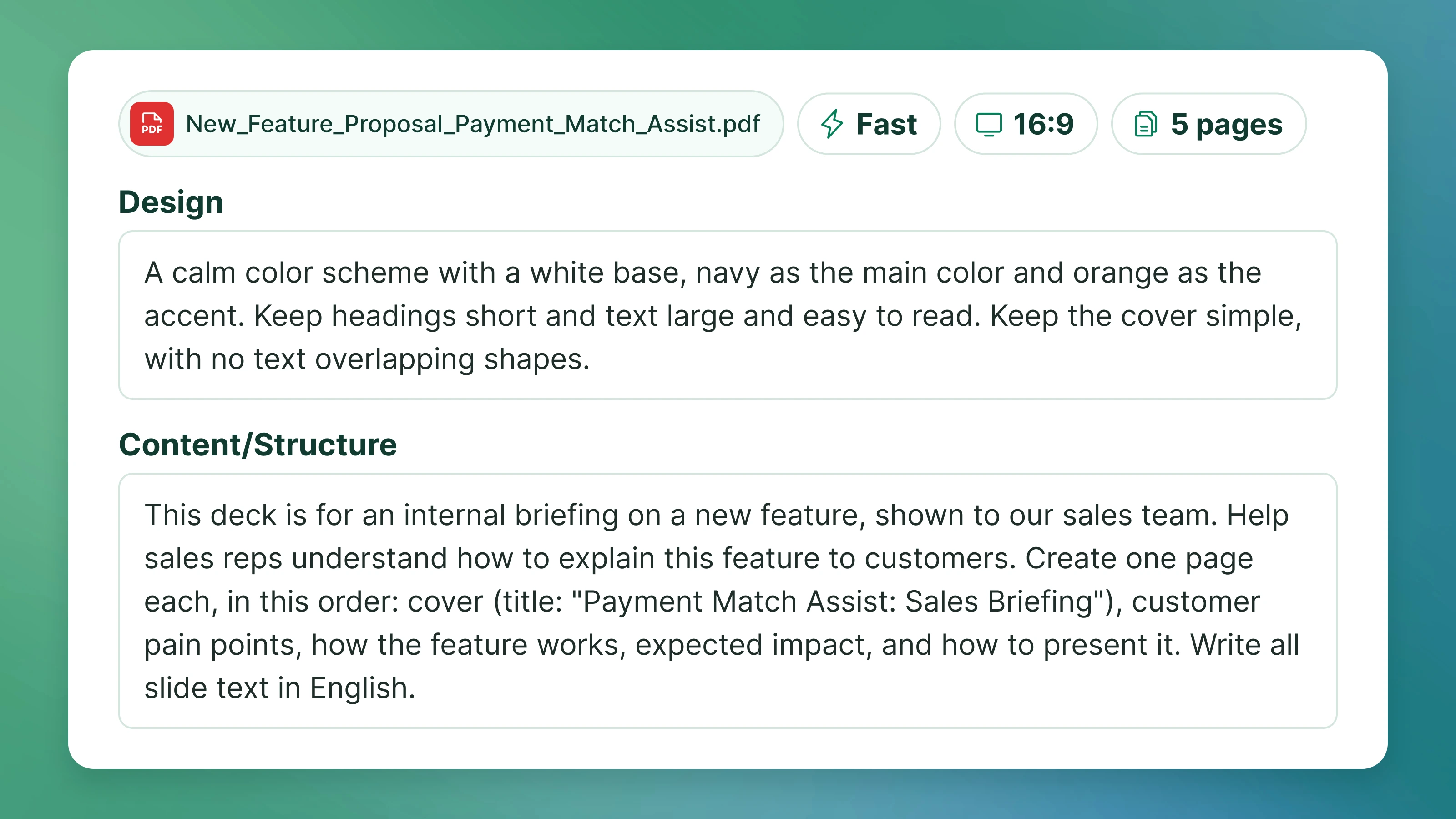
Layout settings UI (visibility toggles, heights, minimum body text size, and live preview)

In Fast mode, you can specify before generating whether to show the header, title, key message, and footer, and how tall each of them should be. You can also set a minimum font size for the body text and decide while checking the result in a live preview.

Try Creating Slides
6

Illustrated (Infographic) Mode Also Available

Slides generated in Illustrated mode (an illustration-led inside page)

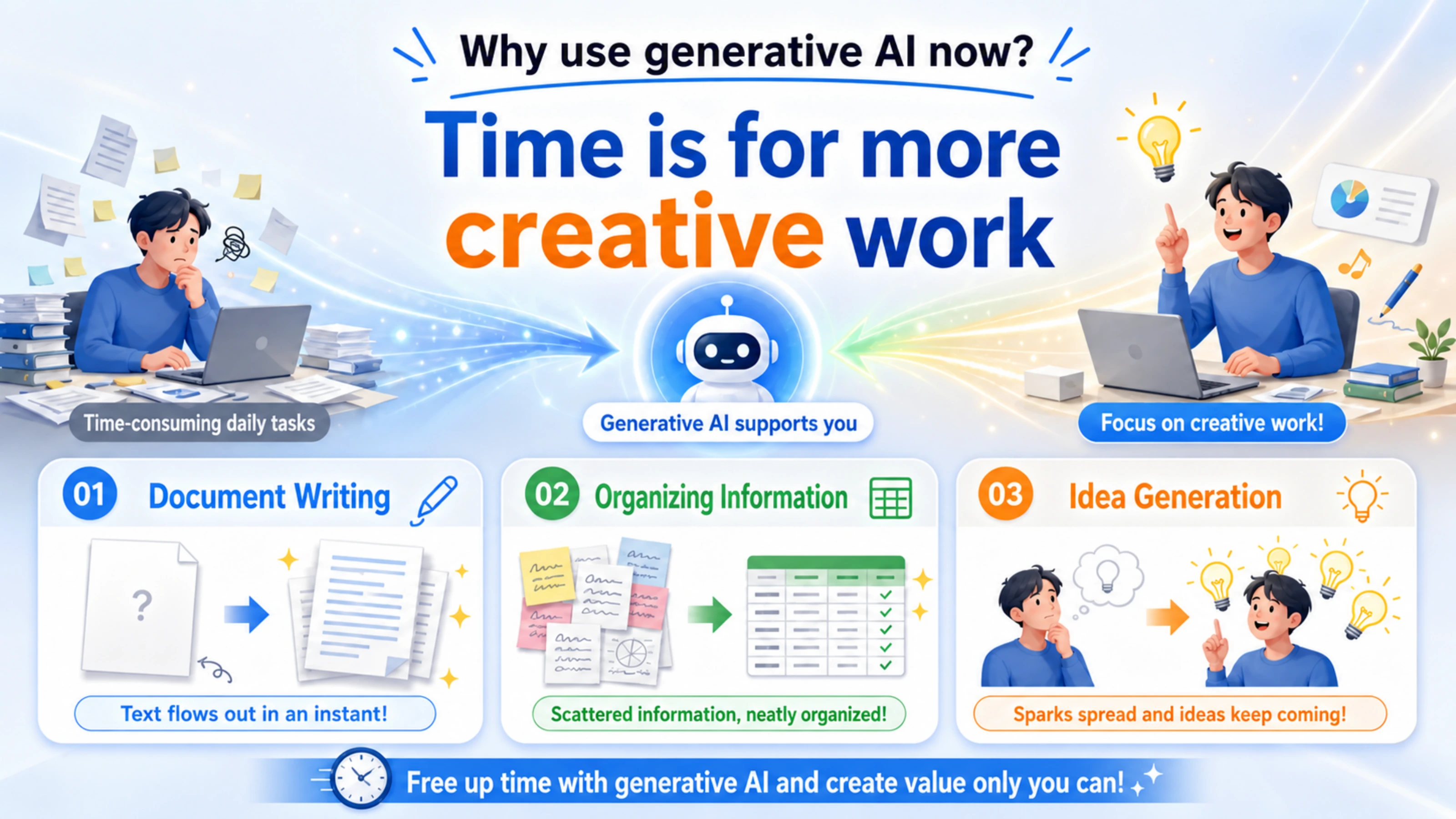
In addition to Fast mode, which produces business-ready designs, you can choose Illustrated mode, which makes use of illustrations and diagrams. Assets for Instagram Reels posts and infographics for social media ads can also be produced entirely with NoLang slide generation.

Try Creating Slides

From Your Own Files

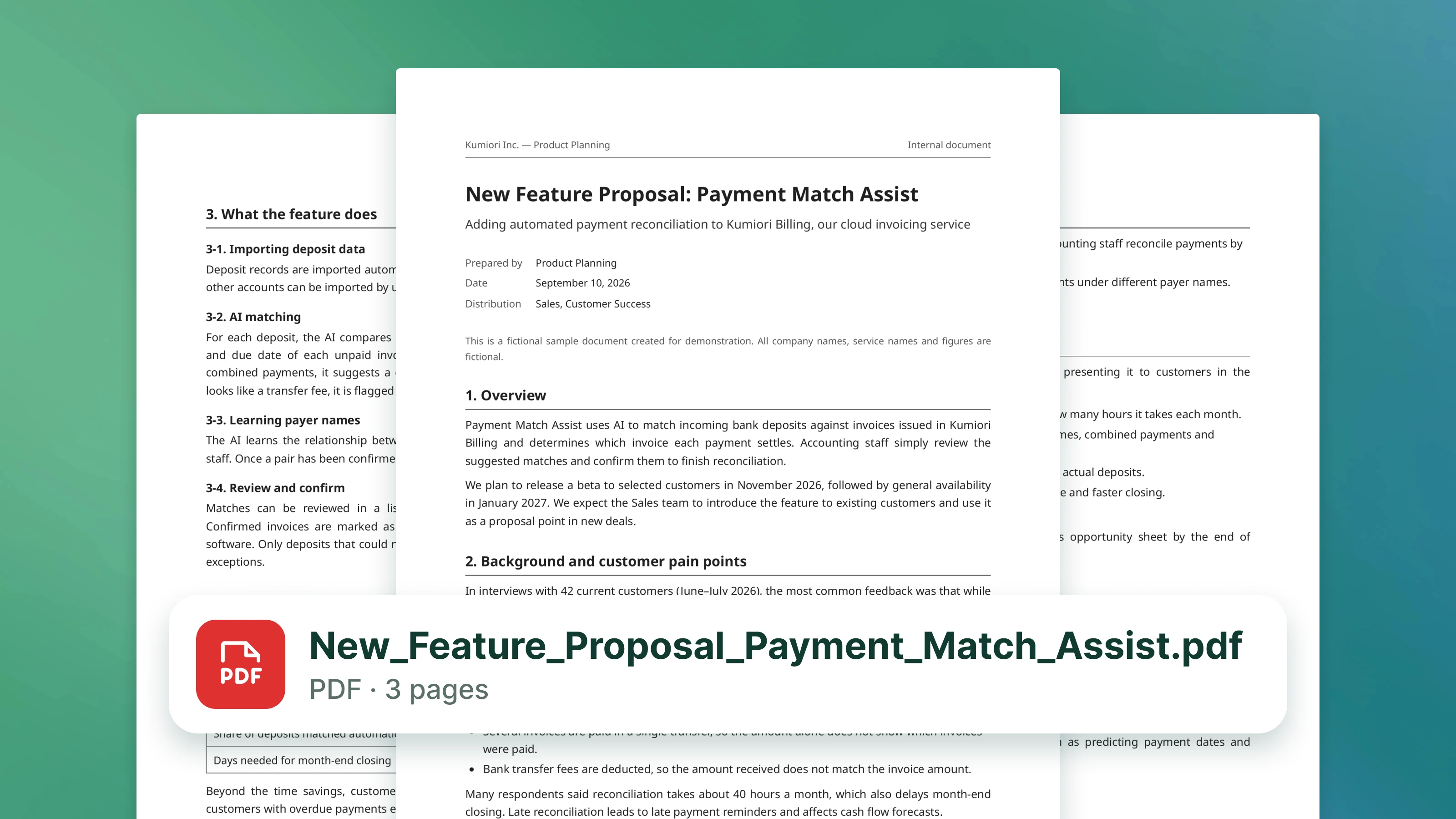
From PDF and PowerPoint documents, create slides right away

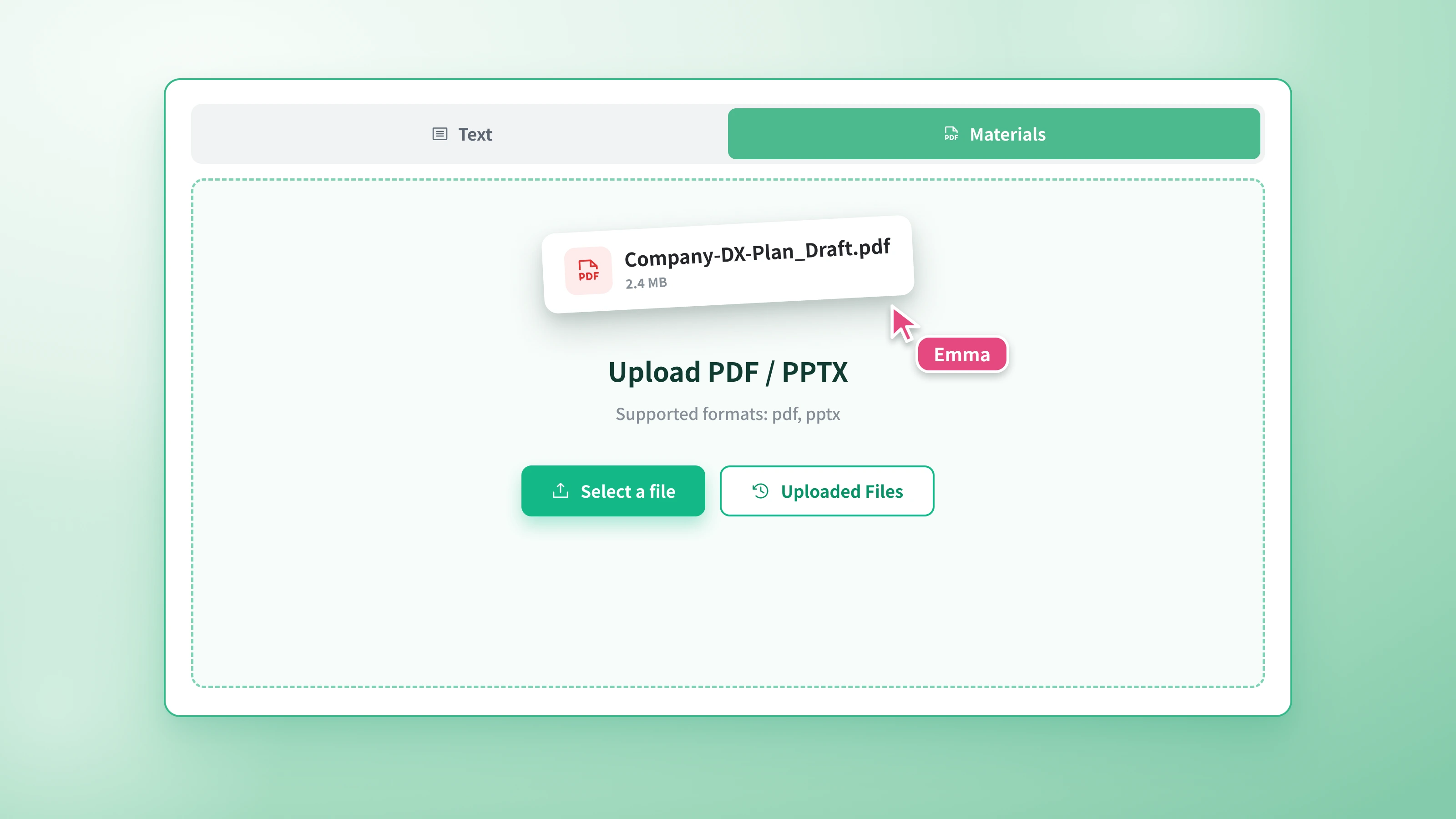
Just upload an existing PDF document or PowerPoint document (PPTX) to create slides that make the most of its content. Switching between this and text input is only a tab away.
  • PDF Documents
  • PowerPoint Documents
  • Text
  • Rework last year's proposal for this year's project
  • Reshape a long report into slides for explaining it
  • Turn meeting notes into slides you can share
The upload UI on the documents tab, a capture in which the supported formats are legible

Generated slides can be edited freely

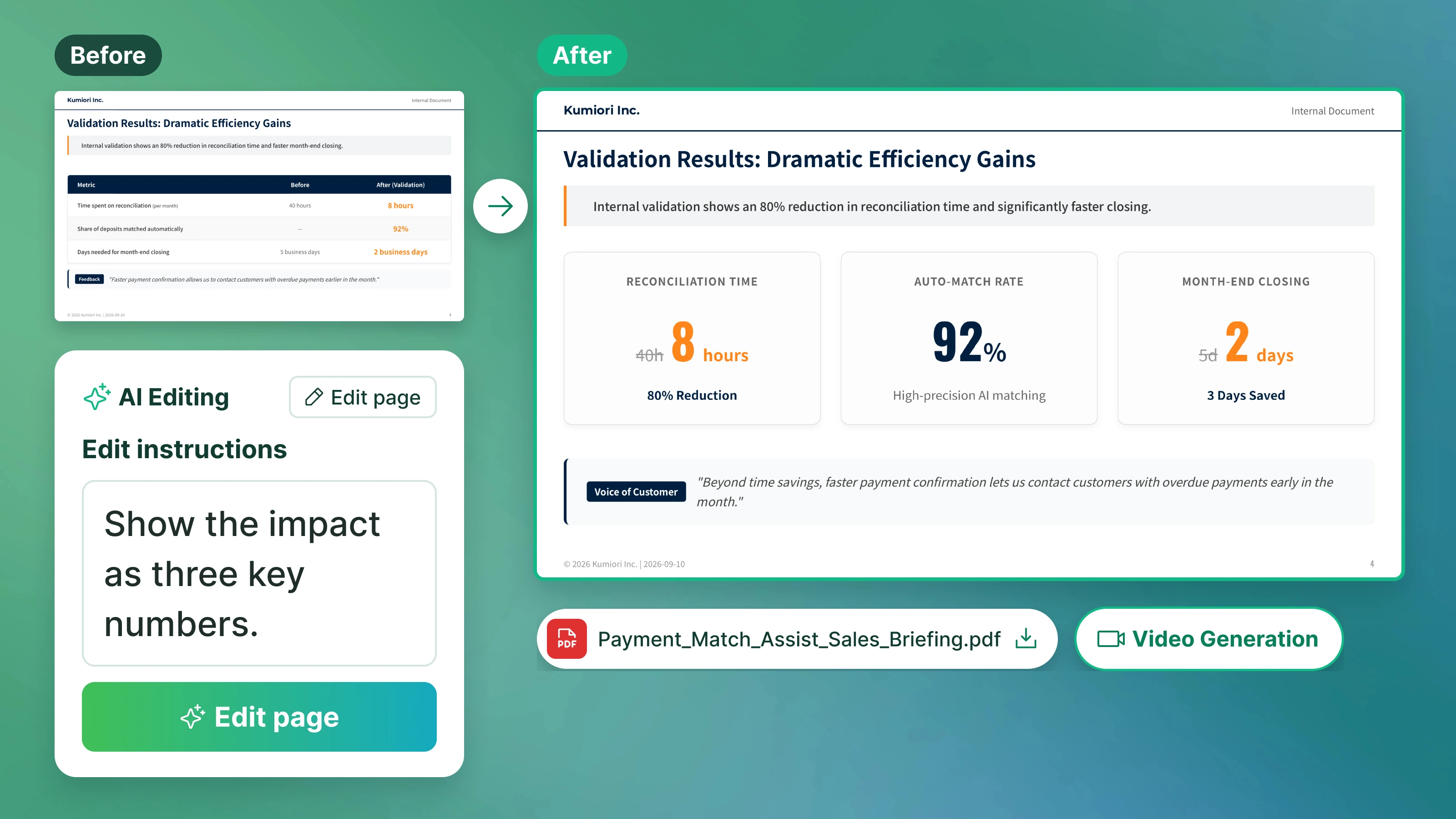
After generating, you can make changes right in the editing screen. It also accepts instructions written in plain text.
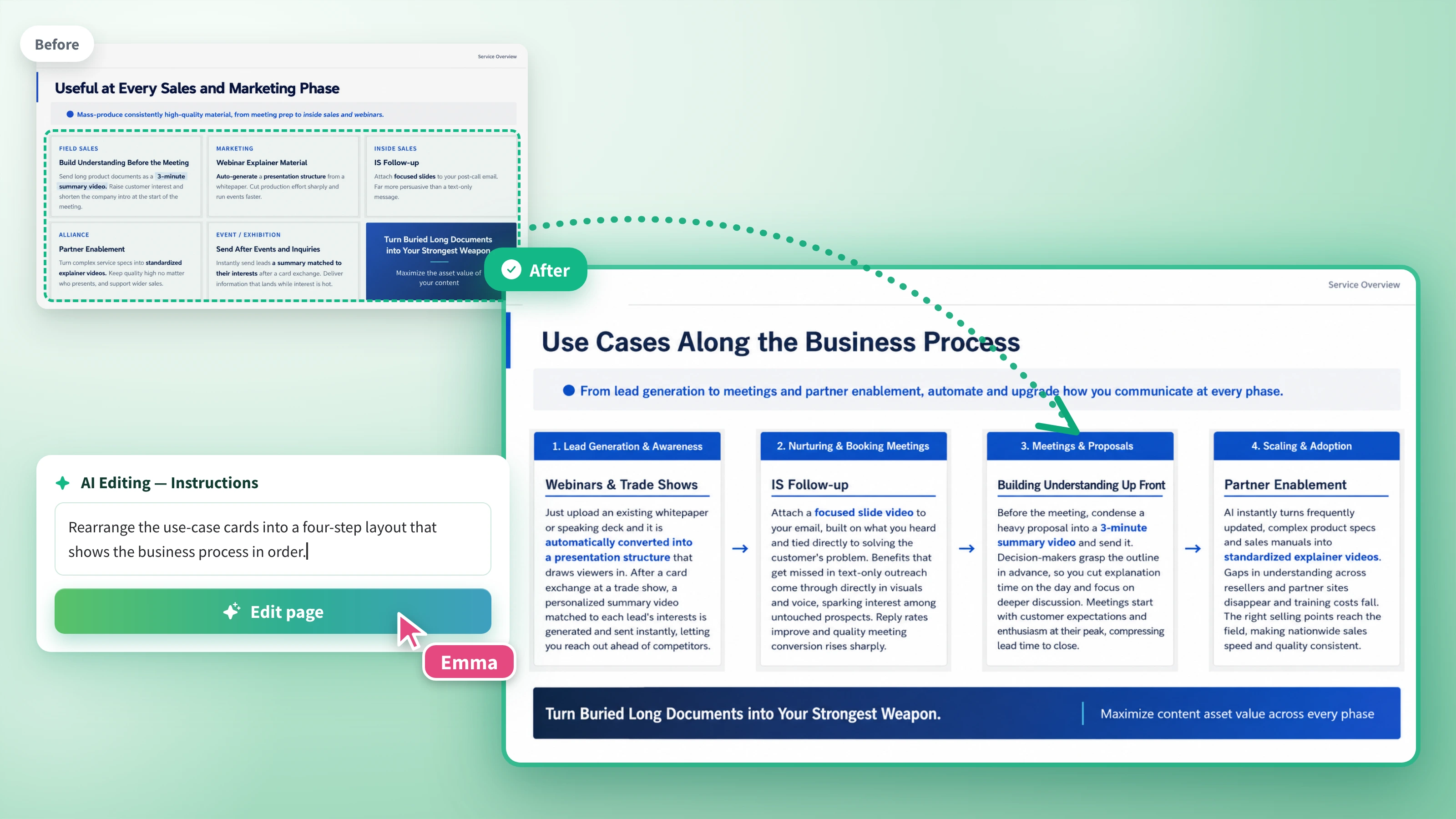
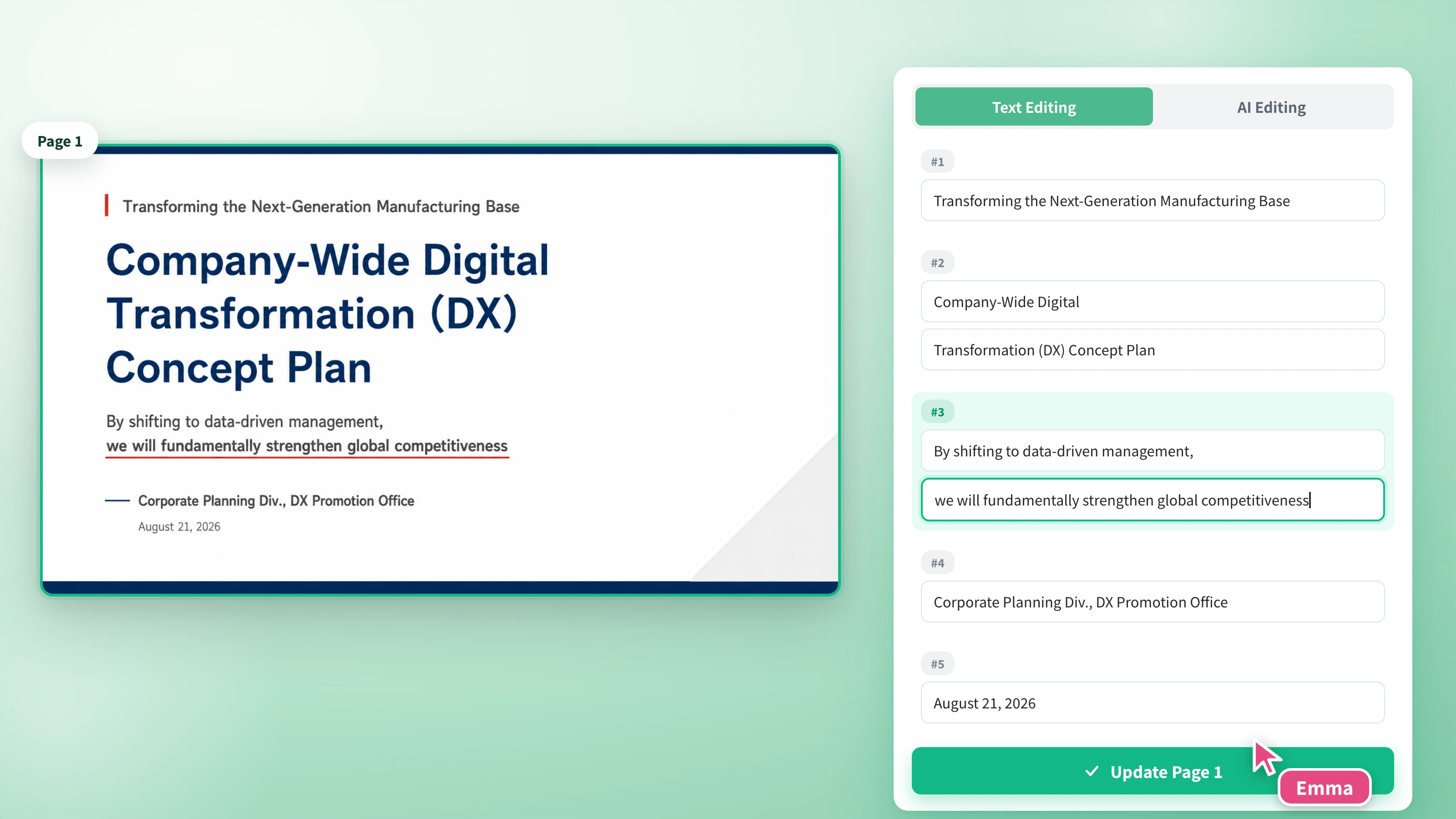
Select the page you want to edit and write an instruction, and AI edits the page to match. It handles design changes as well as edits to content and structure (instructions can be up to 1,000 characters).

The AI editing panel, with a page selected and an editing instruction being entered

Features Unique to NoLang

Turn the slides you create straight into video

The slides you create can be used as they are as videos with narration.

Study sessions, training, and sales documents are all more likely to be watched to the end when you turn them into videos with narration.

Download and use it right away

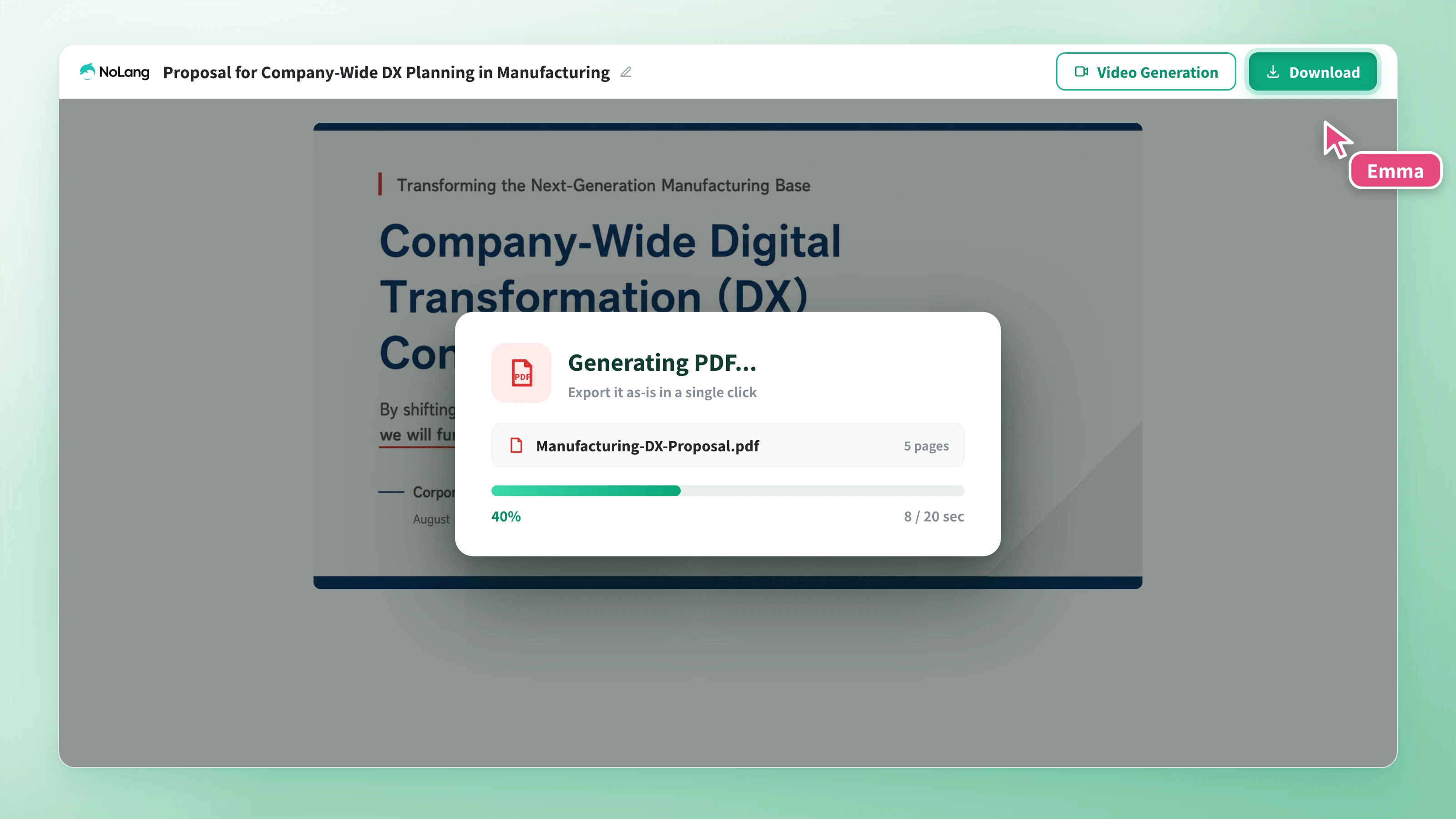
Supports PDF and PowerPoint formats, so you can pick whichever fits the job: distribution, printing, or further editing.

  • PDF

    Export in one click and use it as is for distribution or printing.

  • PowerPoint Format

    Handy for adapting slides to internal formats or editing them as a team.

Download button in the editing screen and the PDF export progress indicator

Getting started takes just 4 steps

Everything from input to mode selection and generation is completed on a single screen. Final touches are made in the editing screen.

Enter text, or upload a PDF file or PowerPoint file (PPTX).

Input field and tabs

FAQ

Can I try it for free?

Yes, you can try it for free. Slide generation is available as soon as you create an account, so start with some text or a document you already have.

What kinds of input can I create slides from?

In addition to entering text, you can upload PDF files and PowerPoint files (PPTX). Tabs on the same screen let you switch between them, so you can build a deck from a transcript or from documents you already have.

How many pages can a slide deck have?

You can specify anywhere from 1 to 20 pages when generating. After generating, you can duplicate pages in the editing screen and go up to 100 pages.

How long does generation take?

Expect a few tens of seconds. For a 5-page deck, Fast mode took about 30 seconds and Illustrated mode about 70 seconds in our own testing.

Can I edit the slides after they are generated?

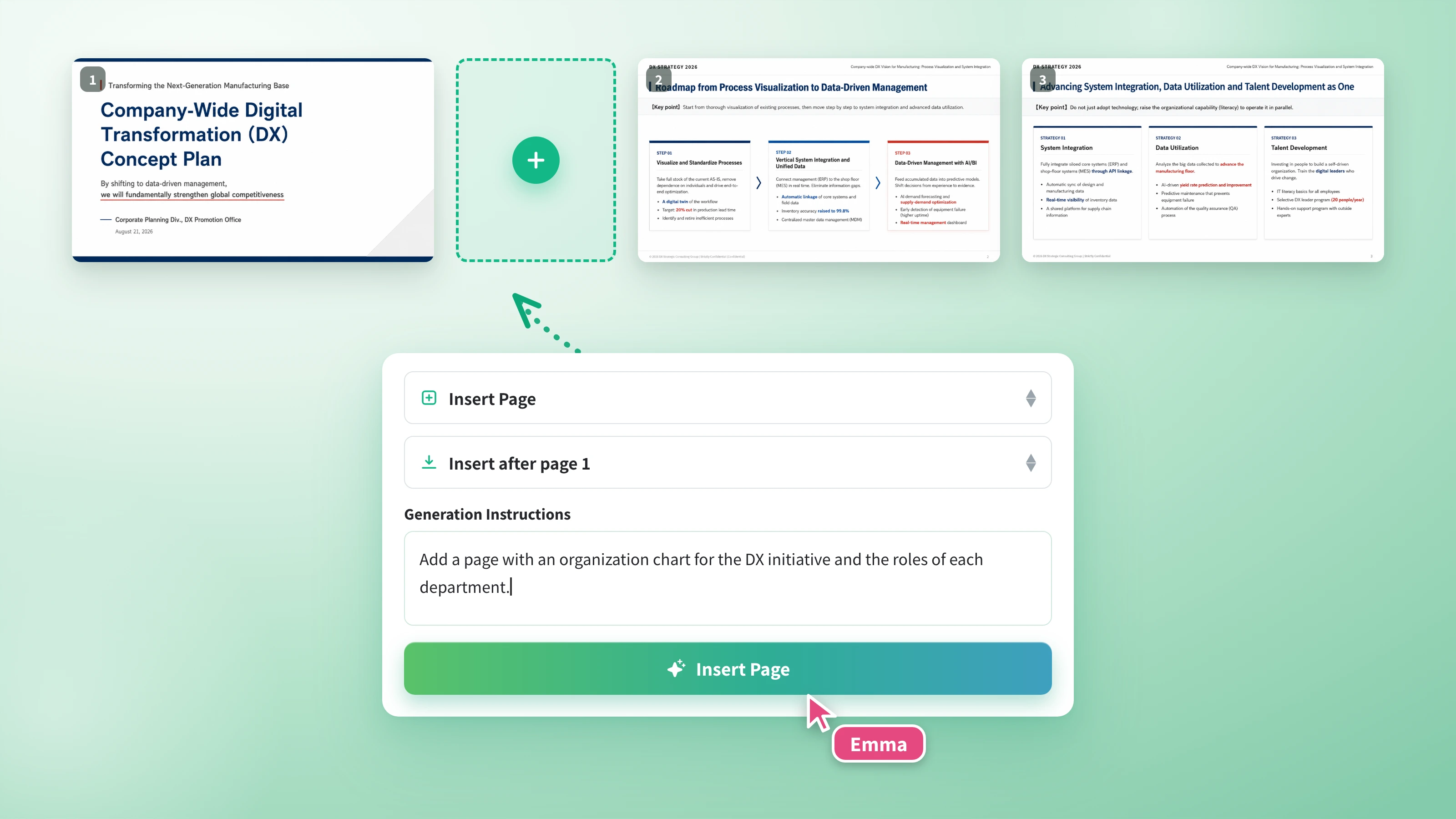
You can edit page by page. Give additional written instructions for "Design" and for "Content and structure" separately, and delete or duplicate pages as well.

Can I turn the slides I create into a video?

Yes. Press "Generate Video" at the top right of the editing screen and a video generation form opens with your slides carried over. Continue to NoLang video generation from there and you get a narrated video.

Can I use it in Japanese?

Enter text in Japanese and you get Japanese slides. The interface is available in Japanese too, so you can use it as is.

Can I use the slides I create commercially?

Our terms of service permit secondary use of the slides you generate, including commercial use. Use them for internal documents as well as in proposals and presentations.

Cut slide creation time to seconds

The time you spend creating slides can go into thinking through the content instead. Start by trying one.