
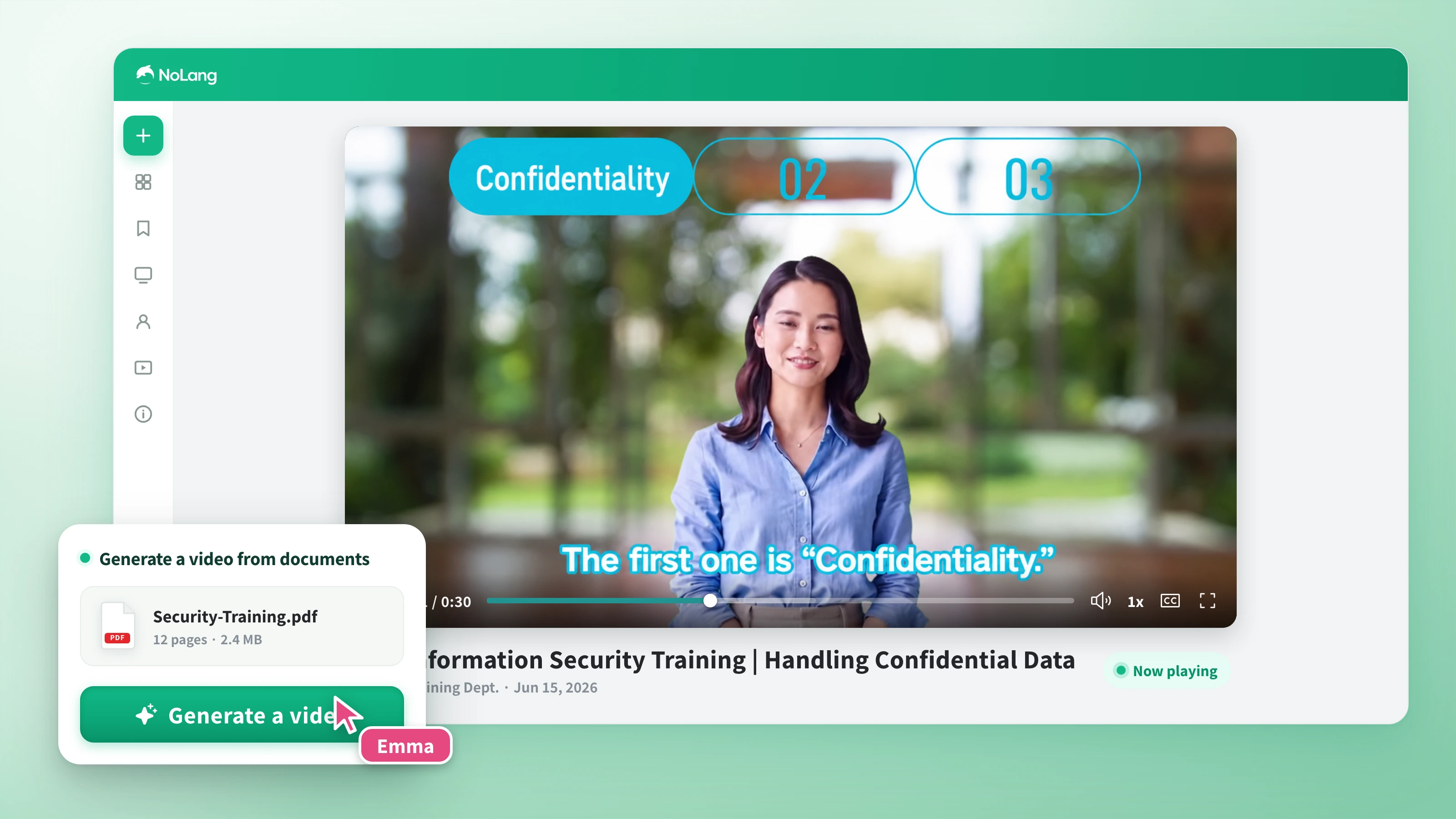
NoLang features that turn a document into a video in an instant
Instantly generate videos tailored to your purpose from the documents you upload.
From document to video in 4 steps
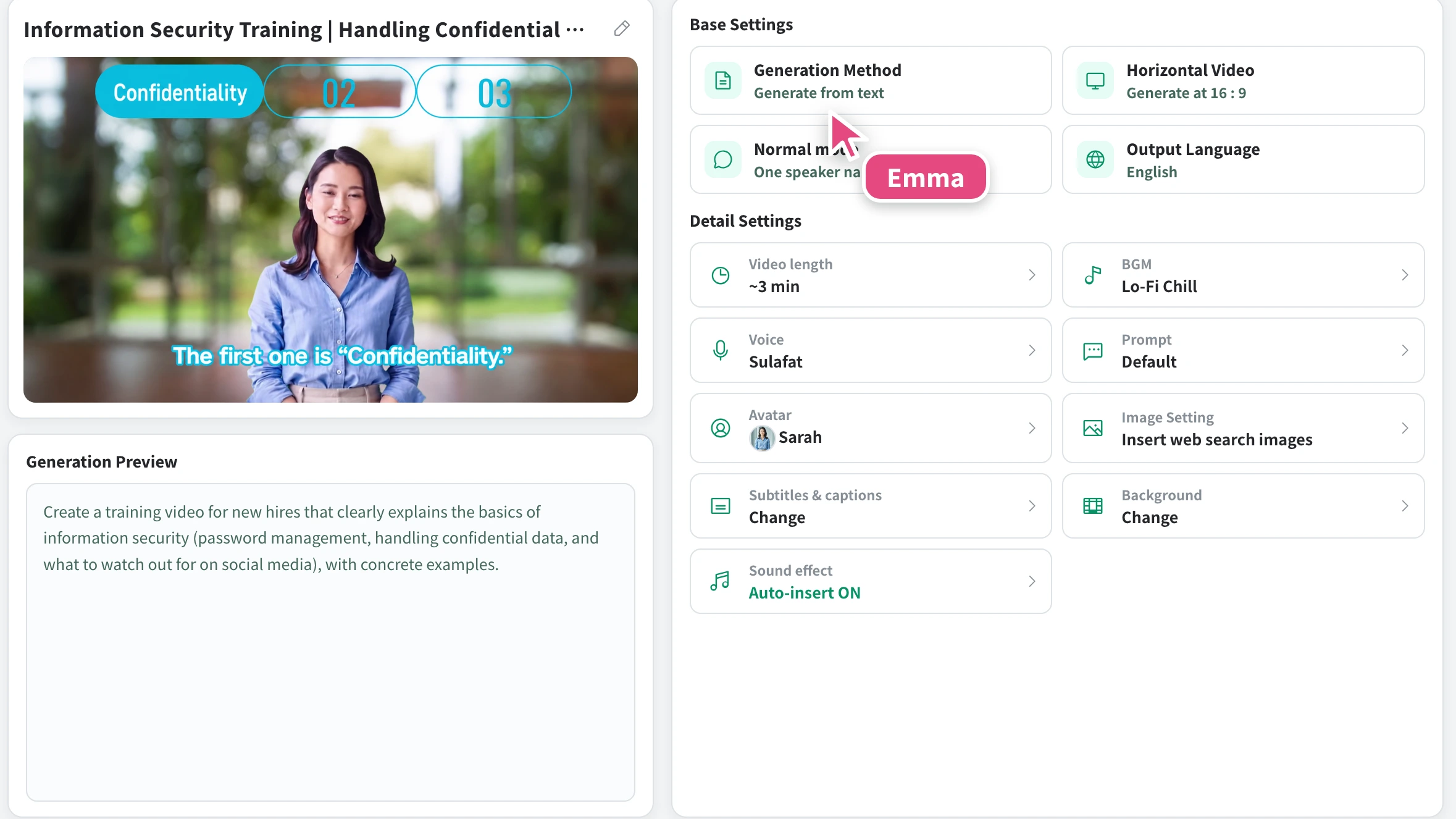
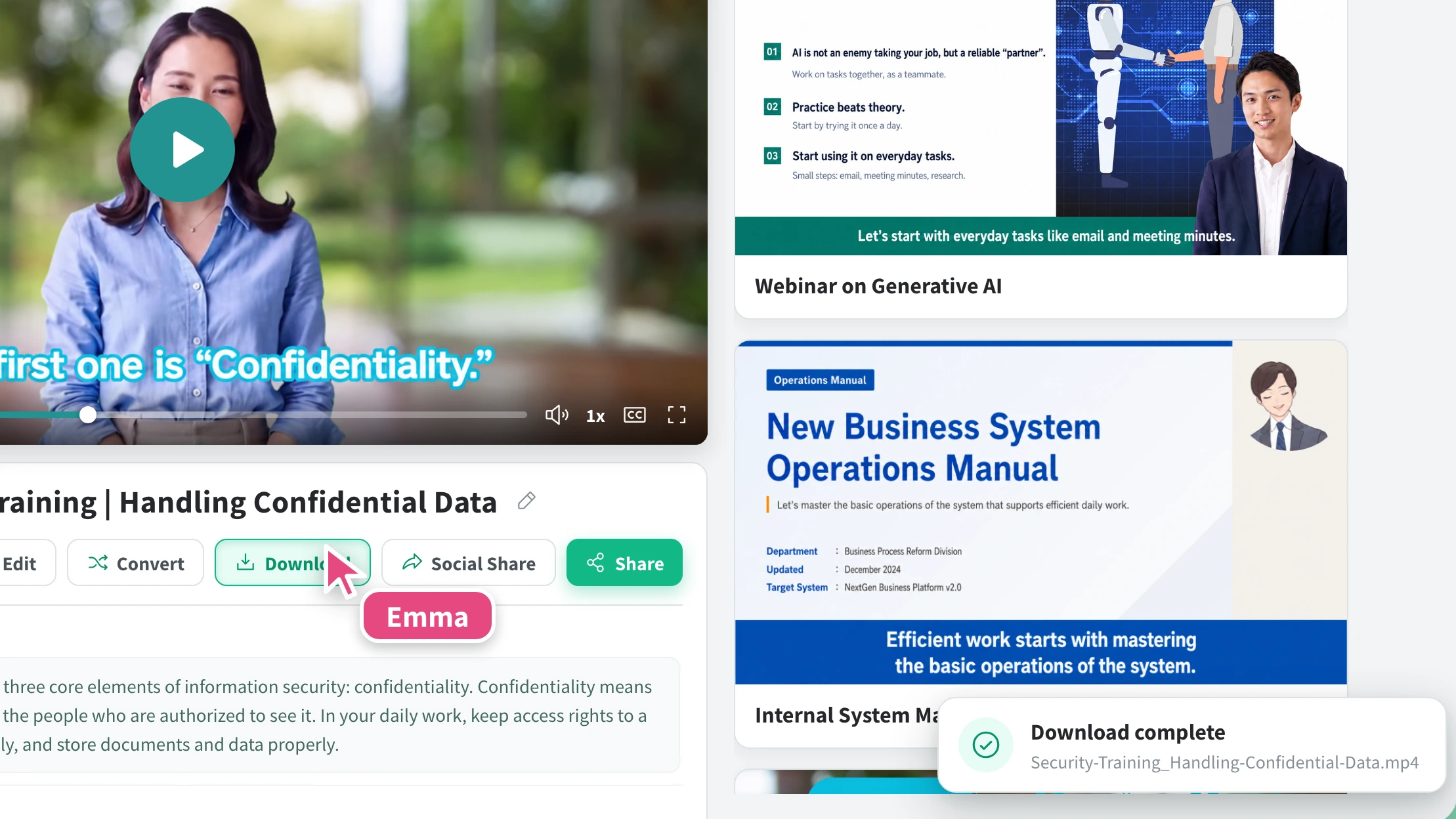
From upload to export in a few minutes. There is nothing complicated to learn.
FAQ
What document formats are supported?
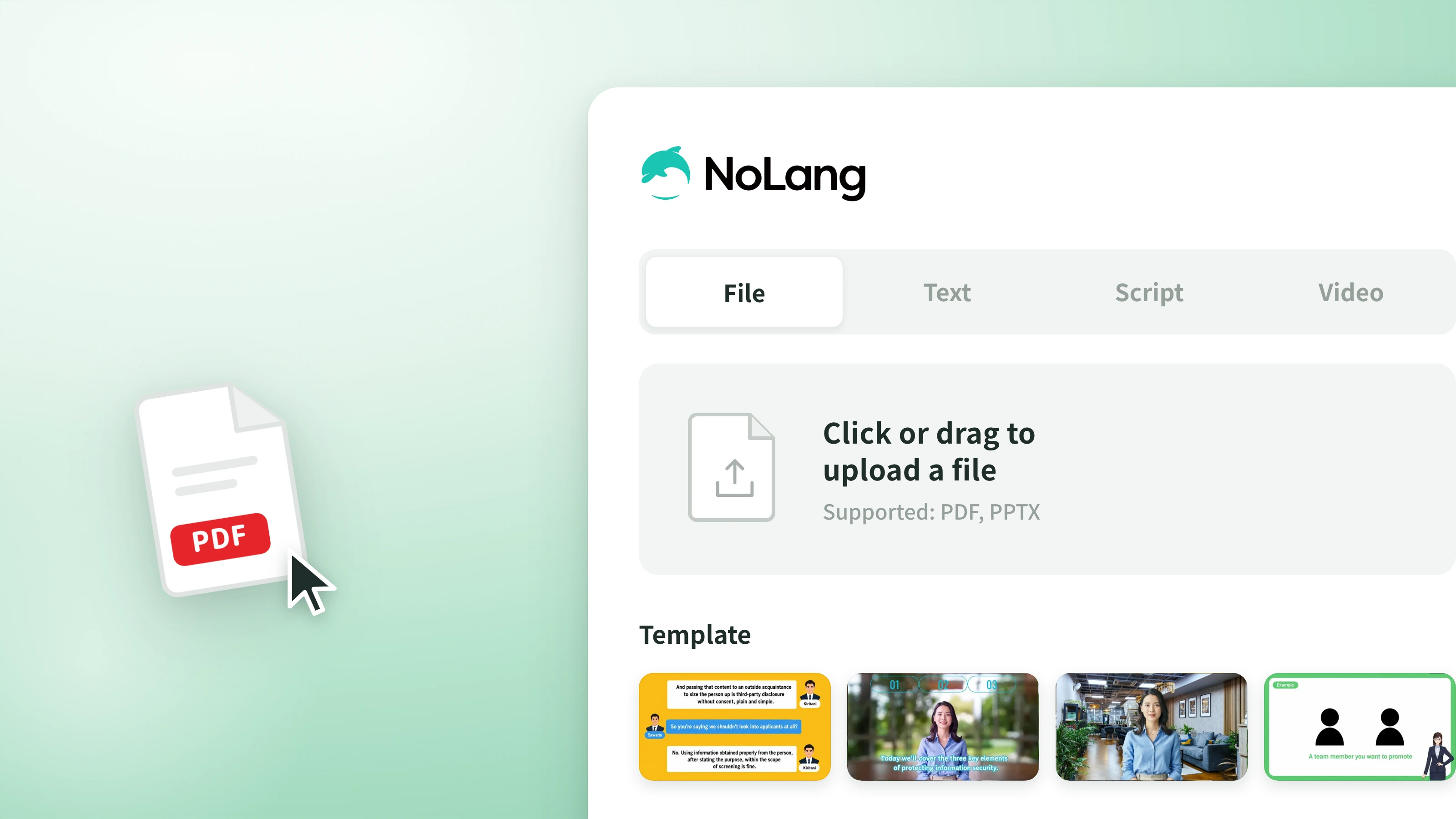
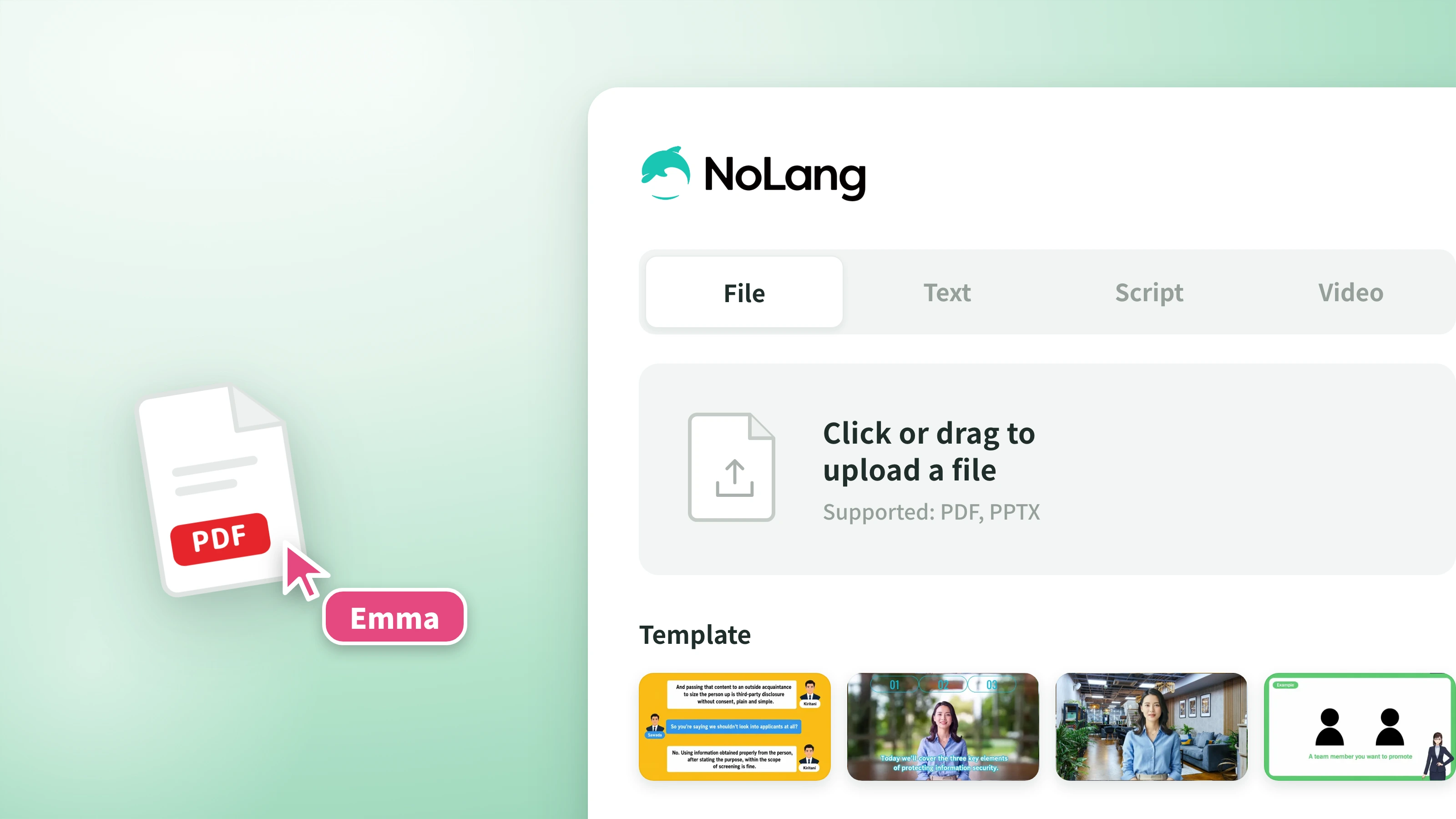
PDF and PowerPoint (PPTX) are supported, and files can be up to 400MB. Documents in other formats, such as Word or Excel, can also become videos if you export them to PDF before uploading. For detailed ways to make a video from a PDF, plus examples, see PDF to Video AI.
Can documents with many pages be turned into videos?
You can load documents of up to 260 pages. The limit varies with the "explanation detail" setting: the more detailed the explanation, the fewer pages can be handled at once. For documents longer than that, we recommend splitting them by chapter or theme and uploading them separately.
What is the difference between the Present, Summarize, and Analyze modes?
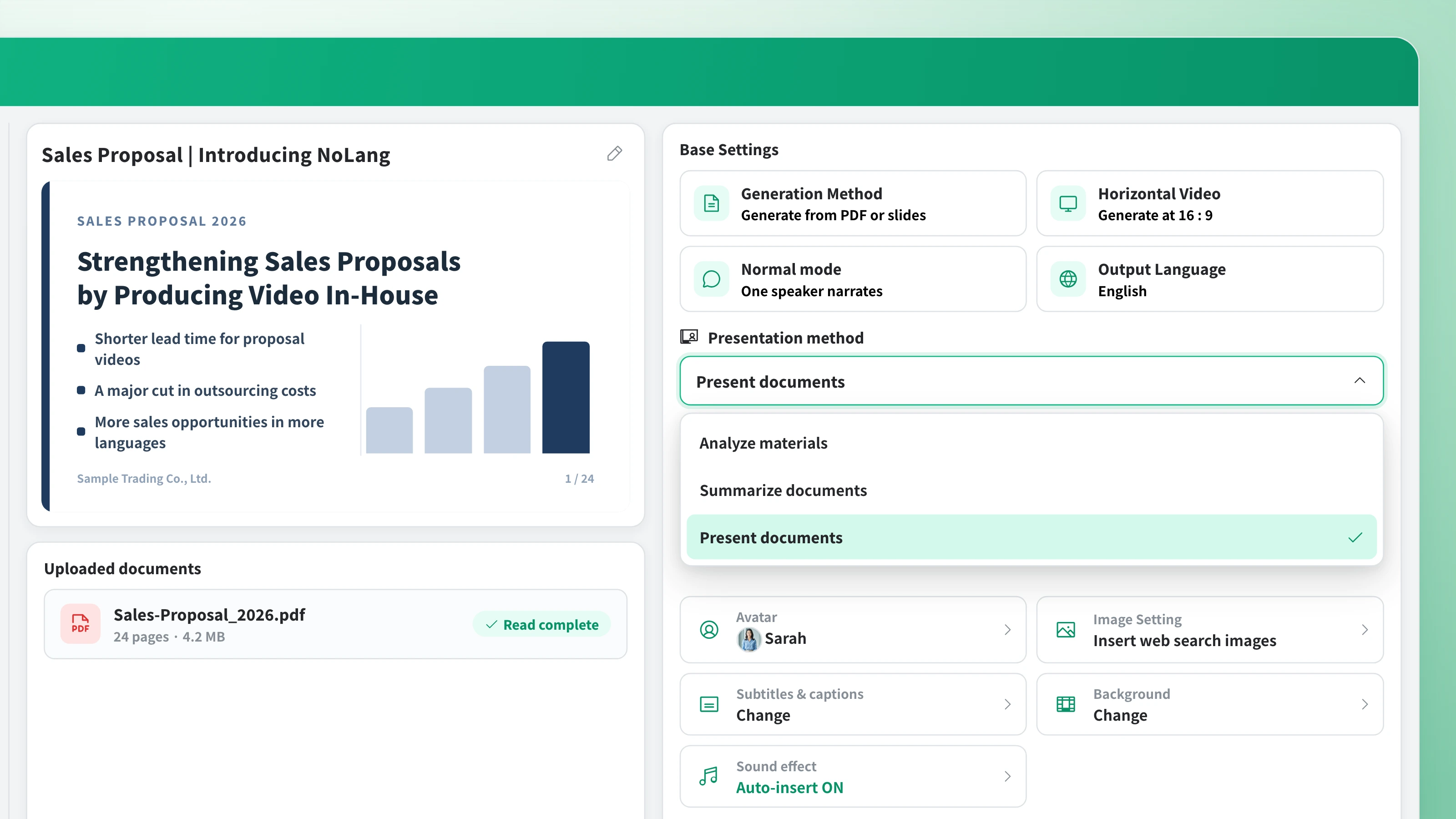
"Present the document" creates a video that explains the contents of your document in presentation form, just as it is. "Summarize the document" lets you specify how many minutes to condense it into and turns only the key points into a video. "Analyze the document" lets you specify the perspective to read it through and creates a video that analyzes the document. With the same sales deck, you can use Present when sending it ahead of a meeting and Summarize when sharing it internally, matching the mode to your purpose.
How long does it take to generate a video?
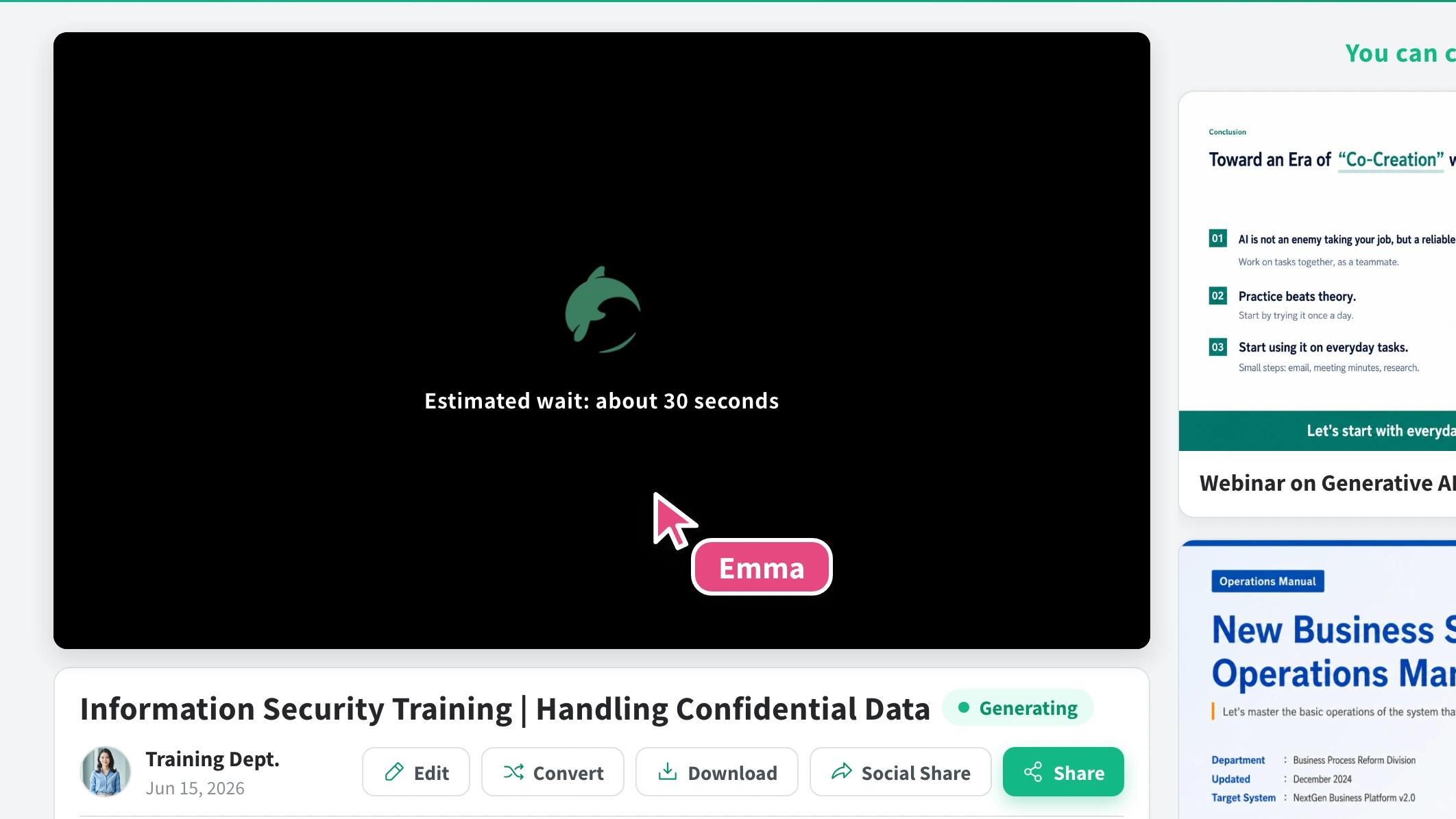
It depends on the size of the document and the generation mode, but expect anywhere from tens of seconds to a few minutes. Even including upload and export, a video is usually finished in a few minutes.
Are the design and charts in my document used as they are?
In "Present the document" mode, the AI explains the contents while showing the pages of your document on screen. There is no need to rebuild charts or layouts for video, so the more carefully your document is designed, the better it looks as a video. In Summarize and Analyze modes, the video is composed from the contents of the document.
Can I add narration and avatars?
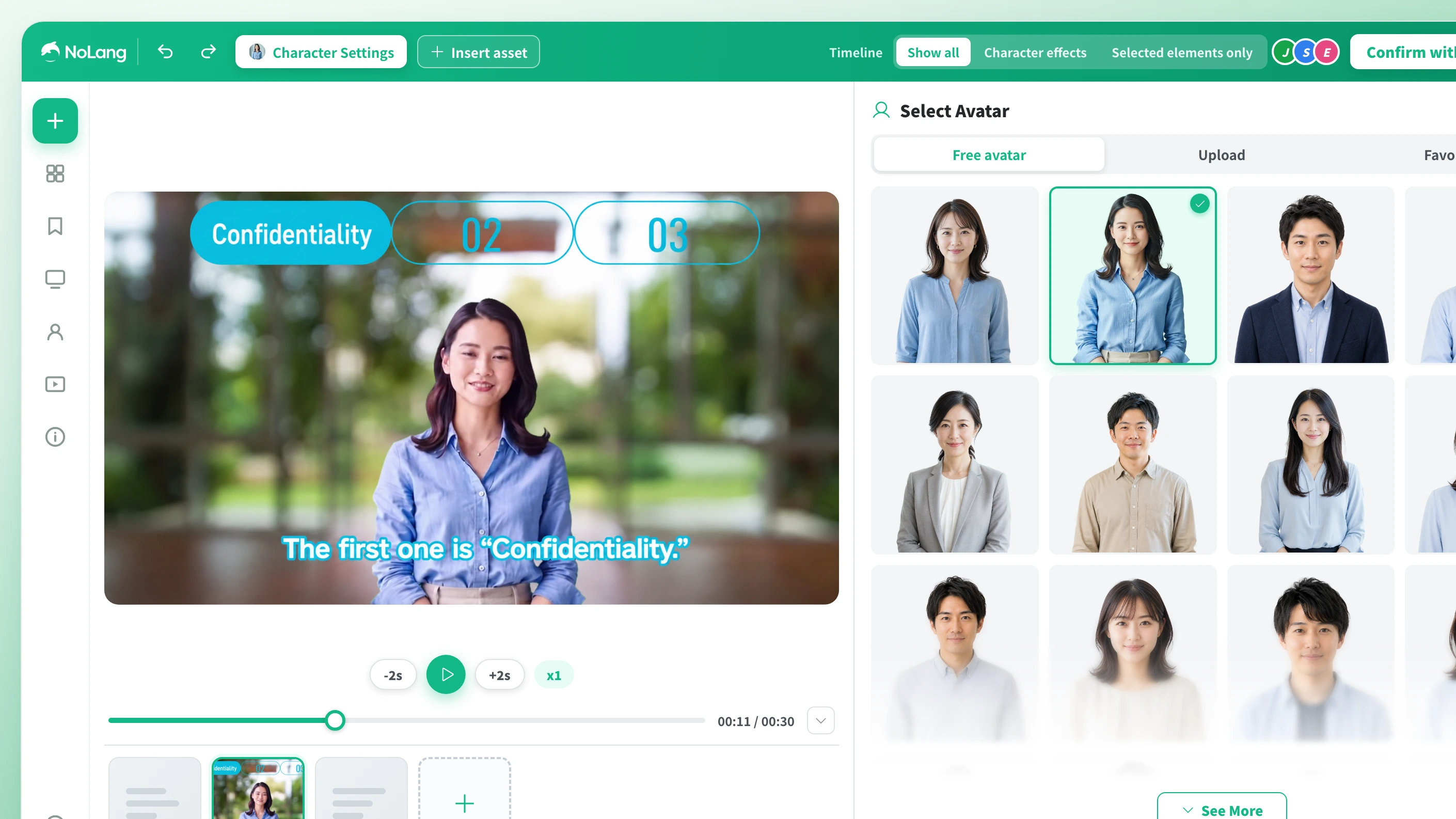
Yes. Narration is added automatically by AI, and you can adjust the reading speed from 50% to 300%. You can also choose a dialogue mode in which two speakers explain the content back and forth. Avatars range from character-style Live2D avatars to real avatars based on actual people, and you can upload your own avatar as well.
Can I add background music and sound effects?
Yes. You can pick background music and sound effects from the built-in assets and add them, and AI can also insert sound effects automatically to match each scene. After generation, you can swap or add background music and sound effects in the editing screen.
Can I create videos in English and other languages?
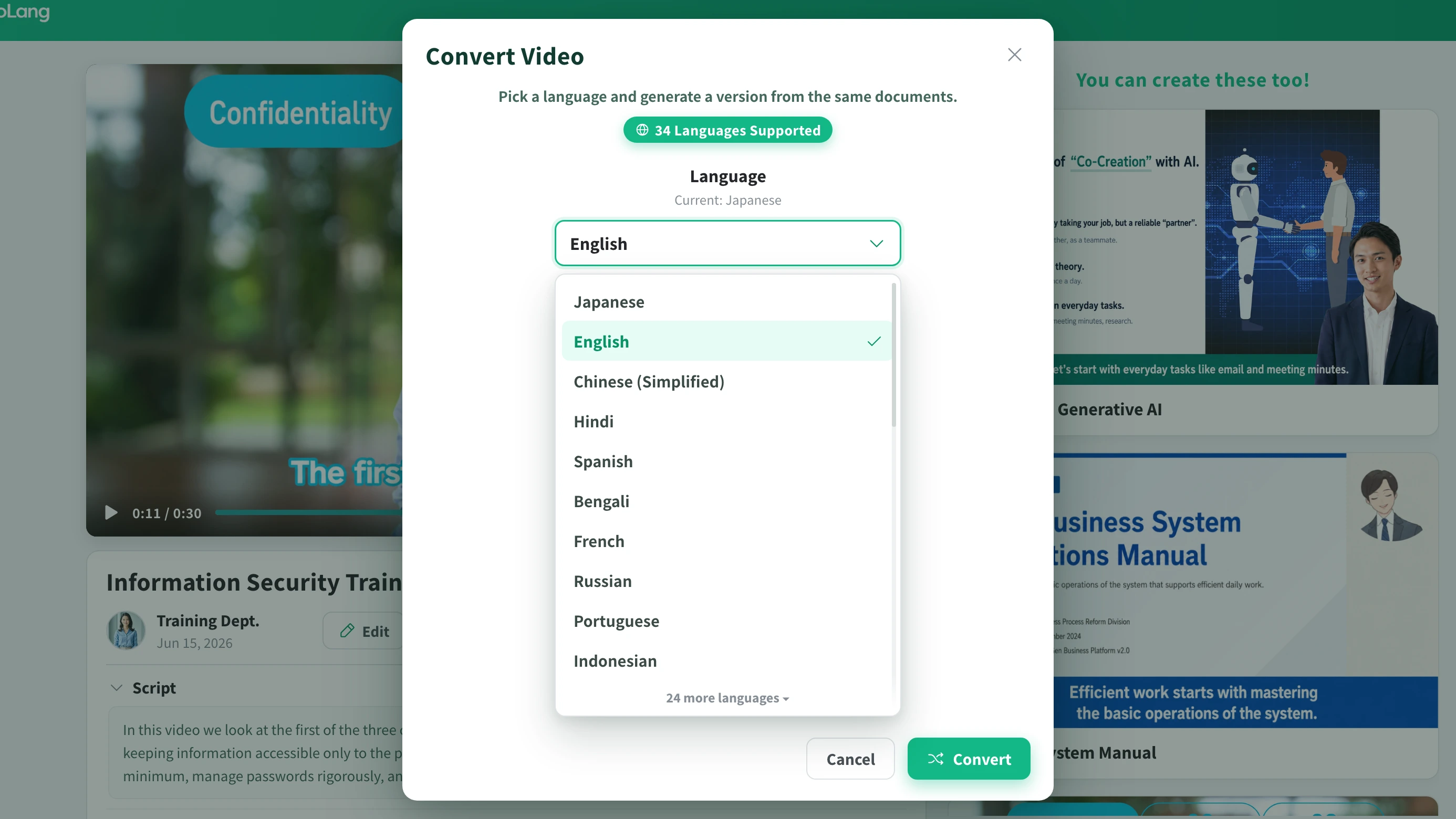
We support 34 languages, including Japanese, English, Chinese, and Korean. Simply pick a language to create a version of the same document in another language, and the narration and subtitles switch together. Roll out training for employees from overseas, inbound support, and more in multiple languages without outsourcing translation or narration recording.
Can I edit the videos I create and use them commercially?
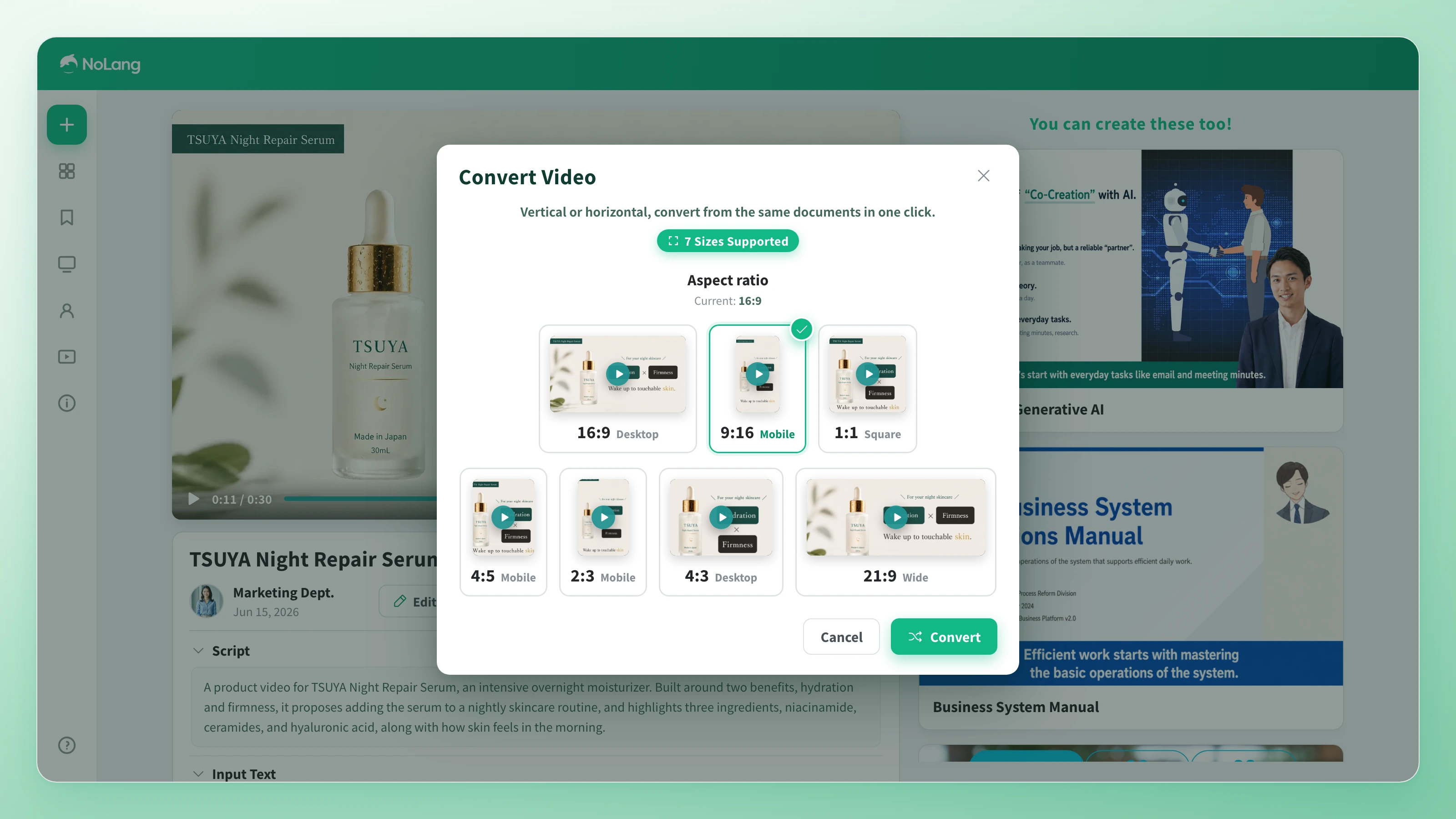
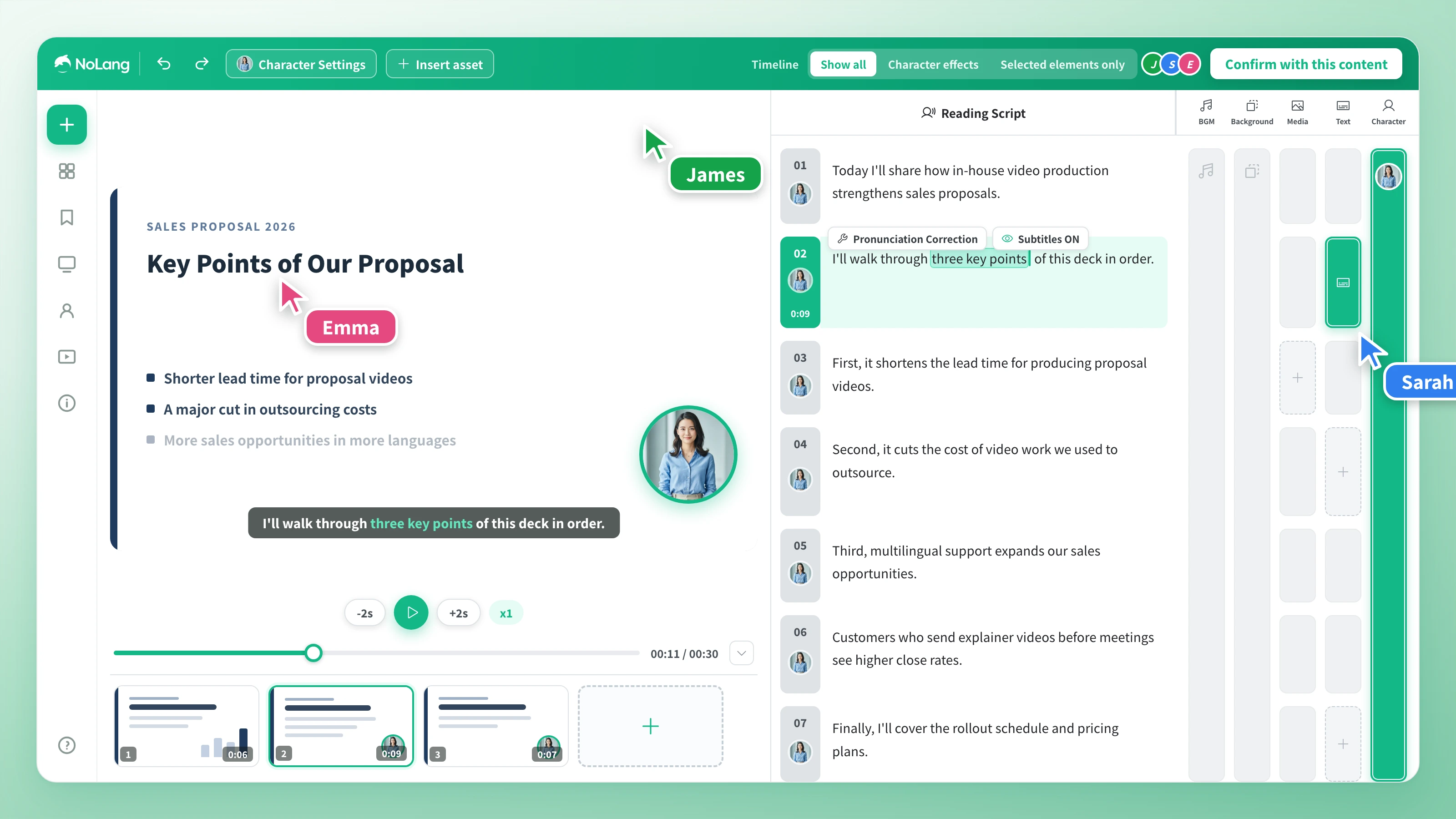
After generating, a timeline editor lets you do everything inside NoLang: fix the script and subtitles, swap background music and sound effects, replace image and video assets, add text and shapes, and change the avatar. The editing screen is built to be easy even for people who have never made a video, so first-timers can make changes without getting lost. Videos can be exported in both 16:9 (horizontal) and 9:16 (vertical), at up to full HD (1080px on the short side) and up to 30fps. The videos you create can be used commercially.
Are uploaded documents used to train AI?
Documents you upload are never used to train generative AI.