
Turn your image into a video with AI
Pick a photo or illustration and describe how it should move. Create short videos with natural gestures for people, camera moves that show off products, or gentle motion in landscapes. It works in your browser with nothing to install, and you can try it for free.
Examples of photos and illustrations turned into videos
Set the First and Last Images and Animate What Happens in Between
Add two images and describe how the first should change into the second. Turn a scene change or a before-and-after into a single clip.

Choose the Model, Length, Resolution, and Aspect Ratio
Pick a video generation model from MiniMax, Seedance, Kling, or Gemini, set the video length, resolution, aspect ratio, and whether to include audio, then generate.
Save as MP4 and Continue to NoLang Video Generation
Download the finished video as an MP4. Choose "Use in NoLang" to start NoLang video generation with the clip already attached as a video asset.
From image to video in 4 steps
There is nothing to install. Open NoLang in your browser and start right away.
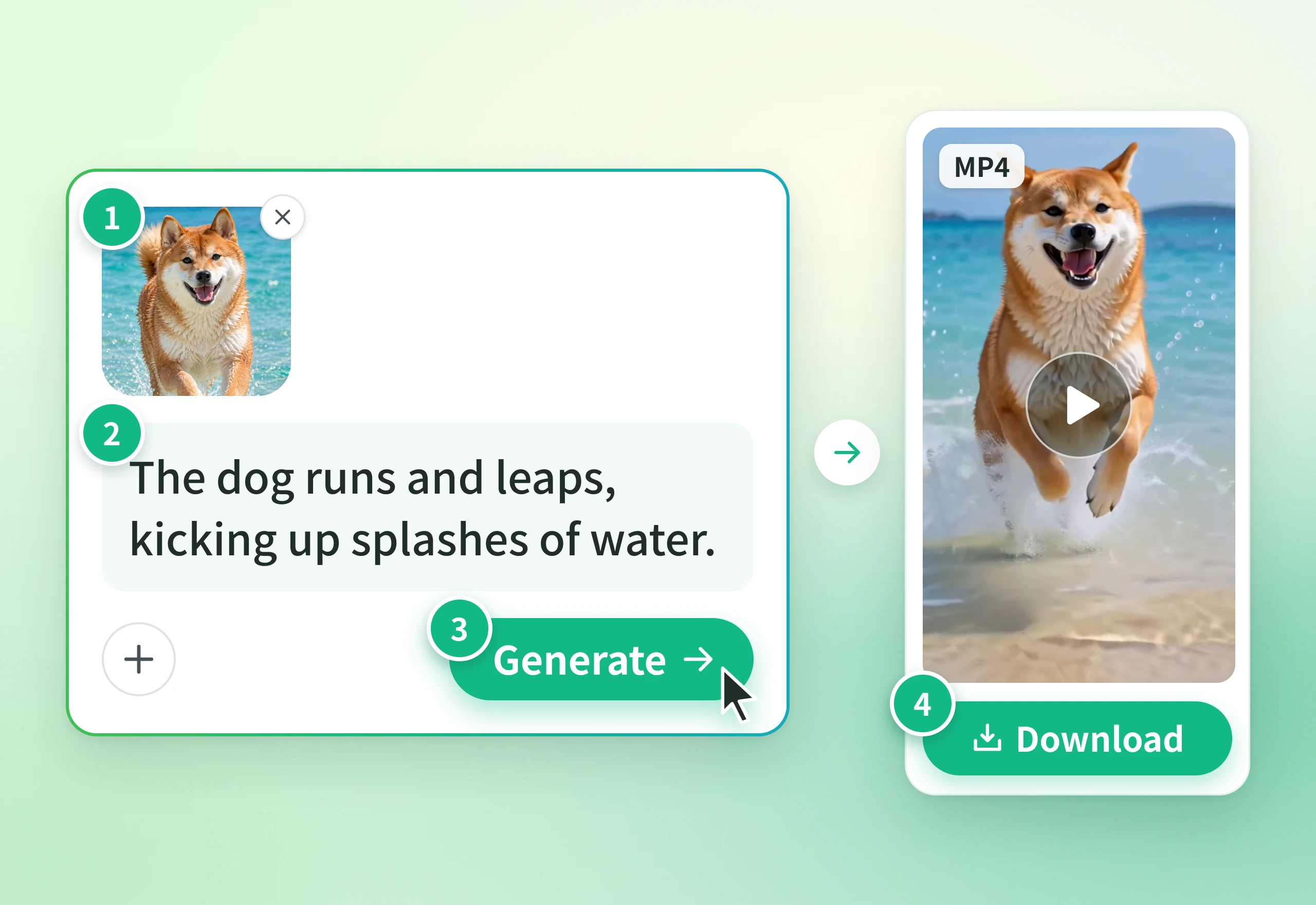
How to use it
- 1
Add an image Upload the photo or illustration you want to animate, or pick an asset you have saved in NoLang.
- 2
Describe motion Describe the subject's motion and the camera moves in words.
- 3
Generate the video Choose the generation model, length, resolution, aspect ratio, and whether to include audio.
- 4
Preview & save Play the video to check it, then download it as an MP4.
FAQ
Answers to common questions before you turn an image into a video.
Yes, you can try it for free. On the home screen, attach an image to the input field and describe the motion to create a video with moving footage.
You can animate photos of people, products, and landscapes, illustrations, faded old photos, and more. Add JPG, PNG, WebP, HEIC, and other image files, or pick assets you have already saved in NoLang.
Yes. One image and a prompt describing the motion are enough to generate a short video. You can also use two images as the first and last scenes and create a video that connects them.
Describe the subject's motion (blinking, turning around, running, and so on) or the camera's motion (pushing in, circling, panning sideways, and so on) in your prompt. Describing what should move separately from what should stay the same helps the video match your intent.
Choose from several video generation models, including MiniMax H3 Max, Seedance 2.0, Kling v3 Omni, and Gemini Omni 1.1 Flash.
Depending on the generation model you choose, you can set the video length, resolution, aspect ratio, and whether to include audio. Length is set in 1-second steps: MiniMax H3 Max offers 5 to 15 seconds (480p or 768p), Kling v3 Omni 3 to 15 seconds (720p or 1080p), Gemini Omni 1.1 Flash 3 to 10 seconds (720p), and Seedance 2.5 4 to 30 seconds (480p, 720p, or 1080p). Set the aspect ratio to 16:9, 9:16, 1:1, and more, or pick Auto to match the image you attach.
Download it as an MP4. Choose "Use in NoLang" to start NoLang video generation with the clip already attached as a video asset.
Yes. NoLang works in your browser. Open the AI Clip Generator in the browser on your computer or smartphone, and you can turn images into videos right away.
Yes. Video clips made with NoLang can be used commercially.
The features and conditions for each plan are listed on the pricing page.
Try it for free first