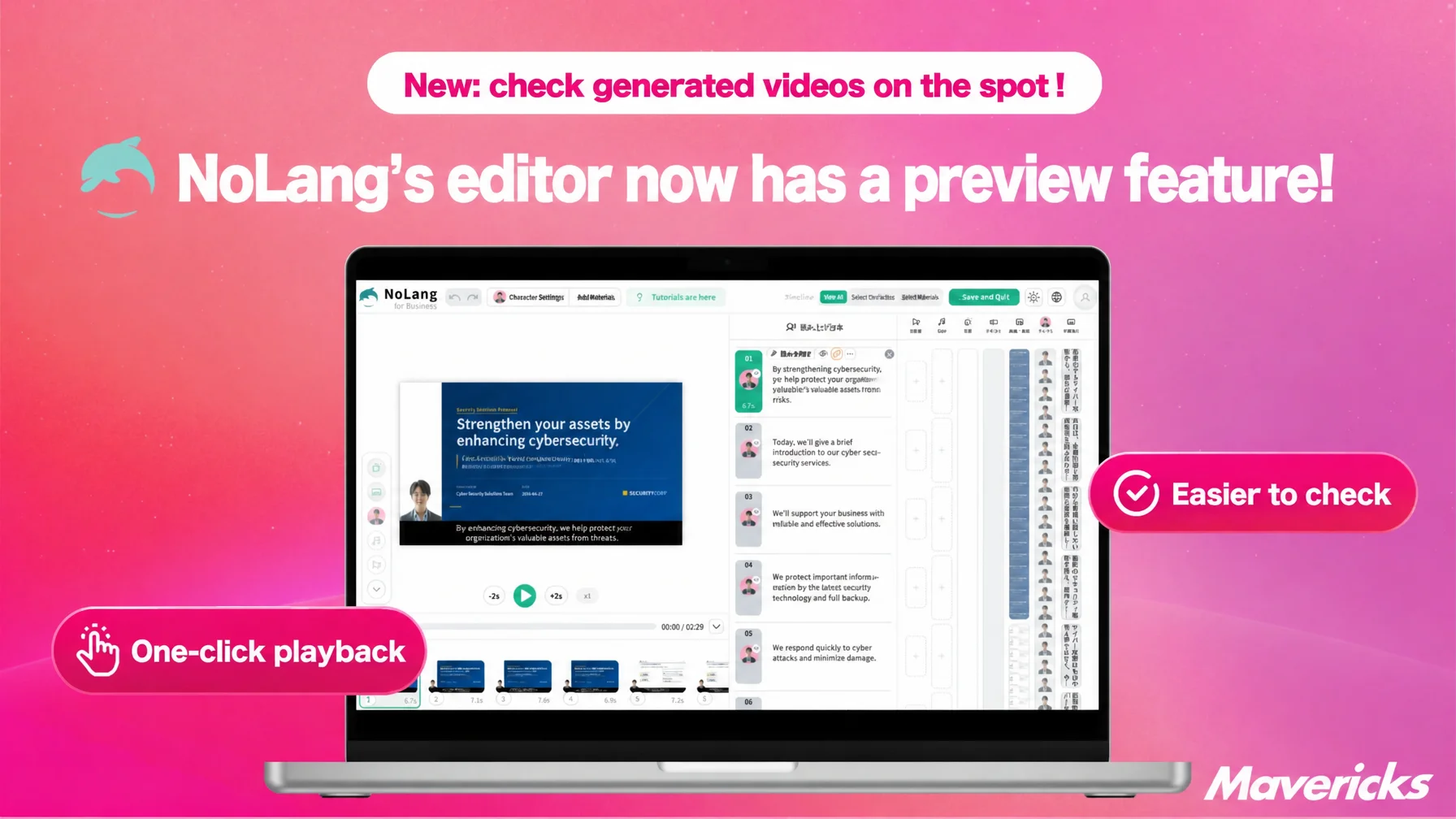
Mavericks, Inc., the company behind the AI video generation service NoLang, has added preview playback to the NoLang editor. Videos can now be played back directly in the preview pane for the first time, with narration, BGM and sound effects all playing in sync with the visuals, so the result can be checked immediately after an edit. Playback speed can be set to 1x, 1.25x, 1.5x, 2x or 3x, and pitch is preserved at faster speeds, so even long videos can be reviewed in a short time.
The “I can’t fix it right away” problem in video review
On video production teams, not being able to check an edit immediately holds up the whole process. In a joint survey by Hikaku Biz and Mteam (conducted April 7-14, 2025, with 111 people working in marketing, PR and brand strategy), among respondents who combine in-house production with outsourcing, 25.8% said that “requesting corrections or changes from an outsourcing partner takes time.” On the in-house side, 31.6% answered that “employees do not have enough capacity to spend time on production”1. The back-and-forth of checking and correcting often takes longer than the editing itself.
Audio in particular — narration, BGM and sound effects — cannot be judged by changing text or settings alone. Setting a reading speed as a number does not tell you where the pauses and breaths will sound unnatural, and the balance of BGM volume cannot be judged from the shape of a waveform. Only by playing the audio inside the video, and checking the tempo, the pauses in the narration and the timing against the visuals, does it become clear whether a correction is needed.
Until now, the NoLang editing screen could not play a video in the preview pane at all. To check how everything fit together after fixing narration or BGM, the only option was to generate the video again each time. Rewording a single caption takes a few seconds, but waiting for a video to be generated just to check it turns even a small change in phrasing into a wait of several minutes. Fixing three spots in a five-minute video means three of those waits stack up, and the waiting alone can take about as long as the editing. Preview playback has been added to the NoLang editor in response to this problem.
Videos can now be played in the editor’s preview pane
NoLang has added a feature that plays the video being edited directly in the preview pane of the video editing screen (the editor). Without leaving the editor, the result of edits on the timeline can be played back and checked on the spot. Alongside the play and pause icon buttons, the preview pane now has a “+2s” button that jumps two seconds ahead of the current playback position, which is useful for reviewing just the moment a subtitle changes or a cut lands.
During playback, audio tracks such as narration, BGM and sound effects play in sync with the visuals. Right after typing text and synthesizing narration, or after adjusting BGM volume and the timing of sound effects, the result can be listened to again on the spot. A button for switching playback speed has also been added at the bottom of the preview pane. The button carries a “Playback Speed” tooltip and shows the currently selected speed as “x1”. Clicking it opens a menu listing speeds such as “x1” and “x1.25”, and while a speed other than normal is selected the button changes color, making it obvious at a glance.
Five speeds from 1x to 3x, with pitch preserved
The available playback speeds are 1x, 1.25x, 1.5x, 2x and 3x.
At faster speeds, the pitch of narration and sound effects is preserved. Simply fast-forwarding audio makes voices sound high and hard to follow, but NoLang’s preview playback applies pitch-preserving processing, so only the speed changes and the audio still sounds natural. That is what makes it possible to follow the lines of dialogue even at 3x. Some browsers do not support pitch-preserving speed changes; in that case the preview pane displays a notice saying that the browser cannot apply pitch-preserving speed changes during preview playback, and that the affected audio will play at its original speed or without pitch preservation.
These speed options make the “check it right away” experience even more efficient. In a survey by the NTT Docomo Mobile Society Research Institute (published September 2024), slightly over 50% of respondents said they sometimes watch videos at increased speed2. According to a survey by the “Gen Z Video Research Section” of Sompo Japan Insurance Inc. (conducted September 2022, with 800 men and women aged 18 to 57), the speed Gen Z finds most comfortable is 1.5x, while other generations prefer 1.25x3. The 1.25x and 1.5x options in NoLang let creators review the result at a speed close to how viewers experience it, while 2x and 3x are fast options aimed specifically at production-side review.
Fix at normal speed, review the whole video at higher speed
There are two main situations where preview playback and speed control help. The first is checking the result on the spot right after an edit. Immediately after synthesizing narration or adjusting BGM volume, playing back at normal speed (1x) makes it possible to hear the tempo and volume balance, fix the text or settings on anything that stands out, and play it again to confirm — all without leaving the editing screen. The “+2s” button makes it easy to jump a little past the spot that was corrected and quickly check how it connects to what comes before and after.
The second is using faster playback to review a long video from start to finish in less time. With long-form content such as training or seminar videos, watching the whole thing at normal speed takes considerable time. Instead, the overall tempo and structure can be checked quickly at 2x or 3x, and only the spots that stand out are reviewed at normal speed to refine the audio and subtitles. A 10-minute video can be reviewed end to end in a little over three minutes at 3x, leaving only a few tens of seconds to listen to again at normal speed.
The core of this update is that both movements — checking immediately after an edit and reviewing the whole video quickly — are completed inside the same preview pane, with no video generation in between. The same split works for a final check before publishing: run through the entire video at 3x to confirm nothing is seriously off, then return to normal speed for the parts that stand out and refine the line breaks in captions and the timing of sound effects.
What comes next
Mavericks plans to keep improving the usability of the editor, covering not only video generation but also the checking and finishing steps that follow it, so that users can quickly arrive at the video they intended. However much faster the video creation step becomes, overall lead time to publication will not shrink if checking the result takes a long time. Starting with this preview playback and speed control feature, Mavericks will continue to expand functionality that lets users check their edits on the spot and shorten the correction cycle, contributing to productivity across video production as a whole.
Footnotes
-
Hikaku Biz and Mteam, “Survey on in-house vs. outsourced video production and its challenges” (in Japanese) (conducted April 7-14, 2025, with 111 people working in marketing, PR and brand strategy. Outsourcing: “requesting corrections or changes takes time” 25.8%; in-house: “employees do not have enough capacity” 31.6%) ↩
-
NTT Docomo Mobile Society Research Institute, “Do you watch videos at increased speed?” (in Japanese) (published September 24, 2024. Slightly over 50% have watched at increased speed) ↩
-
Sompo Japan Insurance Inc., “Gen Z Video Research Section,” press release “Gen Z finds 1.5x the most comfortable viewing speed” (in Japanese) (conducted September 2022, with 800 men and women aged 18 to 57. Gen Z’s comfortable speed 1.5x, other generations 1.25x) ↩