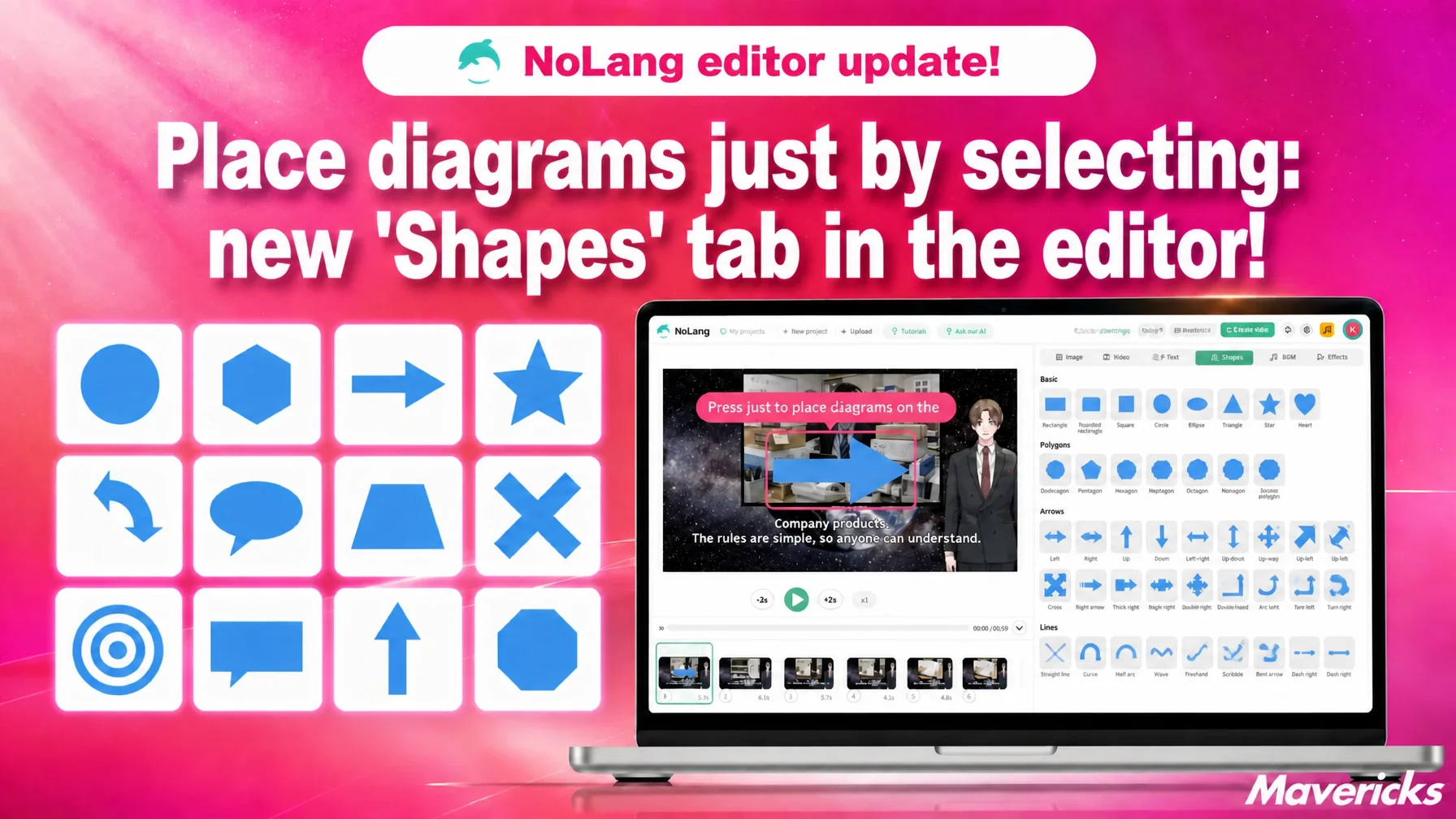
Mavericks, Inc., the company behind the AI video generation service NoLang, has added a Shape tab to the Insert asset panel of the NoLang video editor. Arrows, callouts, polygons and symbols can be placed on the canvas by selecting them, and text can be typed directly inside a shape. Even on shapes with slanted or pointed outlines, such as stars and trapezoids, the text stays within the shape. The number of points on a star, the head length of an arrow and the direction of a callout tail can be fine-tuned with sliders and toggle buttons. Diagrams for explainers, manuals and training videos can now be assembled inside the editor without opening a separate design tool, making the message easier for viewers to follow.
In-house video production is growing, and a single diagram sends you back and forth between tools
Videos that explain a procedure, manual videos that teach an operation, internal training videos. The more the content involves an order of steps or things that must not be done, the less speech and on-screen text alone can carry. An arrow shows the flow, a callout adds a note, a prohibition mark flags a warning. The more practical the video, the more often a diagram is needed.
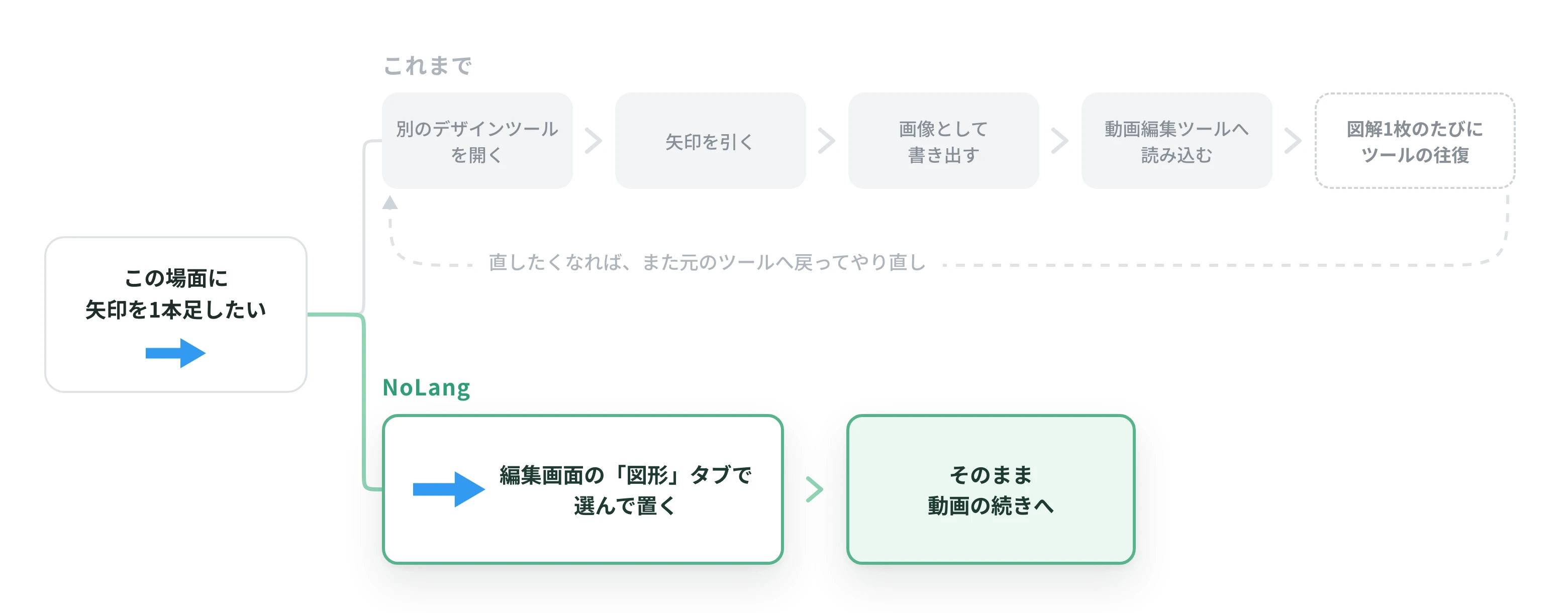
But if the video editing tool has no shapes, adding that single diagram means opening another tool. Draw an arrow in PowerPoint or a design tool, export it as an image, import it into the video editor. Change your mind about the position or the color, and you go back to the original tool and start over. That round trip happened every time a diagram was needed.
In a joint survey by Hikaku Biz and Mteam, the issue most often cited by companies producing video in-house was “difficulty introducing and operating shooting and editing tools” at 44.7%, followed by “a shortage of people with video editing skills” at 26.3%1. Among companies that combine in-house work with outsourcing, “difficulty introducing and operating tools” was also raised as an in-house issue, by 40.3%. What stands in the way first when a company tries to make its own videos is not the planning or the script, but handling the tools. The more tools involved, the more there is to learn and the more rework there is.
NoLang has now added a Shape tab to the Insert asset panel of the editor. The shapes needed for a diagram can be added from the same screen where the video is being edited.
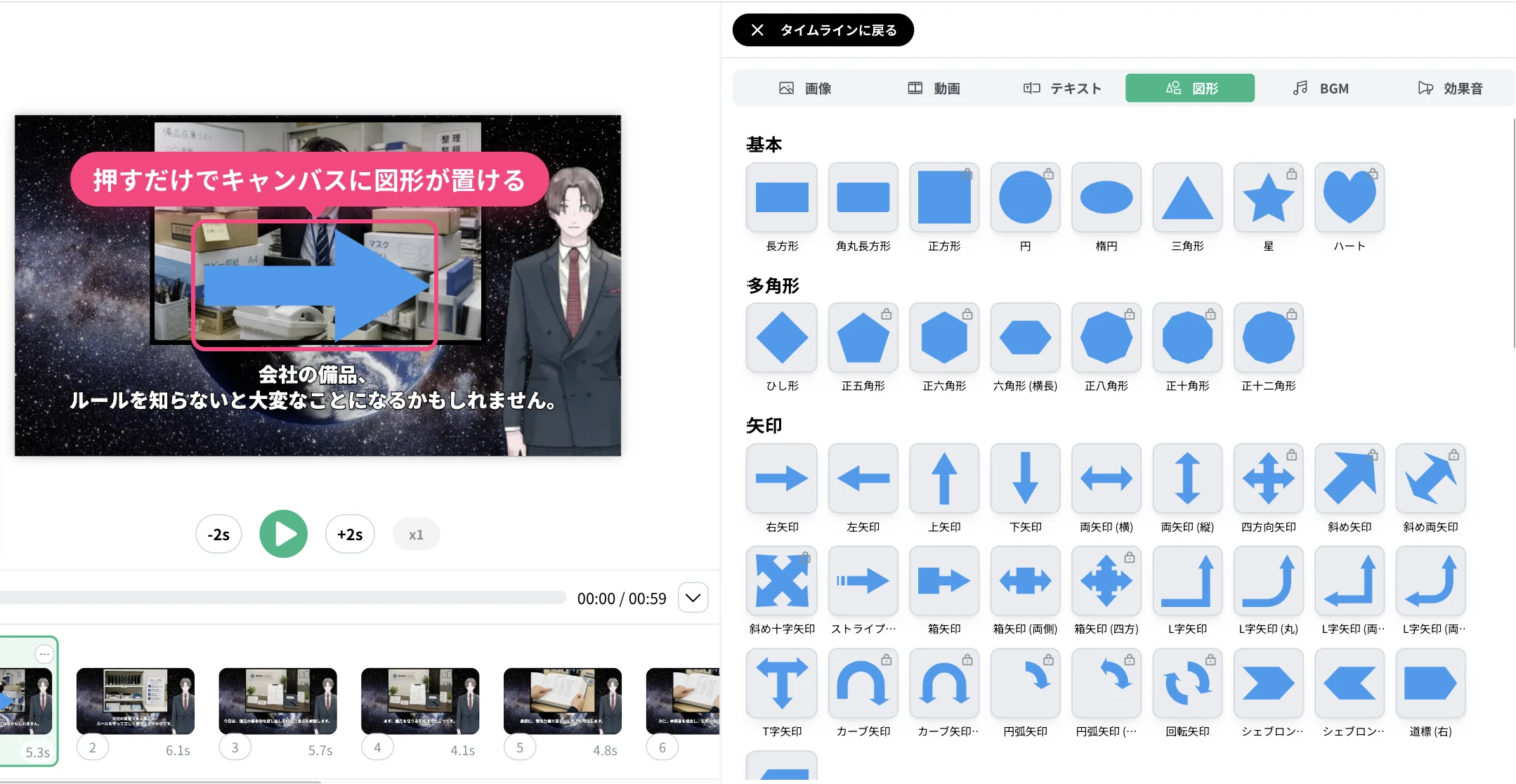
A Shape tab in the editor puts a diagram in place with one selection
A Shape tab now sits alongside images, videos and text in the Insert asset panel of the editor. Opening it shows shape thumbnails grouped by category, and pressing one puts the shape on the canvas.
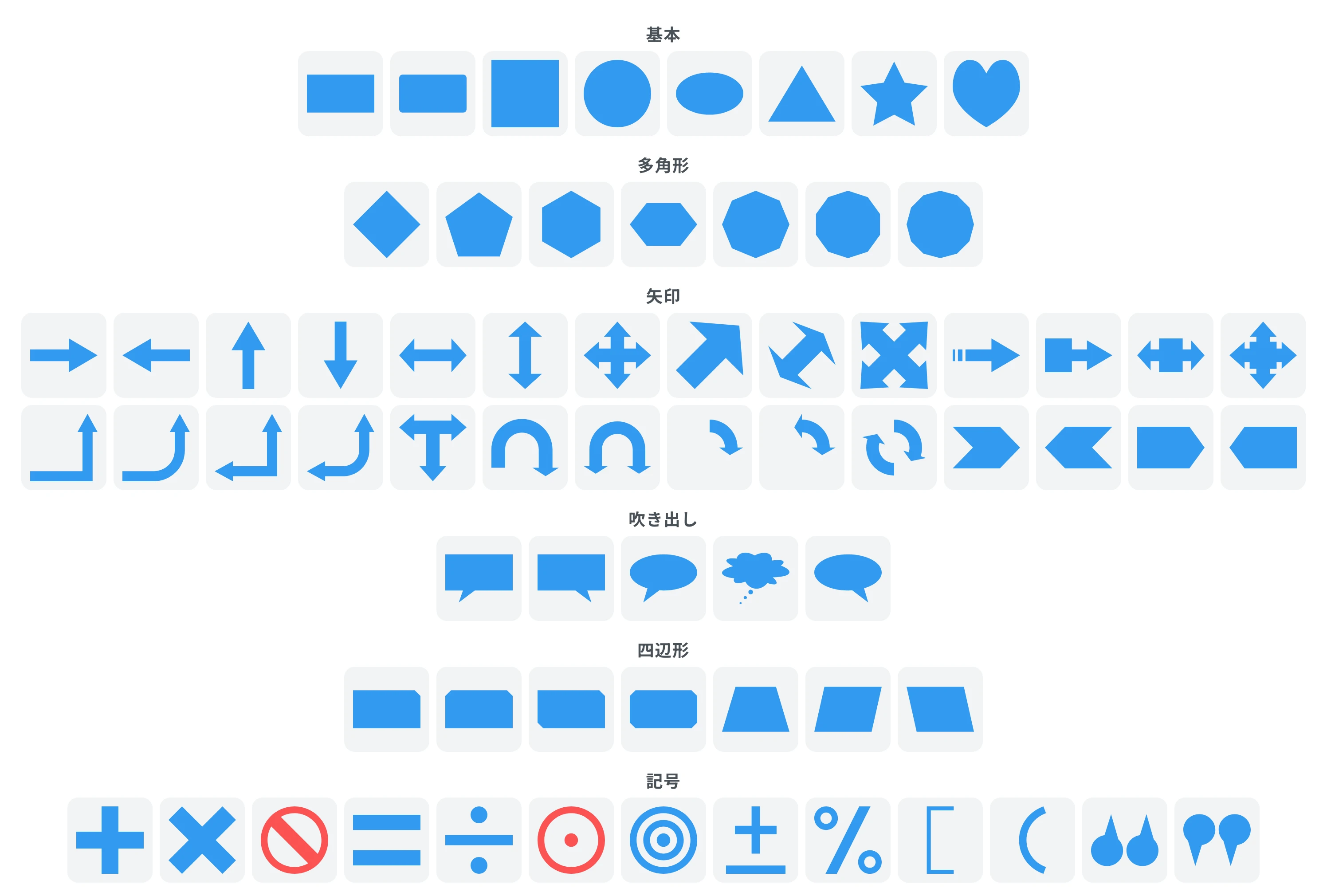
The categories are Basic, Polygon, Arrow, Callout, Symbol and Quadrilateral. Counting only the shapes used for diagrams, there are dozens of them. Basic holds the rectangle, rounded rectangle, square, circle, ellipse, triangle, star and heart. Polygon runs from the diamond through the regular pentagon, regular hexagon, wide hexagon, regular octagon, regular decagon and regular dodecagon. Arrow offers 28 shapes, including right, left, up and down arrows plus double-headed arrows (horizontal and vertical), four-way arrows, diagonal arrows, L-shaped arrows, T-shaped arrows, curved arrows, arc arrows, rotation arrows, chevrons and signposts. Callout covers the rectangular callout, the round callout and the thought bubble, with versions for a speaker on either side. Symbol includes the cross, X mark, prohibition mark, equals sign, division sign, concentric circles, double circle, plus-minus sign, percent sign, square brackets, parentheses and quotation marks. Quadrilateral lines up the trapezoid and parallelogram along with rectangles whose corners are cut on one corner, two corners, opposite corners or all four.
An arrow for the flow of a procedure, a callout for a note or an inner thought, a prohibition mark or an X for what must not be done, an equals sign for equivalence. The shape that matches the relationship you want to explain is already on the screen, with no searching. For text that is already placed, the same list can be opened from the settings panel to swap the shape of its frame.
Type text straight into a shape, for labels and numbers alike
An inserted shape can be double-clicked to type text into it. Put a line of dialogue in a callout. Write “Next” on an arrow. Place a large number inside a circle for emphasis. Treat a cut-corner rectangle as a tag and put a heading in it. The diagram comes together by placing a shape and then writing what goes inside it.
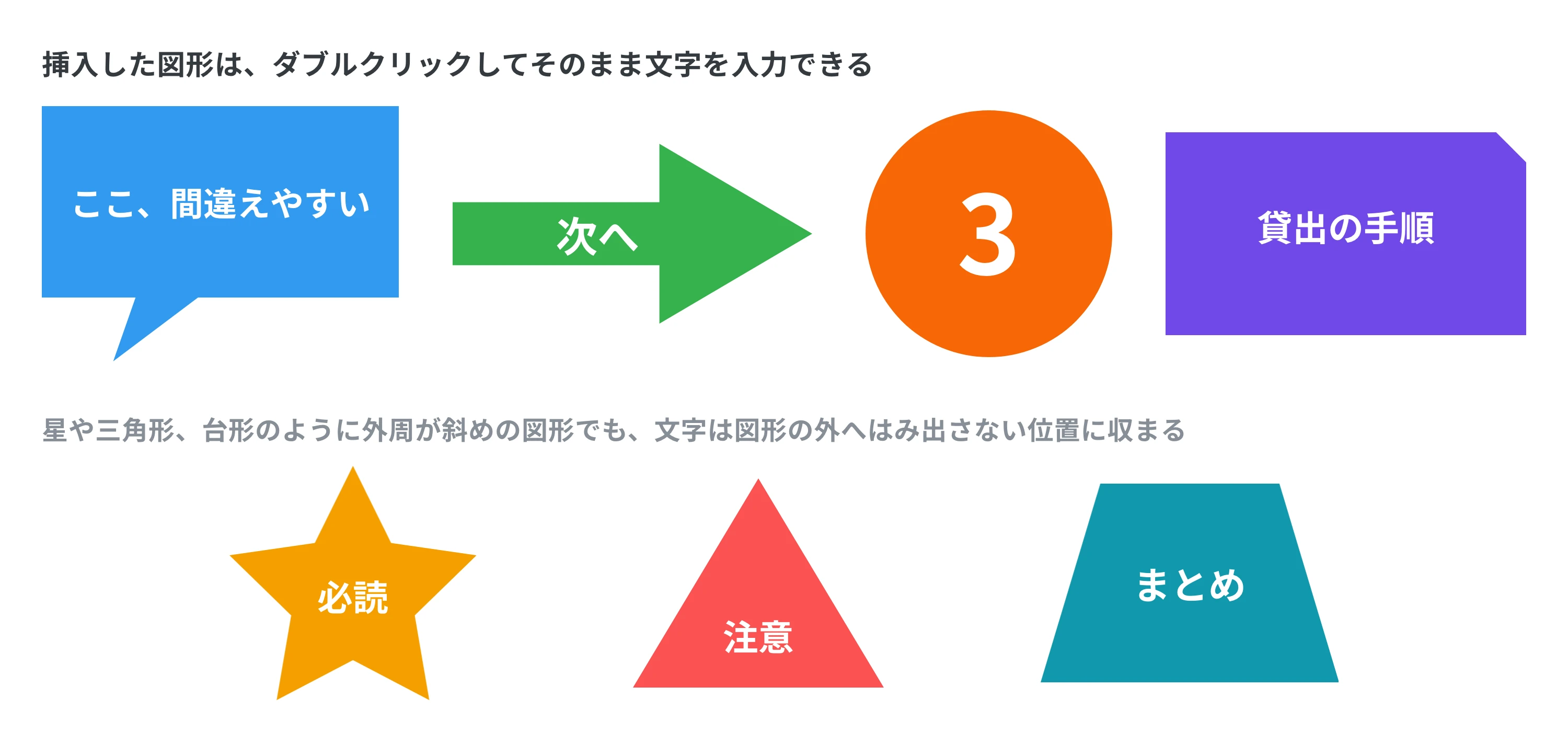
The area for the text is determined automatically from the shape and the aspect ratio of its frame. Even on shapes with slanted or pointed outlines, such as stars, triangles, callouts and trapezoids, the text sits where it will not spill outside the shape.
Sliders get you to the shape you want, even without experience
The shape itself can be adjusted with sliders and toggle buttons in the settings panel. Pick the closest one from the list, then refine it at hand. That approach works for every shape.
A star has a “points” slider from 3 to 12, plus “depth” to change how sharp the points are. A polygon has “corners” from 3 to 12 and “phase” to switch between a vertex at the top and a side at the top. Arrows have “head length,” “shaft thickness,” “notch depth” and “direction,” so you can make anything from a thin line-like arrow to a thick arrow with real area. Callouts have tail “direction,” “position,” “thickness” and “length,” so the tail can point toward the speaker wherever they are on the canvas. Trapezoids have “narrow side” and “skew,” cut-corner rectangles have “cut size” and “cut style” (straight, concave or convex), and the cross has “band thickness” and “inner angle.” Add corners to a polygon to match the number of steps in a workflow, or point a callout tail toward the speaker in a screen recording. Adjustments like these are finished at hand, without picking a different shape.
The look can be set per shape as well: fill color, border on or off with its color and thickness, and corner rounding. A shape can be fill only, or border only so the footage behind it shows through. The aspect ratio can be set to “locked 1:1,” “locked” or “free,” and shapes based on a square, such as circles and regular polygons, have their aspect ratio locked the moment they are inserted.
What comes next
NoLang has been building an environment where a generated video can be finished in the editor as it is. This addition of shapes is another step toward a state where no other tool has to be opened in order to make a video.
The goal is for people who have something to convey to be able to deliver it in the clearest possible form. Updates based on feedback from users will continue.
Footnotes
-
One’s Mind Inc. (Hikaku Biz) and AtoOne Inc. (Mteam), “Survey on in-house versus outsourced video production and its challenges” (in Japanese) ↩