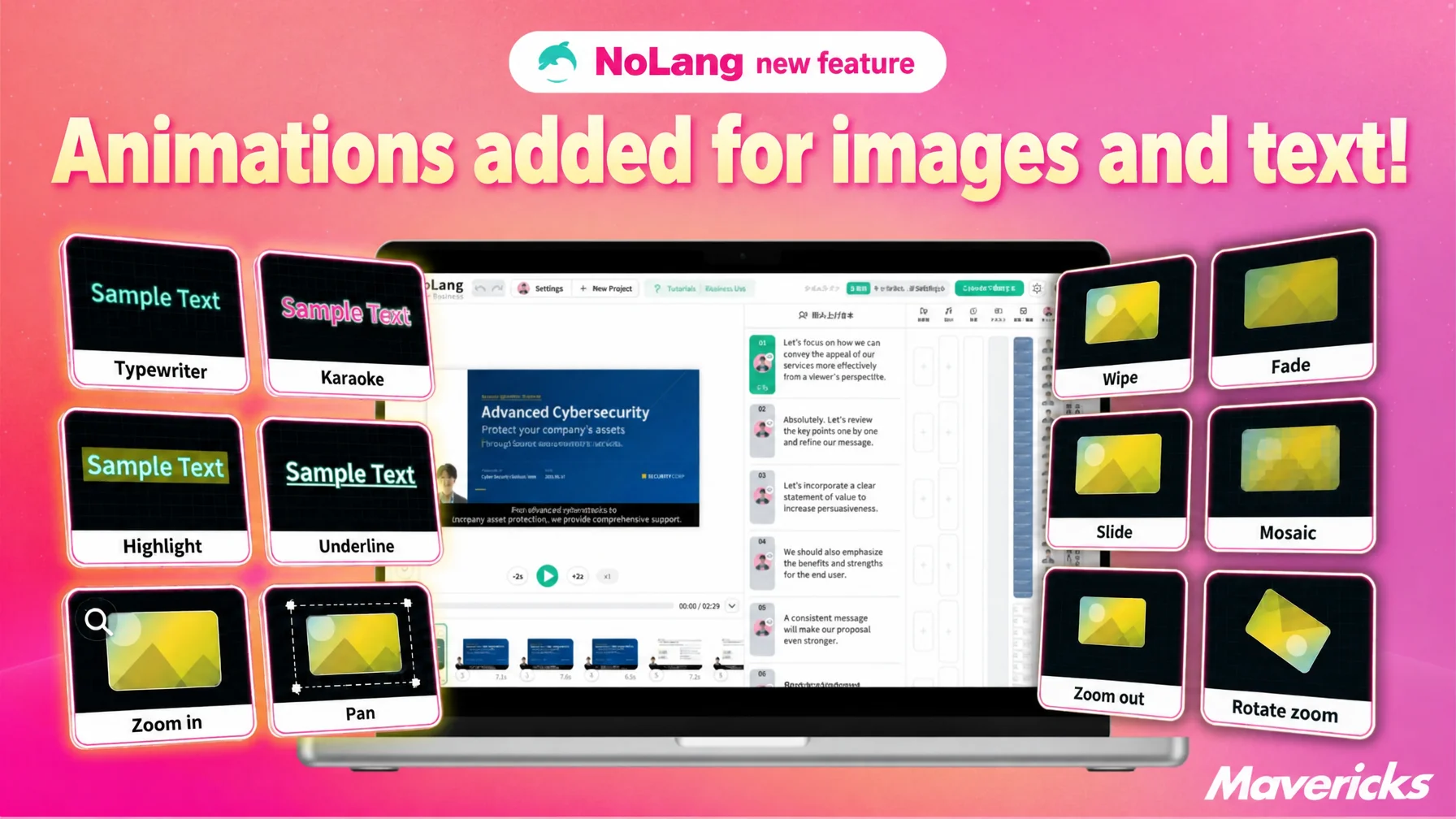
Mavericks, Inc., the company behind the AI video generation service NoLang, has added animation and effect features for images and text to the NoLang editor. Selecting a segment on the timeline and opening the “Animation” tab is enough to set motion for each of the three phases — start, main and end — choosing from 6 presets for images and video, 12 presets for start and end, and 6 presets made for text. Adding motion to still images and text keeps viewers watching and makes the message more memorable.
Create a Video with NoLangAnimation features that bring motion to images and text
Select an image, video or text segment on the timeline and open the detail panel, and an “Animation” tab marked with a star icon appears. Motion can be set there for each segment individually, with no need to regenerate the video or open a separate editing application.
Animation is set across three phases: “Start Animation”, “Main Animation” and “End Animation”. The effect as the element appears on screen, the motion that continues while it is displayed, and the effect as it leaves the screen can each be combined separately, so an element can enter with force and then settle into a restrained motion while it stays on screen.
Until now in NoLang, image and video clips simply sat still in the position they were placed, and text could only be switched between visible and hidden. With this release, motion can be applied to the elements themselves, which makes higher-quality videos possible.
Six main animations for images and video, with adjustable intensity and cycle
“Main Animation”, the motion that continues while an element is displayed, offers six presets for images and video clips. Even a single still image holds attention longer when a small motion runs the whole time it is on screen.
- Stretch and Shrink: stretches and contracts the element in small steps
- Scale: repeats scaling up and down like a pulse
- Vertical Move: sways slowly up and down
- Zoom In: enlarges gradually
- Zoom Back: shrinks gradually
- Panning: sweeps across the frame in one of four directions (up, down, left, right)
Of these, “Stretch and Shrink”, “Scale” and “Vertical Move” offer three intensity levels — “Weak”, “Medium” and “Strong” — and the cycle (speed) of the motion can be fine-tuned with a slider. “Panning” can be set to one of four directions (→ ↓ ↑ ←), so the frame can sweep toward the part of a photo that deserves attention.
A product photo can take a gently applied “Scale” for a breathing motion, while a landscape photo can use “Panning” to cross the frame like a camera move — the same still image leaves a different impression depending on the settings. Because intensity and cycle can be combined, the feature covers everything from calm document-style videos to fast-paced creative for social media.
Twelve start and end animations, including wipes and rotating zooms
In addition to the main animation, the following effects can be set as a “Start Animation” and an “End Animation” for the moments an element appears on and disappears from the screen.
- Wipe
- Clock Wipe
- Inner Circle Wipe
- Outer Circle Wipe
- Fade
- Blur
- Mosaic
- Slide
- Zoom in
- Zoom out
- Rotate Zoom In
- Rotate Zoom Out
Most of the effects come in several variations, such as “Standard”, “With fade” and “With pause”, so even a single “Fade” can be used either as a smooth standard type or as a paced type that holds before releasing.
When elements are also present in the scenes before and after, an effect can serve not only as a standalone entrance or exit but as a “Transition” that spans the neighboring scenes. Switching between standalone display and transition takes one tap on a segmented control. Background elements have a similar set of effects, centered on “Blur”.
In a video that cuts from a product shot to a scene of the product in use, for example, “Wipe” can switch scenes like a slide, and “Rotate Zoom In” can pull the viewer into the next scene with momentum — the effect follows the way the message unfolds. Because the choice between a standalone entrance or exit and a transition can be changed afterward, a video can first be assembled with standalone effects and then adjusted to transitions on the spot once the overall flow is clear.
Dedicated animations for text, down to how each character appears
As with images and video, text elements have effects for all three phases: “Start Animation”, “Main Animation” and “End Animation”. The main animation offers three presets — “Stretch and Shrink”, “Scale” and “Vertical Move” — while the start and end phases use the same effect set as images, including wipes and fades.
Text also has a dedicated “Text Animation” that shapes the way the characters themselves appear.
- Typewriter: displays the text one character at a time
- Paragraph type: displays the text paragraph by paragraph
- Karaoke: changes the text color in time with the speech
- Highlight: emphasizes the characters in sequence
- Underline draw: draws an underline that follows the characters
- Strikethrough draw: one additional effect available only for subtitles (text at the scene level)
The color used by “Karaoke” and the highlight color used by “Highlight” can both be set freely, and the interval (speed) at which characters change can be adjusted with a slider. Tightening that interval to match the pace of the narration keeps the audio and the text motion in sync.
Effects can be varied according to the role the text plays: highlighting only the key terms in the captions of a training video, or revealing a product tagline one character at a time with “Typewriter” to build anticipation.
What comes next
With the range of expression for images and text now wider, Mavericks plans to keep expanding its editing features, including more animation and effect variations and stronger combinations with other elements such as characters. This release lets anyone add motion by picking a preset, with no specialized editing knowledge required, which widens the options available to staff who have never edited video. It also widens the range of what can be reworked on screen without recreating the source material, opening more ways into video production.