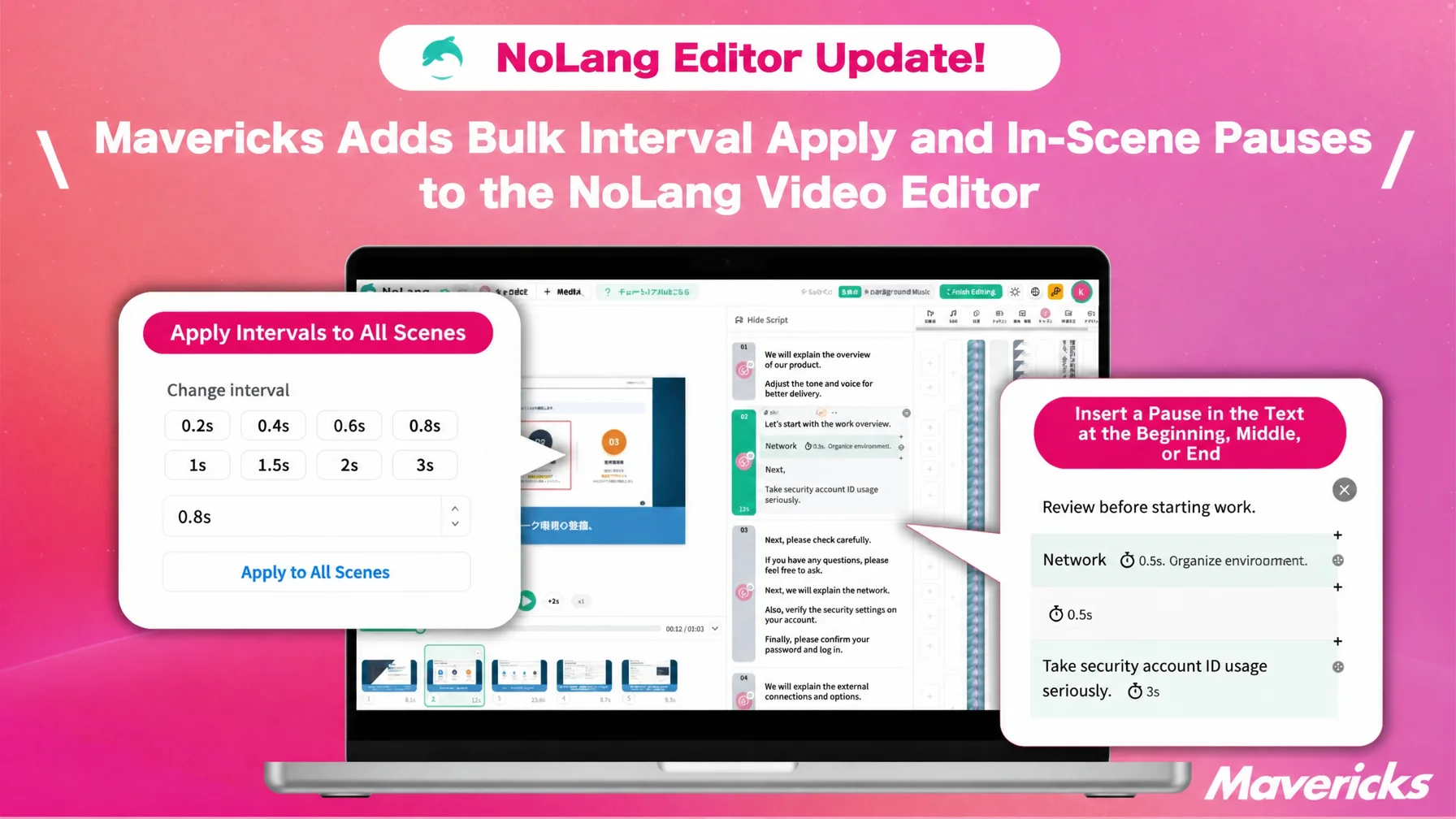
Mavericks, Inc., the company behind the video generation AI NoLang, has added two pacing controls to the NoLang video editor. The first applies the interval set between two scenes to every scene boundary in the video with a single click. The second inserts a pause at any position inside the script text of a scene. Editors can now keep the pacing of a whole video consistent while still placing a beat exactly where a line needs emphasis, which widens the range of expression available in video editing.
Adjusting pacing takes time in video editing
In video editing, the pauses placed between scenes and the timing of each cut change the impression a viewer takes away. As more video content is produced for social media and for business, teams working on narrated and explainer videos regularly run into fine editing needs such as “hold a beat here for emphasis” or “even out the pacing across the video.” Adjusting pacing ranks alongside cutting and sourcing footage as one of the more time-consuming steps.
Until now, the NoLang video editor required the interval between scenes to be set one boundary at a time. Even when the goal was a single, consistent pause length across the video, the same operation had to be repeated for every scene, so the more scenes a video contained, the more effort the adjustment took.
Separate from scene boundaries, there was also no way to open a short gap partway through a video, meaning a beat could not be placed at an arbitrary point in the script. That limited how freely pacing could be adjusted.
Two new features: apply intervals across all scenes, and insert pauses within a scene
This update adds two features that remove both the manual effort and the limitation described above. The first is an “Apply to all scenes” button that applies the interval length set between two scenes to every scene boundary in the video with one click, so the setting that used to be repeated at each boundary is now finished in one place. The second lets editors insert a pause at any position in the script text within a scene, placing a beat inside a sentence without crossing a scene boundary.
Together, the two features let editors control both the broad pacing between scenes and the fine pacing inside a scene with less work than before.
No more repeating the setting scene by scene: apply an interval in one step

Previously each boundary needed its own interval length. Now the length is decided once, at the first boundary, and applied to all the others, so the time saved grows with the number of scenes. For long narrated videos where the pacing should stay uniform, or explainer videos with many cuts, this removes much of the effort spent on fine-tuning pauses.
Pauses can now be inserted anywhere in a video
Right-clicking on the script text opens a menu with “Insert pause at cursor position,” which places a pause at the specified point. The default length is 0.5 seconds. Once inserted, the length can be adjusted from preset buttons or by entering a number, just like other intervals, and here the range spans 0.1 to 3,600 seconds.

Editors can now place a beat inside a sentence, freely positioned and without crossing a scene boundary. Holding a pause just before an important keyword or figure for emphasis, or giving listeners time to absorb what they just heard, is the kind of fine pacing that scene-level settings could not express. The range of editing freedom is significantly wider as a result.
Looking ahead
Alongside expanding AI-driven video generation and automatic editing, Mavericks plans to keep strengthening the manual editing controls that let users adjust the details themselves. As video production spreads among individuals and companies alike, updates like this one, which make a basic editing task such as pacing adjustment more efficient, are part of the aim to build a video generation AI service that is easy to use for a wide range of people, from first-time video creators to those producing videos every day, across education, business and other settings.