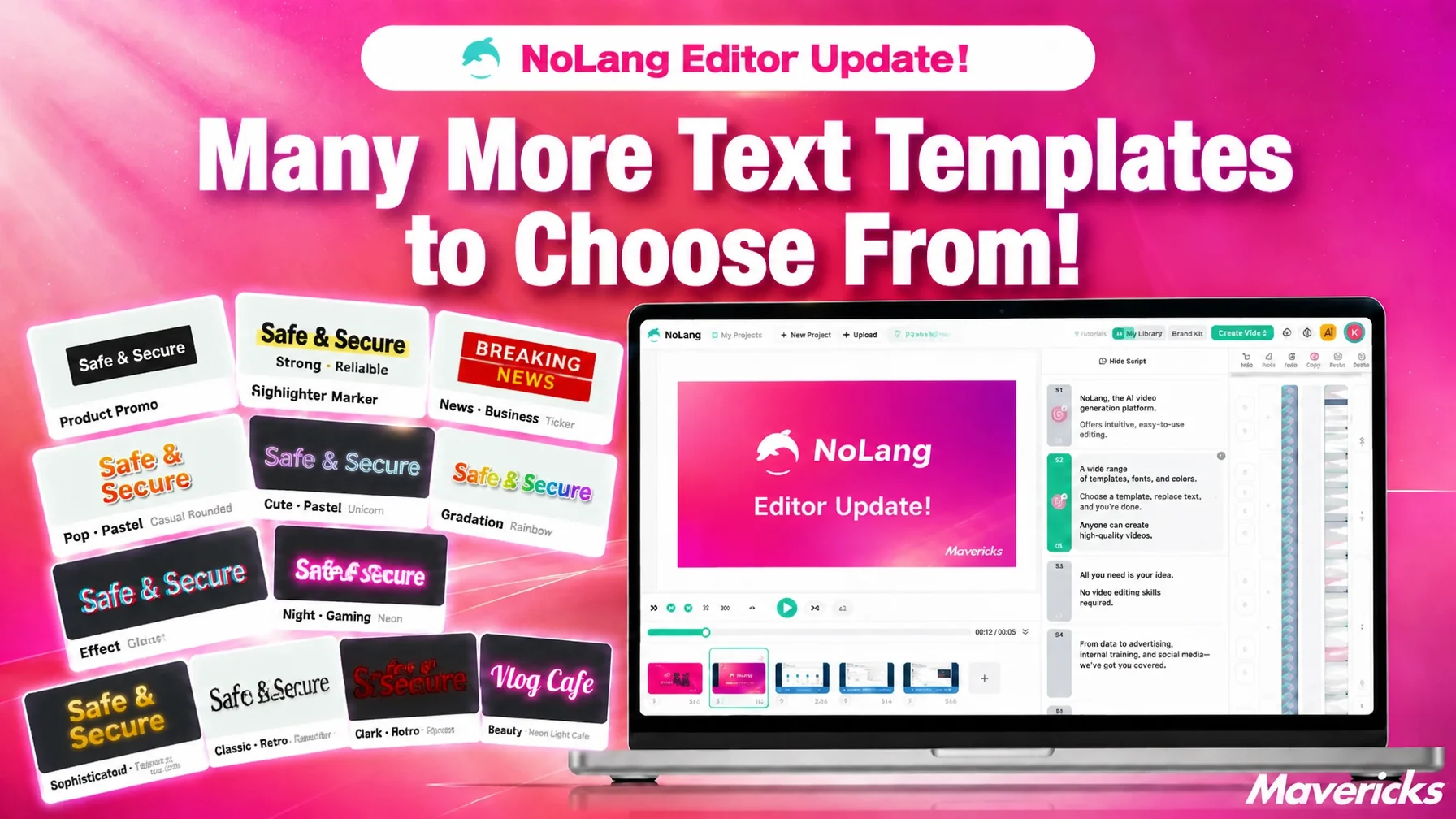
Mavericks, Inc., the company behind the AI video generation service NoLang, has expanded the text templates available in the NoLang video editor from 56 styles to 120 categories and 1,192 variations in total. The library is organized into 12 top-level categories, including “Standard captions,” “News and business” and “Japanese and retro,” and comes with a search box, so users can quickly find a text design that matches the mood and content of their video. There is no need to configure fonts, outlines, background bars, gradients and shadows by hand. Even without video production experience, anyone can apply the kind of elaborate text designs commonly seen on social media simply by picking one.
In-house video production is spreading, and caption design is the barrier for non-designers
As video use has spread, producing it inside the company has become the norm. A joint survey by Hikaku Biz and Mteam found that 55.9% of companies use a mix of in-house and outsourced video production, and 34.2% produce entirely in house, meaning nearly nine in ten handle at least part of production themselves1. Yet the most common problem reported by in-house teams was that shooting and editing tools are hard to adopt and operate, cited by 44.7%. Next came a shortage of employee capacity at 31.6% and a lack of video editing skills at 26.3%. Making videos internally has become routine, but the burden of mastering the tools and the shortage of skills and time remain the barriers to going further1.
Captions and on-screen text are where that barrier shows up most clearly. Text has a large effect on the quality of a video, yet it requires combining many settings by hand, including font, text color, outline, background bar, gradient and shadow, and then tuning the result to fit the tone of the video. Building it from scratch takes both time and a sense of design. For in-house teams already uncertain about tools and skills, this was a demanding step.
NoLang has been expanding its text styles with features such as gradients and shadows, widening the range of decoration available. But the wider the design range, the more users face a new hurdle: knowing how to combine those settings. That is why this update adds a large number of text templates that are finished to the point where they can be used in a video as they are.
Text templates expanded to 1,192 styles that work as-is
This update expands the text templates in the editor to 120 categories and 1,192 variations in total. That is more than 20 times the previous 56 styles.
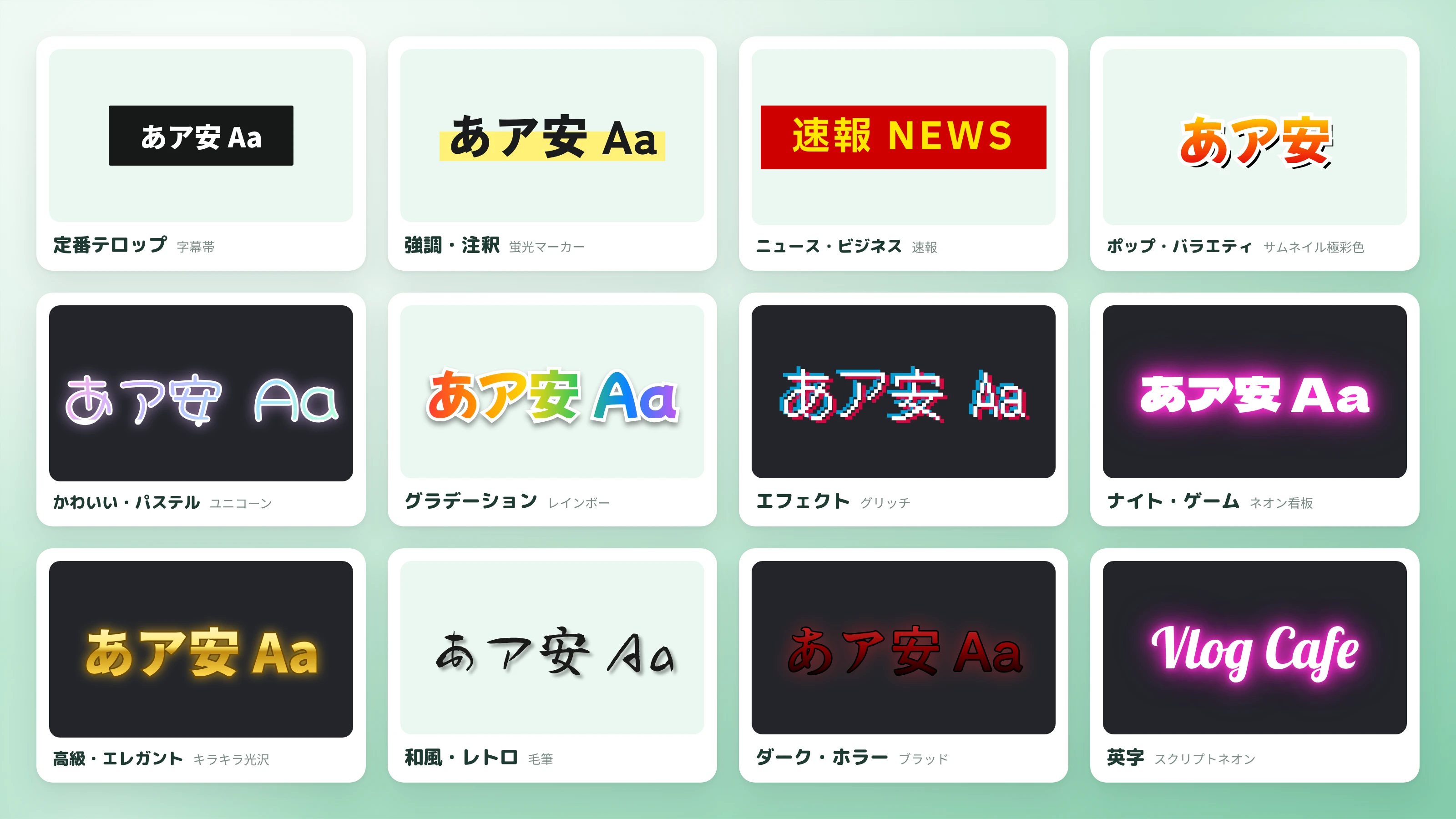
The templates are organized into 12 top-level categories: Standard captions, Emphasis and annotation, News and business, Pop and variety, Cute and pastel, Gradient, Effects, Night and gaming, Luxury and elegant, Japanese and retro, Dark and horror, and Latin alphabet. Users can navigate to a family of styles based on the genre or tone of their video. Examples of the styles included range from standard caption treatments such as “Subtitle bar,” “Cinema black bar” and “Commentary black outline,” through emphasis and annotation styles such as “Highlighter,” “Blackboard chalk” and “Sticky note,” news and business styles such as “Breaking news,” “Newspaper headline” and “Warning tape,” pop and variety styles such as “Sale burst,” “Thumbnail extra bold” and “Sticker,” effect styles such as “Glitch” and “Long shadow,” night and gaming styles led by “Neon sign,” and Japanese and retro styles such as “Brush,” “Retro coffee shop” and “Showa pop.”
Find the right design by search, and apply it to both subtitles and decorative text
With 1,192 styles, finding the one you want becomes a concern in itself. The template list therefore offers category filtering and a search function. Search covers not only style names but also the usage description attached to each template, so users can narrow the candidates with words describing the scene they have in mind, such as “subtitle” or “sale,” without knowing the official style name. The text style settings also include a horizontally scrolling row of representative templates, which can be applied on the spot without interrupting the editing flow.
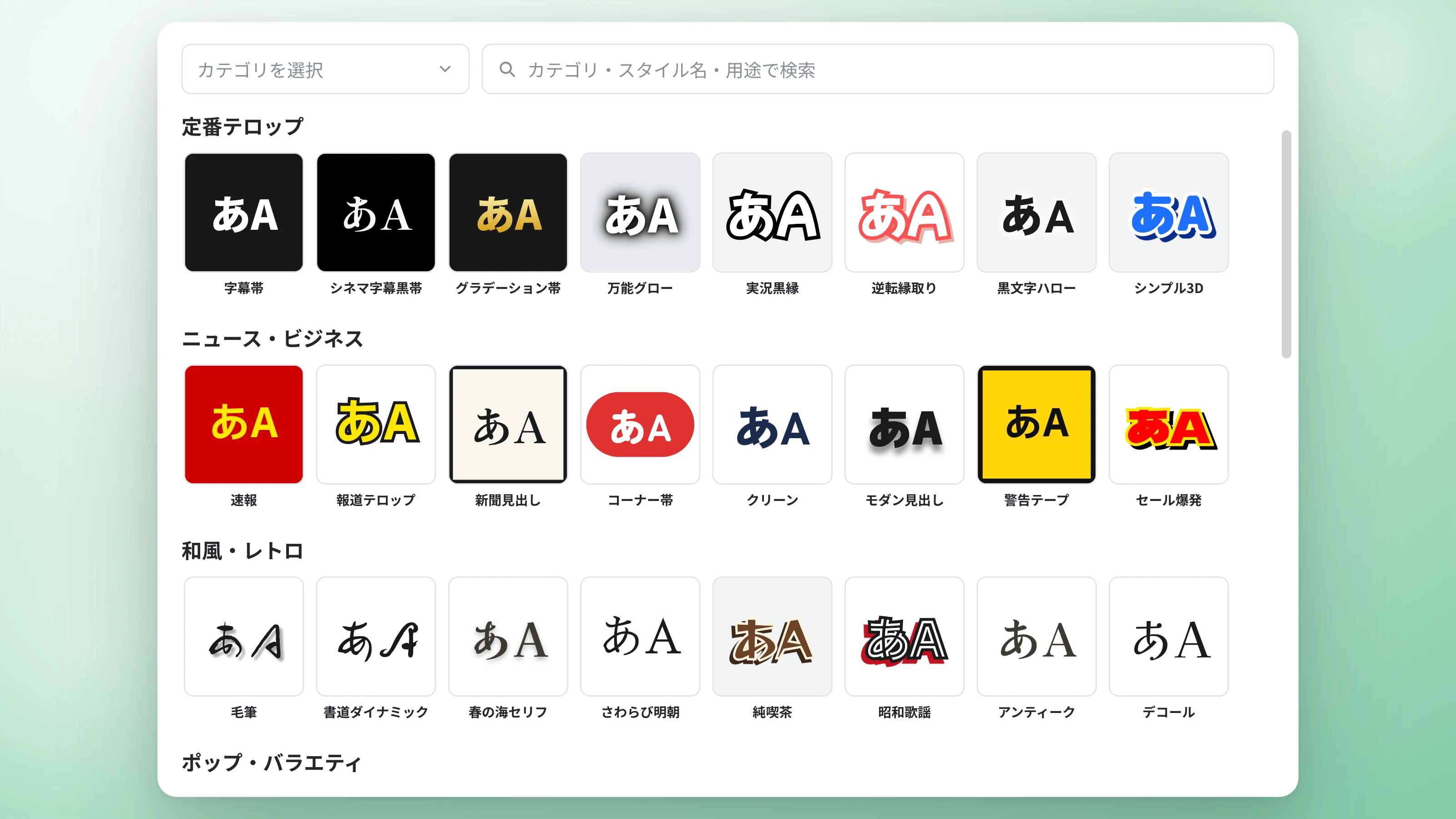
Templates can be selected not only when inserting new text, but also from the settings panel for text that has already been inserted, from the subtitle settings for each scene, and from a character’s default text style. In other words, the same design can be applied both to decorative text added later and to automatically generated subtitles and speaker captions. Keeping one family across a whole video aligns the tone of subtitles and decorative text, and gives a consistent look across a video series or a channel.
For news and explainer videos, “Breaking news” or “News caption” gives a credible look; for product introductions and sale announcements, “Sale burst” or “Thumbnail vivid” makes the message stand out; for company introductions and IR videos, “Clean” or “Elegant serif” creates a composed impression. By choosing styles to match the tone of each video, even members with little video production experience can produce presentable captions every time.
What comes next
NoLang will continue to expand the template library and improve how easy it is to search, based on user feedback and changes in video trends. Mavericks will keep updating the video editing features as a whole so that anyone can create videos that convey their message clearly, without specialist knowledge.
Footnotes
-
Joint survey by Hikaku Biz and Mteam, “Survey on in-house versus outsourced video production and its challenges” (in Japanese) ↩ ↩2