ISO/IEC 27001:2022 (ISMS) certified

Used by 500+ companies, local governments, and public agencies

An AI video generator for trade show and seminar videos

Trade show andseminar videos,from materials and recordings

NoLang is a Japan-made AI video generator that turns product materials, seminar slides, and seminar recordings into videos with narration and subtitles.

  • From product materials to subtitled product introduction videos for your booth
  • Keep videos for each product and show in the same format
  • Make subtitled videos and highlight clips from seminar recordings
  • Companies using NoLang 500+
  • Users 200K+

Get the service overview by email

Free Download Materials

Ask if it works for your show

Contact Us

Try It for Free

PDF PPTX Trade show videos

Sample of a video for the aisle-facing screen at a trade show, made with NoLang Sample screen of a product introduction video with subtitles, made with NoLang Sample screen of a seminar video made with NoLang
Sample screen of a vertical trade show announcement video, made with NoLang

500+ companies, local governments, and public agencies use NoLang

PROBLEM

Making trade show and seminar videos?
Do you face challenges like these?

  • The show is close, but there's no time for videos

  • More products, but still just one video to play

  • Hard to play sound at the venue, so the message doesn't get across

  • Seminar recordings sit unused after the event

With NoLang,

Just add materials and recordings,
and AI turns them into trade show and seminar videos.

  • Subtitles carry the message

    Subtitles are added automatically to match the narration, so the content gets across even at venues with the sound turned down.

  • Same format for each product

    Use a video you've made as the reference to create videos with different content for each product.

  • From video and audio

    From seminar video or audio recordings, you can create subtitled videos and highlight clips.

  • Horizontal and vertical

    Choose horizontal 16:9 for booth monitors, or vertical 9:16 for social media announcements.

HOW IT WORKS

From adding materials to export,
in 3 steps

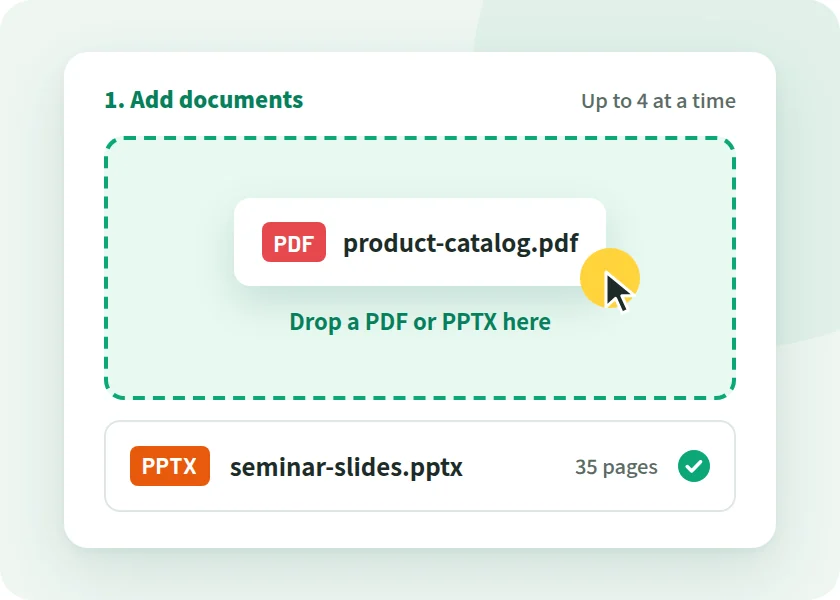
Use your product catalog and seminar slides as they are, in PDF or PowerPoint (PPTX). You can also paste invitation text into the input box.

  1. Illustration of the screen for adding a product catalog PDF and seminar slides PPTX to NoLang

    STEP 01

    Upload your documents

    Add your product materials or seminar slides, and write where the video will play.

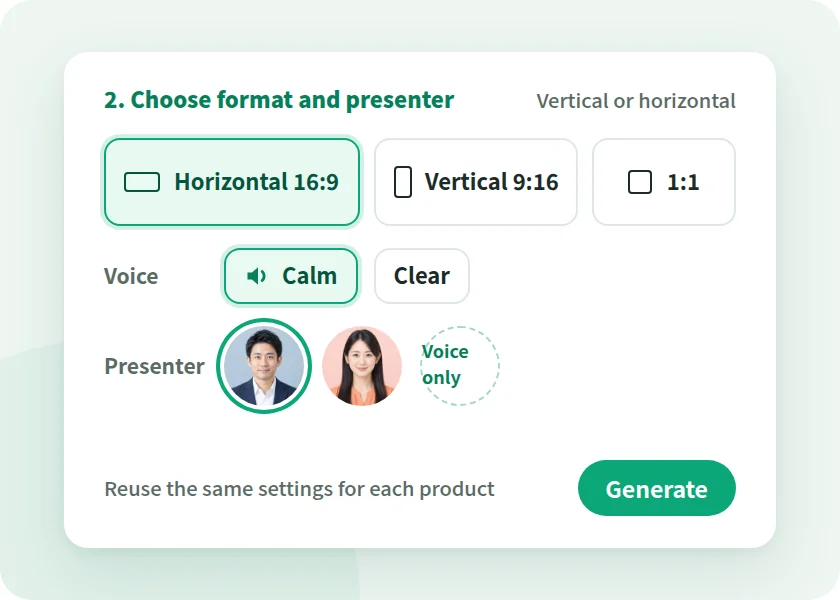
  2. Illustration of the screen for choosing the aspect ratio, voice, and presenter

    STEP 02

    Choose format and presenter

    Choose horizontal or vertical, then pick the narration voice and the presenter avatar.

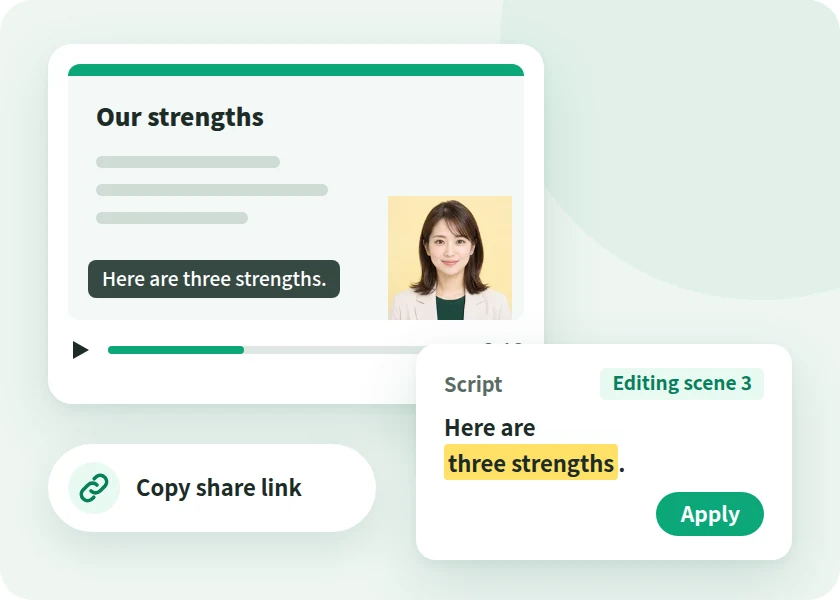
  3. Illustration of the screen for reviewing the finished video, editing the script, and sharing it

    STEP 03

    Review, fix, and export

    Review the finished video, fix the script and subtitles, then export it as MP4 or publish it with a share link.

AT THE BOOTH

For each spot in your booth,
a video to play

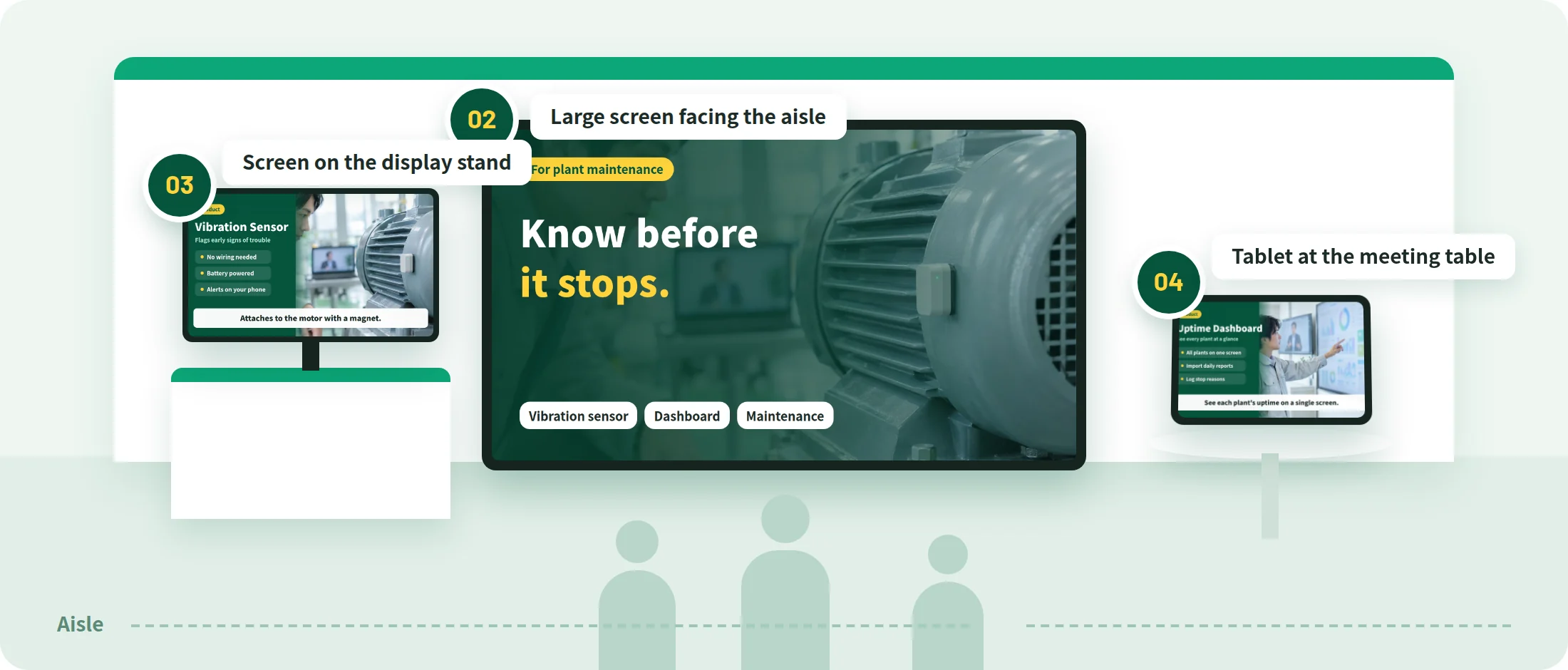
The large aisle-facing screen, the display stand screen, the meeting table. What you show depends on where it plays. Announcement videos before the show and thank-you videos after it can be made from the same product materials.

Illustration of a trade show booth, with a different video playing on the large aisle-facing screen, the display stand screen, and the tablet at the meeting table
  1. Before the show
    Sample screen of a vertical video announcing that you are exhibiting at a trade show

    Trade show announcement

    A short video for invitation emails and social media.

    What do you create from? Product materials, show invitation text

  2. Aisle-facing screen
    Sample of a video for the aisle-facing screen, showing the problem it solves in large text

    A video that makes people stop

    Show the problem it solves and the product name in large text.

    What do you create from? Cover and features from your product materials

  3. Display stand screen
    Sample screen of a product introduction video that presents product features with subtitles

    Product introductions

    Show the problem, features, and benefits in order with subtitles.

    What do you create from? Catalog for each product

  4. Meeting table
    Sample screen of a video explaining how a product works in detail

    In-depth explanation

    Explain how it works and the specs, showing pages from your materials.

    What do you create from? Technical documents, proposals

  5. After the show
    Sample screen of a product information video sent after the show

    Thank-you and product info

    Attach videos of the products you discussed to your thank-you email.

    What do you create from? Per-product videos

ONE FORMAT, EVERY PRODUCT

Keep videos for each product
in the same format

More products, new shows. NoLang can use a video you've made as the reference to create videos with different content while keeping the design and structure.

  1. Make the first video

    Make your first video from the catalog of your main product.

  2. Use it as the reference and change the content

    Choose the finished video as the reference and add the catalog for another product. The new video keeps the design and structure, with the content changed.

  3. Choose how closely to match

    Choose how faithfully to follow the reference video, from "Bold" to "Close to the reference."

  • Reference
    Sample screen of a product introduction video for a vibration sensor

    Vibration sensor

  • Sample screen of a product introduction video for operations dashboard software

    Dashboard

  • Sample screen of a product introduction video for a maintenance service

    Maintenance

Each video's content comes from the product catalog

  1. The problem it solves Challenge section of the catalog
  2. Product name and tagline Cover, product overview
  3. 3 key features Features, how-it-works diagrams
  4. Expected Impact Benefits, case studies
  5. Contact info Booth number, contact details

View marketing sample videos

WHEN THE SHOW CHANGES

When the show changes,
fix only the scenes that change

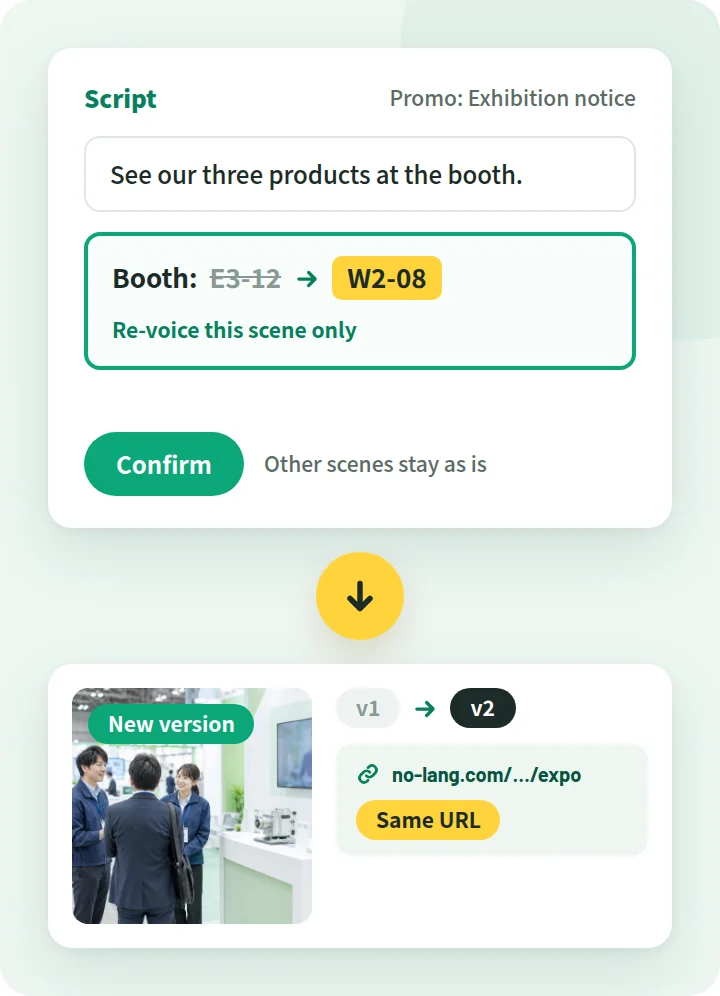
Show name, dates, booth number. For your next show, fix only what changes. Just fix the script and confirm, and the video becomes a new version.

Illustration of fixing the booth number in the script and confirming, which switches the video to a new version at the same URL Illustration of fixing the booth number in the script and confirming, which switches the video to a new version at the same URL
  1. Fix the script or images

    In the editor, rewrite the script where things changed. You can also fix images and subtitles.

  2. Regenerate the audio for the scene you fixed

    Use "Regenerate audio" to regenerate the narration for that scene. Audio can be regenerated scene by scene.

  3. Confirm

    Press "Confirm this content" and the video is regenerated as a new version.

  4. The link you sent shows the new version

    Viewing, the share link, and downloads switch to the new version. The video URL stays the same.

The day your next show is confirmed, your announcement video can be updated too

Editing is done on a PC. Until you confirm, the published video stays on the previous version.

ONE SEMINAR, MANY VIDEOS

Turn one seminar
into many videos

From the announcement to the follow-up after the event. Create videos for each stage from your seminar slides, the event recording, and invitation text.

Source

Sample screen of seminar slides

One seminar

What you prepared for the event becomes the source for your videos as is.

  • Seminar slides
  • Event video and audio recordings
  • Invitation text
  • Before the event
    Sample screen of a vertical video announcing a seminar

    Announcement video

    A short announcement for email and social media.

    What do you create from? Invitation text, slide cover

  • Before the event
    Sample screen of a video sent the day before a seminar, showing the date and time

    Day-before reminder

    Repeat the date, time, and how to join.

    What do you create from? Invitation text

  • After the event
    Sample screen of a seminar recording with subtitles added to the presenter's talk

    Subtitled recording

    People who missed it can watch later.

    What do you create from? Event recording

  • After the event
    Sample screen of a highlight clip cut from a seminar recording

    Highlight clip

    Deliver just what matters in a short video.

    What do you create from? Event recording

  • After the event
    Sample screen of a video summarizing the key points of a seminar

    Key-point digest

    A short summary video that shows the whole picture.

    What do you create from? Seminar slides, event recording

  • After the event
    Sample screen of a thank-you and information video sent to seminar attendees

    Thank-you and information

    Thank attendees and share the next step.

    What do you create from? Thank-you note, summary slides

Before publishing a recording, first check what speakers and attendees have agreed to.

FROM YOUR RECORDINGS

Seminar video and audio recordings,
straight into videos

Upload your event video or audio recording and choose how to create it, and AI turns it into a subtitled video or a highlight clip.

Choose based on what you recorded

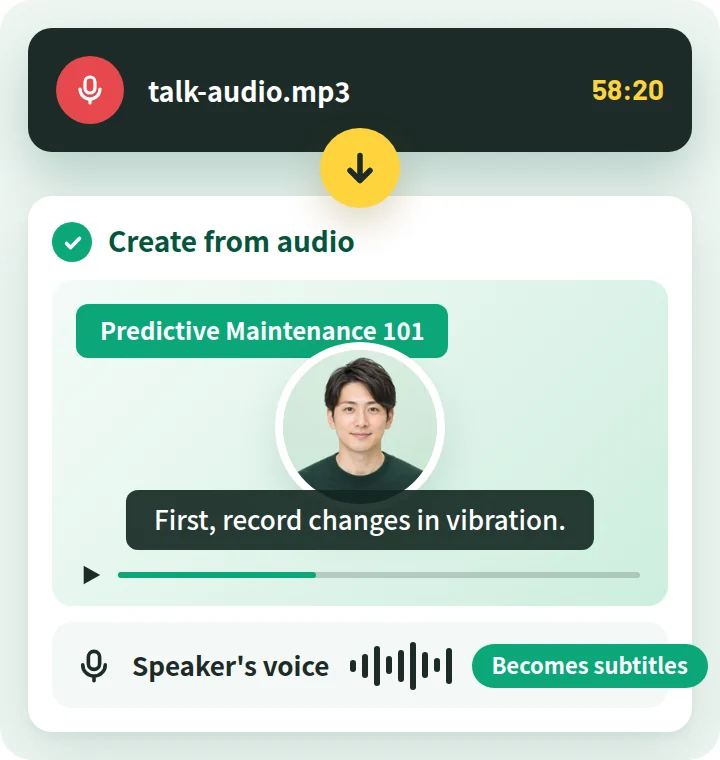
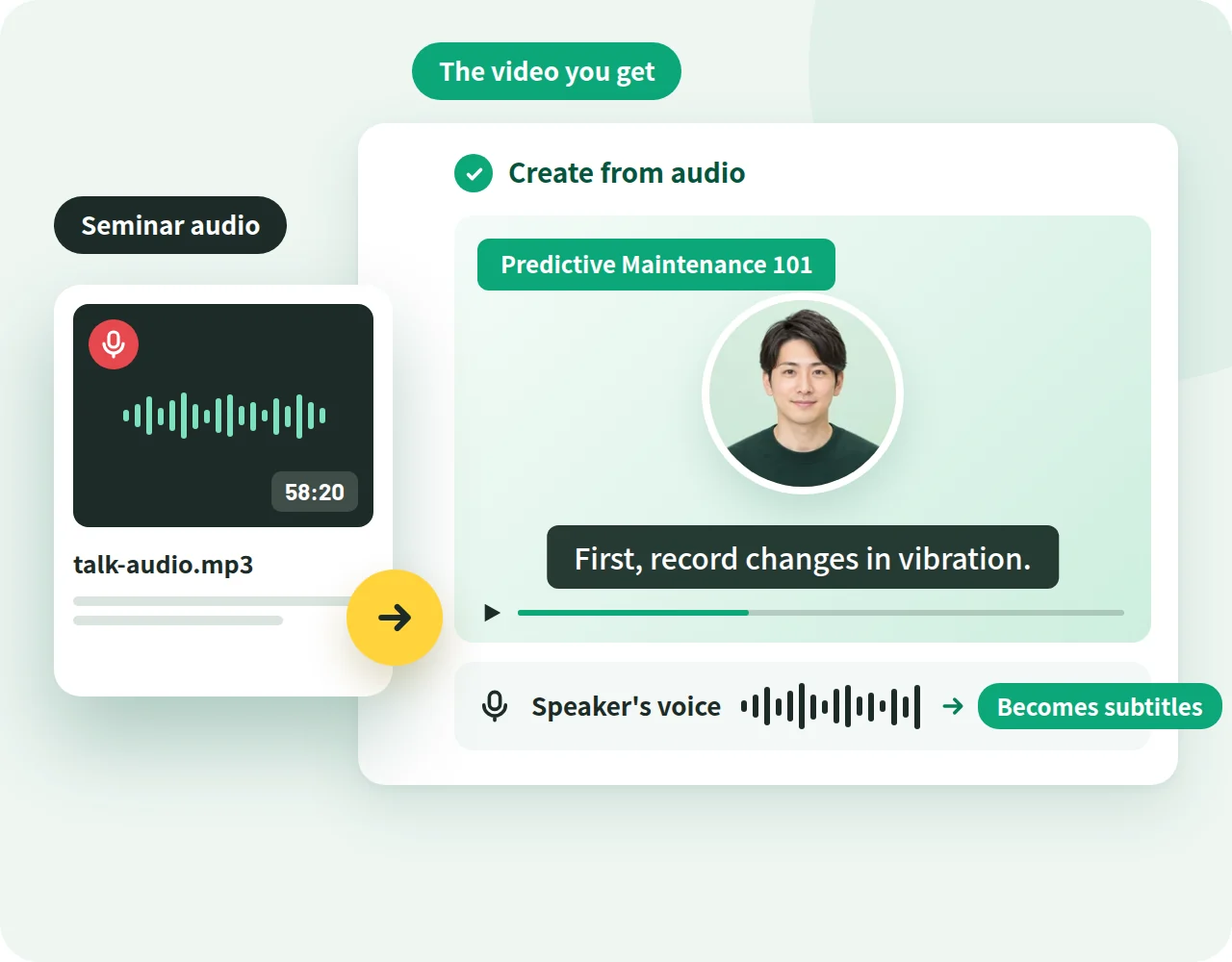
Transcribes the audio recording and turns it into a subtitled video in the original voice. You can set the transcription language and the number of speakers.

Method in the app From Audio

Illustration of making a subtitled video from a seminar audio recording, in the presenter's own voice

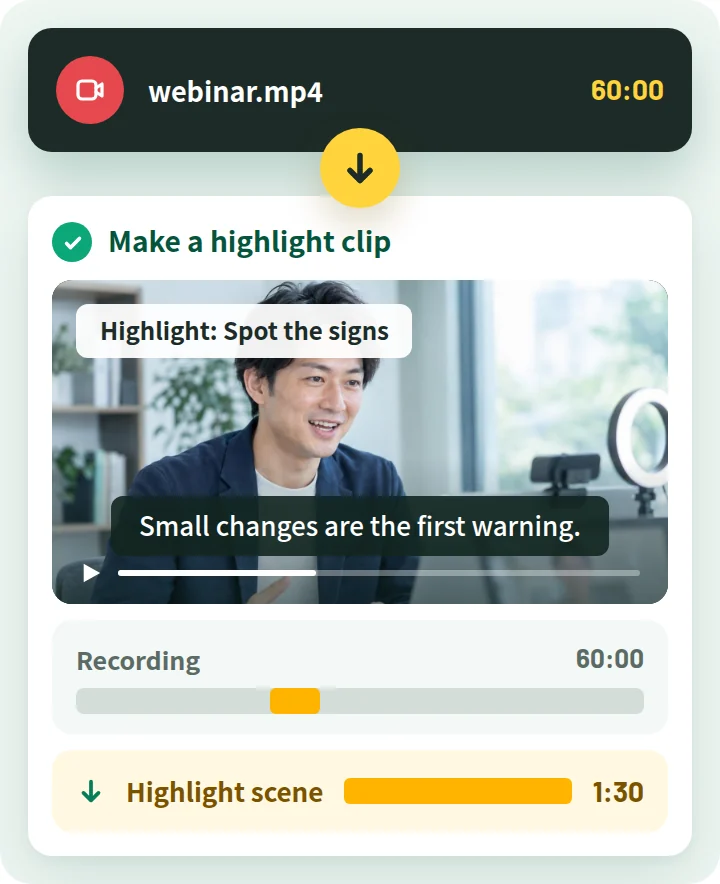
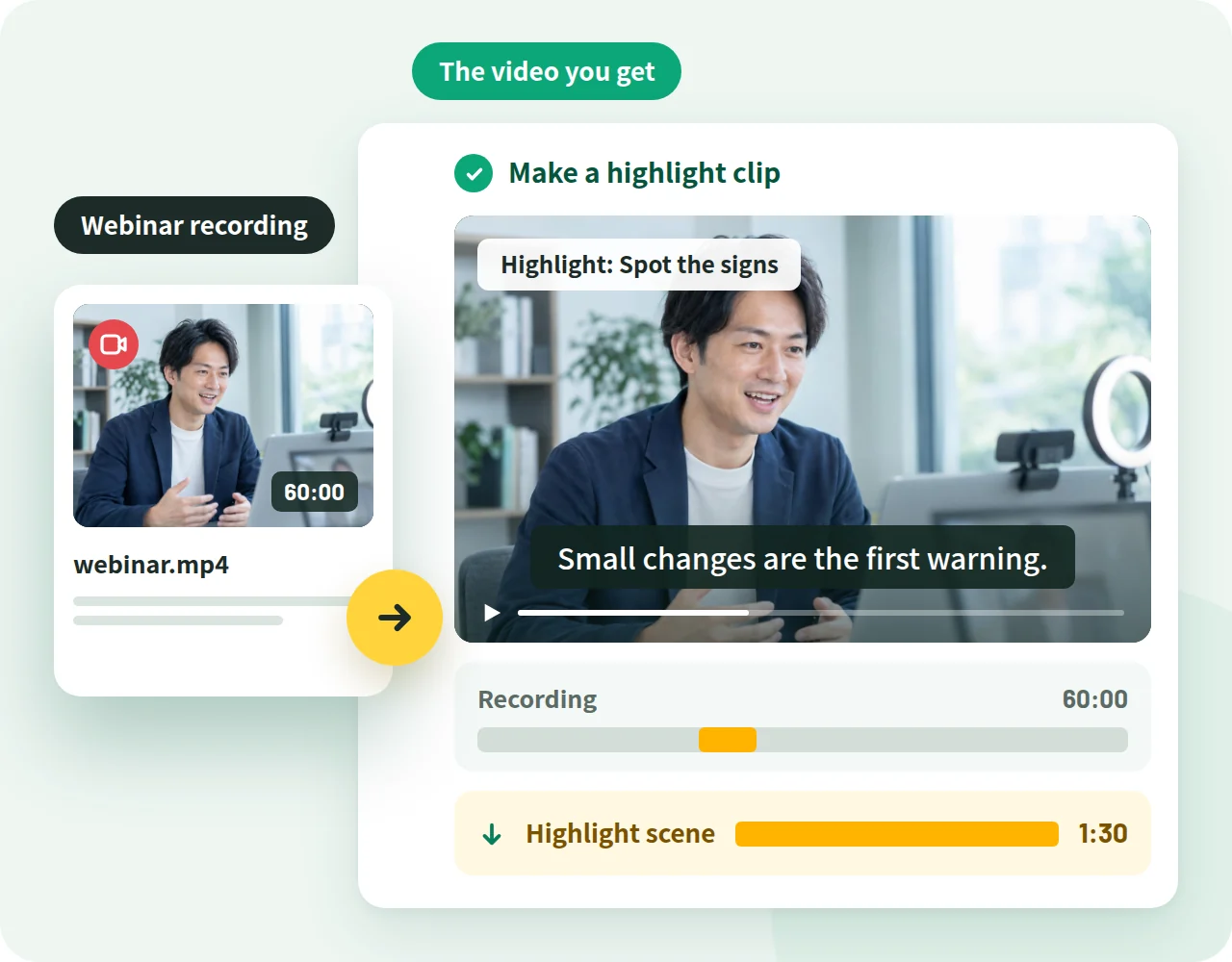
Transcribes the recording and turns it into a video that cuts out only the highlight scenes. AI chooses which scenes to use based on the instructions you enter.

Method in the app Make a highlight clip

Illustration of making a video that cuts out only the highlight scenes from a webinar recording

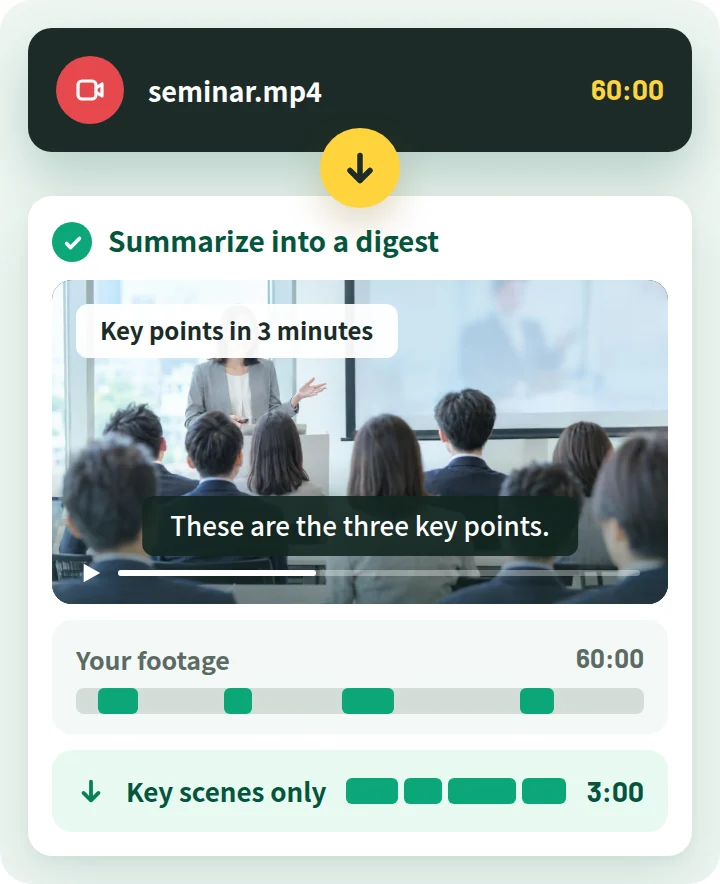
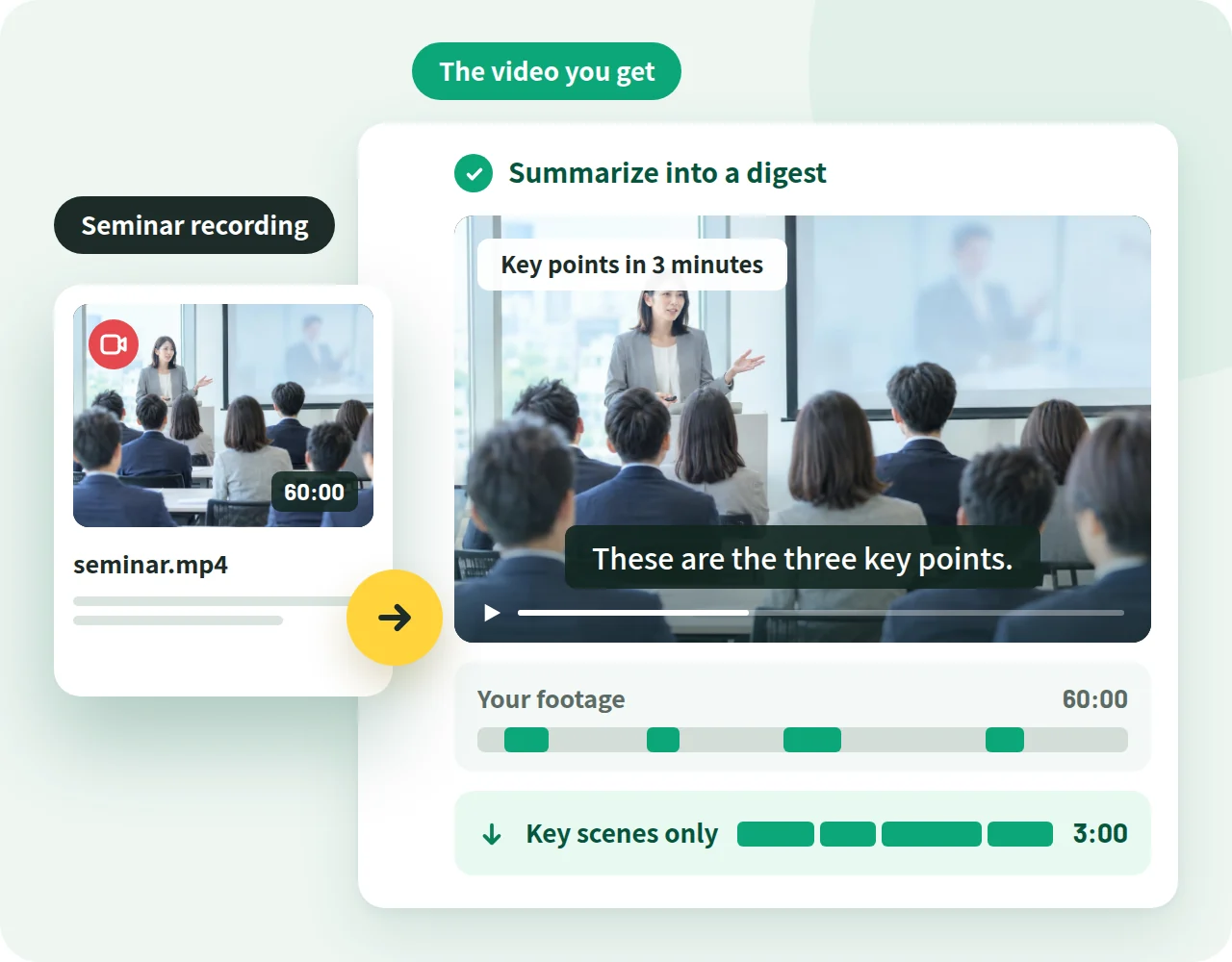
Transcribes the recording and turns it into a short digest video that keeps only the key scenes.

Method in the app Summarize into a digest

Illustration of turning a long seminar recording into a short video that keeps only the key scenes
Illustration of making a subtitled video from a seminar audio recording, in the presenter's own voice
Illustration of making a video that cuts out only the highlight scenes from a webinar recording
Illustration of turning a long seminar recording into a short video that keeps only the key scenes
  1. Prepare your video or audio recording

    You can use MP4, MOV, and WEBM video, and MP3, WAV, and other audio. Up to 60 minutes per file.

  2. Add it and choose how to create

    Upload under "From video" or "From audio" and choose how to create it. You can also describe what you want in text.

  3. Review and publish

    Review the finished video, then publish it with a share link or export it as MP4.

LANGUAGES

For trade shows abroad,
in the local language

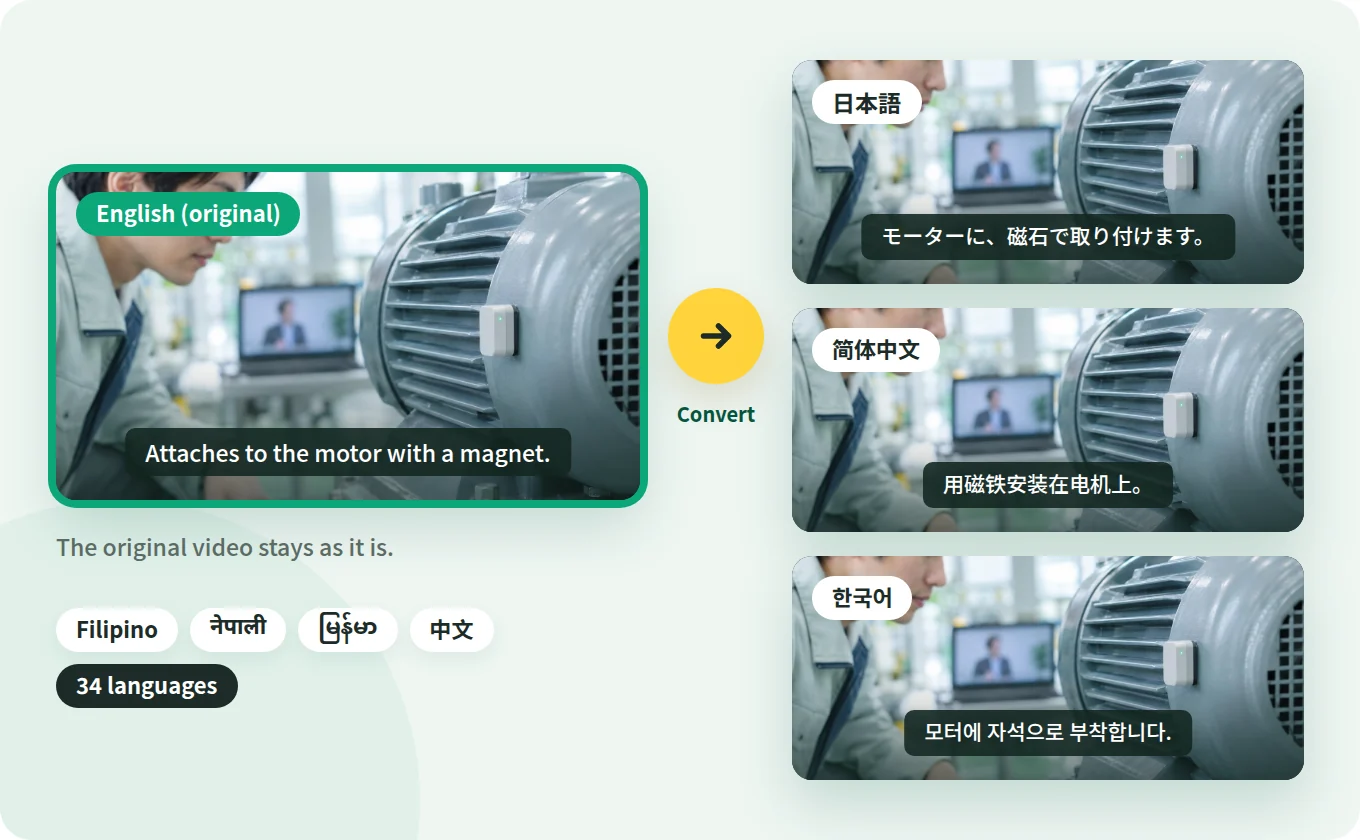
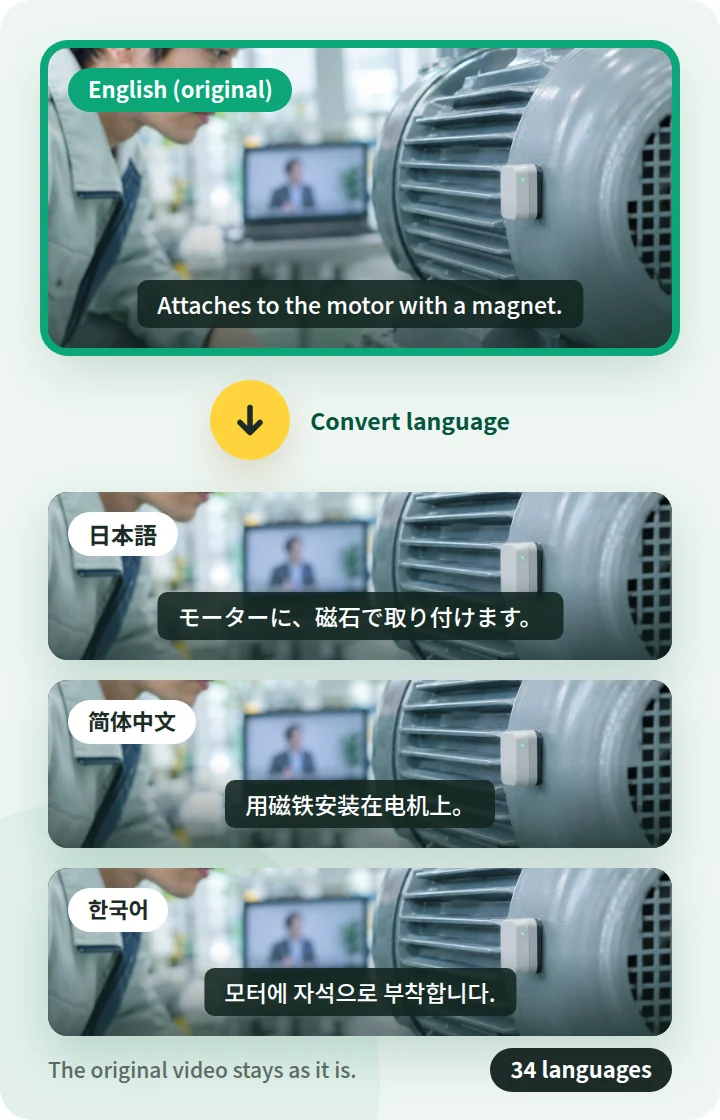
With "Convert language," you can create a video in another language with the script and on-screen text translated. The Japanese video stays, so you can use each version in Japan and overseas.

Illustration of creating English, Chinese, and Korean versions from a Japanese product introduction video Illustration of creating English, Chinese, and Korean versions from a Japanese product introduction video
  • Choose from 34 languages

    Supports 34 languages, including English, Chinese, Korean, Thai, Vietnamese, and German. The available voices depend on the language.

  • The script and on-screen text are translated

    The narration and subtitles are in the language you choose. Images on your document pages and text inside slides are not translated.

  • Review and fix the translation before publishing

    You can fix the translated script in the editor. For product names, model numbers, and units, it's best to have someone who knows the language check it.

For teams evaluating NoLang internally

Download the NoLang service overview
for free

Get an overview of NoLang and its Business plan by email.

Cover of the NoLang Service Overview

3-minute
overview

Free Download Materials

CONCERNS, ANSWERED

Trade show and seminar concerns,
answered by NoLang

Venue sound, presenters, pronunciation, screen formats. Here are NoLang's answers to common concerns when making trade show and seminar videos in-house.

Hard to play sound at the venue

With noise from nearby booths, the narration is hard to hear.
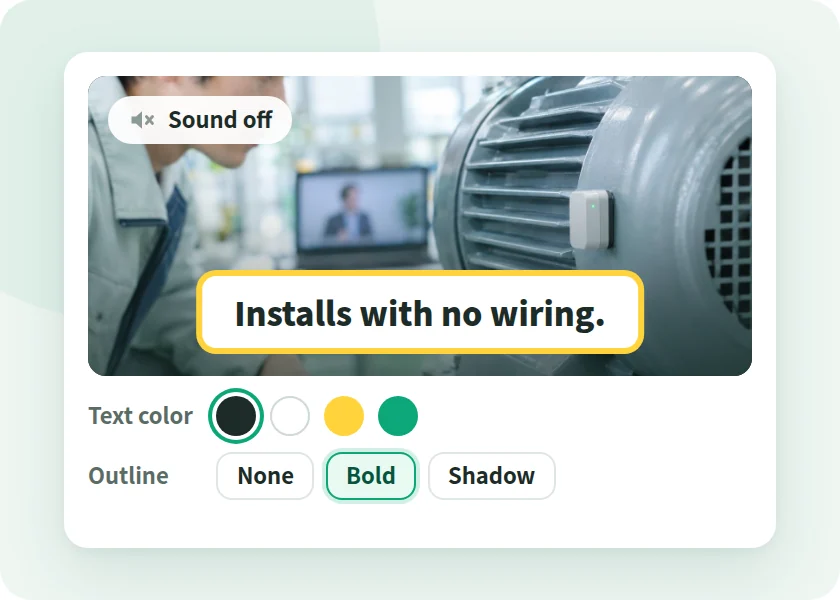
Illustration of a video that conveys content with large subtitles and no sound, and the screen for choosing subtitle color and outline

With NoLang

Subtitles are added automatically, so it works without sound

Subtitles are added automatically to match the narration. You can choose the subtitle font, text color, outline, and caption background.
The presenter's schedule doesn't fit

Booking the presenter's time for every reshoot or new session is hard.

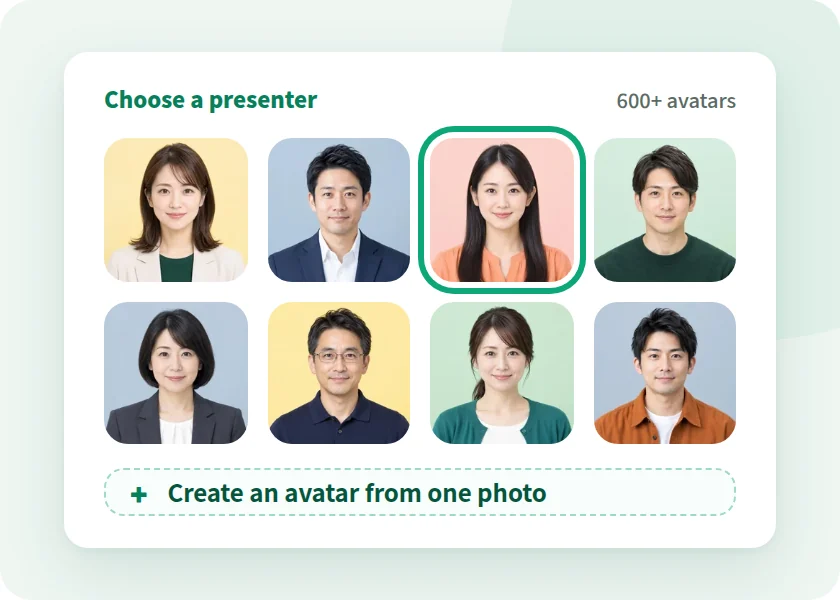
Illustration of the screen for choosing an avatar as the video's presenter

With NoLang

An avatar serves as presenter

Choose a presenter from over 600 avatars, including real avatars that show a live-action person in motion. You can also create an avatar from a single photo of the presenter (the person's consent is required).

Product names might be mispronounced

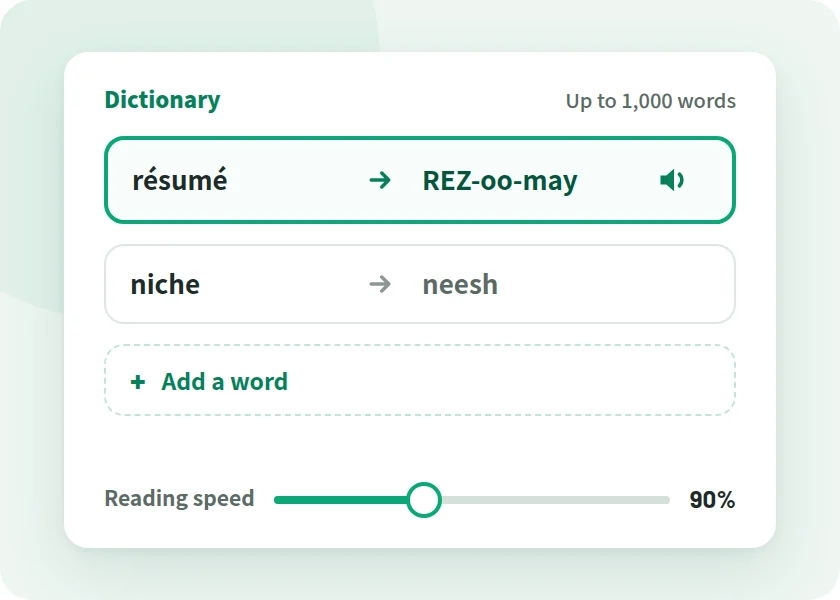
It might mispronounce terms like "résumé" or "niche," or model numbers.

Illustration of the screen for registering pronunciations of technical terms in the dictionary and changing the narration speed

With NoLang

Fix pronunciation word by word and save it to the dictionary

You can fix the pronunciation of product names and technical terms word by word and register up to 1,000 words in the dictionary. You can also change the narration speed.

Monitors and social media need different formats

Horizontal for booth monitors, vertical for social media promos. We don't have the people to make both.

Illustration of making the same video in vertical 9:16 and horizontal 16:9

With NoLang

Horizontal and vertical, with the same content

Choose an aspect ratio such as horizontal 16:9 or vertical 9:16, and export as HD or Full HD MP4. You can also convert videos you make into versions in other aspect ratios.

COMPARISON

Filming with a production company
vs. making it with NoLang

Comparing ways to make trade show and seminar videos on 6 points.

Comparison of filming with a production company and making it with NoLang
Point of comparison Filmed by a production company With NoLang
Getting started Starts with quotes, orders, and meetings Start by adding product materials or seminar slides
Real product in action Elaborate motion through filming or CG Made from materials and photos. Add footage you filmed as assets
Per-product videos Planning and filming for each video Use one video as the reference to make a video for each product
Version for each show Request revisions Fix the script for the scenes that change and confirm. A new version at the same URL
Seminar recordings Request edits Add the recording to make subtitled videos and highlight clips
Best for An elaborately produced video with filming or CG that represents the company Many videos, made for each product, show, and seminar

Leave the elaborately produced video to a production company, and make per-product and seminar videos with NoLang.
You can use both.

CHECK POINTS

When choosing a tool for trade show and seminar videos,
8 points to check

These are points worth checking before adoption, whichever tool you choose. We've added NoLang's answer to each.

  1. CHECK 01 What do you create from?

    Create from product materials and seminar slides in PDF and PowerPoint (PPTX), invitation text, seminar recordings (MP4, MOV, WEBM), and audio recordings (MP3, WAV, etc.).

  2. CHECK 02 Does the content get across without sound?

    Subtitles are added automatically to match the narration. You can choose the subtitle font, text color, outline, and caption background.
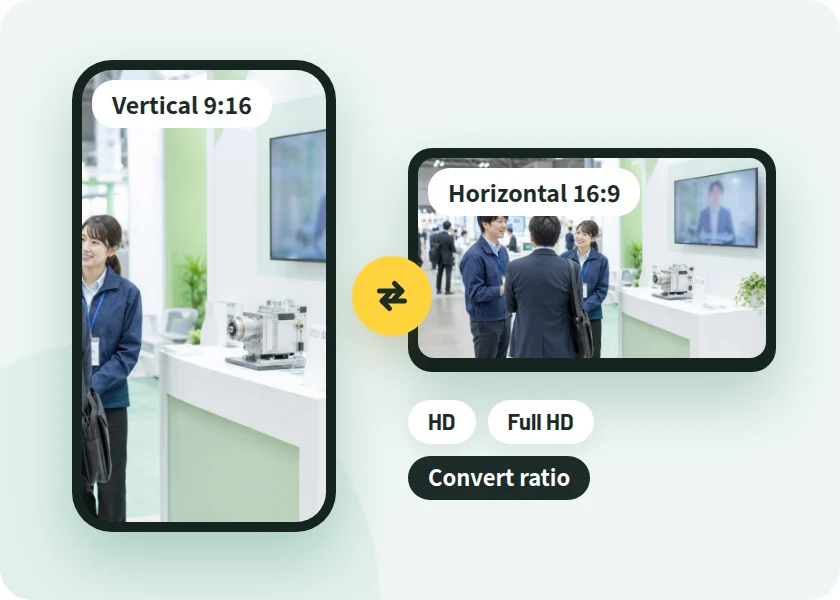
  3. CHECK 03 Can you make videos in the same format for each product?

    Use a video you've made as the reference to create videos with different content for each product, while keeping the design and structure.

    See how to make videos for each product
  4. CHECK 04 When the show changes, how much needs fixing?

    Fix the script and confirm, and the video becomes a new version. Narration audio can be regenerated scene by scene, and the video URL stays the same.

    See how updates work
  5. CHECK 05 Can you use video and audio recordings?

    From video or audio recordings up to 60 minutes each, you can create subtitled videos, highlight clips, and key-point digests.

    See how to create from recordings
  6. CHECK 06 Can you make foreign-language versions?

    With "Convert language," you can create English, Chinese, and other language versions while keeping the original video (34 languages). Text inside images in your document is not translated.

    See foreign-language versions
  7. CHECK 07 Can it pronounce product names correctly?

    You can fix pronunciation word by word and register up to 1,000 words in the dictionary. To apply it to existing videos, use the "Dictionary" tab.

  8. CHECK 08 Can it be managed at the company level?

    On the Business plan, admins invite and suspend users, and can grant users in the tenant permission to view or edit.

    View Admin and Security

If you're unsure, the surest way is to make one video from your own product materials and try making a version for another product.

Try It for Free

SECURITY

Administration and security for business use

NoLang is a Japan-made AI video generator developed and operated in-house by Mavericks, Inc. Here is what IT departments and those handling internal approval will want to confirm.

Third-Party Certification

Certified to ISO/IEC 27001:2022 (ISMS)

ISO/IEC 27001 is the international standard for information security management systems (ISMS). Mavericks, Inc., which develops and operates NoLang, is certified to this standard.

ISO/IEC 27001:2022 certification mark
Registration No. GIJP-2064-IC
  • SSO

    Single sign-on with Microsoft Entra ID

  • IP Address Restrictions

    Restrict which IP addresses can be used for each tenant

  • Activity Logs

    Admins can filter activity logs and download them in bulk as CSV

  • User Management

    Invite and suspend users, with credits shared across the company

  • No AI Training on Your Documents

    Uploaded documents are never used to train generative AI

  • Pay by Invoice

    The Business plan accepts bank transfer (invoice) as well as credit card

  • REST API

    Generate videos from PDF or PPTX files via your own systems

  • Developed in Japan

    Developed and operated in-house by Mavericks, Inc.

Business Plan Features

  • Unlimited video generation (excluding some types, such as avatars)
  • Custom avatar and voice creation
  • Higher slide generation limits

For those considering trade show and seminar videos

Will it work for your show?
Talk with us

TRACK RECORD

Over 500 companies, local governments,
and public agencies use NoLang

  • Companies using NoLang(businesses and public sector) 500+
  • Users 200K+

Some of the companies using NoLang (in no particular order)

CASE STUDY

Case studies from companies, local governments, and public agencies

NoLang videos are used by companies, local governments, and government agencies. You can play the published videos right here.

Horizontal Video YouTube

Vertical Short YouTube Shorts

Public Agency

Ministry of Defense

  • PR
  • Communications

PR videos on its initiatives and activities, published as a horizontal video and a vertical Short

Produces PR videos that clearly communicate its initiatives and activities. Both the horizontal video for YouTube and the vertical Short are created in NoLang alone.

  • Company 17LIVE

    Its own character delivers corporate messages in an approachable way

    Highly entertaining videos convey company information in an approachable way and help strengthen the brand image.

    • Business Overview
    • Company Profile
  • Local Government Hatsukaichi City, Hiroshima

    Complex administrative information, brought to residents through explainer videos

    Produces explainer videos about plans and programs with NoLang and publishes them on the web, reaching more residents with municipal information.

    • Tourism PR
    • Municipal Communications
  • Company WriteUp Co., Ltd.

    Sharing practical AI know-how to reach more new customers

    Shares practical, easy-to-understand information about AI on YouTube and other channels, building its expertise and credibility.

    • Marketing
    • New Customer Acquisition

FLOW

From inquiry to rollout

Here is the process from your first inquiry to starting to create trade show and seminar videos.

  1. 01

    Contact Us

    Submit the form and we'll send materials or a reply to the email address you entered.

  2. 02

    Consultation and Quote

    Talk with us about Business plan details, API integration, and customization.

  3. 03

    Sign Up

    To pay by card, sign up through the web form in about 5 minutes. For invoice payment (bank transfer), contact us and we will guide you through it.

  4. 04

    Go Live

    You can use the Business plan from your start date. An admin invites the team members in charge, and they start creating videos.

FAQ

FAQ

Questions we receive from marketing, sales, and IT staff considering trade show and seminar videos.

Can we make videos for our trade show booth in-house without a production company?

Yes. NoLang is a Japan-made AI video generator that creates videos from product materials (PDF, PowerPoint), seminar slides, and seminar recordings, with AI adding the structure, script, narration, and subtitles.

Write about your product or seminar in the input box on the Home screen, or add your materials, then send to start generating.

Can I make videos that get the content across at venues where playing sound is difficult?

Yes. Subtitles are added automatically to match the narration, so even with the sound turned down, the subtitles get the content across. You can also choose the subtitle font, text color, outline, and caption background.

Rules on volume and monitor placement vary by trade show. Check the exhibitor manual.

Can I make videos in the same format for each product?

Yes. Choose a video you've made as the reference, and you can create videos with different content for each product while keeping the design and structure.

You can choose how closely to follow the reference video, from "Bold" to "Close to the reference." The instructions you enter take priority over the reference video.

When we exhibit the same product at another trade show, do we need to remake the video?

You don't need to remake it from scratch. In the editor, fix the trade show name, dates, and booth number in the script and confirm, and viewing, the share link, and downloads switch to the new version. The video URL stays the same.

Until you confirm, the published video stays on the previous version. Editing is done on a PC.

Can I make foreign-language versions for trade shows abroad?

Yes. With "Convert language," you can create a video in another language with the script and on-screen text translated, while keeping the original video. You can choose from 34 video languages.

Images on your document pages and text inside slides are not translated. Check the pricing page for the plans that include "Convert language."

Can I make subtitled videos from seminar audio or video recordings?

Yes. Add an audio recording (MP3, WAV, etc.) or a video recording (MP4, MOV, WEBM), and it is transcribed and turned into a subtitled video in the original voice. You can use files up to 60 minutes each.

Whether long videos can be streamed in full depends on your plan. Check the pricing page.

Can I cut out just the highlights from a webinar recording?

Yes. Upload the recording under "From video," then choose "Make a highlight clip" for a video that cuts out only the highlights, or "Summarize into a digest" for a short video that keeps only the key scenes.

AI chooses which scenes to use based on the instructions you enter.

Can I make a video from seminar slides that looks like a presenter explaining them?

Yes. Add the slides as a PDF or PPTX and choose "Explain all pages," and the video explains every page in order, without skipping. You can also have your PowerPoint Speaker Notes read as the script, as written.

Choose a presenter from over 600 avatars. You can also create a talking avatar from a single photo of the presenter (the person's consent is required).

Can I make seminar and trade show announcement videos?

Yes. Paste the invitation text or the registration page URL into the input box, and you can create a short announcement video from that content.

Choose vertical 9:16 for social media, or horizontal 16:9 for the web and email.

Can it pronounce product names and presenter names correctly?

You can fix pronunciation word by word and register up to 1,000 words in the dictionary. The dictionary is used for newly generated Japanese videos, and you can apply it to existing videos from the "Dictionary" tab.

Pronunciation can't be changed in scenes transcribed from audio or video recordings.

Can I export in a format that fits our booth monitors?

Yes. Choose an aspect ratio such as horizontal 16:9 or vertical 9:16, and export as MP4. You can choose HD or Full HD quality.

Check the pricing page for the plans that include Full HD.

Can you also film at the venue, or record and stream the event for us?

NoLang does not provide filming, on-site recording, streaming operations, or production services. It is a tool for making videos in-house.

Videos you filmed yourself and event video and audio recordings can be used as assets. You can create subtitled videos from recordings, or add your footage to videos made from your materials.

Are there videos better left to a production company?

Videos that show the real product in action through filming, or that are elaborately produced with CG and venue staging, are better left to a production company.

Videos you need in large numbers and whose content changes each time, such as product introductions, announcements for each show, and videos from seminar recordings, can be made in-house with NoLang.

Are uploaded documents used to train AI?

No. On every plan, the documents you upload are never used to train AI.

Can I try it for free? Where can I check the pricing?

On the Free plan, you can try creating videos from your product materials or seminar invitation text. Pricing and the terms of each plan are on the pricing page, and the Business plan is covered on the business page.

Ask Another Question

CONTACT

See if it works for your show.
Start with our materials and a consultation

Choose the option that fits your stage of evaluation.

For teams evaluating NoLang internally

3-minute overview

Service overview

An overview of NoLang and its Business plan.

  • Details of the Business plan
  • Sent by email after you submit the form
  • Easy to share internally as a PDF
Cover of the NoLang Service Overview
Free Download Materials

We'll send the materials to the email address you enter.

For those who want to discuss trade show and seminar videos

Feel free to reach out

Contact Us

We can discuss how well NoLang fits your materials and how to make videos for each product.

  • Quotes and rollout planning
  • Questions about paying by invoice (bank transfer)
  • API integration and customization
Contact Us

We will reply to the email address you provide.

For teams who want to try it first

Try for Free

Before requesting materials or a consultation, try the actual app for yourself.

Try It for Free