
Turn your PowerPoint speaker notes into an AI-narrated video, word for word
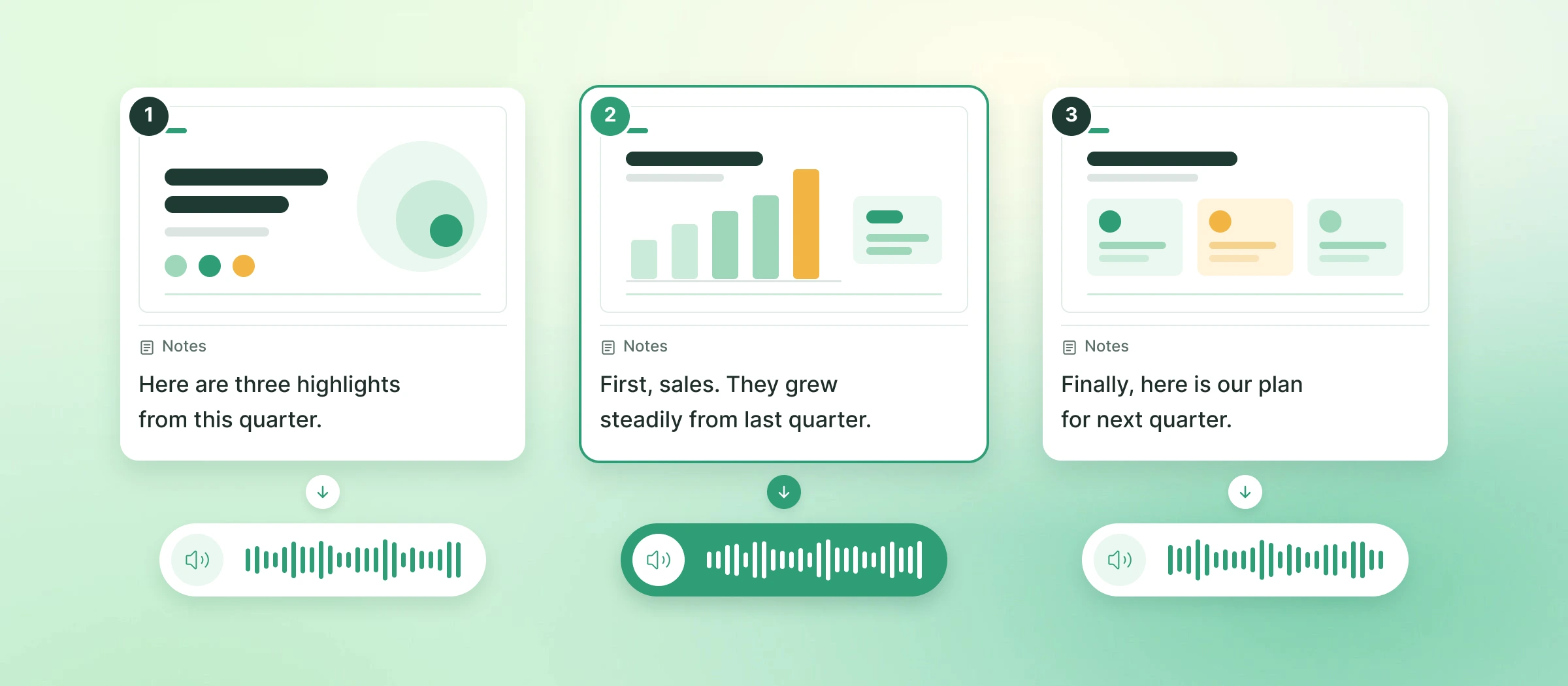
Upload your PowerPoint file and choose “Speaker Notes” as the method. An AI voice reads the script you wrote in your notes, and you get a video that walks through each slide.

Recording the narration yourself
You can also make a narrated video with PowerPoint’s slideshow recording.
- Script
- Prepare what to say while looking at the slides
- Recording
- Speak into a microphone, one slide at a time
- To fix a line
- Re-record that slide
- What you need
- A microphone and a quiet room

Creating from your speaker notes
With NoLang, the script in your notes becomes the voice as it is.
- Script
- Use the text in your notes as it is
- Recording
- An AI voice reads it
- To fix a line
- Rewrite the line in the script and generate again
- What you need
- A browser and your PowerPoint file
Videos made from PowerPoint files with notes
From PowerPoint to video
If you have a PowerPoint file with speaker notes, you can start right away.
Steps
- 1
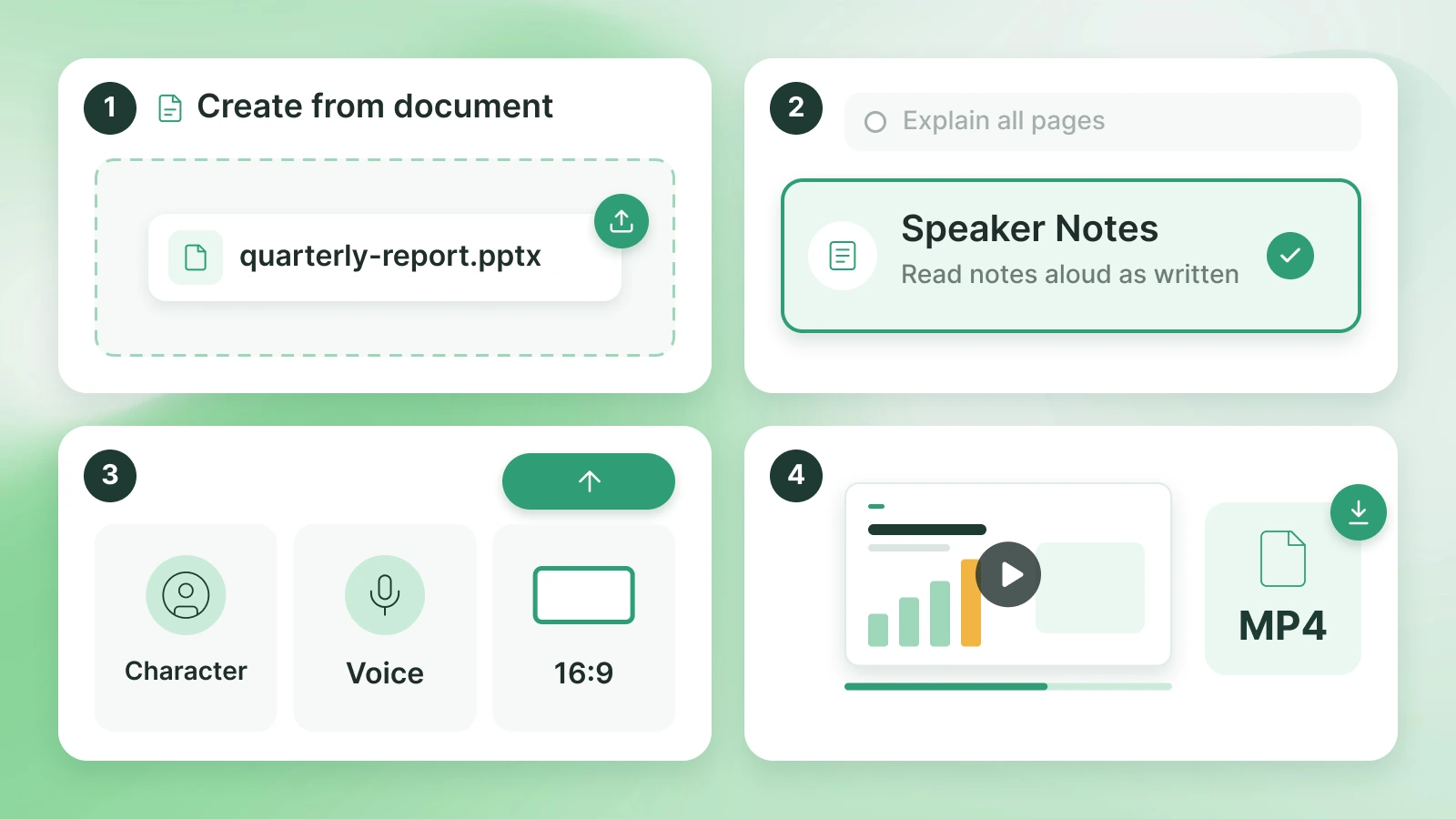
Upload your PowerPoint file Open “Create from document” and select your .pptx file.
- 2
Choose “Speaker Notes” as the method This method reads the script in your notes aloud as written.
- 3
Choose a voice and aspect ratio, then generate Choose the presenting character and voice, the video’s language, and the aspect ratio, then generate.
- 4
Review and export Play it back, fix the script if needed, and export it as an MP4.
For businesses
NoLang for Business
NoLang is a Japanese AI video generation service developed and operated in-house by Mavericks, Inc. The interface is available in Japanese, English, Korean, and Vietnamese.
500+ companies use NoLang Used by businesses, local governments, and public agencies.


-
Certifications
Certified to ISO/IEC 27001:2022 (ISMS) for information security and ISO 9001:2015 for quality management.
-
Account management
Supports Microsoft Entra ID single sign-on, IP address restrictions per tenant, operation logs, and inviting and suspending members.
-
How your documents are handled
Documents you upload are never used to train generative AI.
-
Rights and commercial use
Generated videos are copyright-cleared and can be used commercially.
FAQ
Common questions about turning PowerPoint into video.
You can use PowerPoint (.pptx) and PDF files. The method that reads your speaker notes aloud works with .pptx files.
Yes. Choose “Explain all pages” as the method, and AI writes a script from the slide content and makes a video that explains every page.
There are four methods. Besides "Speaker Notes," which reads what you wrote in your notes, you can choose "Explain all pages," where AI walks through every page in order, "Explain key points only," which narrows it down to the important pages, or "Specify script," which reads the script you wrote for each page.
You choose the character and voice before generating. After generating, you can change the speaker and speaking speed for each scene or edit the script in the editor.
Yes. The timeline editor lets you edit the script, captions, images, video clips, text, shapes, music, and sound effects. You can also type an instruction on the finished video's page to make a version with just that part changed.
Besides widescreen 16:9, you can choose vertical 9:16, square 1:1, and other aspect ratios to suit where the video will be used.
AI reads the content of each page and writes the script. You can also learn about making videos from slides on “Slides to Video”.
Each file can be up to 400 MB and 260 pages. The page limit depends on the "explanation detail" setting: the more detailed the explanation, the lower the limit.
It depends on the size of the file and the method you choose, but generation usually takes from tens of seconds to a few minutes. While it runs, the video's page shows the progress and an estimate of the time remaining.
Your slides can be shown in the video as page images, so you don't need to rebuild charts or layouts for video. You can add captions, text, and other elements on top of the pages in the editor.
Yes, you can try it for free.
NoLang offers more than 2,500 voices (more than 500 in Japanese). You can correct the pronunciation of each word using hiragana or katakana, register up to 1,000 words in the Dictionary, and set the reading speed from 50% to 300%. With supported voices, you can also describe how to speak in text, such as "in a calm, smooth voice."
NoLang has over 600 avatars across static illustration, Live2D, VRM, realistic, 2.5D, and famous character types. You can also create your own avatar from an illustration or character image.
Yes. Videos and slides made with NoLang can be used commercially.
Documents you upload are never used to train generative AI.
The features and conditions for each plan are listed on the pricing page.
NoLang