ISO/IEC 27001:2022 (ISMS) certified

Used by 500+ companies, local governments, and public agencies

An AI video generator for video manuals

Turn your procedure documents intovideo manuals with AI

NoLang is a Japan-made AI video generator that turns procedure document and manual PDFs and PowerPoint files into video manuals with narration and subtitles.

  • Explain the pages of your procedure documents without filming or recording
  • Also create from phone footage of the task, with subtitles or narration
  • When procedures change, update to a new version at the same link
  • Companies using NoLang 500+
  • Users 200K+

Get the service overview by email

Free Download Materials

Ask if your documents will work

Contact Us

Try It for Free

PDF PPTX Video manuals

Sample screen of a video manual made with NoLang, explaining the steps of a task Sample screen of a video manual made with NoLang, explaining cautions and prohibited actions Sample screen of a video manual made with NoLang, explaining how to operate a system

500+ companies, local governments, and public agencies use NoLang

PROBLEM

Making video manuals?
Do you face challenges like these?

  • Filming and editing take time, so only a few people can make them

  • Every procedure change means reshooting

  • Explanations differ from trainer to trainer

  • Your procedure documents don't get through to staff from other countries

With NoLang,

Just add your procedure documents,
and AI turns them into a video manual.

  • No Filming or Recording

    Without filming or recording, NoLang creates videos that show the pages of your procedure document while an AI voice explains the steps.

  • No skipped steps

    Choose "Explain all pages" and NoLang explains every page of your procedure document in order, without skipping.

  • Consistent pronunciation

    You can fix the pronunciation of internal terms and machine names word by word and register them in the dictionary.

  • Update at the same link

    When a procedure changes, fix the script and confirm. People can watch the new version from the link you shared.

HOW IT WORKS

From document to shared video,
in three steps

You can use procedure document and manual PDFs and PowerPoint (PPTX) files as they are. Word and Keynote files work once exported to PDF or PPTX.

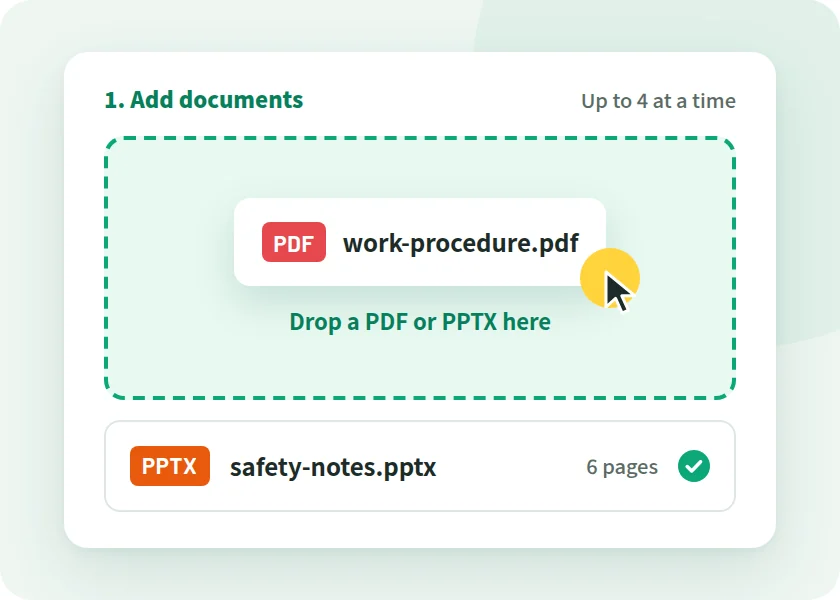
  1. Illustration of the screen for adding a procedure document PDF and an additional PPTX to NoLang

    STEP 01

    Add your procedure document

    Add your procedure document as a PDF or PPTX, and write who the video is for.

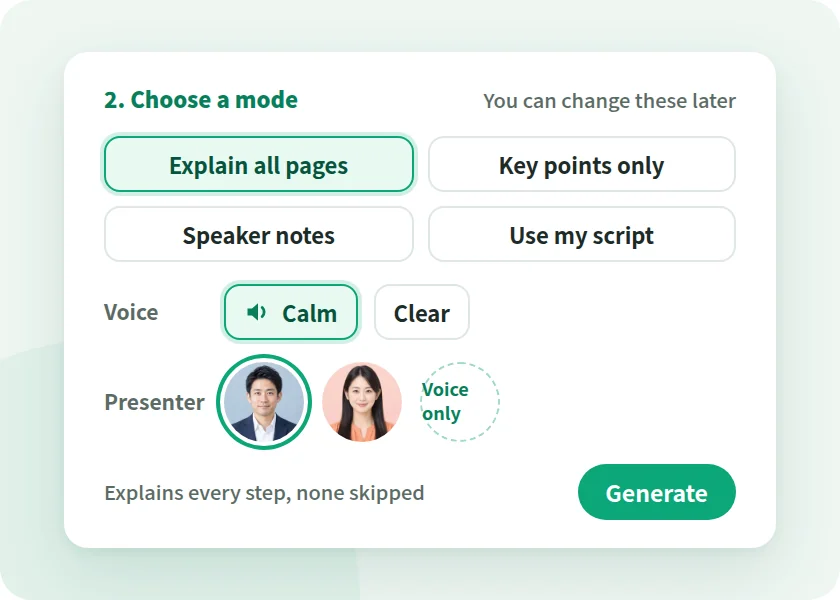
  2. Illustration of the screen for choosing one of four creation methods, a voice, and a presenter

    STEP 02

    Choose a creation method and voice

    Choose whether to explain all pages, specify a script, or another method, then pick a voice and presenter.

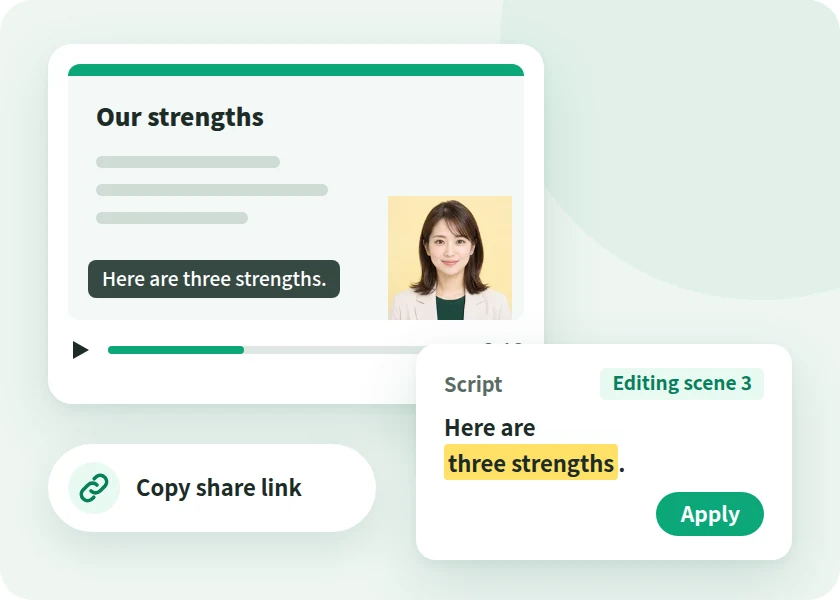
  3. Illustration of the screen for reviewing the finished video, editing the script, and sharing it

    STEP 03

    Review, fix, and share with a link

    Review the finished video, fix the script and subtitles, then distribute it with a share link or export it as MP4.

FROM PROCEDURE TO VIDEO

Procedure document items become
video scenes

NoLang builds the video's structure and script from the pages of the procedure document you add. You choose how much of the procedure to explain, and in what wording, from four creation methods.

Explain every step without skipping pages Explains every page of your procedure document in order, without skipping. Suited to tasks where no step can be missed.

Read the script you wrote, exactly as written Write a narration script for each page, and NoLang reads it exactly as written. Suited to procedures where you don't want the approved wording changed.

Use your PowerPoint notes as the script NoLang reads the explanations you wrote in your PPTX speaker notes as the script, as written. PDF files are not supported.

Pick the key pages and keep it short Suited to short videos that give an overview before starting a task. You can choose lengths starting from 30 sec.

  1. Cover, task name

    Opening title

    Shows which task the procedure is for, right at the start.

  2. Purpose and audience

    What this video covers

    Explains what the task is for and who does it.

  3. What you need

    What to prepare before you start

    Checks tools, protective equipment, and materials before starting the task.

  4. Overall flow

    Overview of the procedure

    Shows how many stages the task has, up front.

  5. Steps

    One step, one scene

    Explains the steps one by one, in page order.

  6. Key points and the reasons for them

    Emphasis within a step

    Explains why it is done that way, together with the step.

  7. Cautions and prohibitions

    Caution scene

    Shows what not to do, right next to the step.

  8. Criteria and values

    Keep criteria on screen

    Shows and reads aloud the criteria values, such as tightening torque and time.

  9. Completion check

    Final check

    Shows how to check that the task is complete.

With "Explain key points only," AI chooses which pages to use based on the content of your document. The table above is one example.
You can review and fix the finished script before publishing.

See manual sample videos

SHOOT ON YOUR PHONE

Footage from your phone,
straight into a video manual

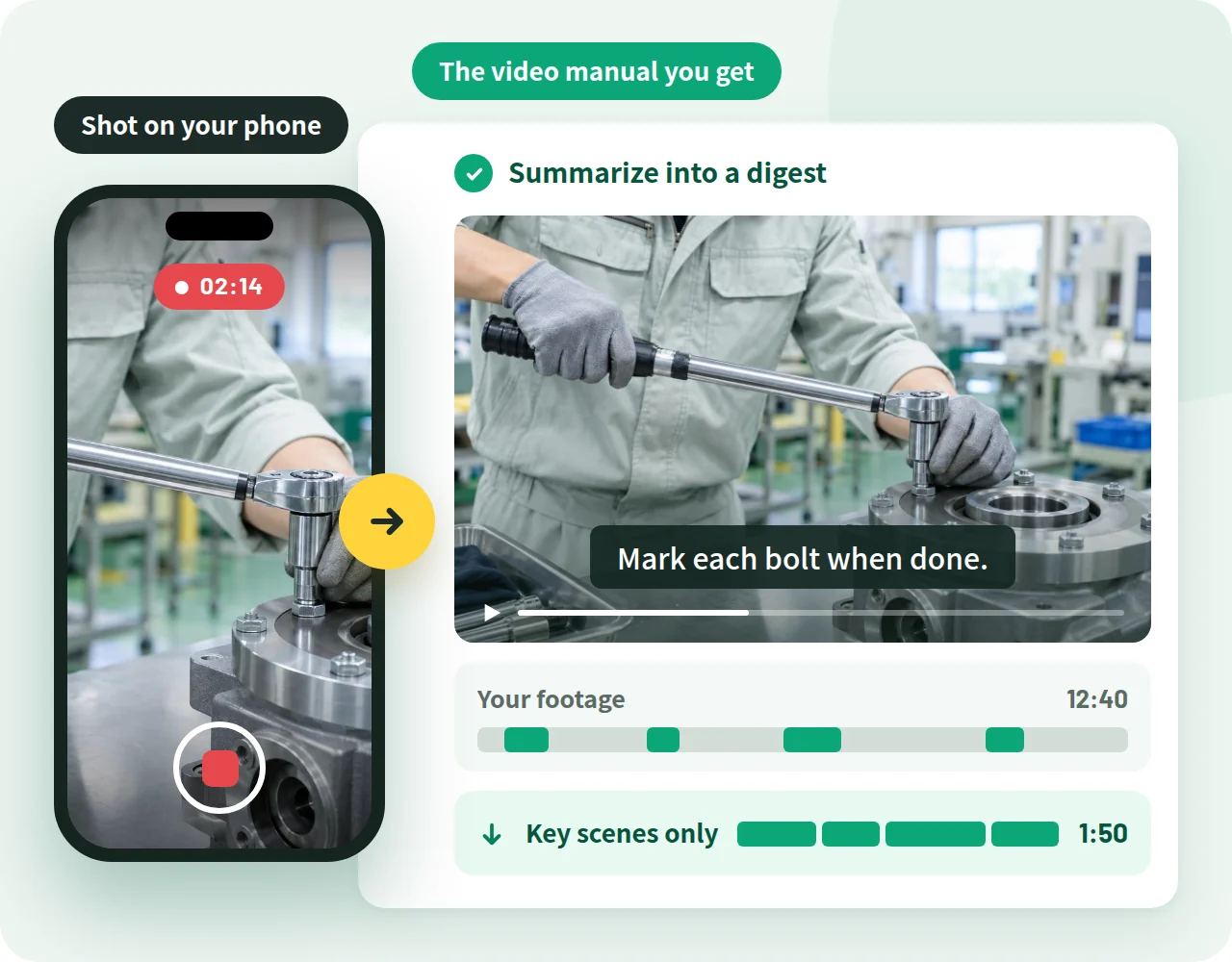
For tasks that don't have a procedure document yet, you can create from footage shot on a phone. Upload the video and choose a method, and AI turns it into a video manual with subtitles or narration.

Choose by how you filmed

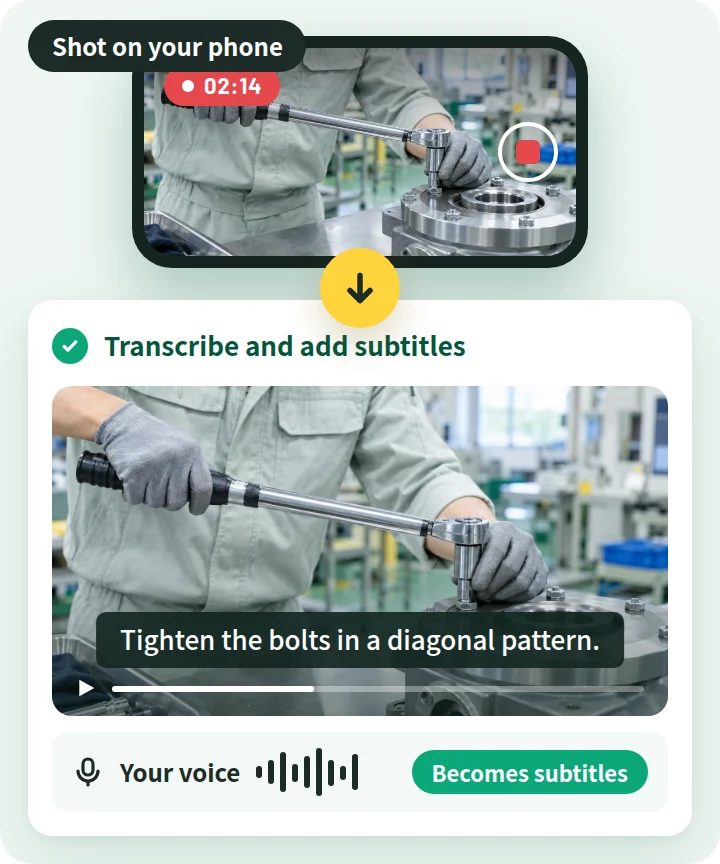
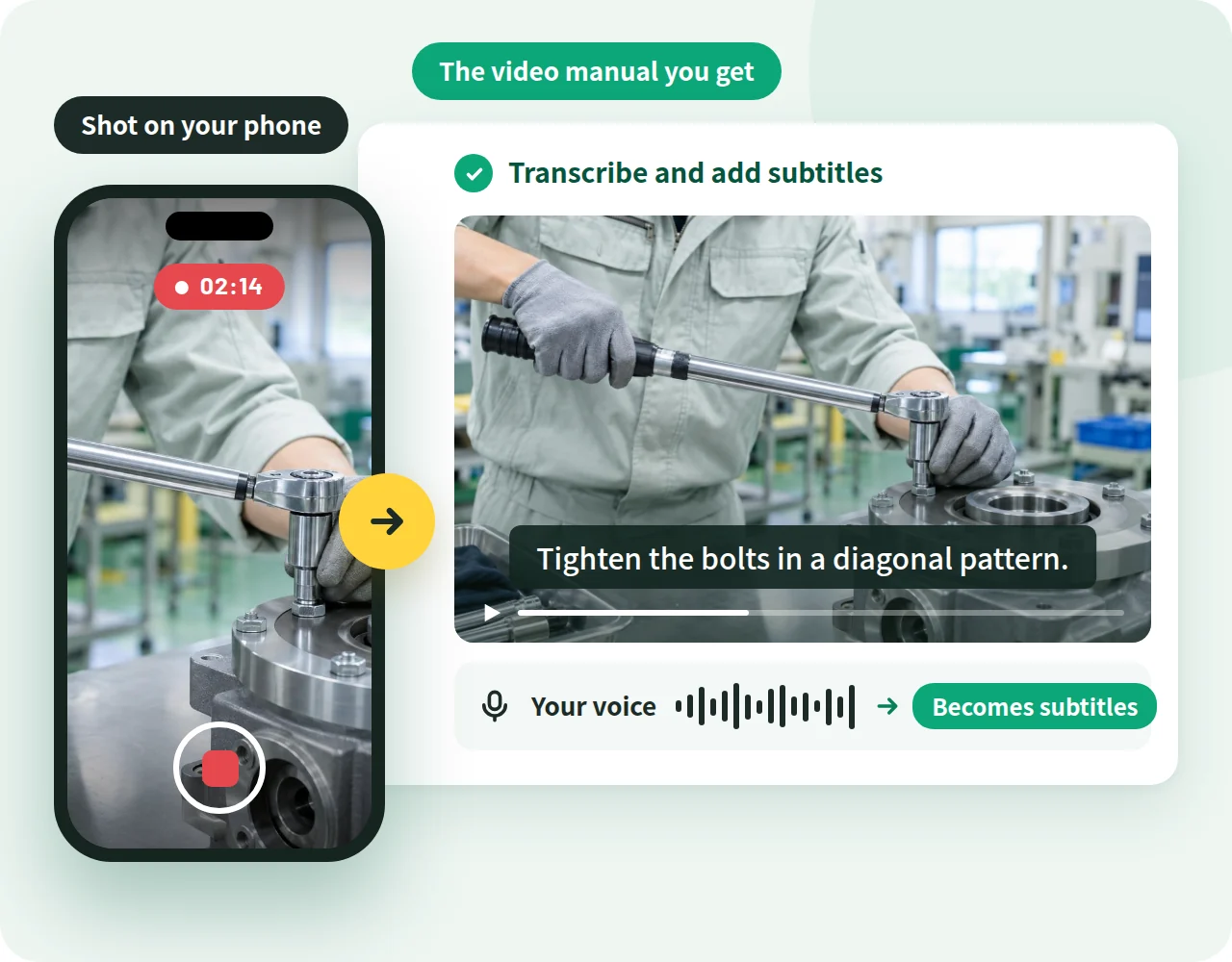
Transcribes what you said while working and turns it into subtitles as is. You can set the transcription language and the number of speakers.

Method in the app Transcribe and add subtitles

A video where what was said while filming on a phone became subtitles as is

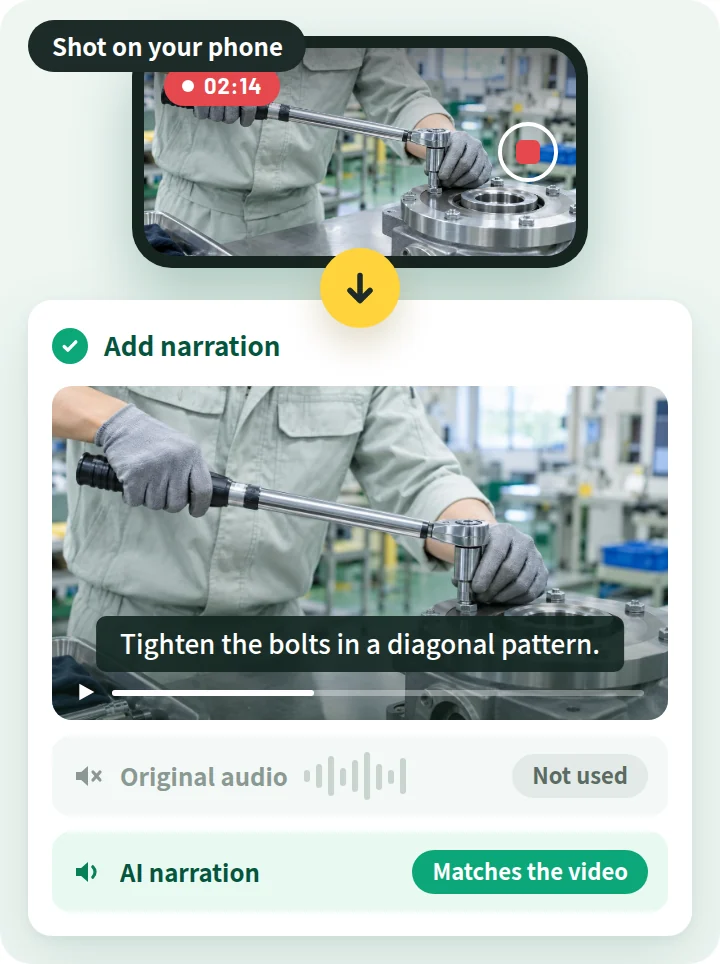
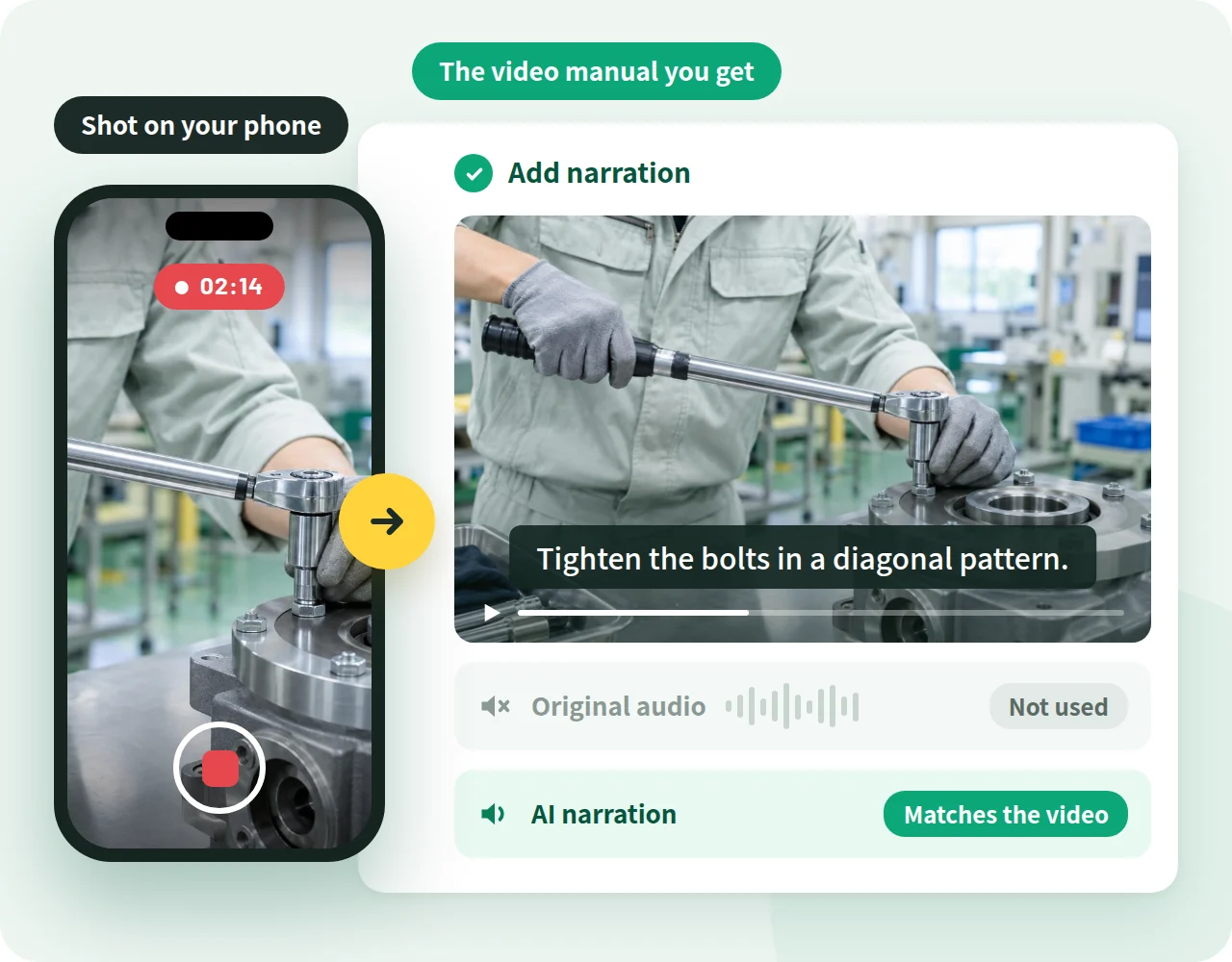
Adds AI narration that matches the footage. The original audio is not used, so it also works for footage with machine noise.

Method in the app Add narration

Phone footage with AI narration added and the original audio not used

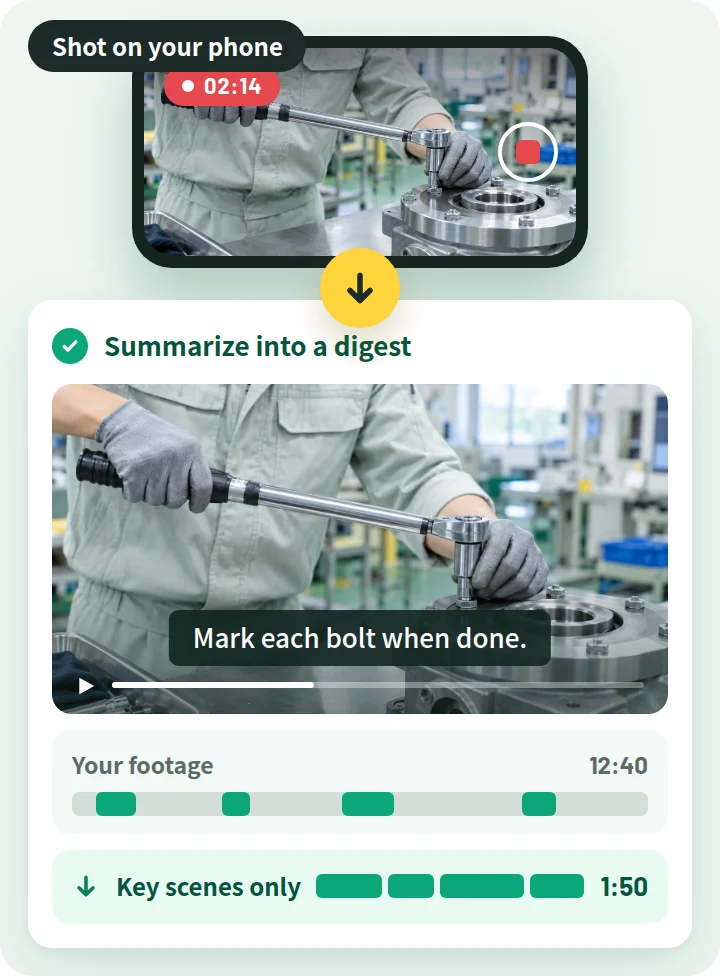
Transcribes your footage and keeps only the key scenes in a short digest video.

Method in the app Summarize into a digest

Long phone footage shortened by keeping only the key scenes
A video where what was said while filming on a phone became subtitles as is
Phone footage with AI narration added and the original audio not used
Long phone footage shortened by keeping only the key scenes
  1. Film on your phone

    Film the task on your phone. MP4, MOV, and WEBM videos are supported.

  2. Add the video and choose a method

    Upload your video under "From video" and choose how to create it. You can also describe what you want in text.

  3. Review and share with a link

    Review the finished video, then distribute it with a share link or export it as MP4.

FILM ONLY WHAT MOVES

Create from your document,
and film only where you need to show motion

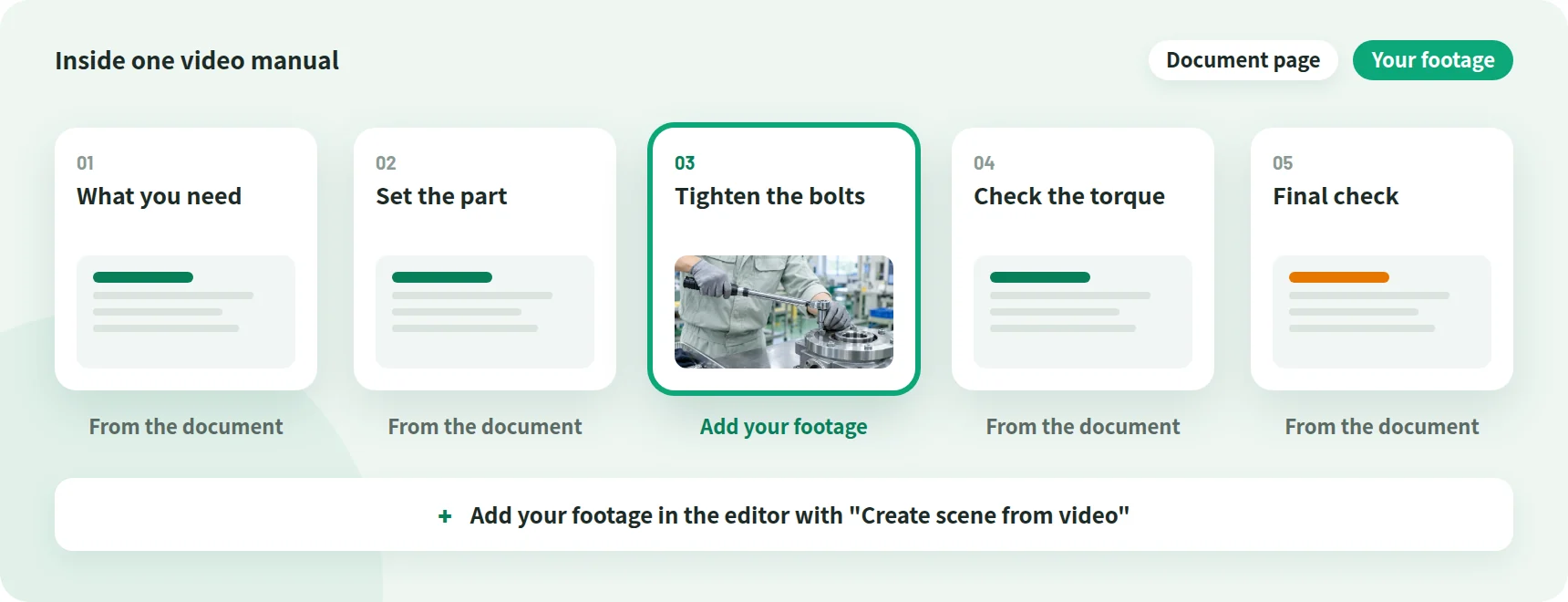
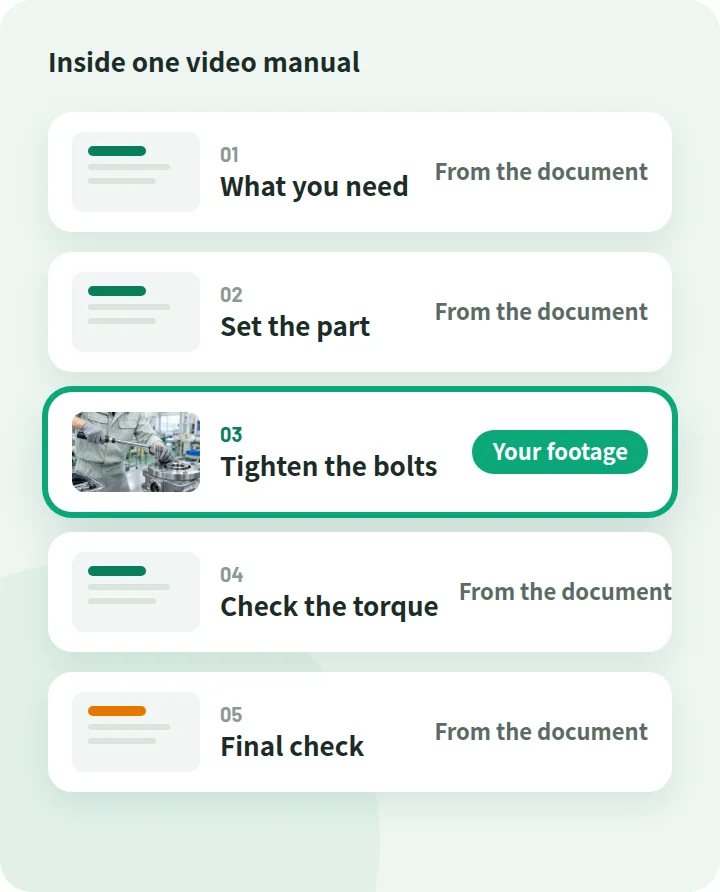
You can combine both approaches in one video. Create the setup, order, cautions, and criteria from your procedure document, and add your own footage only for scenes where you want to show hand movements or how much force to use.

Illustration of a video manual with five scenes, where footage you shot is added to just one scene showing hand movements Illustration of a video manual with five scenes, where footage you shot is added to just one scene showing hand movements
  • Work procedures

    Assembly, inspection, cleaning, cooking, caregiving, and more

    From your documents
    What you need, order of steps, key points, cautions, and completion check
    Add your footage
    Scenes where you want to show hand movements, speed, or how much force to use
  • Operating instructions

    Business systems, apps, machine control panels, and more

    From your documents
    Show the screen and explain, using procedure documents with screenshots
    Add your footage
    Scenes where you want to show mouse movements or screen transitions
  • Standards and rules

    Safety, hygiene, and quality standards, and more

    From your documents
    Explain rules, their reasons, and criteria with documents and narration
    Add your footage
    Photos of the workplace and footage of real situations

After generation, add your footage with "Create scene from video" in the editor. You can also add arrows and callouts on top of the pages.

WHEN STEPS CHANGE

When procedures change,
publish a new version at the same link

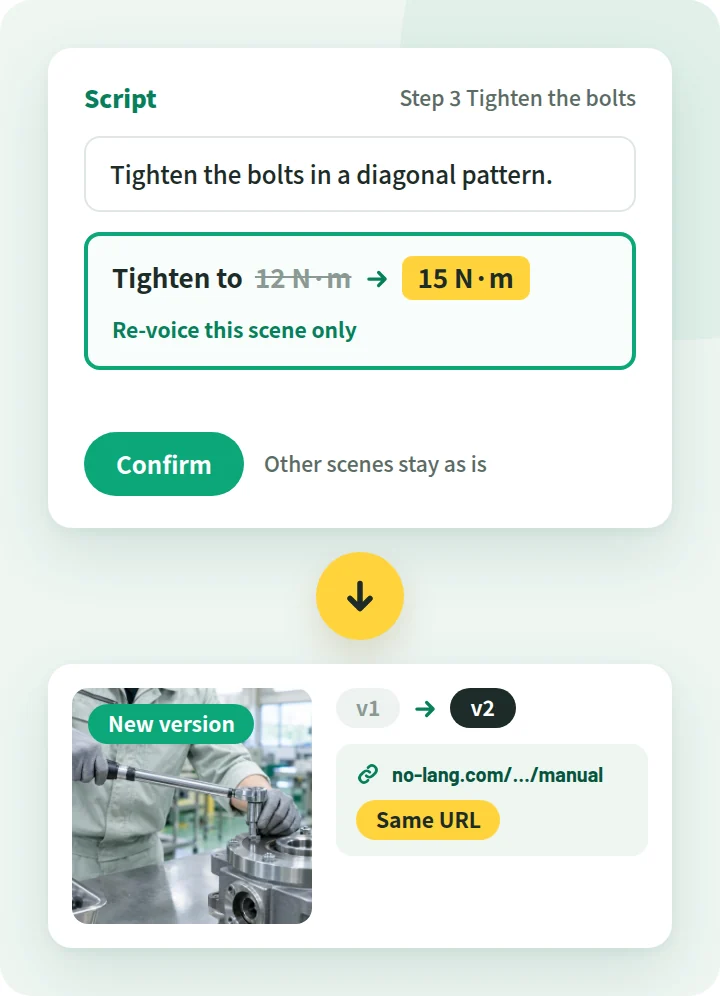
You don't have to remake the video from scratch every time a procedure changes. Just fix the script and confirm, and the video becomes a new version.

Illustration of fixing a value in the script and confirming, which switches the video to a new version at the same URL Illustration of fixing a value in the script and confirming, which switches the video to a new version at the same URL
  1. Fix the script or images

    In the editor, rewrite the script for the steps that changed. You can also fix images and subtitles.

  2. Regenerate the audio for the scene you fixed

    Use "Regenerate audio" to regenerate the narration for that scene. Audio can be regenerated scene by scene.

  3. Confirm

    Press "Confirm this content" and the video is regenerated as a new version.

  4. People can watch the new version from the link you shared

    Viewing, the share link, and downloads switch to the new version. The video URL stays the same.

The day you revise your procedure document, your video can move to a new version too

Editing is done on a PC. Until you confirm, the shared video stays on the previous version.

For teams evaluating NoLang internally

Download the NoLang service overview
for free

Get an overview of NoLang and its Business plan by email.

Cover of the NoLang Service Overview

3-minute
overview

Free Download Materials

LANGUAGES

Your procedures,
in your staff's native languages too

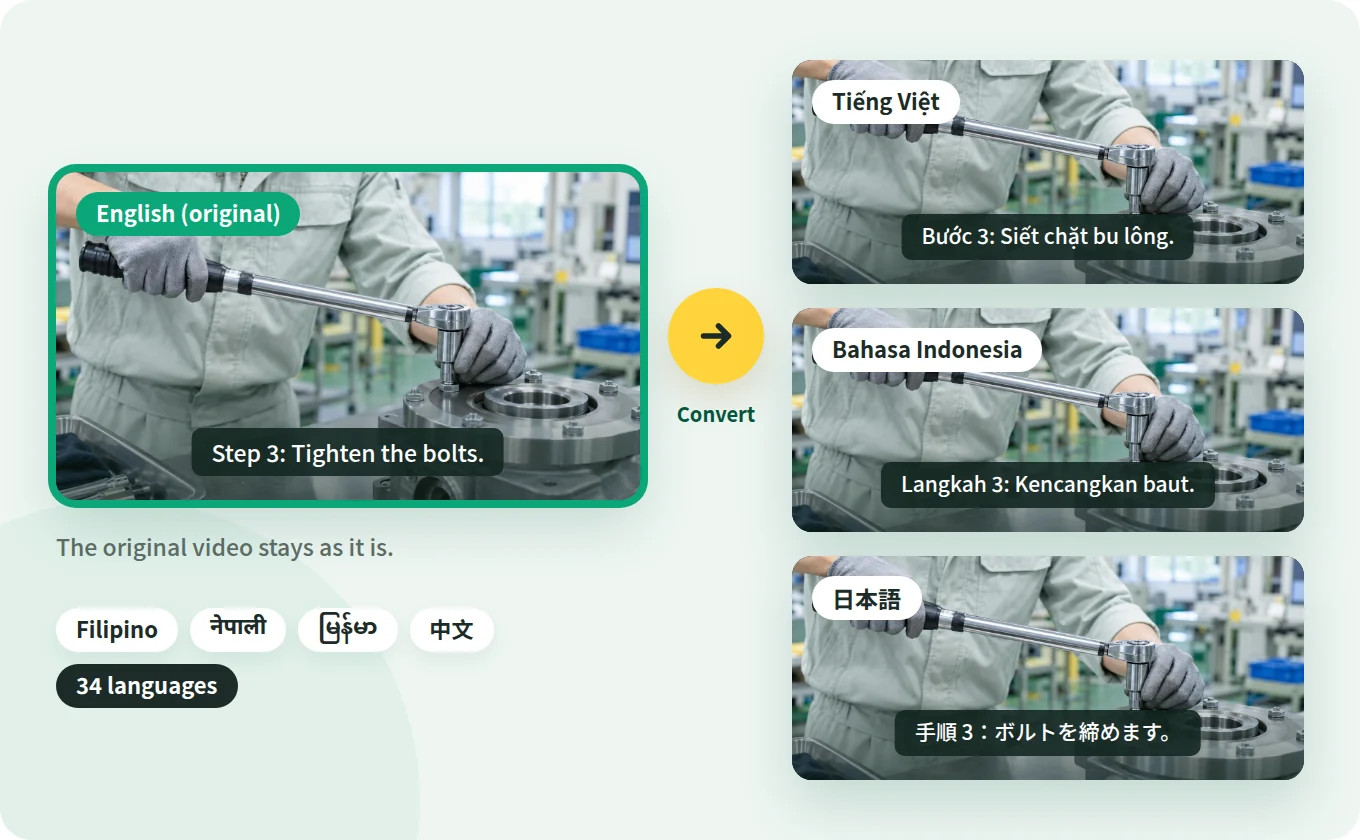
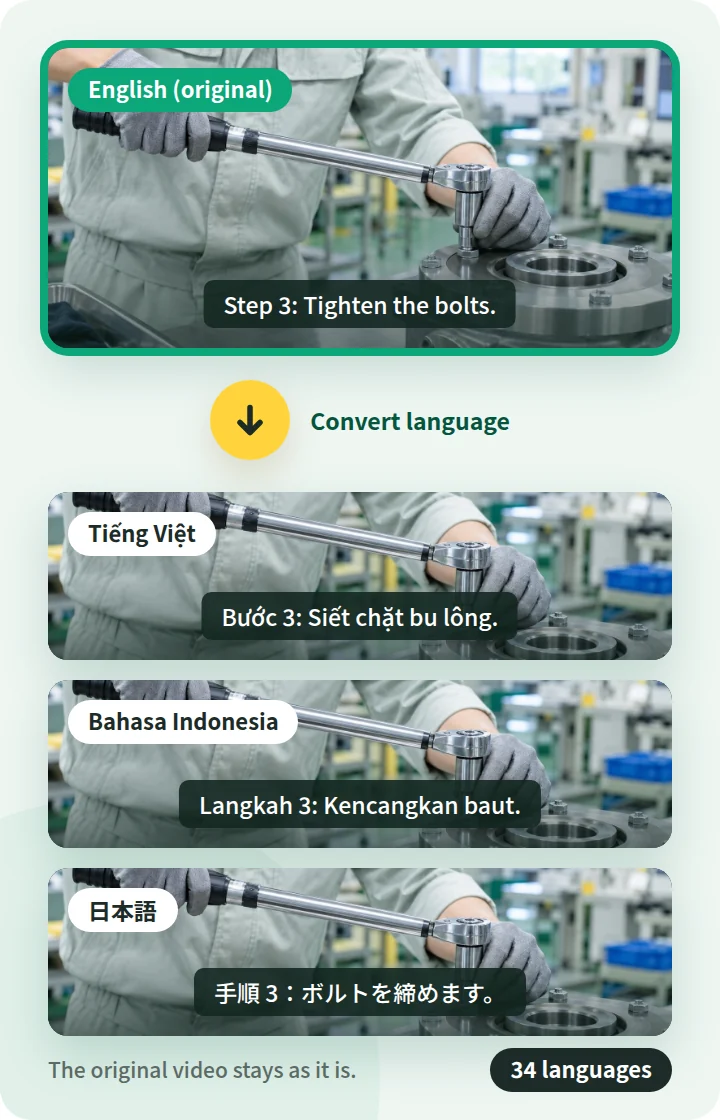
With "Convert language," you can create a video in another language with the script and on-screen text translated. The original video stays, so you can compare the same procedure in two languages.

Illustration of creating Vietnamese, Indonesian, and Japanese versions from an English work procedure video Illustration of creating Vietnamese, Indonesian, and Japanese versions from an English work procedure video
  • Choose from 34 languages

    Supports 34 languages, including Vietnamese, Indonesian, Tagalog, Nepali, Burmese, Chinese, and English. The available voices depend on the language.

  • The script and on-screen text are translated

    The narration and subtitles are in the language you choose. Images on your document pages and text inside slides are not translated.

  • Review and fix the translation before publishing

    You can fix the translated script in the editor. For safety-related procedures, it's best to have someone who knows the language check it.

SAME EVERY TIME

Keep the same explanation,
no matter who teaches

Wording, pronunciation, who explains, and where to look. Here are NoLang's answers to concerns about conveying procedures correctly.

We don't want the wording changed

We can't have AI rewording the approved text of our procedure documents.
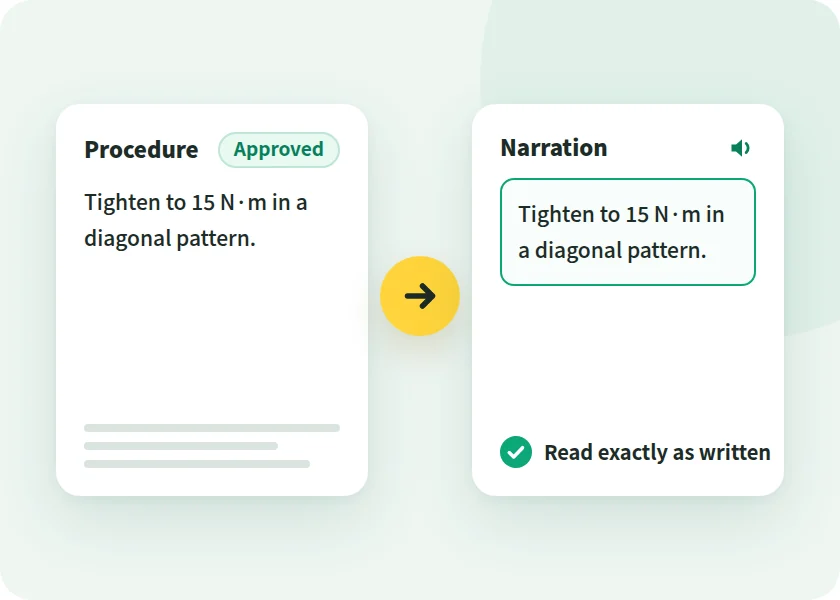
Illustration of the approved text of a procedure document being read aloud as written

With NoLang

Read it exactly as written with "Specify script"

Write a narration script for each page, and NoLang reads it exactly as written. You can also use your PowerPoint speaker notes as the script.
It might mispronounce our internal terms

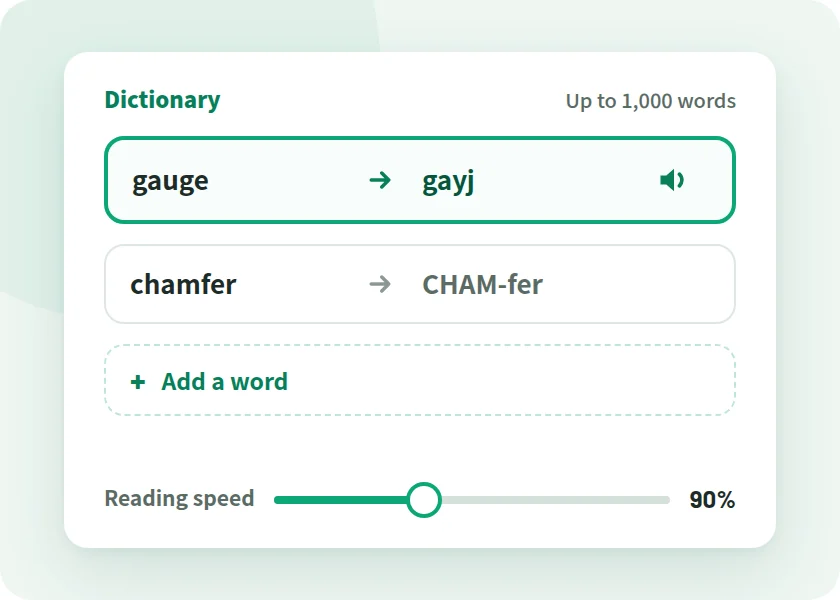
It might mispronounce terms like "gauge" or "chamfer."

Illustration of the screen for registering the pronunciation of internal terms in the dictionary and changing the reading speed

With NoLang

Fix pronunciation word by word and save it to the dictionary

You can fix the pronunciation of internal terms and machine names word by word, and register up to 1,000 words in the dictionary. You can also change the reading speed.

Explanations vary by trainer

It's the same task, but the order and wording change depending on who teaches it.

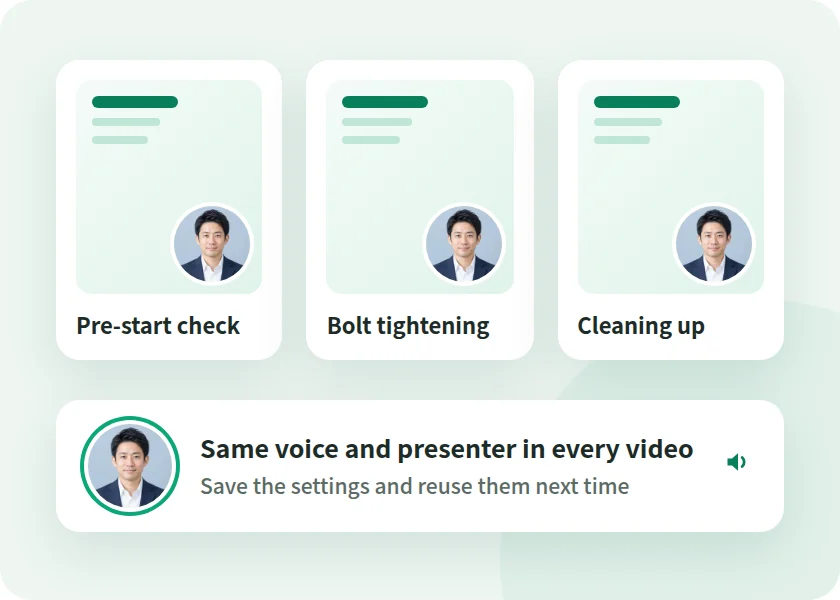
Illustration of three video manuals made with the same voice and presenter

With NoLang

The AI voice reads exactly as scripted

The explanation is the same every time, for every viewer. You can save generation settings such as the voice and presenter and reuse them for the next video.

It's hard to show where to look

Just showing the page doesn't make it clear where to look.

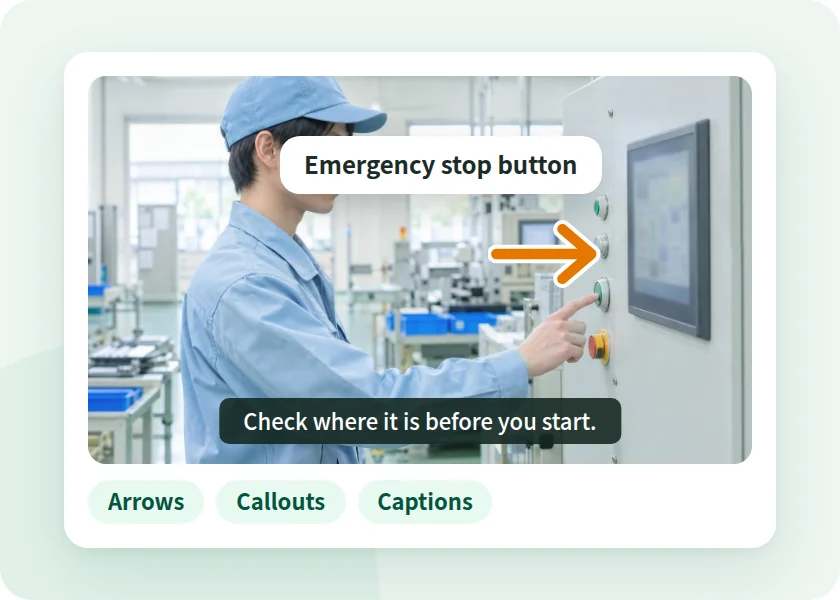
Illustration of a screen with arrows, callouts, and subtitles added on top of a photo

With NoLang

Point to it with arrows and callouts

In the editor, you can add shapes such as arrows and callouts, and text, on top of the pages. Subtitles are added automatically to match the narration.

CHECK POINTS

When choosing a video manual tool,
8 points to check

These are points worth checking before adoption, whichever tool you choose. We've added NoLang's answer to each.

  1. CHECK 01 What do you create from?

    You can create from procedure document and manual PDFs and PowerPoint (PPTX) files, or from footage shot on a phone or other device (MP4, MOV, WEBM). Word and Keynote files work once exported to PDF or PPTX.

  2. CHECK 02 Can it explain every step without skipping?

    Choose "Explain all pages" and NoLang explains every page of your procedure document in order, without skipping. To keep it short, choose "Explain key points only."

    See how procedures map to video
  3. CHECK 03 Can it read the approved text as written?

    With "Specify script," NoLang reads the script you wrote for each page exactly as written. You can also use your PowerPoint speaker notes as the script.
  4. CHECK 04 How much do you fix when a procedure changes?

    Fix the script and confirm, and the video becomes a new version. Narration audio can be regenerated scene by scene, and the video URL stays the same.

    See how updates work
  5. CHECK 05 Can it pronounce internal terms correctly?

    You can fix pronunciation word by word and register up to 1,000 words in the dictionary. To apply it to existing videos, use the "Dictionary" tab.

  6. CHECK 06 Can you make versions for staff from other countries?

    With "Convert language," you can create Vietnamese, Indonesian, and other language versions while keeping the original video (34 languages). Text inside images in your document is not translated.

    See foreign-language versions
  7. CHECK 07 What about scenes that need to show motion?

    You can create from your footage, or add your footage after generation to a video created from a procedure document.

    See how to create from footage
  8. CHECK 08 Can it be managed at the company level?

    On the Business plan, admins invite and suspend users, and can grant users in the tenant permission to view or edit.

    View Admin and Security

If you're unsure, the surest way is to make one video from a procedure document you have, then fix one spot and confirm.

Try It for Free

SECURITY

Administration and security for business use

NoLang is a Japan-made AI video generator developed and operated in-house by Mavericks, Inc. Here is what IT departments and those handling internal approval will want to confirm.

Third-Party Certification

Certified to ISO/IEC 27001:2022 (ISMS)

ISO/IEC 27001 is the international standard for information security management systems (ISMS). Mavericks, Inc., which develops and operates NoLang, is certified to this standard.

ISO/IEC 27001:2022 certification mark
Registration No. GIJP-2064-IC
  • SSO

    Single sign-on with Microsoft Entra ID

  • IP Address Restrictions

    Restrict which IP addresses can be used for each tenant

  • Activity Logs

    Admins can filter activity logs and download them in bulk as CSV

  • User Management

    Invite and suspend users, with credits shared across the company

  • No AI Training on Your Documents

    Uploaded documents are never used to train generative AI

  • Pay by Invoice

    The Business plan accepts bank transfer (invoice) as well as credit card

  • REST API

    Generate videos from PDF or PPTX files via your own systems

  • Developed in Japan

    Developed and operated in-house by Mavericks, Inc.

Business Plan Features

  • Unlimited video generation (excluding some types, such as avatars)
  • Custom avatar and voice creation
  • Higher slide generation limits

For those considering video manuals

Can you make one from your procedure documents?
Talk to us

TRACK RECORD

Over 500 companies, local governments,
and public agencies use NoLang

  • Companies using NoLang(businesses and public sector) 500+
  • Users 200K+

Some of the companies using NoLang (in no particular order)

CASE STUDY

Case studies from companies, local governments, and public agencies

NoLang videos are used by companies, local governments, and government agencies. You can play the published videos right here.

Horizontal Video YouTube

Vertical Short YouTube Shorts

Public Agency

Ministry of Defense

  • PR
  • Communications

PR videos on its initiatives and activities, published as a horizontal video and a vertical Short

Produces PR videos that clearly communicate its initiatives and activities. Both the horizontal video for YouTube and the vertical Short are created in NoLang alone.

  • Company 17LIVE

    Its own character delivers corporate messages in an approachable way

    Highly entertaining videos convey company information in an approachable way and help strengthen the brand image.

    • Business Overview
    • Company Profile
  • Local Government Hatsukaichi City, Hiroshima

    Complex administrative information, brought to residents through explainer videos

    Produces explainer videos about plans and programs with NoLang and publishes them on the web, reaching more residents with municipal information.

    • Tourism PR
    • Municipal Communications
  • Company WriteUp Co., Ltd.

    Sharing practical AI know-how to reach more new customers

    Shares practical, easy-to-understand information about AI on YouTube and other channels, building its expertise and credibility.

    • Marketing
    • New Customer Acquisition

FLOW

From inquiry to rollout

Here is the process from your first inquiry to starting to create video manuals.

  1. 01

    Contact Us

    Submit the form and we'll send materials or a reply to the email address you entered.

  2. 02

    Consultation and Quote

    Talk with us about Business plan details, API integration, and customization.

  3. 03

    Sign Up

    To pay by card, sign up through the web form in about 5 minutes. For invoice payment (bank transfer), contact us and we will guide you through it.

  4. 04

    Go Live

    You can use the Business plan from your start date. An admin invites the team members in charge, and they start creating videos.

FAQ

FAQ

Questions we get from training, general affairs, and IT staff who are considering video manuals.

Can I make a video manual from a procedure document PDF or PowerPoint?

Yes. NoLang is a Japan-made AI video generator that creates video manuals from procedure document and manual PDFs or PowerPoint (PPTX) files, with AI adding the structure, script, narration, and subtitles.

Word and Keynote files work once exported to PDF or PPTX. You can add up to 4 documents per generation.

Can I make video manuals without filming?

Yes. Without filming or recording, NoLang creates videos that show the pages of your procedure document while an AI voice explains the steps.

For scenes where you want to show hand movements or how much force to use, you can add your own footage in the editor after generation. You can also create a video manual from your footage.

Can I create a video manual from footage shot on a phone?

Yes. Under "From video," upload footage shot on a phone or other device (MP4, MOV, WEBM) and choose how to create the video.

"Transcribe and add subtitles" turns what was said into subtitles as is. "Add narration" adds AI narration that matches the footage. "Summarize into a digest" keeps only the key scenes in a short video.

Can the video explain every step without skipping any?

Yes. Choose "Explain all pages" as the creation method, and the video explains every page of your procedure document in order, without skipping.

To make a short video that gives an overview before starting a task, choose "Explain key points only," which picks the important pages and explains them.

Can it read the approved text of our procedure documents as written?

Yes. Choose "Specify script" and write a narration script for each page, and NoLang reads it exactly as written.

If you have written explanations in your PowerPoint speaker notes, choose "Speaker Notes" and NoLang reads the notes as the script, as written. PDF files are not supported.

Do I need to remake the video when a procedure changes?

You don't need to start over. Fix the script or images in the editor and confirm, and viewing, the share link, and downloads switch to the new version. The video URL stays the same.

Until you confirm, the shared video stays on the previous version. Editing is done on a PC.

Can it correctly pronounce internal terms and machine names?

You can fix pronunciation word by word and register up to 1,000 words in the dictionary. The dictionary is used for newly generated Japanese videos, and you can apply it to existing videos from the "Dictionary" tab.

Can I make video manuals in Vietnamese or other languages for staff from other countries?

Yes. With "Convert language," you can create a video in another language from the original video, with the script and on-screen text translated, while keeping the original. You can choose from 34 video languages, including Vietnamese, Indonesian, Tagalog, Nepali, Burmese, Chinese, and English.

Images on your document pages and text inside slides are not translated. Videos with an animated real avatar cannot be converted. Check the pricing page for the plans that include "Convert language."

Can I add my own footage to a video created from a procedure document?

Yes. Upload a video with "Create scene from video" in the editor, and it is added as a scene with that video's length.

Can I make videos that explain how to operate business systems and similar tools?

Yes. From PDF or PPTX procedure documents with screenshots, you can create videos that show the screen while explaining how to operate it. In the editor, you can add arrows and callouts on top of the pages.

For scenes where you want to show mouse movements or screen transitions, you can add a separately recorded file in the editor.

How long should a video manual be?

Covering one task per video makes it easier to find the steps you want to watch. For a long procedure document, you can make a separate video for each task.

In NoLang, you can choose a target video length from 30 sec to 5 min, or Auto. Choose "Explain all pages" and NoLang explains every page of your procedure document without skipping.

How do I distribute the video manuals I make to the workplace?

You can distribute them with a share link. Press "Publish video" so others can watch through the share link, and you can also stop publishing. You can also download them as MP4 and store them in your internal file storage.

Can I use procedure documents made in Word?

You can add PDF and PowerPoint (PPTX) files as they are. Word and Keynote procedure documents work once exported to PDF or PPTX.

Are uploaded documents used to train AI?

No. On every plan, the documents you upload are never used to train AI.

Can I try it for free? Where can I check the pricing?

On the Free plan, you can try creating videos from your own procedure documents. Pricing and the terms of each plan are on the pricing page, and the Business plan is covered on the business page.

Ask Another Question

CONTACT

See if you can make one from your procedure documents.
Start with our materials and a consultation

Choose the option that fits your stage of evaluation.

For teams evaluating NoLang internally

3-minute overview

Service overview

An overview of NoLang and its Business plan.

  • Details of the Business plan
  • Sent by email after you submit the form
  • Easy to share internally as a PDF
Cover of the NoLang Service Overview
Free Download Materials

We'll send the materials to the email address you enter.

For those who want to discuss video manuals

Feel free to reach out

Contact Us

We can discuss how well your procedure documents fit and how to handle updates.

  • Quotes and rollout planning
  • Questions about paying by invoice (bank transfer)
  • API integration and customization
Contact Us

We will reply to the email address you provide.

For teams who want to try it first

Try for Free

Before requesting materials or a consultation, try the actual app for yourself.

Try It for Free