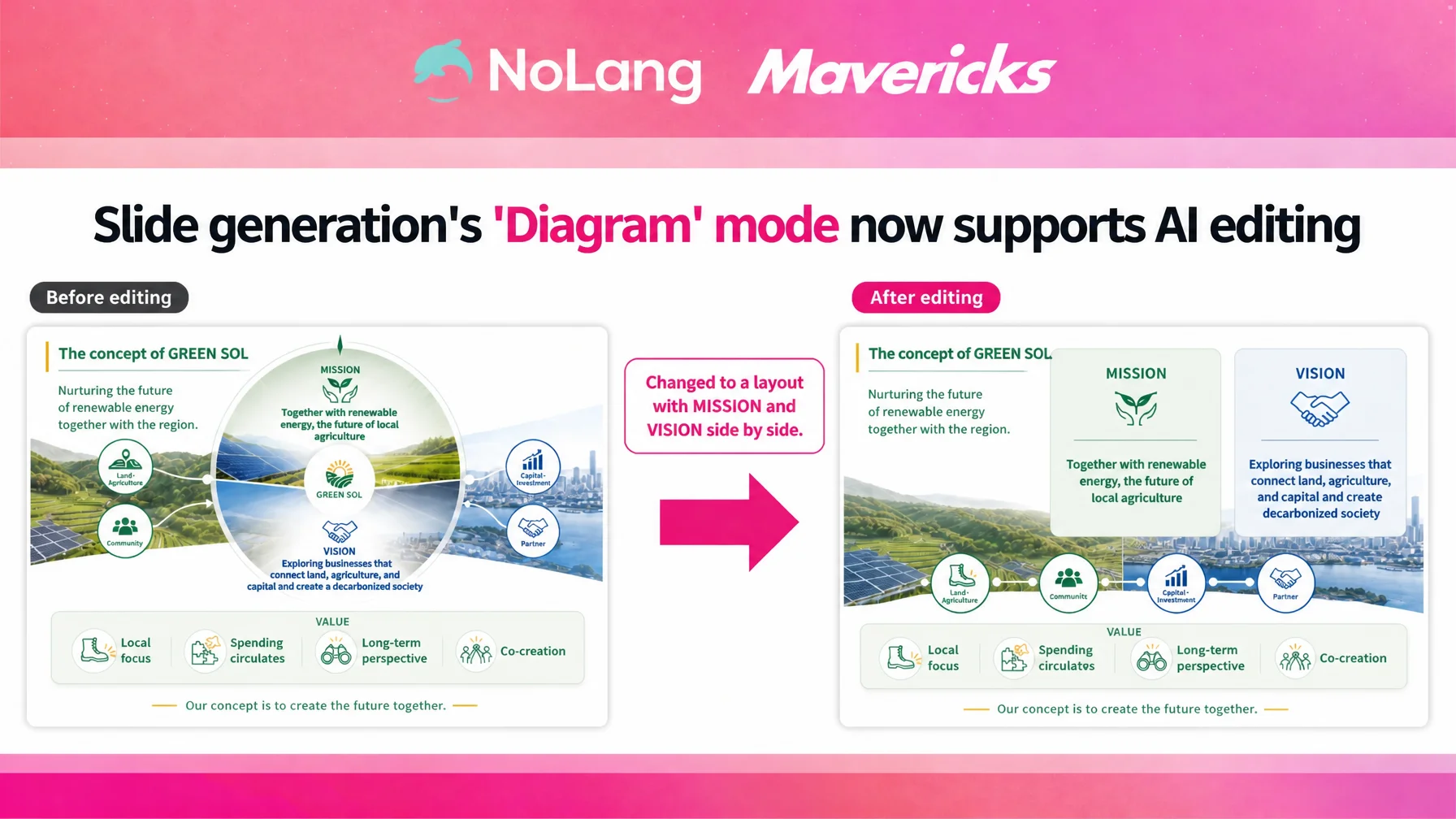
Mavericks, Inc., the company behind the AI video generation service NoLang, has added AI Edit to the Illustrated mode of the NoLang slide generation feature. For visual slides built around diagrams and charts, a written instruction in Japanese is now enough to revise a page or add a new one. A single line such as “change the color scheme to warm tones” or “add a summary slide for the whole deck” adjusts just the one page you want to fix, with no need to rebuild the entire deck. AI Edit was already available in Fast mode, and extending it to Illustrated mode means users can refine how their illustrated slides look without opening a design tool.
Contact us about NoLangFrom input to finished video: what NoLang slide generation does
NoLang slide generation builds a deck from a block of text you type in or a PDF you upload. Three modes cover different needs: Fast mode for quickly turning text or documents into slides, Illustrated mode for visual slides built around diagrams and charts, and PPTX mode for exporting in PPTX format. Alongside the horizontal format used in presentations, slides can be generated in vertical and other aspect ratios to match where they will be published.
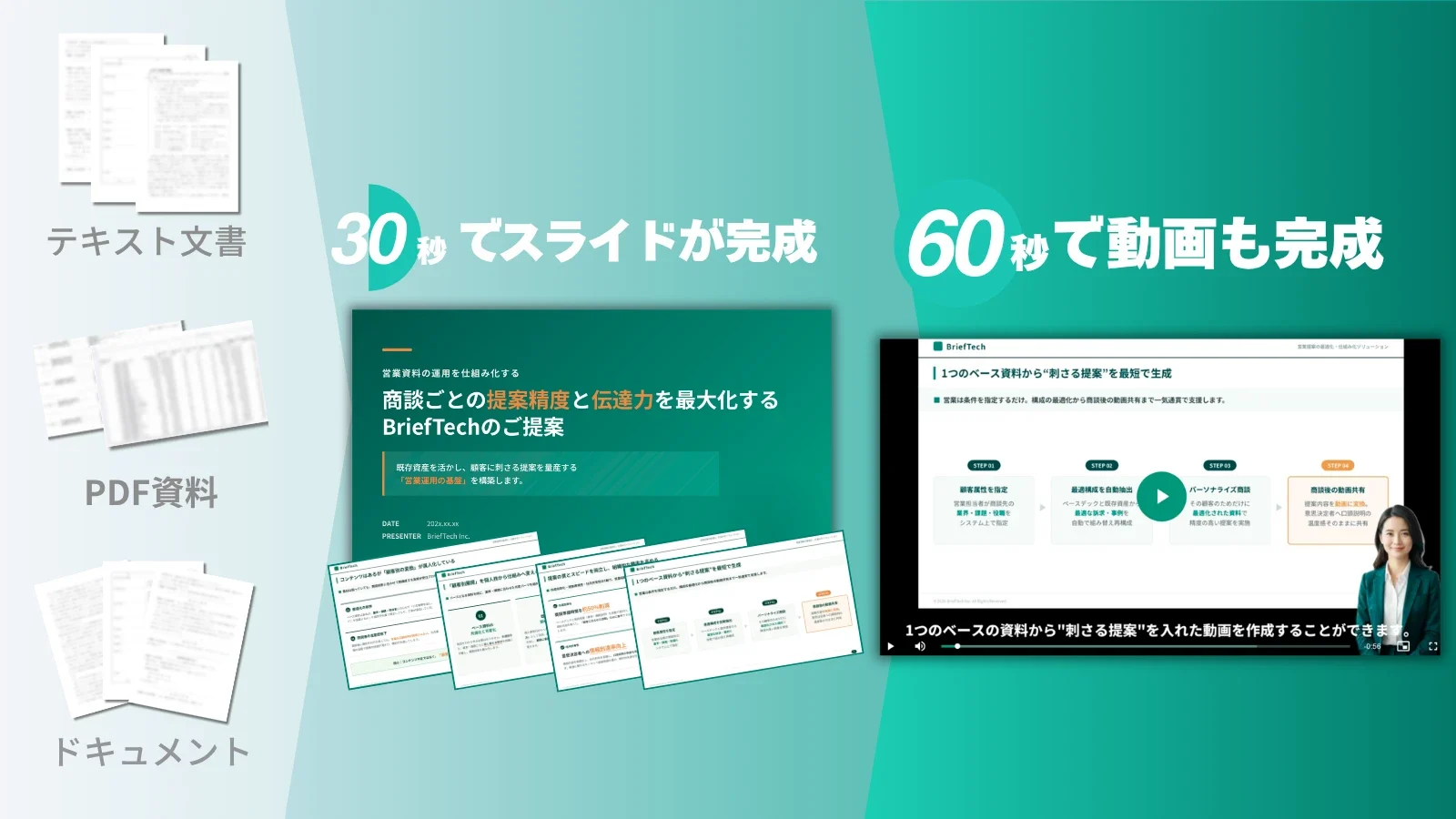
What sets NoLang apart from general slide generation tools is that it was built for producing documents in Japanese. Overseas tools often break when Japanese text is entered: fonts get substituted, characters turn into mojibake, and text overflows its frame. Because NoLang is designed around Japanese text, those problems are far less likely, and the color schemes and layouts land in the tone that Japanese business documents normally use. Users spend less time regenerating decks or fixing them by hand, and get slides that are ready to use internally as they are.
Speed is another characteristic. It takes about 30 seconds from input to a finished deck. There is no need to work out the whole structure before starting: you can generate first and think while looking at what comes back.
The other strength is the connection to video. NoLang started as an AI video generation service, so a finished deck can be turned into a video directly. There is no moving back and forth between a separate slide tool for the document and yet another tool to turn it into video.
AI is now common in document work, but partial edits to illustrated slides were a problem
Using generative AI to prepare documents is already part of everyday work. According to a survey by Japan’s Ministry of Internal Affairs and Communications, 47.3% of companies in Japan report using generative AI to assist with email, meeting minutes, document preparation and similar tasks1. Having AI produce a first draft that a person then refines is becoming the normal way to work.
The trouble tends to start at that refining step. Even when one part of an AI-generated deck is not right, there is usually no way to fix that single page on its own. This is especially true of visual slides that combine diagrams, charts and icons: changing the color scheme slightly meant either rewriting the prompt and regenerating everything, or taking the deck into a design tool and editing it by hand. Regenerating everything also turns the pages you were happy with into something different.
Within NoLang slide generation, this varied by mode. Fast mode already offered AI Edit, which rewrites a page or inserts a new one from a natural-language instruction, while Illustrated mode left users with only two options: use the generated slides as they were, or start over. There was no way to work on them after generation. With this update, the editing screen for slides generated in Illustrated mode also supports AI Edit, so pages can be revised and added using instructions written in Japanese.
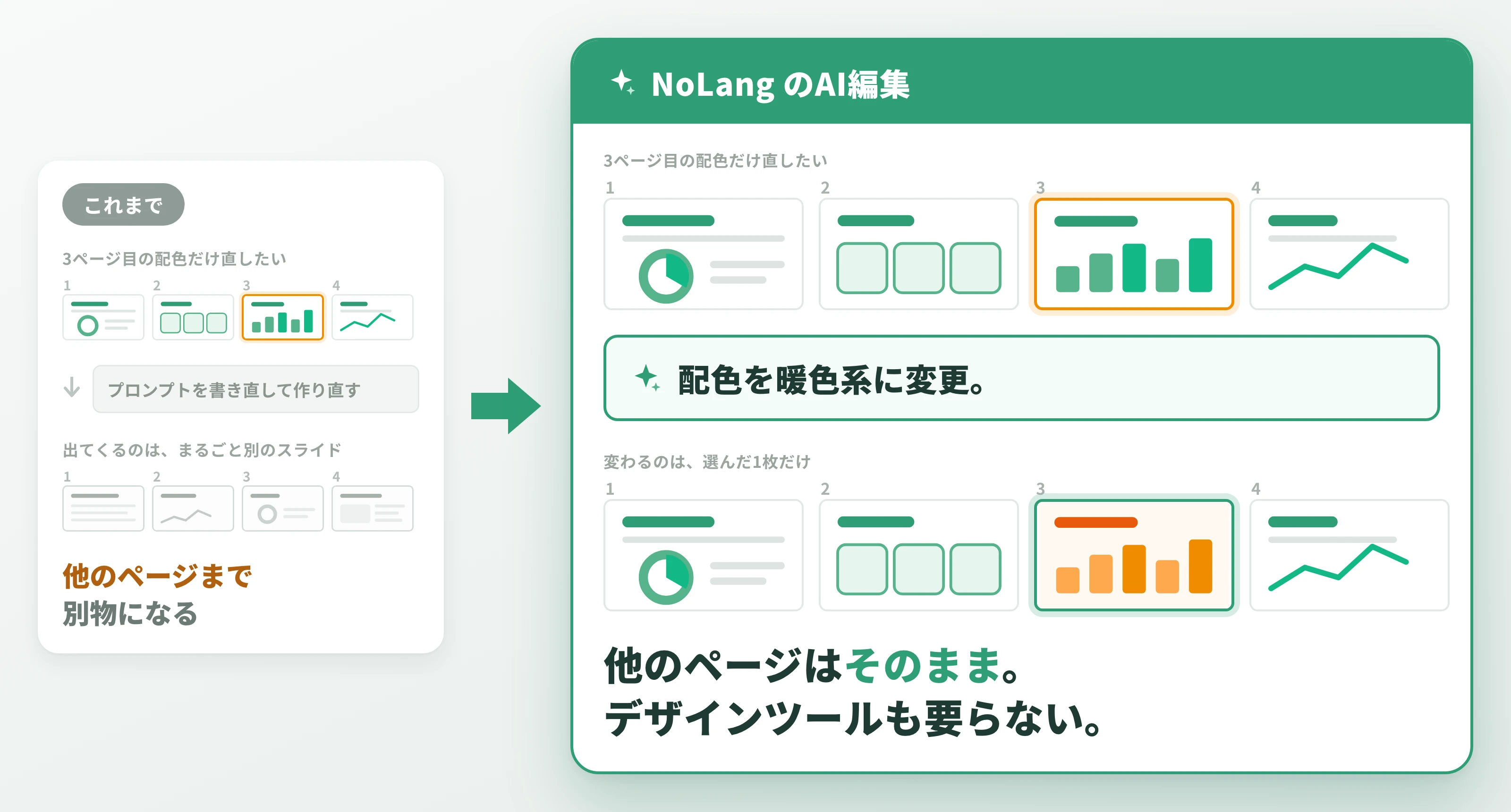
Fix exactly the page you want, using an instruction in Japanese
When you open a deck generated in Illustrated mode, “AI Edit” appears in the sidebar of the editing screen. Select the page you want to fix, write an instruction in Japanese, and the AI rewrites that page.
The examples shown on screen are “change the color scheme to warm tones,” “replace the title with ’○○’,” and “change the chart to a bar chart.” In other words, everything from the overall look of the design to individual elements such as title wording or chart type can be conveyed in one sentence. Because the whole deck does not have to be rebuilt, a single page that colleagues disagree about can be tried again and again with different colors and different charts. There is no design tool to learn and no need to move layers or shapes by hand. Even organizations without a designer who can work with diagrams and charts can adjust how their documents look themselves.
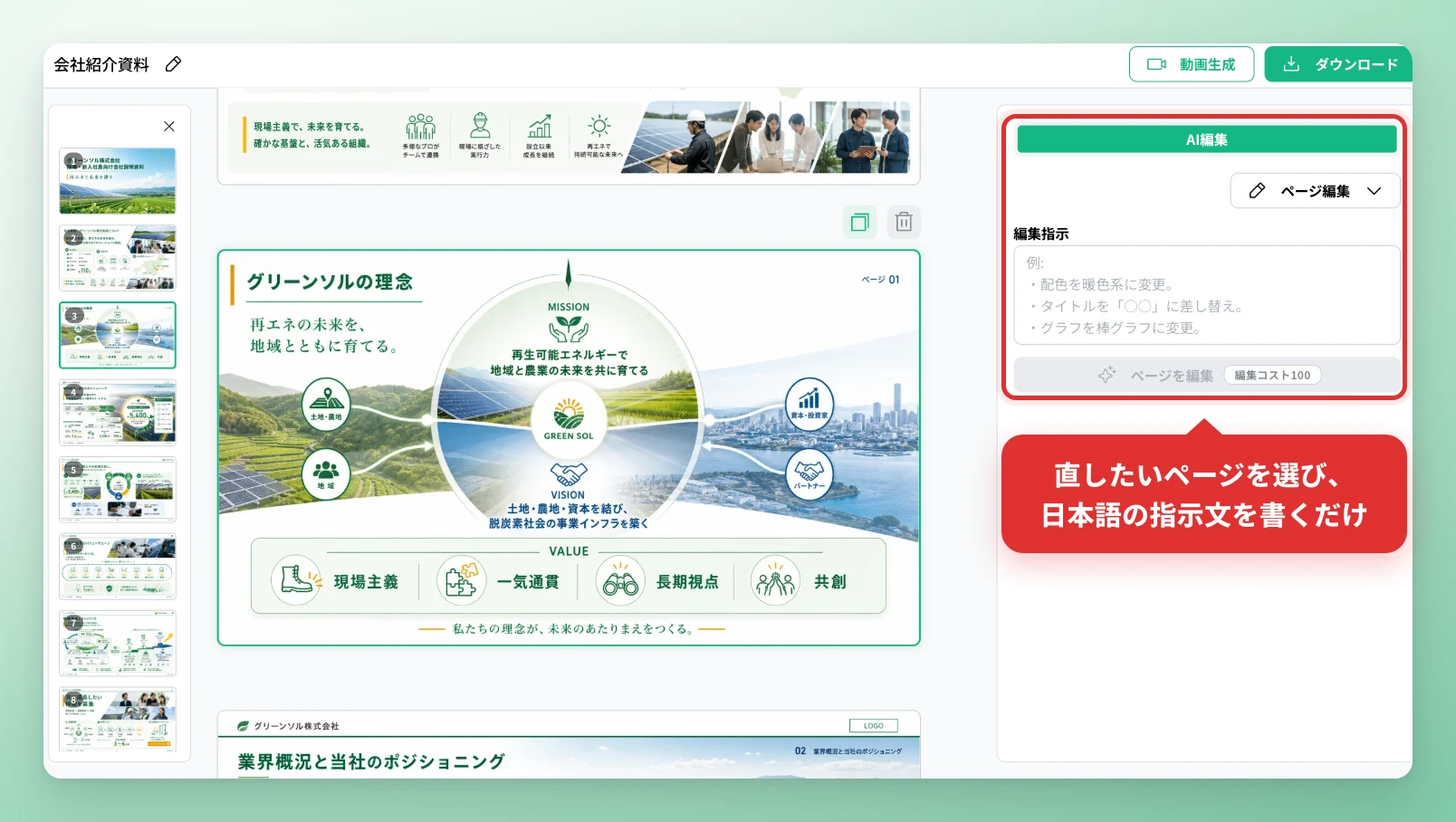
Pages can also be copied and deleted from the editing screen. Restructuring work such as duplicating a similarly built page or dropping one that is no longer needed is covered too, so the deck can be finished entirely within NoLang.
Contact us about NoLangAdd the pages you are missing, generated to fit what comes before and after
Besides rewriting existing pages, AI Edit can insert a new page before or after the page you select. Here too, you only describe the page you want in an instruction.
The examples on screen are “add a slide that supplements the previous page,” “add a summary slide for the whole deck,” and “add a section divider titled ‘About ○○’.” The new page follows the flow of the pages around it and keeps the tone of the existing deck. That avoids the situation where the color scheme or layout of the added page stands out and has to be fixed separately.
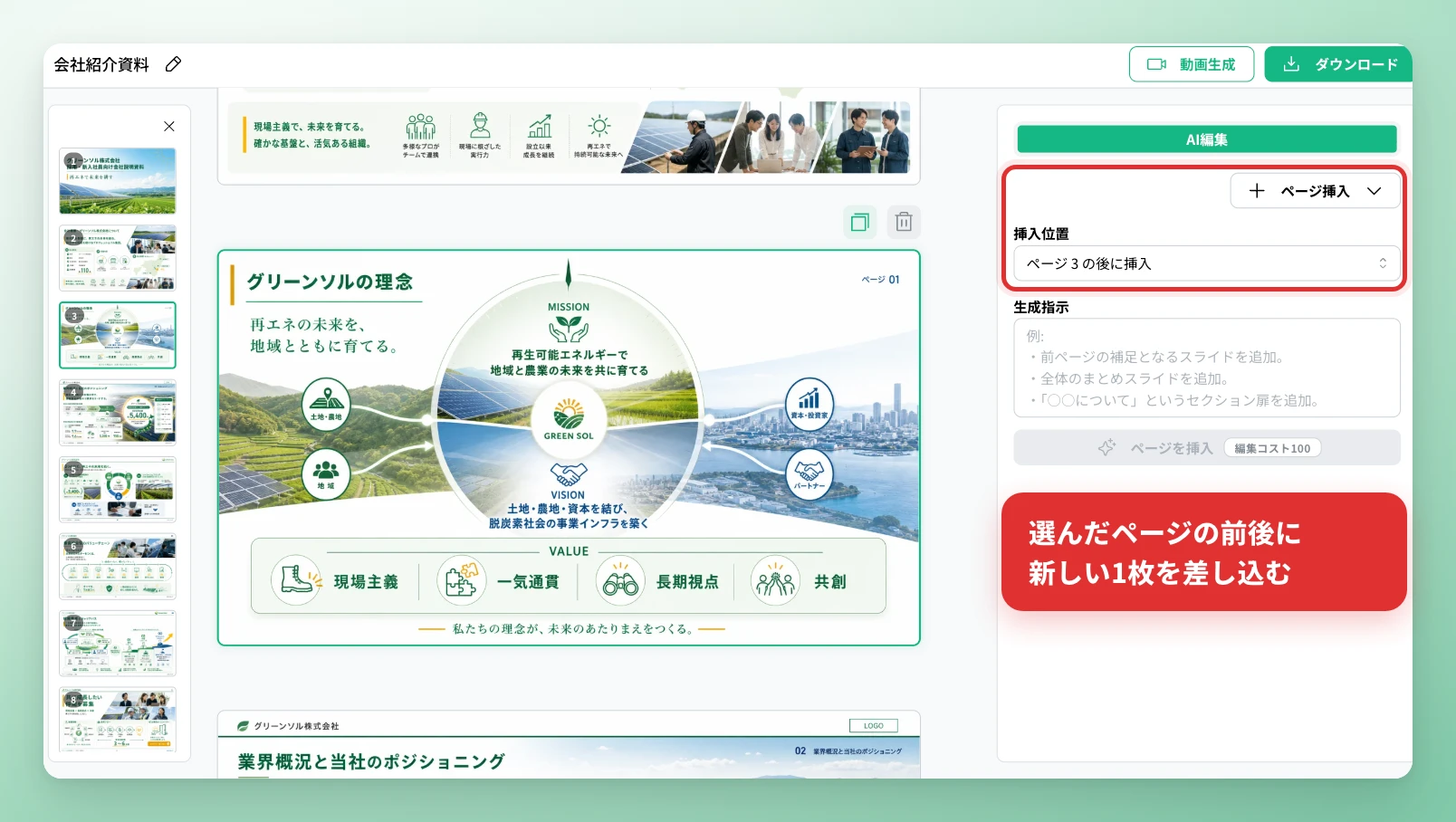
This makes it possible to fill in gaps later, wherever you notice that an explanation is thin or that a change of topic needs a break. There is no need to agonize over specifying the perfect structure in the first prompt. Generate first, look at the slides that come out, and fill in what is missing. The work follows the way documents actually get made.
Contact us about NoLangDraft, review and revision, all in one flow
Illustrated mode is used for service introduction decks, internal proposals, and teaching material for study sessions and training, wherever content needs to be organized visually. With AI Edit now available, documents like these fit directly into the real working cycle of producing a draft, collecting review comments, and making the fixes.
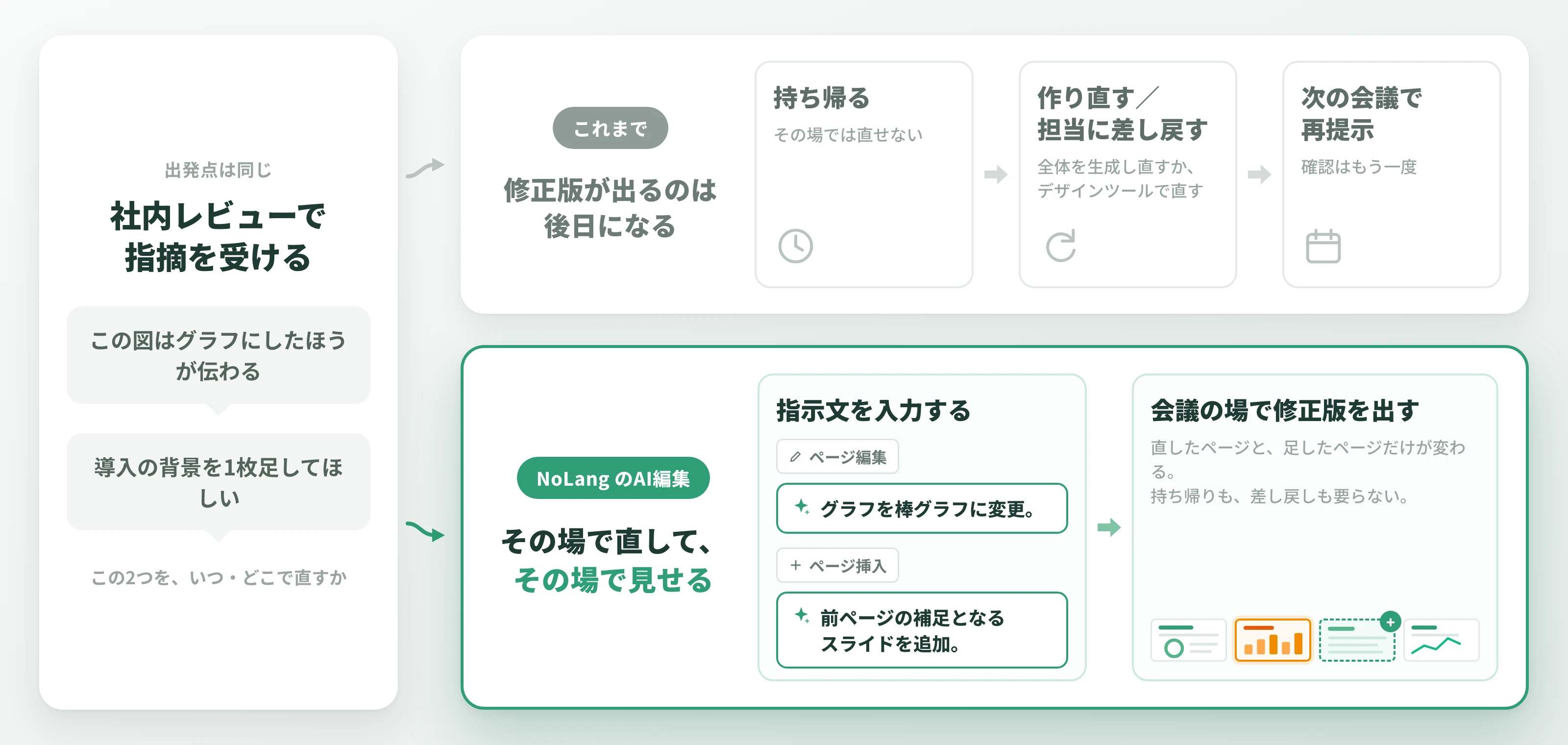
Suppose an internal review produces comments such as “this diagram would land better as a chart” or “please add a page on the background to the project.” Previously the options were to regenerate the whole deck or send it back to a designer; now you enter an instruction on the spot and produce the revised version. Because the fix can be made and shown during the meeting itself, comments that used to be taken away and handled later are settled there and then. Small businesses that had been outsourcing production, and local governments and schools that cannot staff a dedicated designer, can also finish clear illustrated documents themselves.
Finished slides can be downloaded as a PDF, or carried straight through to video generation. The handout for the meeting and an explanatory video to review afterward can both be prepared in a single flow.
What comes next
Adding AI Edit to Illustrated mode is part of a broader effort at NoLang to make generation the start of the work rather than the end of it. Instead of taking whatever the AI produces, users can work with it until the result matches what they had in mind. Mavericks will continue improving that experience across the slide generation feature.
NoLang will keep shipping updates based on feedback from users, working toward a product that lets anyone create clear documents and videos without specialist design skills.
Footnotes
-
Ministry of Internal Affairs and Communications, White Paper on Information and Communications in Japan, Reiwa 7 (2025) edition (Part I, the current state of AI use in enterprises) (in Japanese) ↩