ISO/IEC 27001:2022 (ISMS) certified

Used by 500+ companies, local governments, and public agencies

An AI video generator for making school introduction videos

School and lesson videos,made by AI from your documents

NoLang is a Japan-made AI video generator that creates videos with narration and subtitles from school brochures, school information session slides, and lesson slides.

  • From school brochures and information session slides to a school introduction video
  • When the academic year changes, edit only the scenes that changed for a new version
  • From lesson slides to a video of the teacher's avatar speaking in their voice
  • Companies using NoLang 500+
  • Video Languages 34 languages

Get the service overview by email

Free Download Materials

Ask if it fits your documents

Contact Us

Try It for Free

Video screens and photos are for illustration only.

500+ companies, local governments, and public agencies use NoLang

PROBLEM

Making videos at your school:
do you face challenges like these?

  • We can't remake our school introduction video every year

  • We have briefing materials, but no time to turn them into videos

  • We want lesson videos, but preparing to film is a lot of work

  • Our guidance is hard to get across to international students and non-Japanese parents

With NoLang,

Your school brochure becomes
the source of your videos.

Reading a brochure aloud does not make a video. NoLang builds the visuals, narration, and subtitles for each scene from the pages of your document. You can also choose which pages to use to fit the length.

Video length

PDF School brochure pages

  1. 1 Cover
  2. 2 Welcome
  3. 3 Learning
  4. 4 Programs
  5. 5 A typical day
  6. 6 Events
  7. 7 Clubs
  8. 8 Facilities
  9. 9 Careers
  10. 10 Exam dates
  11. 11 Tuition & aid
  12. 12 Access

Scenes in the resulting video

  1. Scene Cover
  2. Scene Welcome
  3. Scene Learning
  4. Scene Programs
  5. Scene A typical day
  6. Scene Events
  7. Scene Clubs
  8. Scene Facilities
  9. Scene Careers
  10. Scene Exam dates
  11. Scene Tuition & aid
  12. Scene Access

5 pages, 5 scenes

The AI picks the important pages and summarizes the key points. You can use it for a short version to post on the web or social media.

Method in the app Explain key points only

12 pages, 12 scenes

Explains every page in order without skipping. Use it at information session venues or to guide people who watch later.

Method in the app Explain all pages

  • The figure is an example of use. The pages the AI picks vary by document.
  • You can edit the script in the editor. Before publishing, please have the person in charge check the content.
  • You can add photos your school has collected over time as material.

HOW IT WORKS

From adding documents to exporting,
3 steps

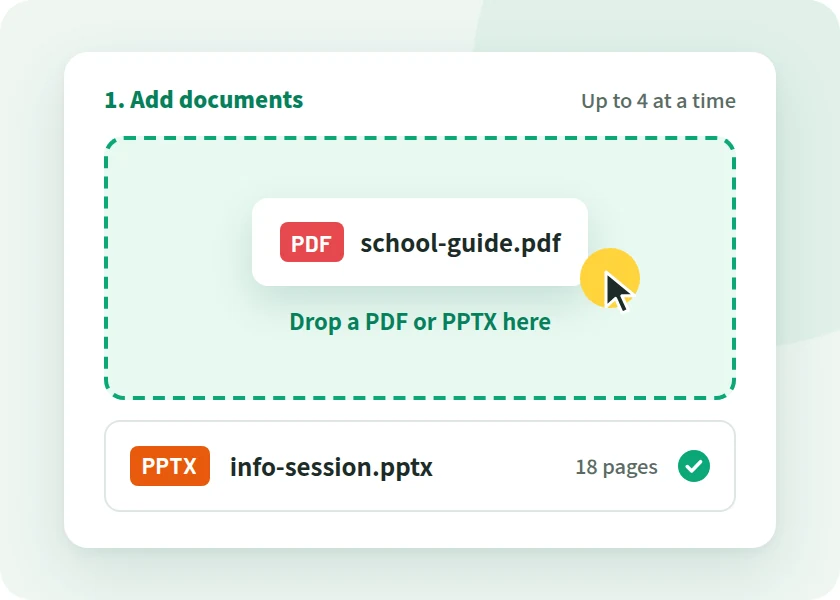
You can use school brochure PDFs and PowerPoint (PPTX) files for information sessions and lessons as they are. Documents made in Word can be used if you export them to PDF.

  1. Upload your documents

    Add your school brochure or information session slides, and write who the video is for.

    Illustration of the screen for adding a school brochure PDF and a school information session PPTX to NoLang
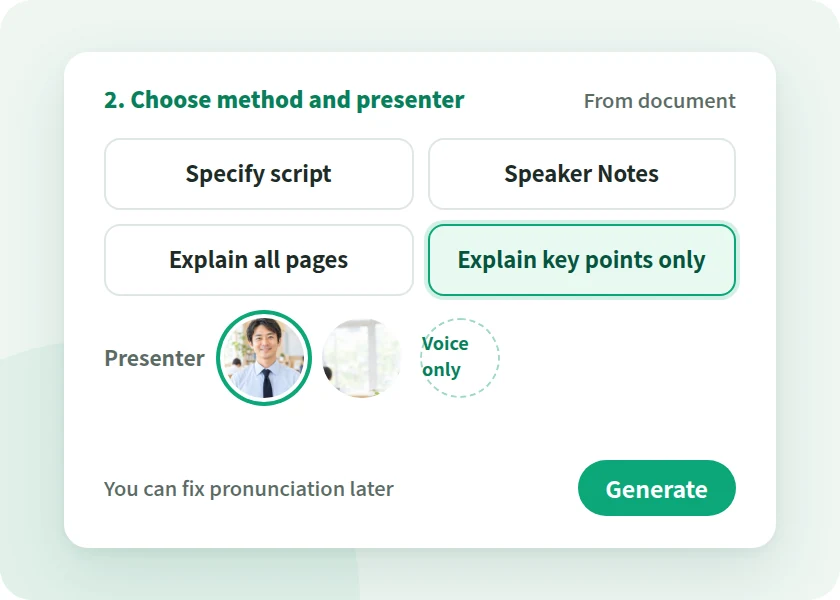
  2. Choose a method and presenter

    Choose whether to keep it short or explain every page, then pick a voice and a presenter avatar.

    Illustration of the screen for choosing how to create from a document and choosing a presenter
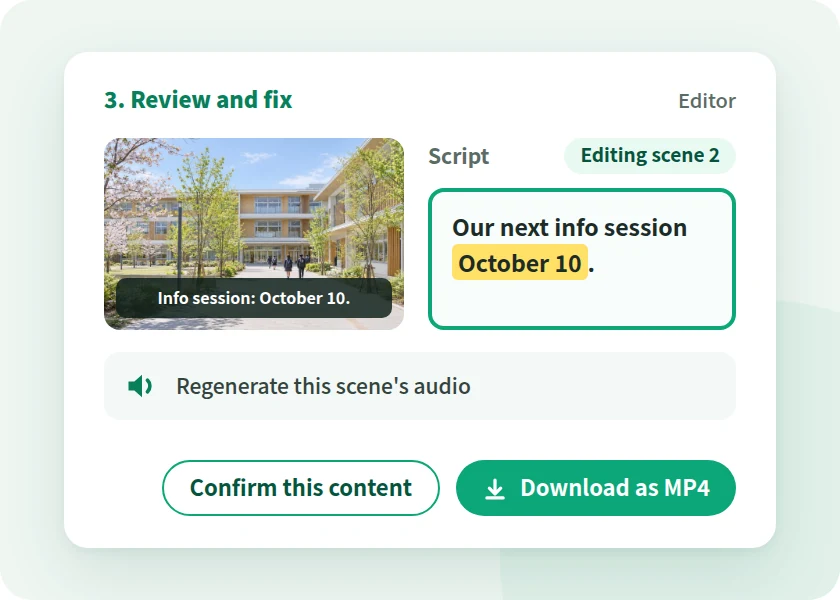
  3. Review, fix, and export

    Review the finished video, fix the script and pronunciation, then export it as MP4 or share it within your organization.

    Illustration of reviewing the finished video, fixing and confirming the script, and downloading it as MP4

SCHOOL YEAR

When the academic year changes,
edit only the scenes that changed

Entrance exam dates, information session dates and times, enrollment capacity. Something in your school's videos changes every year. Edit the script for the scenes that changed and confirm it, and the video becomes a new version.

  1. Apr

    Entrance ceremony

    Information for new students and parents

  2. May

    Higher education fairs

    School introduction of about 1 minute

  3. Jun

    School information session

    Full school introduction

    Changes every year
  4. Jul

    Open campus

    Day-of information

    Changes every year
  5. Aug

    Trial lessons

    Introduction to departments and courses

  6. Sep

    School festival

    Event announcements

  7. Oct

    Admissions information session

    Entrance exam overview

    Changes every year
  8. Nov

    Accepting applications

    How to apply

    Changes every year
  9. Dec

    Individual consultations

    Answers to frequently asked questions

  10. Jan

    Entrance exams

    Information for applicants

    Changes every year
  11. Feb

    Exam results announcement

    Guide to enrollment procedures

  12. Mar

    Graduation ceremony

    Update to next year's version

Event dates are examples.

Edited script

The next school information session will be held on October 11October 10.

Regenerate audio for this scene only

  • Edit the script and confirm it, and the video becomes a new version. The video URL stays the same.
  • Narration can be regenerated for only the scenes you fixed.
  • Download the MP4 again and replace the one you use at venues or on the web.
  • Editing is done on a PC. Until you confirm, the video stays at the previous version.

For teams evaluating NoLang internally

Download the NoLang service overview
for free

Get an overview of NoLang and its Business plan by email.

Cover of the NoLang Service Overview

3-minute
overview

Free Download Materials

LESSONS

Turn lesson slides into
videos in the teacher's voice

You can make videos that add narration and subtitles to lesson or lecture slides. Use them for preparation and review, or as videos for students who were absent to watch later.

  • Read the Speaker Notes as written

    Reads the notes you wrote in PowerPoint Speaker Notes as the script, exactly as written.

  • Read your script as written

    With "Specify script," NoLang reads the script you wrote for each page exactly as written.

  • Teacher's avatar and voice

    Create an avatar from one photo and a voice from 5 seconds or more of audio. Both require the person's consent.

  • Pronunciation of names and terms

    You can fix pronunciation word by word and register up to 1,000 words in the dictionary.

Please check how it counts for classes (credits and attendance) according to your school's rules. Before publishing, please have the teacher check the content of the script the AI wrote.

LANGUAGES

Give international students and foreign parents
the same information

With "Convert language," you can create a video in another language, with the script and on-screen text translated, while keeping the original video. You can choose from 34 languages for the video.

Photo of a teacher explaining to a parent while showing a video on a tablet

Example Languages

  • Chinese
  • Portuguese
  • Filipino
  • Vietnamese
  • Nepali
  • English
  • Spanish

You can also choose Korean, Indonesian, Thai, Burmese, and more.

The original Japanese video stays as it is.

Before creating a version in another language

  • Images of document pages and text inside slides are not translated.
  • Before publishing, please have someone who understands the language check the translation.
  • Some languages are not supported by certain voices or characters. Please check the pricing page for the plans that include this feature.

BY SCHOOL TYPE

Example videos
by type of school

From universities to tutoring schools, you can make them with the same tool. Here are example videos for three situations: student recruitment, lessons, and information for parents and current students.

Example videos by school type and situation
School type Student recruitmentLessons and lecturesFor parents and current students
Universities and junior colleges Student recruitment Open campus guide, faculty and department introductions Lessons and lectures Videos for lecture preparation and review For parents and current students Guide to course registration and procedures
Vocational schools Student recruitment Department introductions, entrance exam overview Lessons and lectures Briefing to watch before practical training For parents and current students Guide to job hunting
High schools Student recruitment Full information session video, introduction of about 1 minute Lessons and lectures Lesson review video For parents and current students Career and event announcements
Elementary and junior high schools Student recruitment School information session announcement Lessons and lectures Video to introduce a lesson For parents and current students Explaining materials for parent meetings
Tutoring schools and classes Student recruitment Course introductions, short-course guides Lessons and lectures Explanation videos for each unit For parents and current students Information before parent-teacher meetings
Japanese language schools Student recruitment School introduction (other-language version) Lessons and lectures Orientation on study and school life For parents and current students Guide to enrollment procedures

See education examples These are example videos. There are no dedicated features for each school type.

CHECKLIST

When choosing a school video tool,
8 points to check

These are points worth checking before adoption, whichever tool you choose. We've added NoLang's answer to each.

  1. CHECK 01 What do you create from?

    You can create from a school brochure PDF, PowerPoint (PPTX) slides for briefings and lessons, script text, and photos and videos taken at your school.

    See how documents become videos
  2. CHECK 02 Can it read your reviewed script as written?

    "Specify script" and "Speaker Notes" read your prepared script as written. You can also review and edit scripts the AI writes in the editor.

    See lesson videos
  3. CHECK 03 Can it read names and technical terms correctly?

    You can fix pronunciation word by word and register up to 1,000 words in the dictionary.

  4. CHECK 04 How much needs fixing when the school year changes?

    Fix the script and confirm, and the video becomes a new version. Narration audio can be regenerated scene by scene, and the video URL stays the same.

    See the school year
  5. CHECK 05 Can it make versions for international students and non-Japanese parents?

    Choose from 34 languages, and use "Convert language" to create a version in another language. Text inside images in your documents is not translated.

    See language versions
  6. CHECK 06 Where and how can you show it?

    Download as MP4 and use it at briefing venues or on your school website. On the business plan, you can share videos within your organization.

  7. CHECK 07 How are copyrighted teaching materials and student information handled?

    Uploaded materials are not used for AI training. When using other people's copyrighted works or photos of pupils and students in public videos, please check the rights and your school's rules.

  8. CHECK 08 How is it managed in a company-wide rollout?

    The Business plan supports single sign-on with Microsoft Entra ID, IP address restrictions, activity logs, and inviting and suspending users.

    View Admin and Security

Start by adding your own school brochure and see how the video turns out.

Try It for Free

SECURITY

Administration and security for business use

NoLang is a Japan-made AI video generator developed and operated in-house by Mavericks, Inc. Here is what IT departments and those handling internal approval will want to confirm.

Third-Party Certification

Certified to ISO/IEC 27001:2022 (ISMS)

ISO/IEC 27001 is the international standard for information security management systems (ISMS). Mavericks, Inc., which develops and operates NoLang, is certified to this standard.

ISO/IEC 27001:2022 certification mark
Registration No. GIJP-2064-IC
  • SSO

    Single sign-on with Microsoft Entra ID

  • IP Address Restrictions

    Restrict which IP addresses can be used for each tenant

  • Activity Logs

    Admins can filter activity logs and download them in bulk as CSV

  • User Management

    Invite and suspend users, with credits shared across the company

  • No AI Training on Your Documents

    Uploaded documents are never used to train generative AI

  • Pay by Invoice

    The Business plan accepts bank transfer (invoice) as well as credit card

  • REST API

    Generate videos from PDF or PPTX files via your own systems

  • Developed in Japan

    Developed and operated in-house by Mavericks, Inc.

Business Plan Features

  • Unlimited video generation (excluding some types, such as avatars)
  • Custom avatar and voice creation
  • Higher slide generation limits

For those considering school videos

Not sure it works with your school's documents?
You can ask us

TRACK RECORD

Over 500 companies, local governments,
and public agencies use NoLang

  • Companies using NoLang(businesses and public sector) 500+
  • Users 200K+

Some of the companies using NoLang (in no particular order)

CASE STUDY

Case studies from companies, local governments, and public agencies

NoLang videos are used by companies, local governments, and government agencies. You can play the published videos right here.

Horizontal Video YouTube

Vertical Short YouTube Shorts

Public Agency

Ministry of Defense

  • PR
  • Communications

PR videos on its initiatives and activities, published as a horizontal video and a vertical Short

Produces PR videos that clearly communicate its initiatives and activities. Both the horizontal video for YouTube and the vertical Short are created in NoLang alone.

  • Company 17LIVE

    Its own character delivers corporate messages in an approachable way

    Highly entertaining videos convey company information in an approachable way and help strengthen the brand image.

    • Business Overview
    • Company Profile
  • Local Government Hatsukaichi City, Hiroshima

    Complex administrative information, brought to residents through explainer videos

    Produces explainer videos about plans and programs with NoLang and publishes them on the web, reaching more residents with municipal information.

    • Tourism PR
    • Municipal Communications
  • Company WriteUp Co., Ltd.

    Sharing practical AI know-how to reach more new customers

    Shares practical, easy-to-understand information about AI on YouTube and other channels, building its expertise and credibility.

    • Marketing
    • New Customer Acquisition

FLOW

From inquiry to rollout

Here is the process from contacting us to starting to make your school's videos.

  1. 01

    Contact Us

    Submit the form and we'll send materials or a reply to the email address you entered.

  2. 02

    Consultation and Quote

    Talk with us about Business plan details, API integration, and customization.

  3. 03

    Sign Up

    To pay by card, sign up through the web form in about 5 minutes. For invoice payment (bank transfer), contact us and we will guide you through it.

  4. 04

    Go Live

    You can use the Business plan from your start date. An admin invites the team members in charge, and they start creating videos.

FAQ

FAQ

These are questions we receive from admissions, academic affairs, and IT staff when schools consider videos.

Can we make school introduction videos in-house?

Yes, you can. NoLang is a Japan-made AI video generator. From school brochures, school information session slides (PDF, PowerPoint), text, and photos, the AI creates videos complete with structure, script, narration, and subtitles.

No software installation is needed; NoLang runs in your browser. Type what you want in the input box on the home screen, or add a document and send it, and generation starts.

Can we make a short introduction video of about 1 minute from our school brochure?

Yes, you can. Add your school brochure PDF and choose "Explain key points only," and the AI picks the important pages and makes a video of the key points. You can choose a target video length.

For the full version to play at information sessions, choose "Explain all pages," and you get a video that explains every page in order without skipping. You can make versions of different lengths from the same documents.

If the entrance exam schedule or information session dates change, do we need to remake the video?

You don't need to start over. Fix the script or images in the editor and confirm, and viewing and downloads switch to the new version. The video URL stays the same.

You can regenerate narration audio scene by scene. Until you confirm, the video stays at the previous version. Editing is done on a PC.

Can we make lesson or lecture videos from lesson slides?

Yes, you can. Add the PDF or PPTX of your lesson slides, and you get a video that shows the slides while explaining them in order with narration and subtitles. It can also read your PowerPoint speaker notes as the script, as written.

You can use it for preparation and review, or as a video for students who were absent to watch later. Please check how it counts for classes (credits and attendance) according to your school's rules.

Can we make lesson videos with the teacher's own avatar and voice?

Yes, you can. You can create an avatar from one photo of a teacher and make a video of it speaking the script. A voice can be created from 5 seconds or more of recorded audio.

Creating an avatar or voice from a real person's photo or voice requires that person's consent. Check the pricing page for the plans that include this.

Can it read our reviewed script as written? Will the AI rewrite the wording?

Choose "Specify script," and NoLang reads the narration script you wrote for each page exactly as written. It can also read your PowerPoint speaker notes as the script, as written.

With "Explain all pages" or "Explain key points only," the AI writes the script from your document. You can edit the script in the editor, so have the person in charge review the content before publishing.

Can it read names and technical terms correctly?

You can fix pronunciation word by word and register up to 1,000 words in the dictionary. The dictionary is used for newly generated Japanese videos, and you can apply it to existing videos from the "Dictionary" tab.

You can also change the narration speed.

Can we make versions in other languages for international students and foreign parents?

Yes, you can. With "Convert language," you can create a video in another language, with the script and on-screen text translated, while keeping the original video. You can choose the video language from 34 languages, including Chinese, Portuguese, Filipino, Vietnamese, Nepali, English, and Spanish.

Images of document pages and text inside slides are not translated. Before publishing, please have someone who understands the language check the translation. Some languages are not supported by certain voices or characters. Please check the pricing page for the plans that include "Convert language."

Can we turn documents that use others' copyrighted works, such as textbooks or newspapers, into videos?

How you check rights depends on who will see the video. For school introduction and information session videos, and for videos placed where anyone can see them, please use photos and text your school holds the rights to, or material you are permitted to use.

Please check the rights to the documents and images you add. NoLang does not judge the rights to the content or the scope of publication.

Can we use photos that show pupils or students in the videos?

Photos can be used as material. When you use photos that show pupils or students, please check your school's or board of education's rules and the scope of consent from the individuals and their parents or guardians before publishing.

Please leave personally identifiable information, such as names or grades, out of your documents.

If we upload our school's documents, will they be used to train AI?

No. On every plan, the documents you upload are never used to train AI.

Deleting your account deletes everything, including the videos you created.

Where can we show the videos we make?

Download the finished video as MP4 and use it at information session venues, on your school website, or in the learning management system you use. You can also post to YouTube, Instagram, and more (depending on plan).

On the Business plan, sharing a video within your organization lets its members view and download it.

Can we also use photos and videos taken at school?

Yes. Attach photos and choose "Use images as-is," and you get a video that shows the photos in order, one photo per scene.

With "From Video," you can upload video you shot (MP4, MOV, WEBM) and turn it into a video with subtitles and narration. You do the filming yourself.

How does management and security work for business use?

Mavericks Inc., which develops and operates NoLang, is certified to ISO/IEC 27001:2022 (ISMS).

The Business plan supports single sign-on with Microsoft Entra ID, IP address restrictions, activity logs that administrators can view, and inviting and suspending users.

Can I try it for free? Where can I check the pricing?

On the Free plan, you can try creating videos from your school brochure or lesson slides. Pricing and the terms of each plan are on the pricing page, and the Business plan is covered on the business page.

Ask Another Question

CONTACT

Will it work with your school's documents?
First, please check with our materials and a consultation

Choose the option that fits your stage of evaluation.

For teams evaluating NoLang internally

3-minute overview

Service overview

An overview of NoLang and its Business plan.

  • Details of the Business plan
  • Sent by email after you submit the form
  • Easy to share internally as a PDF
Cover of the NoLang Service Overview
Free Download Materials

We'll send the materials to the email address you enter.

To discuss school videos

Feel free to reach out

Contact Us

You can consult us about how well your school's documents fit and how to update videos each academic year.

  • Quotes and rollout planning
  • Questions about paying by invoice (bank transfer)
  • API integration and customization
Contact Us

We will reply to the email address you provide.

For teams who want to try it first

Try for Free

Before requesting materials or a consultation, try the actual app for yourself.

Try It for Free