Search for “AI avatar generator” and you get two kinds of tools under one name. Some take a selfie or a written prompt and give you a picture: a profile photo, a cartoon portrait, a gaming icon. Others take a script and give you a video of a person who says it, lips moving with the voice. Decide which of the two outputs you need before you compare brands, because that one decision rules out a good part of the list.
This guide separates the two by what comes out of them, gives three questions for choosing between them, and lists what to compare in a talking avatar tool, using what the leading tools publish about themselves. It ends with two talking avatar videos made with NoLang, shown next to the prompts that produced them, and the checks to run before you publish one.
Two kinds of AI avatar generator
The tools differ in what you hand them and what you get back. Everything else, from price to the questions worth asking, follows from that.
Image avatar generators
An image avatar generator turns a photo or a written description into a still picture. You upload a selfie or type a prompt, pick a style such as anime, 3D, cartoon or a business headshot, and download an image file. There is no voice and no motion. The AI’s work ends when the picture is drawn.
These tools are behind most profile pictures, streaming and gaming icons, and headshots for LinkedIn. Monica’s AI Avatar Generator takes a JPG or PNG of up to 10 MB and returns styled portraits. Canva builds avatars from templates and design apps. AI Avatar Maker, an app on Google Play, makes a picture from a photo or a typed or spoken prompt in a style you pick.
Check two things before you upload a face: what the service does with the photo, and what you may do with the result. Monica, for example, states that uploaded photos are encrypted and deleted within 48 hours, and that you receive full usage rights to the avatars it generates. Not every service says either.
Talking avatar video generators
A talking avatar video generator produces a video of a presenter who speaks. You choose or create the avatar, write the script or upload recorded audio, and pick a voice and language. The tool then generates speech, lip movement and expressions to match. What you download is a video file.
The avatar can come from three places. Most tools offer a library of stock presenters. Many can animate a single photo. Some build a “digital twin” from a short recording of you, which keeps your face and gestures consistent from one video to the next. HeyGen, Synthesia, VEED, Adobe Firefly, Powtoon and Kling all make this kind of video.
Teams use talking avatars for training and onboarding, product walkthroughs, sales follow-ups and social video: anything said the same way to many people that has to be updated without a reshoot. If you are building training modules, our elearning video guide covers avatar-led lectures as one of five module types.
| Image avatar | Talking avatar video | |
|---|---|---|
| You provide | A photo or a text prompt, and a style | An avatar, a script or audio, and a voice |
| You get | A still image | A video of the avatar speaking |
| Typical uses | Profile pictures, icons, headshots | Training, onboarding, explainers, social video |
| Check first | How the photo is stored, what rights you get | Consent for any real face or voice, platform AI labels |
A third kind is easy to confuse with the second. An interactive avatar listens to a question, writes an answer on the spot and speaks it, so nobody approves each answer before it is heard. It is closer to a chatbot with a face than to a video, and it runs on a knowledge base and a handoff to a human, not a script. This guide covers the first two kinds.
The name won’t tell you which one you’ve found
Some tools draw the line in their wording. Kling describes an avatar maker as something that usually creates a static profile image, and HeyGen says an avatar maker “only produces a still image.” Others call a still-image tool an avatar generator: Monica’s AI Avatar Generator makes still portraits only. Look at the sample output on the page, not at the product name.
Three questions to pick the right one
Answer these in order. The first decides the kind of tool. The other two decide which features matter within it.
1. Do you need a picture, or someone who speaks?
If the avatar will sit on a profile, a name badge or next to your posts, a picture is enough, and an image avatar generator is the faster and cheaper tool. If it has to explain something, such as a policy, a product or a lesson, you need a talking avatar, and the rest of this guide is about choosing one.
A quick test: will anyone press play? If not, you don’t need a video tool.
2. Whose face should it be?
A stock presenter is the fastest start: no photo, no recording, no consent to collect. It suits videos where the message matters more than the messenger, which covers most training and support content.
Your own face, or a colleague’s, makes sense when the person is part of the message: a founder’s update, an instructor the audience already knows, a salesperson following up after a call. Tools build these from a single photo or from a short recording. A recording usually gives steadier movement across videos, and it is also where tools ask for proof that the person agreed. HeyGen has you read a short consent statement on camera, and Synthesia requires a live on-camera consent recording that can’t be skipped.
An illustrated character fits brands that already have a mascot, channels for younger viewers, and topics where a realistic human would feel out of place. Check whether the tool offers illustrated styles, or can turn your own artwork into a speaking character.
3. Whose voice, and in which languages?
Stock text-to-speech voices are the default. If the avatar is you, a cloned voice keeps it sounding like you. HeyGen and Synthesia both build a voice from a sample, and cloning someone else’s voice needs their permission, just as their face does.
Languages vary more than anything else in this category. Kling’s avatar speaks English, Chinese, Japanese and Korean. HeyGen lists 177+ languages and dialects, Synthesia and Powtoon list 140+ languages and accents, and VEED lists 120+. If you plan to localize, check the exact language and accent you need rather than the total.
What to compare in a talking avatar generator
Once you know you need a talking avatar, five things separate one tool from another.
Where the avatar comes from
Look at three sources: the stock library, what a custom avatar is built from, and the range of styles. HeyGen builds a custom avatar from one front-facing photo or about 30 seconds of video. VEED builds a “digital clone” from one recording. Synthesia’s Avatar Builder generates an avatar “from lifelike to illustrated” from a prompt or a reference image. Powtoon offers both animated characters and live-action avatars.
Voices and languages
Count the voices only after you have checked the language. Then listen to a sample in that language: HeyGen, for instance, says it matches lip movement to each language’s speech, which is what keeps a translated video from looking dubbed.
Script or recorded audio
Every tool here reads a typed script. Some also lip-sync the avatar to audio you upload, which matters if you already have narration or an interview recording; Kling, for example, accepts either. Some start from a document instead: HeyGen accepts a pasted script, a PDF or PowerPoint file, or a link.
What surrounds the avatar
An avatar on its own is a talking head. A finished video usually also needs titles, captions, scene changes and supporting images. Some tools generate the avatar clip and leave the rest to a video editor, while others build the whole video around the presenter. If you want one tool to deliver a finished video, judge it by its sample videos, looking at captions and scene changes as well as the face.
Free tier, length and rights
Free tiers differ in kind, not just in size. The table shows what each tool states on its own avatar page.
| Tool | Where avatars come from | Free tier as stated |
|---|---|---|
| HeyGen | 1,100+ stock; one photo; about 30 seconds of video | Up to 3 short videos a month, up to 1 minute each, with a watermark |
| Synthesia | 240+ stock; a photo or short video; a prompt or reference image | Free plan with stock avatars, Avatar Builder and the editor |
| VEED | 60+ stock; one recording of you | Stock avatars are free to try |
| Adobe Firefly | A catalog of over 25 actors | Free with an Adobe account, with daily free generations |
| Powtoon | 95+ human avatars, plus animated characters | Paid plans only |
| Kling | The avatar library, an uploaded image or a generated image | Credit-based; free or promotional credits may apply |
Rights are stated just as unevenly. HeyGen allows commercial use on eligible paid plans, with custom avatars usable commercially “if you have the necessary rights and consent,” and Adobe describes Firefly’s Text to Avatar as safe for commercial use. For any tool, read the terms on commercial use and on whose likeness you may upload before you publish.
Talking avatar videos made with NoLang
NoLang is a browser-based AI video generator. Describe the video you want, or paste a script, and it writes the narration, lays out the scenes and has an avatar present them with a matching voice, captions and visuals. It is built for the second kind of tool in this guide: talking avatar videos.
The two videos below were made with NoLang. Each one is saved as a template, so you can open it and swap in your own topic.
A realistic presenter for new-hire onboarding
Your First Week: New Hire Onboarding
An onboarding video in English for new hires, presented by a realistic AI avatar from the People team. Walk through the first week day by day, one goal per day, then recap and welcome them.
This 75-second video welcomes new hires and walks them through their first week. The presenter, Tahlia, is a realistic avatar from NoLang’s library. Like any Realistic avatar, she was still in the first render and was then animated with Move the Real Avatar, as described in the next section. She opens the video, appears again on Wednesday and for a short reassuring message near the end, and closes with “See you Monday at nine.” Between her appearances, workplace footage and images carry each day: get set up on Monday, learn the tools on Tuesday, meet the people on Wednesday, do real work on Thursday and check in with your manager on Friday.
A row of weekday labels across the top lights up as the week advances, and captions run along the bottom. The video ends with a recap of all five days, a welcome and a credits screen for the sound effects. Because every word comes from the script, a change to the schedule means editing the script and generating the video again, not booking a reshoot. For other ways to structure training content, see our guide to training video types.
An illustrated character for a vertical social video
Little Acorn Café — New Autumn Menu
A vertical video for a café’s new autumn menu, presented in English by an illustrated character. Introduce four items one by one with their prices, save the limited one for last, and ask viewers to comment with their pick.
This 43-second vertical video promotes the autumn menu of a fictional café. The presenter is an illustrated, maid-style café character taken from NoLang’s avatar library, who introduces herself as Mimi. Her mouth moves with the voice and her expression changes as she talks, and she shifts size and position from scene to scene: large while she introduces the café, small in the corner while the food fills the screen.
There are no subtitles. Item names, short feature tags and prices appear as designed text over food footage, so the video can be followed with the sound off. The fourth item is teased at the start as “only 30 a day” and revealed last, and the closing screen asks viewers to comment 1, 2, 3 or 4. A brand that already has its own mascot could put it in the same role by creating a character from the mascot’s artwork, as described in the next section.
How the avatar and voice are chosen in NoLang
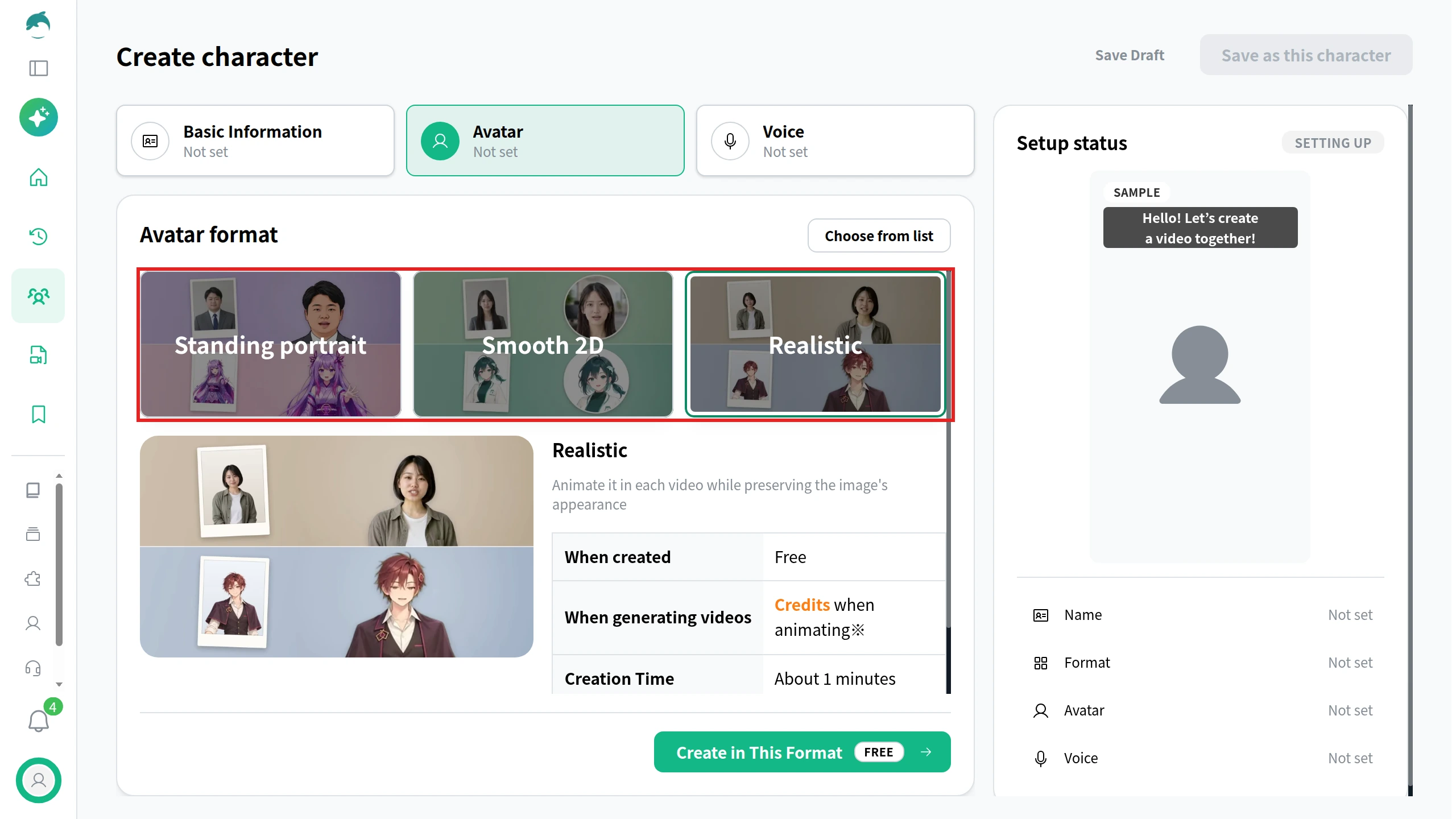
The questions above map directly onto NoLang’s character setup. Open Create Character in the sidebar and start a new character. The Create character screen has three tabs, Basic Information, Avatar and Voice, and the Setup status panel on the right shows which of them are still not set.
On the Avatar tab, Choose from list opens NoLang’s library of ready-made avatars. To make your own from an image, pick one of the three formats under Avatar format instead.
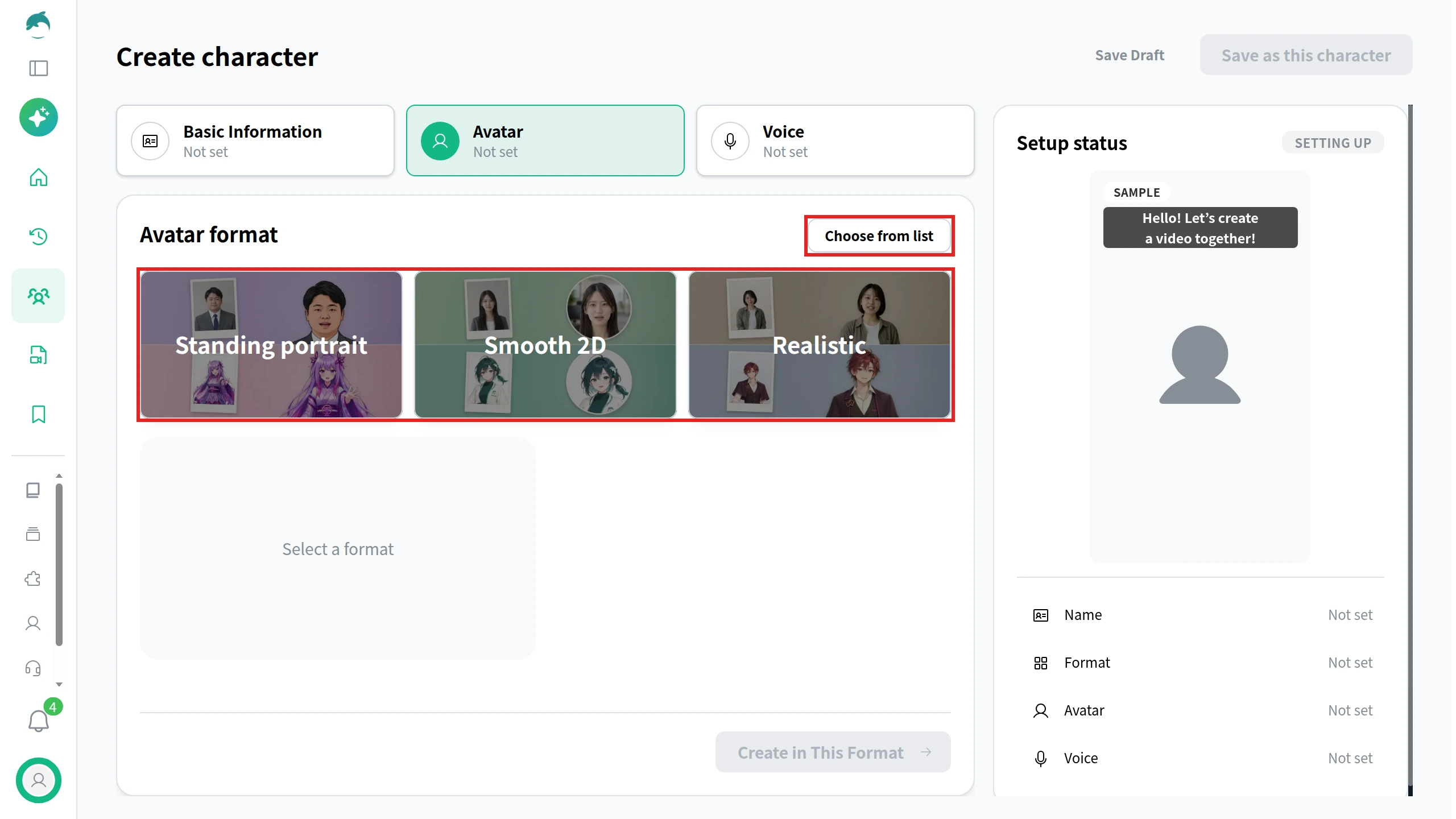
The format decides how the avatar moves. Standing portrait animates an image with facial expressions and lip movements. Smooth 2D moves the head and body in sync with the voice. Realistic keeps the image’s appearance and animates it in each video. A Realistic avatar starts out still: you make a video with it first, then click Move the Real Avatar on the video’s viewing page, and NoLang generates a version in which the presenter speaks. When it’s ready, the button changes to Watch real avatar video.
The Voice tab works the same way. Choose from list picks a ready-made voice. To make the character sound like you, create a voice by recording yourself (Record) or uploading a recording (From an Audio File).
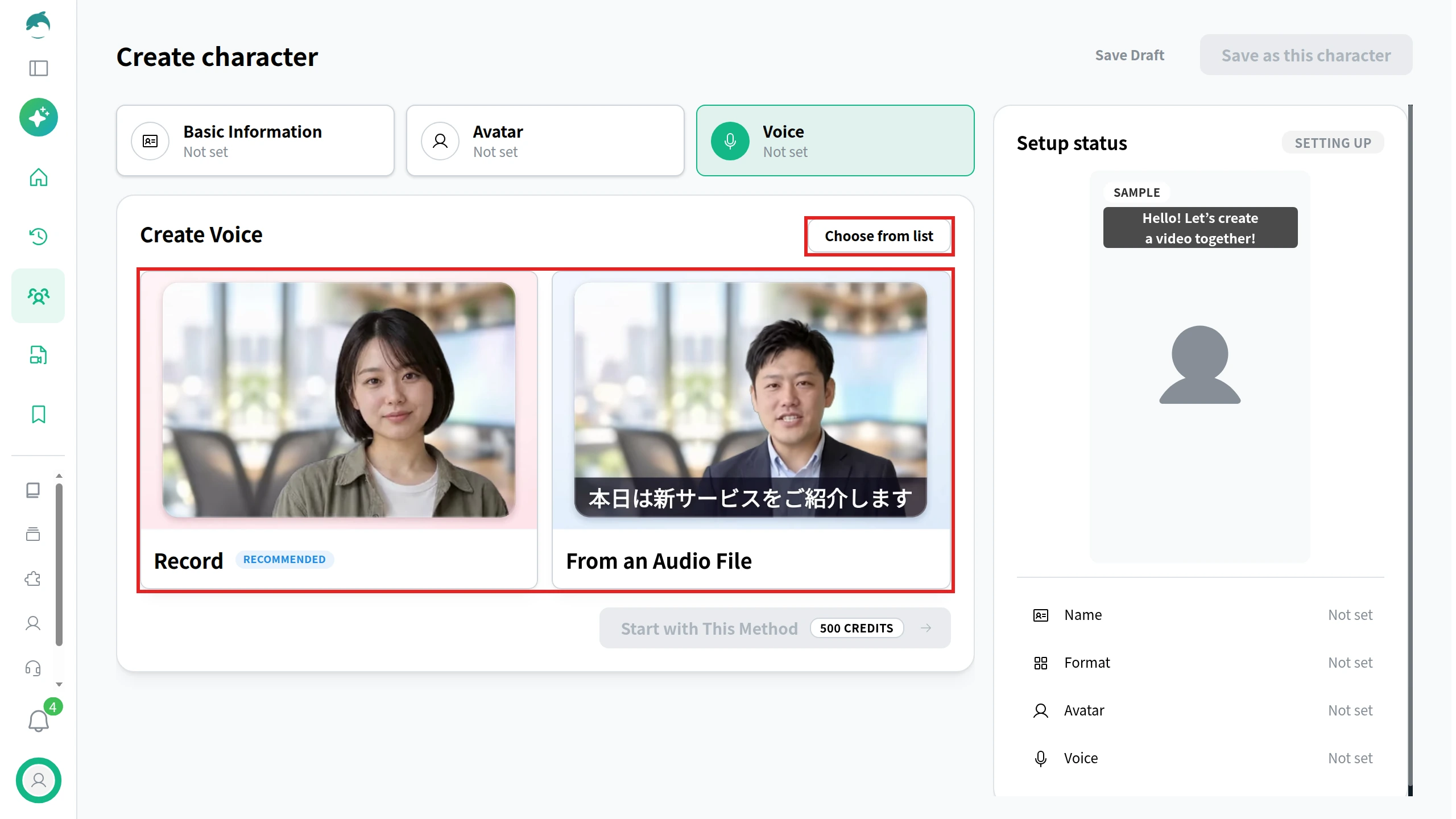
Each format and voice has its own rules for which images and recordings work best, and the screens show those tips once you start. Use only your own face and voice here, or those of someone who has agreed to it.
Before you publish: consent and AI labels
Two checks come before any talking avatar video goes public: whether everyone whose face or voice appears agreed to it, and whether the platform you post on asks you to label it.
Get consent for every real face and voice
A stock presenter comes cleared by the tool. A face or voice taken from a real person does not, and the tools that build them make that explicit. HeyGen requires a short consent video for every avatar built from video footage, and if the avatar is of someone else, that person records the consent video themselves. Synthesia requires the person the avatar represents to record their own consent video live, with an on-screen passcode, and rejects submissions where the person in the footage and the consent video don’t match. VEED lets you clone yourself, and says you need clear permission before cloning anyone else.
Treat a colleague’s face the same way, even inside your own company: ask first, in writing, and agree on where the avatar may appear and when it will be retired. NoLang’s rules state the same principle: you may not use images, videos or voices of real people to generate or edit content without their consent.
Label the video where the platform asks
The major platforms ask for a label on AI content that looks or sounds real. A photorealistic avatar fits that description. On Meta’s platforms, so does a realistic AI voice, even when the character on screen is a cartoon: Instagram lists a reel narrated with a realistic AI-generated voice-over as content that needs a label.
- YouTube requires creators to disclose AI-generated or altered content that seems realistic, including content that makes a real person appear to say or do something they didn’t. You set this in YouTube Studio while uploading: in the Attributes section, under “AI use,” choose Yes. Non-realistic content, such as animation, doesn’t need the disclosure, and neither does cloning your own voice for voice-overs or dubs (YouTube Help).
- TikTok requires a label on AI-generated content that contains realistic images, audio or video, and its examples include a video of a real person speaking whose image, voice or words were altered by AI. Before posting a video, tap More options and turn on the AI-generated content setting. TikTok may also add an “AI-generated” label automatically to content carrying C2PA Content Credentials, and that label can’t be removed (TikTok Support).
- Instagram and Facebook follow Meta’s rule: you must label content with photorealistic video or realistic-sounding audio that was digitally created or altered, including with AI, and labeled content shows as “AI info.” On Instagram, turn on the toggle next to Add AI label when you create a post or reel (Instagram Help).
LinkedIn’s help recommends letting people know when you relied heavily on AI to create or modify a post. Whatever the platform, a line in the description saying the presenter is an AI avatar costs nothing and answers the question before a viewer asks it.
Check the rights to the finished video
Commercial use is set by each tool’s terms, so read them for the tool you choose. Videos made with NoLang can be used commercially. Some voices and materials in NoLang require attribution: when you download a video that uses them, NoLang lets you add the credits to the end of the video or copy the copyright notice to post in the video’s description.
Using AI avatar videos across a company
Inside a company, NoLang can turn onboarding material, policies and product guides into videos presented by an avatar, and keep them current when you edit the script instead of reshooting. If you are planning training at scale, see NoLang for training videos, or contact our team with questions about your setup.
Download materials