To translate a video, you turn what people say in it into another language, either as subtitles on screen or as a new voice track. How you do it depends on whose video it is. If you are watching someone else’s video, you can turn on translated captions on YouTube or in Chrome. If it is your own video, you transcribe the speech in the original language, correct it, translate it, check it against the picture, and then export subtitles or record a voice in the new language.
Subtitles, voice-over or dubbing: three ways to translate a video
Every translated video uses one of three methods, or a mix of them. The difference is what viewers hear and what they have to read.
| Method | What viewers hear | What viewers read | Good for | Watch out for |
|---|---|---|---|---|
| Translated subtitles | The original voice | The translation, timed to the speech | Interviews, tutorials, social clips, any video where the speaker’s own voice matters | Lines that are too long to read in time |
| Voice-over | A new voice reading the translation | Usually nothing extra | Training, product explainers, narrated slides | The new script must fit the length of each scene |
| AI dubbing | A generated voice in the new language, in some tools modeled on the speaker’s voice | Nothing extra, unless you add subtitles | Talking-head videos you want to publish in several languages | Mistranslated names and terms, and permission to use someone’s voice |
Subtitles usually take the least work and are the easiest to check, because the original audio stays as it is. Voice-over and dubbing take more work, but viewers can follow along without reading.
If you only want to understand a video in another language, start with the next section. If you are publishing a video for viewers who speak another language, skip to the section on translating your own video.
How to translate a video you’re watching
You don’t need to download the video or install a translation app to follow a video in another language. YouTube and Chrome can both show the speech as translated captions while the video plays.
YouTube: turn on Auto-translate
YouTube can translate a video’s captions into another language as you watch. On a computer:
- Start the video and click Settings (the gear icon) in the player.
- Click Subtitles/CC.
- Click Auto-translate.
- Choose the language you want, for example English.
Auto-translate works from the captions the video already has, including the automatic captions YouTube creates from the speech. If a video has no captions, there is nothing for YouTube to translate. Mistakes in the original captions also carry over into the translation, so names and numbers are the first things to double-check.
YouTube: switch to a dubbed audio track
Some YouTube videos also come with audio tracks in other languages, either recorded by the creator or generated by YouTube’s automatic dubbing. To listen to one, click Settings in the player, then Audio track, and choose a language. Videos with automatically generated dubs are marked “auto-dubbed” in the description.
Any video in Chrome: Live Translate
For videos outside YouTube, Chrome can caption the audio and translate the captions. On Windows or a Mac:
- In Chrome, select More (the three dots) > Settings > Accessibility.
- Turn on Live Caption.
- If the video is not in English, select Add languages next to “Manage languages”, add the language that is spoken, and choose it next to “Preferred caption language”.
- Turn on Live Translate, and next to “Translate to”, choose the language you want to read.
Captions then appear in a bubble whenever audio plays in Chrome. Live Caption itself runs on your computer, but Live Translate sends the captions to Google to be translated.
How to translate your own video with subtitles
If you are publishing the video, translated subtitles are the place to start. The steps below are the same in any subtitle editor, whether it is a video editing app, an online subtitle tool or NoLang.
Transcribe the speech in the original language
Upload the video to a tool that can transcribe speech and set the language that is actually spoken, for example Spanish. Choosing it yourself, rather than leaving it to automatic detection, avoids a transcript in the wrong language.
Fix the transcript before you translate it
Read the transcript against the video and correct names, product terms, numbers and anything that was misheard. Every mistake you leave here is translated into a new mistake in the other language.
Translate the subtitles
Translate the corrected subtitles line by line, keeping each line’s timing. A translation is rarely the same length as the original, so expect to split or shorten some lines.
Check the translation in the video
Play the video with the translated subtitles and check each line against the picture and the speech, using the checklist below.
Export a subtitle file or burn the subtitles in
Export a subtitle file (SRT or VTT) if you will upload it next to the video, or export the video with the subtitles burned in. On YouTube, open YouTube Studio, select Subtitles, choose the video, click ADD LANGUAGE, pick the language, then click ADD under “Subtitles” and choose Upload a file.
Subtitle file or burned-in subtitles?
| Subtitle file (SRT, VTT) | Burned-in subtitles | |
|---|---|---|
| Viewers can turn them off or pick a language | Yes | No |
| Works on | YouTube, Vimeo, learning platforms and video players that accept subtitle files | Anywhere the video plays, including social apps |
| One video, several languages | Yes, one file per language | No, one video per language |
| Fixing a typo later | Edit and re-upload the file | Export the video again |
YouTube accepts SubRip (.srt) and SubViewer (.sbv) files as basic formats, and WebVTT (.vtt) with limited styling.
What to check before you publish
When most lines read well, the few wrong ones are easy to miss. Check these points with the video playing, not only in the text.
| Check | Why it matters | What to look for |
|---|---|---|
| Names and terms | Speech recognition and translation both get proper nouns wrong | People, brands, products and places spelled the same way every time |
| Numbers, dates and money | Formats change between languages | Prices, quantities, decimal points and dates that match what was said |
| Line length | Viewers need time to read before the line disappears | No line runs past two rows or flashes by too fast to read |
| Timing | Lines that appear early or late confuse viewers | Each line starts and ends with the sentence it translates |
| Text on screen | Titles and labels in the picture stay in the original language | Add a subtitle or note wherever the picture’s text matters |
| Tone | A literal translation can sound stiff or rude | Greetings, jokes and instructions that sound natural to a native speaker |
Translating a video from Spanish to English
The steps are the same for any language pair. For Spanish to English, a few details are worth checking:
- Set the source language to Spanish. YouTube’s automatic captions support Spanish, and most transcription tools let you pick it. If the tool transcribes the speech as English, the transcript comes out wrong.
- Watch the number formats. Spanish often writes one thousand as 1.000 and three and a half as 3,5, and writes dates day first (5/11 is November 5). Rewrite them the way English readers expect.
- Ask a native English speaker to read it. The meaning can be correct while the sentences still sound translated.
If you publish on YouTube, its automatic dubbing also supports Spanish to English for eligible channels (see the next section).
How to translate a video with a voice-over or dubbing
When viewers should listen rather than read, replace or cover the original speech with a voice in the new language.
Voice-over: translate the script, then record or generate the voice
- Transcribe the original speech and correct the transcript, as in the subtitle steps.
- Translate it, then rewrite each part so it fits the length of the scene it plays over.
- Record a speaker, or have an AI voice read the translated script.
- Mix the new voice over the video. Keep the music and sound effects, and remove or lower the original voice.
- Watch the result and check that each sentence still matches what is on screen.
AI dubbing: what it does and what to check
AI dubbing tools do these steps automatically: they transcribe, translate and generate a new voice in one go. Some go further. HeyGen and VEED, for example, describe dubbing that clones the original speaker’s voice and adjusts lip movements to the new language. Before you clone someone’s voice, get that person’s permission, and listen to the whole result, because names, jargon and idioms are where automatic dubs go wrong.
YouTube has its own automatic dubbing. According to YouTube Help, it is turned on by default for eligible creators and adds translated audio tracks to new uploads, including Spanish to English and English to 20 languages. You can’t edit automatic dubs, but you can review them before they go live: in YouTube Studio, go to Settings > Channel > Advanced settings and check Manually review dubs before publishing. To turn the feature off, uncheck Allow automatic dubbing on the same screen.
How to translate a video with NoLang
NoLang is a web app that makes videos with narration and subtitles from text, documents or your own video footage. It can also turn a finished video into another language, so you can translate a video without exporting subtitle files between tools.
Keep the original voice and translate the subtitles
Upload your video, let NoLang turn the speech into subtitles, then convert the video to another language.
Add your video and set the spoken language
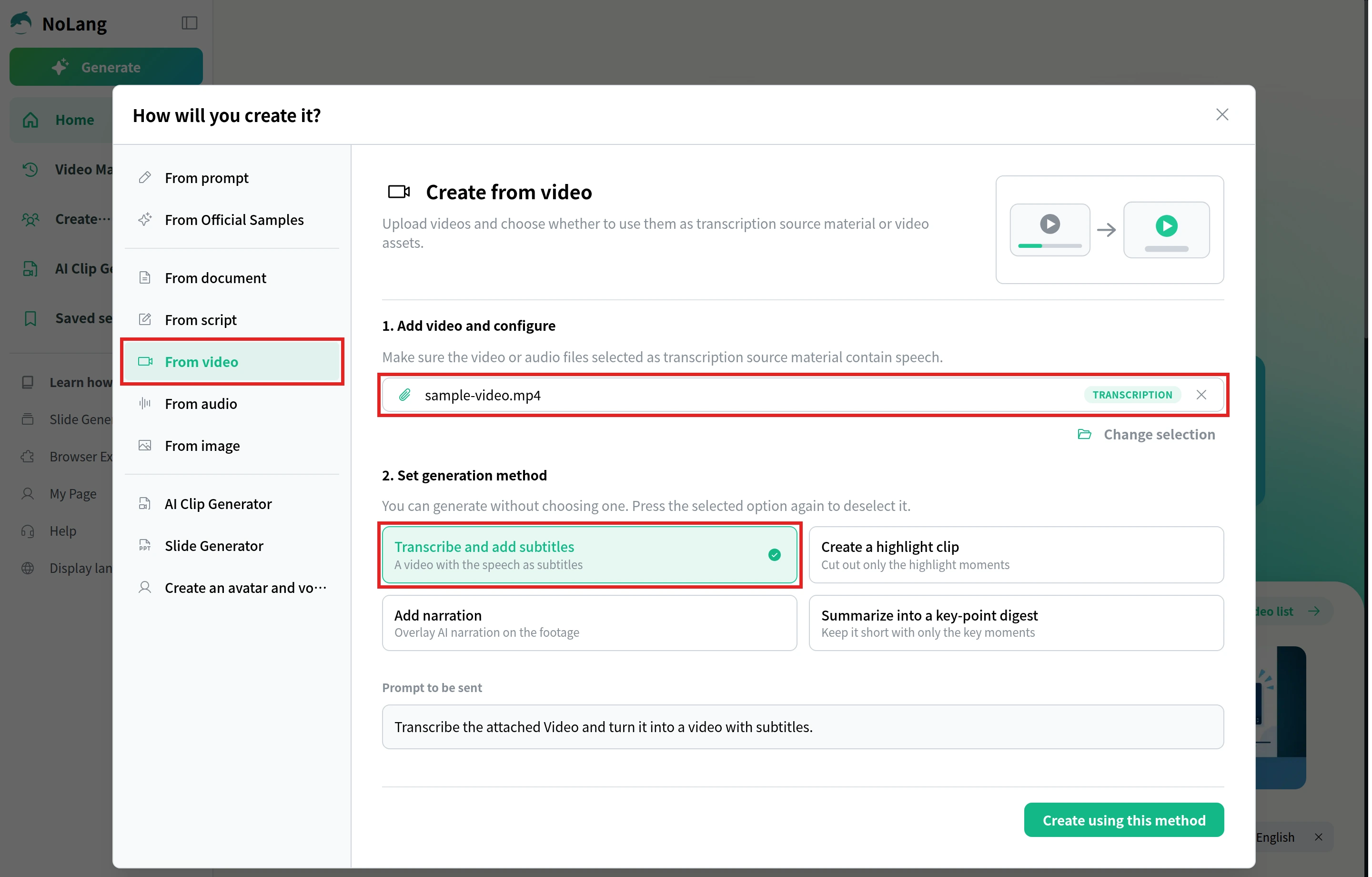
On the home screen, select See more, then From video in “How will you create it?”. Drop your video into “1. Add video and configure” and choose Transcription next to the file name. Then set Language to the language that is spoken (for example Spanish) and choose the Number of speakers.
Make a video with subtitles
Under “2. Set generation method”, select Transcribe and add subtitles, then Create using this method. The request goes into the input box on the home screen. Send it with the arrow button, and NoLang makes a video with your original audio and the speech as subtitles.
Convert the video to another language
On the video’s page, select Other > Convert language, choose the language under Select target language, then select Convert.
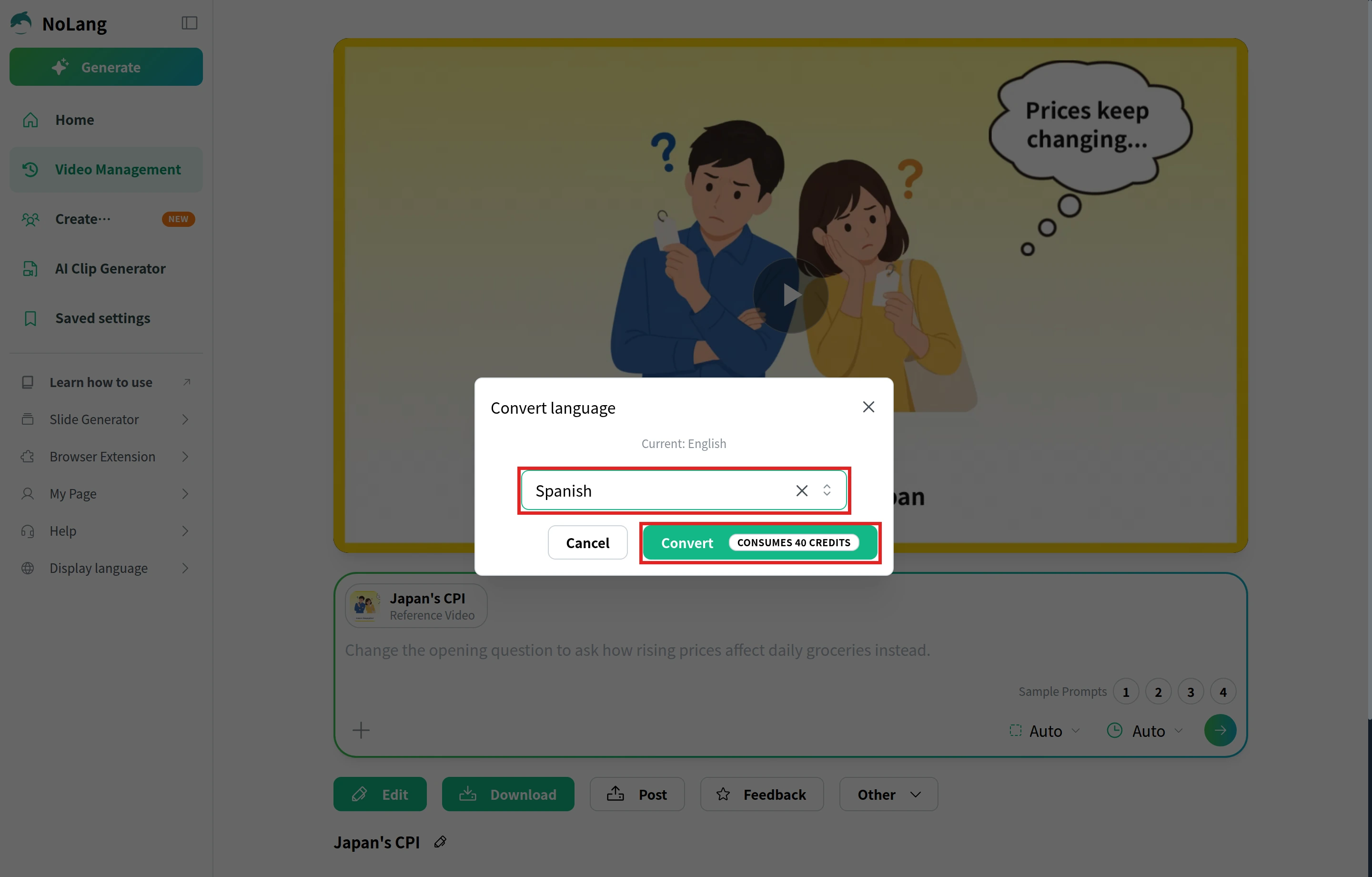
Convert language creates a new video and leaves the original as it is. In the new video, your uploaded audio plays unchanged, and the subtitles appear in the language you chose. Check the subtitles in the original language before you convert, because the translation is made from them.
Videos made in NoLang: translate the narration too
If the video was made in NoLang, for example from a script or slides, Convert language translates more than the subtitles. The narration is translated and read again in the new language, and the subtitles, on-screen text and video title are translated with it. This lets you keep the same training or product video in several languages without making each version from scratch.
Example: an English training video with Spanish subtitles
Handwashing training with Spanish subtitles
Make a short training video that shows new restaurant staff how to wash their hands, step by step. Narrate it in English and show Spanish subtitles.
We made this training video for new restaurant staff in NoLang. It goes the other way from the Spanish-to-English case above: the narration is in English, and every sentence appears as a Spanish subtitle in a band at the bottom of the screen. On-screen labels pair a large English word with a smaller Spanish one, such as SCRUB and Frotar.
The video opens with hands that look clean, then shows germs glowing on them under UV light and a plate passing to a guest. It shows that hands are washed only at the handwashing sink, not the prep sink or the dish sink, and walks through six steps: wet, soap, scrub, rinse, dry and turn off the faucet with the towel. The scrub step stays on screen longest, with a 20-second badge, close-ups of the backs of the hands, between the fingers, under the nails and the wrists, and a tip to hum “Happy Birthday” twice. It ends with when to wash, a reminder that gloves don’t replace handwashing, a recap of the six steps and the line “Clean hands. Safe food.”
With “Use this template”, you can make a step-by-step training video in the same format from your own topic.
You can also make a video in NoLang from a script, a PDF or slides, and then convert it into other languages.
Translating videos at work
Companies translate videos so that training, product guides and announcements reach every employee and customer in a language they understand. With NoLang, you can make the video from a script, a PDF or a PowerPoint, and then use Convert language to make the same video in other languages, instead of producing each version from scratch. To make training videos for a multilingual team or to discuss how your company would use NoLang, contact us, or download the brochure below.
Download the brochure