The Photos app on iPhone can trim a video and change its speed, but adding a song isn’t one of its editing tools. To put music under a video and save the result as a new video, use iMovie, Apple’s free video editor: add a built-in soundtrack or a song from your library, balance the volume, and save the finished video to your Photos library.
This guide compares four ways to add music to a video on iPhone and walks through iMovie from start to finish. The iMovie and Photos steps follow Apple’s help for iMovie 3.0.6 and iOS 27, checked on November 10, 2026.
4 ways to add music to a video on iPhone
The four ways differ in whether you end up with a video file you can post anywhere, and in how much of the editing you do yourself.
| Method | What you can do | Best for |
|---|---|---|
| iMovie (free from Apple) | Add a built-in soundtrack, a song from your music library, or an audio file from iCloud Drive. Adjust the volume and fades, then save a new video to Photos | Saving a video with music that you can post or send anywhere |
| Memory movie in the Photos app | Play an album of photos and videos as a movie set to music, and change the song | Watching a set of clips with music, or sending a memory to family and friends |
| Other video editing apps (CapCut and others) | Use the app’s own music library and editing tools. What’s free depends on the app | Choosing from a large built-in music library |
| NoLang in your browser | Attach your video, describe the music you want, and get a new video with background music. Post it to linked social accounts | A short video with music made for you, posted straight to social media |
To choose:
- To add music and keep a video file you can post or send anywhere, use iMovie.
- To watch an album of clips with music, or send it as a memory, use a memory movie in Photos.
- To have background music added for you and post the result to social media from your iPhone, use NoLang.
How to add music to a video in iMovie
iMovie is Apple’s video editor for iPhone. It’s free on the App Store, and the latest version (3.0.6, released October 22, 2026) requires iOS 27 or later. The first time you open iMovie, allow it to access your photo library and music library.
1. Start a movie project with your video
- In iMovie, tap Start New Project, then tap Movie. If you don’t see Start New Project, tap Projects to return to the Projects browser.
- Tap the video clips you want to use. Selected clips show a blue checkmark. To browse your albums, tap Media at the top of the screen.
- Tap Create Movie at the bottom of the screen.
Your clips appear in the timeline, the strip at the bottom of the screen where clips play in order from left to right.
2. Add a soundtrack or a song
Tap the Add Media button, then tap Audio. Then choose where the music comes from.
- Soundtracks: iMovie comes with more than 130 soundtracks. Tap Soundtracks. A soundtrack with a Download button next to it must be downloaded first, which needs an internet connection; tap it to download, then tap it again to preview. To add one, tap it, then tap the Add Audio button that appears. Theme music is at the bottom of the list, in the Theme Music section.
- My Music: Songs synced to your iPhone from the Music app on your computer. Tap My Music, tap a song to preview it, then tap the Add Audio button.
- iCloud Drive: Songs you made in GarageBand, Logic Pro, or another app and saved to iCloud Drive. Before you tap the Add Media button, scroll the timeline so the playhead (the white vertical line) sits where you want the audio to go. Then tap iCloud Drive, open the folder with your file, tap the file, and tap the Add Audio button.
Background music appears as a green clip below your video in the timeline.
3. Fit the music to the length of your video
iMovie’s soundtracks adjust themselves to fit the length of your movie, and other background music loops automatically until the movie ends. If you add more than one song as background music, iMovie plays them one after another.
To end the music sooner or use only part of a song, tap the green clip and drag the yellow trim handles at either end. To cut the music at an exact point, scroll the playhead to that point, tap the clip, tap the Actions button, then tap Split. You can then delete the part you don’t need.
Keep two things in mind:
- A song shorter than 1 minute is treated like a sound effect. It appears blue in the timeline, and you need to add your video to the project before you add the song.
- If you’re making a music video and want your clips to change on the beat, Apple suggests adding the music first, then arranging your clips to it.
4. Balance the volume and turn off the original sound
- Tap a clip in the timeline to show the inspector at the bottom of the screen.
- Tap the Audio button.
- Drag the volume slider, or tap the Mute button next to it to turn the clip’s sound off.
- Tap outside the inspector to close it.
Do this on the video clip to lower or mute the sound you recorded, and on the green clip to set how loud the music plays. While a video clip’s own sound is playing, iMovie automatically lowers the background music (Apple calls this ducking) so voices in your video can be heard. Ducking isn’t applied to a clip whose sound is off.
To fade the music in or out, tap the green clip, tap the Audio button, tap Fade, and drag the fade handles at the start and end of the clip. To fade the sound you recorded with the video, separate it first: tap the video clip, tap the Actions button, then tap Detach. The sound becomes its own blue audio clip that you can fade, move, or delete.
5. Save the video to your Photos library
- In the Projects browser, tap your project, tap the Share button at the bottom of the screen, then tap Share Video.
- Tap Options to choose the resolution and frame rate, then tap Back or Done.
- Tap Save Video.
The video with music is saved to your Photos library, where you can post it or send it like any other video. To save the file to iCloud Drive or a folder on your iPhone instead, tap Save to Files.
If a song is dimmed or missing
| What you see | Why | What to do |
|---|---|---|
| The song is dimmed or marked Unavailable | It isn’t downloaded to your iPhone | Download it in the Music app, or sync it from your computer with the Finder or iTunes |
| It’s still unavailable after downloading | It may be a type of song that iMovie can’t use, such as a song protected by digital rights management (DRM) | Use an iMovie soundtrack, or a song you made or have permission to use |
| A song file you made isn’t in My Music | My Music shows songs synced to your iPhone from the Music app on a computer | Save the file to iCloud Drive, then add it from iCloud Drive |
A song you bought from the iTunes Store can be used in iMovie only if you’re the copyright holder or have express permission from the copyright holder, according to Apple.
The steps in this section come from Apple’s iMovie for iPhone User Guide: Create a movie project, Add music and soundtracks, Edit audio clips, Adjust audio, and Share your movie as a video file.
Add music with a memory movie in the Photos app
Apple’s help lists the Photos app’s video tools as trimming, changing the speed, and mixing the sound of videos recorded with Spatial Audio. Adding a song isn’t among them. What Photos can do is play an album, including the videos in it, as a memory movie set to music.
- In the Photos app, tap Collections.
- Open an album that has your video, then tap the Play button to watch it as a memory movie.
- To change the song, tap the screen, tap Customize, tap Music, then tap Change Song.
You can choose from memory soundtracks or songs suggested from Apple Music. If you subscribe to Apple Music, you can also tap Browse to search the Apple Music catalog.
To send a memory from the Memories section of Collections, play it, tap the screen, tap the More button at the top, then tap Share and choose AirDrop, Messages, or Mail. To keep a video file with music that you can edit or post anywhere, use iMovie instead.
The steps come from Apple’s iPhone User Guide: Play memory movies, Personalize your memory movies, and Share or delete memories.
Other video editing apps
Third-party video editors from the App Store can also add music. CapCut, for example, is free to download with in-app purchases, requires iOS 15 or later, and says it offers “millions of music clips and sound effects.” Menus and the features you can use for free differ from app to app, so follow each app’s own help for the steps.
When Apple stopped offering its Clips app to new users, it pointed to iMovie and to third-party apps such as InShot, VN Video Editor, and GoPro Quik.
Add background music in your iPhone browser with NoLang
NoLang is an AI video generator that runs in a web browser, on your iPhone as well as on a computer. Attach a video you recorded, describe the music you want, and NoLang makes a new video that uses your footage with background music. You can also tell it to leave out narration and captions.
1. Attach your video
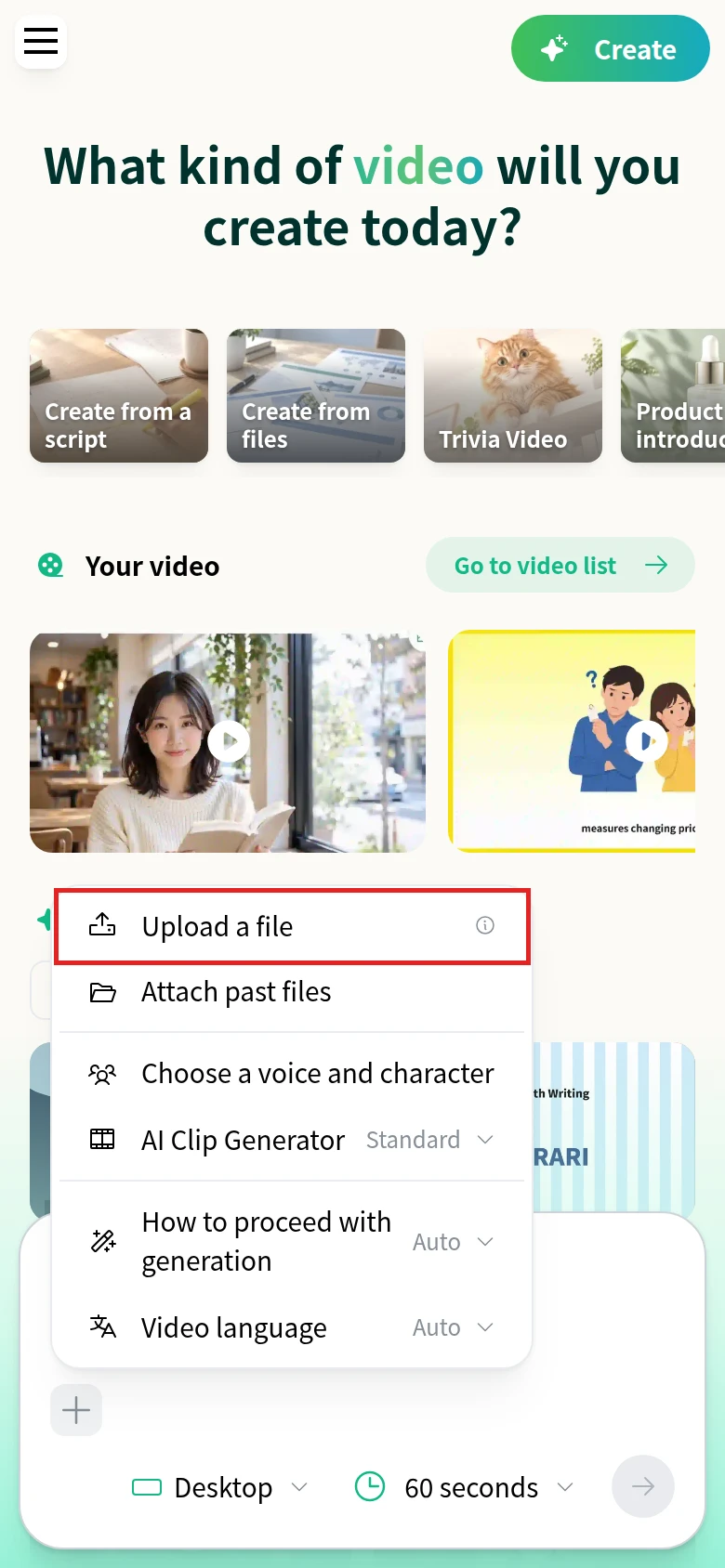
Open NoLang in your iPhone’s browser and sign in. On the home screen, tap Additional Settings & Attachments (the + button below the text box), tap Upload a file, and choose your video. You can attach MP4, MOV, and WebM files of up to 1 GB.
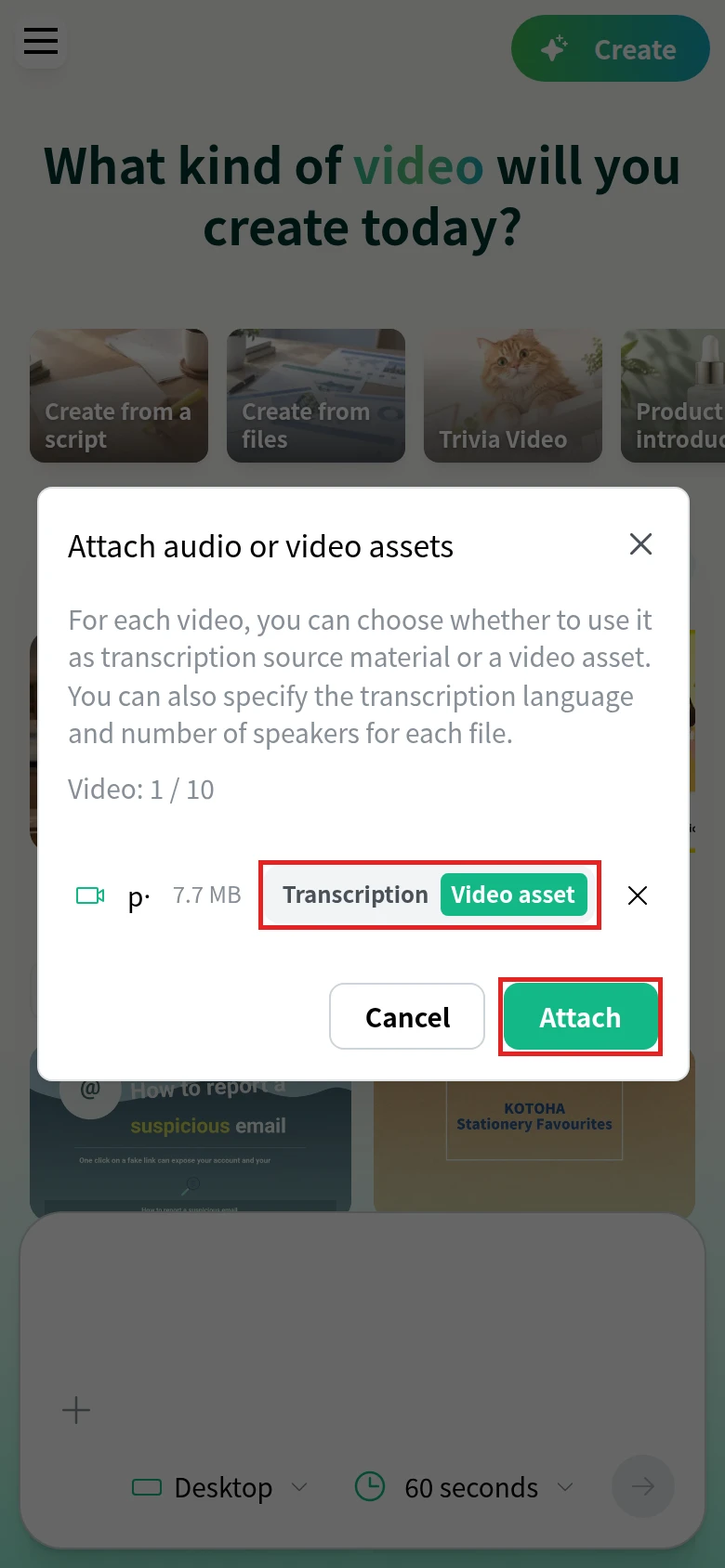
When Attach audio or video assets opens, set your file to Video asset and tap Attach. The other choice, Transcription, uses what’s said in the video as source material instead.
2. Ask for background music and generate
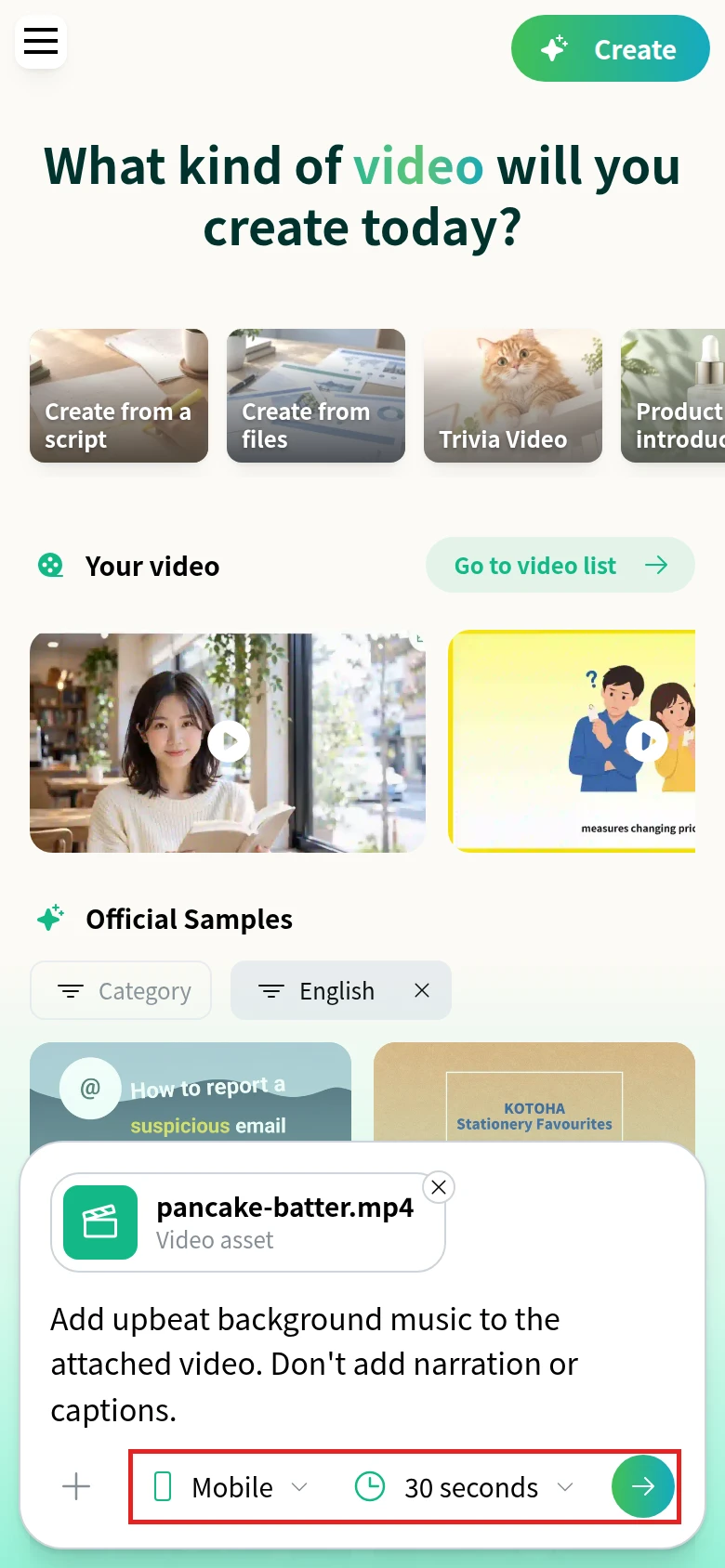
In the text box, describe the music you want. For example:
Add upbeat background music to the attached video. Don't add narration or captions.Below the text box, tap the orientation button and choose Vertical (9:16) for a vertical video; the button then shows Mobile. Tap the length button to pick a length, then tap the arrow button (Generate a video). If NoLang asks how you’d like the video made, answer the questions or tap Skip questions and proceed to generation.
3. Post or share the video
When the video is ready, it opens on its own page. Tap Post to publish it to a YouTube, Instagram, or TikTok account you’ve linked, or tap Other, then Share link, to get a link that people can use to watch it.
To change the song, adjust the music’s volume or fades, or download the video as an MP4 file, open the same video in a browser on a computer, signed in to the same account. Click Edit, then Insert asset and BGM, to pick a track from Free BGM, upload your own song under Upload, or create one with AI under Generate. When you’re done, click Confirm with this content, then Confirm and Regenerate, and download the new version from the video page.
Example: weekend pancakes set to upbeat music
This example is a 36-second vertical video of making pancakes on a weekend morning. The clips change on the beat of the background music, and short captions give each step and amount instead of narration. The music stops for a slow-motion flip and comes back as the pancake lands, and a recipe card closes the video. The footage was generated with AI, and the music comes from NoLang’s library.
Weekend pancakes cut to the beat of background music
Cut my weekend pancake clips to the beat of upbeat background music. Add a short caption for each step and a recipe card at the end.
To make a similar video from your own clips, open the template with the button above.
Using music in videos for your business
NoLang also works for company social accounts. You can turn product or event footage into short videos with background music and captions, then post them from the video page to the accounts you’ve linked. To talk about using NoLang at your company, contact us, or download the brochure below.
Download the brochure