How to Convert PowerPoint to Video on Windows and Mac (With Audio)
Key takeaways
On Windows, use File > Export > Create a Video and save as MPEG-4. On a Mac, use File > Export and pick MP4 or MOV; Save As has no video formats.
For audio, record narration slide by slide with PowerPoint's Record, with your webcam on if you want to appear, then export with Use Recorded Timings and Narrations.
A silent or incomplete video can come from exporting without recorded narration, an older Mac version, Mac's limits on embedded media, or media linked from an old PowerPoint version.
To skip recording your own voice, AI tools can read your speaker notes as the narration; NoLang's Speaker Notes option does this from a .pptx file.
SHARE
You can convert a PowerPoint to a video without any extra software: the export is built into PowerPoint. On Windows, go to File > Export > Create a Video. On a Mac, go to File > Export and set the file format to MP4 or MOV. Either way you get a video file that plays without PowerPoint, and it can carry the narration you recorded in PowerPoint.
This guide covers both exports step by step, then adding your voice and your webcam, the reasons an export fails or comes out silent, the converter tools that work without PowerPoint, and how AI narration from your speaker notes compares. The PowerPoint steps follow Microsoft’s support documentation as checked in November 2026.
Pick the method that fits what you need
There are five ways to end up with a video of your slides, and the right one depends on what should be heard and seen besides the slides themselves.
Which method to use
What you want
What to do
Where it’s covered
Slides that advance on their own
Export from PowerPoint
Windows and Mac sections
Your own voice over the slides
Record narration, then export
Convert with audio
Your face on screen as you present
Record with the camera on
Record yourself presenting
Narration you don’t have to record
Let AI read your speaker notes
Speaker notes with NoLang
A video without PowerPoint installed
Use a converter or another tool
Other ways
The first three all happen inside PowerPoint and end with the same export, so start with the export.
How to convert PowerPoint to video on Windows
This applies to PowerPoint for Microsoft 365 and PowerPoint 2016, 2019, 2021 and 2024 on Windows.
Save the presentation
Select File > Save so your latest changes are in the .pptx file before you export.
Open Create a Video
Select File > Export > Create a Video. You can also open it from the Recording tab with Export to Video.
Choose the quality
In the first drop-down, pick the resolution. Full HD (1080p) is the one Microsoft recommends for most uses.
Choose timings and narration
In the second drop-down, choose Use Recorded Timings and Narrations if you recorded narration or set your own slide timings. Otherwise choose Don’t Use Recorded Timings and Narrations. Then set Seconds to spend on each slide for slides without a timing; the default is 5 seconds.
Create the video
Select Create Video, enter a file name, choose a folder, and in Save as type choose MPEG-4 Video. Then select Save.
Wait for the status bar
Progress shows in the status bar at the bottom of the window. When it finishes, open the folder and play the file.
Which video quality to choose
Higher quality means a sharper picture and a larger file.
Video quality options in PowerPoint for Windows
Option
Resolution
Best for
Ultra HD (4K)
3840 × 2160
Large monitors
Full HD (1080p)
1920 × 1080
Computer and HD screens
HD (720p)
1280 × 720
Internet and DVD
Standard (480p)
852 × 480
Portable devices
Ultra HD (4K) appears only on Windows 10 or later, and it isn’t offered in the Volume License edition of PowerPoint 2016.
How long each slide stays on screen
With Use Recorded Timings and Narrations, a slide you recorded or timed keeps that timing in the video. Every slide without a timing, or every slide if you chose Don’t Use Recorded Timings and Narrations, stays on screen for the seconds you set in the export, 5 by default. To give some slides more time without recording a voice-over, set their timing on the Transitions tab: under Timing, check After in Advance Slide and enter the seconds. Then export with Use Recorded Timings and Narrations so those timings are kept.
MP4 or WMV
Save as type offers MPEG-4 Video (.mp4) and Windows Media Video (.wmv). Choose MP4. Microsoft recommends it for the best compatibility with video players.
How long the export takes
It depends on the length of the deck and how much animation, transition and media it contains. Microsoft says it can take up to several hours for long, complex presentations and suggests running a long one overnight. You can keep working in PowerPoint while it runs.
How to save a PowerPoint as a video on a Mac
On a Mac, the video formats are under Export, not Save As. Microsoft’s help says so directly: Save As doesn’t offer video options.
Open Export
Select File > Export.
Choose MP4 or MOV
Open the File Format list and choose MP4 or MOV. You can also pick the compression type, such as HEVC.
Choose the quality
Pick Ultra HD (4K), Full HD (1080p), HD (720p) or Standard (480p). Higher quality makes a larger file.
Use your recorded timings
If you recorded narration or timings, make sure Use Recorded Timings and Narrations is checked. If not, set how long the video spends on each slide.
Export
Optionally check Make background transparent, then choose Export.
MP4 is the safer choice for sharing. Microsoft describes it as an international standard that is supported more broadly, especially on hardware devices, while MOV plays in apps that support QuickTime movies.
Which Mac versions can export video
Video export needs PowerPoint for Microsoft 365 for Mac version 15.23 or later, or PowerPoint 2019 for Mac version 16.19 or later; Microsoft’s Mac instructions also apply to PowerPoint 2021 and 2024 for Mac. Recorded narration is included in the exported video from version 16.19. If File Format shows no MP4 or MOV, compare your version number with these and update PowerPoint.
What comes out differently on a Mac
The steps look alike, but Microsoft documents several differences in what ends up in the video.
PowerPoint video export on Windows and Mac
Windows
Mac
Where to find it
File > Export > Create a Video
File > Export
File formats
MP4, WMV
MP4, MOV
Animations
Included
Animation effects don’t play
Transitions
Included
Some play differently
Embedded video and audio
Play in the video
Only narration recorded in Slide Show plays
If your animations or embedded clips carry the message, export the video from PowerPoint for Windows.
How to convert PowerPoint to video with audio
PowerPoint doesn’t create a voice-over for you. You record narration slide by slide inside the presentation, and the export puts it into the video when Use Recorded Timings and Narrations is selected. Recording first and exporting second is the whole method. Record in the desktop app on Windows or Mac; Microsoft says PowerPoint for the web doesn’t support recording a slide show.
Record narration on Windows
Open Record
Go to the slide you want to start from and select Record near the top-right corner of the window, next to Share.
Start recording
Select Start recording. After a countdown, start speaking. Use the arrows to move between slides.
Pause at each slide change
PowerPoint doesn’t record audio during the transition between slides, and leaves a short silence at the start and end of each slide. Finish your sentence, advance, then speak again.
Review and export
Select Stop, then Play to review. When it sounds right, select Export > Export Video.
The Record window’s Export screen saves a Full HD MP4 by default, with the same name as the presentation and in the same folder. Customize Export takes you to the quality and seconds-per-slide settings described in the Windows section.
Your speaker notes can scroll at the top of the screen while you talk: choose Teleprompter from the views in the Record window.
Recordings are saved per slide, so one mistake doesn’t mean starting over. Go to the slide, delete its recording and record it again. Clear removes just the narration. You can also reorder slides afterwards without re-recording anything.
In PowerPoint 2016 and 2019, select Record on the Slide Show tab, or on the Recording tab after turning it on in File > Options > Customize Ribbon, then the round red button.
Record narration on a Mac
Select Record in the top-right corner, or Record > From Beginning or From Current Slide, to open Recording Studio. To record your voice only, turn the camera off with the video button. To redo a slide, select the trash can next to the record button and record it again. Press Esc or select End show when you’re done, then export with Record > Export to video or the File > Export steps above.
Check the audio before you export
A recorded slide shows an audio icon, or a still from your webcam if the camera was on. Before a long export, play the deck once and make sure every slide that should have audio has it.
How to video record yourself presenting a PowerPoint
The same recording captures your webcam along with your voice, and the export includes it. You don’t need a separate screen recorder.
On Windows, turn the camera and microphone on with their icons in the Record window. To adjust how your camera looks on the slide, select Edit, then Cameo. You can show or blur your background. If you change your mind about a take, Reset to Cameo removes the recording on that slide and puts your live camera back in place for a retake.
On a Mac, set up the camera on the slide before you record: select Recording > Cameo, then use Camera format to style it. You can blur the background from the camera options, record in Recording Studio, and export the same way.
A few things make the result look better:
Camera height: put the webcam at eye level so you look at the viewer, not down at them.
Light in front of you: a window behind you turns your face into a silhouette.
Space on the slide: leave a corner free of text for the camera window.
The teleprompter: keep notes as short cues rather than full paragraphs, so your eyes stay near the camera.
Microsoft notes that recording works best on a touch-screen PC with a webcam, but an external webcam and microphone work too.
Why your PowerPoint won’t export to video, and how to fix it
These are the causes Microsoft documents, listed by symptom.
Common PowerPoint video export problems
Problem
Why it happens
Fix
No MP4 in Save As on a Mac
Video formats are under Export
Use File > Export
No MP4 or MOV in Export on a Mac
PowerPoint is older than the requirement
Update PowerPoint
The video has no sound
No narration was recorded, or Don’t Use Recorded Timings and Narrations was selected
Record narration, then export with Use Recorded Timings and Narrations
Narration is missing on a Mac
PowerPoint for Mac is older than 16.19
Update PowerPoint
Music or clips are missing on a Mac
Mac videos play only narration recorded in Slide Show
Export from PowerPoint for Windows
Words are missing at slide changes
Audio isn’t recorded during transitions
Re-record those slides and pause as you advance
An embedded video is missing
It was inserted in an old version and is linked
File > Info > Convert
Animations don’t play
Mac videos don’t play animation effects
Export from PowerPoint for Windows
The export takes hours
A long deck with animation and media
Let it run, or run it overnight
Media that doesn’t make it into the video
Microsoft lists four things a Windows export leaves out:
Media inserted in older versions of PowerPoint: a clip inserted in PowerPoint 2007, for example, is linked and plays in the presentation, but the export drops it. Select File > Info > Convert to update the file, or right-click the media to upgrade it.
QuickTime media: unless a third-party QuickTime codec named ffdShow is installed and the media is optimized for compatibility.
Macros: they don’t run in a video.
OLE and ActiveX controls: they don’t run in a video either.
If a clip plays badly or not at all, open File > Info and look for Optimize Compatibility. It appears only when the media has compatibility issues, and selecting it improves the media that needs it. Embedded subtitles and alternate audio tracks are removed in the process. If PowerPoint reports linked videos, embed them before you export.
On a Mac, Microsoft documented crashes and shutdowns when exporting video on certain devices, mitigated in version 16.67. If export crashes, update PowerPoint first.
Other ways to turn a PPT into a video
If you have PowerPoint, you don’t need to download a converter: the export above is part of the app. Desktop converter programs exist too, but the browser-based tools below need nothing installed. Other tools make sense when PowerPoint isn’t installed, when you want to edit the result like a video, or when you want a voice you didn’t record. They fall into three groups, and the clearest difference between them is where the audio comes from.
Three kinds of PowerPoint to video tools
Kind of tool
How it works
Audio
File converter
Upload a PPTX, download an MP4
Audio settings only
Design tool
Import the deck, edit, download MP4
AI voice, upload, or record
AI video tool
Upload a deck, AI writes or reads a script
AI voice from notes or script
A file converter such as online-convert.com’s PPTX to MP4 page takes your file, lets you set the video size and quality, and returns an MP4. It’s enough when you just need the file format changed.
A design tool such as Canva turns an uploaded PowerPoint into an editable design, and you download it with Share > Download and MP4. Canva’s page says you can add a voiceover by generating an AI voice from text, uploading recorded audio, or recording one with Present and Record.
An AI video tool reads your slides and narrates them. HeyGen accepts PPT, PPTX and PDF files up to 50 MB, imports speaker notes as the script, and exports MP4 at 720p, 1080p or 4K depending on the plan; its page notes that PowerPoint’s own animations and transitions are not carried across. SlideSpeak’s free converter takes .pptx files up to 100 MB and narrates them in one English voice without editing. These details come from each company’s own page in November 2026 and change often, so check before you rely on them.
If the deck is a sales proposal you send to prospects, the guide to turning a sales deck into a video covers which slides to convert and how to send it.
Turning speaker notes into an AI-narrated video with NoLang
Recording narration takes as long as the deck runs, and every correction means recording that slide again. AI narration turns that around: you write what should be said in the speaker notes, and the voice reads it. Fixing a line becomes a text edit.
NoLang, from Mavericks, Inc., is an AI video generation service. Its Create from files option takes a PowerPoint (.pptx) or PDF file and makes a video from it in three steps. With Speaker Notes chosen as the way to create, the notes you wrote in PowerPoint become the narration, read as written.
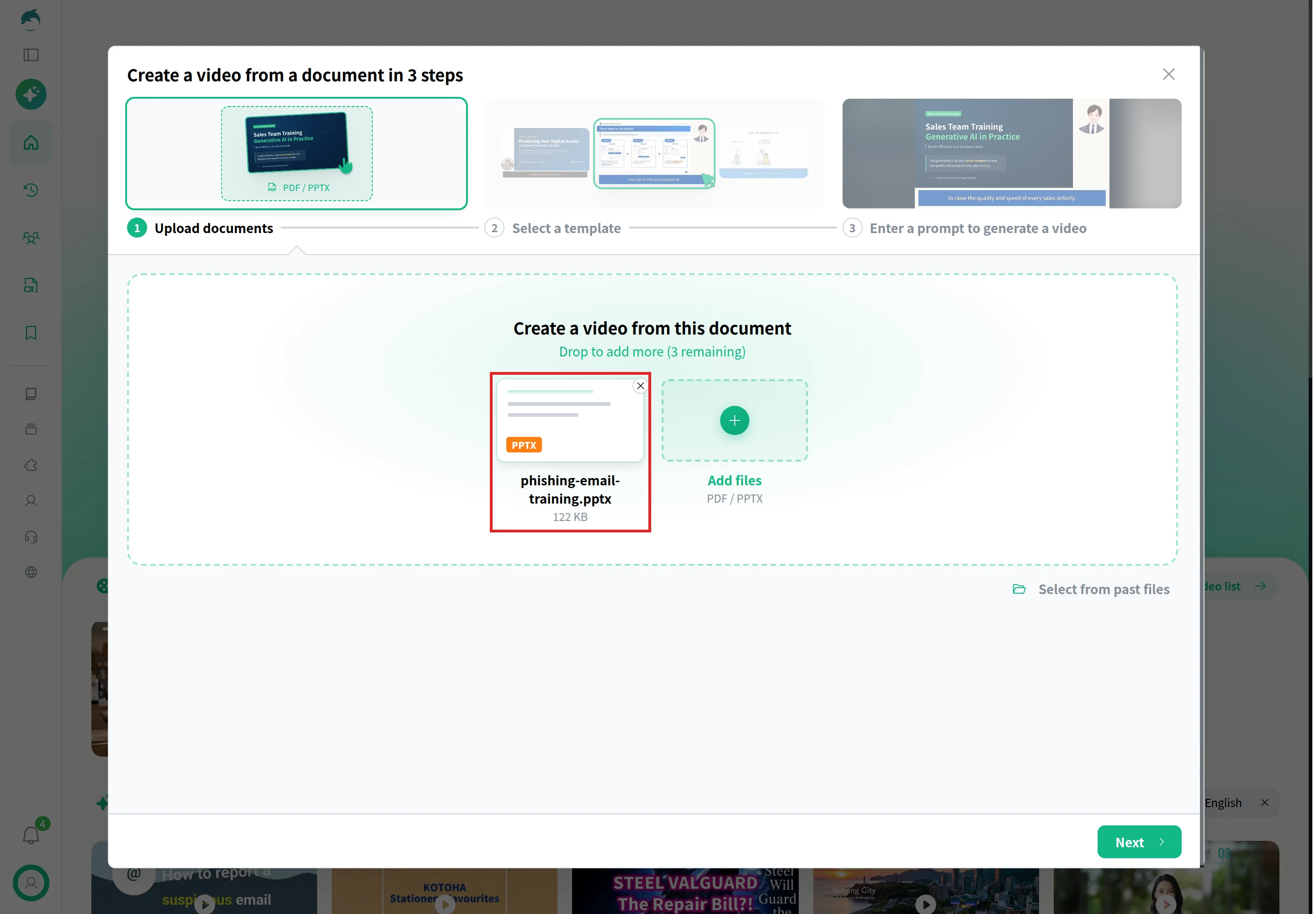
Open Create from files and upload the deck
Sign in to NoLang and select Create from files on the home screen. Under Upload documents, drag in your .pptx file or click Select a file. Once the file is added, NoLang moves on to the next step; select Back if you want to add more files, up to four.
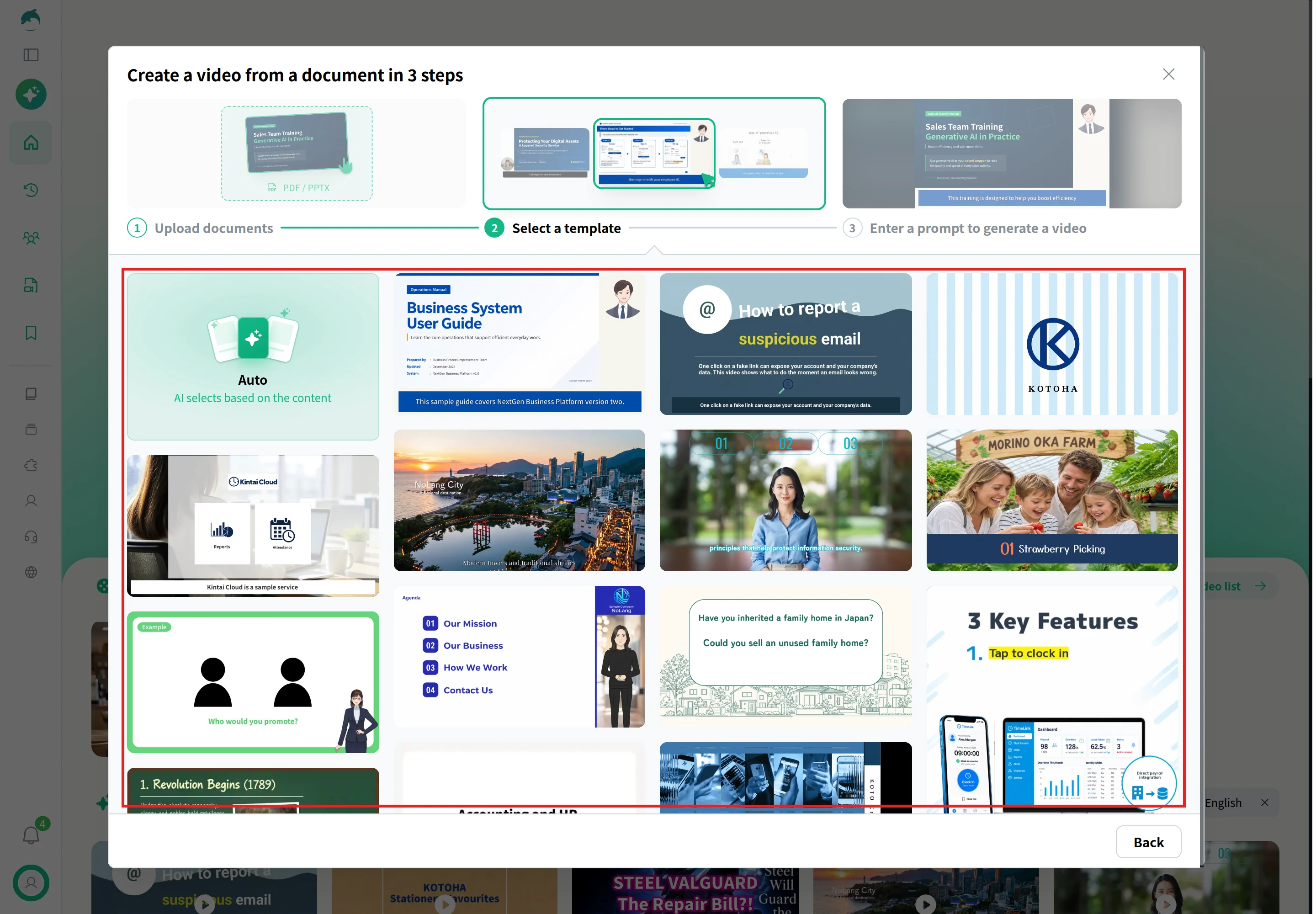
Select a template
Click the template that sets the look of the video, or Auto to let AI choose one based on the content. Clicking a template takes you to the last step.
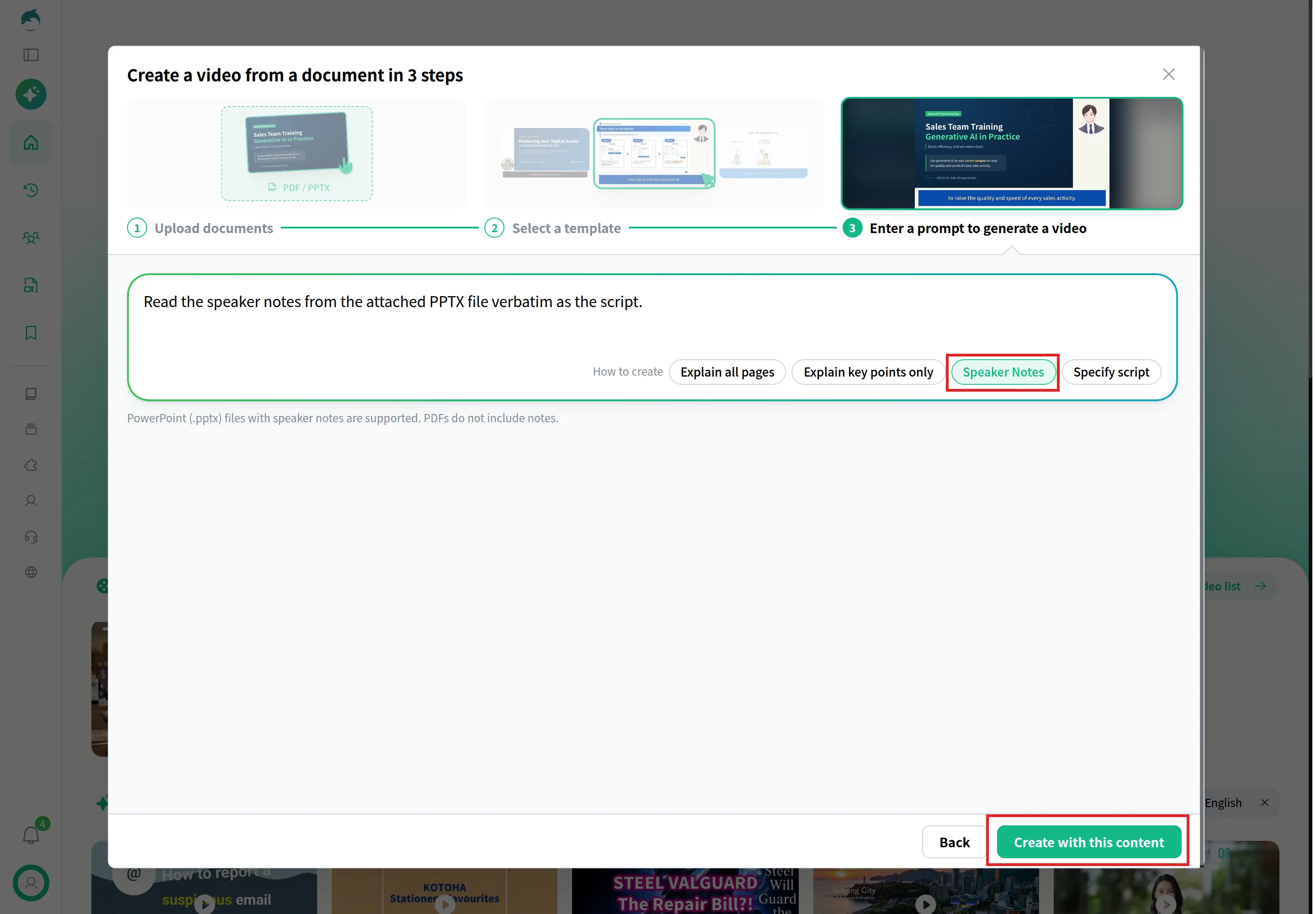
Choose Speaker Notes and create
Under How to create, choose Speaker Notes. The prompt box fills in “Read the speaker notes from the attached PPTX file verbatim as the script.” The other options are Explain all pages, Explain key points only, and Specify script, where you write the script for each page yourself. Select Create with this content to generate the video.
Speaker notes exist only in PowerPoint files, so choose Speaker Notes with a .pptx file. For a PDF, choose Explain all pages or Explain key points only, and NoLang explains the pages for you.
Phishing awareness training from a slide deck
Turn this phishing-awareness deck into a narrated training video for employees.
This sample starts from the eight-slide deck shown as the input, a training deck for a fictional company on spotting phishing emails. The narration follows the speaker notes in the deck. The slides dim as the voice moves through them, with the part being discussed lit up, and the video opens with a short hook that asks whether you would click. It was built and edited as a reusable template, so it goes further than a single run of the three steps above. Use This Template opens it so you can make the same kind of video from your own deck.
If your deck is a PDF rather than a PowerPoint file, the slides to video page covers both formats. For training decks in particular, the guide to making training videos goes through planning, scripting and the choice of tools.
Using NoLang at work
Training decks, product updates and onboarding slides tend to get presented once and then sit in a shared folder. NoLang turns those PowerPoint and PDF files into narrated videos, so a team can keep explanations current by editing the deck instead of recording again. You can contact us about using it in your company, or download the overview below.
Yes. PowerPoint saves a presentation as a video by itself: File > Export > Create a Video on Windows (MP4 or WMV), and File > Export on a Mac (MP4 or MOV). The file plays without PowerPoint and includes any narration and timings you recorded.
Q
Is converting PowerPoint to video free?
⌃
The export is part of PowerPoint, so there is nothing extra to buy if you already have it. Without PowerPoint, Canva advertises its PPT to video converter as free, and SlideSpeak's free AI converter handles up to three decks with one English voice, according to their pages in November 2026.
Q
Do animations and transitions carry over into the video?
⌃
On Windows, yes: Microsoft says animations and transitions can be included and embedded videos play. On a Mac, Microsoft says animation effects don't play in a movie and several transitions play differently, so export from Windows if they matter. Some AI tools don't keep them either; HeyGen says PowerPoint's own animations and transitions are not carried across.
Q
Why does my PowerPoint video have no sound?
⌃
Check these first: no narration was recorded in PowerPoint, or Don't Use Recorded Timings and Narrations was selected at export. On a Mac, recorded narration is included only from version 16.19, and embedded music or clips don't play in the video; only narration recorded in Slide Show does. Speech during slide transitions isn't recorded, so words can also go missing at slide changes.
Q
How long does it take to export a PowerPoint as a video?
⌃
It depends on the length of the deck and how much animation, transition and media it contains. Microsoft says it can take up to several hours for long, complex presentations. You can keep working in PowerPoint while it runs, or run a long export overnight.
Q
Can I convert PowerPoint to video in PowerPoint for the web?
⌃
Microsoft's help lists PDF and JPG as the formats PowerPoint for the web saves with Download As, and says the web version doesn't support recording a slide show. Use the desktop app on Windows or Mac, or a separate converter.
Q
Can I convert an old .ppt file?
⌃
Yes, but convert it first so media inserted in older versions of PowerPoint isn't dropped from the video: on Windows, select File > Info > Convert. Several tools also require .pptx: NoLang's Create from files accepts .pptx and .pdf files but not .ppt, and SlideSpeak asks you to convert .ppt files to .pptx.
Q
Does NoLang use my speaker notes?
⌃
Yes, when you choose Speaker Notes under How to create: the notes in your .pptx file are read aloud as the script. PDFs don't contain notes, so use Explain all pages or Explain key points only for a PDF. Each file can be up to 400 MB.