A funeral slideshow, also called a memorial slideshow or tribute video, is a sequence of photos set to music that plays during a funeral, a celebration of life or the visitation before it. Most people who make one have never edited a video and have only a few days to do it.
This guide follows the order the work actually happens in: decide how long it runs, gather the photos, put them in order, add a few words, choose music you are allowed to use, build it, and test it on the funeral home’s screen. The planning template in “Choose and order the photos” is free to copy. The example further down was made in NoLang from twelve photos of a fictional woman, Helen, and her family’s notes.
Decide where it will play, then how long it runs
Where the slideshow plays sets its length, and the length sets how many photos you need.
- During the service: everyone is seated and watching, so it has to fit the order of service. Keep it to the length of one to three songs, which usually means 3 to 8 minutes. Ask the officiant or funeral director how much time it has.
- On a loop at the visitation or reception: guests come and go, so it can run longer and repeat. Add more photos so the loop does not feel short.
- Online, for family who cannot attend: a shorter cut is easier to watch on a phone. The music rules for posting online are different (see “Choose the music, and check you can use it”).
Once you know the run time, the photo count is arithmetic: run time in seconds divided by the seconds each photo stays on screen. Give a single portrait 4 to 6 seconds, and a group photo, a title card or a quote a few seconds more so people can find faces and read.
| Run time | 4 seconds each | 5 seconds each | 6 seconds each |
|---|---|---|---|
| 3 minutes | 45 | 36 | 30 |
| 4 minutes | 60 | 48 | 40 |
| 5 minutes | 75 | 60 | 50 |
| 6 minutes | 90 | 72 | 60 |
| 8 minutes | 120 | 96 | 80 |
Subtract two or three photos for every title card and quote you add. If you have far more photos than fit, do not shorten each one to two seconds; choose fewer, or make a second, longer version for the loop.
Gather the photos
Collecting photos usually takes longer than building the slideshow, so start here and set a deadline.
- Send one link to everyone: make a single shared album or folder and send the same link to every relative and friend, with a date such as “please add photos by Wednesday evening.” One person collects and removes duplicates.
- Ask for a few favorites each: five to ten photos per person keeps the pile manageable and brings in moments you did not know about.
- Ask for the original files: a screenshot of a photo, or one saved from social media, is small and looks soft on a big screen. Ask for the file from the phone or camera.
- Scan prints instead of photographing them on a table: the Library of Congress recommends scanning 4×6 and 5×7 prints at 300 dpi, and at 400 or 600 dpi if you will enlarge them (Scanning Your Personal Collections). Take prints out of frames and albums first. If you have no scanner, photograph each print straight on in daylight, without flash.
- Ask who took it: the U.S. Copyright Office explains that the person who took a photo owns its copyright, even if you own the print or appear in the picture, and that displaying someone else’s photo publicly, including online, takes the owner’s permission (Photography & Copyright). For studio portraits and wedding photos, ask the photographer or studio if you can reach them, especially before posting the video online.
- Write down who and when: ask people to name each file with the year and the people in it, such as “1974 lake - Helen, Susan, Tom.” You will need this for captions and for the order.
Check your funeral home’s deadline before you set yours. Some ask for all photos 48 hours before the service when their staff builds the video (Youngs Daughters Funeral Home).
Choose and order the photos, with a free planning template
Chronological order is the easiest for guests to follow. Split the life into four or five chapters, decide how many photos each chapter gets, and choose the first and last photo before anything else. The opening photo tells the room who this is; the closing photo is the one you want people to remember.
A few choices make the slideshow feel like the person rather than an album:
- Keep most photos on the person alone or in the center, and use group photos to show the people in their life.
- Include their hands at work: the garden, the kitchen, the workshop, the classroom.
- Photos of a place they loved or an object they kept can stand in for years with few pictures.
- Leave out photos the family would not want on a big screen, and check first before showing someone whose presence could be painful, such as a former spouse.
Copy this template into a document or a notes app and fill it in. It becomes your shot list, your caption list and, if you use NoLang, the notes you paste in “Make a narrated memorial video from photos with NoLang”.
Memorial slideshow for: [full name] ([year of birth]-[year of death])
Where it plays: [during the service / visitation loop / online]
Run time: [minutes]   Seconds per photo: [4-6]   Photos: [run time in seconds / seconds per photo]
Music: [song 1 (length)] / [song 2 (length)] / [song 3 (length)]

Title card: [name, years, and a short line or verse]

Chapter 1 - Early years ([n] photos, ends with song 1)
- [year], [place], [who] - [one-line caption]
Chapter 2 - [Love and family / School and service / ...] ([n] photos)
- [year], [place], [who] - [one-line caption]
Chapter 3 - [Work and home / ...] ([n] photos, ends with song 2)
- [year], [place], [who] - [one-line caption]
Chapter 4 - [Later years] ([n] photos)
- [year], [place], [who] - [one-line caption]

Closing photo: [the one to remember them by]
Closing line: [a thank-you, a favorite saying, or dates]
Add a title, captions and a closing line
Text on a projector has to be read from the back of the room in a few seconds. Use a plain font, large type and light text on a dark background or the reverse.
- Title card: full name and years, such as “Helen Marie Doyle, 1941-2026.” A short verse or a line they often said can go underneath.
- Chapter titles: two or three words (“Early years,” “Love and family”) help guests follow the jumps in time.
- Captions: the year, the place and who is in it, such as “1974, summer at the lake with Susan and Tom.” Leave the photos that need no explanation without one.
- Closing card: a thank-you from the family, a favorite saying, or the name and years again.
Choose the music, and check you can use it
One to three songs is enough for a slideshow played during a service. Songs the person loved, hymns from their church, or a quiet instrumental all work. Change chapters at the end of a song rather than in the middle of a line, and add up the song lengths to confirm the run time you chose in “Decide where it will play, then how long it runs”.
Before you settle on a recorded song, check where the music will come from. Playing a song at the service and recording it into the video file are different permissions.
- Playing music at the service: the National Funeral Directors Association (NFDA) says U.S. copyright law requires a music performance license for establishments that play copyrighted music, and it offers funeral homes a license that covers the BMI, ASCAP and SESAC catalogs (NFDA). Ask your funeral director whether they hold one.
- Recording a song into the video: NFDA explains that recording music to a video needs a synchronization license from each song’s copyright holder, which the performance license does not cover. It recommends royalty-free music for tribute videos, or playing the requested songs on the funeral home’s sound system while the video plays without them.
- Livestreaming the service: according to the same NFDA page, a funeral home needs a different license to stream music performances over the internet. Tell the funeral home if the service will be streamed.
- Posting on YouTube: a recorded song can bring a Content ID claim, which, depending on the copyright owner, blocks the video, runs ads on it or tracks its views, and can differ by country. You may be able to mute the song or replace it with a track from the YouTube Audio Library; tracks with a Creative Commons license need the artist credited in the description (YouTube Help, Audio Library).
- Posting on Facebook or Instagram: Meta’s Music Guidelines say a post with music owned by someone else may be blocked, muted or removed if the use is not authorized, live videos included, and that the more music a post contains, the more likely it is to be limited (Meta Music Guidelines).
A simple way to keep both the song and the slideshow: make the video with an instrumental from a royalty-free library, and if the family wants a particular song at the service, ask the funeral home to play it on their system while the slideshow runs.
Pick a funeral slideshow maker
Any funeral slideshow maker or memorial video maker that exports a video file will do. Choose the one you can finish with in the time you have.
| Kind | Good when | Check before you start |
|---|---|---|
| Photo app on a phone or computer | You have one device and one song | It saves a video file you can copy to a USB drive |
| Presentation software | You want each caption and timing exact | How it exports video, and whether the music is included |
| Online slideshow maker | You want a memorial design and a music library | What is free, watermarks, and the download format |
| AI video from photos (NoLang) | You want narration that tells the story from your notes | Names, dates and captions before the service |
| Funeral home or video service | You have no time, or prints and tapes to digitize | Deadline, photo limit, music and delivery format |
In PowerPoint on Windows, set the time per slide under Transitions with Advance Slide “After,” then choose File > Export > Create a Video, pick Full HD (1080p) and save as MPEG-4. The default is 5 seconds per slide, which you can change in Seconds to spend on each slide. To play one song over many slides, insert it with Insert > Audio > Audio on My PC and select Play in Background (Microsoft Support, music across slides). On a Mac, File > Export saves an MP4, but Microsoft notes that only narration recorded in Slide Show plays in the exported video, not other embedded media, so check the music in the file before you hand it over (Microsoft Support for Mac).
Make a narrated memorial video from photos with NoLang
NoLang is an AI video generator that makes narrated videos from text, documents and photos. With From image, it places your photos one per scene in the order you add them, writes a narration script from the notes you give it, and voices it, so nobody has to record a eulogy for the video.
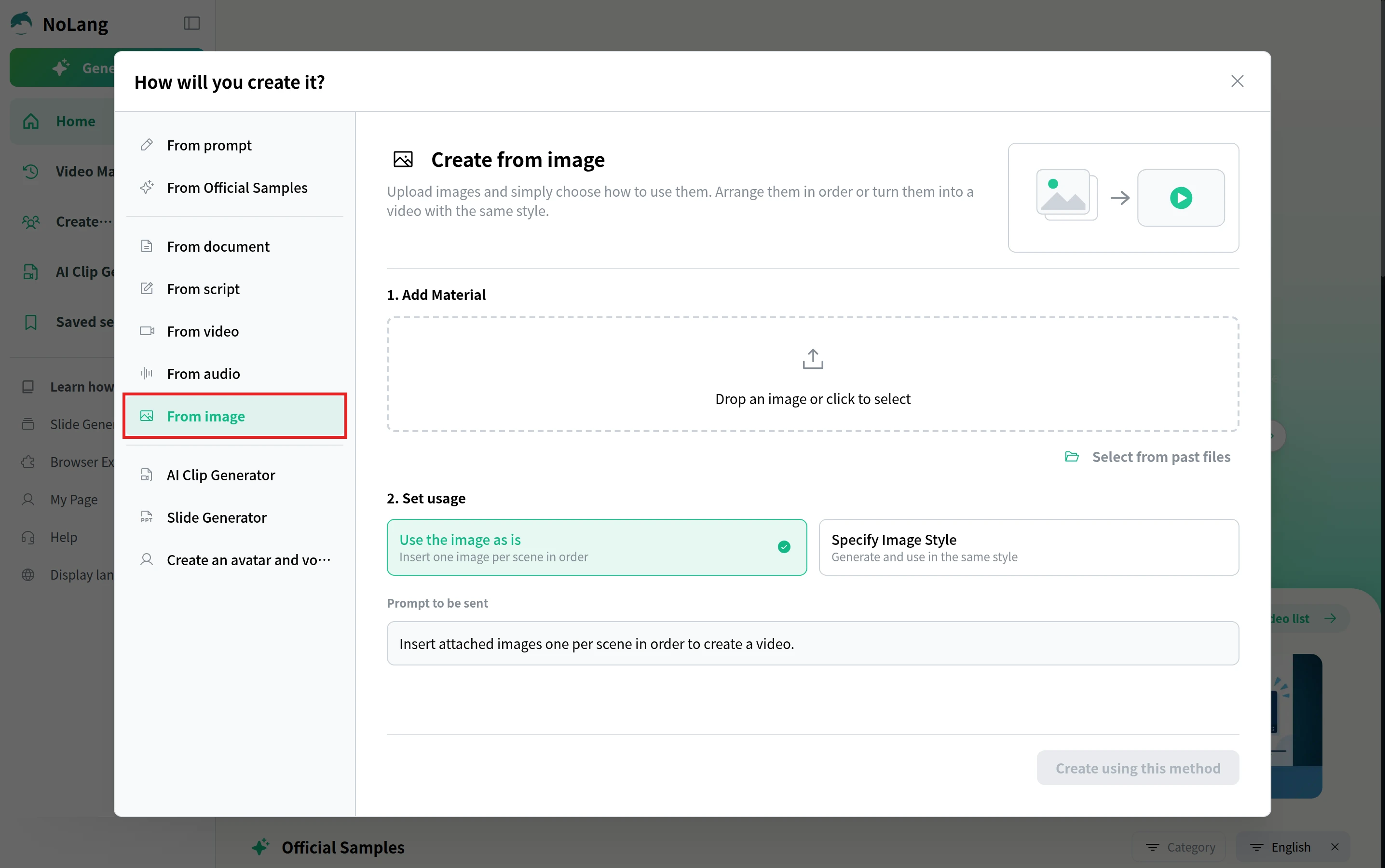
Choose From image
Log in to NoLang in a web browser and click Generate at the top of the left menu. In How will you create it?, choose From image.
Add the photos and choose Use the image as is
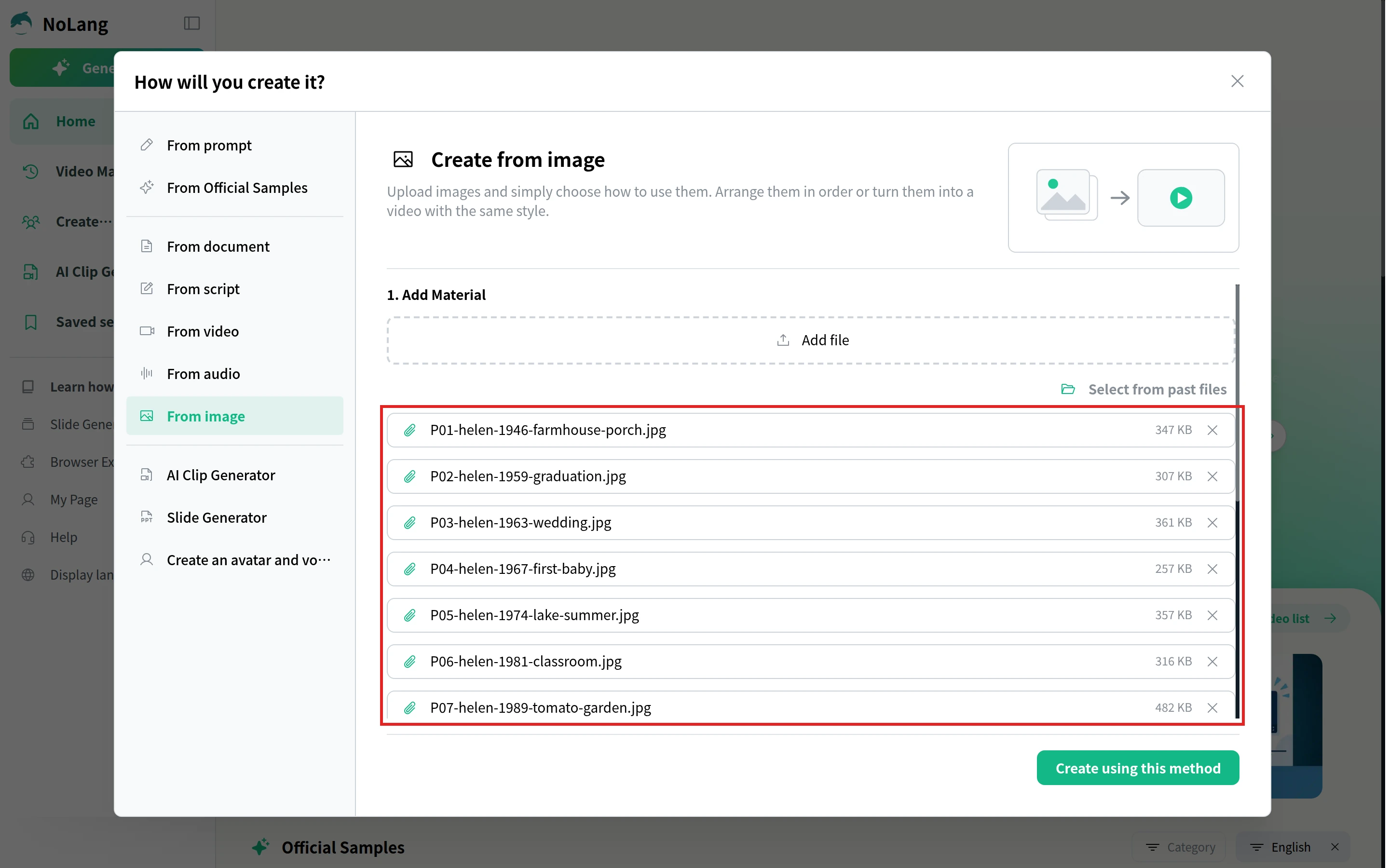
Under 1. Add Material, add the photos in the order you want them to appear. JPEG, PNG, GIF, WebP and HEIC files are accepted, and each photo appears in a list with its file name.
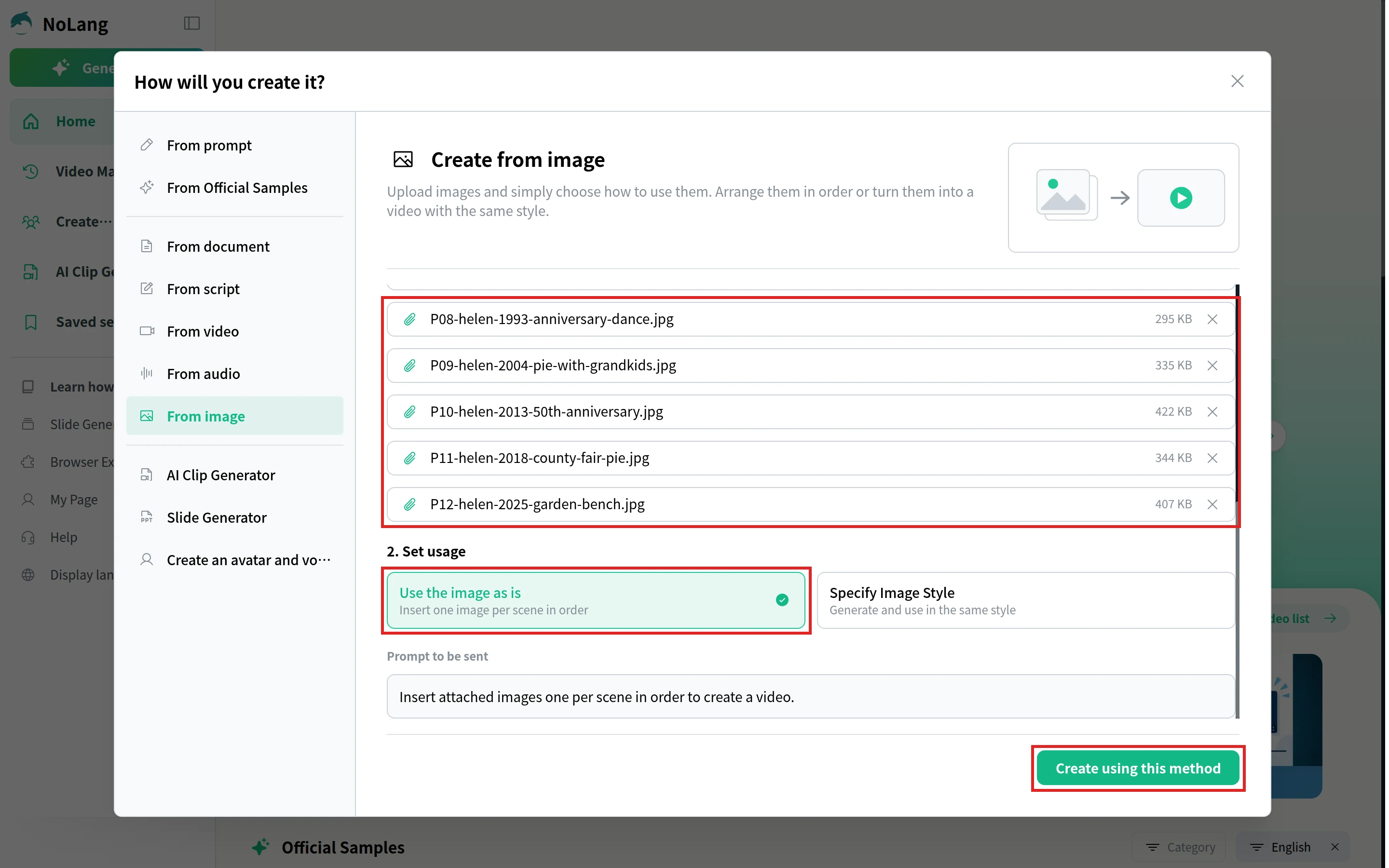
Under 2. Set usage, choose Use the image as is, which inserts one image per scene in order. The instruction it sends appears under Prompt to be sent. Click Create using this method.
Add your notes, choose a landscape video and the length, and generate
The photos and the instruction are now in the input box on the home screen. After the instruction, add who the video is for and paste the notes from your planning template: the name and years, a caption for each photo and a closing line. For a funeral home screen, keep the shape on Horizontal (16:9), which the button shows as Desktop. Choose the length, from 30 seconds to 5 minutes, then click the arrow button, Generate a video.
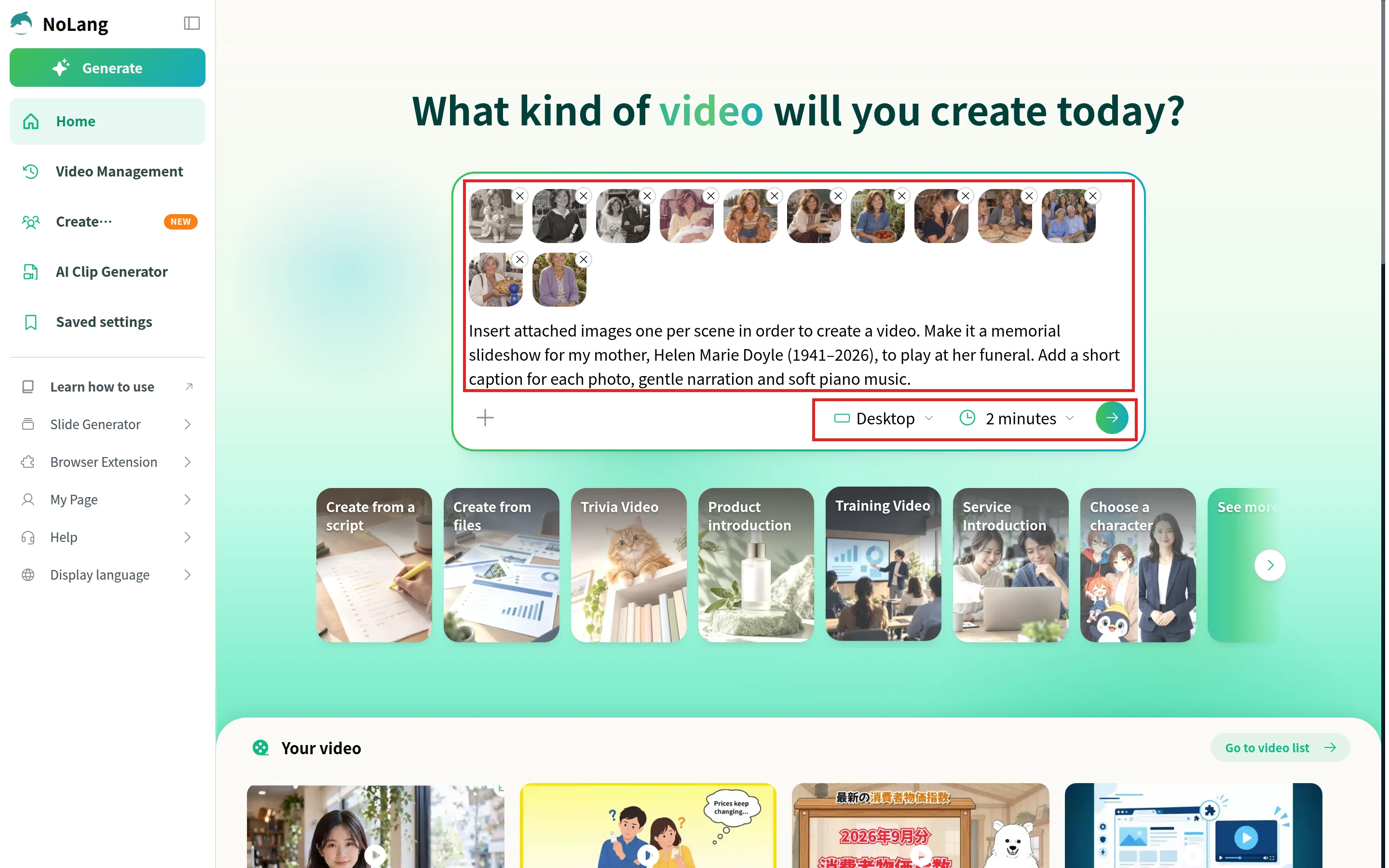
When the video is ready, open it from Video Management and click Watch. Check every name, date and caption against your notes, and that each close-up lands on the right face. Edit opens the editor, where each scene’s Reading Script (the narration), background image and BGM can be changed. Download saves the video as an MP4 file for the funeral home.
Example: a memorial video for Helen, made from twelve photos
This example was composed in NoLang, scene by scene, from twelve photos and a filled-in copy of the planning template. It runs 2 minutes 54 seconds in landscape, for a screen at the service. A title card with Helen’s name and years opens it, four chapter cards divide her life, and each photo appears with its year and a short caption while an AI voice tells the story over a background track from NoLang’s catalog. Near the end all twelve photos gather into one grid, and the closing line comes from the family’s notes.
In Loving Memory: Memorial Photo Slideshow
Twelve photos of Helen’s life in order, with her name, years and a one-line note for each, made into a landscape memorial video to play at her funeral.
Helen Marie Doyle is a fictional person, and the photos were made with image generation for this example. To start from this design, click the button above, then describe the person you are remembering and attach your own photos in order.
Test it before the service
Most problems at a service are playback problems, not design problems. Settle these with the funeral home a few days ahead.
- Ask how they play it: funeral homes play tribute videos from what their equipment supports, which may be a DVD or a USB drive, so confirm the format with the funeral director (Billow Funeral Homes). If there is no screen at the venue, you will need to bring a TV or projector.
- Export an MP4 in landscape: Microsoft describes MP4 as an international standard that is supported more broadly, especially on hardware devices (Microsoft Support for Mac). Ask whether their screen is widescreen (16:9) so the photos are not shown with black bars.
- Bring two copies: one on a USB drive and one you can download from the cloud or play from a laptop.
- Send it early and play it on their equipment: watch it on the actual screen and speakers, check that captions can be read from the back row, and set the volume.
- Decide who presses play: name one person, and tell them whether it plays once or loops.
After the service, the same file can go to relatives who could not attend. If you post it on YouTube or Facebook, check the music first (see “Choose the music, and check you can use it”).
Making tribute videos for families
NoLang is also used by businesses. A funeral home can turn the photos and notes a family brings into a narrated tribute video with the same From image steps, and hand the family an MP4 for the service. Materials for businesses are available below, and you can reach the team through the contact form.
Download Materials