YouTube Shorts Aspect Ratio and Size: 9:16 at 1080×1920
Key takeaways
Make a Short in a 9:16 vertical frame at 1080×1920 px (1080 wide, 1920 tall). Google lists 720×1280 as the minimum size for vertical video.
A video uploaded since October 15, 2024 becomes a Short when it is 3 minutes or shorter and square or vertical. A 16:9 video stays a long-form video.
Export an MP4 with H.264 video and AAC-LC audio at 48 kHz, keep the recorded frame rate, and use 8 Mbps at 24–30 fps or 12 Mbps at 48–60 fps.
Google's safe zone for 1080×1920 vertical ads keeps 288 px at the top, 672 px at the bottom, 48 px on the left and 192 px on the right clear, which leaves 840×960 px for captions.
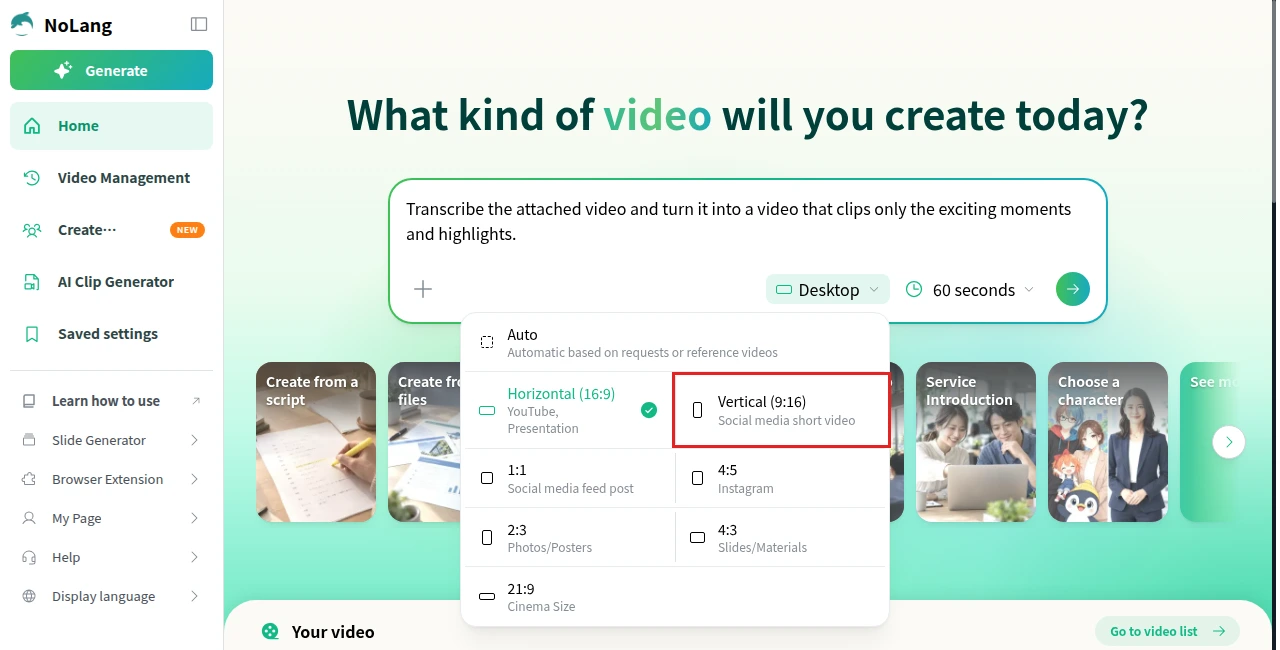
In NoLang, choose Vertical (9:16) and set the resolution to Full HD to export a Short at 1080×1920.
SHARE
A YouTube Short is a square or vertical video up to three minutes long. For most Shorts, use a 9:16 vertical frame at 1080×1920 pixels (1080 wide, 1920 tall) and export it as an MP4 with H.264 video and AAC audio.
This guide collects the numbers from YouTube Help and Google’s video specs (checked in November 2026): which aspect ratios count as a Short, the size and export settings to use, where to keep captions so on-screen buttons don’t cover them, and the size of a Shorts thumbnail. The last section shows how to make a 1080×1920 Short with NoLang.
YouTube Shorts size at a glance
YouTube Shorts specs
Spec
Value
Aspect ratio
9:16 vertical. Square (1:1) and other vertical ratios also count
Recommended size
1080×1920 px
Minimum size
720×1280 px
Maximum upload resolution
1080p
Length
Up to 3 minutes
File format
MP4 with H.264 video and AAC-LC audio
Frame rate
The frame rate you recorded at
Custom thumbnail
9:16, 2160×3840 px
1080×1920 means 1080 pixels wide and 1920 pixels tall. When an editor asks for width and height separately, enter 1080 as the width.
The length, aspect ratio and upload resolution come from YouTube Help, and the recommended and minimum sizes come from Google’s video ad specs. Each value is explained with its source below.
Which aspect ratios count as a Short
YouTube categorizes a video as a Short when it is three minutes or shorter and its aspect ratio is square or vertical. This applies to videos uploaded on or after October 15, 2024. Videos uploaded before that date stay long-form videos (Understand three-minute YouTube Shorts, YouTube Help).
Aspect ratio and Shorts (videos of 3 minutes or less)
Aspect ratio
Shape
Categorized as
9:16
Vertical
Short
4:5
Vertical
Short
1:1
Square
Short
16:9
Horizontal
Long-form video
Among the shapes that qualify, 9:16 is the one to choose. Google’s guidance for Shorts ads describes 9:16 vertical video as the best fit for the Shorts format (About Shorts ads, Google Ads Help), and 1080×1920 is its recommended size for vertical video.
If you don’t want a short video to become a Short, YouTube’s advice is to use a wider aspect ratio such as 16:9.
On a computer, you upload a Short the same way as any other video. In YouTube Studio, click CREATE > Upload videos and select a file that is three minutes or shorter with a square or vertical aspect ratio (Upload YouTube Shorts, YouTube Help).
YouTube Shorts size and resolution
Export a vertical Short at 1080×1920. Google’s video specs list 1080×1920 as the recommended HD size for vertical video and 720×1280 as the minimum (About video ad specs, Google Ads Help).
Recommended and minimum sizes
Shape
Recommended
Minimum
Vertical (9:16)
1080×1920 px
720×1280 px
Square (1:1)
1080×1080 px
480×480 px
YouTube Help notes that Shorts can be uploaded at a maximum resolution of 1080p (Create YouTube Shorts, YouTube Help). Footage shot in 4K still works as source material. Edit it in a vertical frame and export the finished Short at 1080×1920.
Export settings based on YouTube's recommendations
Setting
Value
Container
MP4 (moov atom at the front, also called Fast Start)
Video codec
H.264, High Profile, progressive scan, 4:2:0
Frame rate
Same as the recording. 24, 25, 30, 48, 50 and 60 fps are common
Video bitrate
8 Mbps at 24–30 fps, 12 Mbps at 48–60 fps
Audio
AAC-LC, 48 kHz, stereo, 384 kbps
YouTube’s bitrate table lists resolutions by names such as 1080p and 720p, not by orientation. A 1080×1920 Short has the same number of pixels as a 1920×1080 video, so use the 1080p row.
Keep the frame rate you recorded at. A phone clip recorded at 30 fps should be exported at 30 fps.
Keep captions inside the safe zone
Google’s specs for vertical video ads include a safe zone for a 1080×1920 frame. Overlays, call-to-action buttons and other buttons can cover parts of the video, so the logo, product and on-screen text go inside the safe zone (Use square and vertical video to engage mobile customers, Google Ads Help). In Shorts ads, for example, the like, dislike, comment and share buttons sit in a panel on the right (About Shorts ads, Google Ads Help).
The margins in Google’s safe zone diagram are:
Safe zone margins in a 1080×1920 frame (Google's vertical video ad specs)
Edge
Keep clear
Top
288 px
Bottom
672 px
Left
48 px
Right
192 px
That leaves an area 840 px wide and 960 px tall, from 48 to 888 px across and from 288 to 1248 px down. The bottom margin takes up more than a third of the frame, so captions placed along the bottom edge, where subtitles usually go in a horizontal video, are the first thing to move.
The safe zone is published for ads, but the same margins work as a guide for any Short with on-screen text:
Put captions and key text in the middle band of the frame.
Keep text away from the right edge, where the buttons are.
Before uploading, play the exported file full screen on a phone and check that no caption runs into the bottom or right margin.
The example Short in the NoLang section below follows these margins. Every caption sits between 60 and 876 px across and between 1029 and 1233 px down, inside the safe zone. Only decoration, such as the large chapter numbers and icons, and the labels that mark the margins themselves sit outside it.
Turning horizontal footage into a Short
A 16:9 clip does not fill a 9:16 frame. There are two ways to fit it:
Crop to fill
: Scale the clip until it fills the 1920 px height and keep the part with the subject. The frame shows about a third of the original width, so check that nothing important is cut off at the sides.
Fit the whole clip
: Keep the clip at the full 1080 px width. It takes up 1080×608 px, and you design the rest of the frame, for example with a title, captions or a blurred copy of the clip.
YouTube recommends against adding padding or black bars directly to a video (Video resolution & aspect ratios, YouTube Help). If you fit a horizontal clip into a vertical frame, fill the space above and below it with content rather than plain black.
On a computer, you can upload a custom thumbnail for a Short in YouTube Studio. Go to Content > Shorts, click Edit on the Short, and under Thumbnail click Upload file. Your account must be verified to use custom thumbnails.
Custom Shorts thumbnail
Spec
Value
Aspect ratio
9:16
Recommended size
2160×3840 px
Minimum height
640 px
File type
JPG or PNG, for example
Maximum file size
50 MB (on a computer)
These values come from Add custom thumbnails, YouTube Help. The same page notes that a vertical video with a 16:9 custom thumbnail gets an auto-generated 4:5 thumbnail on the home, explore and subscription pages, so make the thumbnail vertical too.
In the YouTube app, you can instead choose a frame from the Short as its thumbnail, before or after you upload it (Create YouTube Shorts, YouTube Help).
Make a 1080×1920 Short with NoLang
NoLang creates a video from a description, a script or your files, in the aspect ratio you choose. To make a Short:
Choose Vertical (9:16)
On the NoLang home page, click the aspect ratio button below the input box. It shows the current choice, such as Auto or Desktop. Choose Vertical (9:16) from the menu.
Choose a length and generate
Click the duration button next to it and choose 3 minutes or less. Besides Auto, the options run from 30 seconds to 5 minutes, so skip 5 minutes for a Short. Describe the video in the input box and click the arrow button (Generate a video).
Export at 1080×1920
NoLang has two resolutions: HD (short side 720 px, which is 720×1280 for a vertical video) and Full HD (short side 1080 px, which is 1080×1920). To export at 1080×1920, open the video, click Edit, then click Confirm with this content. In Video Generation Settings, choose Full HD under Resolution and click Confirm and Regenerate.
Download the MP4
On the video page, click Download to save the video as an MP4 file.
If you already have a horizontal video in NoLang, open its video page and choose Other > Change aspect ratio. Pick the new aspect ratio and click Convert. NoLang creates the converted version as a separate video and keeps the original.
The Short below was made with NoLang from a one-page note of the specs in this article, shown as its input. It is 9:16 at 1080×1920 and 64 seconds long, with English narration and captions. Use the template to make the same kind of vertical explainer Short about your own topic.
YouTube Shorts size cheat sheet
Make a vertical YouTube Short with English narration and captions that explains the aspect ratio and size rules for Shorts, based on the attached notes.
For a company YouTube channel, posting Shorts regularly is easier when each video starts from a script or a document instead of a shoot. One NoLang user generates videos through the NoLang API and posts them automatically to Facebook, Instagram and YouTube (user interview). To talk about using NoLang at your company, contact us, or download our materials below.
You can shoot and edit in 4K, but YouTube Help notes that Shorts can be uploaded at a maximum resolution of 1080p. Export the finished Short at 1080×1920 rather than 2160×3840.
Q
Why did my vertical video upload as a regular video instead of a Short?
⌃
Check three things. The video must be 3 minutes or shorter, its aspect ratio must be square or vertical, and it must have been uploaded on or after October 15, 2024. A vertical clip exported inside a 16:9 frame with bars on the sides has a horizontal aspect ratio, so it is treated as a long-form video.
Q
Can a YouTube Short be longer than 3 minutes?
⌃
No. A Short can be up to 3 minutes long. In the YouTube app, if you select a video longer than 3 minutes for a Short, Edit into a Short lets you trim it to 3 minutes or less.
Q
What resolution does NoLang export vertical videos at?
⌃
NoLang exports at HD (short side 720 px), which is 720×1280 for a vertical 9:16 video, or Full HD (short side 1080 px), which is 1080×1920. You choose the resolution in Video Generation Settings in the video editor. Full HD is available on the Premium plan and on NoLang's business plans.