An AI voiceover turns a written script into spoken narration without a microphone, a recording booth or a booked voice actor. Generating the audio is the easy part. The decisions that take time are which of the many tools promising “realistic voices” to use, what their free plans actually allow, and how to get a voice to read your script the way you would.
This guide defines voiceover, sorts AI voiceover tools into two kinds, lays out the free-plan terms from each vendor’s own pages, and shows how to test voices on one script and fix what they misread. It includes a sample video in which four AI voices read the same lines.
What a voiceover is, and what changes when AI does it
A voiceover is speech heard over video or audio from a speaker who is not shown on screen. The voice is added on top of the picture rather than recorded as part of the scene, which is why the same footage can carry different voiceovers for different audiences.
The word overlaps with a few others:
- Narration: the most common kind of voiceover, where the voice tells or explains what the viewer is seeing, as in documentaries, explainers, product demos and e-learning.
- Dubbing: replacing the original dialogue with a recording in another language. A voiceover is added to what is already there; dubbing replaces it.
- VoiceOver (Apple): the screen reader built into Apple devices, which reads the interface aloud for blind and low-vision users. It shares the name and nothing else.
You will see it spelled voiceover, voice-over and voice over. The Cambridge Dictionary lists voice-over, and all three refer to the same thing.
An AI voiceover is a voiceover generated from text by a text-to-speech (TTS) model instead of being recorded by a person. You paste a script, pick a voice, and the tool returns the narration. A retake becomes an edit to the script, a change of voice takes seconds, and the same script can be voiced again next quarter when a figure changes. What does not go away is direction. A human narrator asks how to say an unfamiliar name; a TTS model guesses. Most of the work in an AI voiceover is choosing a voice that suits the content and writing the script so it is read correctly.
Two kinds of AI voiceover tools, and what the free plans allow
Search for “AI voiceover” and nearly every result is a tool’s landing page, each promising realistic voices for free. They sort into two kinds, and the difference is where your voice ends up.
| Audio generators | Video tools with built-in voices | |
|---|---|---|
| You get | An audio file (MP3 or WAV) | A video with the voice already on the timeline |
| Syncing to picture | You place and trim the audio in your editor | The voice is generated scene by scene with the visuals |
| Best when | You already edit video, or need audio for a podcast, app or course platform | The voiceover is for a video and you want one place to make it |
| Examples | ElevenLabs, Adobe Firefly, Google AI Studio, Typecast, Voicebooking | Canva, Clipchamp, NoLang |
If what you need at the end is a finished video rather than an audio file, the second kind saves the step of syncing narration to picture. Several tools of the second kind can also export the voice alone; Canva downloads it as MP3, and Clipchamp exports audio only as MP3 for free.
What the free plans allow
Most of these tools can be tried for free, but the free plans differ on two points that matter more than the voice library: how much audio you can make, and whether you can use that audio in anything that earns money. A monetized YouTube channel, a client project and a company video all count as commercial use.
| Tool | Free plan | Free audio in commercial work | Lowest paid plan |
|---|---|---|---|
| ElevenLabs | 10,000 credits a month, about 10 minutes | No; personal use, with attribution | Starter, $6 a month |
| Fish Audio | 8,000 credits a month, up to 7 minutes | No; personal, non-commercial use | Plus, $15 a month |
| Typecast | 3,000 download credits per account, about 5 minutes | No; personal posting, with attribution | Basic, $5 a month |
| NaturalReaders | Try all voices; downloads need a paid plan | No downloads on the free plan | Starter, $29 a month |
| Voicebooking | 1 project, 1,000 characters, 3 downloads | Yes; its generator’s audio is license-free | Bronze, $3.99 a month |
| Adobe Firefly | Daily free generations | Yes; Adobe calls Firefly Speech output commercially safe | Standard, $9.99 a month |
| Canva | A selection of free voices | Yes; its AI terms allow any lawful use of your output | Pro, $18 a month |
Two more tools from the comparison above are free to start. Clipchamp’s text to speech is free for every user of its editor, and its free plan exports video without a watermark at up to 1080p. Google AI Studio has a free tier for Gemini’s speech models; on that tier, Google may use what you submit and generate to improve its products.
Three of these free plans exclude commercial use outright. If the voiceover is going into anything monetized, plan for a paid tier from the start, or pick a tool whose license covers free output. Read the license page itself rather than the feature page: on the tools above, the commercial terms sit in the pricing table, the help center or the terms of use.
How to compare AI voices with the same script
A sample in a voice library tells you how a voice sounds on someone else’s sentence. Your script has your numbers, your names and your sentence lengths, and those are where voices start to differ. The fastest way to separate candidates is to give every voice the same short script, packed with text the model has to interpret rather than simply read, then listen for the same points in each.
This five-line script covers dates, times, percentages, a price, a title, acronyms, two words that change pronunciation with meaning, a question and one long sentence:
Our spring update goes live on April 3 at 9:30 a.m. Eastern.
Exports are 40% faster, and captions now cover 12 more languages.
Dr. Reyes from our UX team will lead the Q&A.
Ever spent an hour re-recording a single line?
Sign up by May 15 and the Pro plan is $9.99 a month for your first year, with no contract and nothing to install.
Paste it into each tool, generate with each candidate voice at default settings, and listen for these points:
| Listen for | Where | A good read |
|---|---|---|
| Numbers, dates, prices | April 3, 9:30 a.m., 40%, $9.99 | Said the way a person would say them |
| Titles and acronyms | Dr., UX, Q&A | ”Doctor”, “U-X”, “Q and A” |
| Same spelling, different sound | live, lead | ”live” like “five”, “lead” like “need” |
| Questions | Line 4 | The pitch rises at the end |
| Long sentences | Line 5 | Pauses at the commas, no rush at the end |
| Overall pace | Whole script | Slow enough for your viewers to follow |
Then swap in the first 30 seconds of your real script, including the product and people names you will actually use, and listen again on the speaker your audience will use, with your background music underneath if there will be any. A voice that survives both rounds is worth paying for. A voice that stumbles on only one or two words can usually be fixed with the techniques in the next section, so do not drop it for that alone.
Four voices, one script: a sample
To show how much the voice alone changes, we gave four AI voices in NoLang the same 25-word script and let each read it in turn. Each voice also got a one-line speaking style instruction, written the way you would brief a narrator.
Same Script, 4 AI Voices
Have four different AI voices read this script one after another so I can compare them: “Every morning, the city wakes up before you do. Coffee machines hiss, trains hum, and a thousand little stories begin. Today, let’s follow just one.”
The four reads, measured from the finished video:
| Voice | Speaking style instruction | Read time | Pace |
|---|---|---|---|
| Vindemiatrix | Calm, warm and gentle, like a nature documentary narrator | 14.5 s | About 104 words/min |
| Achernar | Bright, upbeat and excited, like an energetic social media ad | 10.7 s | About 141 words/min |
| Algieba | Deep, dramatic and cinematic, like a movie trailer narrator | 17.7 s | About 85 words/min |
| Puck | Relaxed, casual and friendly, like chatting with a friend on a podcast | 12.0 s | About 125 words/min |
The slowest read took about 65% longer than the fastest, on identical words. If your video has fixed timing, such as a 15-second ad slot or narration that has to land on a cut, the voice you pick changes the edit, not just the mood. Time each candidate on your own script as part of the comparison above.
To run the same comparison on your own script, open the template from the button above and give it your script. Voices can be changed later in the editor’s Character Settings, as shown in the NoLang steps below.
Fix pronunciation and pacing before you switch voices
When a voice misreads your script, the cause is often the script, not the voice. A TTS model has to decide how to say “4/3”, “v2.1” or “Q&A”, and a different voice will face the same decision. Fix the text first, and you keep the voice you liked.
Write the script for the ear
Here is a line written for the screen:
Join us 4/3 @ 9:30am ET: Dr. Reyes (UX) demos v2.1 + live Q&A.And the same line written to be read aloud:
Join us on April 3 at 9:30 a.m. Eastern.
Doctor Reyes from our U-X team will demo version 2.1, then take your questions live.
The changes follow a few rules that work in any tool:
- Replace symbols with words. ”@”, ”/”, ”+” and ”&” leave it to the model to guess what you meant.
- Write ambiguous dates and numbers the way they should be said. “4/3” is April 3 to an American reader and March 4 to a British one. If a number still comes out wrong, write it in words; Clipchamp’s own help suggests turning 1998 into “nineteen ninety-eight”.
- Expand abbreviations you need said in full. “Dr.” becomes “Doctor”; spell an acronym with hyphens or spaces if it should be read letter by letter.
- Respell a name the way it sounds. Adobe Firefly’s Fix Pronunciation asks for exactly this, with “uhn-fer-GET-uh-buhl” for “unforgettable” as its example, and Clipchamp’s help suggests the same.
- One idea per sentence. Periods give the voice a place to land; commas give it a short breath.
Use the tool’s controls for the rest
Once the script is clean, each tool has its own controls for the words that still come out wrong. These are the controls each vendor documents:
| Tool | Fix a word | Pauses | Pace and delivery |
|---|---|---|---|
| ElevenLabs | Pronunciation dictionary (phoneme or alias rules); IPA in Eleven v4 | Break tags on some models; dashes or ellipses | Speed 0.7–1.2; audio tags such as [whispers] |
| Adobe Firefly | Fix Pronunciation: type the word as it sounds | 0.25 to 3 seconds | Speed, pitch, tone |
| Clipchamp | Spell it as it sounds | Comma, period; ”…” for a long pause | Speed 0.5x–2x, pitch |
| Fish Audio | Pronunciation dictionary; phoneme tags | Pause tags | Speed 0.5–2.0 in the API |
| Typecast | Rewrite the word as it’s pronounced | Add Pause | Speed 0.5x–2.0x |
A pronunciation dictionary is worth setting up if you narrate the same product or people names every week: you fix a name once and every future script uses it.
Pacing and delivery in NoLang
In NoLang, the narration is edited scene by scene in the video editor. Click the speaker icon on a scene to open its voice menu. Speech speed has a slider and presets of 100%, 125%, 150% and 200%, Reading volume sits above it, and Apply to all scenes of this character copies the setting to every scene that character reads. The same menu has a Speaking style instructions field, where you describe how the line should be delivered in plain words, such as “In a whisper”.

To add a pause, right-click in the script where the pause should go and choose Insert pause at cursor position.

For a word the voice misreads, rewrite it in the script the way it should sound, as described above. The script you edit in the Reading Script panel is what the voice reads.
Make a voiceover video in NoLang
NoLang generates a video’s narration, captions and visuals together from your script, so the voiceover comes out already timed to the scenes. There is nothing to record and no audio track to line up.
Step 1: Paste your script
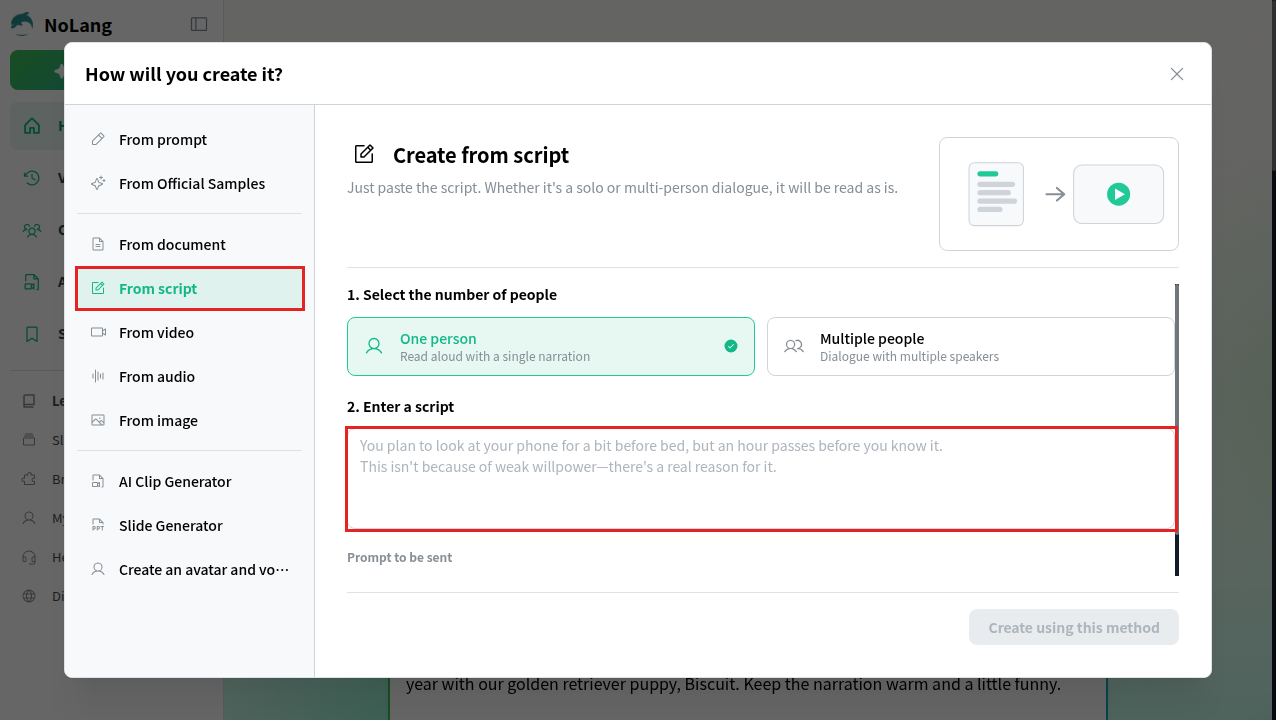
Click Generate, and in How will you create it? choose From script. Under Select the number of people, choose One person for a single narrator, or Multiple people to have the script read as a dialogue. Paste the script into Enter a script and click Create using this method.
Step 2: Choose the voice
In the editor, open Character Settings and click Change under the voice. Filter narrows the list by Voice Engine, Gender, Age, Voice quality, Purpose, Tone and Accent; Purpose includes Narration, Training, Presentation and Podcast, among others. Play a sample with the button to the left of each name, or search by description, such as “Calm Voice”.

To narrate in your own voice, Create a voice on the same screen makes one from a recording. You can hear examples on the voice cloning page.
Step 3: Adjust pace and delivery
Change the speed, add pauses and write speaking style instructions scene by scene, as shown in the previous section. Run the test script from earlier through your chosen voice before you commit a long script to it.
Step 4: Export the video
Click Confirm with this content, choose the settings in Video Generation Settings, and click Confirm and Regenerate. When the video is ready, download it as an MP4 with the narration and captions in place.
What text to speech do YouTubers use?
There is no single standard voice or tool. Any of the tools in the table above can narrate a YouTube video, and the choice comes down to the same tests as anywhere else: how the voice sounds on your script and whether your plan lets you use the output commercially. On YouTube, two more things matter, and both come from YouTube’s own rules rather than from the voice tool.
Disclosure. YouTube requires creators to disclose AI-generated or altered content that seems realistic, using the “AI use” setting in YouTube Studio during upload. Its examples of content that must be disclosed include making a real person appear to say or do something they didn’t. Its examples that don’t need disclosure include cloning one’s own voice to create voiceovers or dubs, and production help such as using AI to write a script. YouTube says both lists are incomplete, and that disclosing alone won’t limit a video’s audience or its eligibility to earn money.
Monetization. YouTube’s channel monetization policies don’t list a synthetic voice as a reason to refuse monetization. What they look at is what the voice is reading. The examples of content that can’t be monetized include content that only features readings of material you did not create, such as text from websites or news feeds; image slideshows or scrolling text with little or no narrative, commentary or educational value; and AI-generated content made with generic templates that gives the impression of mass production without the creator’s own insight. An AI voice reading a script you wrote is not on that list. An AI voice reading a news article you copied is.
Two more rules are worth knowing if you plan a channel narrated entirely by AI. The same monetization policies exclude channels that use AI-generated personas presented as human experts giving advice on health, legal issues, finances or politics. And YouTube’s spam policy gives, as an example of mass-produced content, channels that use the same background music and repetitive AI-generated imagery across many videos, each reading out an AI-generated script. Both rules are about what the channel publishes, not about the voice that reads it.
Using AI voiceover across a team
If your team narrates videos every month, such as onboarding, product explainers or internal announcements, NoLang can be used across the company. A script, a slide deck or a document becomes a narrated video, and a finished video can serve as a template for the next topic, keeping its design and structure. For narrated training in particular, our guide to making training videos covers planning and scripts. To talk about using NoLang in your organization, contact us, or download the overview below.
Download Materials