To add chapters to a YouTube video, open the video in YouTube Studio and type a list of timestamps and titles into its description. The first timestamp has to be 00:00, you need at least three in time order, and every chapter has to run for 10 seconds or more. Save, and YouTube breaks the video into sections, each with its own preview.
Chapters are one of the few parts of video SEO where the official instructions are exact. Much of the rest of the advice is not: tag counts, description word counts and “rank in 24 hours” promises rarely come with a source. This guide builds the checklist from what YouTube and Google publish about their own search, and keeps what they publish apart from what people repeat. It then runs one real video through every item, from the description box on YouTube to the structured data on a web page.
How to add chapters to a YouTube video
YouTube calls the feature video chapters. People also search for it as sections or segments; it is the same thing, set the same way. You can add chapters to a video you have already published or write them while you upload, because both use the same description field.
| Requirement | Rule |
|---|---|
| First timestamp | Starts at 00:00 |
| Number | At least three timestamps, in ascending order |
| Length | Each chapter is at least 10 seconds long |
| Access | If chapters aren’t available to you yet, apply for access to Advanced features |
- Sign in to YouTube Studio.
- From the left menu, select Content.
- Click the video you want to edit. This opens its video details.
- In Description, add the list of timestamps and titles, one chapter per line.
- Click Save.
A chapter list looks like this. Put the timestamp first and the title on the same line:
00:00 Introduction
00:42 What you need
01:30 Step-by-step
03:05 Common mistakes
Chapters you write yourself override automatic chapters, so a manual list is how you control both where the sections start and what they are called. The list can share the description with the rest of your text, and the whole description, chapters included, has to fit within YouTube’s 5,000-character limit.
Turn automatic chapters on or off
YouTube can also generate chapters for you. For new uploads, the option is checked by default.
- For one video: in the video details, click Show more, find Automatic chapters, and check or uncheck “Allow automatic chapters.” Then click Save.
- For all future uploads: go to Settings, then Upload defaults, then Advanced settings, and uncheck “Allow automatic chapters (when available and eligible).” Then click Save.
Leaving the box checked does not guarantee chapters. YouTube says not all videos are eligible for automatic chapters, and not all eligible videos will get them. If you want chapters on a specific video, write them.
When chapters don’t show up
If you saved a chapter list and the video still plays as one piece, go through these checks in order. The first five check the list itself; the last three check the save and the conditions YouTube attaches to the feature.
| Check | What to look for |
|---|---|
| First line | The first timestamp is 00:00 |
| Count | There are three or more timestamps |
| Order | Times only go forward; no line jumps back |
| Length | Each gap between timestamps is 10 seconds or more, and so is the time from the last timestamp to the end of the video |
| Layout | One timestamp per line, with its title on the same line |
| Saved | You clicked Save in the video details |
| Access | Your channel has access to Advanced features |
| Channel and video status | The channel has no active strikes, and the video isn’t content that may be inappropriate for some viewers; YouTube says chapters won’t be available in either case |
How YouTube decides where a video ranks in search
YouTube publishes how its search ranking works, and it is short. The system prioritizes three elements: relevance, engagement and quality. For relevance, it looks at how well the title, tags, description and video content match the search. For engagement, it looks at signals such as the watch time of a particular video for a particular search. For quality, it looks for signals of which channels show expertise, authoritativeness and trustworthiness on a topic. The weight of each varies by type of search, and results can be personalized by a viewer’s search and watch history.
Just as useful is what YouTube says search is not. Search results are not a list of the most-viewed videos for a given search. View count alone does not put a video at the top.
Several pieces of common advice don’t hold up against YouTube’s own help pages:
| Common advice | What YouTube says |
|---|---|
| Fill the tags field with keywords | Tags play a minimal role in discovery; they mainly help with common misspellings |
| Add keyword tags to the description | Ordinary descriptive tags or repeated sentences in the description are prohibited |
| Use as many hashtags as possible | Above 60 hashtags, YouTube ignores all of them |
| Change the title to re-rank a video | A change can matter only because viewers respond differently to it |
| Publish as unlisted first and it hurts | It doesn’t; what matters is how viewers respond after it’s public |
| Promise more in the title than the video delivers | Misleading titles, thumbnails or descriptions that trick viewers into clicking break the spam policy |
That leaves a short list of things you actually control. The title and description tell YouTube what the video is about, so they should say plainly what a searcher will get. The opening has to deliver what the title and thumbnail promised, because YouTube reads engagement through signals such as watch time for a search. Chapters let a viewer jump to the part they searched for instead of leaving.
Is there a way to rank YouTube videos fast?
YouTube does not publish a timeline, and it says it doesn’t accept payment for better placement in organic search results. Anyone promising a first-page ranking within a set number of hours is promising something YouTube itself does not. What you can do quickly is remove the reasons a video loses: a title that doesn’t match the search, an opening that doesn’t match the title, and a long video with no way to skip to the answer.
The video SEO checklist, applied to one video
A checklist is easier to follow with a real video. The sample below is a how-to video made with NoLang for this guide. Fernhollow Garden Shop, a fictional garden shop, shows how to repot a houseplant in five steps, with English narration and captions. It runs 1 minute 56 seconds, and every step opens with its own numbered title card, so the chapters were settled before a single timestamp was written.
How to repot a houseplant in 5 steps
Use this format for a five-step how-to from our bike shop: fixing a flat tire, from taking the wheel off to checking the pressure. Open with the signs of a slow leak and end with a quick recap.
Plan the chapters before you write the script
The easiest chapters to write are the ones the video was built around. Decide the sections while you write the script: one section per step or question, each long enough to clear the 10-second minimum, and at least three in total. Then put the section name on screen when each one begins, so the chapter title and the picture match. If the steps themselves still need working out, our guide to making instructional videos starts there.
The opening deserves the same planning. YouTube Analytics reports an “intro” figure for each video: the share of viewers still watching after the first 30 seconds. YouTube says a high figure could mean those 30 seconds matched what the title and thumbnail led viewers to expect.
The sample opens on the question its viewer arrives with (“Roots poking out of the bottom?”) and promises five easy steps by the 14-second mark. To build the chapter list, we played the finished video and noted the second each title card appears, rounding down:
00:00 Signs your plant needs a bigger pot
00:14 Step 1: Choose the right pot
00:31 Step 2: Water the day before
00:45 Step 3: Ease the plant out
00:58 Step 4: Loosen the roots
01:13 Step 5: Replant and water in
01:33 Aftercare and quick recap
Two places needed merging. The opening has two short scenes (the warning signs, then the title card), and the ending has three (aftercare, a recap and a sign-off). Each of those scenes runs under 10 seconds, so as separate chapters they would break YouTube’s minimum; combined, they become the first and last chapters. The shortest chapter in the final list, Step 3, runs 13 seconds.
Fill in the upload fields
With the chapters settled, the rest of the upload fields, the video’s metadata, follow from YouTube’s own rules. The right-hand column is what we prepared for the sample.
| Field | YouTube’s rule | For the sample |
|---|---|---|
| Title | Up to 100 characters. Titles that mislead viewers about the content break the spam policy | How to Repot a Houseplant in 5 Easy Steps |
| Description | Up to 5,000 characters, chapters included. No lists of descriptive tags or repeated sentences | A short summary, the chapter list, a link to the shop’s how-to page and two hashtags (full text below) |
| Chapters | Start at 00:00, three or more in ascending order, each at least 10 seconds | Seven chapters; the shortest runs 13 seconds |
| Tags | A minimal role in discovery; mainly useful for common misspellings | re-pot, re potting |
| Hashtags | Up to three can appear by the title; with more than 60, YouTube ignores them all | #houseplants #repotting |
| Thumbnail | 16:9, JPG or PNG, at least 640 pixels wide (3840×2160 recommended). Uploading your own needs a verified account | The title card at 0:13, saved as a 1920×1080 JPEG |
| Captions | Upload a caption file, use Auto-sync with a transcript, or type them; automatic captions can be reviewed | The narration script, pasted into Auto-sync so YouTube sets the timings |
| Altered content | Required to say yes if the content is altered or synthetic and seems real | Yes. The scenes are AI-generated images and clips that look like real footage |
The full description, ready to paste:
Roots poking out of the bottom, or water rushing straight through? Your plant is outgrowing its pot. Here's how to repot a houseplant in five steps, from choosing a pot one size up to watering it in.

00:00 Signs your plant needs a bigger pot
00:14 Step 1: Choose the right pot
00:31 Step 2: Water the day before
00:45 Step 3: Ease the plant out
00:58 Step 4: Loosen the roots
01:13 Step 5: Replant and water in
01:33 Aftercare and quick recap

Written steps and the potting mix we use:
https://www.example.com/how-to/repot-a-houseplant

#houseplants #repotting
It comes to 561 characters, far inside the limit. The summary puts the words a searcher would type, such as repot and houseplant, into ordinary sentences instead of a keyword list. The link points to the shop’s own how-to page, where the same video is embedded; that page is the one the Google section below builds on.
Post from NoLang with the chapters already in place
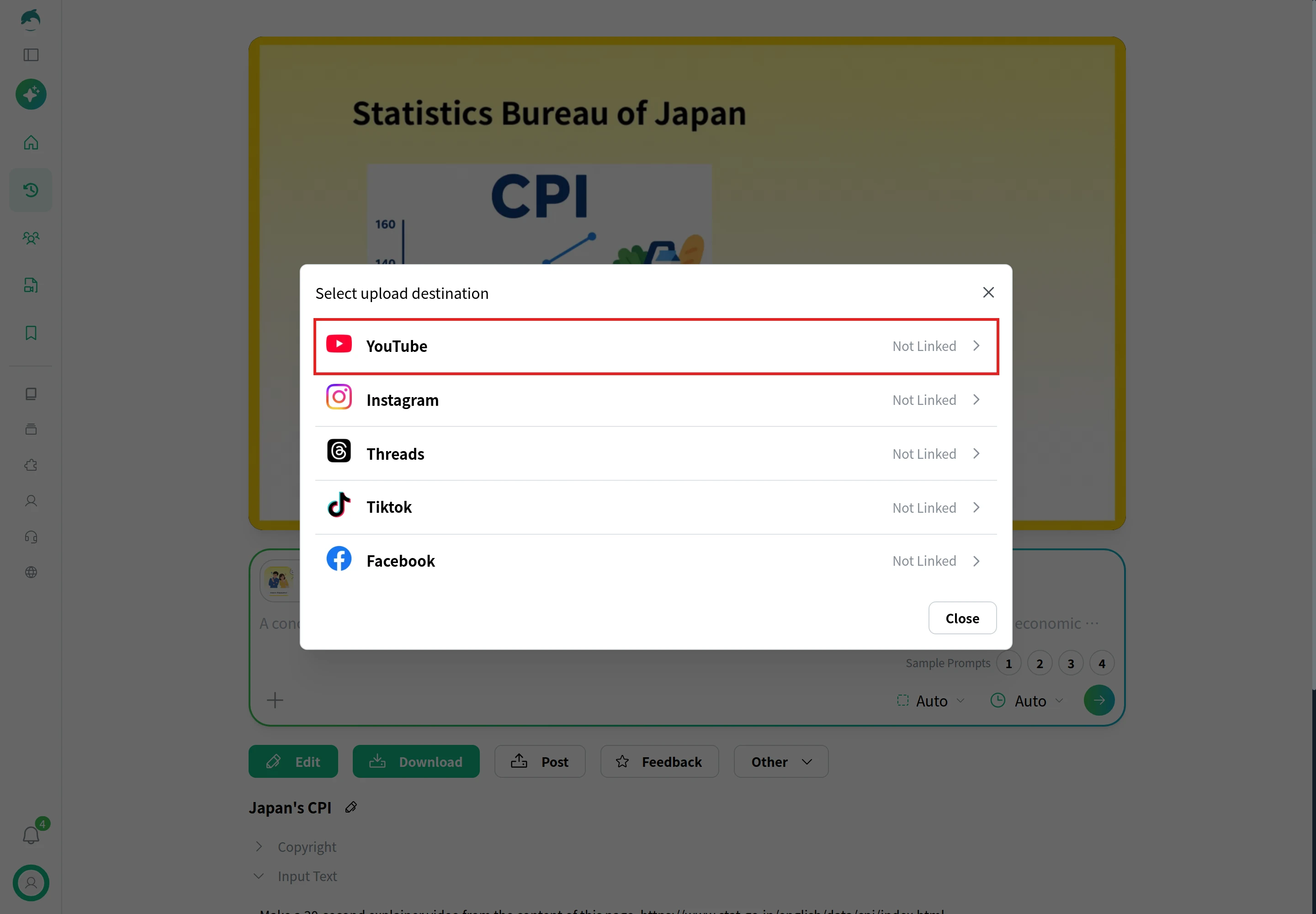
A video made in NoLang can go to YouTube without downloading it first. On the video’s page, click Post and choose YouTube under Select upload destination. The first time, you link your YouTube channel.
The YouTube form has fields for Title (filled in with the video’s title), Description, Categories, Tags, Thumbnail (a JPEG or PNG up to 2 MB), Public Setting and Schedule Post. Paste the chapter list into the description. NoLang sends the description to YouTube as written, so the timestamps arrive in the same form you typed them, and YouTube applies its chapter rules to them as it would to a description written in Studio.
Two items from the table are finished in YouTube Studio after the video arrives. For captions, copy the narration from the Script section of the NoLang video page and paste it into Auto-sync. For the altered content answer, open the video from Content, select Show more in its details, answer Altered content, and click Save.
How to rank videos on Google
A video can show up in Google Search in two ways: as the YouTube video itself, or as a video on your own website. The checklist differs for each.
Google is clear on one point for both: it does not guarantee that adding markup will produce a particular video feature in the results. The items below make a video eligible; they do not decide where it ranks.
YouTube videos in Google Search
For videos hosted on YouTube, Google reads the description. Google may show key moments, the labeled links that jump to a point inside a video, and it says that for a YouTube video “you can specify the exact timestamps and labels in the video description on YouTube.” When you set them, Google says it will prioritize your timestamps over the ones it might pick automatically.
So the chapter list does double duty. Google’s formatting guidance for those timestamps matches YouTube’s chapter rules closely:
- Write the timestamp as hours:minutes:seconds, leaving out the hours if there are none.
- Put the label on the same line as the timestamp, with at least one word in it.
- Start each timestamp on a new line.
- List the timestamps in chronological order.
Write labels a searcher would recognize. “Step 4” on its own tells a searcher nothing; “Step 4: Loosen the roots” does.
Videos on your own website
When the video lives on your own page, Google needs more from you. These are the conditions from Google’s video documentation:
| Item | Requirement |
|---|---|
| Watch page | A page whose main purpose is one video, with its own title and description |
| Page indexed | The watch page is indexed and performing well in Search before its video is considered |
| Embedding | The video is in a video, embed, iframe or object element, and not hidden behind other elements |
| Thumbnail | At a stable URL Googlebot can reach; 60×30 pixels or larger |
| Structured data | VideoObject with name, thumbnailUrl and uploadDate at minimum |
| Video sitemap | Optional; requires title, description, thumbnail and the file or player URL |
The watch page is the condition people miss. Google’s own examples of pages that are not watch pages include a blog post that reviews an embedded video and a product page where the video supports the text. You can still use the same video on those pages, and they can appear as text results, but the video itself is indexed from a page built around it. Google also indexes at most one video per page.
Embedding your YouTube video counts. If your site embeds a YouTube, Vimeo or Facebook player, Google may index the video both on your page and on the platform’s page, and it still recommends structured data on your watch page.
Key moments on your own page
On your own site, key moments come from structured data, and there are two kinds. Clip marks each segment yourself: a name, a start time in seconds, and a URL that starts the video at that point. SeekToAction tells Google how your URLs encode a time, so Google can pick the moments itself.
Both carry conditions that most guides skip. The video has to be at least 30 seconds long, and a URL with a time in it, such as https://www.example.com/videos/repotting?t=95, has to actually start the video at that point. No two clips on the same page can share a start time. If your page can’t jump to a time from the URL, leave Clip out; the video can still be indexed without it.
For the sample, picture the shop’s how-to page at https://www.example.com/how-to/repot-a-houseplant, built around the YouTube video embedded at the top. Its structured data reuses the YouTube chapter times as clips, so the list is written once. Replace VIDEO_ID with the YouTube video’s ID, and use the clip URLs only if the page reads t and starts the embedded player at that second:
<script type="application/ld+json">
{
  "@context": "https://schema.org",
  "@type": "VideoObject",
  "name": "How to Repot a Houseplant in 5 Easy Steps",
  "description": "Repot a houseplant in five steps, from choosing a pot one size up to watering it in.",
  "thumbnailUrl": "https://www.example.com/images/repot-a-houseplant.jpg",
  "uploadDate": "2026-11-09T09:00:00-05:00",
  "duration": "PT1M56S",
  "embedUrl": "https://www.youtube.com/embed/VIDEO_ID",
  "hasPart": [
    { "@type": "Clip", "name": "Signs your plant needs a bigger pot", "startOffset": 0, "endOffset": 14, "url": "https://www.example.com/how-to/repot-a-houseplant?t=0" },
    { "@type": "Clip", "name": "Step 1: Choose the right pot", "startOffset": 14, "endOffset": 31, "url": "https://www.example.com/how-to/repot-a-houseplant?t=14" },
    { "@type": "Clip", "name": "Step 2: Water the day before", "startOffset": 31, "endOffset": 45, "url": "https://www.example.com/how-to/repot-a-houseplant?t=31" },
    { "@type": "Clip", "name": "Step 3: Ease the plant out", "startOffset": 45, "endOffset": 58, "url": "https://www.example.com/how-to/repot-a-houseplant?t=45" },
    { "@type": "Clip", "name": "Step 4: Loosen the roots", "startOffset": 58, "endOffset": 73, "url": "https://www.example.com/how-to/repot-a-houseplant?t=58" },
    { "@type": "Clip", "name": "Step 5: Replant and water in", "startOffset": 73, "endOffset": 93, "url": "https://www.example.com/how-to/repot-a-houseplant?t=73" },
    { "@type": "Clip", "name": "Aftercare and quick recap", "startOffset": 93, "endOffset": 116, "url": "https://www.example.com/how-to/repot-a-houseplant?t=93" }
  ]
}
</script>
If you keep a video sitemap, the same page gets one entry. For a YouTube video embedded on your page, player_loc is the YouTube embed URL:
<?xml version="1.0" encoding="UTF-8"?>
<urlset xmlns="http://www.sitemaps.org/schemas/sitemap/0.9"
    xmlns:video="http://www.google.com/schemas/sitemap-video/1.1">
  <url>
    <loc>https://www.example.com/how-to/repot-a-houseplant</loc>
    <video:video>
      <video:thumbnail_loc>https://www.example.com/images/repot-a-houseplant.jpg</video:thumbnail_loc>
      <video:title>How to Repot a Houseplant in 5 Easy Steps</video:title>
      <video:description>Repot a houseplant in five steps, from choosing a pot one size up to watering it in.</video:description>
      <video:player_loc>https://www.youtube.com/embed/VIDEO_ID</video:player_loc>
      <video:duration>116</video:duration>
    </video:video>
  </url>
</urlset>
Where the video lives decides the checklist
Video SEO marketing usually comes down to one early decision: where the video should be found. Each answer moves work onto a different part of the checklist.
| Published on | Where it can be found | What to work on |
|---|---|---|
| YouTube only | YouTube search, and Google results for the YouTube page | Title, description, chapters, thumbnail |
| Your site only | Google results for your page | Watch page, structured data, sitemap |
| Both (embedded) | All of the above | Both lists; Google may index both pages |
Publishing on YouTube and embedding the same video on a dedicated page of your site is the combination this guide’s sample uses, because the chapter list written once serves YouTube chapters, Google key moments for the YouTube page, and the Clip markup on your own page. Deciding which channels deserve video in the first place is a strategy question, and it sits outside this checklist.
Measure what search brings in
Check results in the two places that report search traffic for video.
- YouTube Analytics: in YouTube Studio, select Content, open the video’s Analytics, then the Reach tab. The traffic source types report separates YouTube search from other sources; the “Traffic source: YouTube Search” card lists the search terms viewers used, and External shows websites and apps where the video is embedded or linked.
- Audience retention: in the same Analytics, the audience retention report shows where viewers stop. A low intro figure points back at the first 30 seconds or at a title and thumbnail that promise something else.
- Google Search Console: the Video indexing report shows how many indexed pages on your site have a video Google indexed, and for those it didn’t, the reason. “Video isn’t on a watch page” and the thumbnail errors are the ones this checklist is designed to prevent.
Give changes time and compare like with like. A title or thumbnail edit changes how viewers respond, and it is that response, not the edit, that YouTube reacts to.
Video SEO for a company channel
The same checklist applies when the channel belongs to a company and the videos come from material it already has: help articles, product pages, slide decks. NoLang generates videos from that kind of material, and a how-to built with chapters in mind gives you the chapter list, the YouTube description and the page markup from one plan. SAP Lab, a specialist media site for SAP consultants and engineers, turns its articles into scripts, makes the videos with NoLang, and links back to the site from each YouTube description (user interview). To talk about using NoLang across a team, contact us, or download the overview below.
Download Materials