How to create slides from a template
Last updated
The English examples and diagrams are translated and adapted from the Japanese examples.
1. What is the template feature?
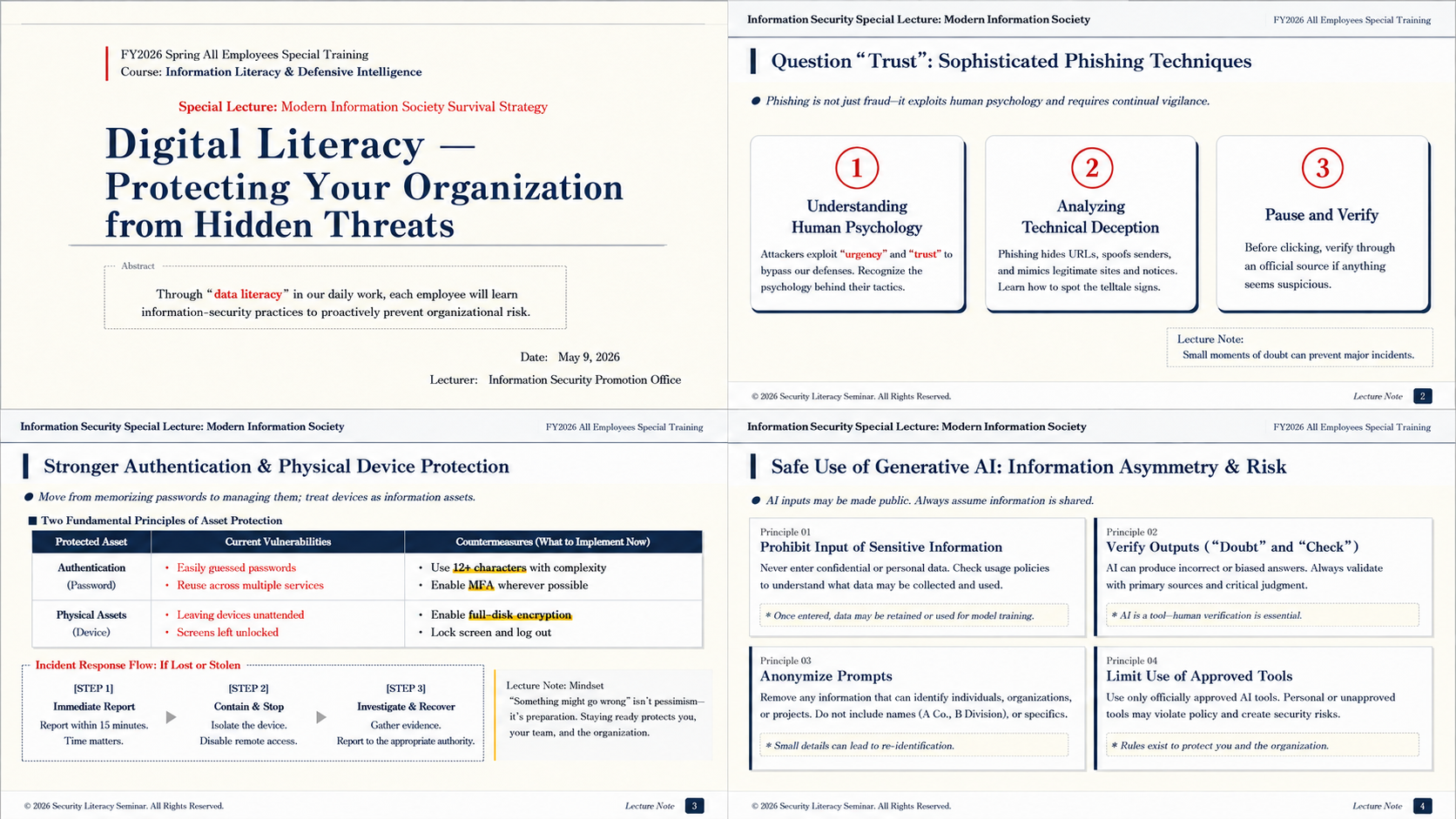
Example prompt
Create slides for a special university lecture.Theme: "Designing to Be Chosen - Marketing and the Power of Words That Move People"Audience: university students interested in marketing, social media, advertising, and AITone: intelligent, stylish, easy to understand, with a pace that suits Gen ZStructure:•Cover•Introduction (why "words" matter now)•The psychology of what moves people•What makes copy sell•Marketing in the social media era•AI and the changes in creative work•Real examples•A message to students•Summary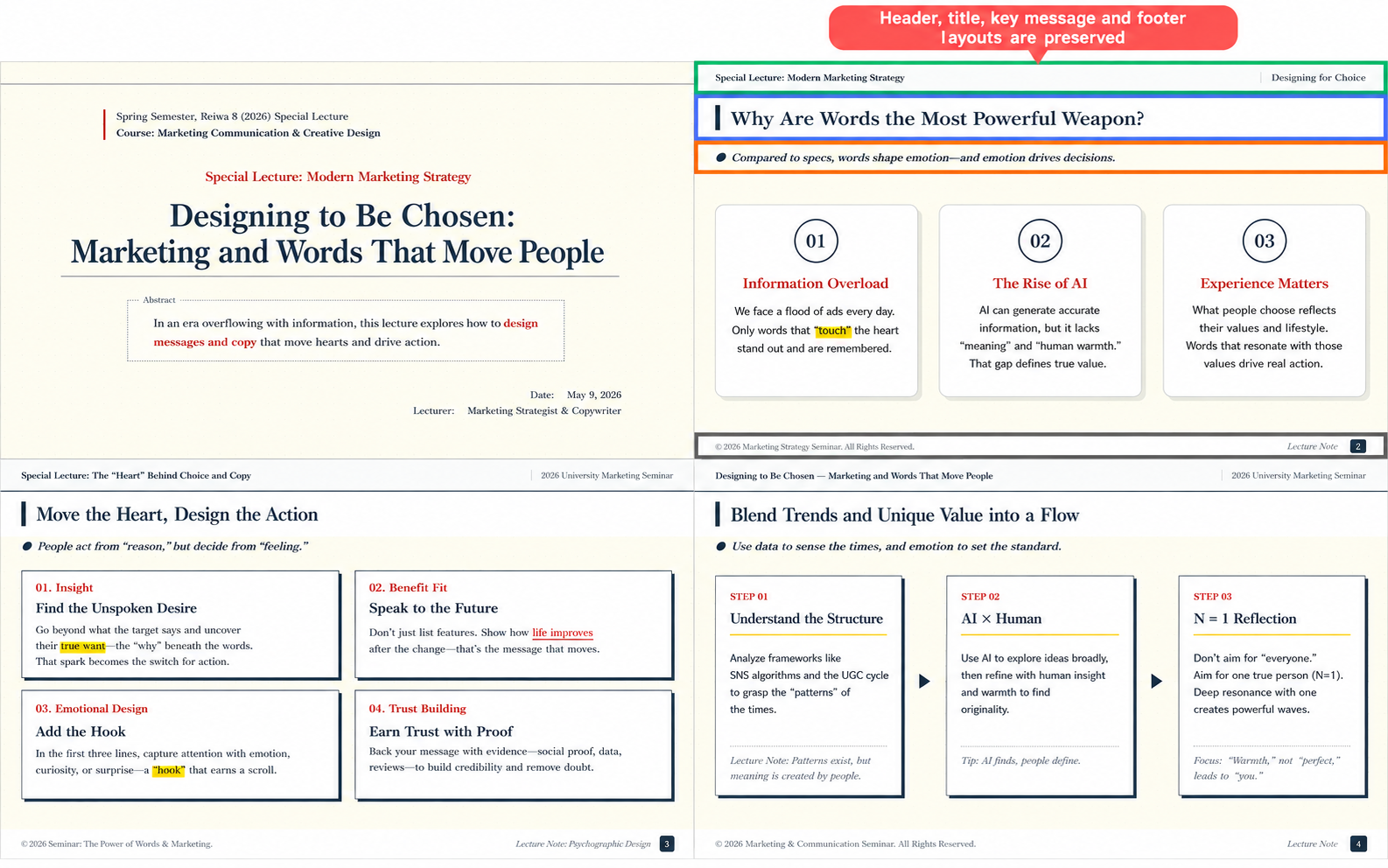
2. How to use it
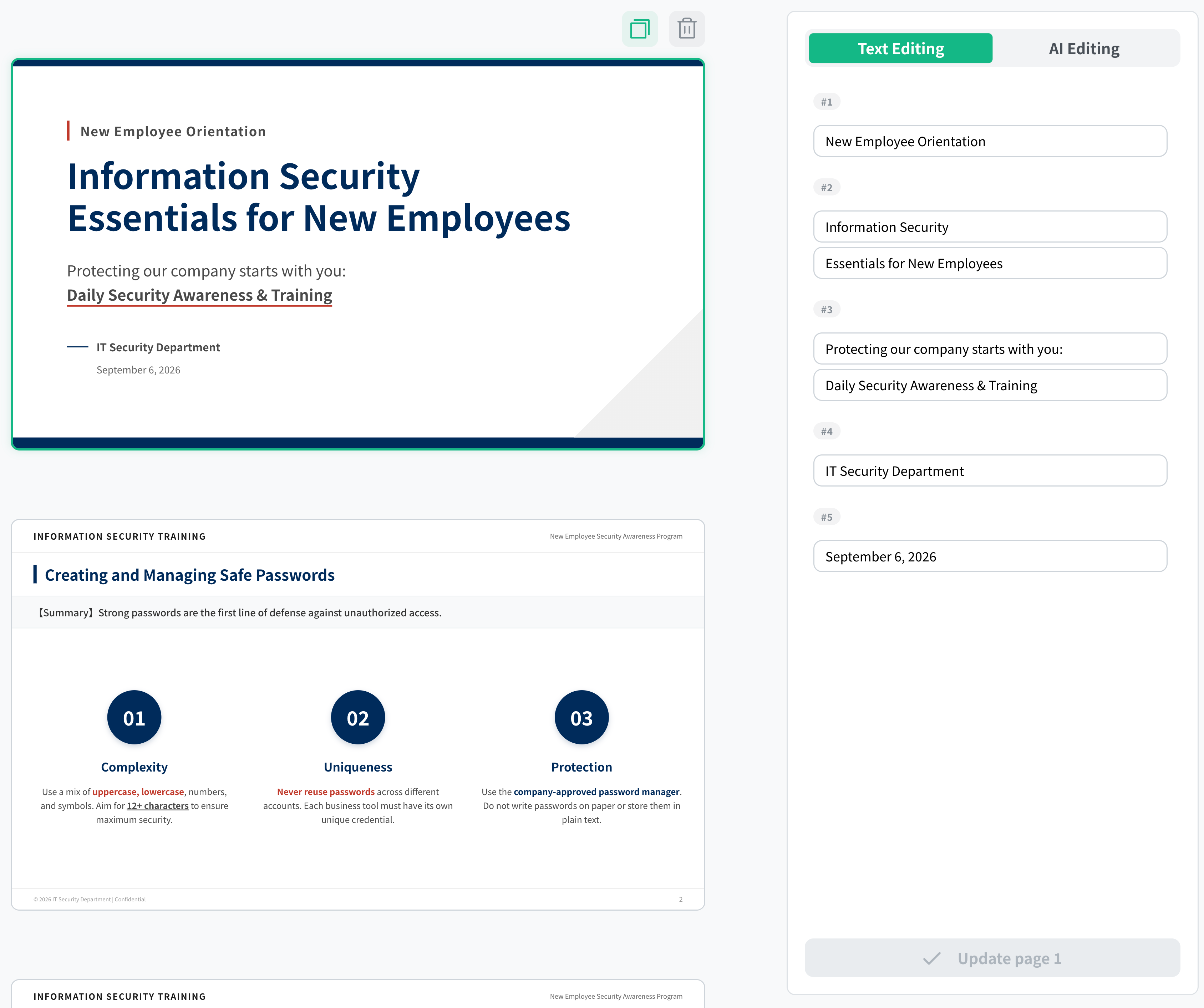
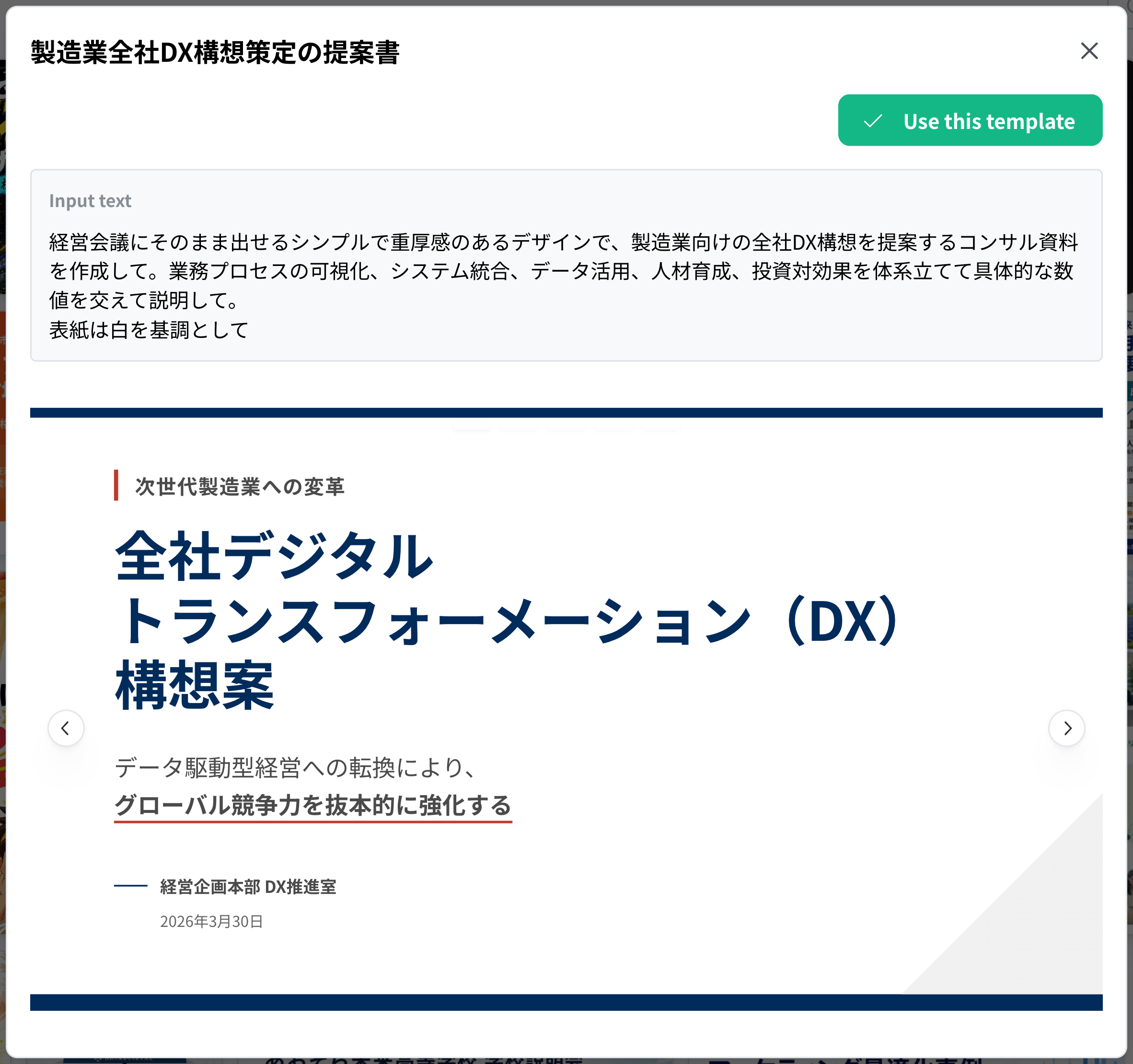
In the steps below, we use a digital transformation proposal template to create information security training slides.
The titles and content of public templates are not automatically translated when you change the display language. To create slides in English, enter your content in English and specify English as the output language in the input field.
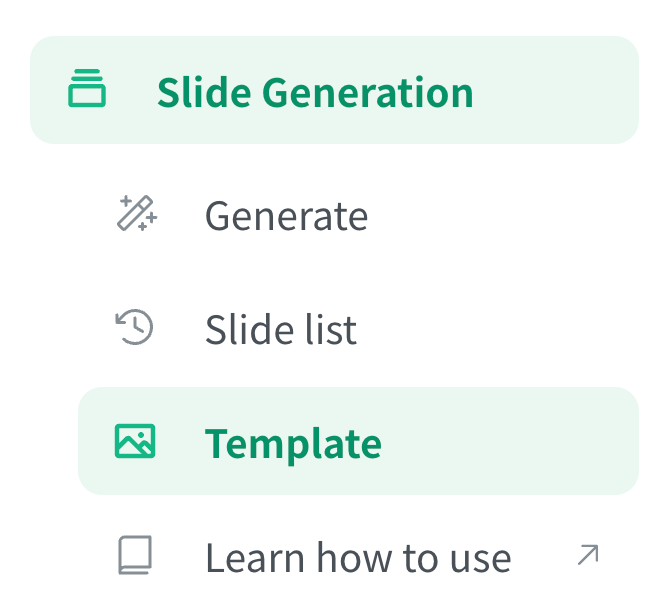
- Select "Template" in the left sidebar
- Select the slide template you want to useYou can narrow down the template slides by generation type and aspect ratio.
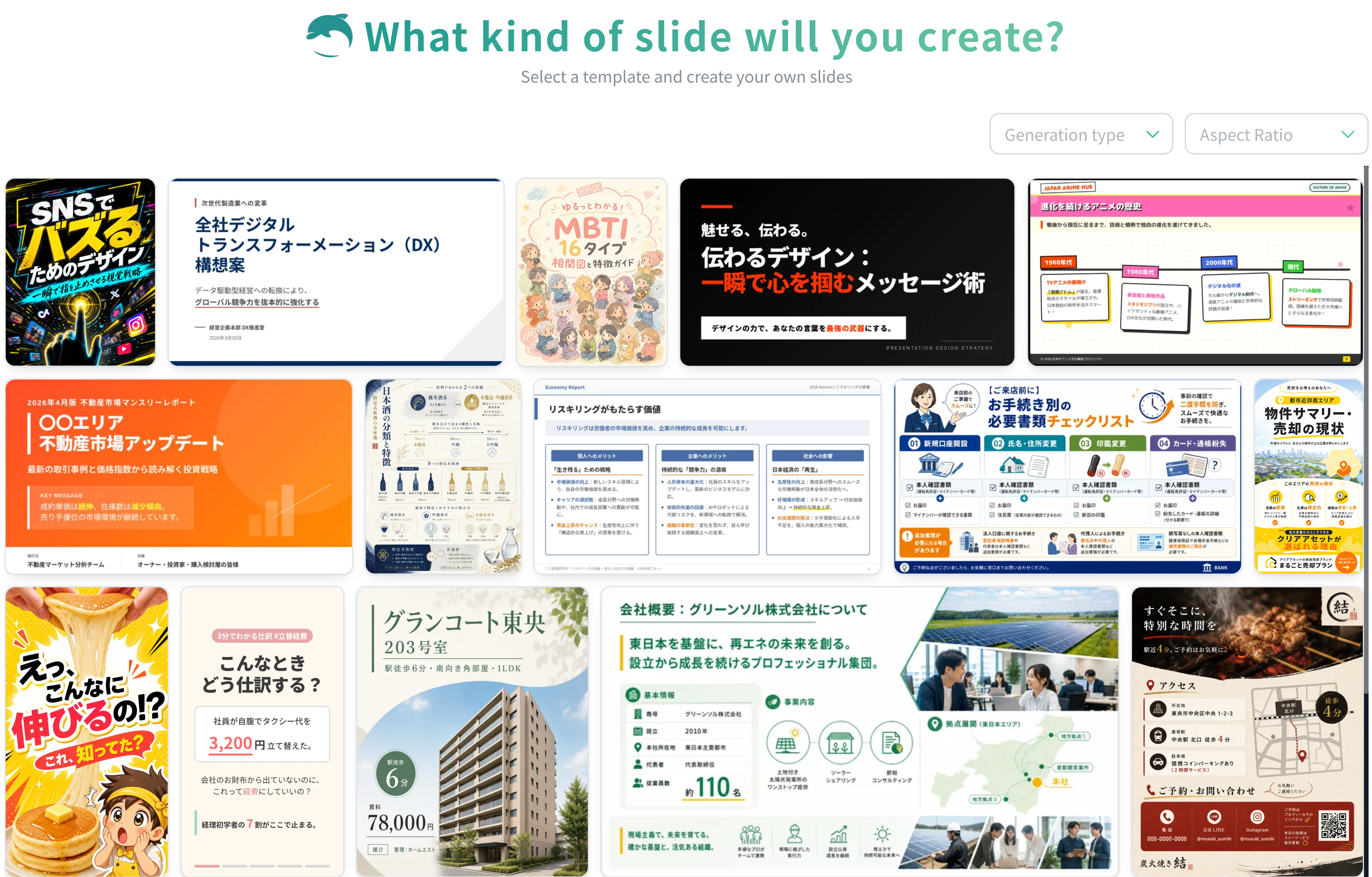
- Select the thumbnail of the template for the slides you want to create

- Select Use this template
- Enter the text or the PDF or PPTX document that the slides will be based on
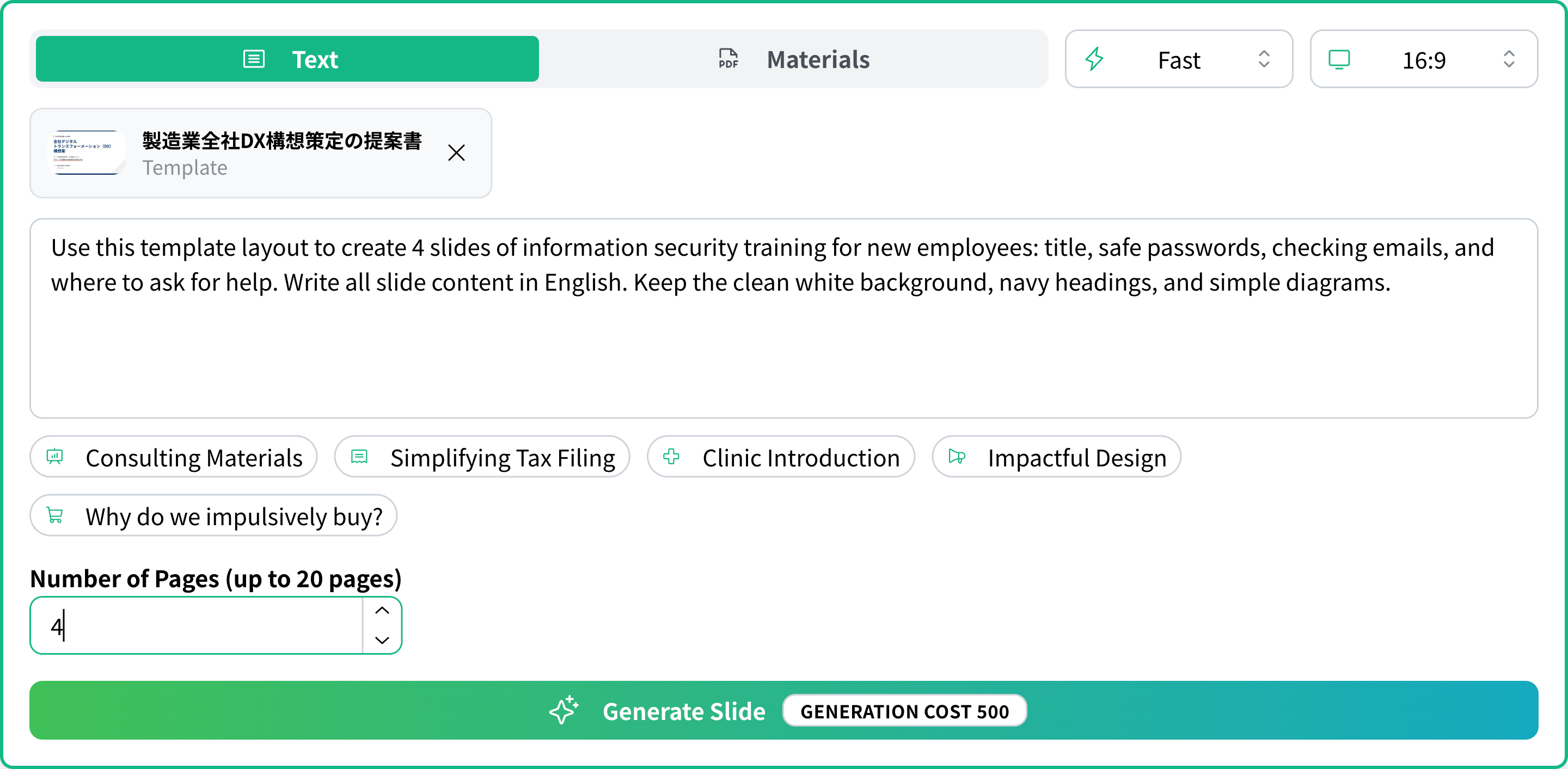
- Select the "Generate slides" button
- The slides based on the template are complete