How to create a video featuring a real avatar
Last updated
1. Overview
When a real avatar is set, the flow differs from ordinary video generation:
- When you generate a video with a real avatar set, the video is first created with the avatar standing still.
- Once video generation is complete, edit and regenerate the video as needed.
- Once the video is finished apart from the real avatar animation, click the “Animate real avatar” button on the video detail screen. Additional credits are consumed at this point.
-
It takes a while for the real avatar animation to finish generating.
You can check the generation status on My Page, and you will be notified by email once generation is complete.
2. Creation steps
You can open the video settings from “Saved settings” in the sidebar (either select the video setting you want to use, or create a new one with “Create a new setting”).
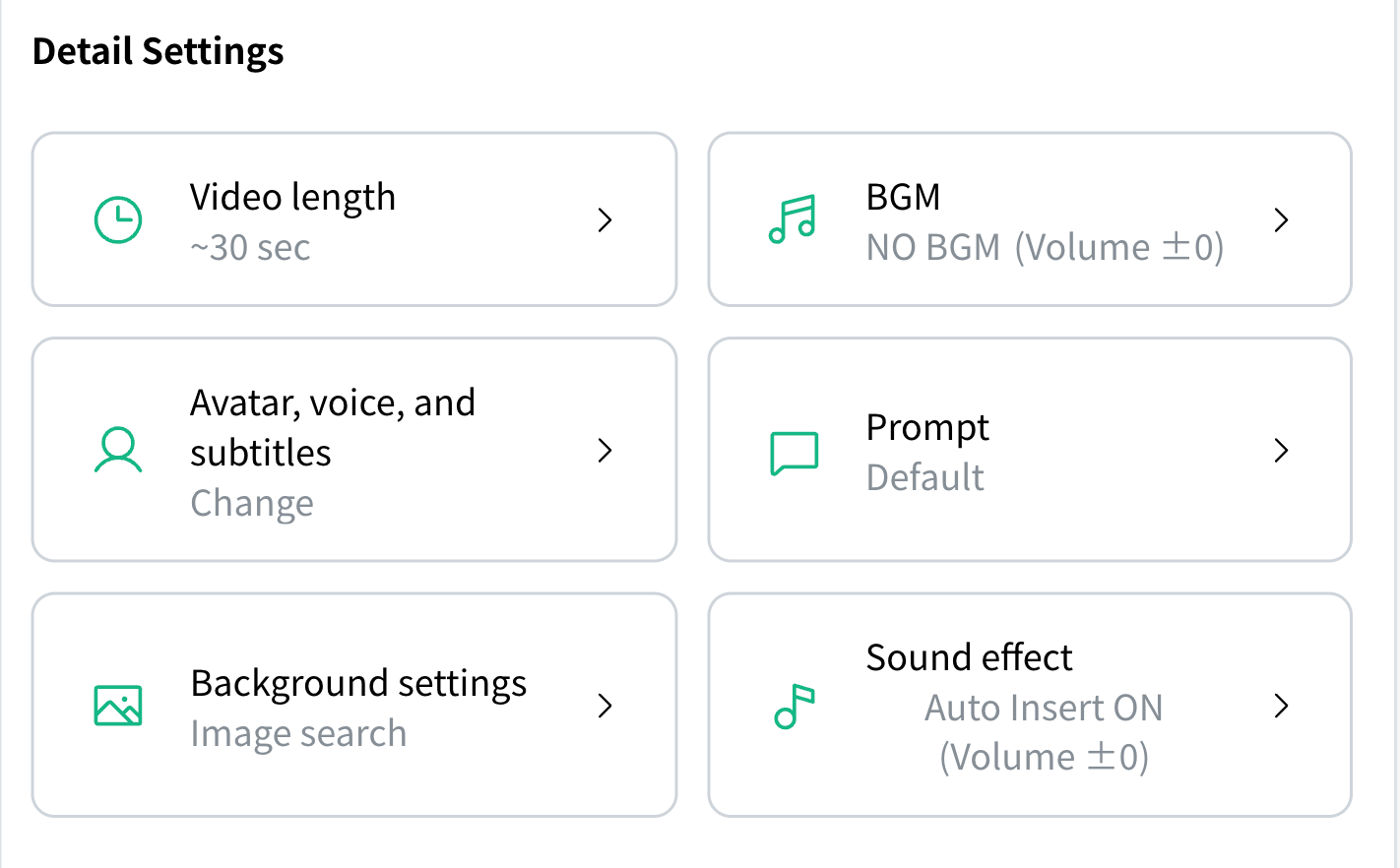
- Click "Avatar, voice, and subtitles" in the video settings
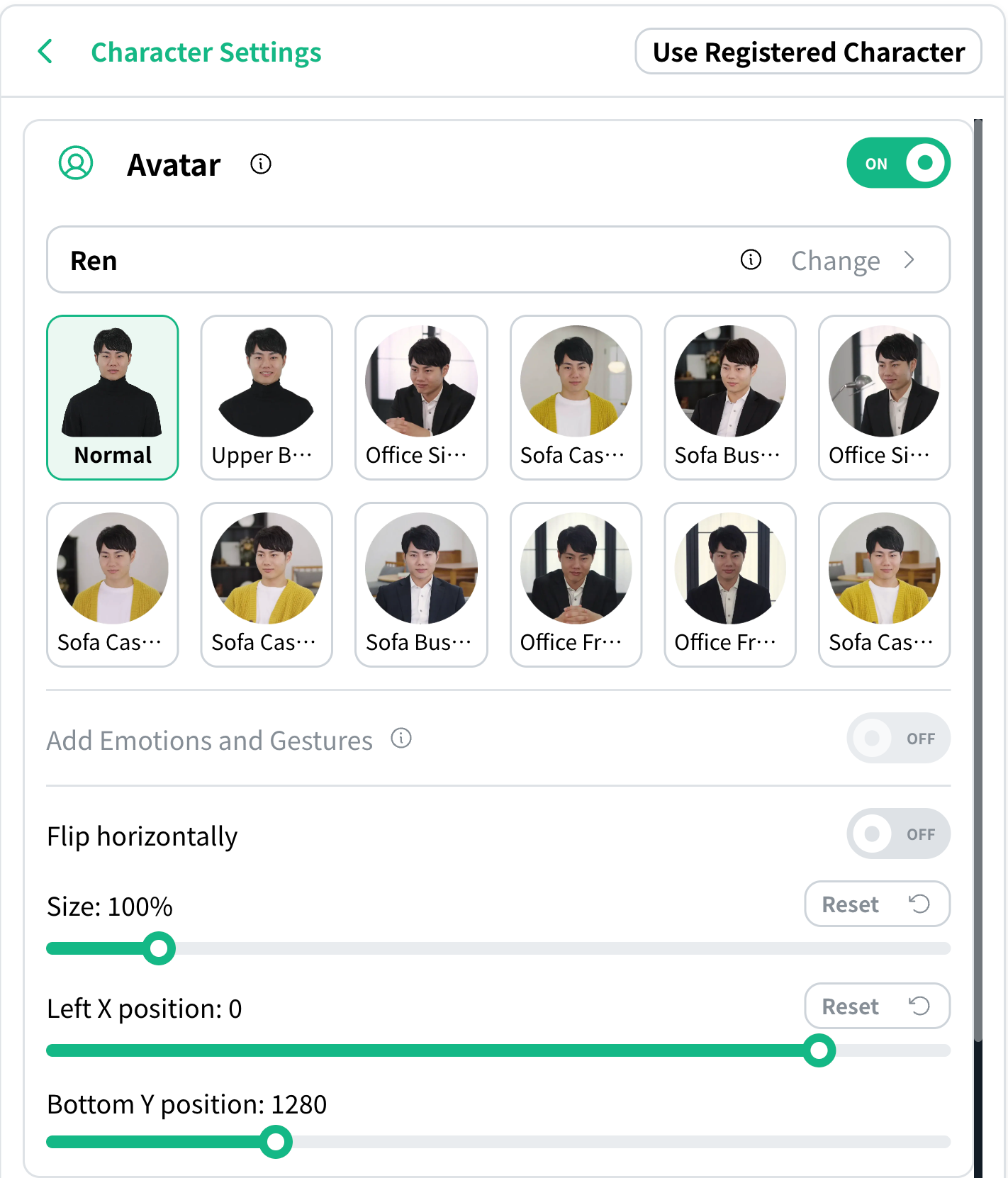
- Enable the avatar and click “Change”
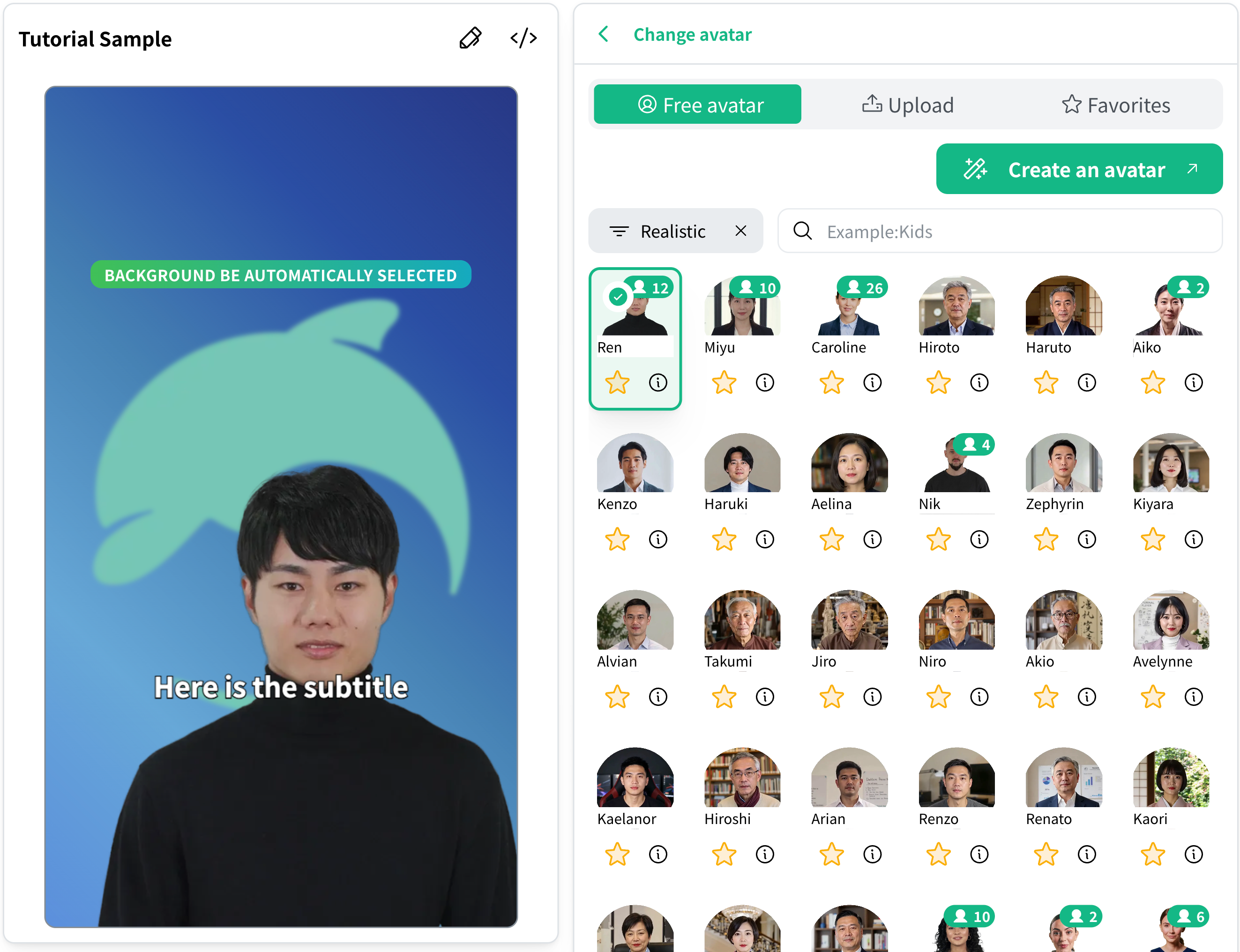
- Select “Realistic” from the avatar types
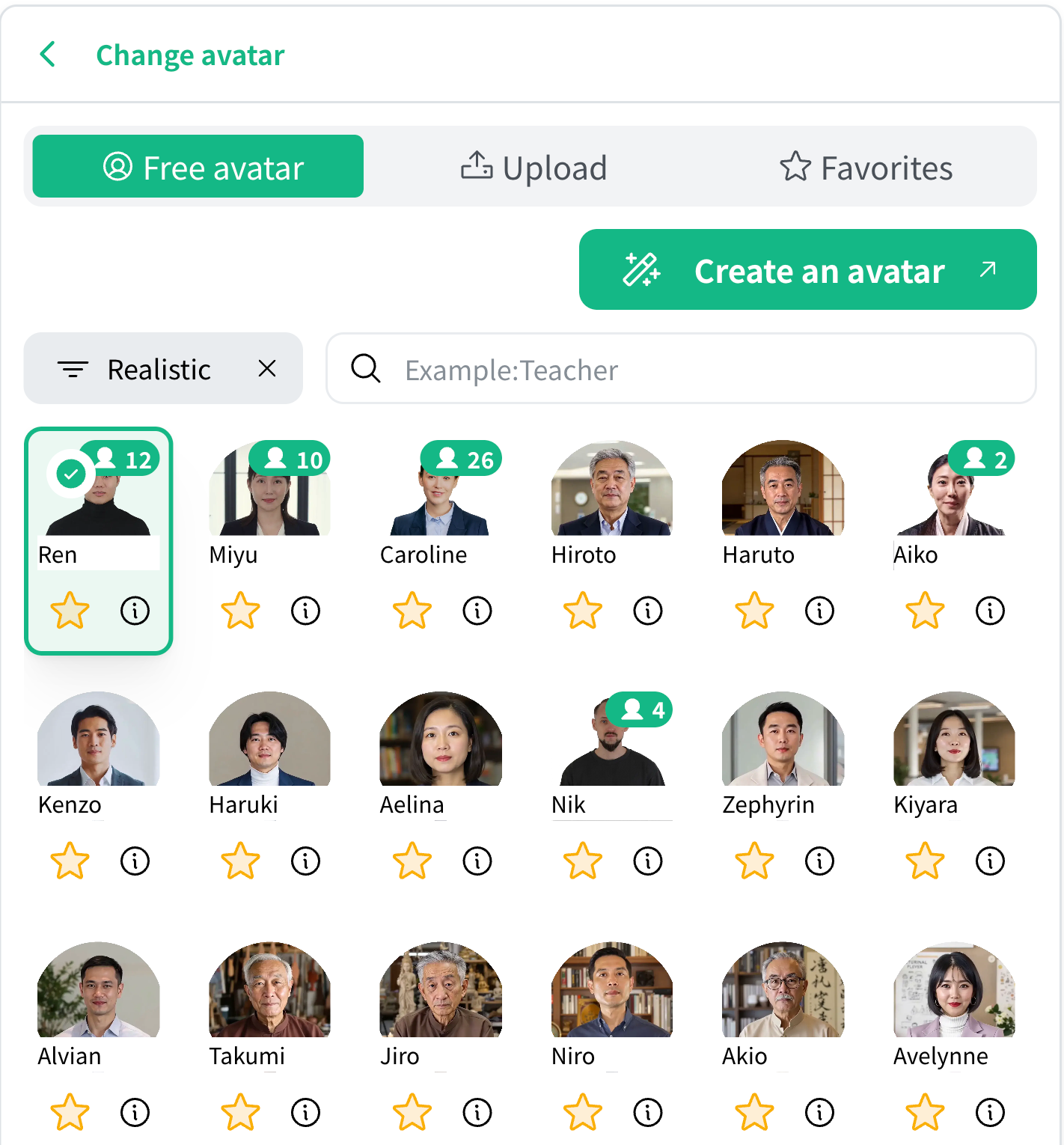
- Select the avatar you like and go back
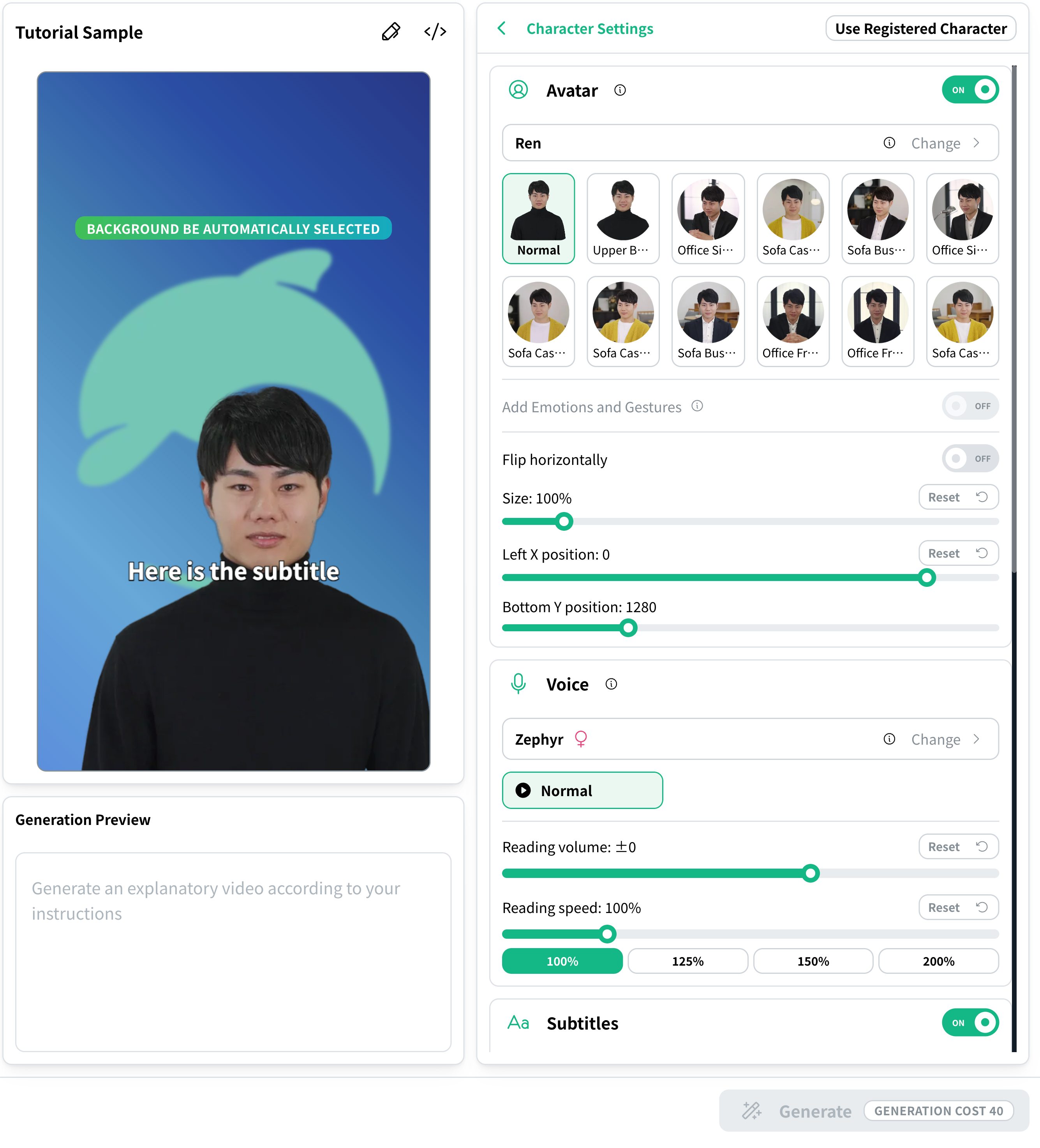
- Set the position and size, enter your content in the generation input field, and click "Generate"Once the avatar's position and size are set the way you want, enter what you want to make in the generation input field and click Generate at the bottom right.
- Wait until generation is complete and the video overview appearsIn the video generated at this stage, the avatar is still not moving.
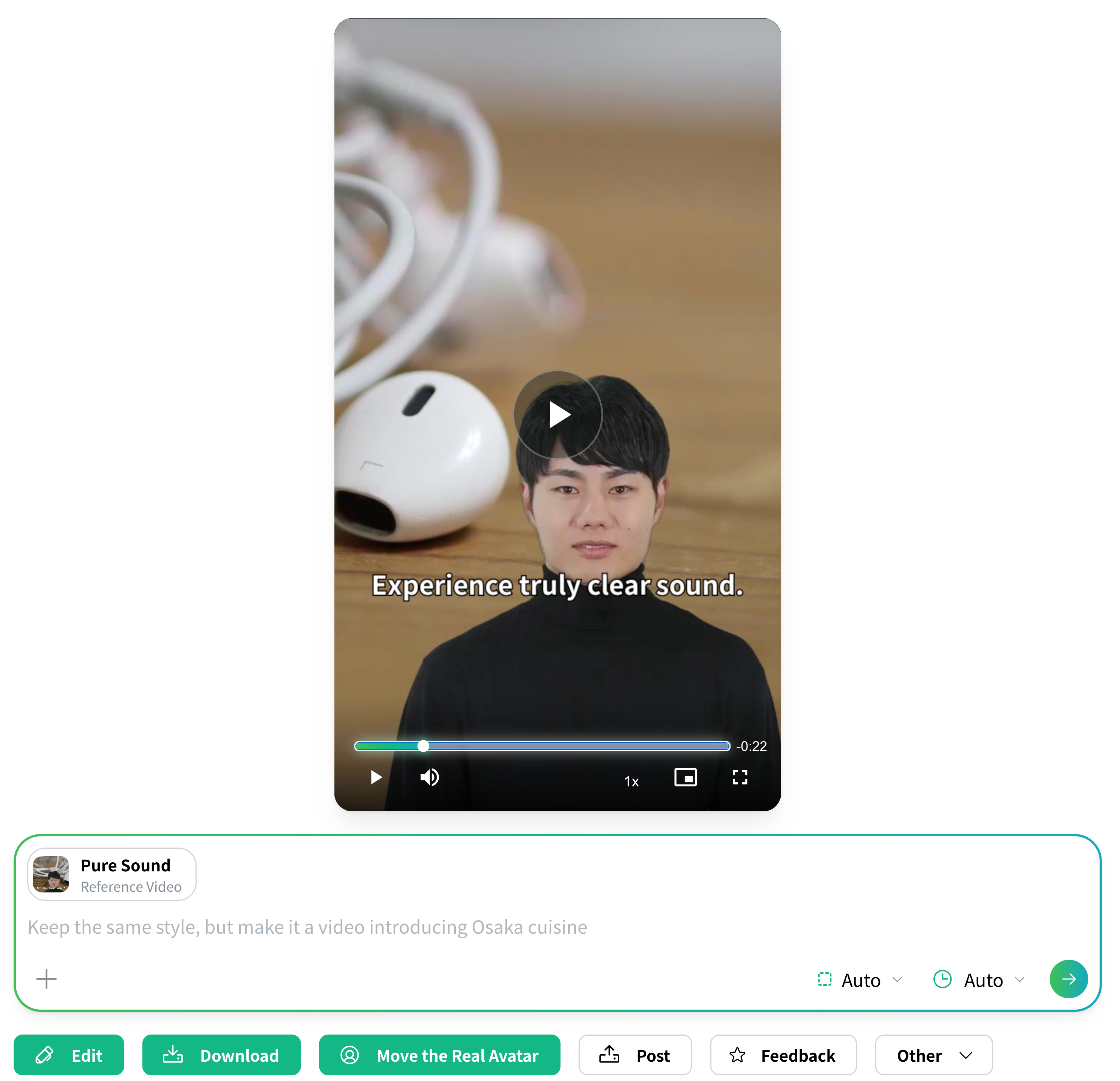
- Edit or regenerate the video as neededBefore animating the real avatar, finish any text or layout edits here.
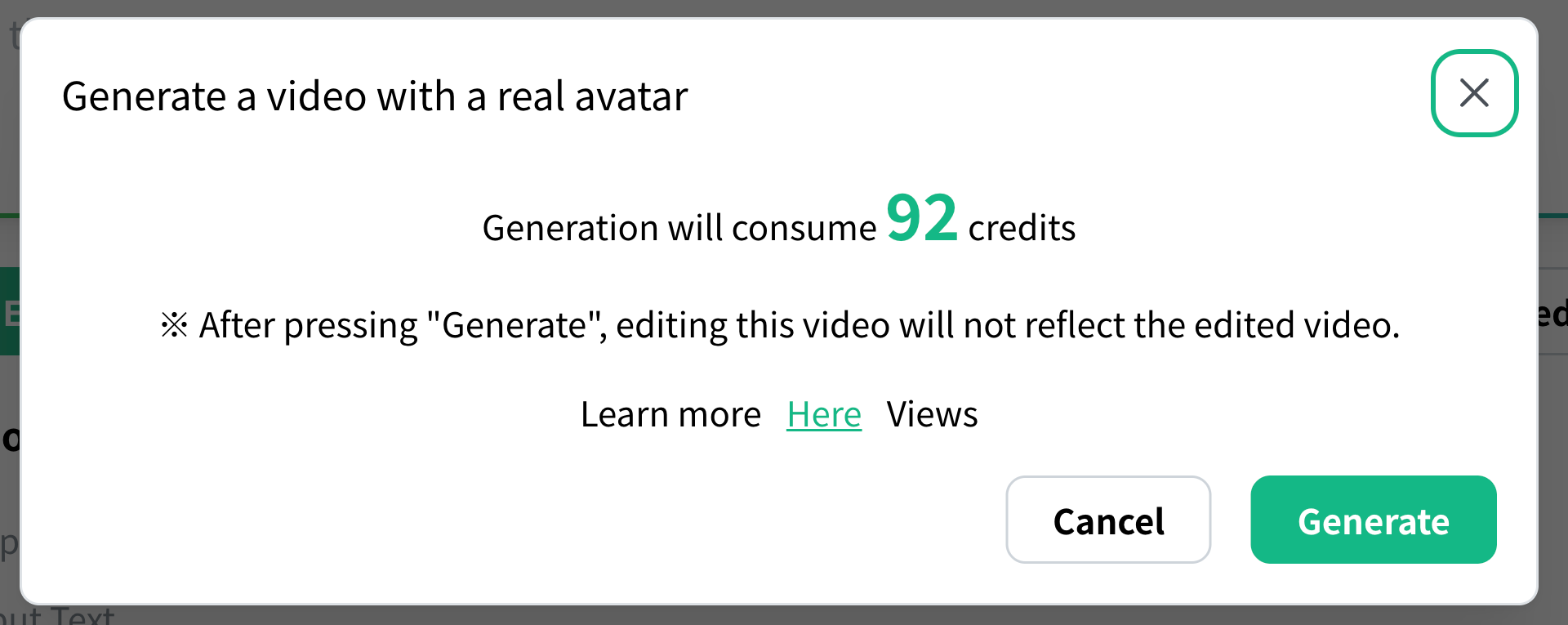
- Click "Animate real avatar" on the video detail screen

- Check the credit cost on the confirmation screen, then start
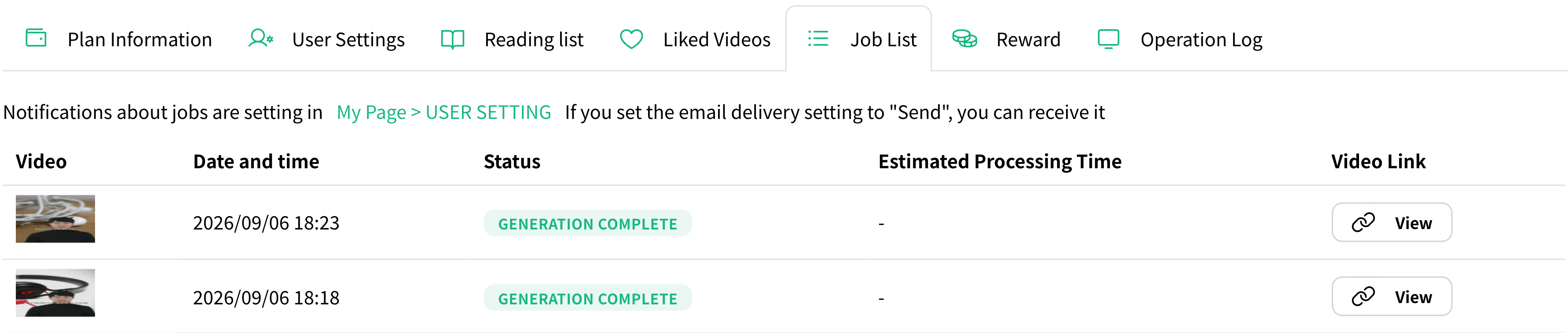
- Wait while checking the generation status in the job listYou are taken to the job list on My Page. Once generation is complete, NoLang sends you an email with a link to the video, and you can also find the video URL in the job list.