
2026/08/12 Video generation has been renewed!
Last updated
The screenshots have been updated to show the current interface. The descriptions of new features, pricing, and campaigns below reflect the information at the time this article was published.
1. New video generation: start with just this
Enter what you want your video to be about in the input field on the Home screen, choose an aspect ratio and a video length, and submit. That is all it takes to generate. AI handles everything from the structure and narration through to the finishing touches.
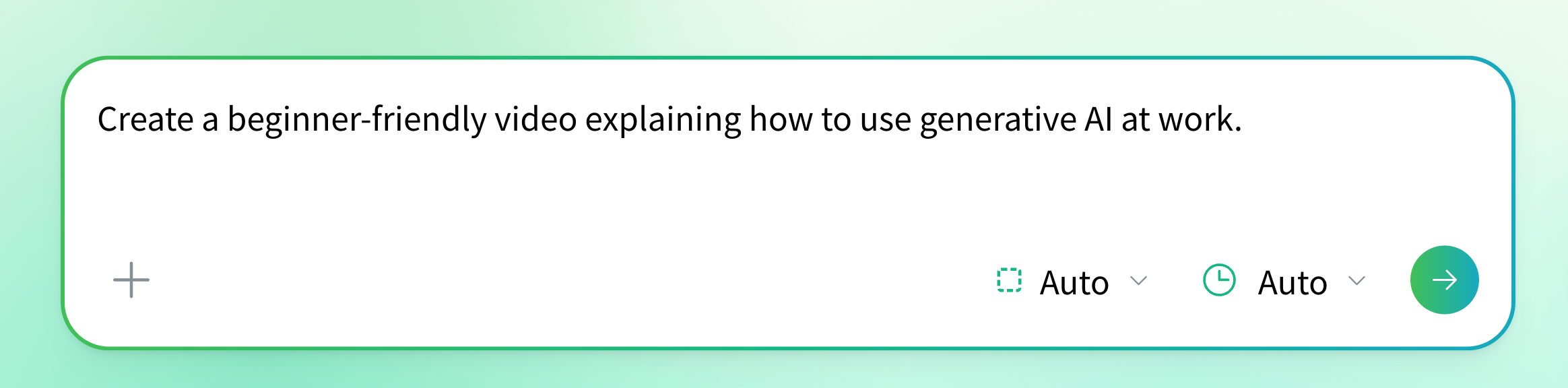
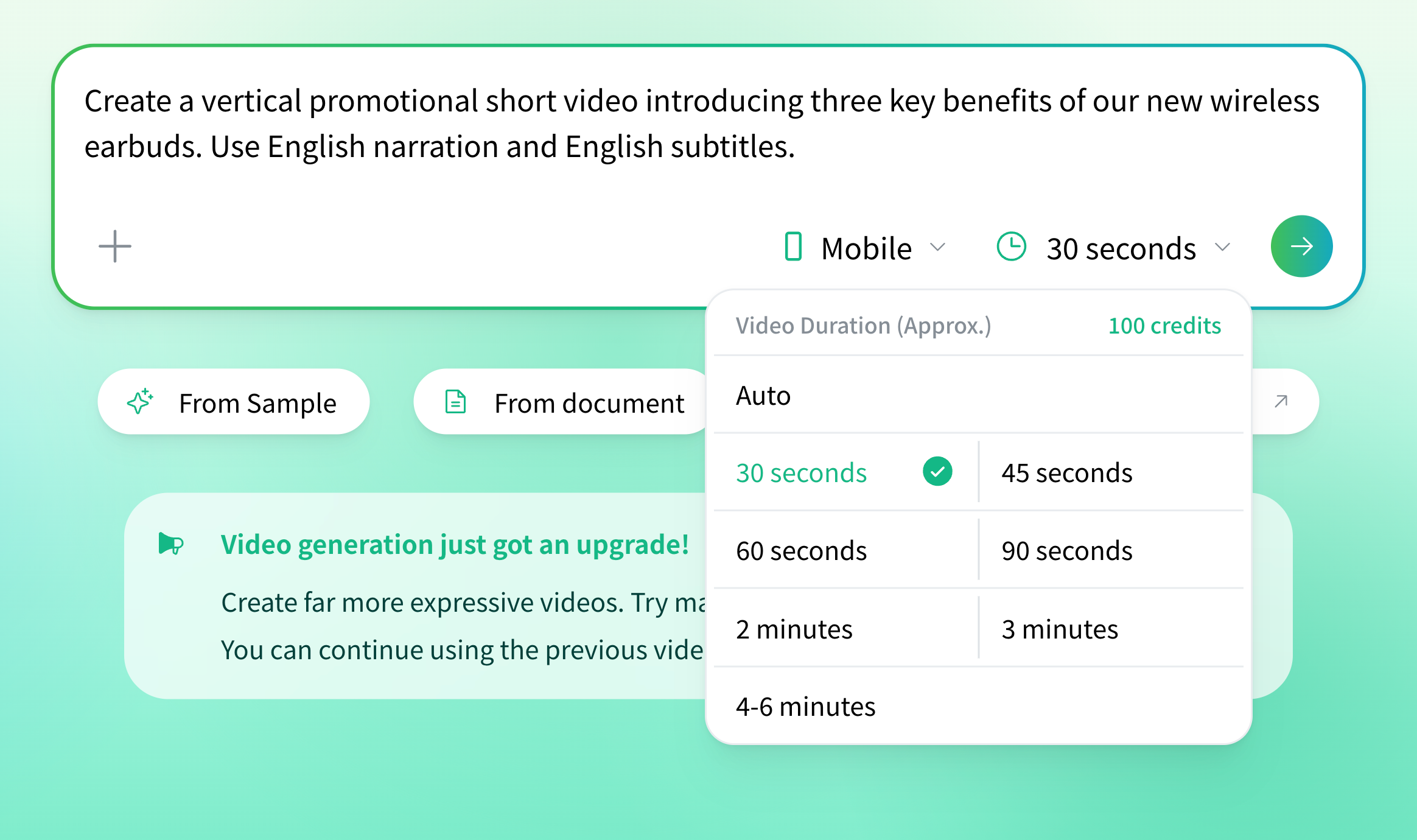
The next page walks through the whole generation flow from start to finish.
✓ Related How to generate a video This page explains the basic flow, from entering a prompt through generating, reviewing, and regenerating.2. What has changed from the previous way of generating?
Here is a summary of the main changes for those who have been using NoLang.
- Choose a mode and fine-tune the settings → automatic with a single prompt — Without selecting a generation mode or adjusting video settings, you can simply describe what you want in writing and get a video.
- Template → Sample (reference video) — When you would rather start from a finished image, use “From Sample” on the Home screen and generate with an official sample as your reference video. You can also use videos you have already generated as reference videos.
- Edit a generated video directly — Open the editor from the “Edit” button on the viewing page and fix subtitles, images, background music and other details exactly where you need to.