How to create slides
Last updated
The PPTX screenshots show the previous interface. The text within the images has been translated for the English version.
1. Generate from text
- Enter the slide content in the “Text” tab
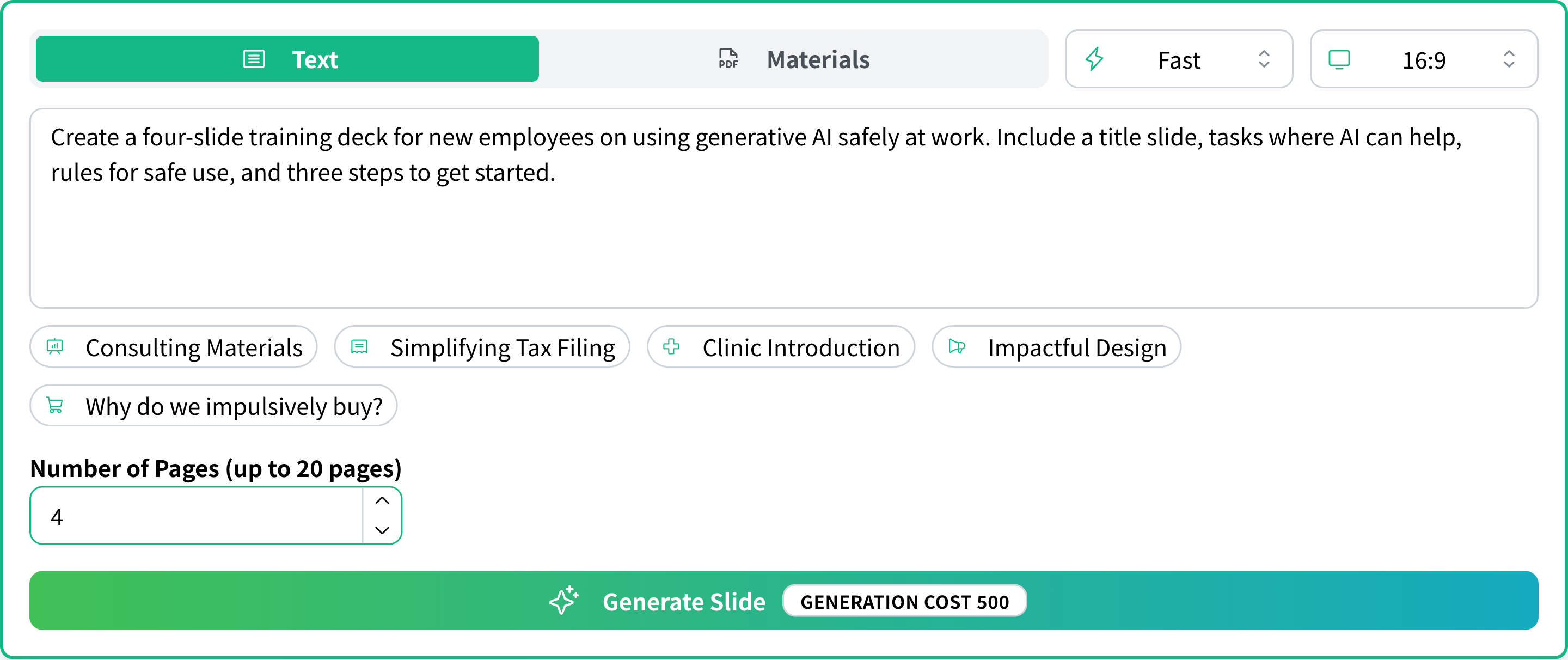
Input example
Create four training slides for new employees on using generative AI safely at work. Include a title slide, tasks where AI can help, rules to follow, and three steps to get started. - Select the generation mode and slide aspect ratioChoose Fast, Diagram, or PPTX mode and set the aspect ratio. PPTX mode is fixed at 16:9, so the aspect ratio selector is not shown. These modes are labeled Fast, Diagram, and PPTX in the English UI.
- Select the number of pages for the slides you want to createYou can create up to 20 pages.
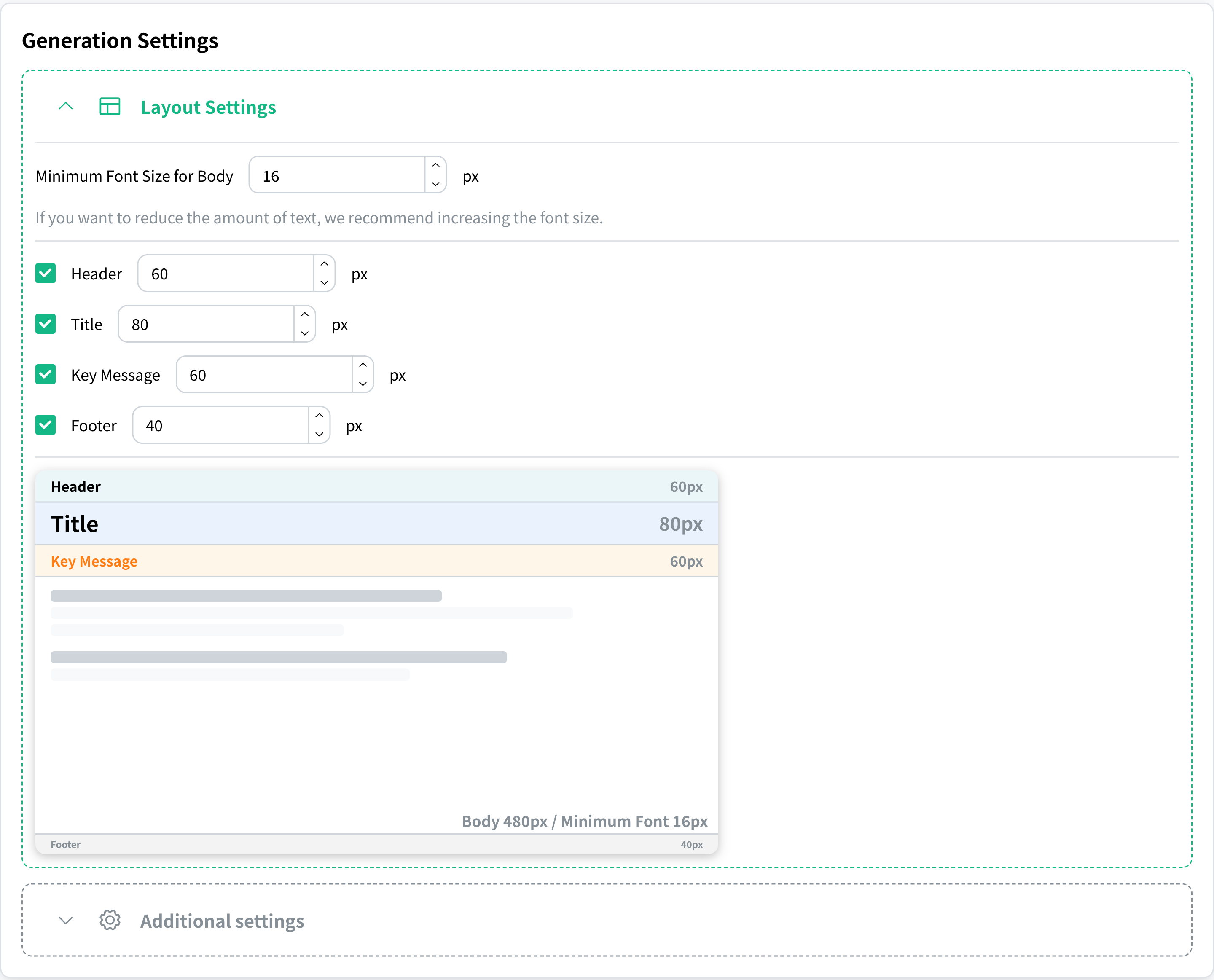
- Set the layout of the slides to createYou can set the minimum body font size and the heights of the header, title, key message, and footer.
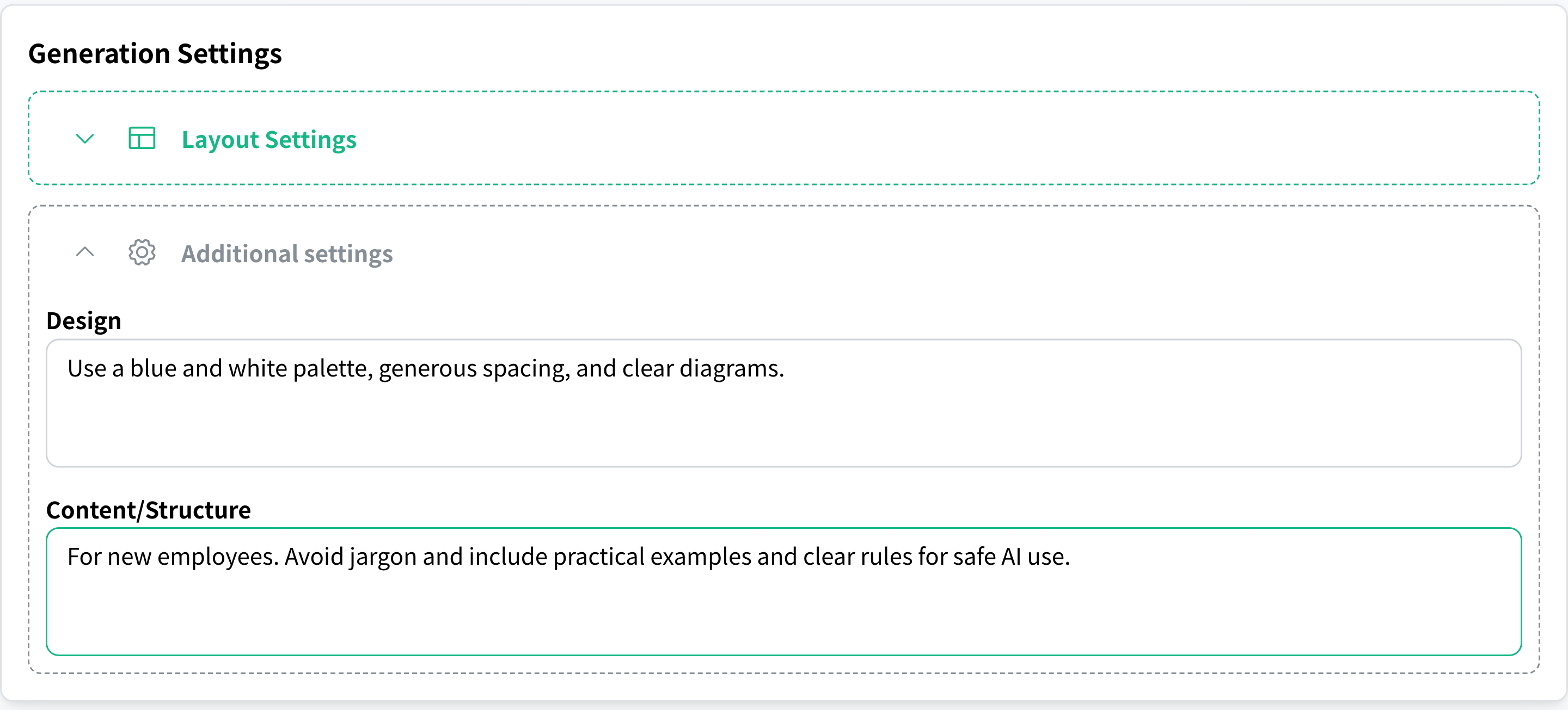
- Enter the design and the content / structure under additional settings (optional)
- Click the "Generate slides" button
- Edit the generated slides with text or with AISlides created in Diagram mode support AI editing only. Slides created in PPTX mode cannot be edited.
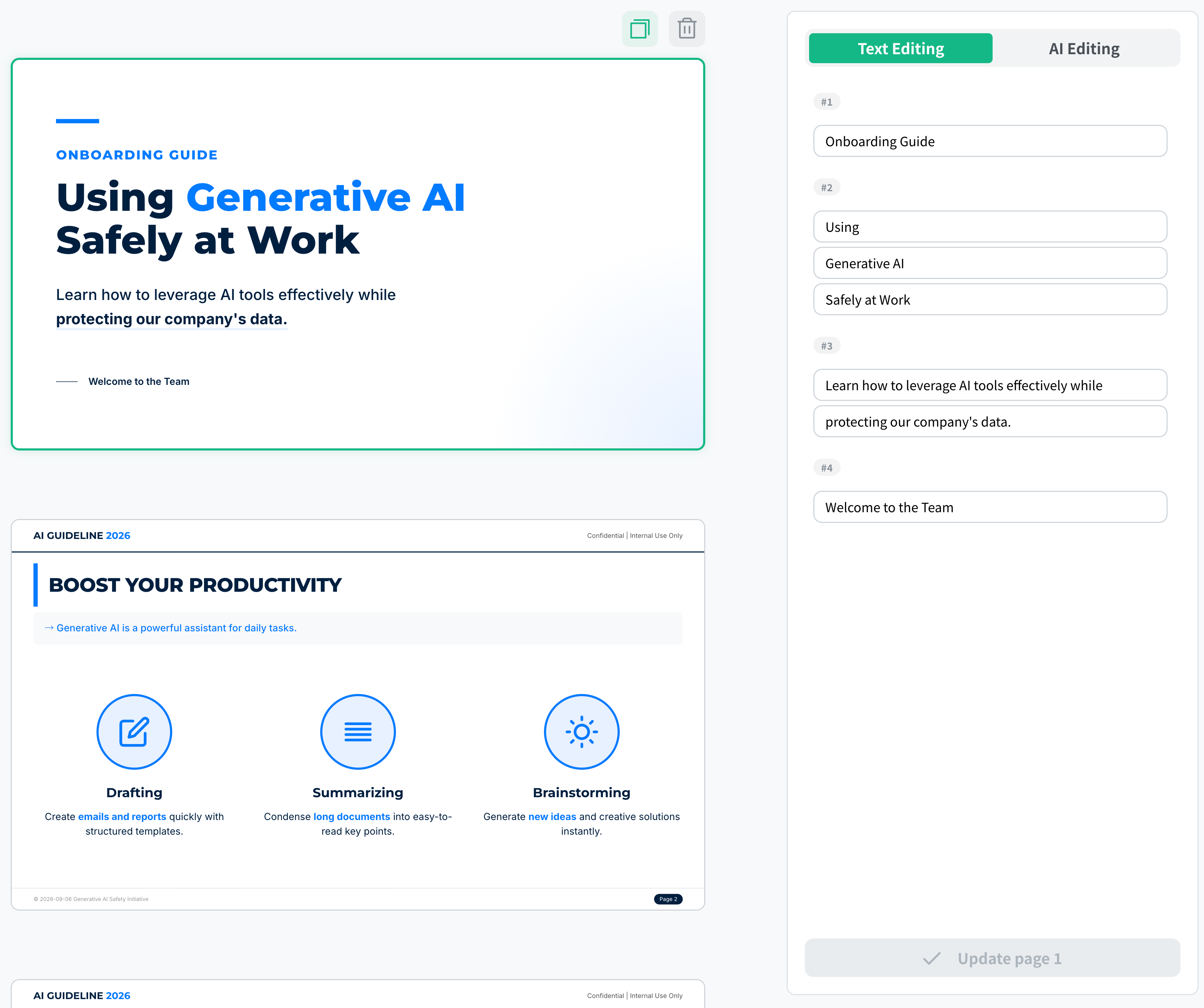 ✓ Related How to edit slides This page explains the two ways to edit generated slides: text editing and AI editing.
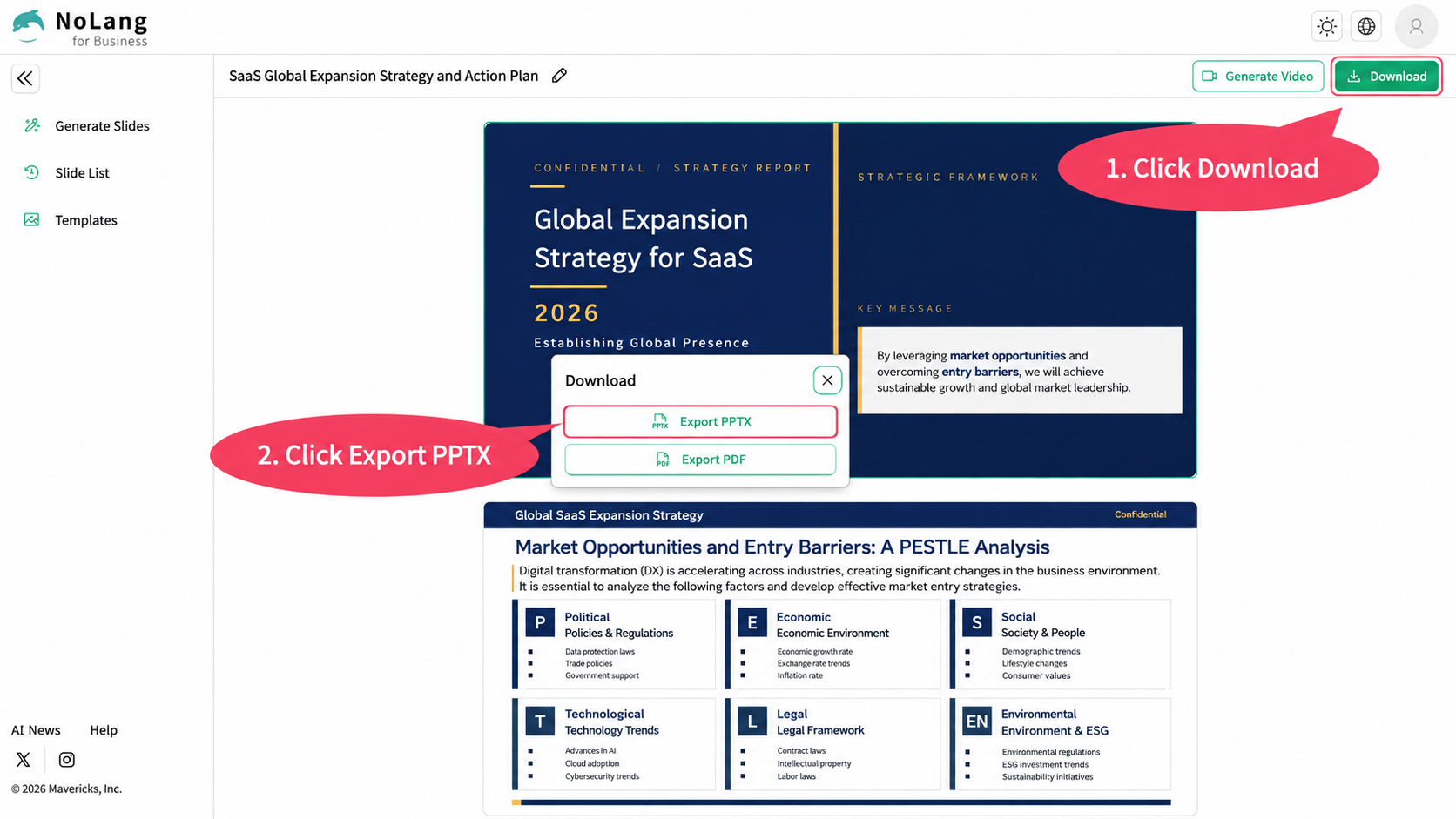
 - The finished slides can be exported as PDF or PPTX, or used directly for video creation in NoLangThe download button in Fast mode exports a PDF directly. PPTX mode also supports PPTX export (Business plan only).

2. Generate from PDF or PPTX documents
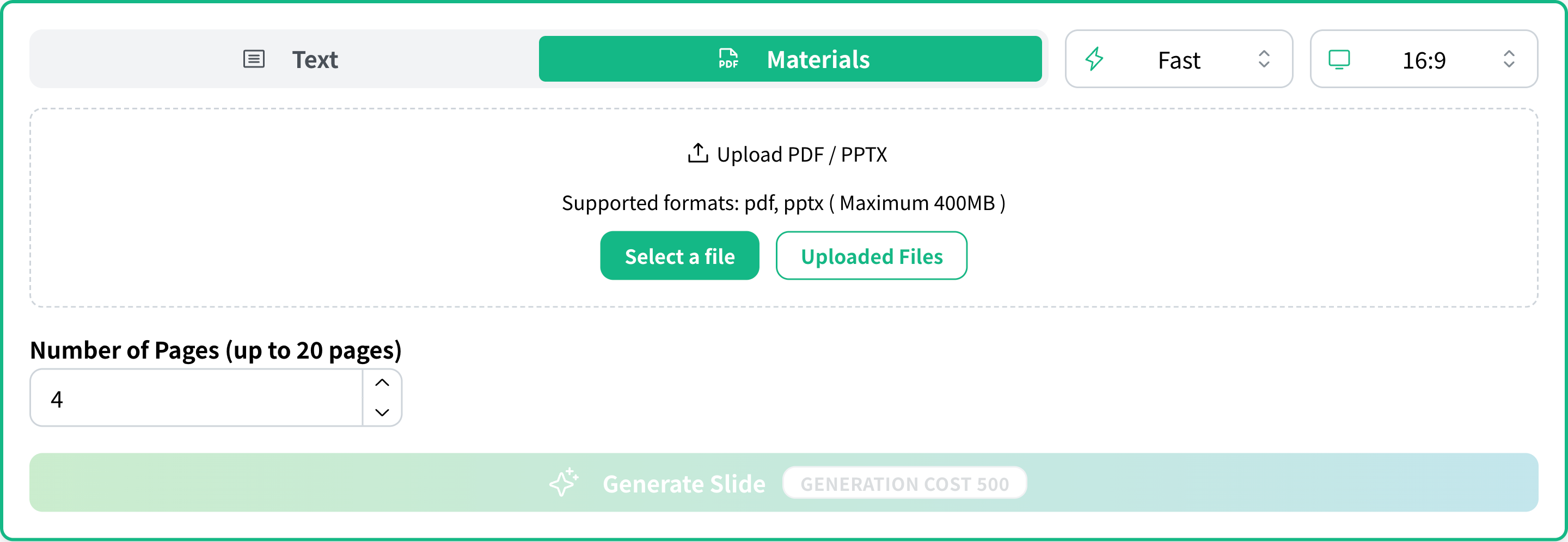
- Upload a PDF or PPTX file in the “Materials” tabFrom here on, you can create slides in the same way as when generating from text.
Example of documents to input
- Past sales proposals- Competitive analysis reports- Meeting minutes- Market research reports