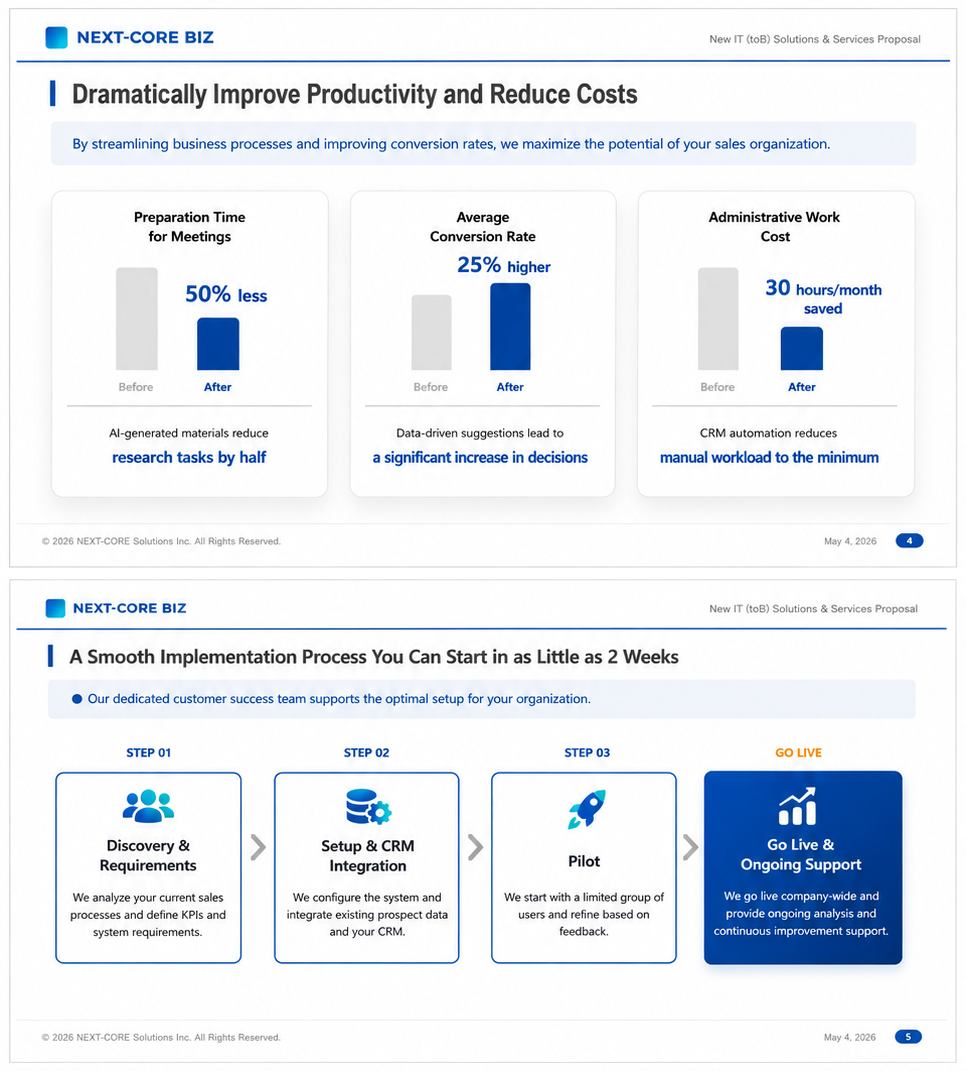
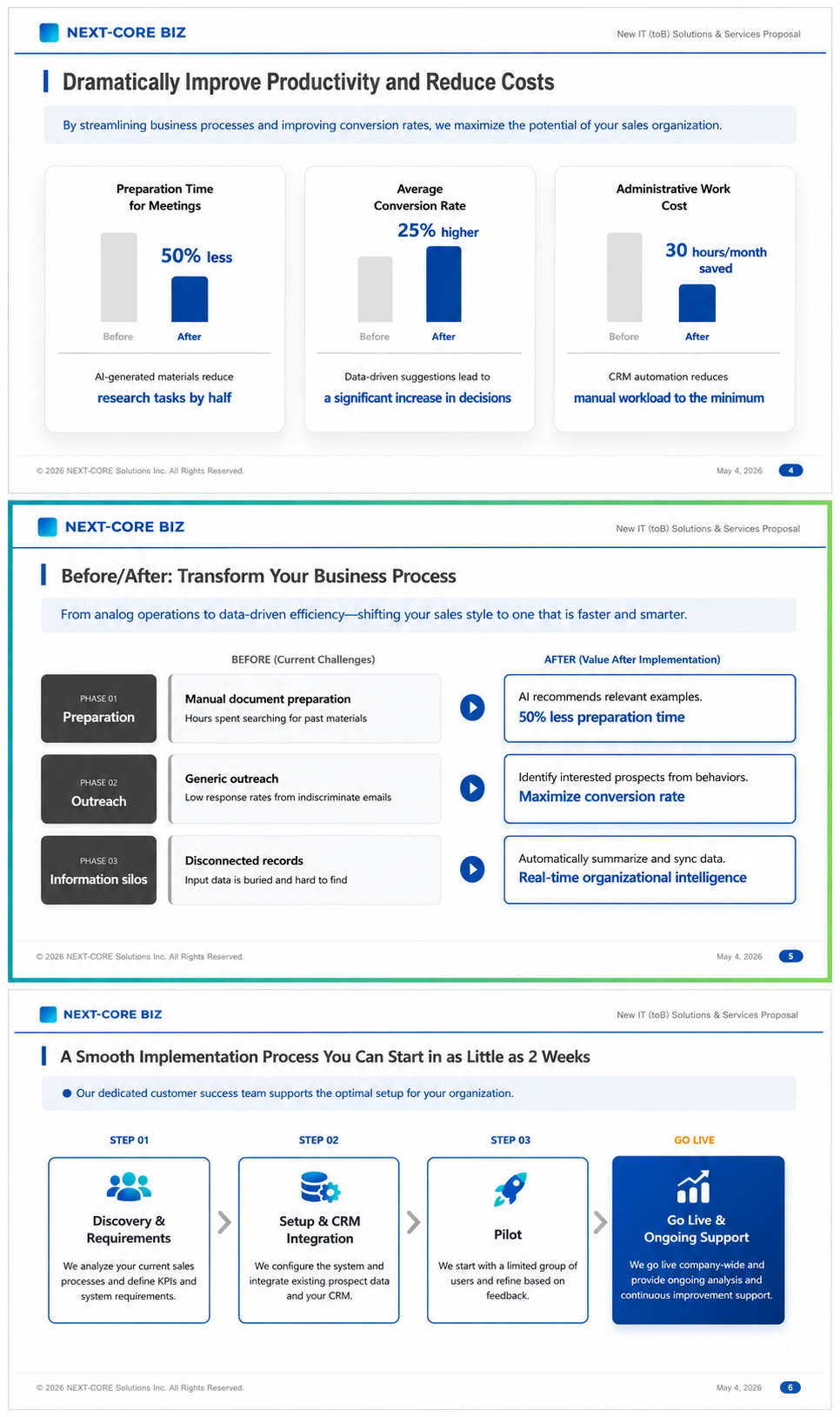
The English examples and diagrams are translated and adapted from the Japanese examples.
1. Editing text
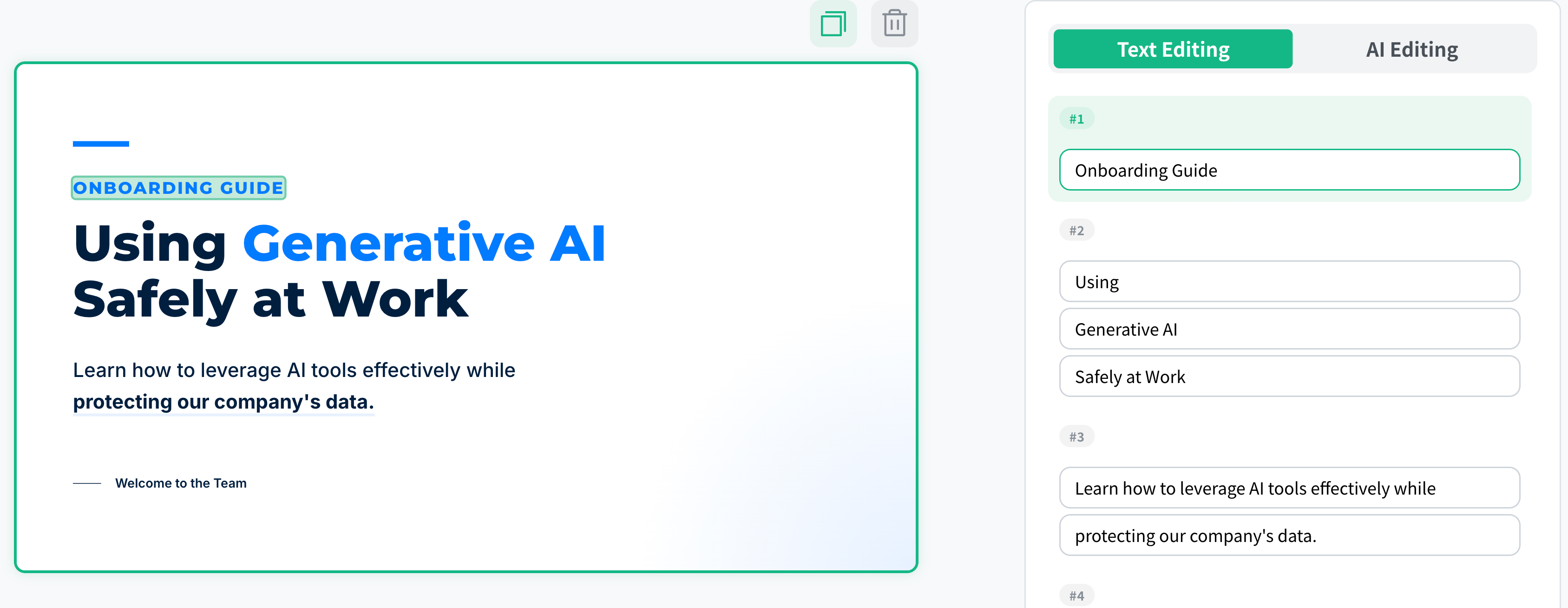
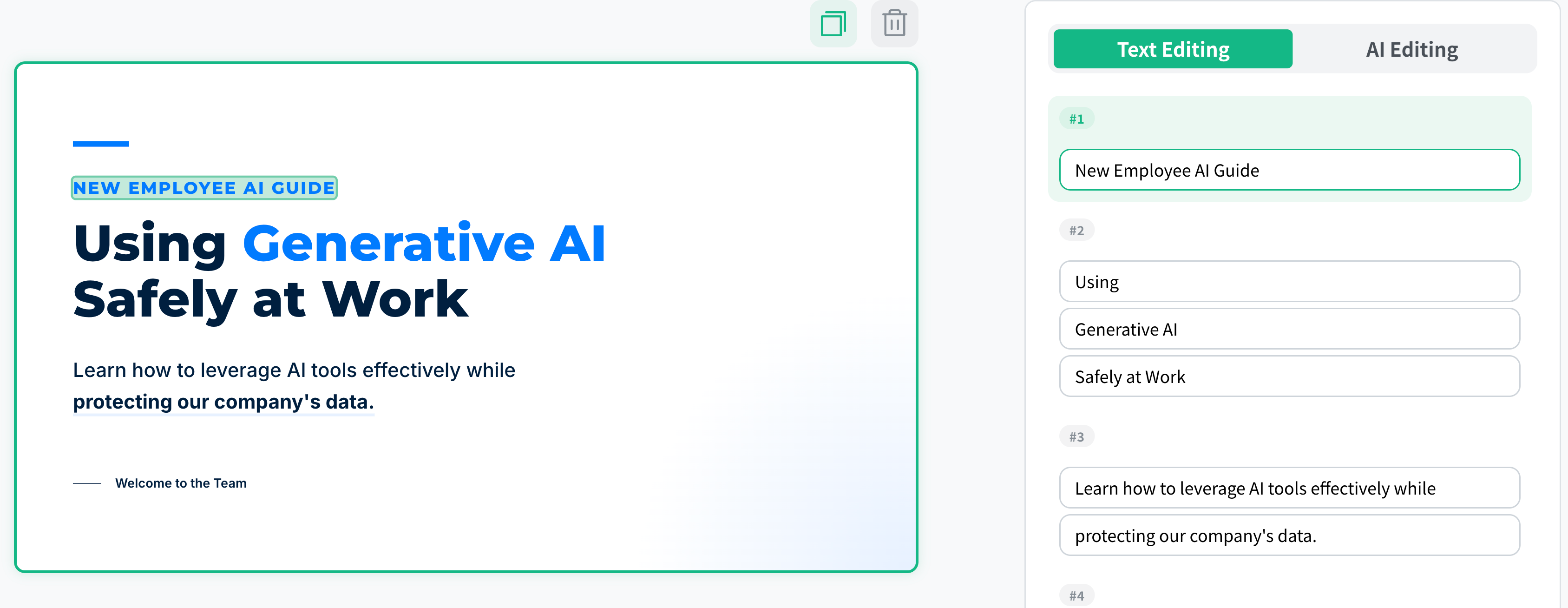
Select the text you want to edit and check the highlight on the slide
Change the content in the text field on the right
Save your changes by clicking the update button for the page, such as “Update page 1”
Updating the page applies your edits to the slide preview
2. AI editing
① Editing a page
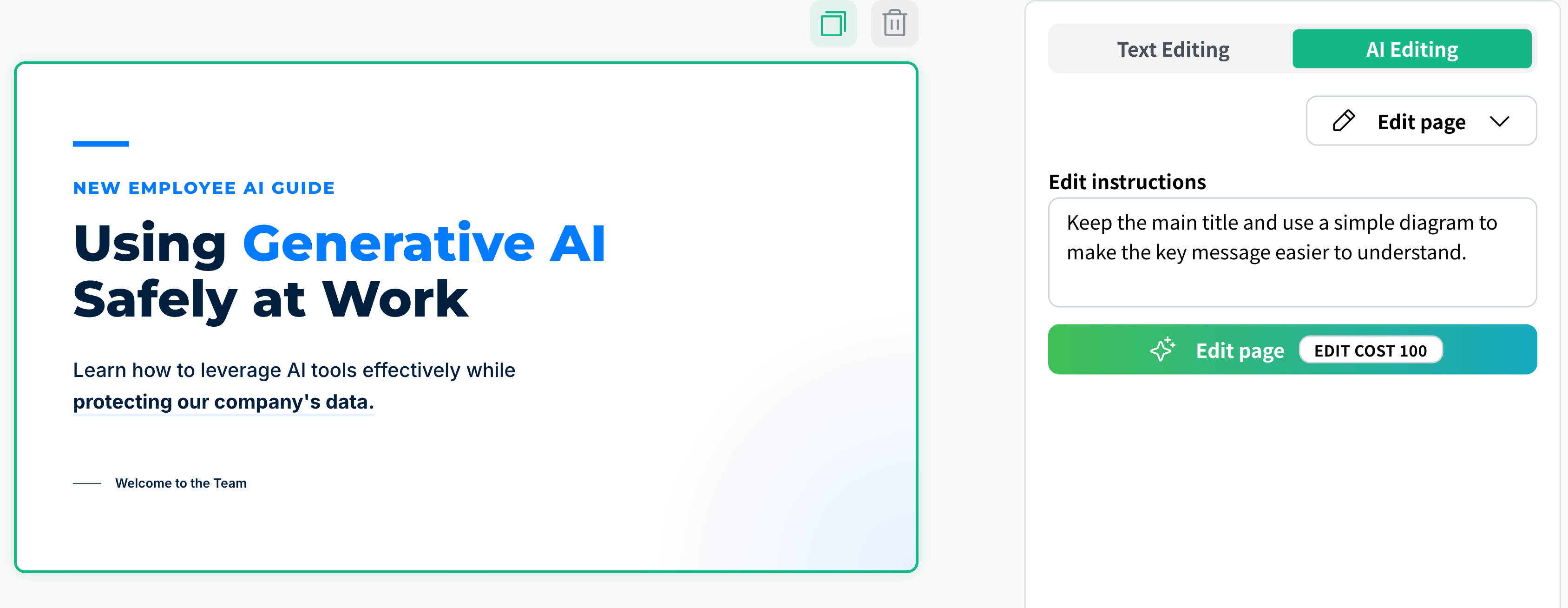
Select “Edit page” in the AI Editing panel on the right, describe the changes you want, then run the edit.
Sample 1
Prompt
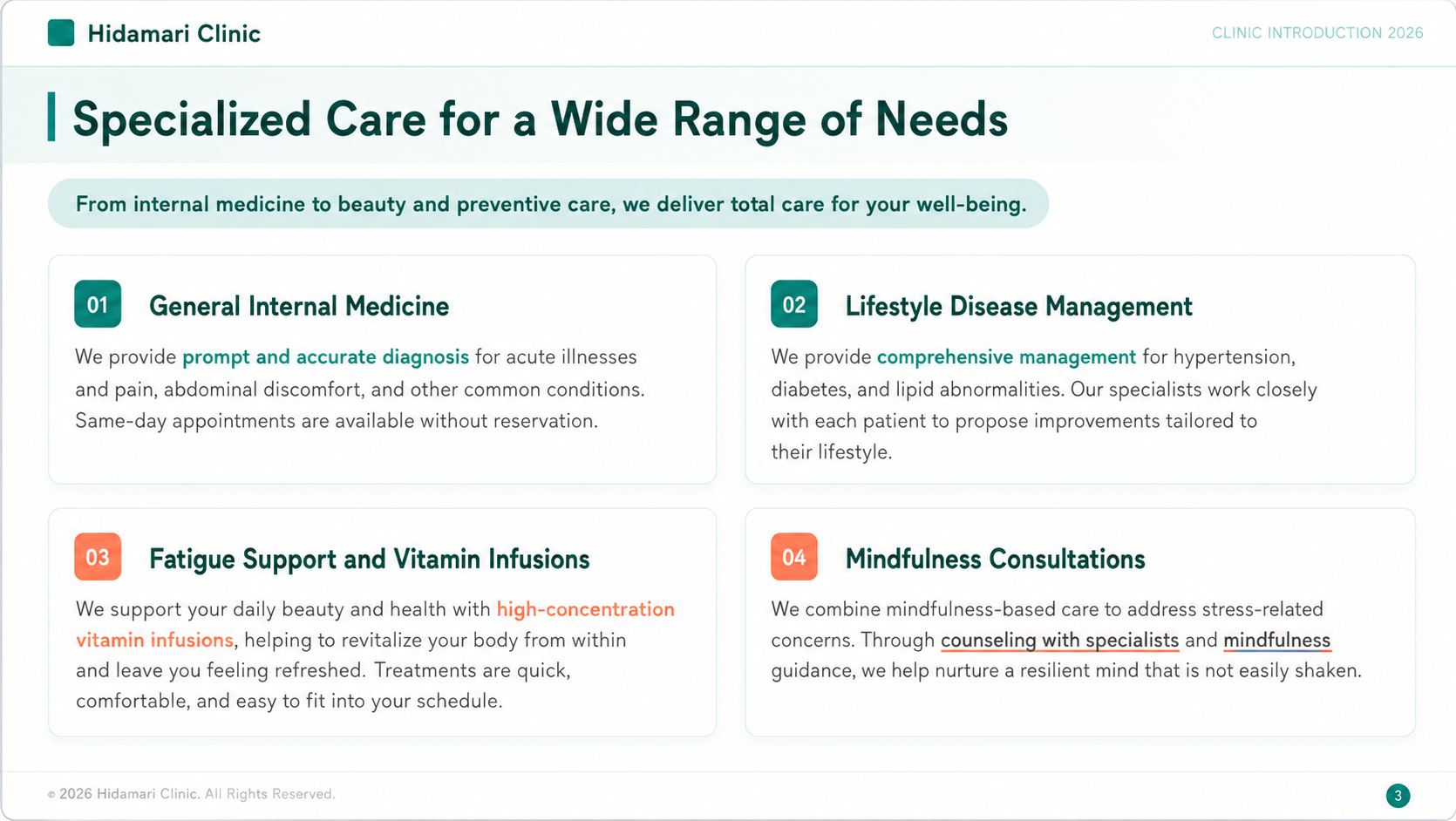
Please rework this into something easier to understand using charts.
BeforeAfter
Sample 2
Prompt
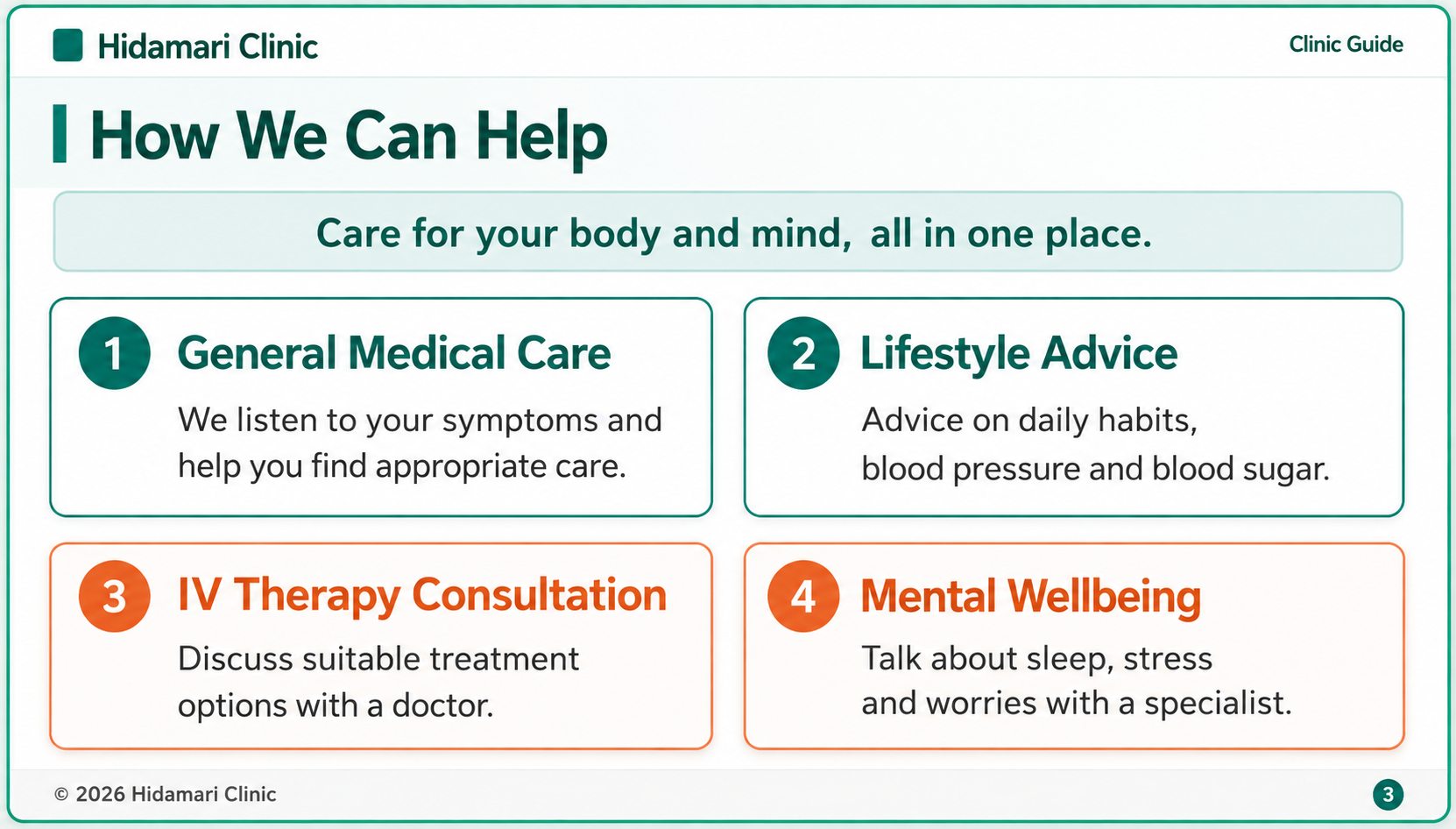
Make the text larger so it is easy for older people to read, and change the design too.
BeforeAfter
② Inserting a page
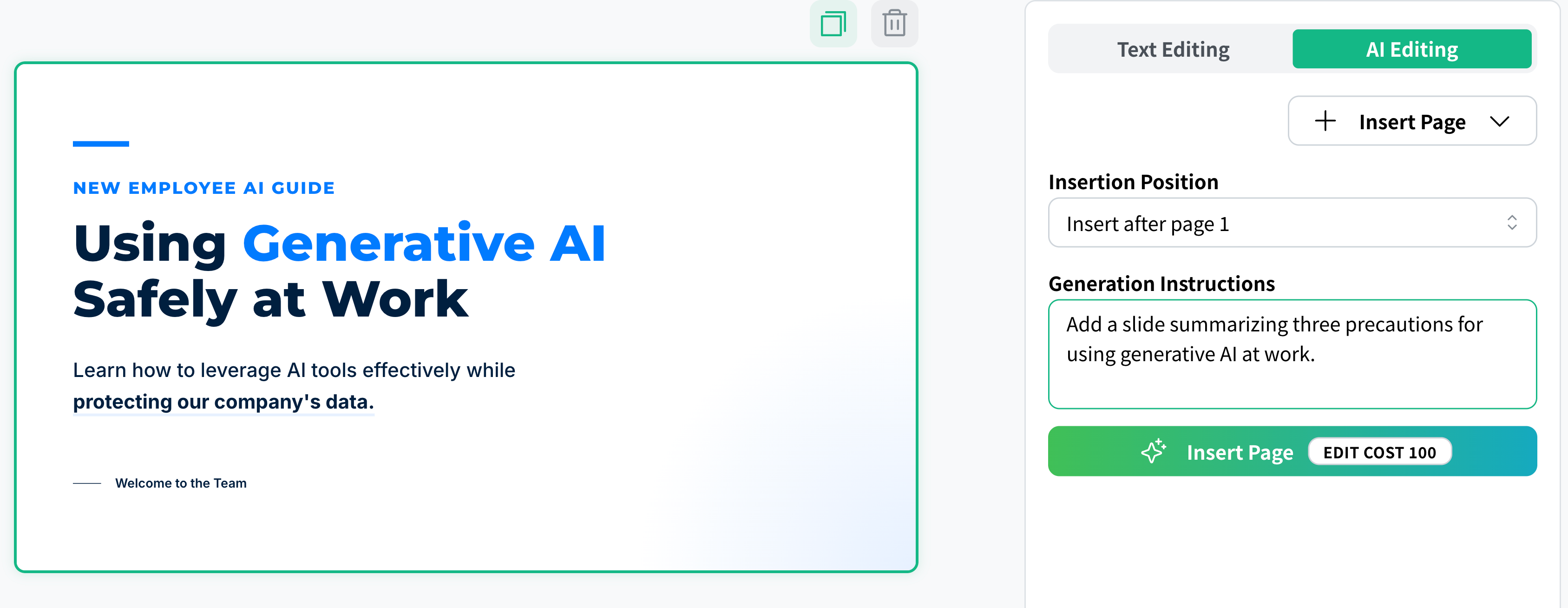
Select “Insert Page” in the AI Editing panel on the right, specify where to insert the page and what to add, then run the insertion.
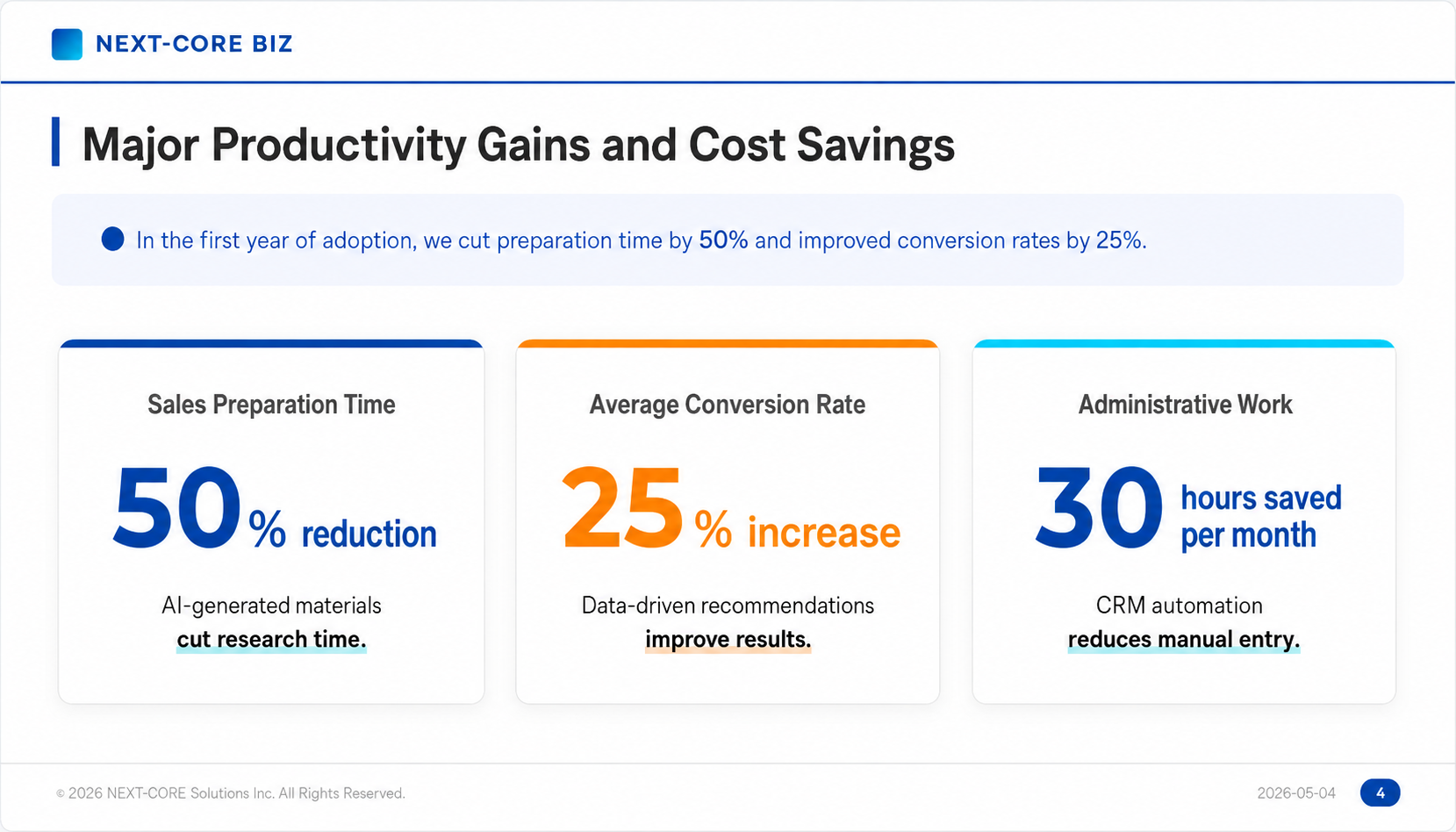
Sample
Prompt
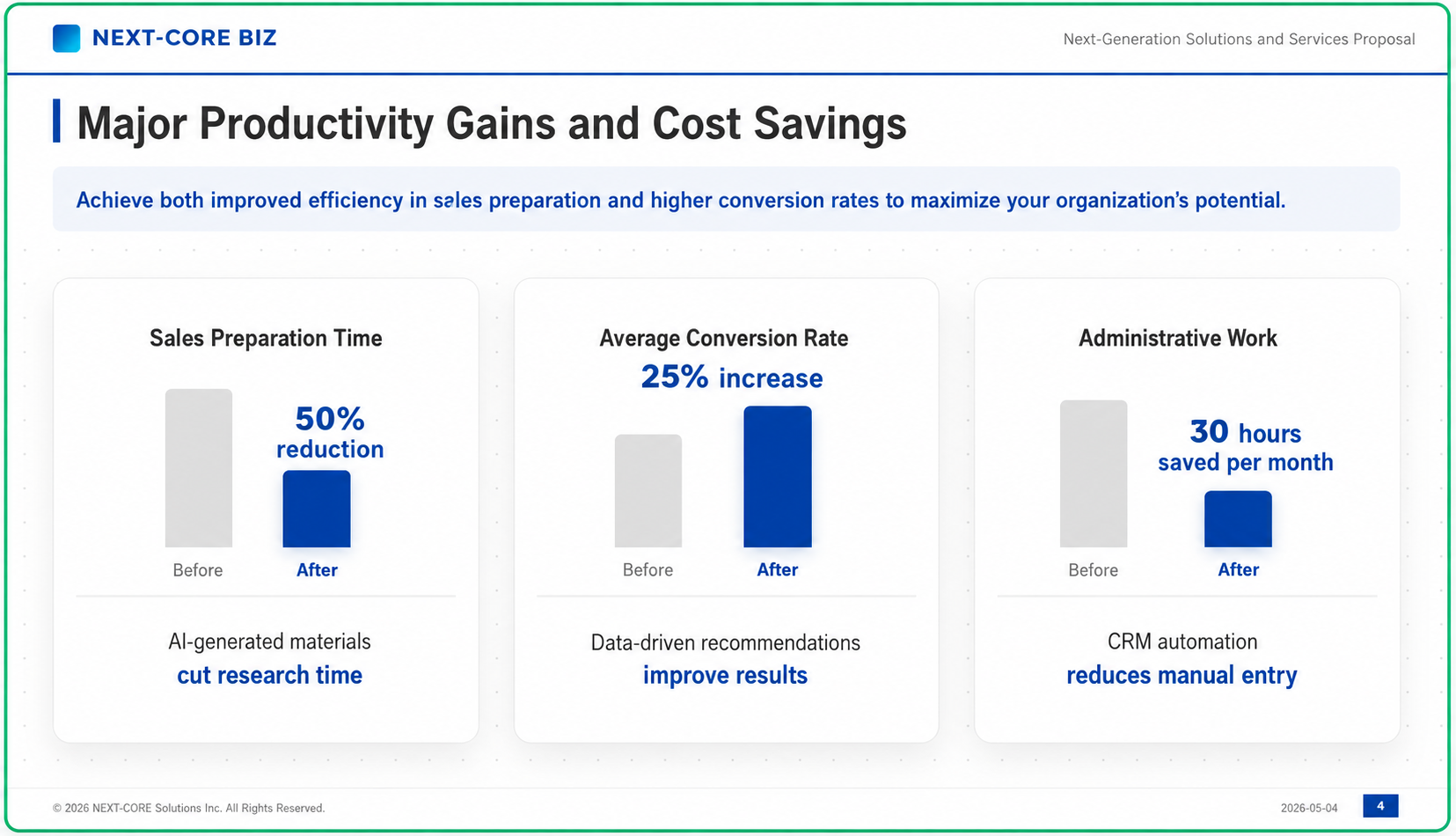
Create a page comparing the changes before and after adoption in a Before / After format. Organize it into 3 to 4 items from perspectives such as the sales process and operational efficiency, and present them clearly with a heading plus a brief description.