
2026/10/19 The browser extension has been renewed!
Last updated
The features and pricing described below are accurate as of the article’s publication date.
1. What is the new browser extension?
The browser extension uses AI to create an explainer video based on the page or PDF you have open. You can watch the finished video without leaving the page.
With this update, you can now do the following.
- One-click import: Add the page text, images, and videos to the input field all at once.
- Just answer questions to get a video: The more of the AI’s questions you answer, the closer the video gets to what you have in mind.
- Works with Chrome and Firefox: Use it in either browser.
- Business plan support: You can also log in and use it with a Business plan account.
You can still use the previous version, which turns a page into a video with video settings created in the web app.
2. How to use it | Add it from the store and import a page
Add the extension from the Chrome Web Store for Chrome or from Firefox Add-ons for Firefox. You need a NoLang account to use it.
- Add the extension from the storeClick "Add to Chrome" in the Chrome Web Store, or "Add to Firefox" in Firefox Add-ons.
- Open it from the toolbar iconClick the NoLang icon in the toolbar to open it. If you don't see it, open the puzzle icon menu and pin it. The first time you open it, log in with Google or your email address.
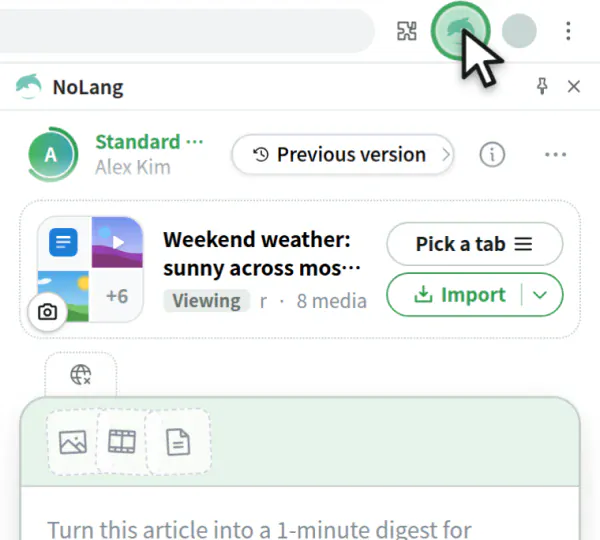
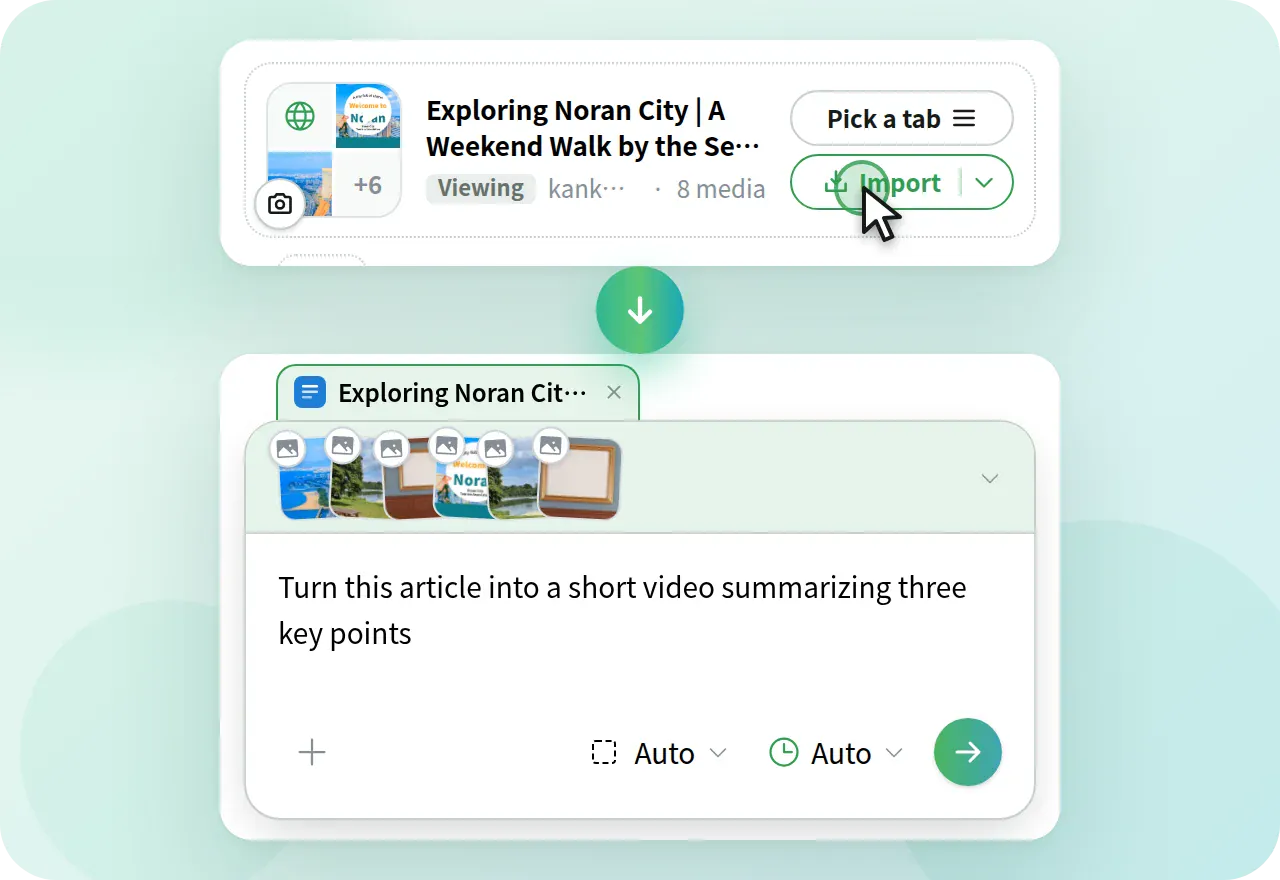
- Import the page and describe the video you wantOn the page you want to turn into a video, click "Import" to add the page text, images, and videos to the input field. Describe the video you want to create, then send your request. PDFs opened in the browser can be imported the same way.
- Answer the AI's questions to start generatingAfter you send a request, the AI asks you a few questions. The more you answer, the closer the video gets to what you have in mind. If you're not sure, you can skip the questions and leave it to the AI.
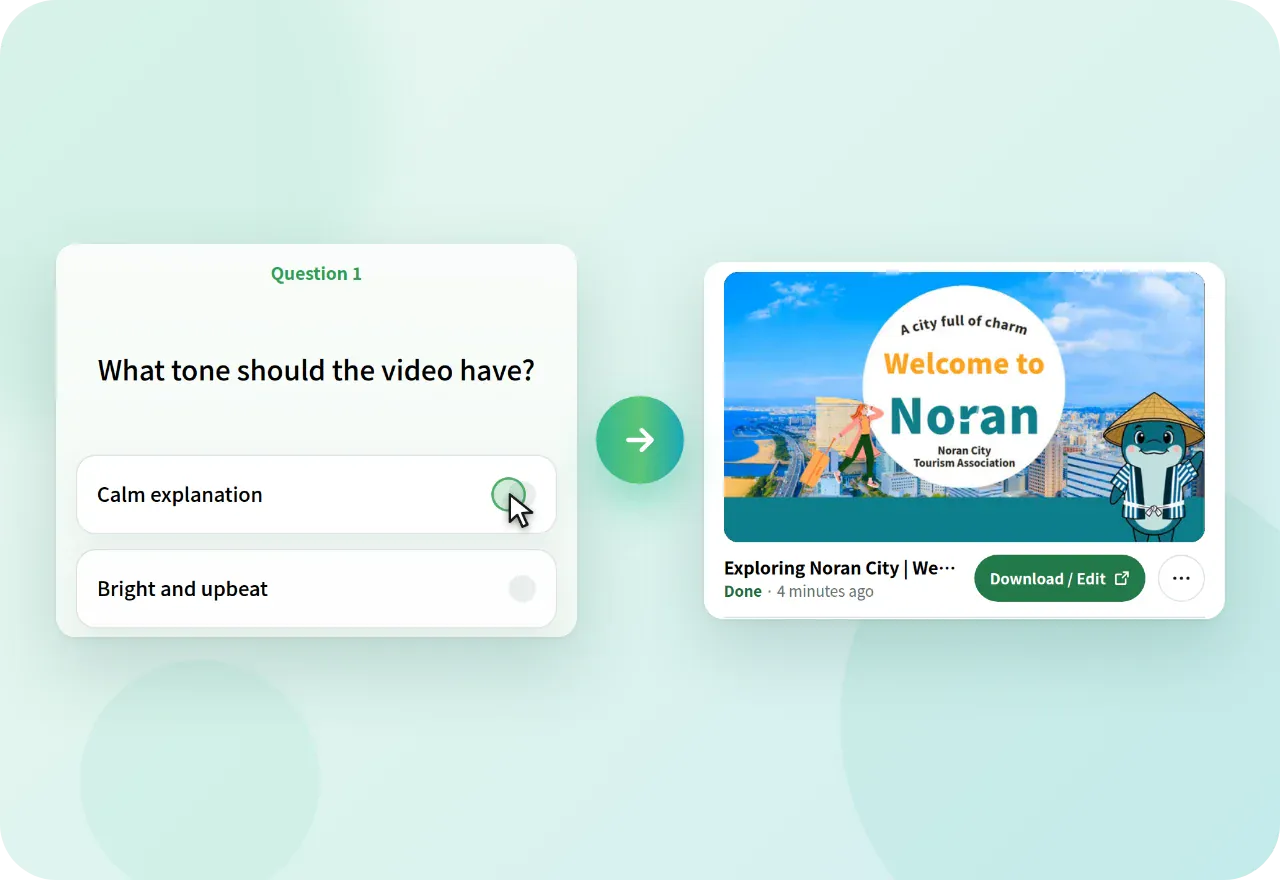
- Watch the finished video in the panelYou can watch the finished video right in the panel. You can close the panel while the video is being generated. When you reopen it, the video is listed under "Generation Tasks". Downloading and editing are available in the web app.
3. What you can do with import and attachments
You can choose what to import, and also attach images from the page or screenshots.
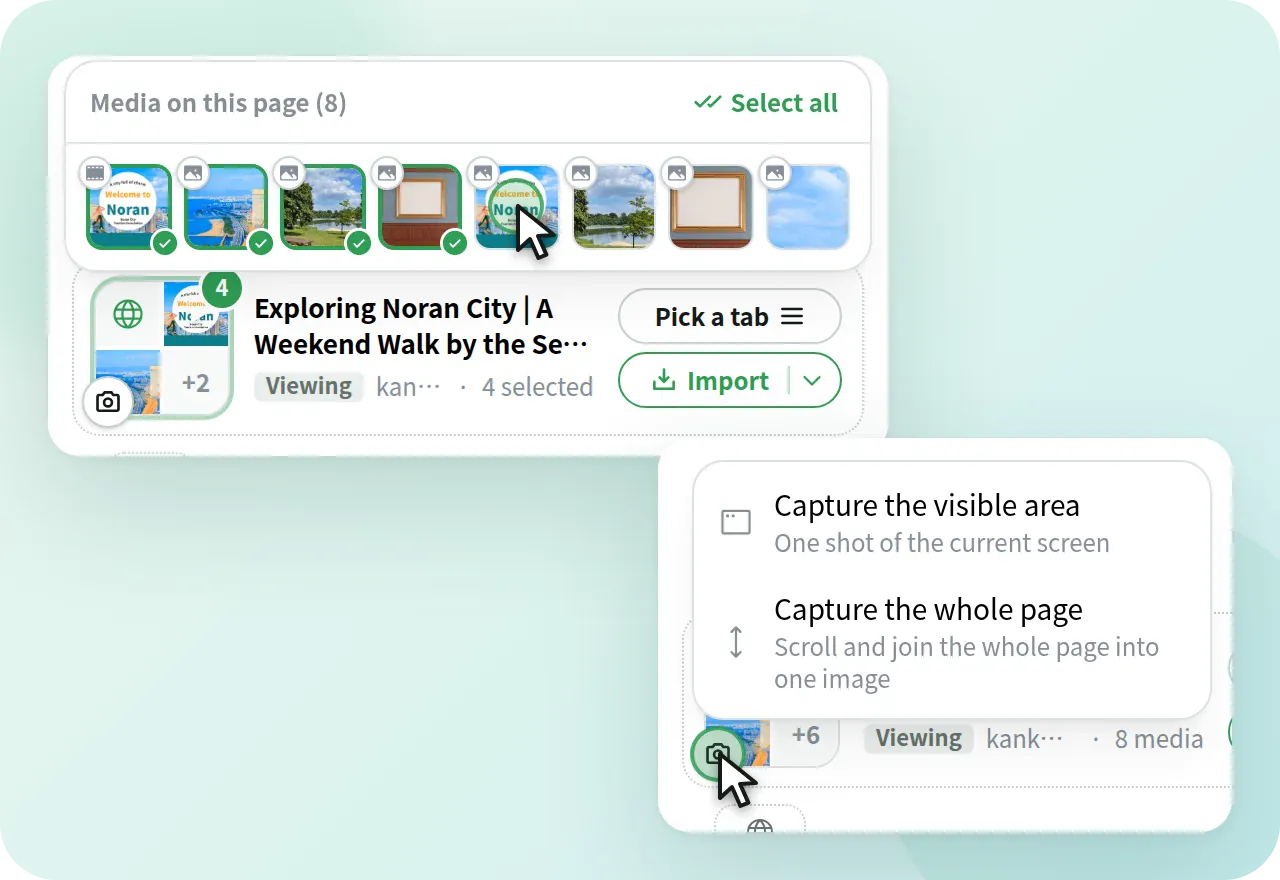
- Up to 6 images, starting with the largest, and up to 3 videos are imported.
- To import only the page text, choose it from the ▼ next to “Import”.
- You can also import pages from other tabs with “Pick a tab”.
- You can select the video’s aspect ratio and length below the input field.
- You can pick images and videos from the list of media on the page and attach them.
- Click the camera button to take a screenshot. Choose from three options: the visible area, the whole page, or a selected area. You can also take screenshots from the right-click menu or by pressing Alt + Shift + S.
- You can also attach images, PDFs, and PPTX files from your device using the “+” in the input field.
4. Also available on the Business plan
Business plan users can use the same extension. The first time you open it, click “For Business plan users” on the login screen and log in with the same account you use for the web app.
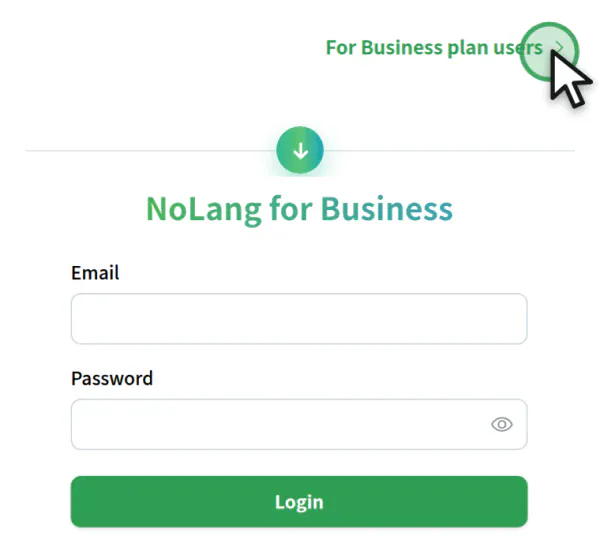
If you log in with Microsoft, log in to the web app first.
5. The previous version is still available
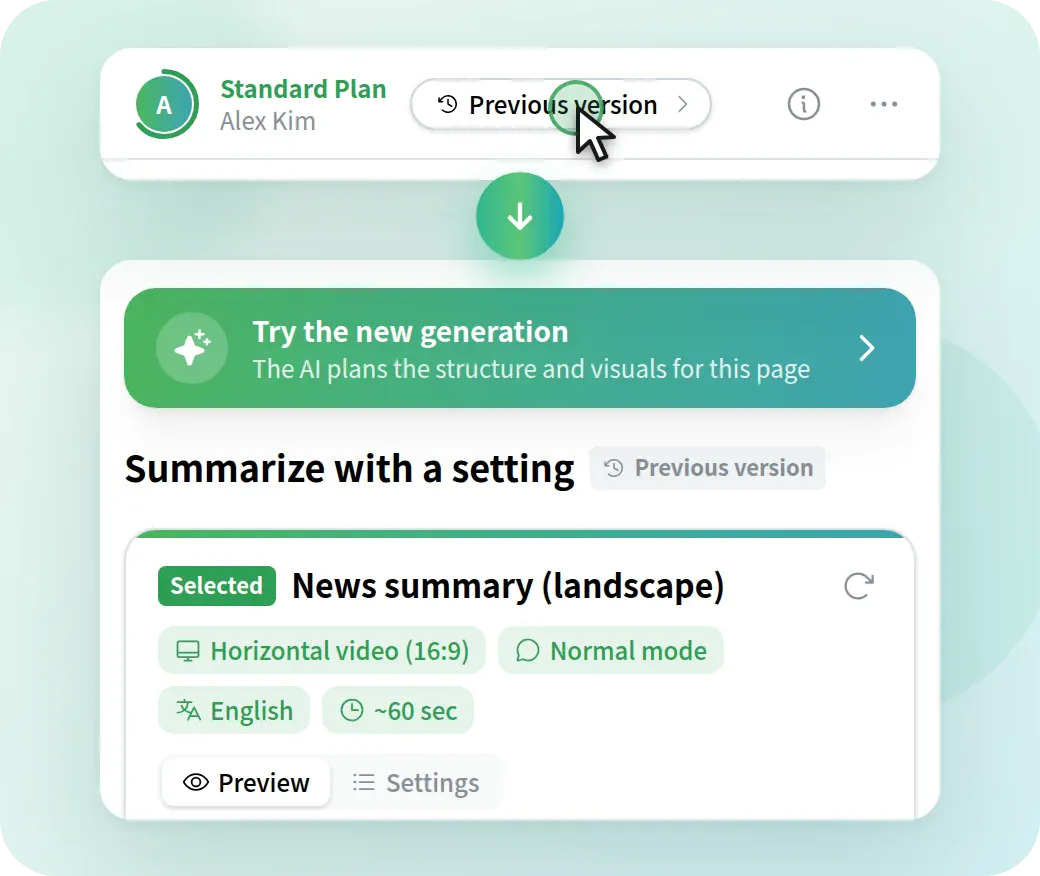
The previous way of turning a page into a video by selecting video settings created in the web app is still available. Click “Previous version” in the extension’s header to switch screens and select your video settings. Click “Try the new generation” to return to the original screen.
6. For existing Chrome extension users
If you have been using the Chrome extension, we recommend reinstalling it. Remove NoLang on Chrome’s extension management page, then add it again from the Chrome Web Store.
Reinstalling does not delete the video settings you created in the web app or the videos you have already made.
7. Notes on use
Reading a page’s content requires permission to access that site. Your browser asks for permission only when it is actually needed.
- Tab information: When you show the list of other tabs for the first time
- Page content: When you import from a site for the first time
- Access to all sites: When you take a screenshot. You may not always be asked to confirm