
How to generate videos using your own character (avatar and voice)
Last updated
1. Steps (for an avatar)
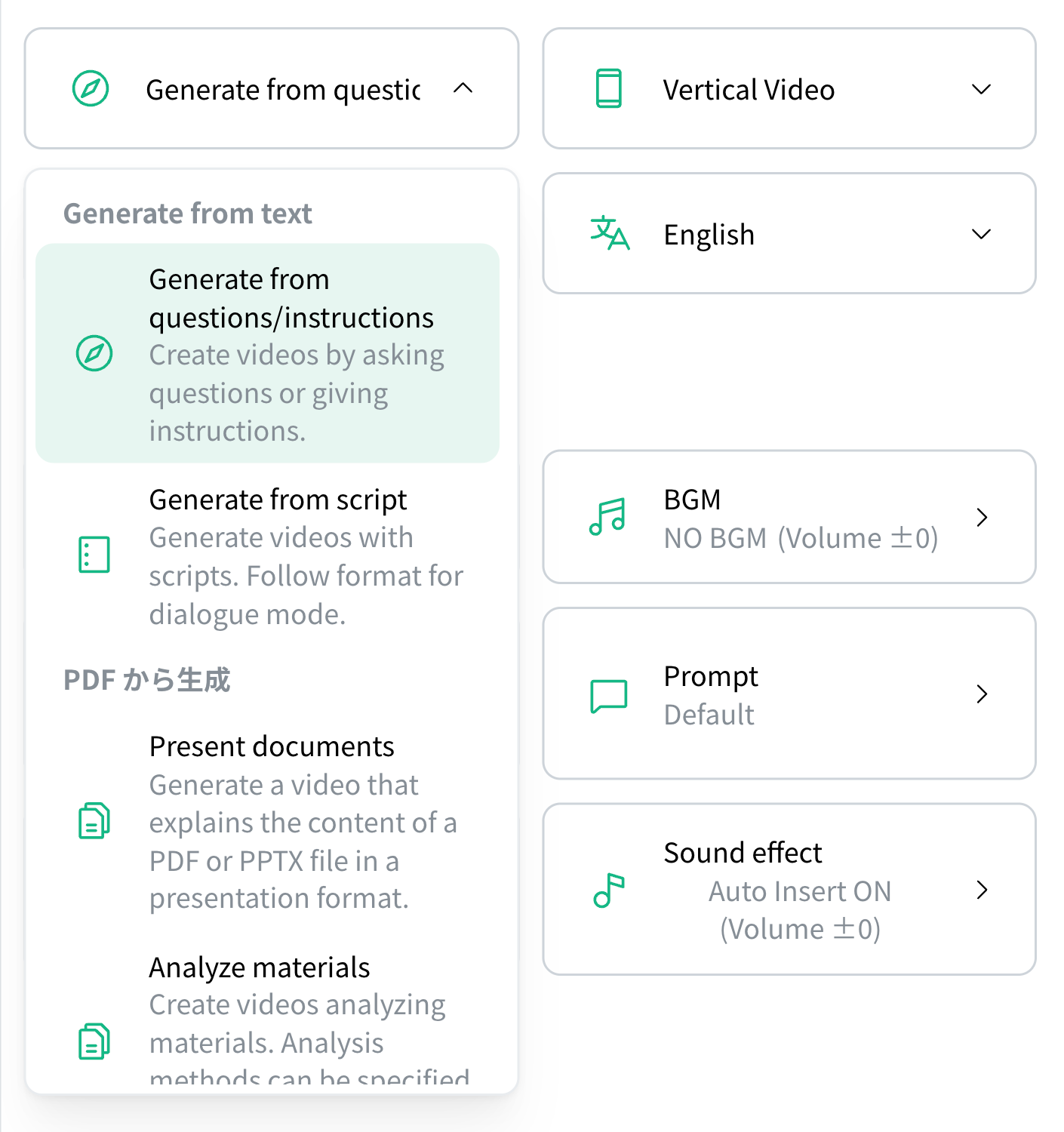
- Select Saved settings from the sidebar and open the video settingsOpen “Saved settings” from the sidebar, select an existing setting or create a new one, then choose the generation method under Base Settings.
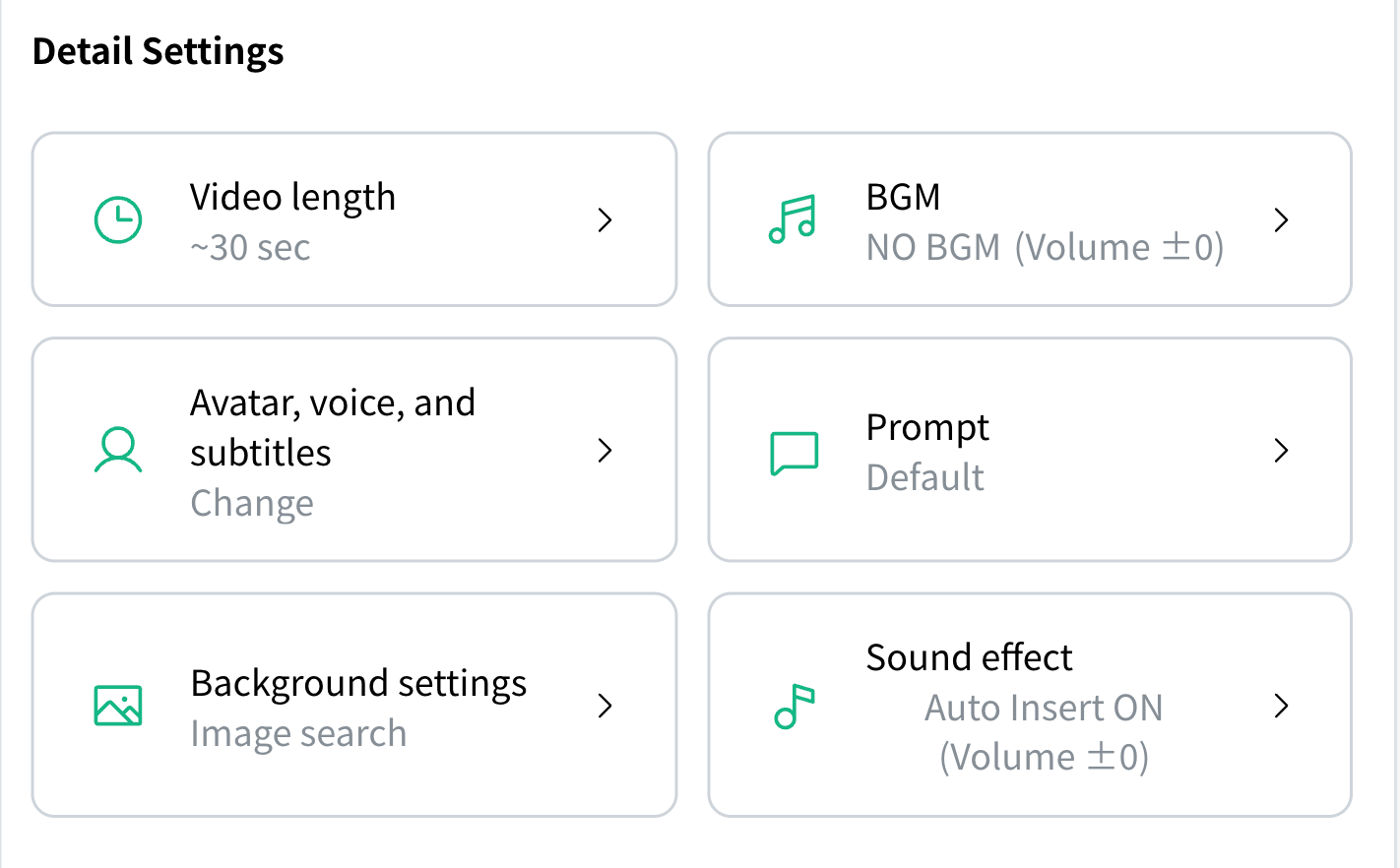
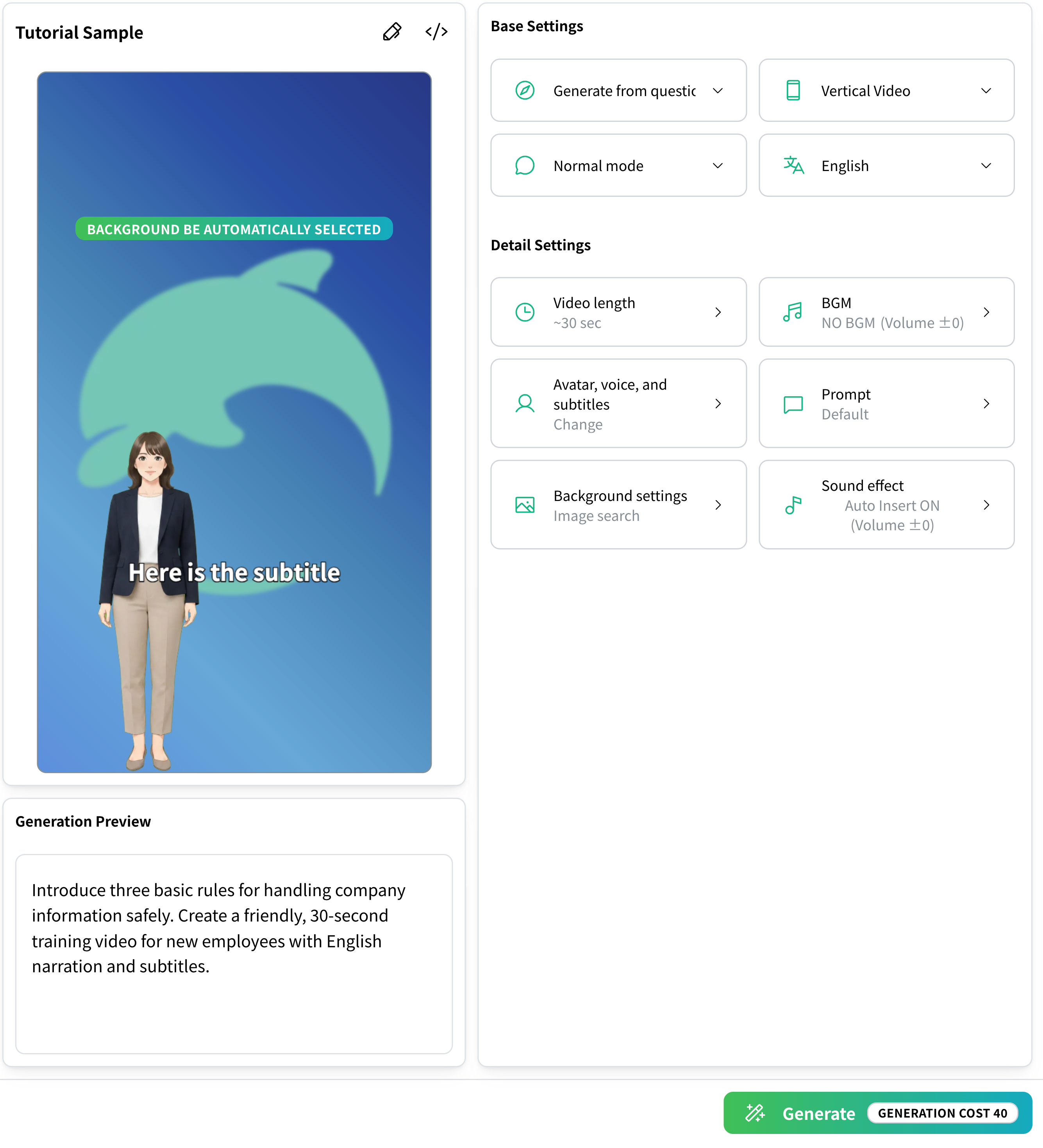
- Click “Avatar, voice, and subtitles”Opening "Avatar, voice, and subtitles" in the video settings displays a settings panel on the right.
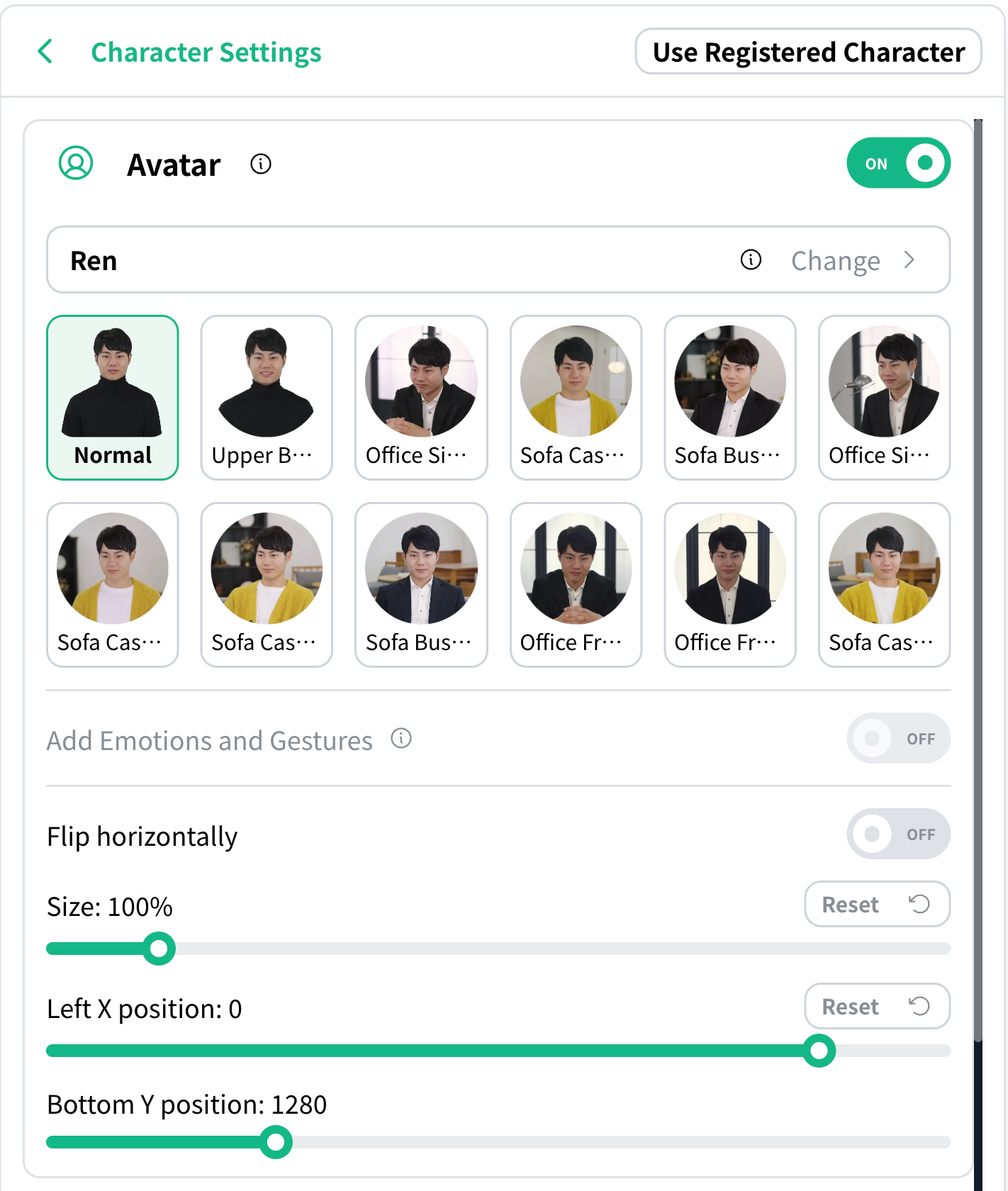
- Enable the avatar and click “Change”With the avatar enabled, click “Change” to open the list.
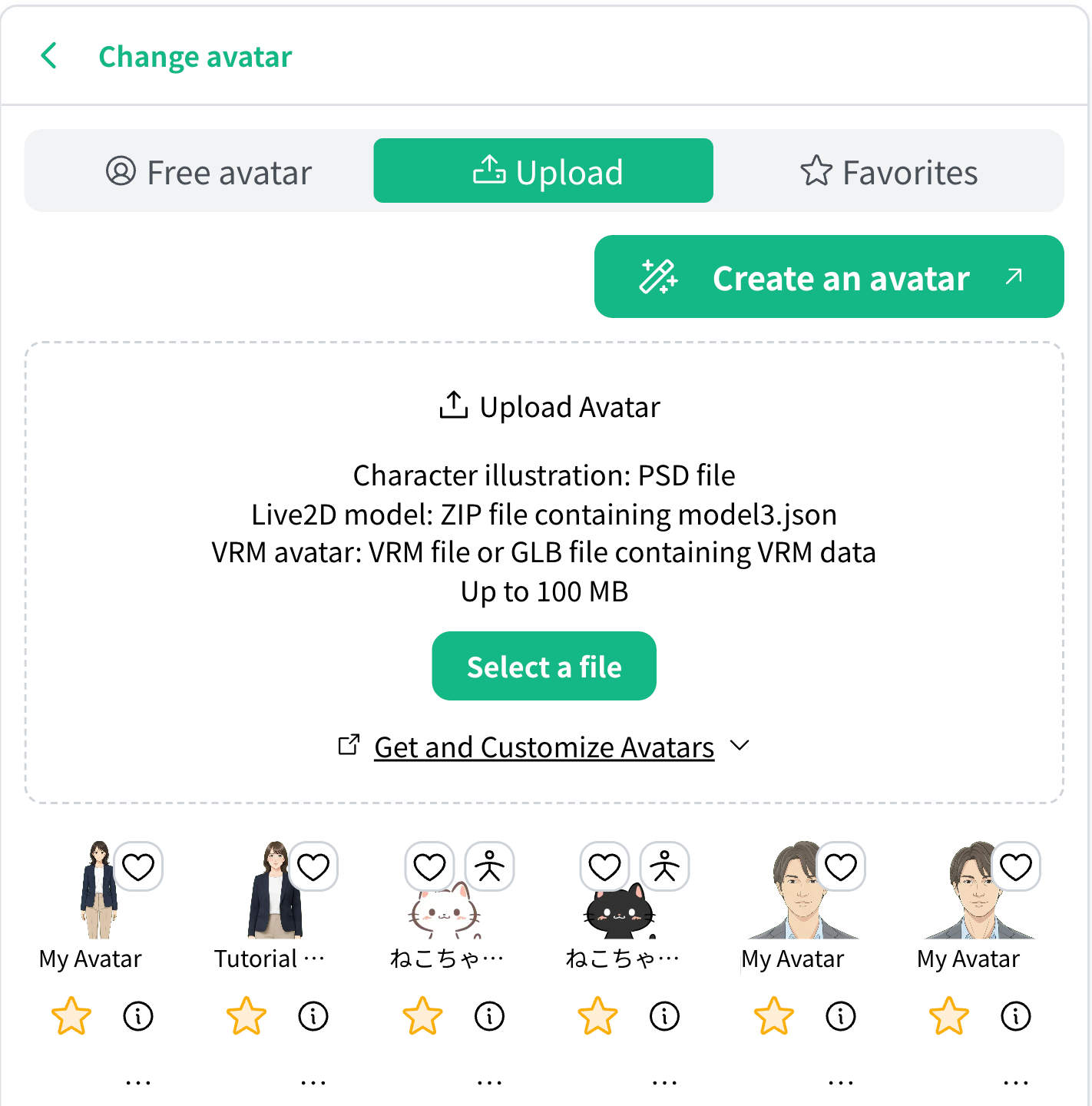
- After selecting "Upload", choose the avatar you createdIn the avatar selection panel on the right, choose an avatar you have created from the "Upload" tab.
- Once the other detailed settings are the way you want them, enter your content in the generation input field and click GenerateAdjust the detailed settings such as video length and background music, then enter what you want your video to be about in the generation input field and click the "Generate" button.
For avatars generated with Real Animation, an additional step is required after generating the video: click “Move the Real Avatar” on the viewing page. For details, see step (6) onward in the tutorial below.
✓ Related How to create a video featuring a real avatar Explains the flow for creating a video with a real avatar, available on the Standard plan and above.2. Steps (for a voice)
To use a voice you created, open “Avatar, voice, and subtitles” in the video settings, choose the option to change the voice, and select the “Upload” list.