How to create your own voice
Last updated
1. Two ways to create a voice
- Record your voice Record yourself reading the displayed text to create a voice from the recording.
- Upload audio Upload an audio file to create a voice from it.
Voice creation is available on Standard, Premium, and Business plans. Before creating a voice, check the displayed credit cost and how many voices you can create.
2. Record
- Select “Create Character” from the sidebar
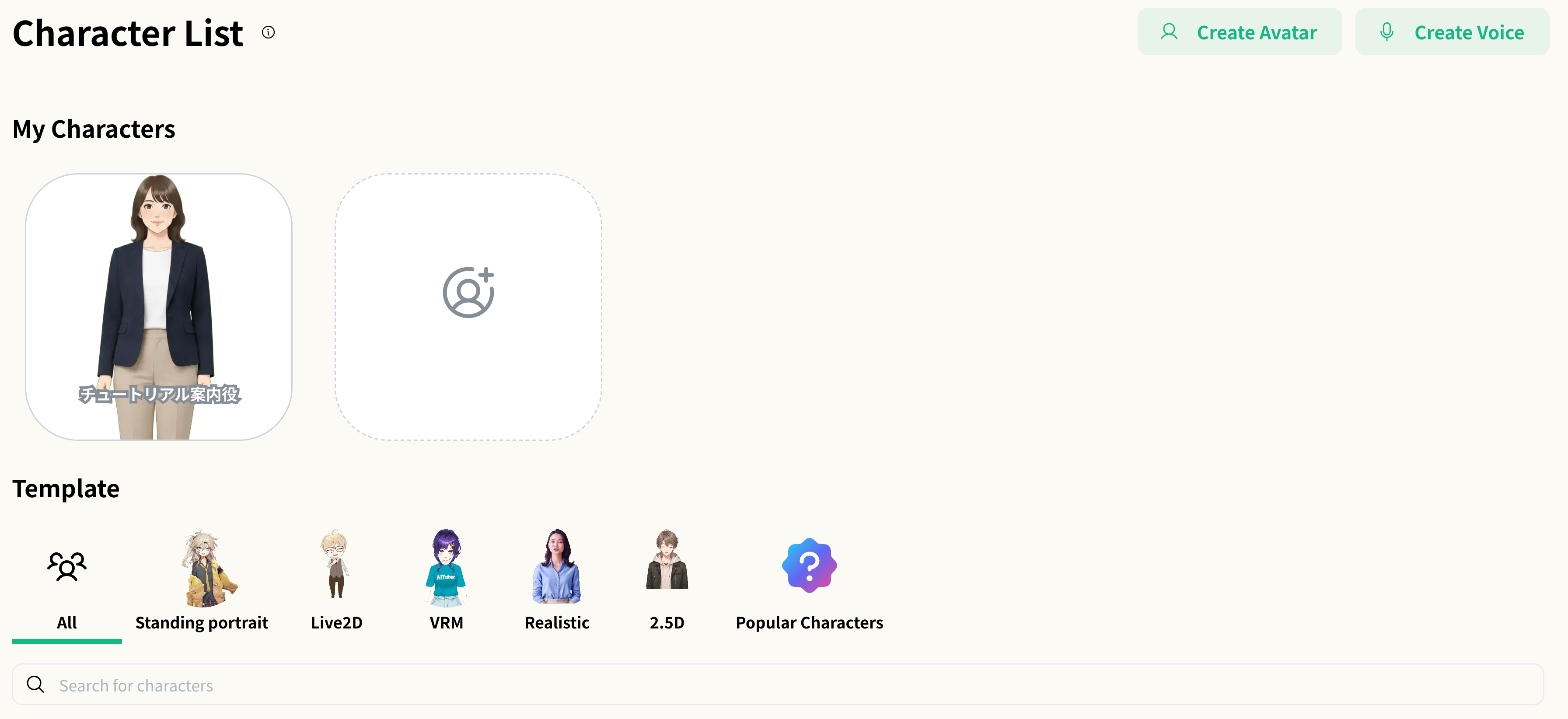
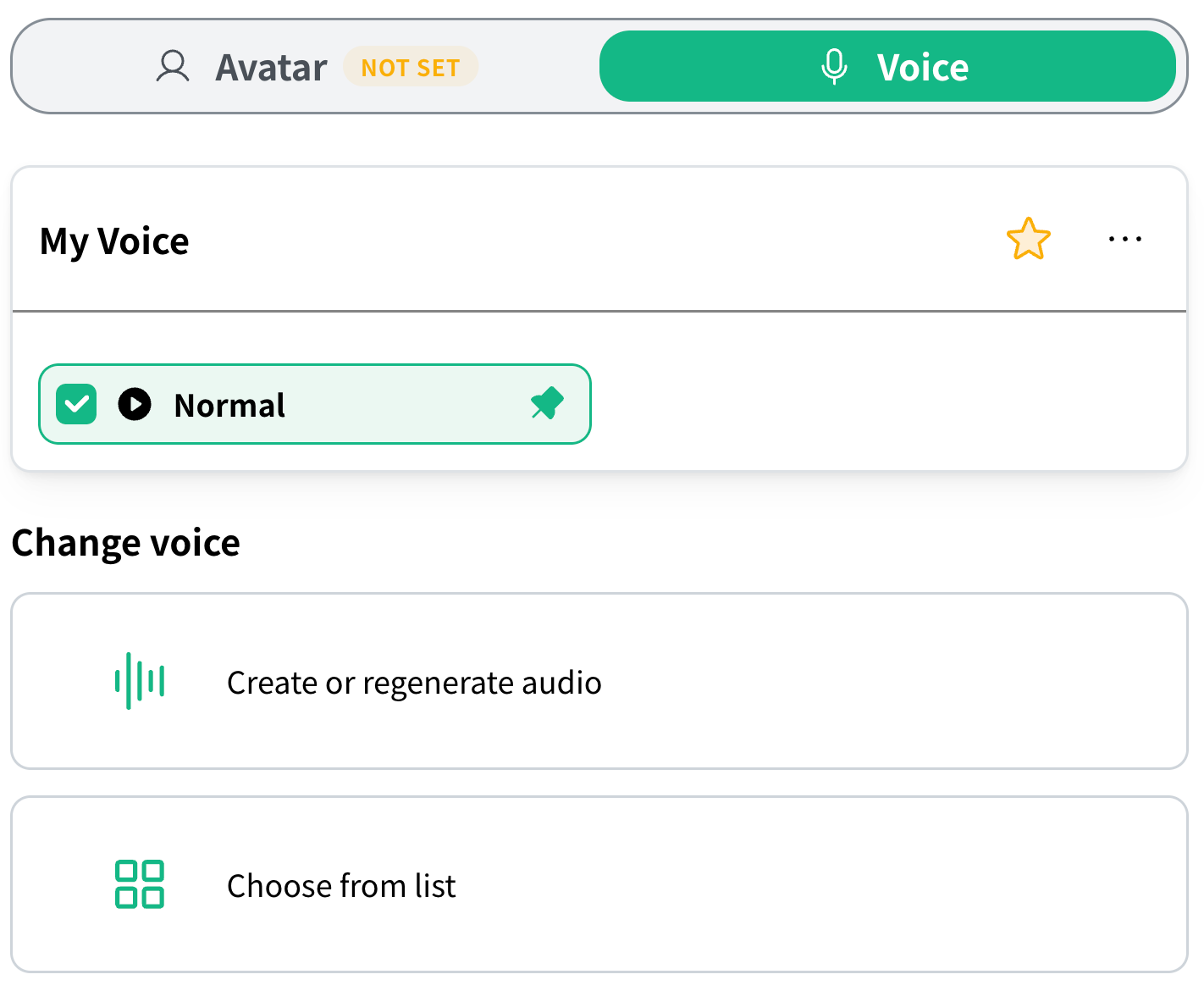
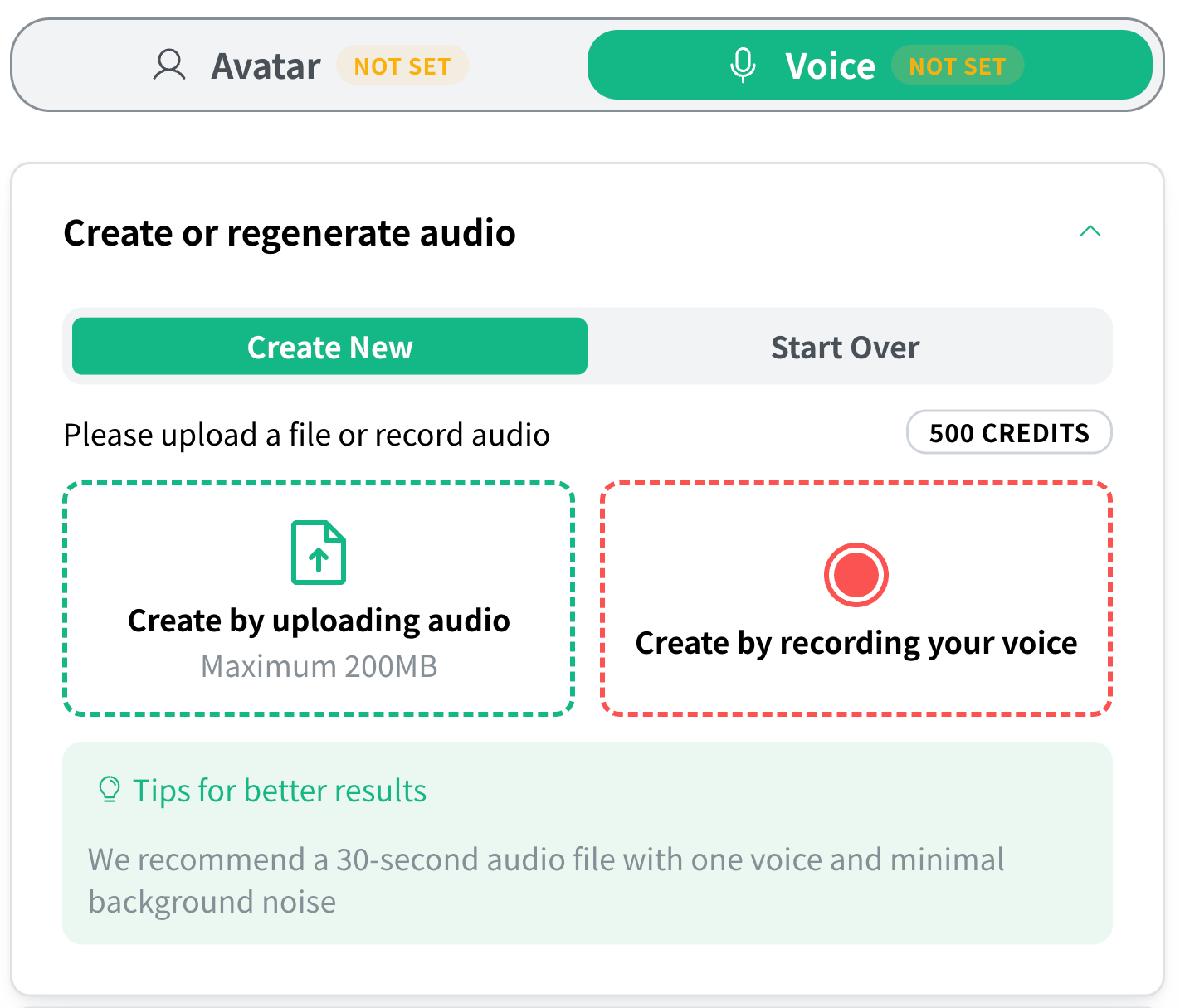
- From “Voice”, select “Create or regenerate audio” → “Create New” → “Create by recording your voice”
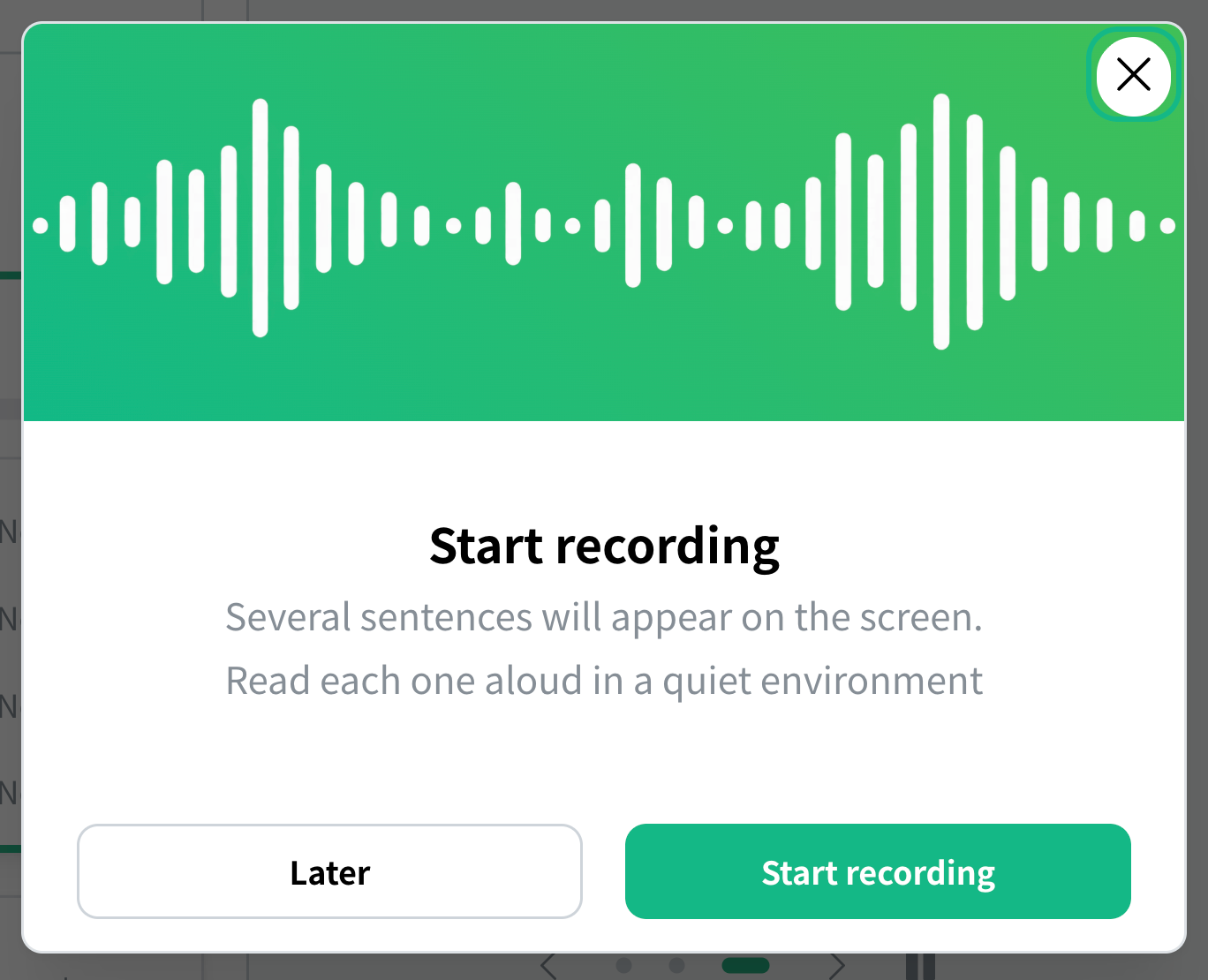
- Review the recording instructions and get the text to read aloudClick “Start recording” to continue, select the language to read aloud, and click “Get text to read aloud”. Review the text, then start recording and read it aloud one sentence at a time.
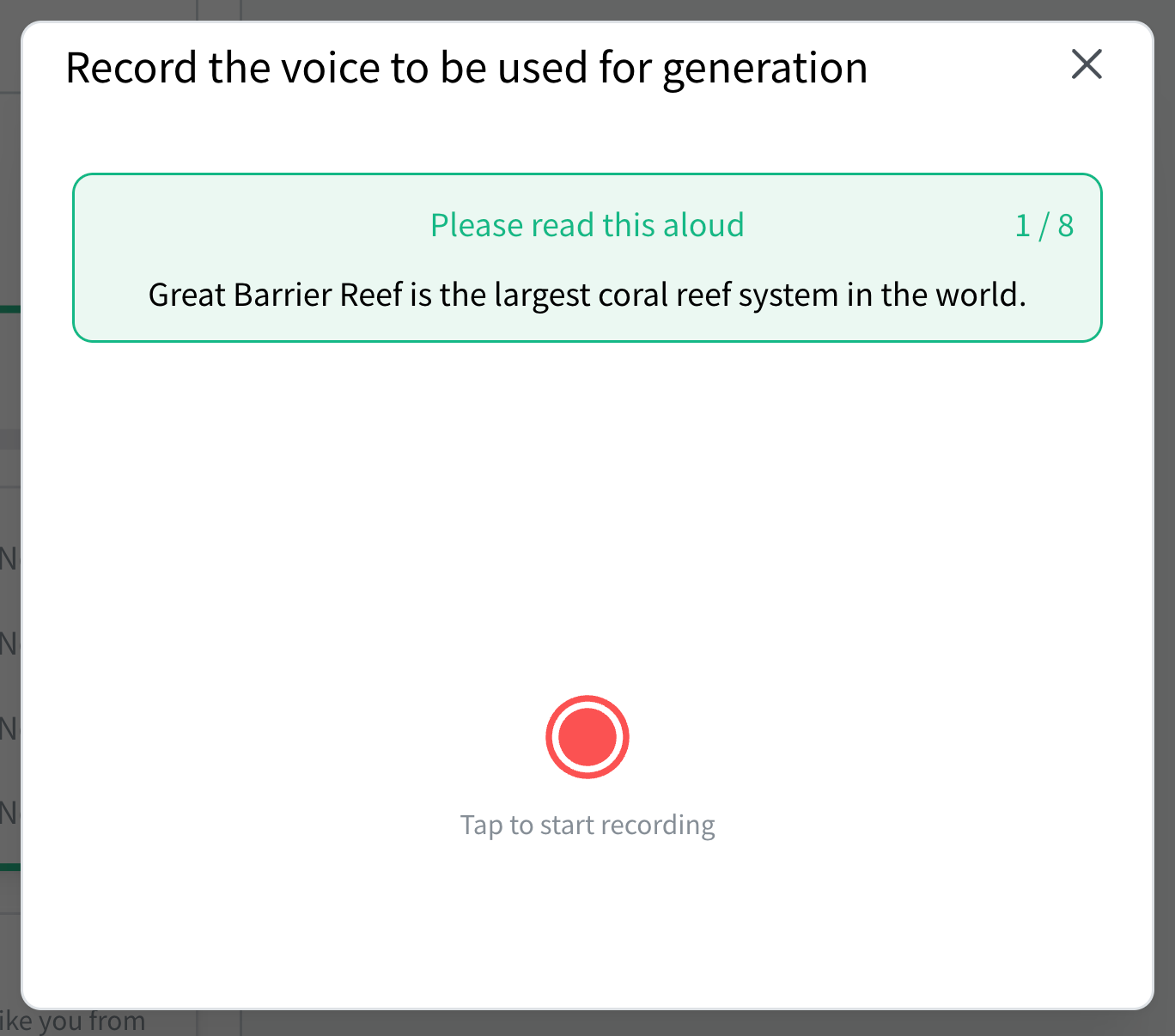
- After recording, select Play to check the audio, then select Next if it sounds good
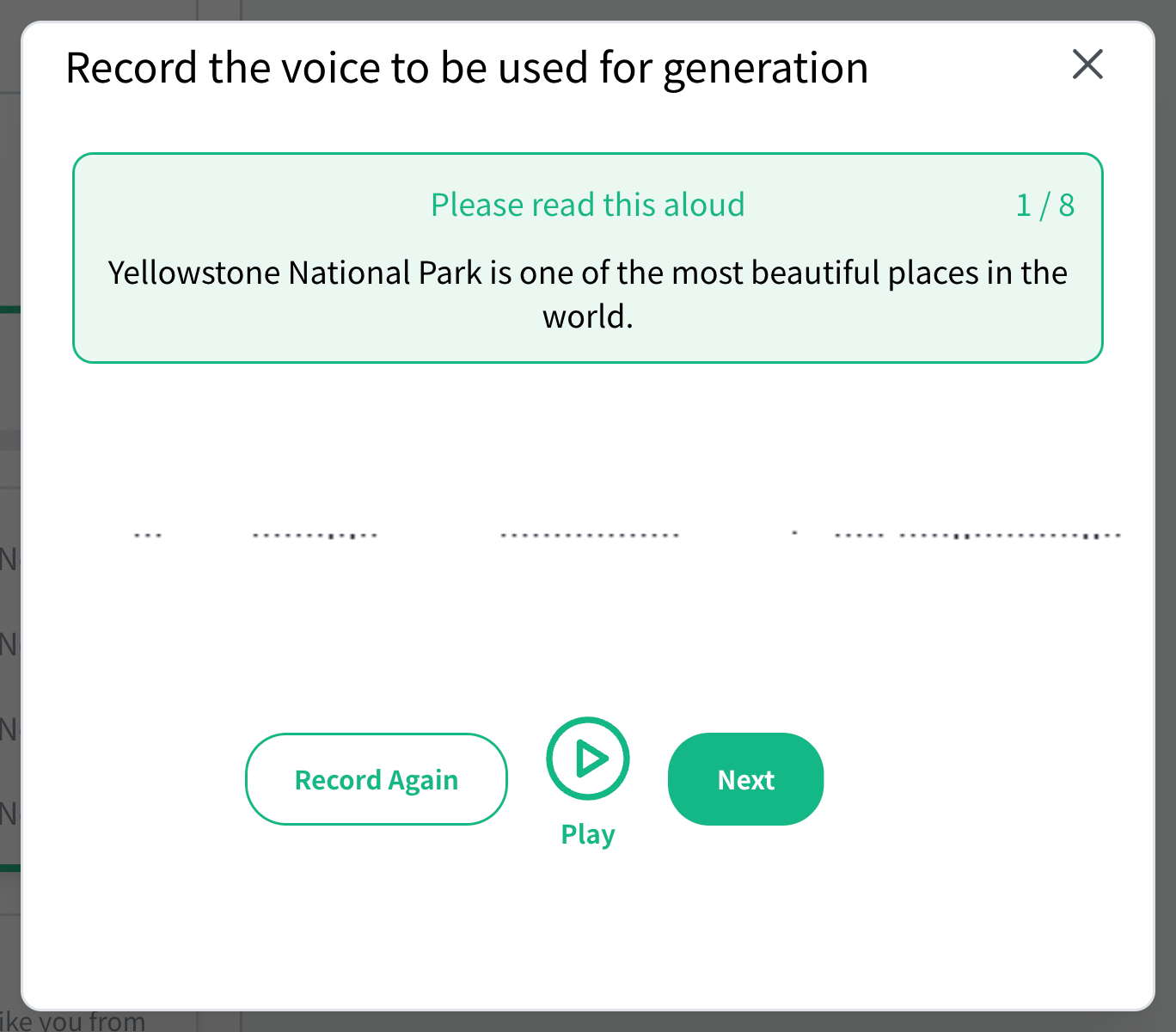
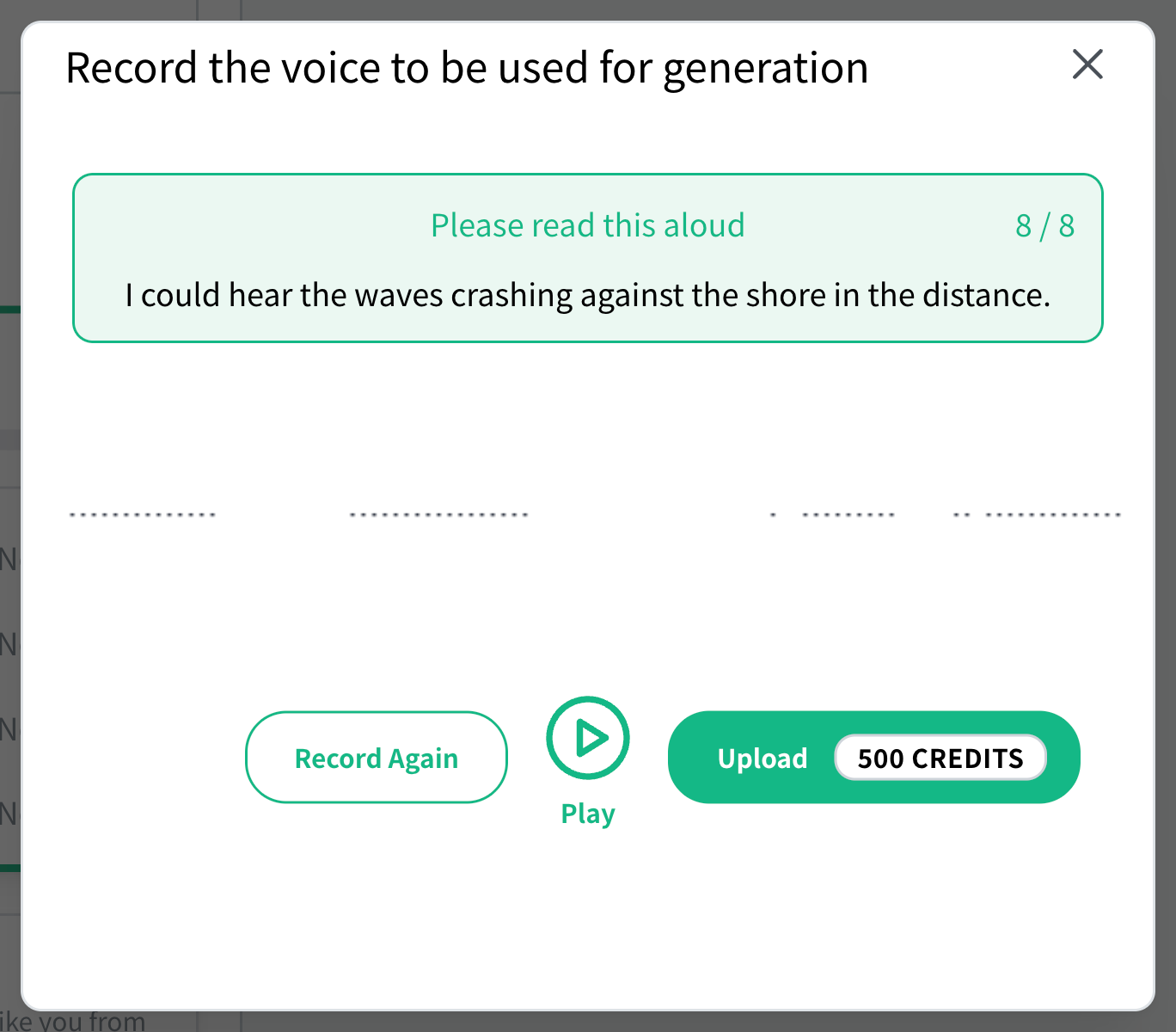
- Click “Upload” after recording all eight sentencesUse "Record Again" to make a new recording if needed. Check the credit cost shown at the end, then upload. The example in the image shows 500 credits.
3. Generate audio from a file
- Select “Create Character” from the sidebar
- From “Voice”, open “Create or regenerate audio” → “Create New” and upload an audio file
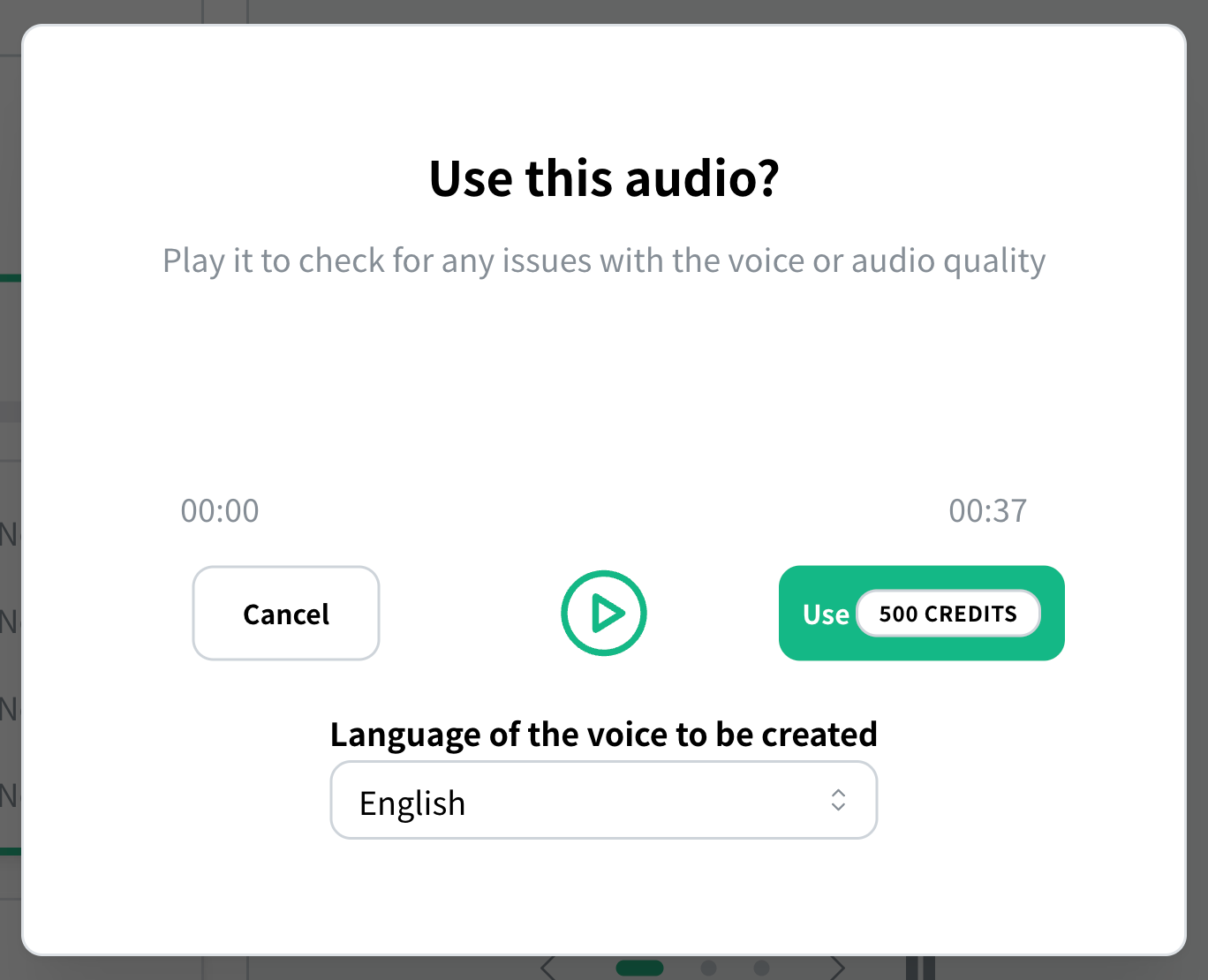
- Play the audio to check it, select the narration language, and click Use
Once generation is complete, open the Upload tab under Choose from list and select the voice you created. Follow the same steps to select a voice created from a recording.