The three modes of NoLang slide generation and the handy features worth knowing
Last updated
The English examples and diagrams are translated and adapted from the Japanese examples.
The PPTX screenshots show the previous interface. The text within the images has been translated for the English version.
1. Fast mode | Slides in 30 seconds
Sample sales materials
Input example
Service introduction materials for SmartExpense, an expense reimbursement app.A clean design on a white background with deep green as the main color.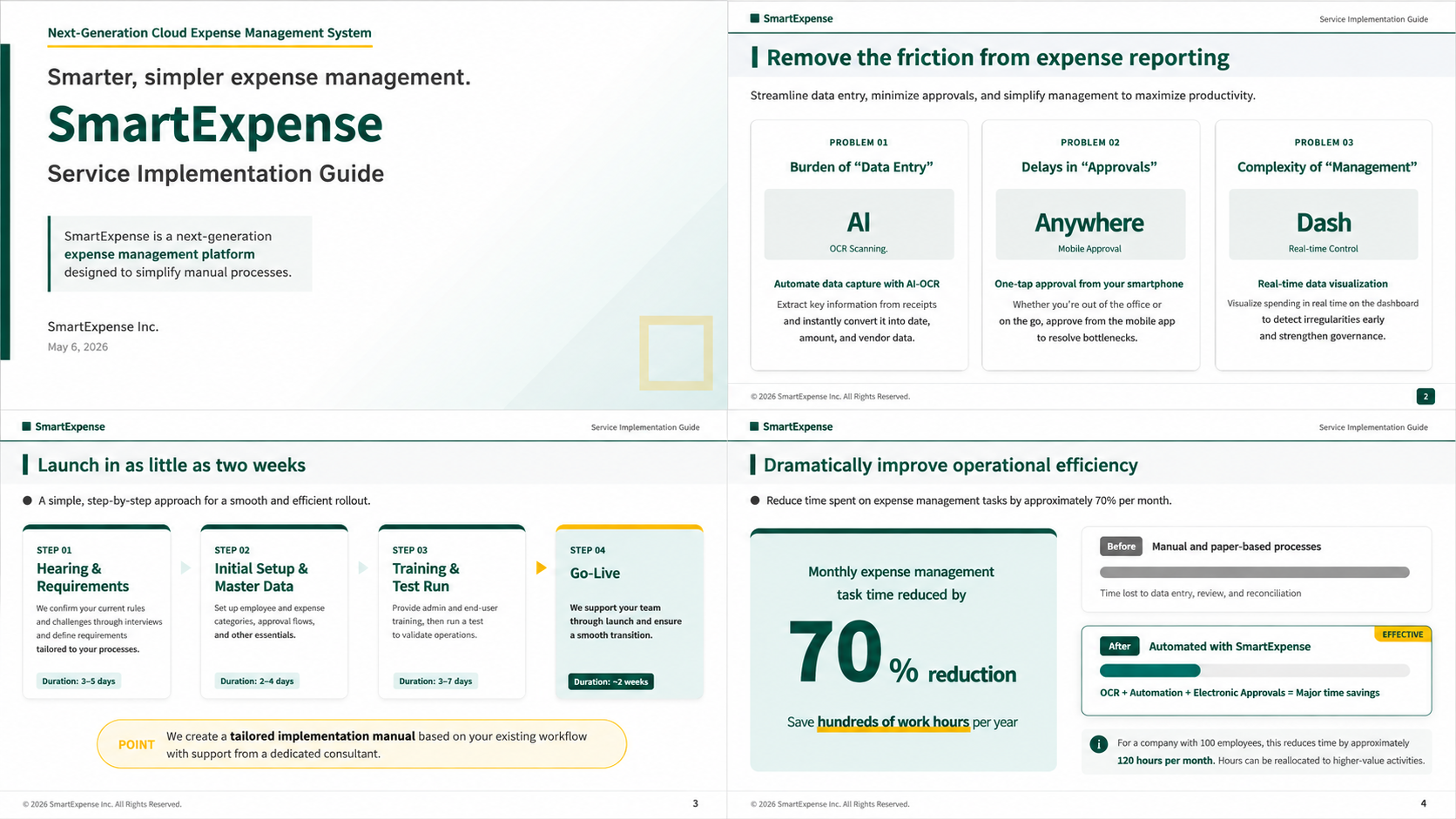
Sample training materials
Input example
Create training materials on using generative AI for the sales team, with a modern design.Cover use cases such as writing emails, drafting proposals, summarizing meeting notes, and organizing customer information, and include cautions on information leakage, hallucination, and review processes.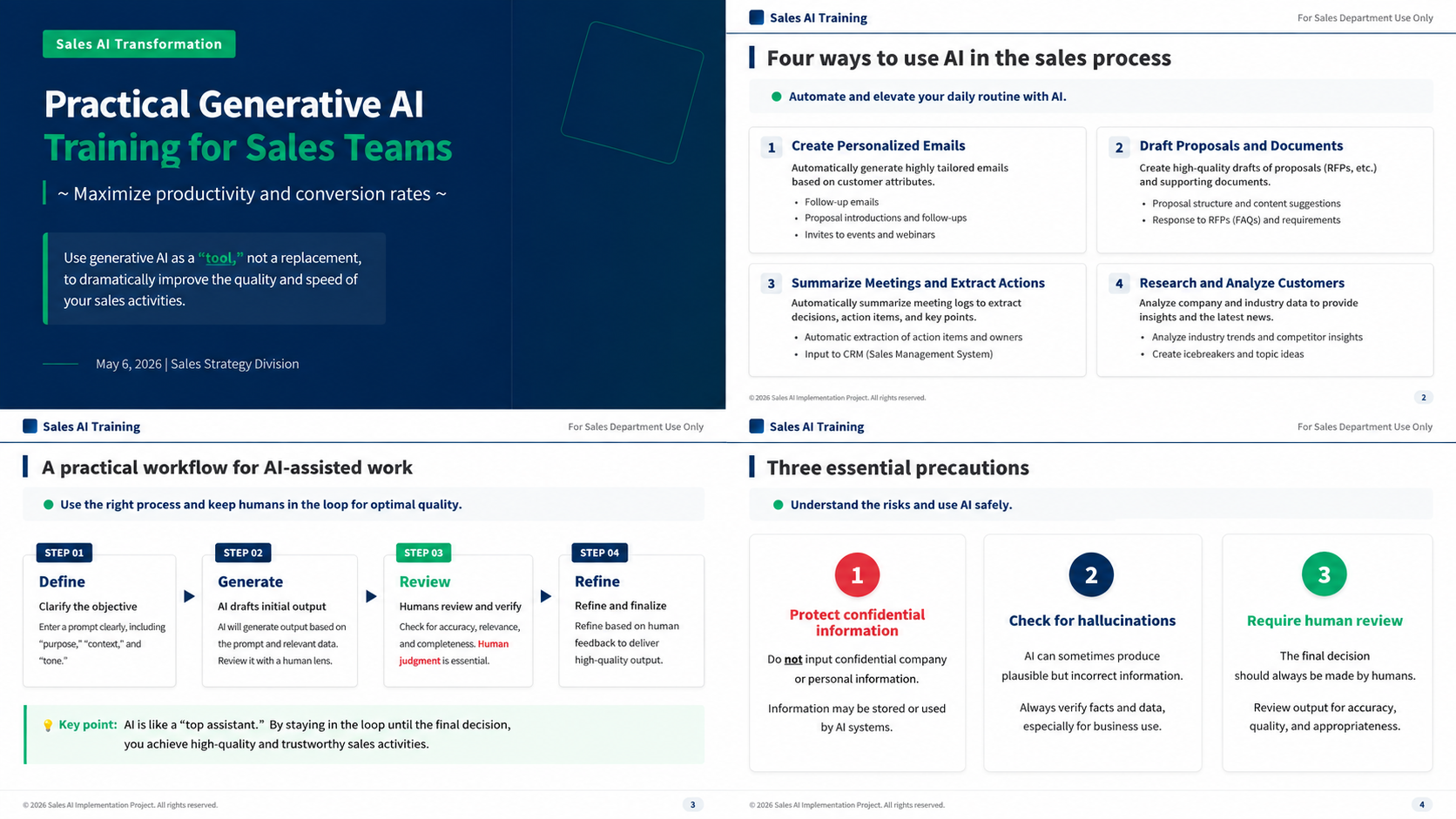
2. Diagram mode | Generate beautifully designed slides
A sample social media ad
Input example
Create slides about the health benefits of blueberries, including diagrams.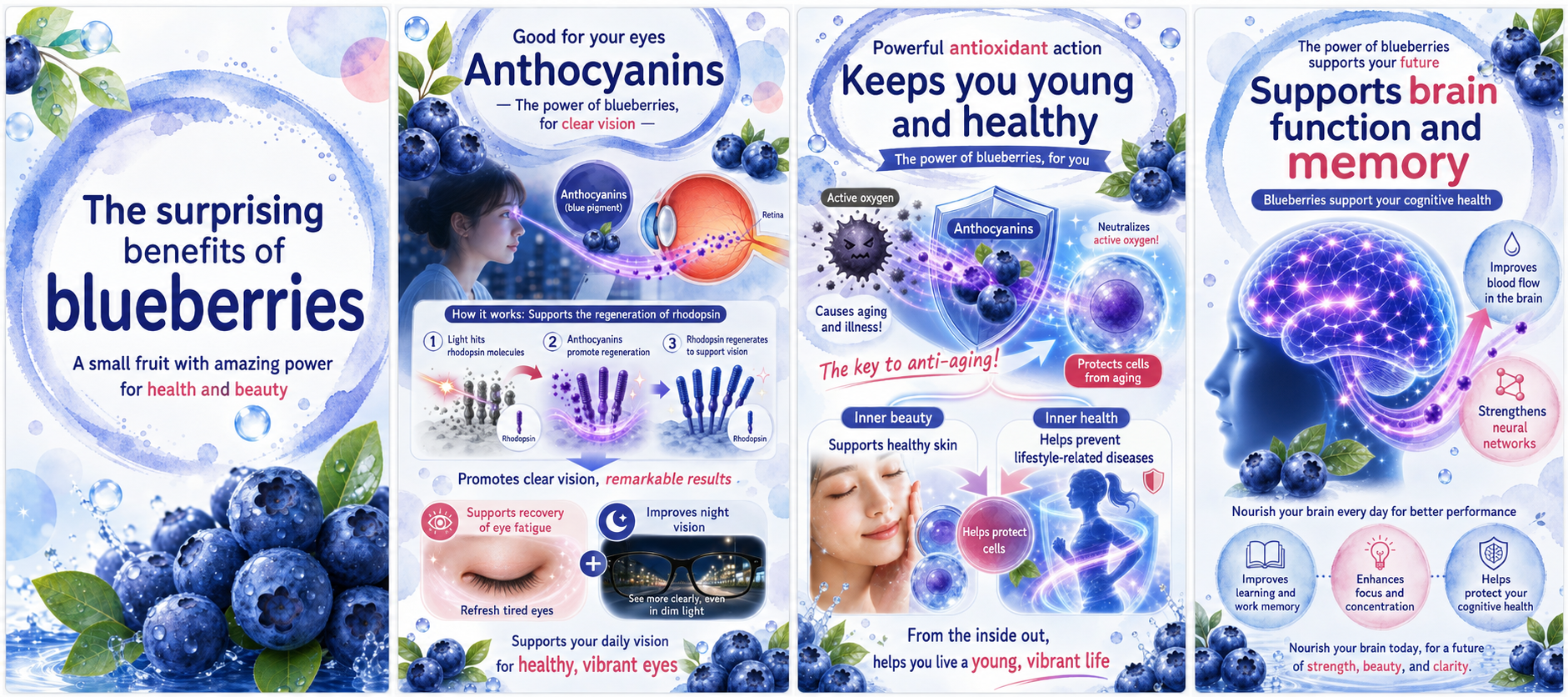
Sample feed post
Input example
Create slides for a tourist guide to Okinawa.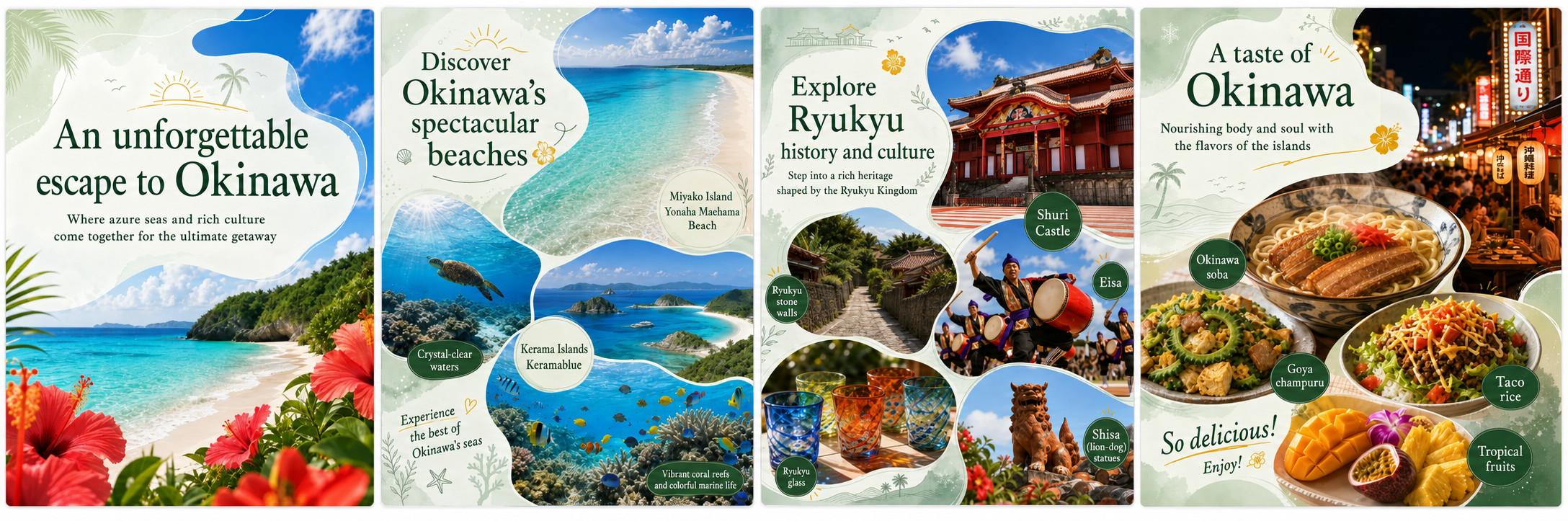
3. PPTX mode (Business plan only)
Sample sales materials
Input example
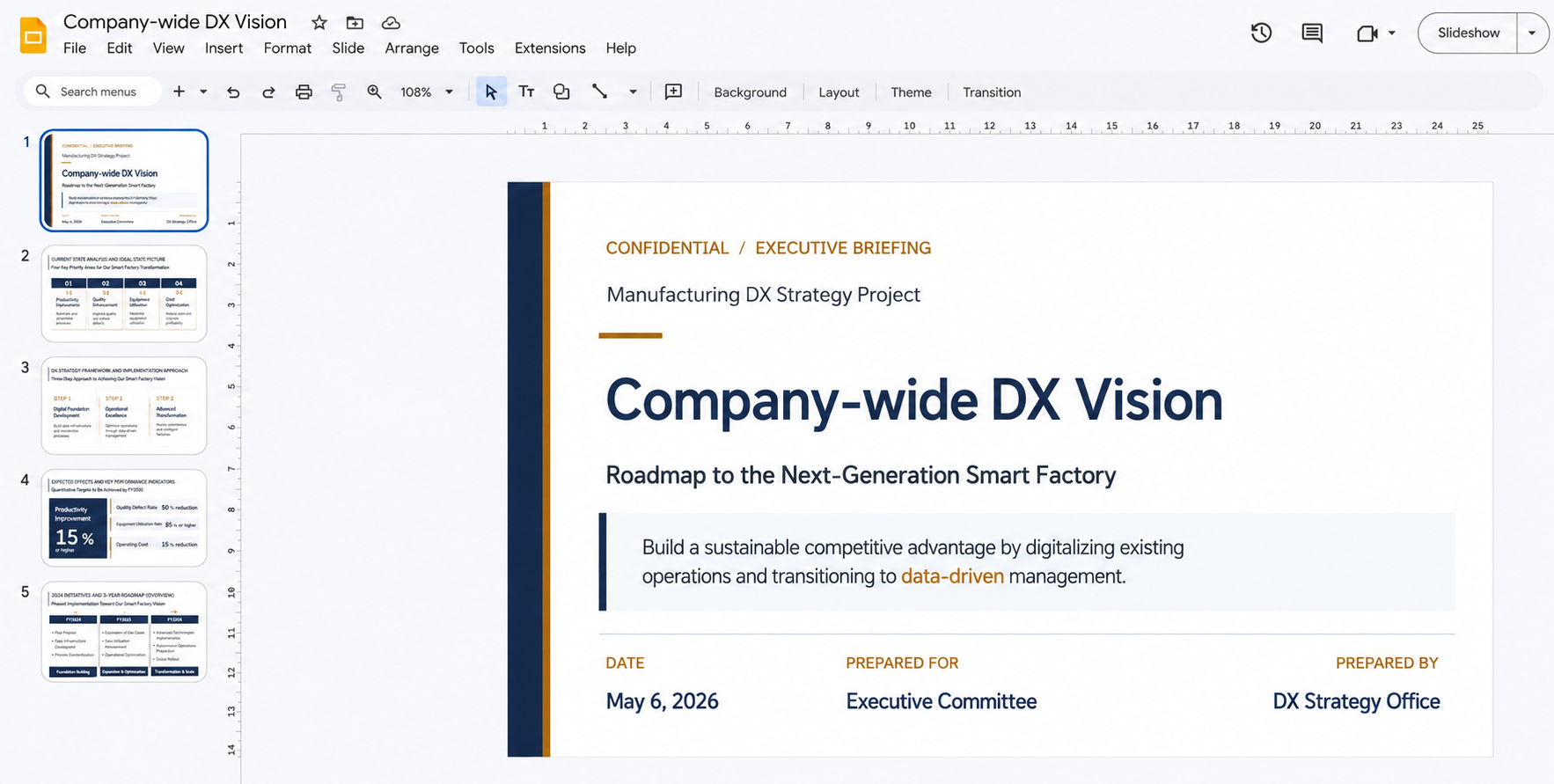
Create a consulting deck proposing a company-wide DX vision for a manufacturer, with a simple, weighty design that could go straight to an executive meeting. Cover process visualization, system integration, use of data, talent development and return on investment in a structured way, with concrete figures. Make the cover predominantly white.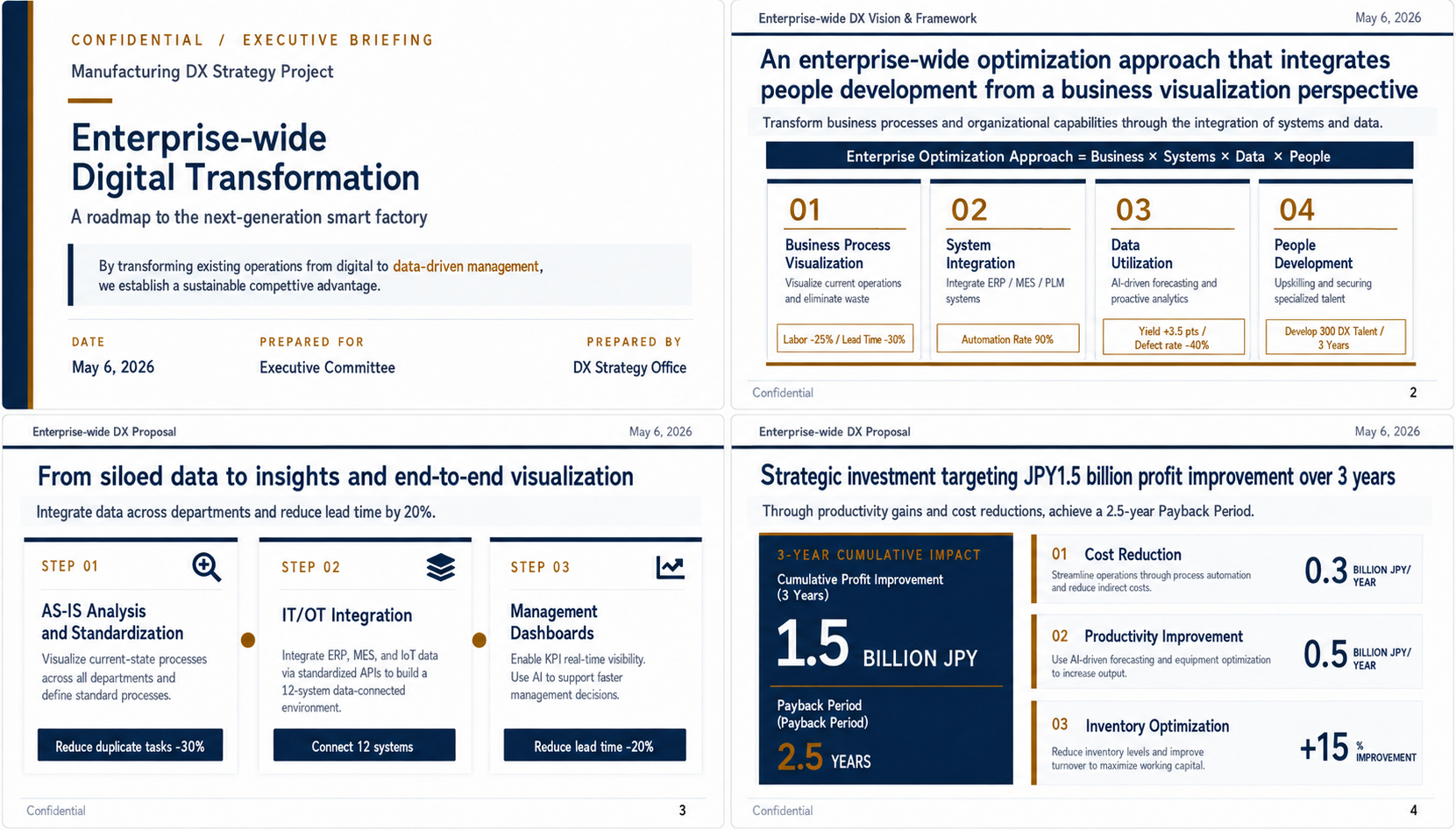
How to export to PowerPoint or Google Slides
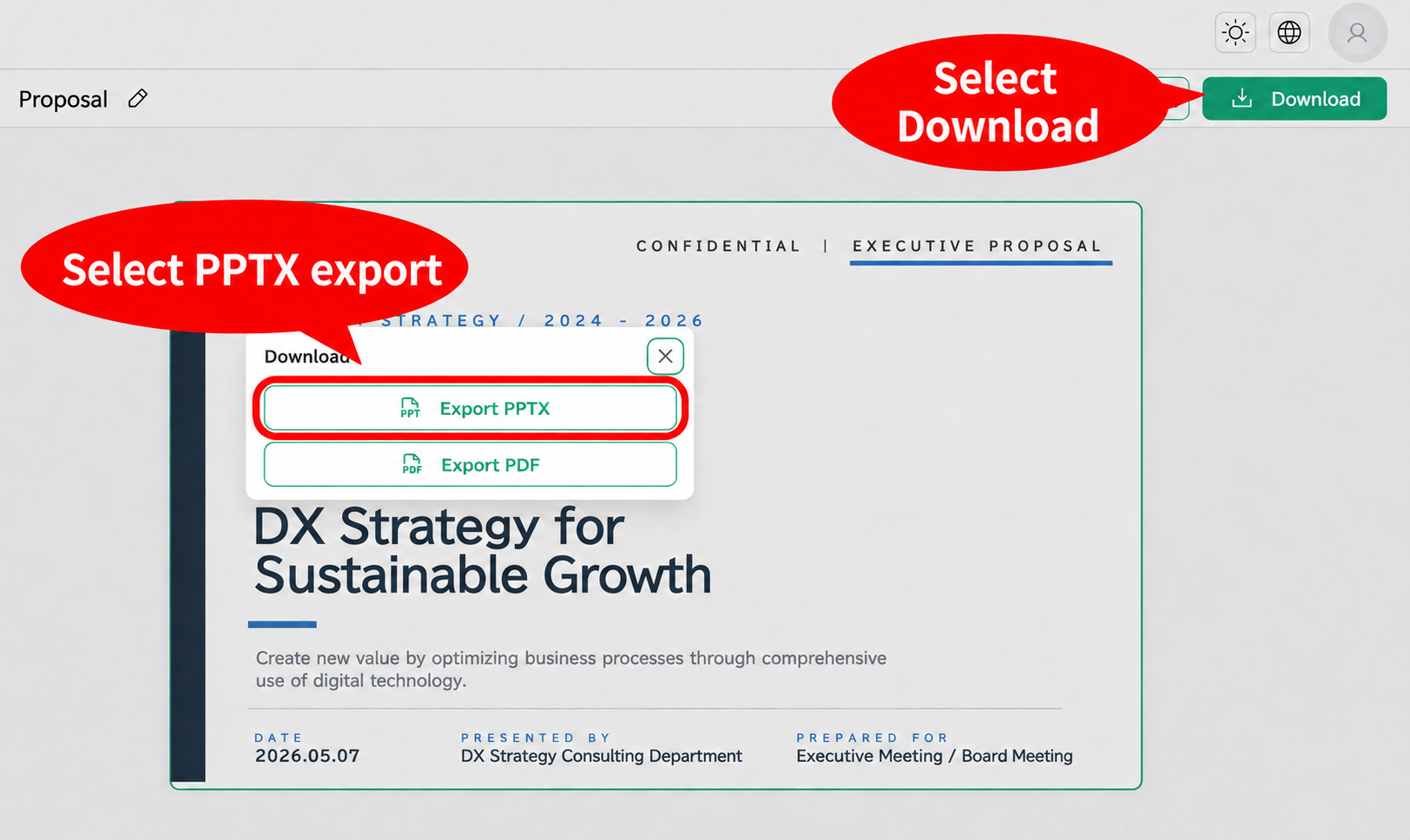
- Selecting PPTX export in PPTX modeSelect PPTX export in NoLang's PPTX mode.
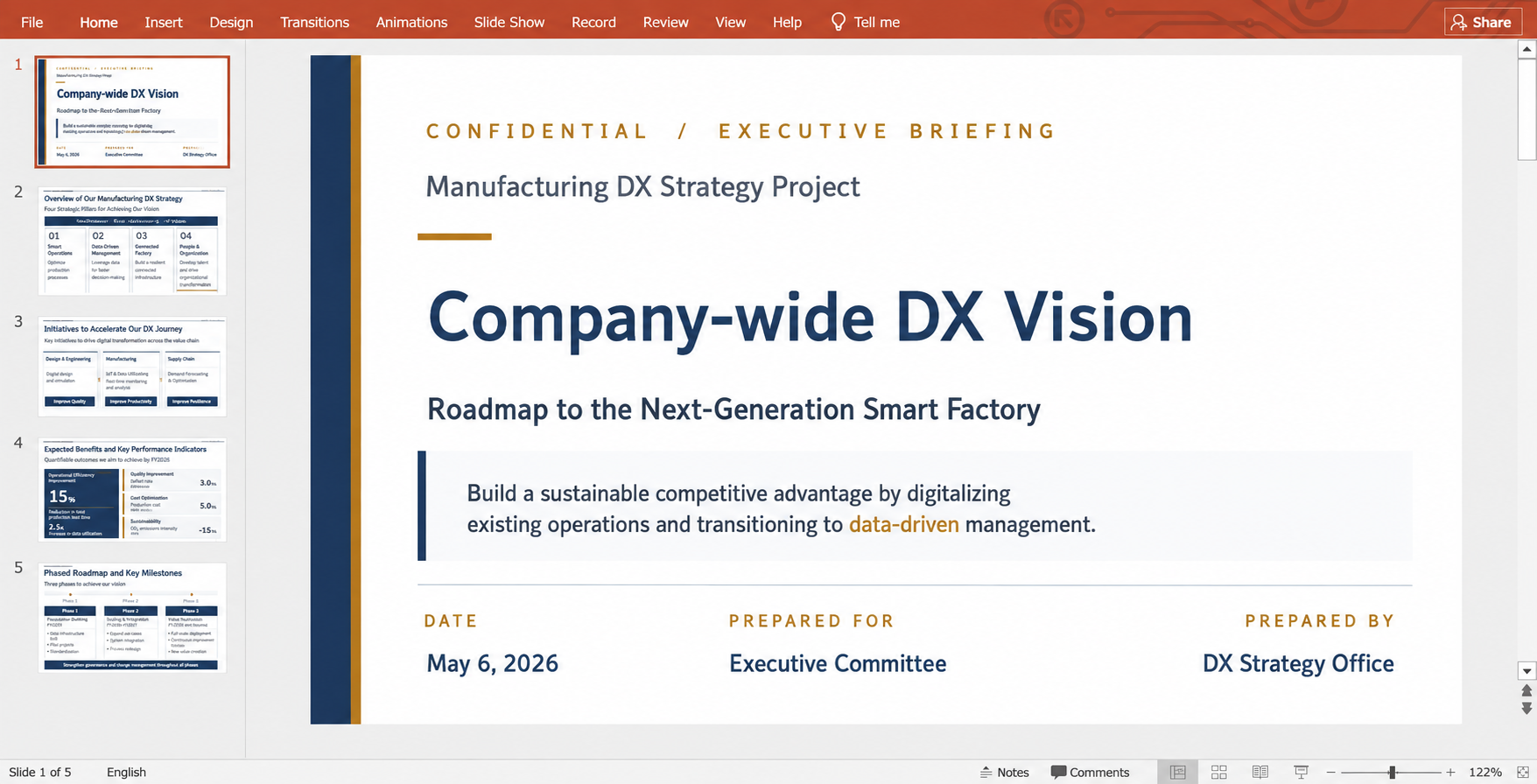
- Import into PowerPointYou can open the downloaded PPTX file in PowerPoint and carry on editing.
- Import into Google SlidesYou can import into Google Slides as well, so you can put the finishing touches on your slides in a tool you already know, such as Google Slides.
4. Handy features worth knowing
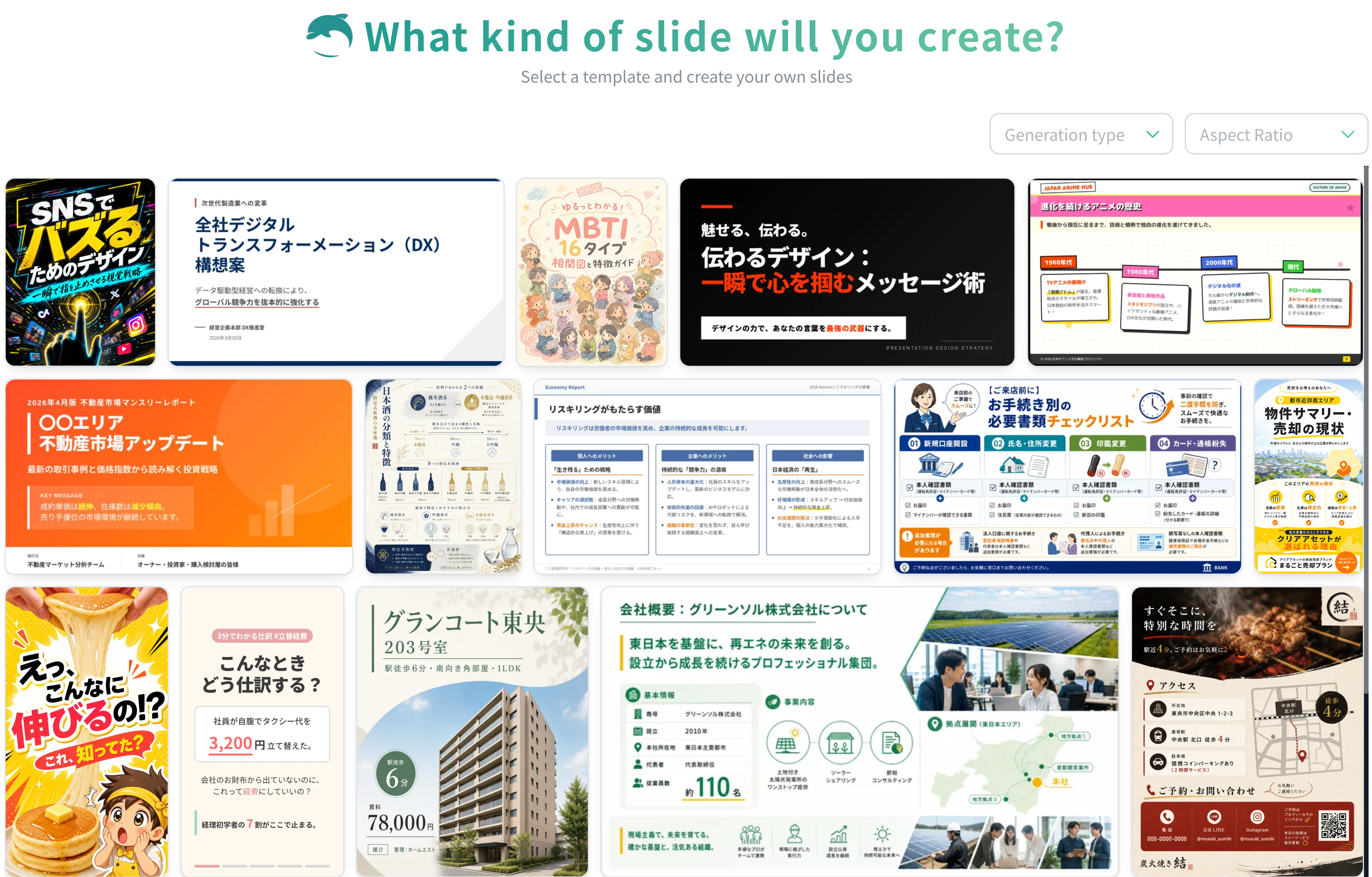
Template feature
You can easily create high-quality slides from ready-made template slides!
Editing features
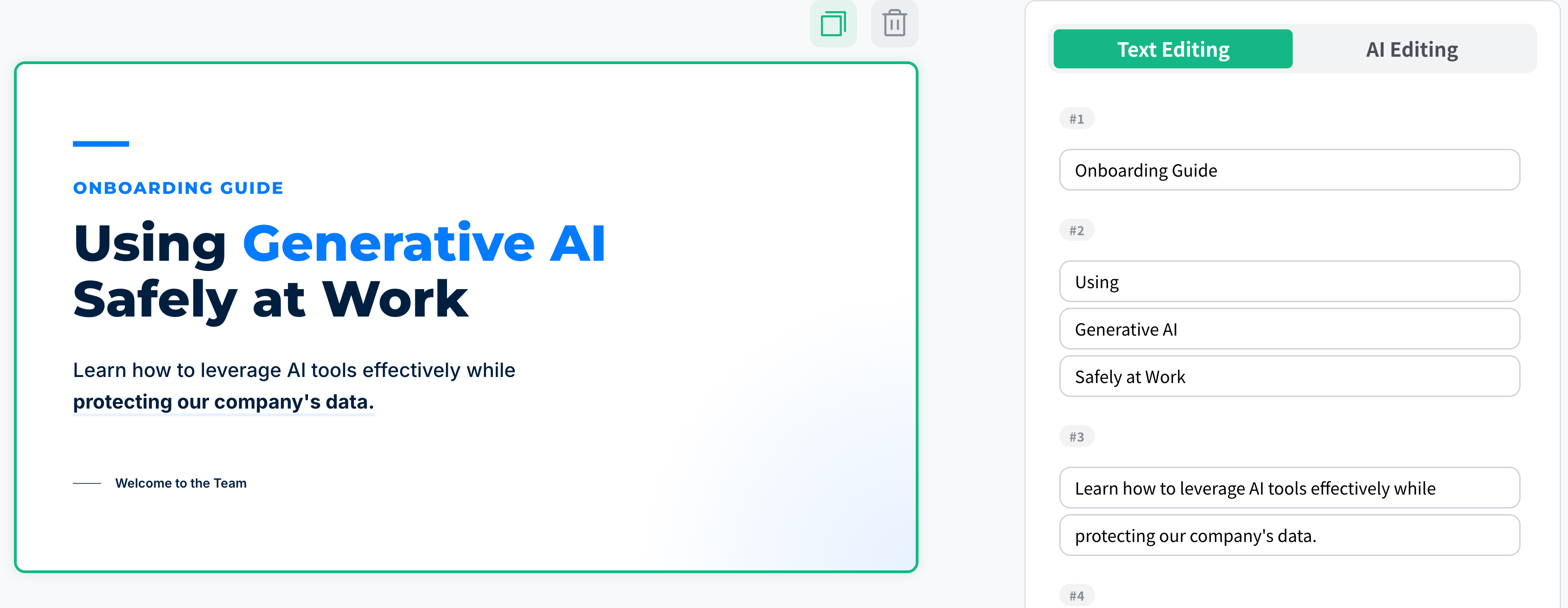
Fix the text in a slide directly, or edit the design and layout with AI
By doing this, you can easily polish your slides.