
How to generate a video
Last updated
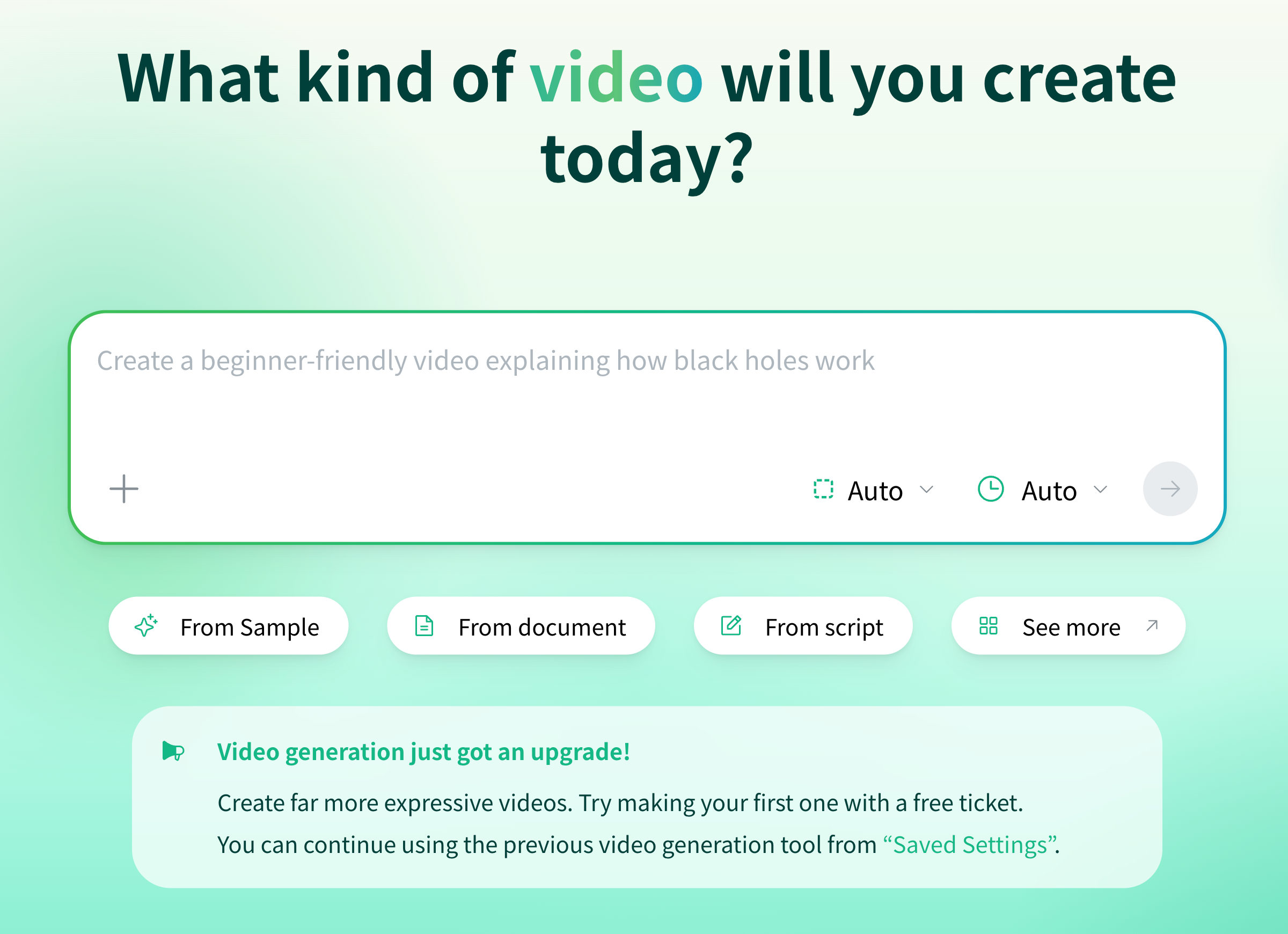
1. Create a video | Generate by entering a prompt
- Enter what you want your video to be about in the input field on HomeEnter whatever you want your video to be about in the input field in the center of the Home screen.
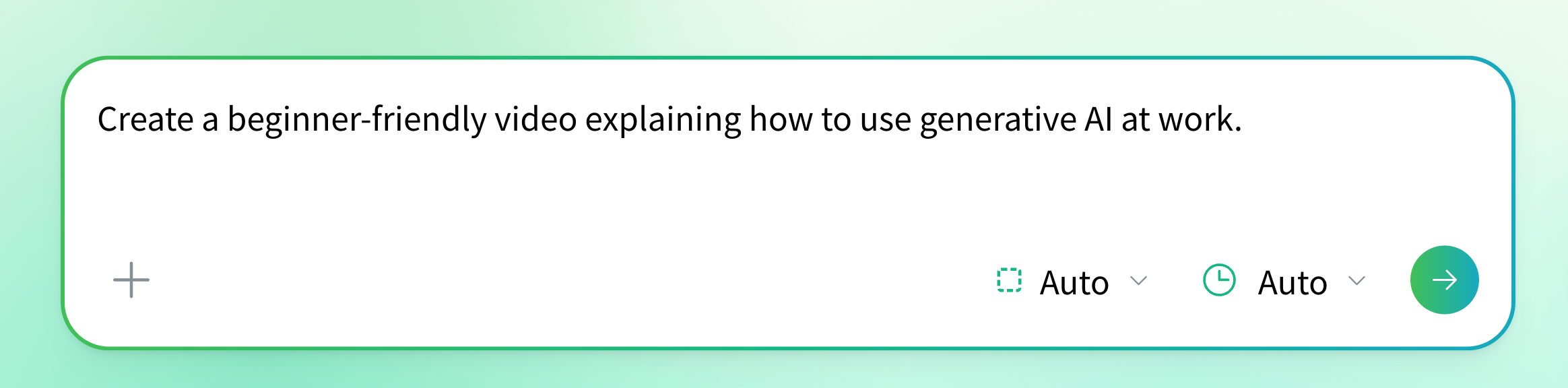
Input example
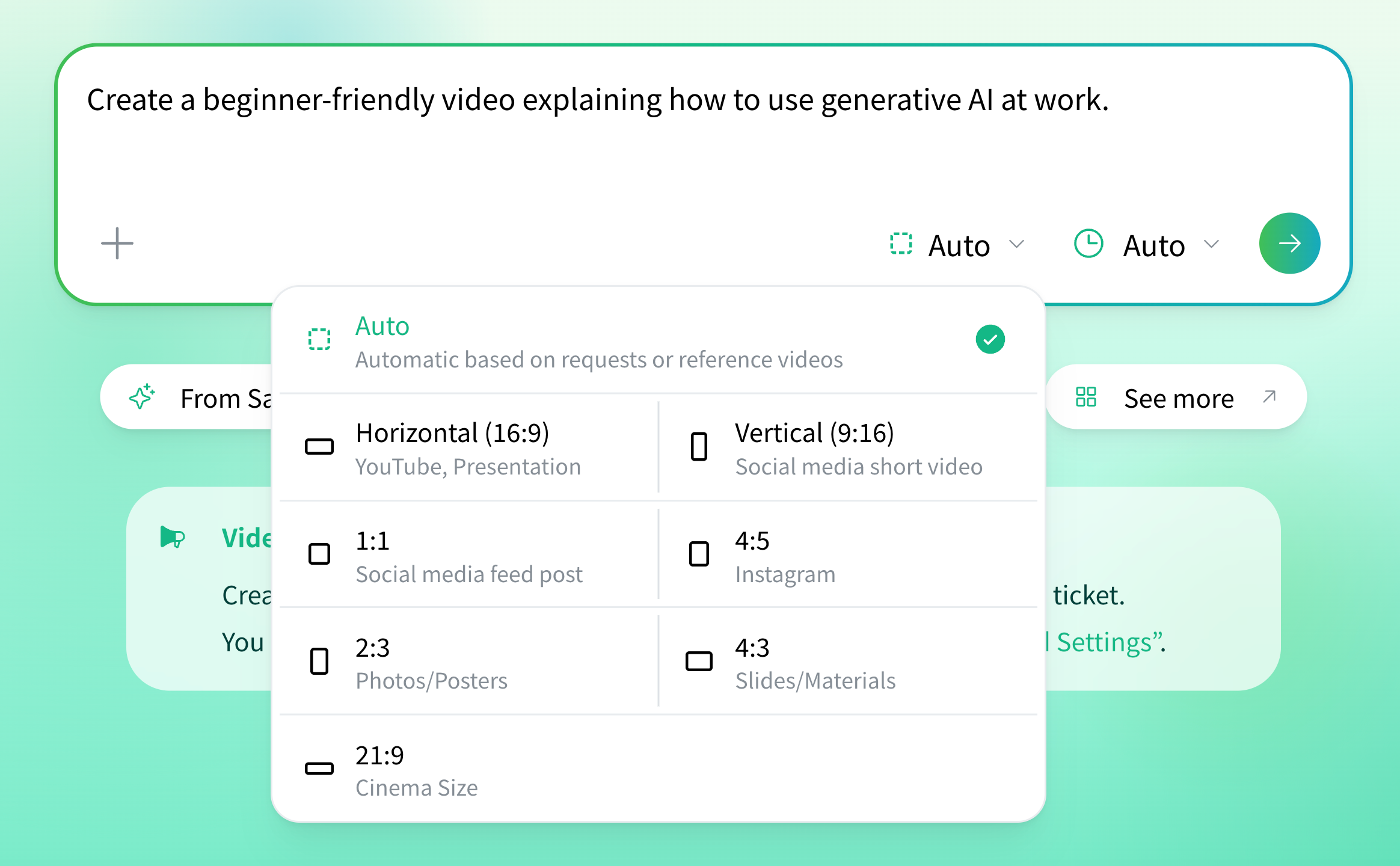
Make a vertical PR short video that introduces the appeal of our new wireless earbuds in three points - Select the video orientation (aspect ratio)You can choose an aspect ratio such as vertical (9:16), horizontal (16:9), or 1:1 from the bottom right of the input field. Choose "Auto" and it is selected automatically to match your request.
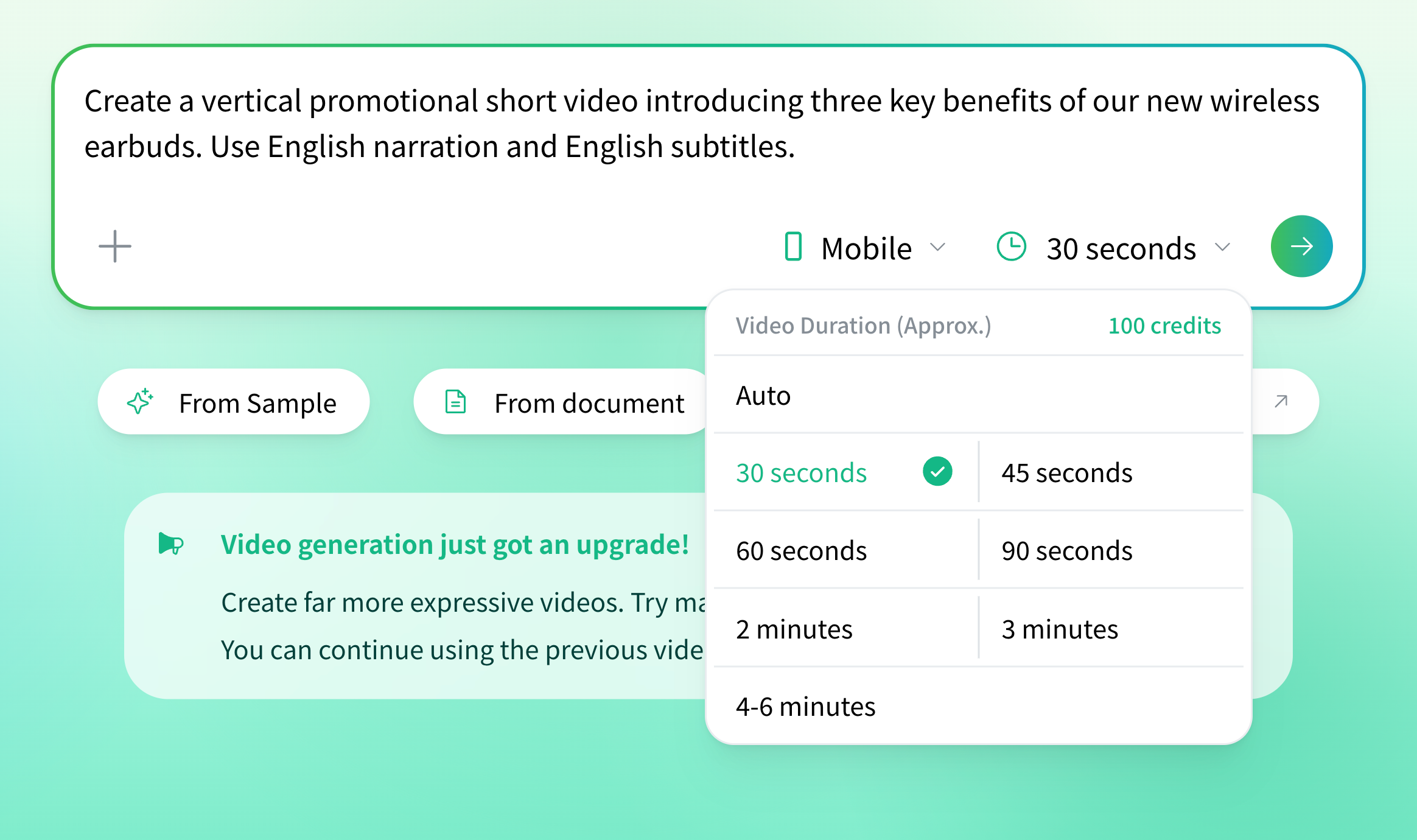
- Select a video length and click the submit buttonOnce you have selected the video length (30 seconds to a few minutes, or Auto), click the submit button on the right and generation begins.
2. Watching the generated video
After you submit, the viewing page opens and generation starts. Check the progress indicator and wait for the video to finish generating.

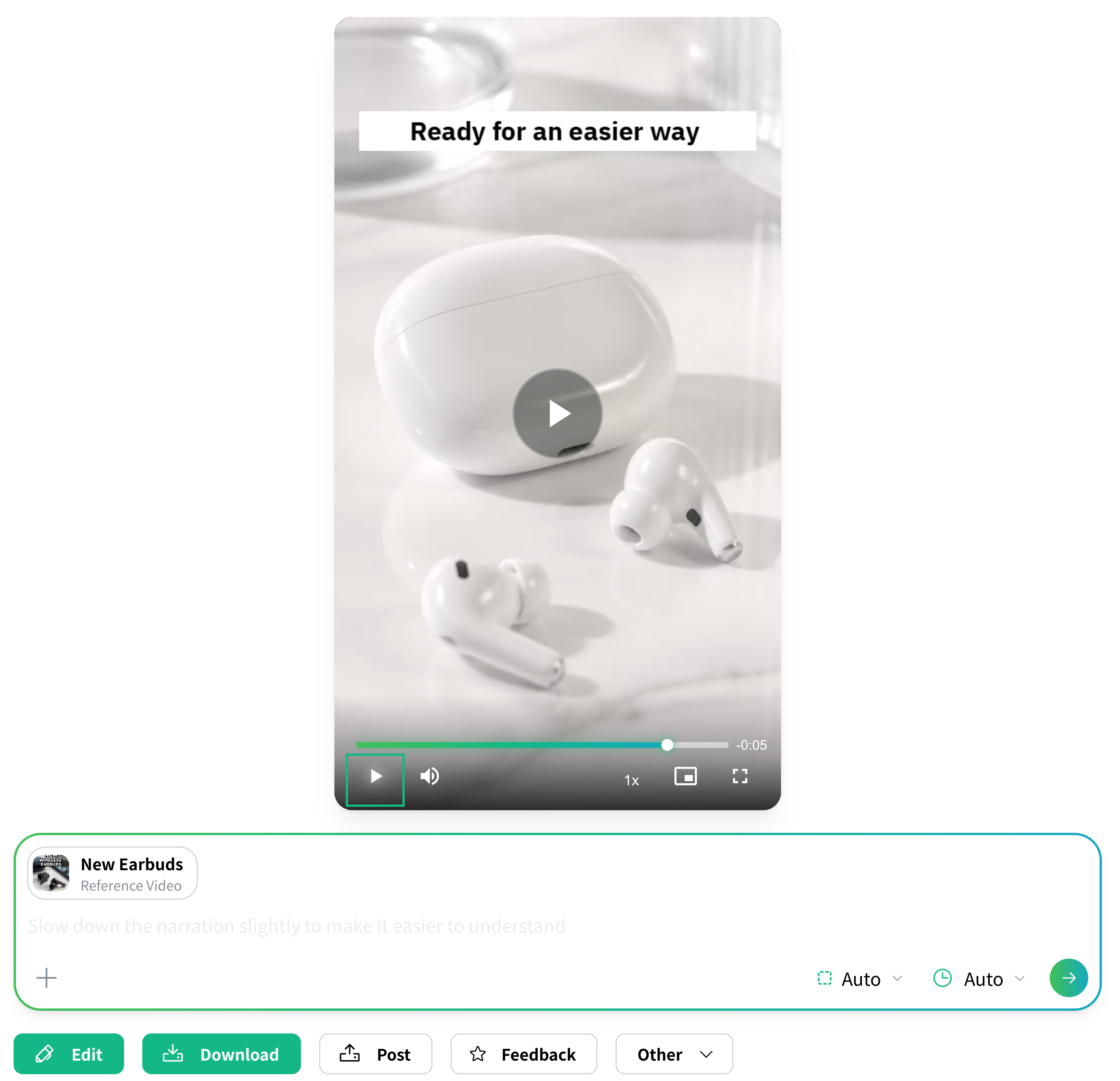
When generation finishes, you can play the video right there on the same page. You can save it with the Download button below the video, and every video you generate is listed under Video Management in the sidebar.
3. If you do not like it, generate it again right away
In the input field on the viewing page, the video you just made is set as the reference video. Write what you want to change, such as ‘Make the narration slower’ or ‘Give it a poppier feel’, and send it, and a new video is generated using this video as the reference.
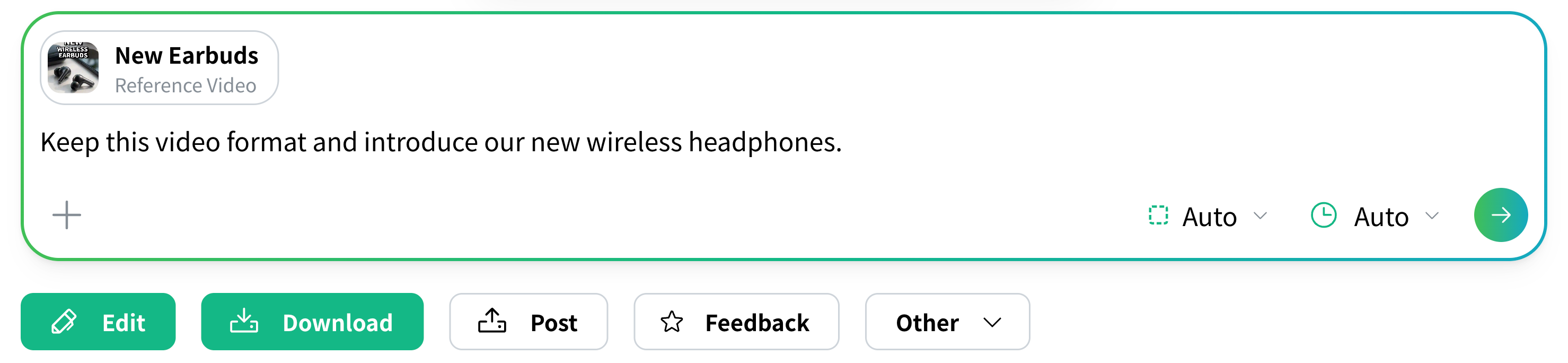
The video you make here can also serve as the reference video for your next one. We cover that on the next page.
✓ Related How to create videos from your own videos or from templates This page explains how to use an official sample or one of your own generated videos as a reference video to create a video with a similar look and structure.