How to Clip a YouTube Video After YouTube Replaced Clips
Key takeaways
In April 2026, YouTube announced that Share at Timestamp would replace Clips, so you can no longer make a new 5 to 60 second clip with an end time. Clips made earlier can still be watched.
To point someone to a moment in any video, open Share, check Start at on a computer or turn on the Minute : Second toggle on a phone, and copy the link. The video plays from that time onward.
To make a clip of your own video, use Clips and Shorts in YouTube Studio for a new video or Short, or Remix > Edit into a Short in the app for up to 60 seconds.
For a clip as a file, download your own upload from YouTube Studio and cut it, or use NoLang's Create a highlight clip. YouTube's terms don't allow downloading others' videos without permission.
SHARE
You can no longer make a new YouTube Clip as a viewer. In April 2026, YouTube announced that Share at Timestamp would replace the Clips feature, so a link to a moment now starts at the time you choose and keeps playing from there, with no end time. When we checked YouTube on a computer in November 2026, Clip was gone from the menu under the video.
What “clipping” a YouTube video means now depends on whose video it is and what you need at the end:
Point someone to a moment in any video: copy a link that starts at the time you pick.
Clip your own video: turn part of your upload into a new video or Short in YouTube Studio.
Get the clip as a file: download your own upload and cut out the part you want, by hand or with AI.
This guide walks through each one, using YouTube’s current screens and help pages as of November 2026.
What happened to YouTube Clips
A YouTube Clip was a 5 to 60 second section of a video that you picked with a slider, gave a title and shared as a link. Anyone who opened the link saw that section play on a loop on the original video’s page.
On April 17, 2026, TeamYouTube posted Updating how you share video moments in the YouTube Help Community. YouTube said Share at Timestamp “will become the main way to share specific moments in videos, replacing the Clips feature.” The same post spells out what changes:
Sharing a moment: the share link starts the video at a time you choose. YouTube brought this option to the mobile app in the same update; it was already on computers.
End time and description: in YouTube’s words, “the ability to set an end time or include a custom description when sharing will no longer be available.”
Clips you already made: “existing Clips will still be viewable.”
Creators clipping their own videos: YouTube pointed creators to Video Clips in YouTube Studio, which republishes part of a longer video or archived live stream as a separate video.
On the computer version of YouTube we checked in November 2026, the More menu under a video held only Thanks, Save and Report, and the Share box offered Start at but no Clip. YouTube’s older help page, Learn about managing Clips, still lists the steps for making a clip, so following it will lead you to a button that is no longer there.
Pick the route by what you want to end up with:
Ways to clip a YouTube video now
What you want
Whose video
What you end up with
Show someone a moment
Anyone’s
A link that starts at your time
A new video or Short
Your own
A separate upload on your channel
A clip as a file
Your own, or footage you have permission to use
A video file to edit and post
How to share a YouTube video from a specific moment
Share at Timestamp is what YouTube now offers in place of Clips. A timestamp link opens the video at the time you set, and the video keeps playing past it. Because there is no end time, say in your message how long the part you mean runs.
On a computer
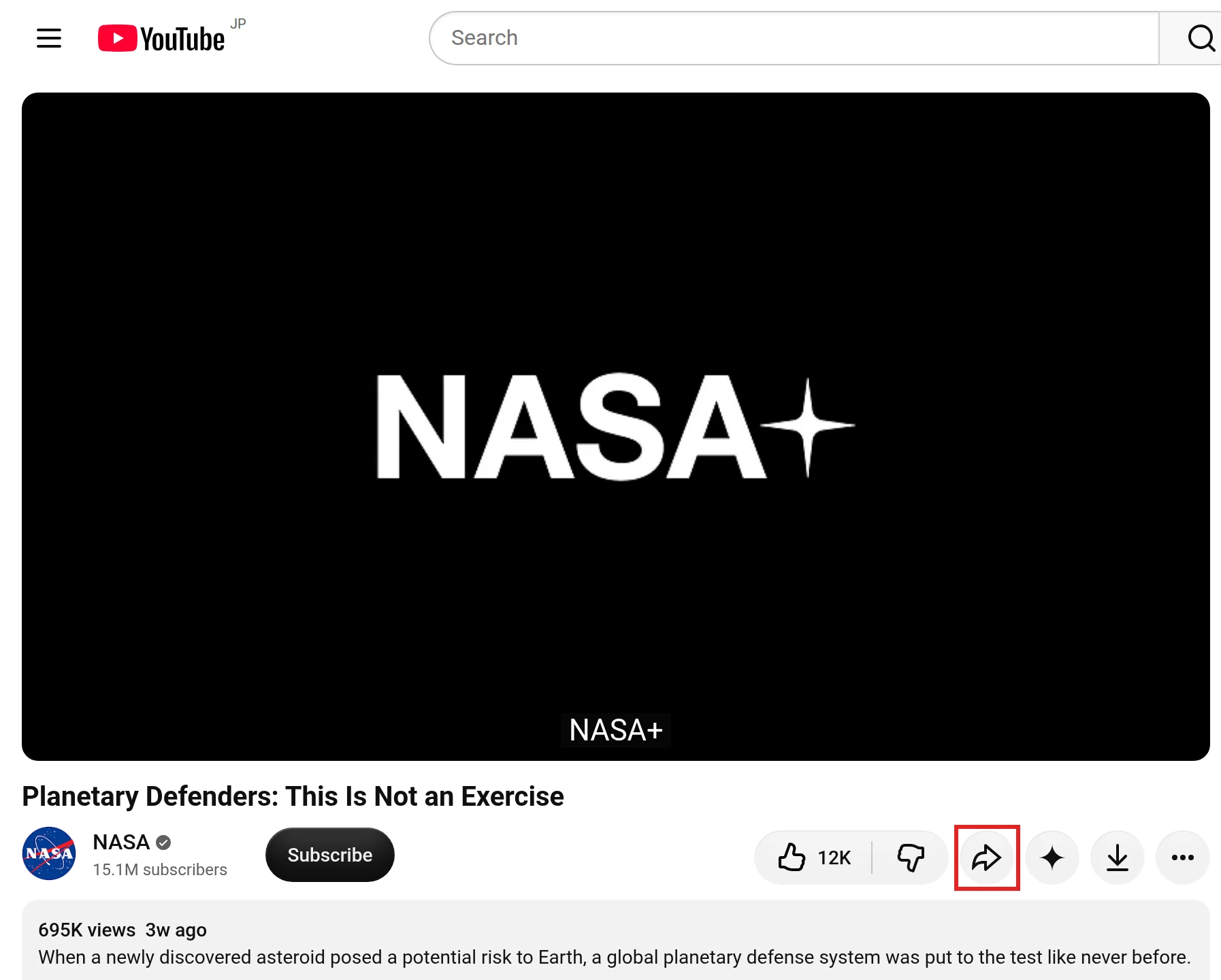
Open the video, pause it at the moment you want to share, and select Share, the curved arrow icon in the row of buttons under the player.
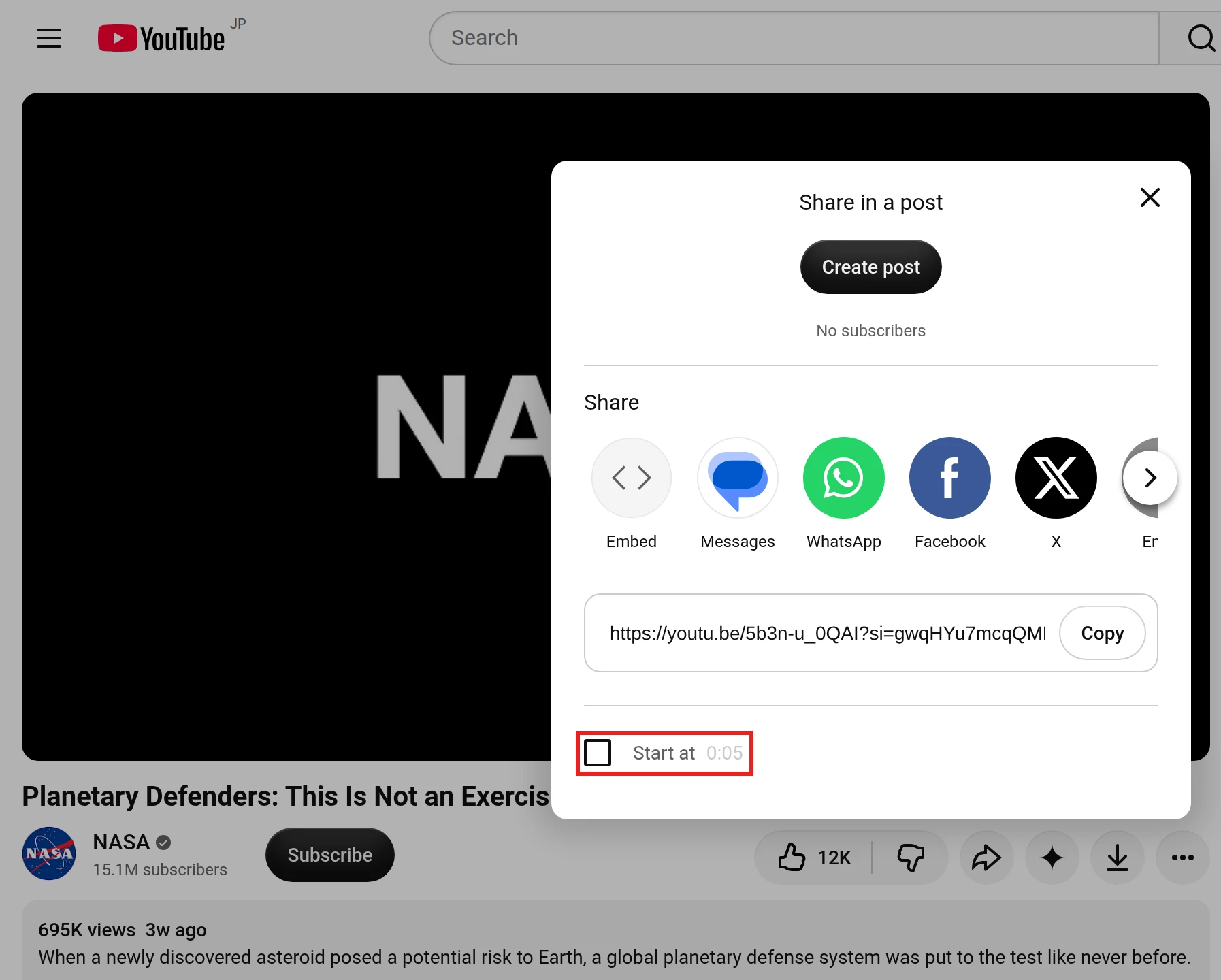
At the bottom of the Share box, Start at shows the time where the video is paused. Check the box, then enter the time the video should start from. For 2 minutes and 30 seconds, enter 2:30.
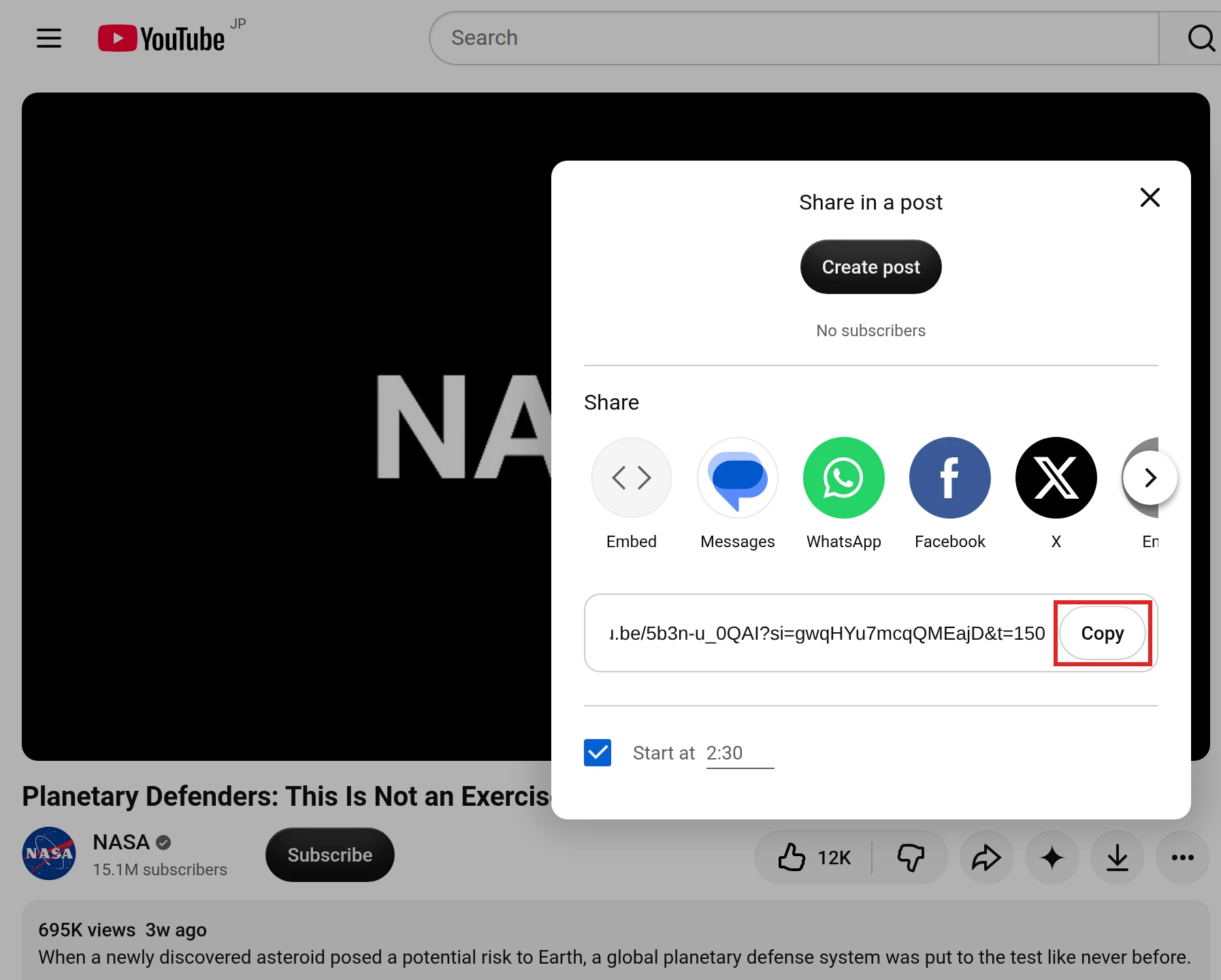
The link gains the time in seconds at its end, such as t=150 for 2:30. Select Copy and paste the link where you want to share it.
Open the copied link once yourself to confirm it starts at the right moment.
Play the video up to the moment you want to share.
Tap Share under the player.
Turn on the Minute : Second toggle. It shows the time you stopped at, such as 2:30.
Tap Copy link, or pick the app you want to share to.
The same steps as a short video
The video below walks through the computer steps. It was made in NoLang from the three screenshots above, and you can use the same template with screenshots of the steps in your own app or service.
If the video is yours, you can still make a real clip. YouTube Studio turns part of an upload into a new video or Short that sits on your channel like any other upload, and YouTube’s help says you won’t be penalized for reusing your own content this way.
In YouTube Studio, select Content, then Videos, and click the video you want to clip.
In the left menu, select Clips and Shorts, then Create clip or Short, and choose Video clip or Short.
Choose the part to use. Select lines in the transcript and click Confirm selection, or enter the start and end times in the timeline. In some countries and languages, including the United States and English, YouTube also suggests sections with AI.
For a Short, select Preview Short. Captions are added automatically where available, and you can restyle or turn them off there.
Select Create draft and finish the usual upload steps to publish.
YouTube’s help suggests adding a link to the original video in the clip’s description.
Edit into a Short in the YouTube app
In the YouTube app, open your own video and tap Remix, then Edit into a Short, and select up to 60 seconds of it (Create YouTube Shorts from your videos). This works only on public long-form videos you uploaded. Private and unlisted videos, and videos with third-party copyright claims, can’t be used.
Trimming is a different tool
The Editor in YouTube Studio has Trim & cut, which removes the beginning, middle or end of the same video instead of making a new one. The video keeps its URL, view count and comments, and the tool works on videos shorter than six hours (Trim your videos). Since June 2025, saved edits can no longer be undone with Revert to original, so keep your original file before you trim.
How to get a clip as a video file
A YouTube Clip was always a link that played on the original video’s page, never a file you could save. If you want a file to edit or post on another platform, start from a copy of your own video.
Download your own video from YouTube Studio
In YouTube Studio, select Content.
Find the video you want, open its Menu (the three dots), and select Download.
YouTube saves an MP4 file in 720p or 360p, depending on the video’s size, and each video can be downloaded up to five times a day (Download YouTube videos that you’ve uploaded). If you still have the file you uploaded, you can start from that instead.
From there, any video editor can cut out the section you want.
Cut the highlights with NoLang
If you’d rather not hunt for the moments yourself, NoLang’s Create a highlight clip transcribes your video and cuts it down to the highlight moments.
On the NoLang home screen, select See more under the input box.
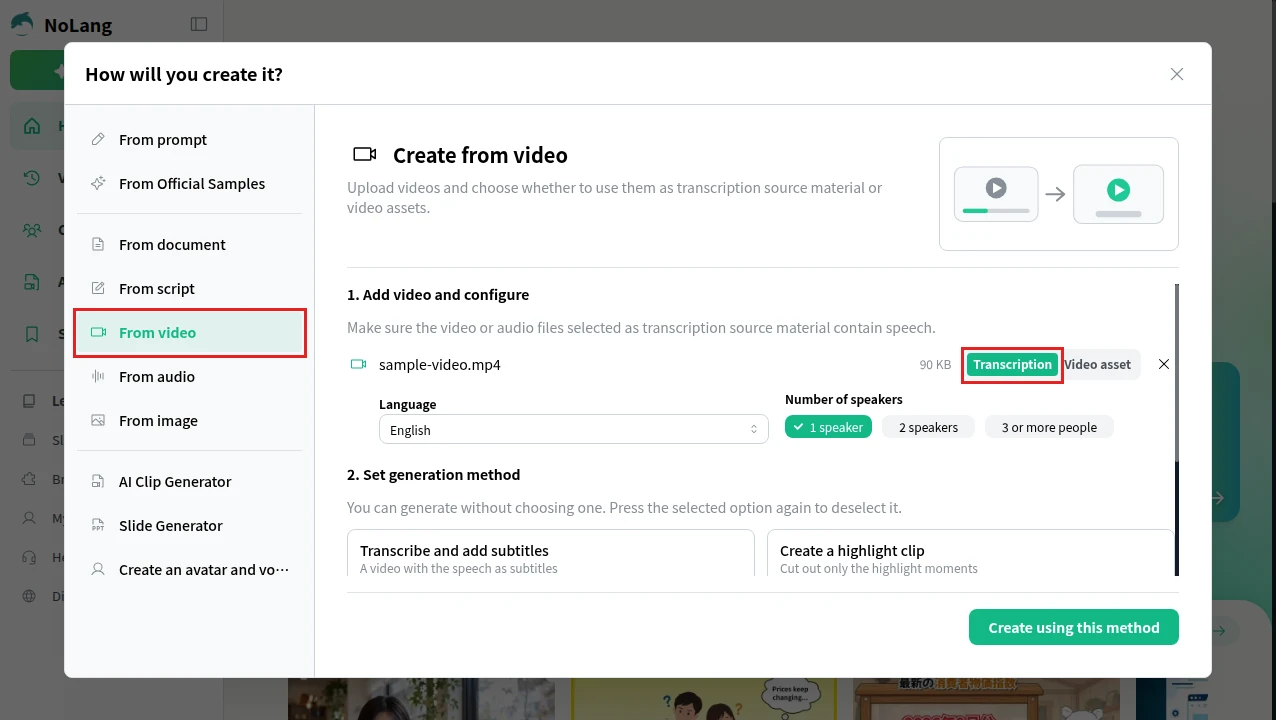
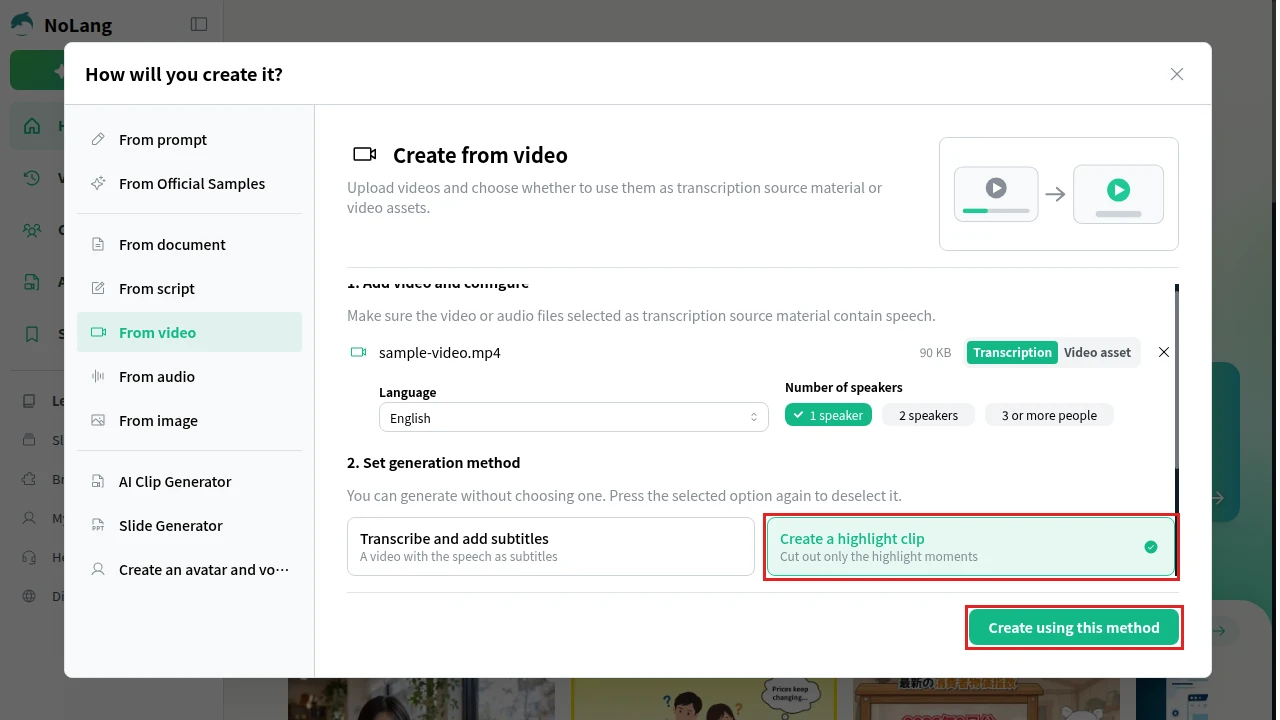
Under How will you create it?, choose From video. In Add video and configure, add your video file and keep it set to Transcription, then pick the language and number of speakers.
Under Set generation method, select Create a highlight clip, then Create using this method.
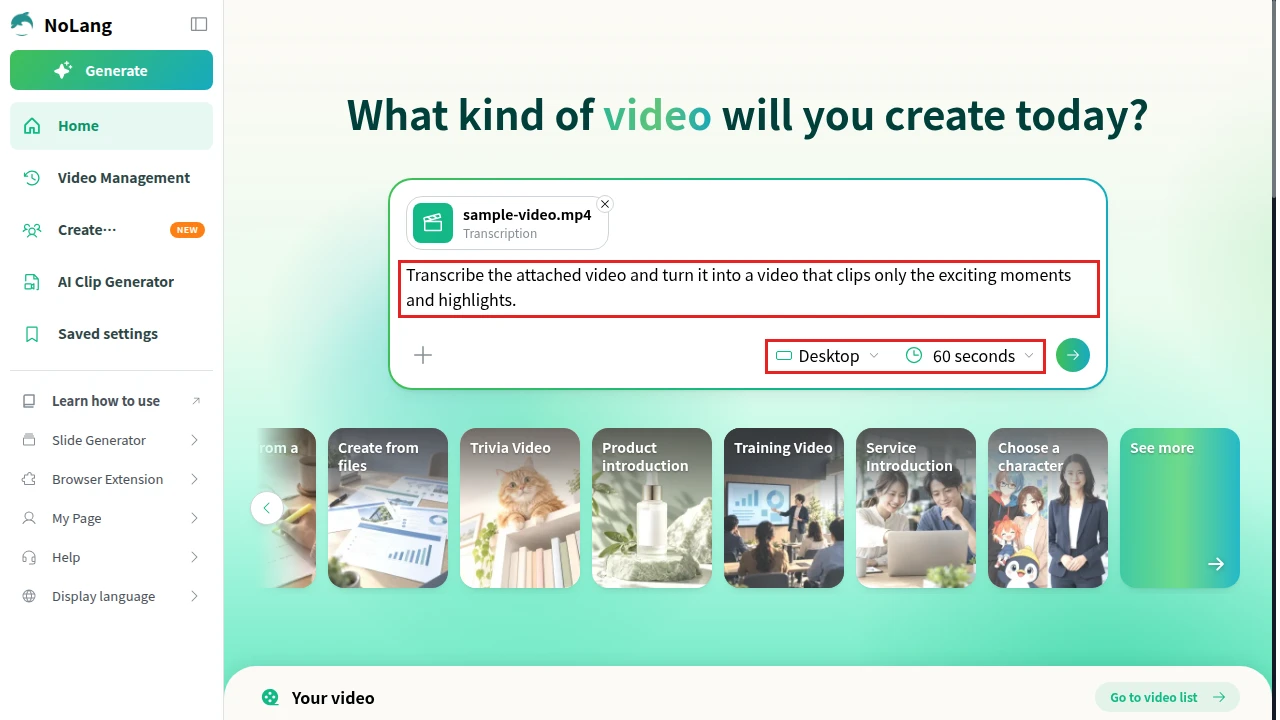
Your video and the instruction below appear in the input box. Under the box, set the shape and the length. The shape starts at Desktop (16:9); choose Vertical (9:16) for a Short. The length starts at 60 seconds. Check the text and send it.
Transcribe the attached video and turn it into a video that clips only the exciting moments and highlights.
Play the finished video on its page and fix anything you want to change in the editor.
Before you post a highlight clip, check that the moments it kept don’t change what the speaker meant.
Clips of other people’s videos
YouTube Studio’s download only covers your own uploads, and YouTube’s help states that you can’t download other users’ videos. YouTube’s Terms of Service don’t allow you to download or reproduce content except as expressly authorized by the service, or with prior written permission from YouTube and the rights holders. The rule is in the Permissions and Restrictions section of YouTube’s Terms of Service. Videos saved for offline viewing with YouTube Premium are stored encrypted on the device and play only in the YouTube app (YouTube videos offline FAQs), so they aren’t files you can edit either.
To use part of someone else’s video in your own post, ask the owner for permission and for the file. To show someone a moment, a timestamp link does the job without copying anything.
Clipping videos for your company channel
If your company runs a YouTube channel, its long uploads, such as webinars, product demos and event talks, usually hold a few moments worth posting on their own. NoLang turns the recording file into a highlight clip, horizontal for the channel or vertical for Shorts, and the screenshots-to-video template shown above can walk viewers through your own product’s steps. To talk about using NoLang across your team, contact us or download the brochure.
Not as a viewer. In April 2026, YouTube announced that Share at Timestamp would replace the Clips feature, and when we checked the computer version in November 2026, Clip was no longer in the menu under the video. To show someone a moment, share the video with a start time. If the video is yours, the Clips and Shorts tool in YouTube Studio still turns part of it into a new video or Short.
Q
Where can I find the clips I already made?
⌃
YouTube said existing clips will still be viewable. When we checked in November 2026, the Clips page at youtube.com/feed/clips still opened for a signed-in account, with the note that clips created by you appear there.
Q
Can I share a YouTube link with an end time?
⌃
No. A share link sets only the start time, and YouTube said the ability to set an end time when sharing would no longer be available once Share at Timestamp replaced Clips. Mention in your message how long the part you mean runs. For your own video, you can publish just that section as a video clip from YouTube Studio.
Q
Can I download a YouTube clip as a video file?
⌃
A YouTube Clip was a link that played on the original video's page, not a file. For your own videos, YouTube Studio lets you download an MP4 in 720p or 360p, and you can cut the section you want from that file. YouTube's help states that you can't download other users' videos.
Q
Can I clip someone else's YouTube video and post it?
⌃
Only with permission. YouTube's Terms of Service don't allow downloading or reproducing content except as expressly authorized by the service, or with prior written permission from YouTube and the rights holders. Ask the owner for permission and the original file, or share the moment with a timestamp link instead.