How to Create Onboarding Videos for New Employees, with Templates
Key takeaways
An employee onboarding video answers a question new hires ask at a particular stage, such as where to go on day one or how to stay safe on the floor, the same way for everyone.
Start with the three videos every new hire needs: a first-day welcome, a safety or security orientation, and accounts and tools. Role-specific videos come next.
Six steps: collect the questions new hires ask, group them into short videos, write the script, choose a format, review with the owner and a recent hire, and publish with an owner and a review date.
This guide includes a copyable onboarding video script template and two finished examples made from it, a first-day welcome and a warehouse safety orientation, which you can reuse as NoLang templates.
SHARE
An onboarding video is a short video that answers a question a new employee has at a particular point in their first weeks: where to go on the first day, how to stay safe on the floor, how to sign in, who to ask. A set of them gives every new hire the same answers, whoever is available to welcome them that week.
This guide covers which onboarding videos new employees need, how to create them in six steps, and a script template you can copy. It then fills in the template twice, for a first-day welcome video and a safety orientation for a first shift, and shows the finished videos, which you can reuse as templates.
What an employee onboarding video is
An employee onboarding video is made for people who have just joined, or are about to join, a company. Each one answers a question a new hire has at a particular stage, from the week before the start date to the first few months in the role, and it answers it the same way for everyone.
The term overlaps with a few others. The difference is who watches and what they should be able to do afterward.
Video
Who watches
When
After watching, the viewer can
Employee onboarding video
New hires
Before day one to the first months
Get through that stage without asking the same questions every new hire asks
Orientation video
New hires
Day one or week one
Find their way around the first day: place, paperwork, safety, tools
Training video
Any employee
When a skill is needed
Do a task or follow a rule, often with a check at the end
Customer onboarding video
New customers
After signing up or buying
Start using the product
An orientation video is one kind of onboarding video, the one tied to the first day. Training videos overlap with onboarding when a new hire has to learn a skill in their first weeks. If you are designing those, how to make a training video covers learning goals, the six training video types and a script template for them. This guide stays with employees; videos that welcome new customers are a different job.
Which onboarding videos new employees need
Search for onboarding video examples and most of what you will find are culture films from large companies: employees talking about what it is like to work there. Those help a new hire feel they chose well, but they don’t tell anyone where to park on Monday. The videos new hires come back to answer practical questions, and the questions change with the stage.
Stage
Video
The question it answers
Usual format
Update it when
Before day one
First-day welcome
Where and when do I arrive, and what happens that day?
Narrated slides or animation, or a short message from the manager
The start time, address or day-one schedule changes
Before day one
Benefits overview
What do I need to choose, and by when?
Narrated slides
The plans change
Day one
Safety orientation
What keeps me safe on the floor or on site?
Animation or a filmed walk-through
A rule, the layout or the equipment changes
Day one
Accounts and tools
How do I sign in and set up my laptop?
Screen recording
A tool or sign-in step changes
First week
How we work
Who does what, and who do I ask?
Short clips from teammates, or narrated slides
The team or a process changes
First week
Policies for everyone
What are the rules on time off, expenses and security?
Narrated slides or animation
A policy changes
First 90 days
Role-specific tasks
How do I do the core tasks of my job?
Filmed demonstration or screen recording
The process changes
If you are starting from nothing, make the three that every new hire needs regardless of role: the first-day welcome, the safety or security orientation, and accounts and tools. Role-specific videos come next, because each one needs input from the team that does the work.
The two kinds of example look like this. Google’s video follows five interns through their first week and runs almost six minutes; it shows what the company feels like, and it is the kind of film most example lists are made of.
Source: Google official channel
Google interns’ first week moves from the campus to each intern’s background, their desk, the first meeting with the team and the work they were given, and ends with what they thought after the first week.
Pagliacci Pizza’s training video is the practical kind. In under two and a half minutes, a member of the operations team takes one task, hand-tossing a pizza dough, through its steps in order: lift the dough ball, define the crust, stretch it, then toss it.
Source: Pagliacci Pizza official channel
How To Hand Toss Pizza Dough also shows a habit worth copying: the trainer explains the hardest movement with something the viewer already knows, comparing the toss to shooting a basketball.
How to create onboarding videos in 6 steps
Collect the questions new hires ask.
Group the questions into short videos.
Write the script.
Choose a format for each video.
Produce it, then review it with the owner and a recent hire.
Publish it where new hires look, and give it an owner and a review date.
1. Collect the questions new hires ask
The questions already exist; they are scattered across inboxes. Spend a week collecting them before you write anything.
Ask
What you’ll hear
The last few people who joined
What they wished they had known before day one
Managers and onboarding buddies
The questions they answer for every new hire
The HR or IT inbox
The same email, asked again by each new hire
Whoever runs day one
Where people get lost, late or stuck
As you collect them, sort out the details that change from one new hire to the next: names, start dates, room numbers, this month’s schedule. Keep those out of the video and put them in the welcome email, so the same video works for everyone who starts this quarter. Details that stay the same for months, such as the start time and the entrance, can go in the video.
2. Group the questions into short videos
Sort the questions by the stage at which a new hire asks them, then cut each stage into videos that answer one group of related questions. “What happens on my first day” is one video; “how do I enroll in benefits” is another, even though both arrive before day one.
Short videos are easier to find, rewatch and update. Each example in this guide answers one group of questions in about a minute: the first-day welcome has 168 words of narration and runs 57 seconds, and the safety orientation has 173 words and runs 70 seconds. At that pace, 150 to 175 words of narration make about a minute. If a draft runs well past two minutes, it is usually answering two groups of questions, and splitting it is clearer than speeding up the voice.
3. Write the script
An onboarding video script needs two columns: what the viewer hears and what the viewer sees. The script template after these steps adds the lines that keep an onboarding video focused: who it is for, the questions it answers and the one thing the viewer should do at the end. How to write a video script covers writing for the ear in more depth.
4. Choose a format for each video
Pick the format per video, by what the viewer needs to see.
Format
Fits
What it takes
A leader or manager on camera
The welcome, and why the company exists
A phone or webcam, a quiet room and a short script
Screen recording
Accounts, tools and software steps
A clean test account and a step list
Filmed demonstration
Hands-on tasks, equipment
Someone who does the task well, and time on the floor
Narrated slides or animation
First-day logistics, policies, safety rules
A script; no filming. Easy to update
AI video from a script
The same topics, when you’ll update them often
A script and an AI video tool
You can mix formats: a manager’s short welcome on camera, and the logistics and rules as narrated animation that can be updated without a reshoot. Screen recordings of tools have their own technique; how to make a how-to video walks through it.
5. Produce it, then review it with the owner and a recent hire
Once there is a first version, two people should watch it before new hires do.
The owner of the topic, such as HR for paperwork, the safety lead for safety and IT for accounts, checks that every fact is right today.
Someone who joined recently watches it as a new hire and says what is still unclear, which is the gap the people who wrote it can’t see.
Before you publish, check that the video still makes sense with the sound off. New hires may watch on a phone, at home or on a break, so add captions, or put the key facts on screen as the first-day example below does.
6. Publish it where new hires look, and give it an owner and a review date
Put each video where the question comes up. The first-day welcome goes in the welcome email a few days before the start date. Day-one videos go on the page new hires open that morning, such as your onboarding checklist, intranet or HR system. Role-specific videos go where the team keeps its procedures.
Then write down two things next to each video: who owns it, and when it will next be checked. The section on keeping onboarding videos up to date, near the end of this guide, covers what to check and when.
An onboarding video script template
Copy this template for each video. The lines at the top keep the video to one stage and one group of questions; the table pairs every line of narration with what is on screen.
Title:Viewer: (who, and at which stage: before day one, day one, first week, first 90 days)The questions it answers:The action at the end: (one thing the viewer should do after watching)Details kept out of the video: (names, start dates, rooms; where they go instead)Owner and review date:Scene | Narration (what the viewer hears) | On screen (what the viewer sees)1 | Welcome, and what this video covers |2 | |3 | |4 | |5 | |6 | The action, and where to ask questions |
A few habits make the script easier to follow:
Answer one question per scene. If a sentence needs two pictures, split it into two scenes.
Write the way the manager would say it. Short sentences and “you” are easier to follow by ear than handbook language.
Keep on-screen text to a few words. The narration explains; the screen holds the fact to remember, such as a time or a rule.
End with one action and one place to ask. A new hire should know what to do next and who answers questions.
Example 1: a first-day welcome video
The first example is a first-day welcome for Harlow Supply Co., a fictional regional distribution company with an office and a warehouse. It goes out with the welcome email a few days before the start date, so new hires walk in knowing the plan.
Line
In the example
Viewer
Every new hire, before day one
The questions it answers
When and where do I arrive? What do I bring? Who meets me? What happens on day one and in the first week? Who do I ask?
The action at the end
Reply to the welcome email with any question before Monday
Details kept out of the video
The buddy’s name and the HR contact go in the welcome email
This is the script as it was used in the video. The narration is word for word, and the on-screen column describes the finished video.
Start
Narration
On screen
0:00
Welcome to Harlow Supply. Your first day is Monday, and this one-minute video walks you through it, so you can walk in knowing the plan.
The company name over the building, “Day 1 · Monday” and “Your first day: what to expect”, above a progress bar: Arrive, Meet, Morning, Afternoon, Week 1, Questions
0:10
Arrive at 8:45 at the main entrance on Dock Street. Bring a photo ID and the documents listed in your welcome email.
“Arrive at 8:45 a.m.”, “Main entrance, Dock Street” and a checklist: photo ID, documents from your welcome email
0:17
Your manager will meet you in the lobby, along with your onboarding buddy: a teammate who can answer the small questions all week.
The new hire meets two colleagues labeled Manager and Onboarding buddy
0:25
In the morning, you’ll pick up your badge and laptop, sign in to your accounts, and take a short tour of the office and the warehouse.
“Morning”, then three panels: Badge + laptop, Sign in to your accounts, Tour: office + warehouse
0:32
After lunch with your team, you’ll finish your paperwork with HR and join a safety briefing. Everyone takes it on day one, office staff included.
“Afternoon”: 1 Team lunch, 2 HR paperwork, 3 Safety briefing, then “Everyone, day one” and “Office staff included.”
0:40
For the rest of the week, you’ll shadow your team, and meet your manager for fifteen minutes each afternoon to go over your questions.
A Monday-to-Friday calendar: “Shadow your team”, and a 15-minute afternoon check-in on each day after Monday
0:47
If anything comes up before Monday, just reply to your welcome email. HR answers within one business day. We’re glad you’re joining us.
“Questions before Monday?” over the welcome email and its Reply button, “HR answers within 1 business day”, then “See you Monday”
A progress bar along the bottom marks each part of the day (Arrive, Meet, Morning, Afternoon, Week 1, Questions), so a new hire who skips ahead can see where they are.
The video leaves out benefits, policies and the details of the safety briefing. Each of those is a question group of its own, with its own video.
Example 2: a safety orientation for the first shift
The second example is for new warehouse associates at the same company, and for anyone else who will walk on the warehouse floor. They watch it before the first shift and again in the day-one safety briefing.
Line
In the example
Viewer
New warehouse associates, before the first shift
The questions it answers
What do I wear? Where can I walk? What do I do around forklifts? How do I lift? What do I report? What if the alarm sounds?
The action at the end
Follow the five rules from the first shift
Details kept out of the video
The supervisor’s name and the shift start time go in the welcome email
The narration is word for word; the on-screen column describes the finished video, which also shows the narration as captions.
Start
Narration
On screen
0:00
Before you step onto the warehouse floor, there are five rules that keep you and everyone around you safe. This video covers all five.
“Warehouse safety: Five rules for your first shift”, then the numbers 1 to 5
0:08
Rule one: wear your safety shoes and your high-visibility vest whenever you’re on the floor. Your supervisor issues both on your first day.
“Safety shoes and a high-visibility vest”, “Every time you’re on the floor” and “Issued on your first day”
0:16
Rule two: stay inside the green walkways. Forklifts drive in the yellow lanes, and a driver may not see you.
An aisle seen from above: “Green walkway = you”, “Yellow lane = forklifts”, then “A driver may not see you.”
0:23
Rule three: at a crossing, stop, look both ways, and make eye contact with the driver before you step out.
“At a crossing”: 1 Stop, 2 Look both ways, 3 Eye contact, then “Then step out”
0:31
Rule four: lift with your legs and keep the load close. For anything over fifty pounds, use a cart or ask a teammate.
“Lift with your legs”, “Keep the load close”, then “Over 50 lb”: Use a cart or Ask a teammate
0:39
Rule five: report every injury, spill, or near miss to your supervisor right away, even when no one was hurt.
“Report every”: Injury, Spill, Near miss; “Tell your supervisor right away” and “Even when no one was hurt”
0:47
If the alarm sounds, leave by the nearest marked exit and go to the assembly point in the north parking lot. Don’t stop for your things.
“Alarm”, “Nearest marked exit”, “Assembly point: North parking lot”, then “Don’t stop for your things”
1:00
Shoes and vest. Green walkways. Stop at crossings. Lift safely. Report everything. See you on the floor.
“The five rules”, checked off one at a time, then “See you on the floor.”
Five rules fit in 70 seconds with room for a recap: the last scene repeats them as a single list, so the video ends on the thing to remember. Rules that apply only to some roles, such as driving a forklift, belong in that role’s training.
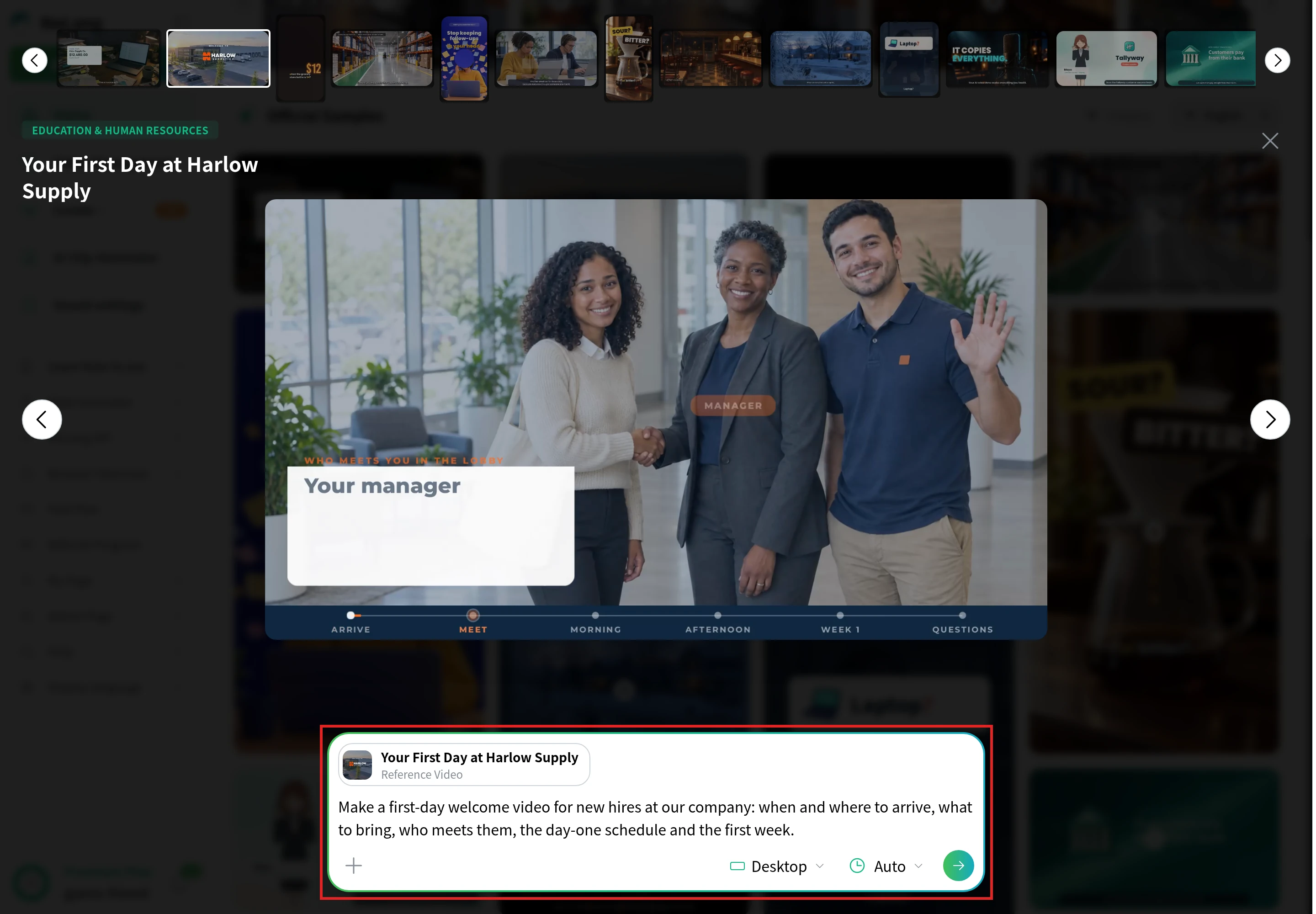
Both examples were made in NoLang from the scripts above and saved as templates. To make a version for your company:
Below the example you want to adapt, click Create a Video with This Template. The template’s preview opens, and the example is already in the input box as a Reference Video.
In Video Generation Instructions, describe your company and your new hires, and paste your own script.
Set the orientation (Desktop for a horizontal video) and the duration (Auto, or a length from 30 seconds to 5 minutes).
Click the green arrow (Generate a video).
Here the first-day template is open. The red box marks where you work: the template attached as the Reference Video, the instruction box with a sample instruction, and the orientation, duration and generate buttons along the bottom.
You can also start from the home screen. Create from a script takes a script you have written, and Create from files takes a PDF or PowerPoint (.pptx) file, such as the slides you already use on day one. If those slides are the starting point, how to convert PowerPoint to video compares the other ways to do it.
Keep onboarding videos up to date
An onboarding video that is wrong is worse than none, because new hires trust it. The owner and review date from step 6 are what keep it right. Check each video on its date, and sooner when one of these happens:
When this changes
Check
A policy, benefit or rule
Policies, benefits and safety videos
A tool, or how people sign in
Accounts and tools videos
The address, the start time or the day-one schedule
The first-day welcome
The person who owns a topic
The video’s owner line and the “who to ask” scene
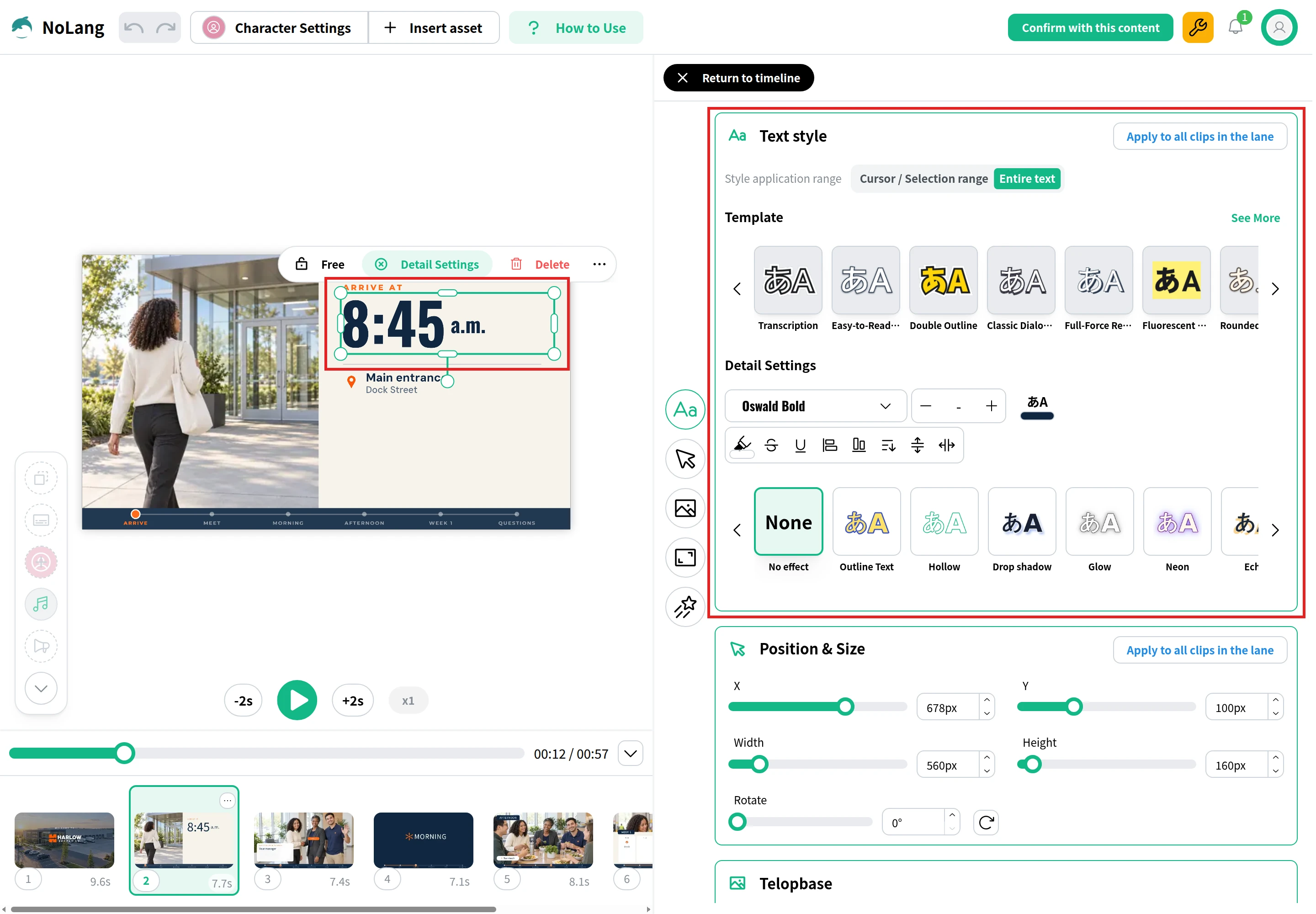
Most fixes are small: a new start time, a different entrance, a renamed tool. In NoLang, open the video in the editor instead of making it again. Choose the scene in the thumbnail row under the preview, then double-click the text to type over it. If the font or size should change too, click the text once and choose Detail Settings to open the Text style panel. In this example the narration says the time too, so change the line “Arrive at 8:45” in the editor’s Reading Script as well.
Here the arrival time “8:45 a.m.” is selected in the second scene of the first-day example. The red boxes mark the selected text and the Text style panel that opened from Detail Settings.
Start with the first-day welcome
Collect the questions your last few hires asked, group them by stage, and start with the first-day welcome: it is the video every new hire watches, and it is the easiest to check against the real day.
With NoLang, a team can turn onboarding scripts and slides into narrated videos, and edit them when a policy or a process changes. For onboarding and training across your company, see NoLang for training videos, contact us, or download the materials below.
Long enough to answer one group of questions. The two examples in this guide each answer one stage in about a minute: 57 seconds for the first-day welcome and 70 seconds for the safety orientation. If a draft runs well past two minutes, it is usually covering two topics, and two shorter videos are easier to find and update.
Q
How many onboarding videos do new employees need?
⌃
Start with three that every new hire needs regardless of role: a first-day welcome, a safety or security orientation, and accounts and tools. Add videos for benefits, policies, how your team works and role-specific tasks as you collect the questions new hires ask.
Q
What is the difference between an orientation video and an onboarding video?
⌃
An orientation video covers the first day or first week: where to go, paperwork, safety and tools. Onboarding videos cover the whole period from the week before the start date to the first months in the role, so an orientation video is one of them.
Q
Can I make onboarding videos without filming?
⌃
Yes. First-day logistics, policies and safety rules work well as narrated slides or animation, and an AI video tool such as NoLang can build those scenes from a script. Filming is worth it for a welcome from a leader or for hands-on tasks the viewer has to see done.
Q
Can I make onboarding videos in Spanish or other languages?
⌃
Yes. In NoLang, open Additional Settings & Attachments and pick the language under Video language. The list includes Spanish, along with English and many other languages, so you can make a Spanish version of the same script for staff who prefer it. To translate a video you already have, our guide to translating a video compares subtitles, voice-over and dubbing.
Q
Can I use the examples in this guide for my own company?
⌃
Yes. Each example has a Create a Video with This Template button. It opens the template in NoLang with the example as the Reference Video; write your company, your new hires and your own script into the instructions, then generate.