How to Make a SaaS Product Demo Video: 7 Steps, 2 Examples
Key takeaways
A SaaS product demo video shows your software solving one customer problem through one workflow, so the viewer can decide whether to try it or talk to sales.
SaaS companies use six kinds of marketing videos: explainers, product demos, feature launches, customer stories, onboarding videos and social ads, each in its own place in the funnel.
Plan the demo on a one-page brief before recording: who watches, their problem in their words, three to five screens with what each one means for them, proof and one call to action.
The 7 steps run from picking one viewer and writing the script to recording in a demo account with realistic data, editing out waits, adding captions and publishing a cut for each place.
This guide includes 2 example videos made in NoLang, a product demo and a feature launch video for a fictional help desk app, each shown with the document used as its input.
SHARE
Most software demo videos go wrong in the same way: they tour the product. The video opens on a dashboard, clicks through every menu it can find and ends on the logo. Viewers learn where the buttons are, but not whether the product would fix the problem that made them press play.
A demo works when it’s planned around one customer problem and the one workflow that solves it, and you can plan that on a single page before you record anything. This guide calls that page a demo brief: who’s watching, the problem in their own words, the screens that solve it, what each screen means for the viewer, and the one thing you want them to do next.
Below you’ll find the six kinds of SaaS marketing videos and where each one goes, how to write a demo brief, seven steps from the brief to a published demo, and two example videos made in NoLang from the documents shown next to them: a product demo for a fictional help desk app and a short feature launch video for social media.
What is a SaaS product demo video?
A SaaS product demo video shows your software doing a real job: the screens a customer would use, in the order they’d use them, until a problem is solved. It’s the video for people who already know roughly what you sell and now want to see whether it works the way they need.
That gives you a simple test. When the video ends, can the viewer decide whether to try the product or talk to sales? If they can, the demo did its job, however it was made. If all they learned is what the menus are called, it was a tour.
“Software demo video” and “app demo video” mean the same thing; “SaaS” just means the software is delivered online on a subscription. The table separates a product demo from the formats it’s most often confused with.
Product demo videos and nearby formats
Format
What the viewer can do afterwards
Scope of one video
Product demo
Decide whether the product fits their problem
One workflow, from problem to result
Explainer video
Understand what the product is and why it exists
One idea
Feature launch video
Notice what’s new and try it
One new feature
Tutorial video
Finish a task in the product on their own
One task
Onboarding video
Reach a first result after signing up
The first workflow after signup
If your viewer already has an account and needs to get a task done, you want a tutorial, and how to make how-to videos and tutorials covers it. If they haven’t yet heard of the problem your product solves, start with an explainer video. And if you sell a physical product rather than software, the product video guide covers the formats that fit it.
SaaS marketing videos: 6 types and where each one goes
Software companies use video at every stage, from a stranger’s first visit to a customer’s renewal. The stage decides what the video has to show and where it should live.
Six types of SaaS marketing videos
Type
Buyer stage
Where it lives
What it shows
Explainer
Awareness
Homepage, YouTube, paid social
The problem and the idea of the product
Product demo
Consideration
Homepage, product and pricing pages, sales emails
One workflow solving one problem
Feature launch
Retention and expansion
Social posts, changelog, in-app news, email
One new feature and where to try it
Customer story
Decision
Case study pages, sales decks
A customer describing the change in their own words
Onboarding
After signup
Welcome emails, in-app checklists, help center
The first workflow to a first result
Social ad
Awareness and retargeting
LinkedIn, Instagram, YouTube ads
One problem and one benefit, in seconds
A customer story is the one type you can’t make without the customer: its value is a real person saying it on the record, so it’s filmed or recorded with them. The other five can be built from your product screens and your own scripts.
If you’re choosing your first video, start from the question you answer most often. When prospects keep asking “Can it do this?”, that’s a product demo. When customers keep missing a feature you’ve already shipped, that’s a launch video. To plan videos for every stage of the funnel, see the video marketing strategy guide, and for videos used inside a sales deal, see these sales video examples.
Before you record: write a one-page demo brief
A demo brief is a one-page plan for one demo video. Write it before you open a screen recorder, and ask your sales and support teams to read it: they hear the problem in the customer’s words every day. The examples in the table come from the demo brief for Replyroom, a fictional shared inbox for small support teams, which was used to make the example video further down this page.
What goes in a demo brief
Field
What to write
Example
Who watches
Role, company size and what they already know
Support leads at 5- to 20-person companies sharing one support@ address
Where they see it
The page or message the video sits in
The homepage, and the email after a sales call
Their problem
The problem as customers say it on calls
“Two of us answered the same customer, and another email sat for three days”
The one job
The single job the demo proves the product does
Every email to support@ gets one owner and one answer
Before and after
What changes for the viewer
Unread emails and double replies become tickets with an owner and a status
Screens
Three to five, each with Show and So what
Show: a rule sends billing emails to Maya. So what: nobody sorts the inbox
Proof
A fact the viewer can check
Setup is three steps: connect the address, invite teammates, add one rule
Call to action
One next step
Start a free 14-day trial
Length and format
Length, aspect ratio, sound
About 60–90 seconds, 16:9, narrated, captions on
The field that does the most work is So what. Every screen needs one sentence that says what the screen means for the viewer, not what the button does. “A rule assigns billing emails to Maya” describes a feature; “nobody has to sort the inbox” is the reason to care. A screen with nothing to write under So what can usually be cut.
For Proof, use facts you can stand behind: the number of setup steps, the tools the product connects to, or results that a customer has agreed to let you share.
How to make a software demo video in 7 steps
1. Pick one viewer, one problem and one next step
Weak demos try to show everything to everyone. Decide who is watching (“support leads”, not “teams”), the problem they came with and the action you want at the end. Those three choices tell you which workflow to show and which features to leave out, including good ones.
If several roles buy your product, make one demo per role instead of one demo that switches between them. Each will be shorter and easier to follow.
2. Write the brief, then the script
Fill in the demo brief first, then write the script in this order:
The problem, in the first few seconds and in the customer’s words. Leave out the logo animation and the company history.
The workflow, one screen at a time, each with what happens and its So what.
The result: the screen that shows the problem solved.
The call to action as a specific step. “Start a free 14-day trial” tells the viewer what happens next; “Learn more” doesn’t.
Read the script aloud with a timer. If it runs long, cut a screen rather than speeding up the narration.
3. Set up a demo account with realistic data
Record in a dedicated demo account, not your own workspace. Fill it with test data that looks like a real customer’s: believable names, a realistic number of records and a few items in every list. Empty dashboards and “Test Test” entries make a product look unfinished, and real customer data doesn’t belong in a public video.
Then set the account to the state your viewer is in when the demo starts. If the script opens on a messy inbox, the account should show a messy inbox.
4. Record one screen at a time
Clean up the screen: close other tabs, hide the bookmarks bar and extension icons, turn on do-not-disturb so no notifications pop up, and make sure nothing personal is visible.
Make it readable on a phone: record at the aspect ratio you’ll publish in, and raise the browser zoom until labels stay legible when the video is shrunk to phone size.
Move the pointer only to act: let it rest while the screen is being explained, move it straight to what you’re about to click, and wait for the screen to change before the next action.
Record each screen as its own clip: a mistake costs one clip instead of the whole take, and when the interface changes later you re-record only the screens that changed.
Record the voice separately: narration recorded after the screen can be rewritten and re-recorded without touching the footage.
5. Edit for the workflow, not for effects
Cut every wait: loading spinners, typing, scrolling to find something. Zoom in where the action happens, but once or twice per screen at most, because constant zooming makes it hard to tell where you are. Write on-screen labels as the So what rather than the click: “Nobody has to sort the inbox”, not “Click Save rule”.
6. Add narration, captions and an end card
Narrate the action and its meaning in the same sentence: “Maya opens the ticket, sees that Alex is already replying, and moves on.” Add captions, because demos often play muted on landing pages and in social feeds. End on a card that repeats the call to action next to the link or button the viewer needs.
7. Publish where the decision happens, then measure
Put the demo where the viewer is deciding: next to the signup button, on the pricing page, in the email after a sales call. Each place needs its own cut of the same demo, and the brief tells you what to keep:
Cutting one demo for different places
Where it plays
Aim for
What to keep
Homepage or product page
About a minute
Problem, the core workflow, result, CTA
Email after a sales call
Two to three minutes
The workflow for that buyer’s role and the questions from the call
Social feed or ad
Under 30 seconds
One problem, the screen that solves it, CTA
In-app news or changelog
Under 30 seconds
What changed, one screen, where to try it
Measure each cut by the action it asks for: trial signups or demo requests from the page, replies to the sales email, clicks from the post. If most viewers drop off before the workflow starts, shorten the opening.
When the product changes, update the brief first, then re-record only the screens whose rows changed.
Ways to produce a SaaS demo video
The seven steps are the same whoever does the work. What changes is who records, who edits and how easily you can make the next version.
Four ways to produce a demo video
Route
Best when
What you provide
Record and edit in-house
The interface is stable and someone on the team can edit
Demo account, screen recordings, voice-over
Interactive demo tool
Prospects should click through the product at their own pace
Captured screens and short step labels
AI video tool
You need versions per role, language or release
The brief, a script, screenshots or recordings
Production agency
A flagship homepage video needs custom animation or live action
The brief, access to the product, review time
The routes can be combined: a produced explainer on the homepage, demos and launch videos made in-house or with an AI tool, and a click-through demo for prospects who want to explore on their own.
Example: a SaaS demo video made from a demo brief
This 69-second demo was made in NoLang from the Replyroom demo brief. Open the brief under the video to compare the two.
Here is where each field of the brief appears in the video:
Where each demo brief field appears in the Replyroom demo
Demo brief field
In the video
Their problem
Opens on two agents with two replies to the same order, then an email marked “3 days ago” with no owner
The one job
“Every email to your support address gets one owner, and one answer”
Screen 1
An empty inbox fills with tickets: “Nothing to forward. Nothing to copy.”
Screen 2
A rule for billing emails is saved, and the next billing email arrives already assigned to Maya
Screen 3
A yellow “Alex is replying” bar on the ticket Maya opens
Screen 4
The saved refund reply fills the message, Maya sends it, and the ticket shows Closed
Final screen
“0 unassigned” over the inbox
Proof
“Set up in three steps”: connect your address, invite teammates, add one rule
Call to action
An end card with the button “Start your free 14-day trial”
The So what lines from the brief became on-screen labels: “Nobody has to sort the inbox” after the rule, “No more double replies” after the reply warning, “Nothing waits without an owner” once the inbox reads “0 unassigned”. The narration says each one too, so the point of every screen comes across with or without sound.
Example: a feature launch video for social media
A launch video has a narrower job than a demo: get people who already know the product to notice one new feature and try it. Its brief is a release note with a hook, what changed, three things to show and where to try it. This is the release note for Replyroom’s Follow-up reminders, and the vertical video made from it in NoLang.
The video runs 25 seconds. Here is where each field of the release note appears:
Where each release note field appears in the launch video
Release note field
In the video
Hook
“Waiting on a customer reply?” over a support agent surrounded by sticky notes, then “Stop keeping follow-ups in your head.”
New feature
A bell with a “NEW” tag and “Follow-up reminders”, then “New in Replyroom”
Show 1
“Step 1: Set it.” Click “Remind me” and choose “In 3 days”
Show 2
“Step 2: Forget it.” The ticket moves to the Waiting view
Show 3
“3 days later” and “Still no reply?”, then “Step 3: It comes back.” The ticket is back at the top of the inbox with a Follow up tag, assigned to you
Available
“On every Replyroom plan” and “Starting today”
Call to action
“Open any ticket and click Remind me” over the button itself
The three things to show became three short beats, “Set it. Forget it. It comes back.”, and each beat is written on screen in large type, so the whole feature reads with the sound off in a social feed. The video ends on the exact button to click rather than a general “learn more”.
SaaS video examples from software companies
Three short videos from software companies’ own channels, one per type, and one thing each does that you can borrow.
Zendesk: a product demo that ends on the result
Source: Zendesk official channel
Zendesk Demo: The Basics is a 1 minute 48 second demo. It sets real product screens on plain colored backgrounds and follows customer conversations through the product: new channels such as phone and messaging arriving in one place, the context an agent sees, routing tickets to the right agents, and built-in analytics.
What to borrow: from about 1:23, the video turns a trending question into a self-service article that AI-powered bots then use to answer the next customer immediately, and it closes on a satisfaction survey. It ends on what the customer gets, not on a feature. For anything deeper, it points viewers to “the rest of our demo series” instead of making this video longer.
Canva: a feature launch in 15 seconds
Source: Canva official channel
Bye bye background is a 15-second launch video for the Background Remover in Canva’s video editor. It cuts from the team to the editor, a cursor clicks “Background Remover”, and the office behind a dancing man becomes a purple 3D scene.
What to borrow: the feature is shown as one click between a before and an after, the spoken line appears as text in the video so it works with the sound off, and the last frame says where to try it (“Start designing today”, canva.com).
Slack: an onboarding tour with chapters
Source: Slack official channel
How to use Slack: Your quick start guide is a 45-second tour for new users. It uses simplified screens and illustrations to cover channels, files and reactions, clips, huddles and where to find help, and ends by inviting viewers to dive right in.
What to borrow: the first line names the viewer (“Since you’re new to Slack…”), so the right people know within two seconds that it’s for them. The description lists a chapter for each feature, so a viewer can jump straight to the one they need.
How to make a SaaS demo video with NoLang
NoLang turns text and files into a narrated video with captions. For a SaaS demo, pick the starting point that matches what you already have.
A demo brief or a pitch deck: save the brief as a PDF, or use a PowerPoint deck you already have, attach it in the input box and add a one-line request. To start from one of the examples above instead, click “Create a Video with This Template” under it and describe your own product in place of Replyroom.
Screenshots of your product: click “Generate” in the sidebar, or “See more” on the home screen, to open “How will you create it?”. Choose “From image”, upload your screenshots, pick “Use the image as is” to put one screenshot in each scene in order, and click “Create using this method”. Then add your script in the input box.
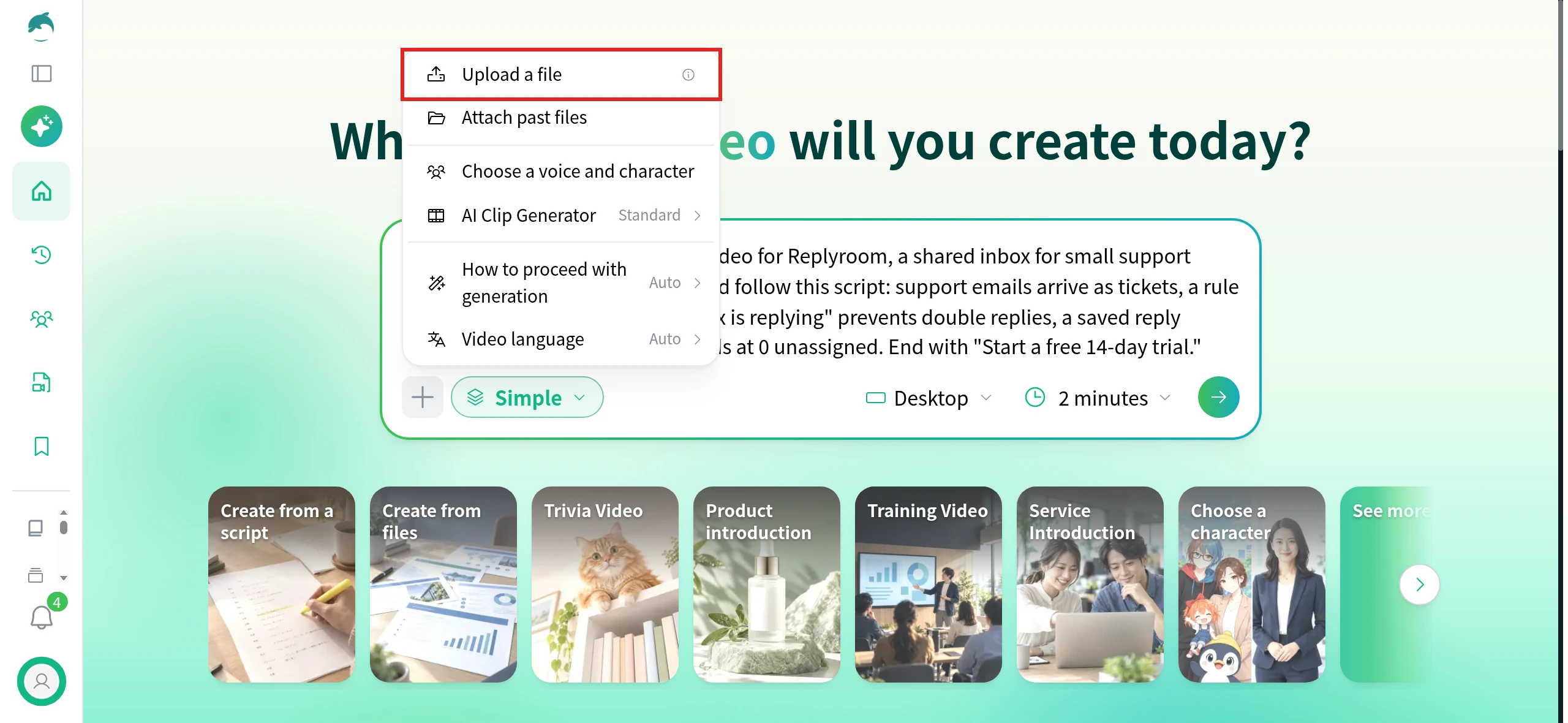
Screen recordings: type or paste your script into the input box, click “+” and choose “Upload a file”.
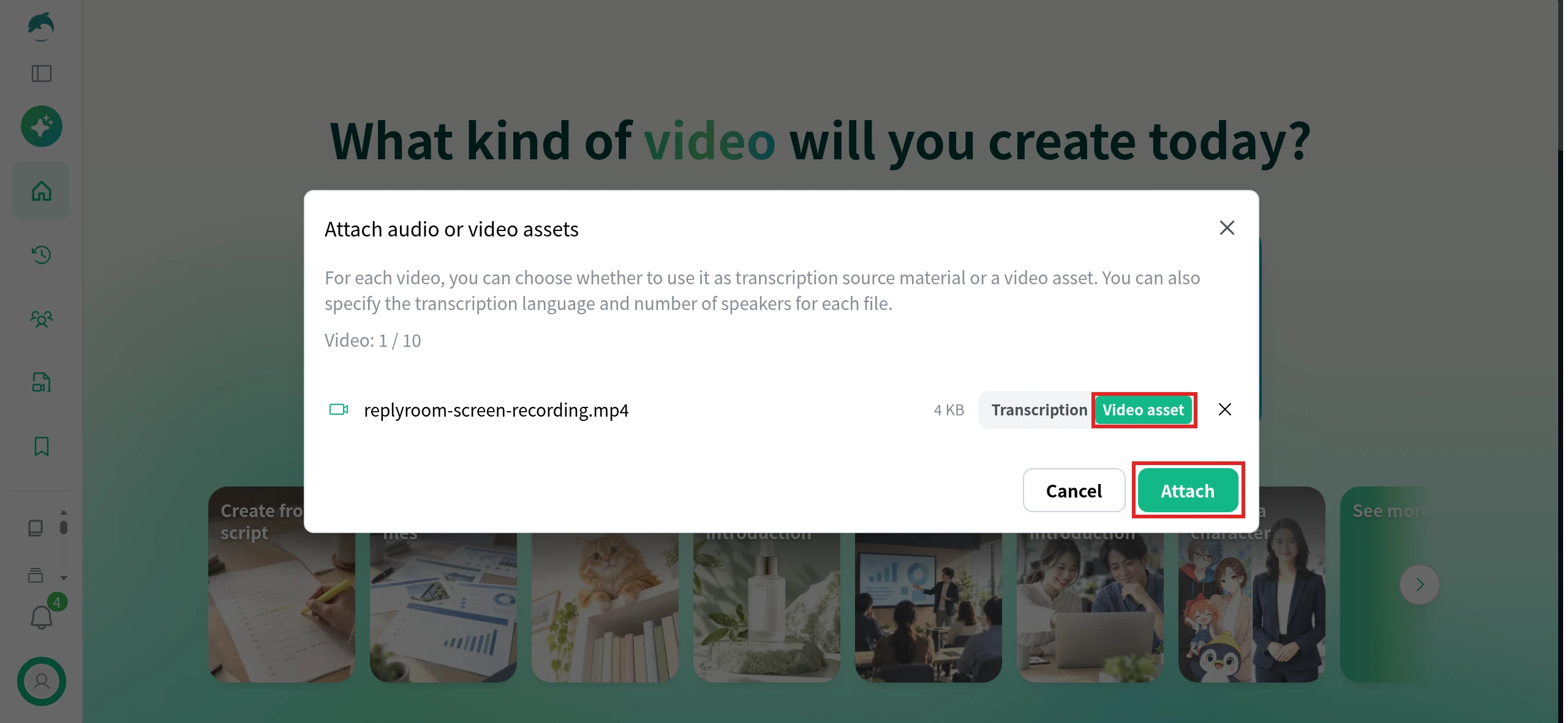
Select your recordings. In the “Attach audio or video assets” window, switch each file from “Transcription” to “Video asset”, then click “Attach”.
Once the video is generated, click “Edit” to change the script, subtitles or visuals of any scene, then click “Confirm with this content” and “Confirm and Regenerate” to update the video. The same demo can then be cut for other places and markets: on the video’s page, “Other” > “Change aspect ratio” makes a vertical version for social feeds, and “Other” > “Convert language” makes a version in another language. Each conversion is saved as a new video, and the original stays as it is.
SaaS teams can use NoLang to turn product documents, release notes and screen recordings into demo, launch and onboarding videos, and to make language versions of the same video. To see how it would work for your team, download the brochure or contact us.
For a homepage or product page, about a minute is usually enough to show one workflow from problem to result; the Replyroom demo in this guide runs 69 seconds, and its launch video for social media runs 25 seconds. Let the workflow set the length rather than a target: if the video keeps growing, you're probably showing a second workflow or a second role, which belongs in a second video. Shorter and longer cuts for other places are covered in step 7.
Q
Should a demo use real product screens or animation?
⌃
Use real screens when the viewer is checking whether the product does what they need, because the interface itself is the evidence. Simplified or animated UI suits explainers and ads, where the idea matters more than the details. If you do simplify the interface, keep the steps and labels the same as the real product so the demo still matches what people see after they sign up.
Q
What do I need to record a software demo?
⌃
A screen recorder, a demo account filled with realistic test data, and a script written from the demo brief. A good microphone helps if you record your own voice, but narration can also be generated after recording, which makes it easier to rewrite a line without re-recording the screen.
Q
Can NoLang record my screen?
⌃
No. Record your screen with a screen recorder first, then attach the recordings as video assets as shown above. You can attach up to 10 video files in MP4, MOV or WebM format, each up to 1 GB. A PDF or PowerPoint file can't be attached together with audio or video files, so when you use recordings, type or paste the script into the input box instead of attaching the brief.
Q
Can I turn a recorded sales demo or webinar into a shorter video?
⌃
Yes. Click "Generate" in the sidebar, or "See more" on the home screen, to open "How will you create it?", then choose "From video", upload the recording and pick a method such as "Create a highlight clip" or "Summarize into a key-point digest". Leave the file on "Transcription" when you want NoLang to work from what was said in the recording.
Q
Can I make the same demo video in other languages?
⌃
Yes. Before generating, you can choose one of 34 video languages. Converting a finished video into another language is available on paid plans and uses credits, and only languages supported by the video's current voice can be selected; choosing a different voice in the editor opens up other languages.
Q
Can I use NoLang videos commercially, on my website and in ads?
⌃
Yes. NoLang's terms let you reuse generated videos freely, including for commercial purposes, so a demo can go on your homepage, into sales emails or into paid social. You remain responsible for making sure that what you put into a video, such as screenshots, logos or recordings, doesn't infringe anyone else's rights, and NoLang may ask you to stop a particular use, in which case you're expected to comply promptly.
SHARE
Your Training and Internal Video Creation Challenges, Solved.