
2026/11/05 The Create Character page has been renewed!
Last updated
The features and pricing described below are accurate as of the article’s publication date.
1. The renewed Create Character page
Open Create Character in the sidebar to see examples of the characters you can create, listed by format.
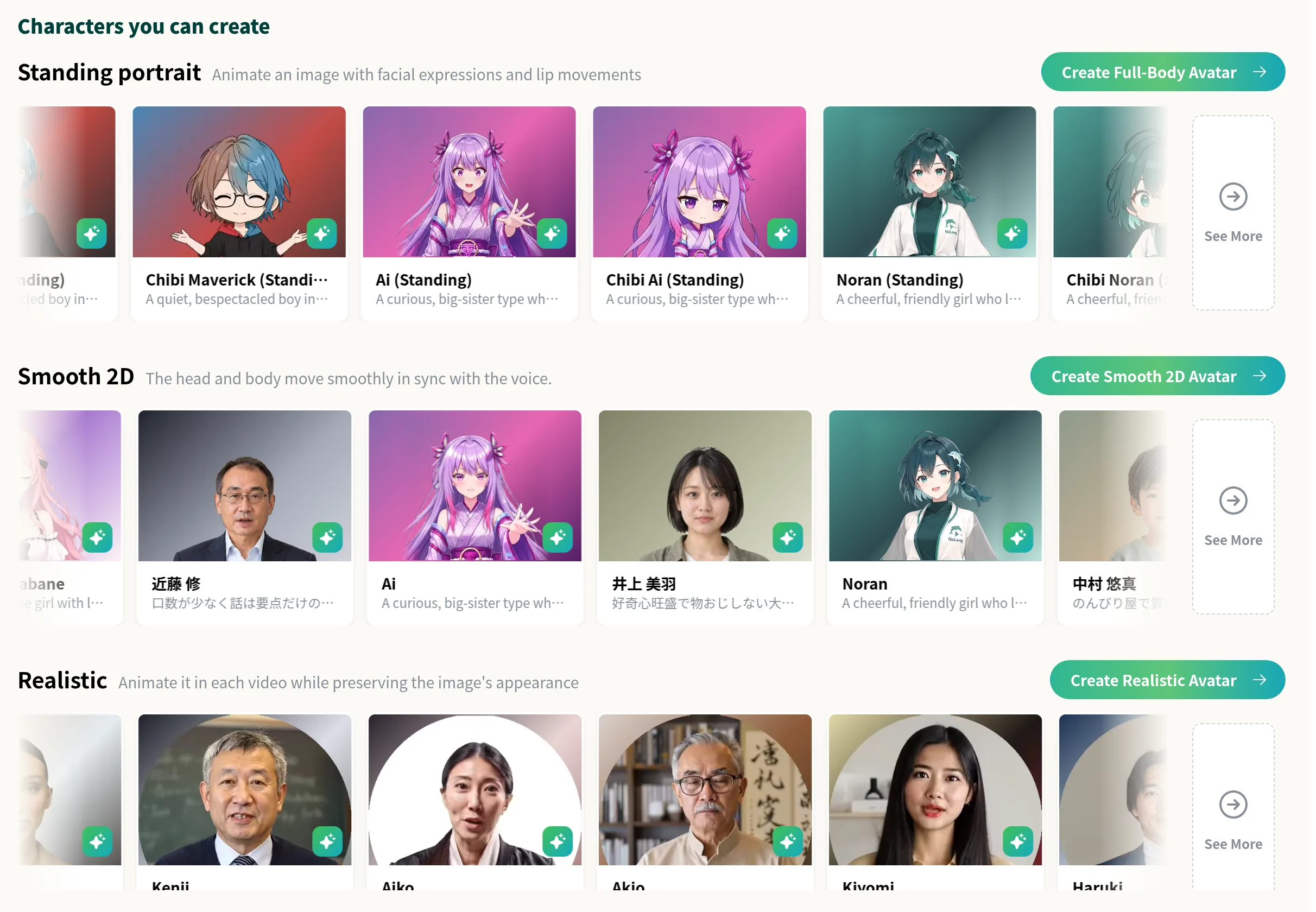
This update brings the following changes.
- A new avatar format, Smooth 2D: From a single image, you can create an avatar whose head and body move smoothly in sync with the voice.
- 30 new templates: We added 22 Smooth 2D and 8 Standing portrait characters that you can use in videos right away, without creating your own.
- A renewed character creation screen: Set things up in the Basic Information, Avatar, and Voice tabs while checking the result in the Setup status panel on the right.
2. A new avatar format: Smooth 2D
Smooth 2D turns a single image, whether a photo of a person or an illustrated character, into an avatar. When creating an avatar, you choose from three formats: Standing portrait, Smooth 2D, and Realistic.
How the avatar moves and when credits are charged depend on the format.
- Standing portrait: Animates an image with facial expressions and lip movements. Creating one costs 1000 credits, with no extra charge when generating videos.
- Smooth 2D: The head and body move smoothly in sync with the voice. Creating one costs 1000 credits, with no extra charge when generating videos.
- Realistic: Animates in each video while preserving the image’s appearance. Creating one is free, and animating it costs 1000 credits per minute the avatar appears on screen.
3. How to create a Smooth 2D avatar
- Choose a format and start creatingOn the Create Character page, press Create Smooth 2D Avatar to open the format screen. Make sure Smooth 2D is selected, press Create in This Format, check how many credits will be used, and press Start creating.

- Add and confirm an imageAdd an image showing only one person or character. It can be a photo or an illustration. Check the image requirements and press Confirm this image to generate avatar image options based on it.

- Choose an avatar imageWhen the options are ready, choose one from the original image and the options, then press Continue to style creation.

- Set the styles and generatePress + and choose an option such as As is or Remove Background to add styles, such as full body or upper body and the background. You can make up to 8 styles and use different ones for different videos. When you're ready, press Generate avatar.

You can set other items while the avatar is generating. Creation continues even if you close the page.
4. 30 new templates
We’ve added more characters that are ready to use. Press Character List at the top right of the page and open Template to filter them by format.
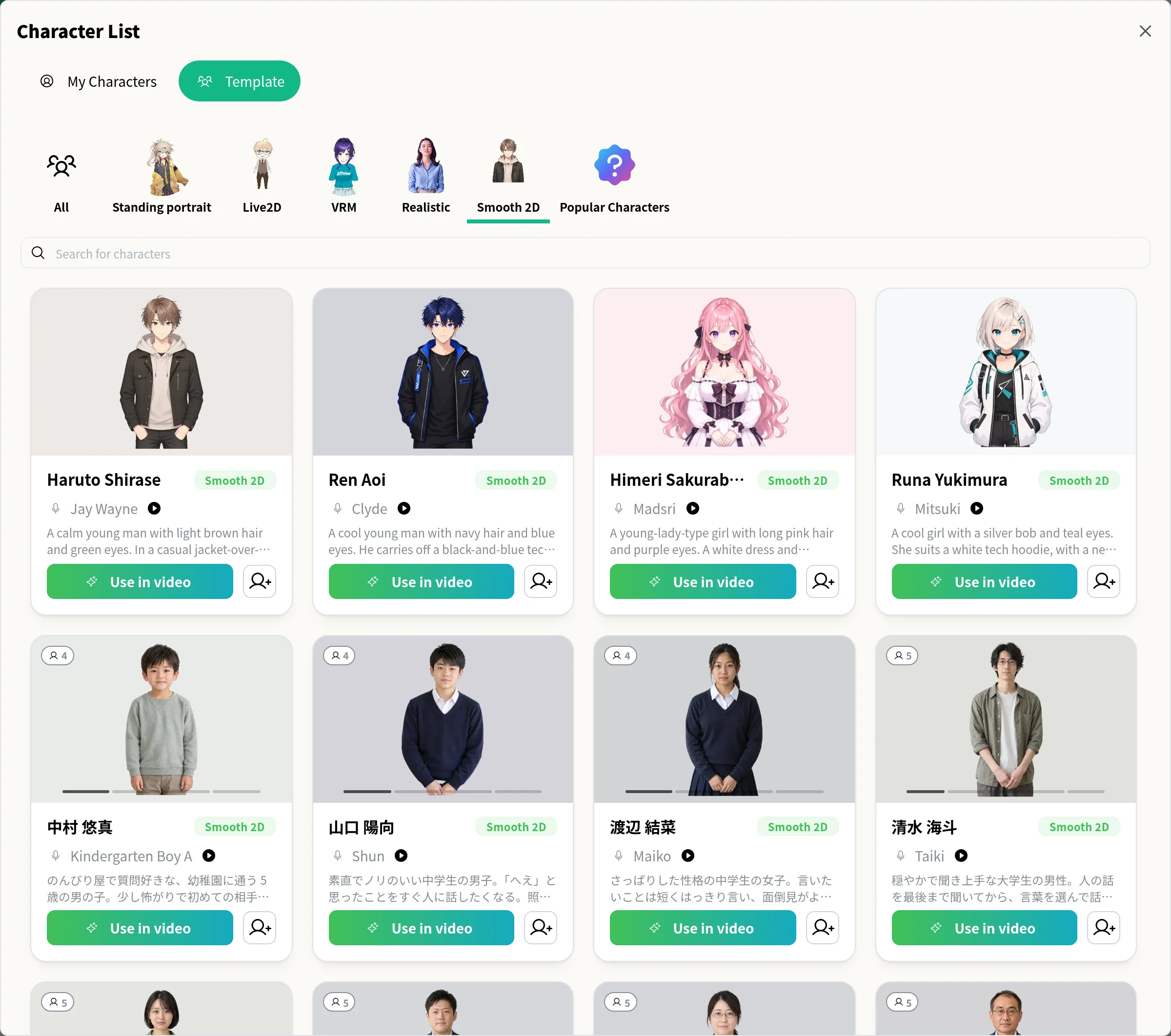
- 22 Smooth 2D characters: These include people of a wide range of ages, from children to seniors.
- 8 Standing portrait characters: Ai, Noran, Kakudai, Maverick, and their chibi versions are available in both Smooth 2D and Standing portrait.
- Use in video: Press this button on a card to start making a video with that character already cast.
The number at the top left of a card is how many styles the character has. Move your mouse left and right over the character to switch to other styles.
5. A renewed character creation screen
In the Character List, go to My Characters and press Add character to open the renewed Create character screen.
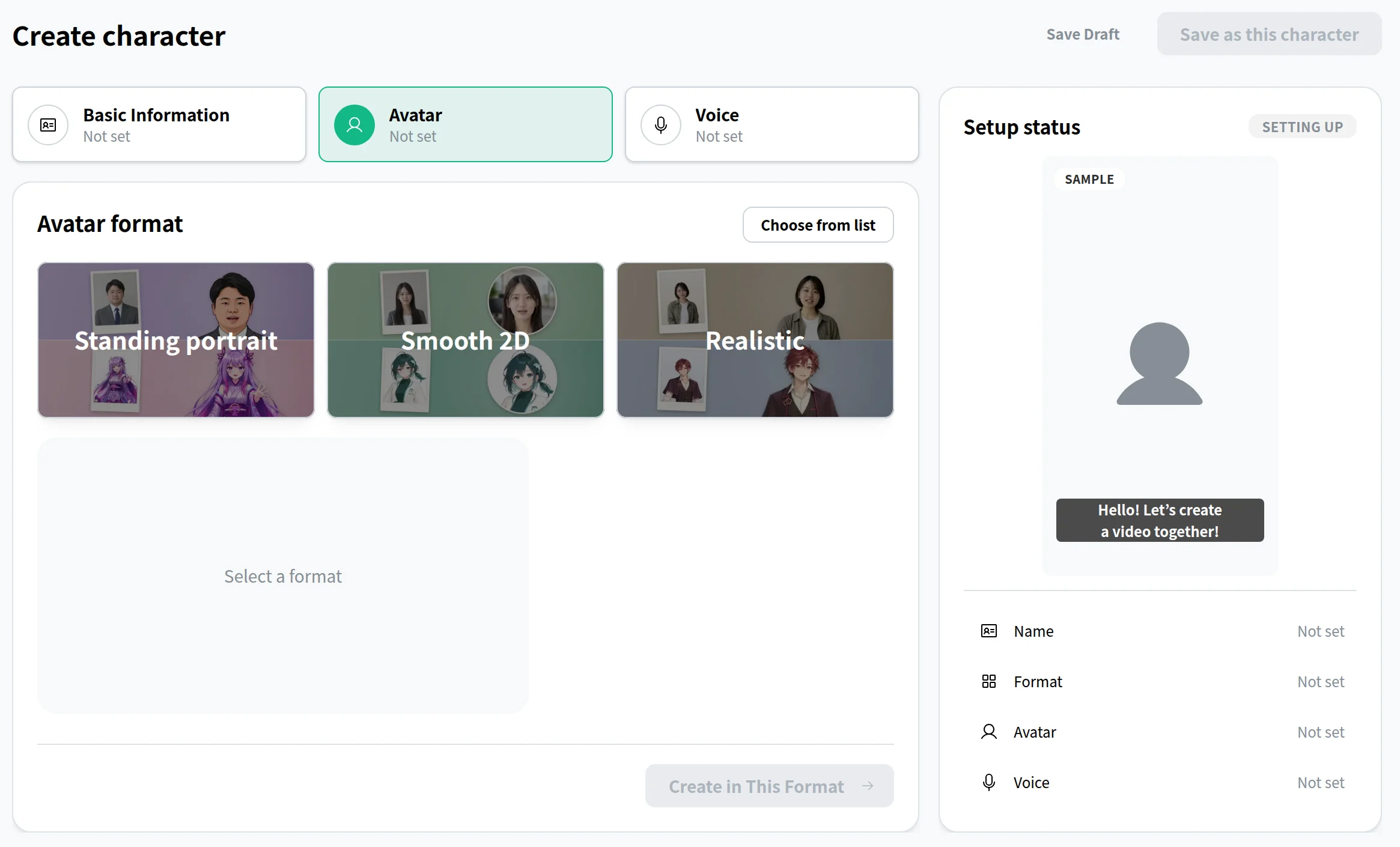
- Three tabs for setup: Set Basic Information, Avatar, and Voice in any order. Completed tabs get a check mark.
- Descriptions from a few choices: Choose a role and speaking style in Basic Information to have the character description written for you. You can also edit it freely.
- Check progress in Setup status: The panel on the right shows a sample of the result and your settings. On a smartphone, tap the bar below the tabs to open it.
- Pick one instead of creating one: Use Choose from list under Avatar format to select an avatar.
- Leave at any time: Your input is saved automatically as a draft. Characters in progress appear in My Characters marked Editing.
- Go straight to a video: Once your saved character is ready, Create your first video opens. Enter what you want to make and send it to create a video featuring that character.
6. Notes on use
We will keep improving the Create Character page, so what you see may differ from the screens in this article.